- AI Fire
- Posts
- 🌐 How to Create Dynamic, Interactive Websites with NotebookLM (Not Static Pages Anymore)
🌐 How to Create Dynamic, Interactive Websites with NotebookLM (Not Static Pages Anymore)
Most websites are static. Use Gemini Canvas & NotebookLM to generate clickable layouts from your research files. Simple, fast, and professional. Try this AI hack.

Neil Phan
April 01, 2026
TL;DR
Building a professional website in 2026 no longer requires months of development or complex drag-and-drop builders. By connecting NotebookLM to Gemini Canvas, you can transform messy notes, PDFs, and documents into a fully functional, interactive webpage in under 60 seconds. Using the Gemini Pro model, the AI handles the HTML/CSS coding, modern design animations, and mobile responsiveness automatically, allowing small business owners to own their digital assets without paying for expensive maintenance or specialized technical skills.
Key points
Instant Conversion: Move from static PDFs and messy notes to interactive web experiences with clickable buttons and scroll animations.
Source Grounding: NotebookLM acts as the "brain," ensuring the website content is strictly based on your provided facts and data.
Natural Language Edits: Modify design elements, add "Dark Mode," or change layouts by simply describing the desired changes in plain English.
Critical insight
In 2026, a website is no longer a static brochure but a dynamic experience built from your personal data in the time it takes to brew a cup of coffee.
Table of Contents
Introduction
Do you remember hiring someone to build your website, full of excitement, thinking it'd be done in weeks?
Then 2 months passed, revisions went back and forth, and the moment it was finally live, they charged you again just to change one line of text.
Millions of small business owners and freelancers are stuck in this trap. But with Gemini Canvas, you can build a website without coding in under 60 seconds, using notes you already have.
Just connect NotebookLM, describe what you want, and watch your site appear before your coffee gets cold. After this guide, I promise these are what you can do:
You share clickable AI prompt libraries with your audience instead of plain text.
You turn messy research documents into professional, shareable client reports in 30 seconds.
You build interactive landing pages with quizzes to sell digital products faster.
You automate web design using existing Google Docs instead of manual builders.
You replicate website layouts by uploading screen recordings of designs you like.
What’s your biggest struggle with building websites? 😫 |
I. How to Prepare Your Data Before Using Gemini Canvas?
Proper data preparation using NotebookLM is essential to give your website a factual "brain" and prevent the AI from making up information. By uploading PDFs, Google Docs, or text files into a notebook, you create a "grounded" environment that the AI uses as its primary source. This ensures that your pricing, mission statement, and product details remain 100% accurate and on-brand during the building process.
Key takeaways
Grounding: NotebookLM acts as a "bucket" for all relevant info, from product manuals to YouTube video links.
Fact Check: Gemini Canvas will only be as good as its sources; outdated docs will result in an outdated website.
Organization: For the best results, provide four key docs: "Who We Are," "Product List," "Brand Guide," and "FAQs."
Benefit: Grounding prevents AI "hallucinations," ensuring the website strictly follows your provided data.
You can't just expect Gemini Canvas to know everything about your business or your hobby. You have to give it the right information first.
1. Setting Up Your Notebook
The first step is to go to NotebookLM. Think of this as a big bucket where you throw everything you know about a topic. You can upload:
PDFs of your product manuals.
Google Docs with your brand's mission.
Text files with your pricing.
Even links to YouTube videos.
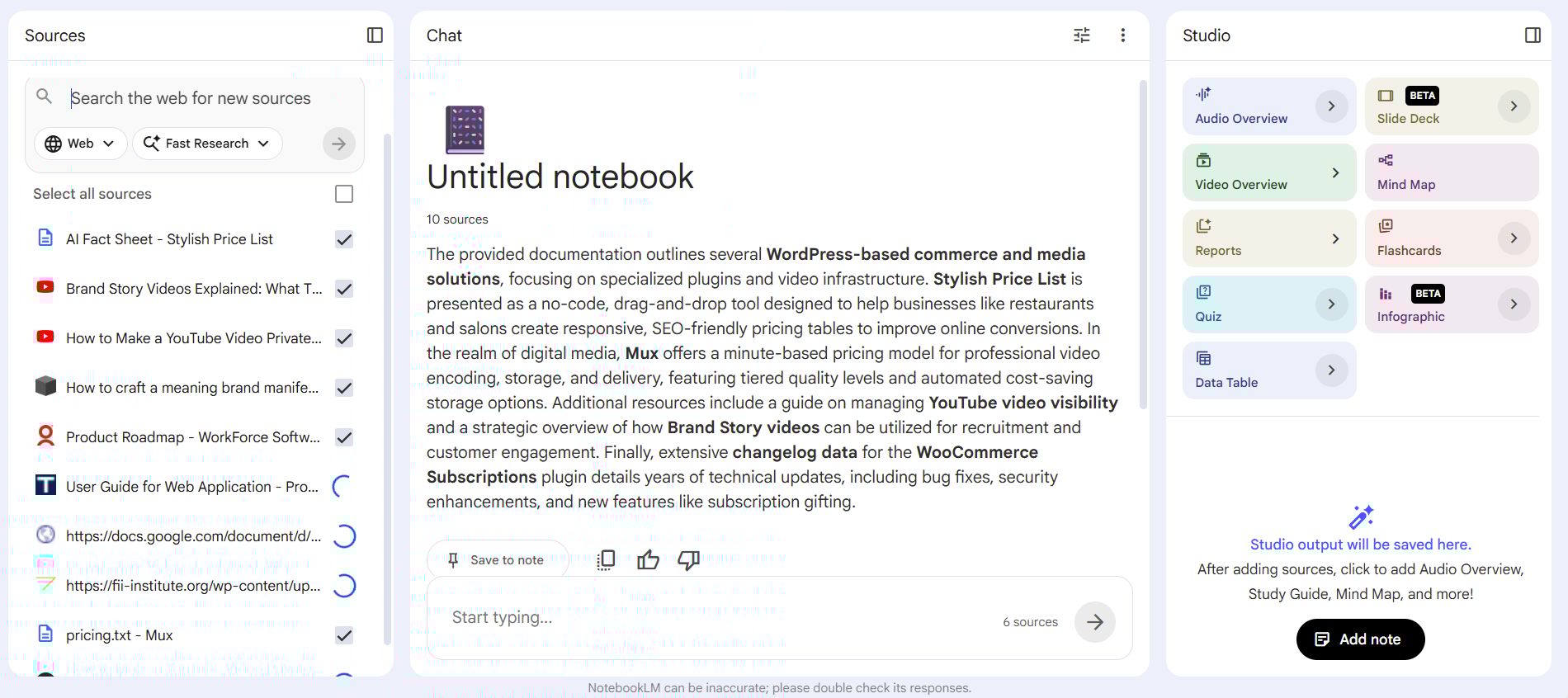
The goal here isn't perfection. It's completeness. The more context you give NotebookLM, the more accurately Gemini Canvas can understand what your website is actually supposed to say.
2. The Quality of Your Sources
If you put junk into my notebook, you get a junk website. If your pricing doc is old, Gemini Canvas will put the old prices on the site.
So, take 5 minutes to make sure your documents are updated. I call this "grounding" the AI. You're giving it a solid ground to stand on so it doesn't make things up.
If you're building a website for a company, try to have 4 main documents:
A "Who We Are" doc: This helps the AI understand the tone.
A "Product List" doc: This gives the AI the facts it needs to sell.
A "Brand Guide" doc: Tell it what colors you like (use hex codes like #FFFFFF if you know them).
A "Customer FAQs" doc: This is great for building an interactive help section.
II. Connecting Your NotebookLM to Gemini Canvas
Once your notebook is ready, you need to bring that "brain" over to Google Gemini. This is a step that confuses many people, but it's actually very simple once you see where the button is.
1. Opening the Connection
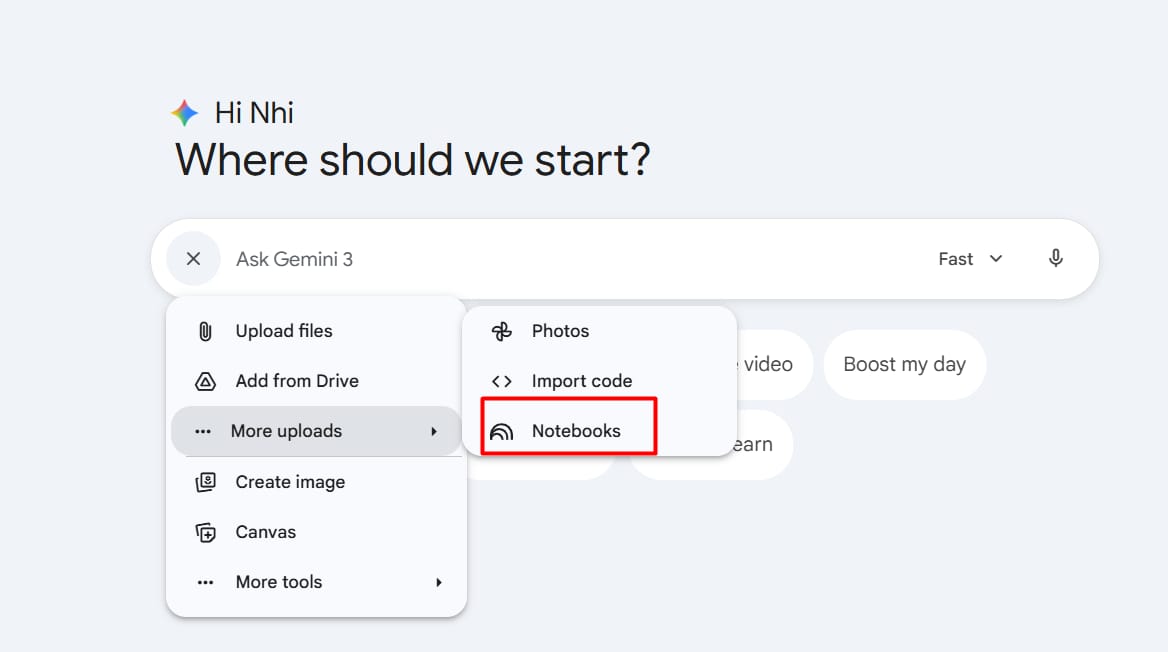
First, go to the main Google Gemini chat. Look at the bottom where you type your message. You'll see a small plus ( + ) icon. When you click that, a menu pops up. One of those options is "NotebookLM."
2. Picking Your Brain
When you click that option, you'll see a list of every notebook you've ever made. Pick the one you just filled with info.
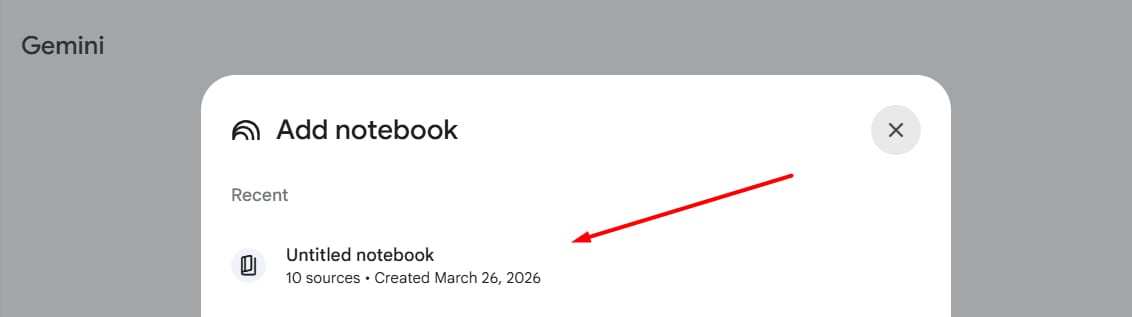
This tells Gemini, "Hey, only use the facts inside this specific notebook to answer me." This is why Gemini Canvas is so powerful, it doesn't just guess; it uses your specific data.
3. Turning On the "Tools"
In the chat settings or the tool menu (usually a little icon near the model name), you must make sure "Canvas" is turned on.
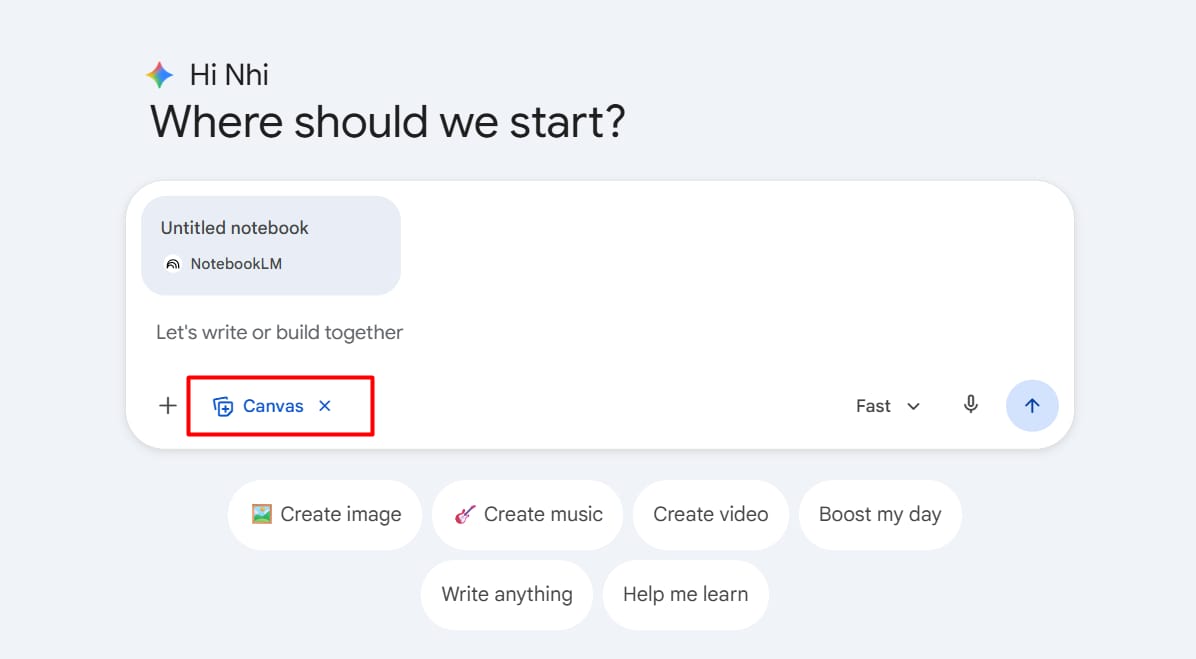
If it's not on, Gemini will just give you a long text response. With Canvas on, it opens a whole new window on the right side of your screen. That window is where the magic happens.
III. Choosing the Best Model for Gemini Canvas
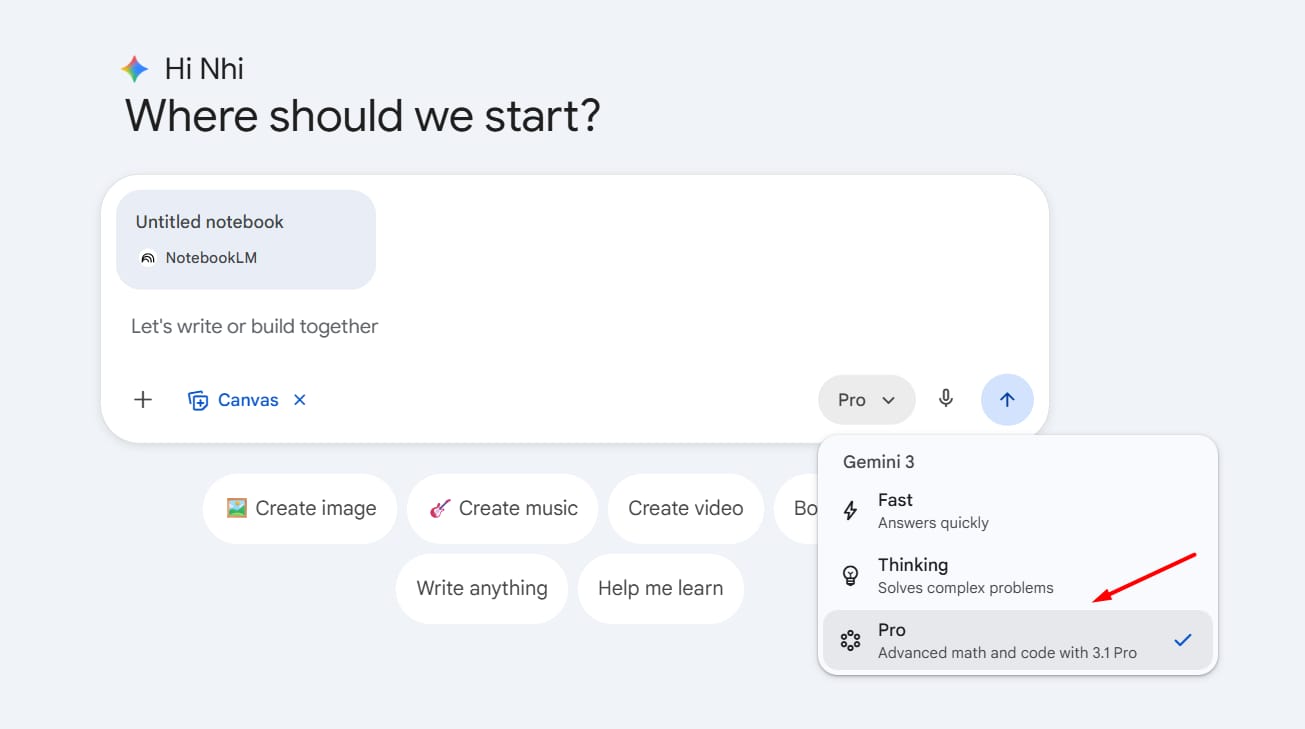
I've tested all the models, they're not all the same. When you're using Gemini Canvas, you usually have 3 choices on the top right: Fast, Thinking, and Pro.
1. Why Pro Is the Only Real Choice
Pro model is much better at design. If you use the Fast model, the website looks like something from 1995. It's just plain text and maybe a blue link. But the Pro model understands modern design. It adds:
Smooth animations when you scroll.
Hover effects (where buttons change color when your mouse is over them).
Better layouts that look good on phones.
2. The "Thinking" Model for Complex Logic
If you want your website to have a complex calculator or a very smart quiz, the Thinking model is great. It spends more time coding the logic.
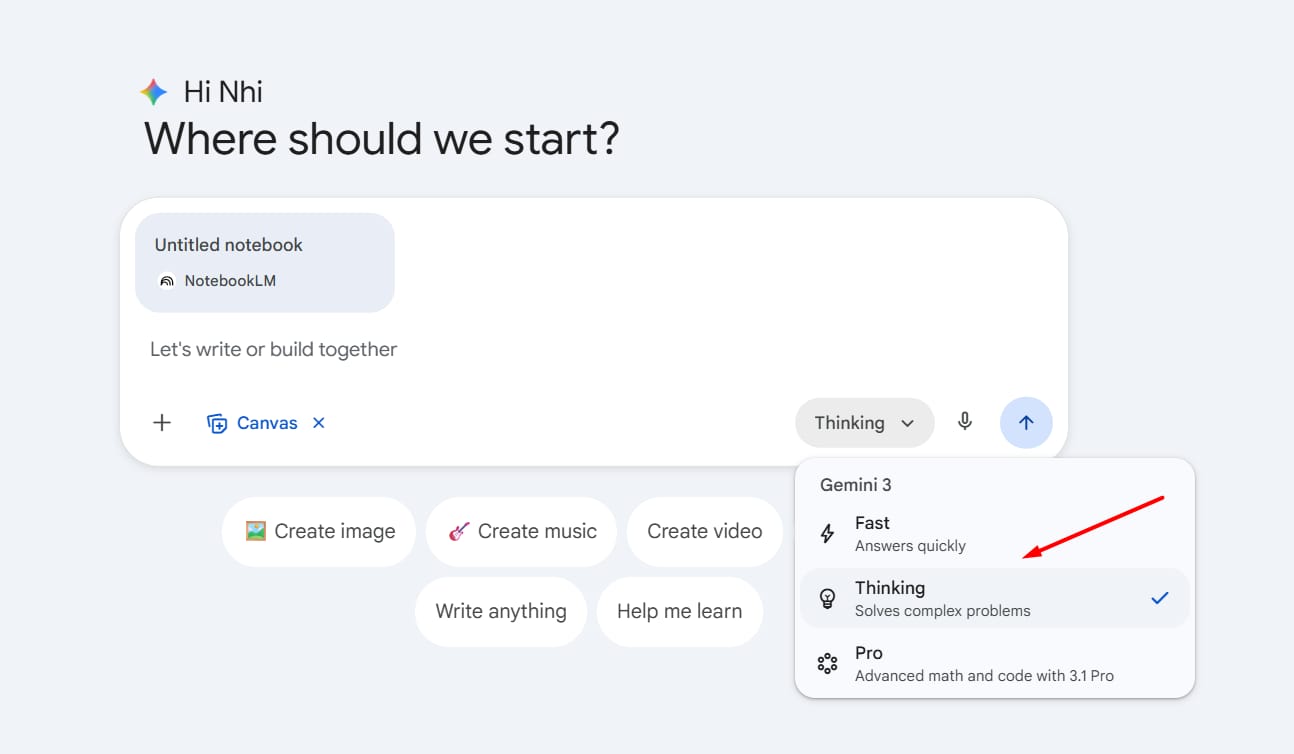
However, for most of us just wanting a beautiful site, Pro is the winner.
3. Note: Understanding Your Limits
If you're on the free version of Gemini, you might not have unlimited access to the Pro model. We use the paid version because we build a lot of these sites, and it's worth it.
If you hit your limit, the AI might switch you back to the "Fast" model. If that happens, let’s wait until the next day to finish your design so you don't lose that high-quality look in Gemini Canvas.
IV. Save This Powerful Prompt for Gemini Canvas
This is where things get really interesting. Writing a good prompt for Gemini Canvas isn't about using fancy language or technical terms. It's about knowing which words trigger the right behavior from the AI.
1. The Interactive Magic Word
If you just say "Make a website," the AI might give you a single page of text. But if you say "Make an interactive website," something changes.
It starts adding things you can click. It adds navigation bars that stay at the top of the screen. It makes the site feel like a real app.
2. Defining Your Goal
Most people describe the content they want and stop there. But the AI responds much better when you give it a purpose.
Think about it this way: a website built to sell something looks very different from a website built to teach something, even if both have the same information on them.
So instead of saying "Put my product info on the site," try something like:
Build an interactive website to help first-time buyers understand why they need this product and feel confident enough to purchase.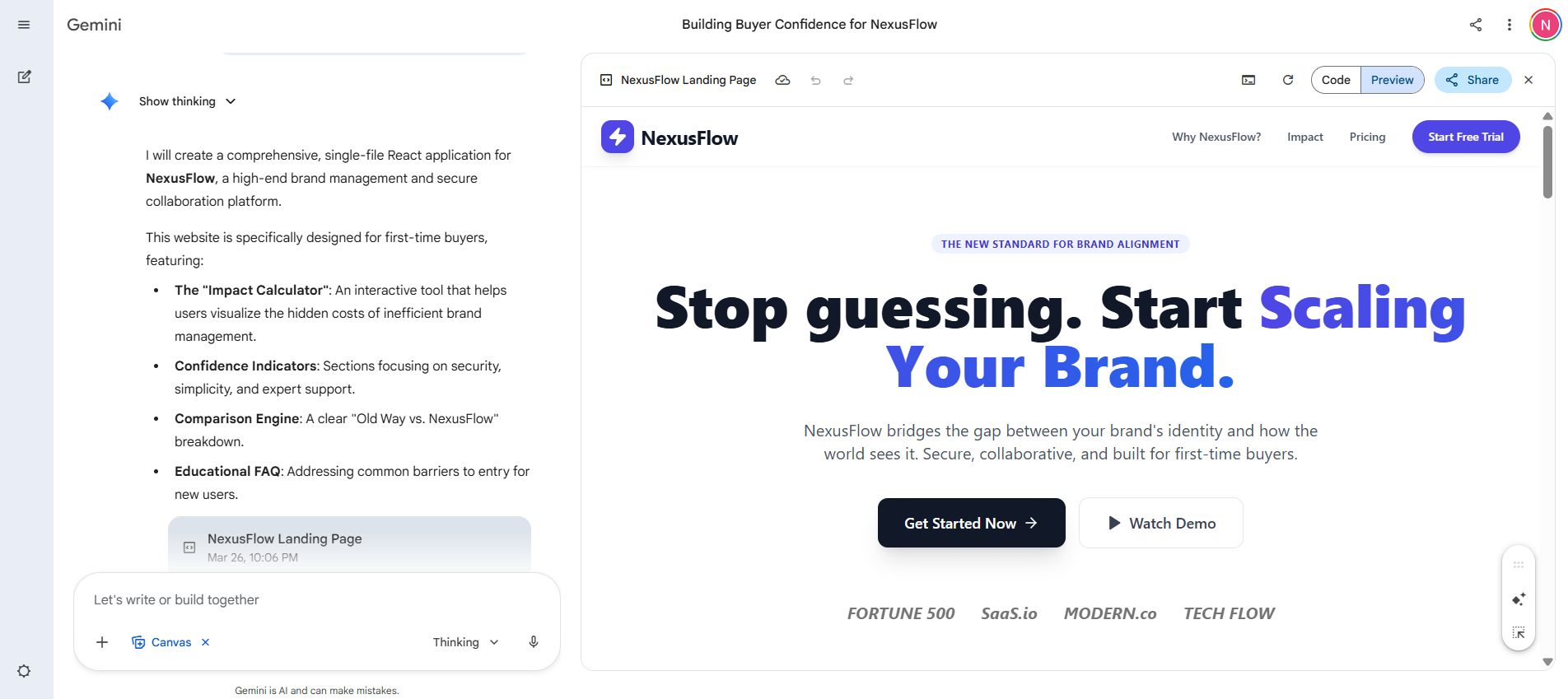
When the AI understands the goal, it makes smarter decisions. It places the call-to-action button in a more visible spot. It chooses a more persuasive tone for the copy. It prioritizes the information that actually moves people to act.
3. A Prompt That Works Every Time
Rather than giving you a list of generic templates, here's one deeply crafted prompt you can adapt to almost any use case:
Using my NotebookLM sources, create a high-converting interactive landing page for [Your Product or Topic].

Include a sticky navigation bar, a hero section with a clear headline that speaks to the main pain point, a benefits section highlighting the top 3 reasons to care, a pricing table, and a 'Get Started' button that links to [your URL].

Use a modern dark-mode design with smooth scroll animations. The goal is to make visitors feel like they'd be missing out if they didn't take action.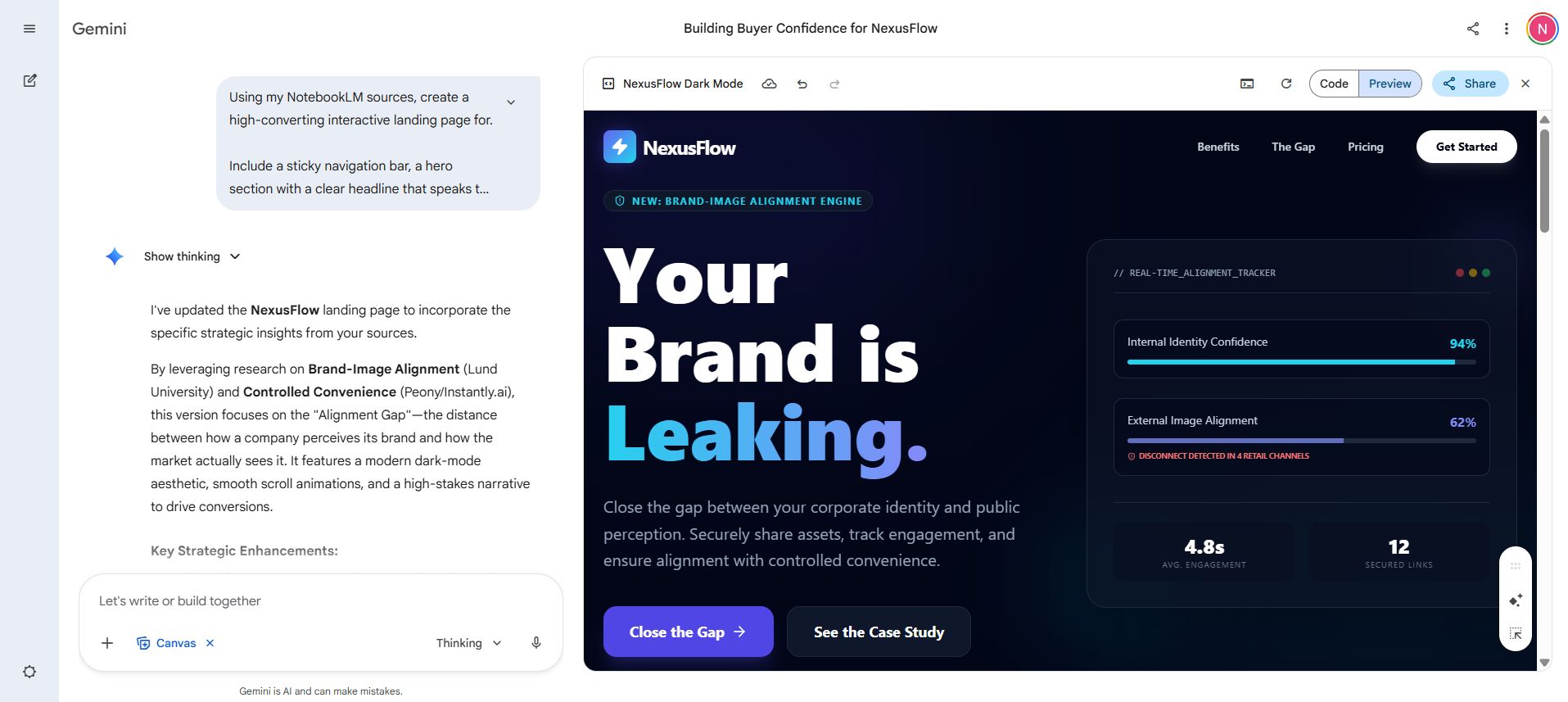
This prompt works because it gives the AI four things at once:
a clear structure
a visual style
a specific goal
an emotional direction.
Those 4 elements together are what push the output from decent to genuinely impressive.
V. Gemini Canvas Building Process
Once you hit send, Gemini Canvas opens a live coding environment on the right side of your screen and starts building your website in real time line by line, element by element.
Because you grounded the AI with your NotebookLM sources and wrote a clear, goal-driven prompt, what appears isn't a generic template. It's a site that reflects your actual content, your tone, and your structure.
Here's what to expect at each stage.
Step 1. Reading the Code View
At first, you'll see a lot of text that looks like <div class="header">. This is HTML and CSS. I'm not a coder, and you don't have to be either. Just watch it go. It's like watching a digital house being built brick by brick.
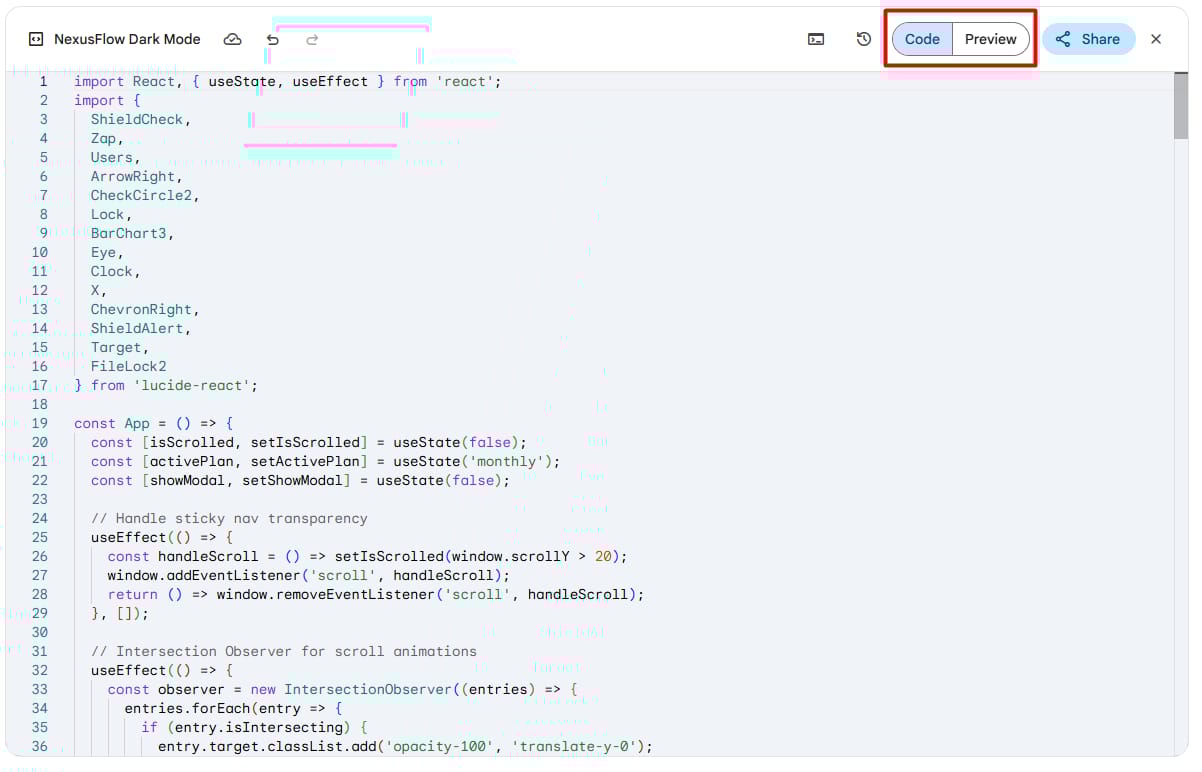
Step 2. The "Preview" Switch
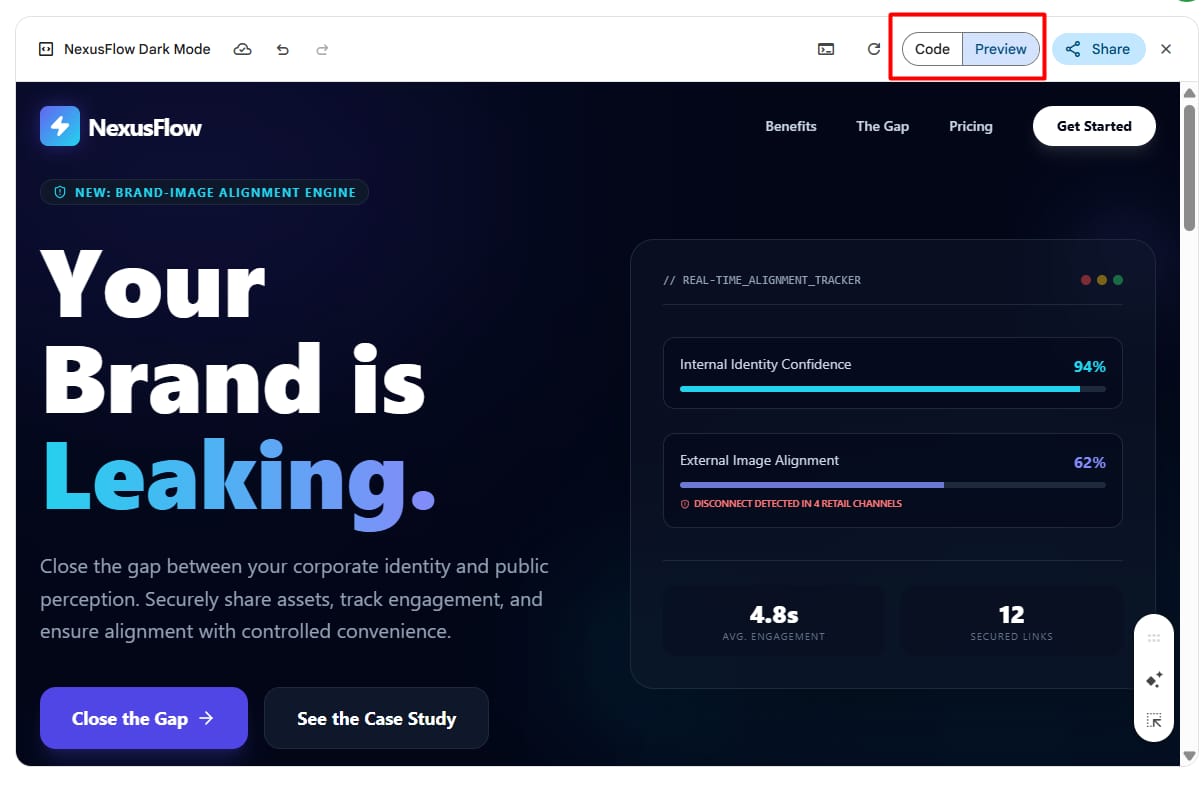
After about 20-40 seconds, the code will stop moving. Then, the window will refresh, and you'll see the "Preview." This is your actual website! You can scroll, click buttons, and see the animations.
If you look closely at the text on your new site, you'll notice it's using the exact phrases from your notebook.
It doesn't just copy-paste; it summarizes and makes the text sound better for a website. This is the power of using Gemini Canvas with a source, it stays "on brand" automatically.
VI. Editing Your Gemini Canvas
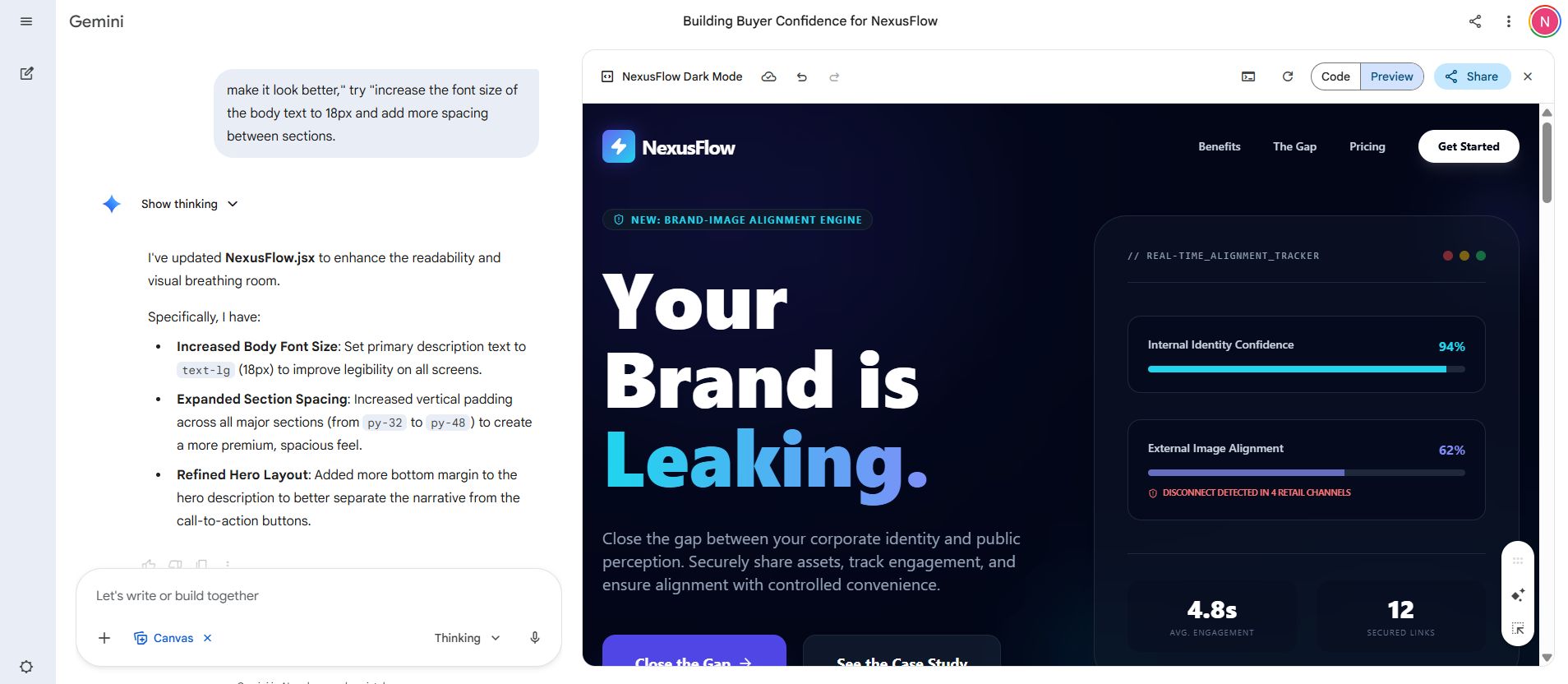
The first version of your website is rarely perfect. Maybe the font is too small, or the colors are a bit boring. The best part of Gemini Canvas is that you can just talk to it to fix these things.
Some examples of edits that work really well:
✦ "Make the background a soft, warm beige and keep the text dark for contrast."
✦ "Add a Customer Testimonials section right above the footer."
✦ "Make the main headline bigger, bolder, and center it on the page."
💡 Pro tip: Be as specific as possible when asking for changes. Instead of "make it look better," try "increase the font size of the body text to 18px and add more spacing between sections." The more detail you give, the closer the result'll be to what you actually had in mind.
By default, Gemini Canvas often fills image spots with grey placeholder boxes. They're fine for structure, but they make the site feel unfinished. Replacing them is simpler than you'd think.
Just click the image icon in the Gemini chat, upload your photo directly, and follow it up with a message like:
Use this photo as the main header image and make sure it fills the full width of the screen with a slight dark overlay so the text on top stays readable. 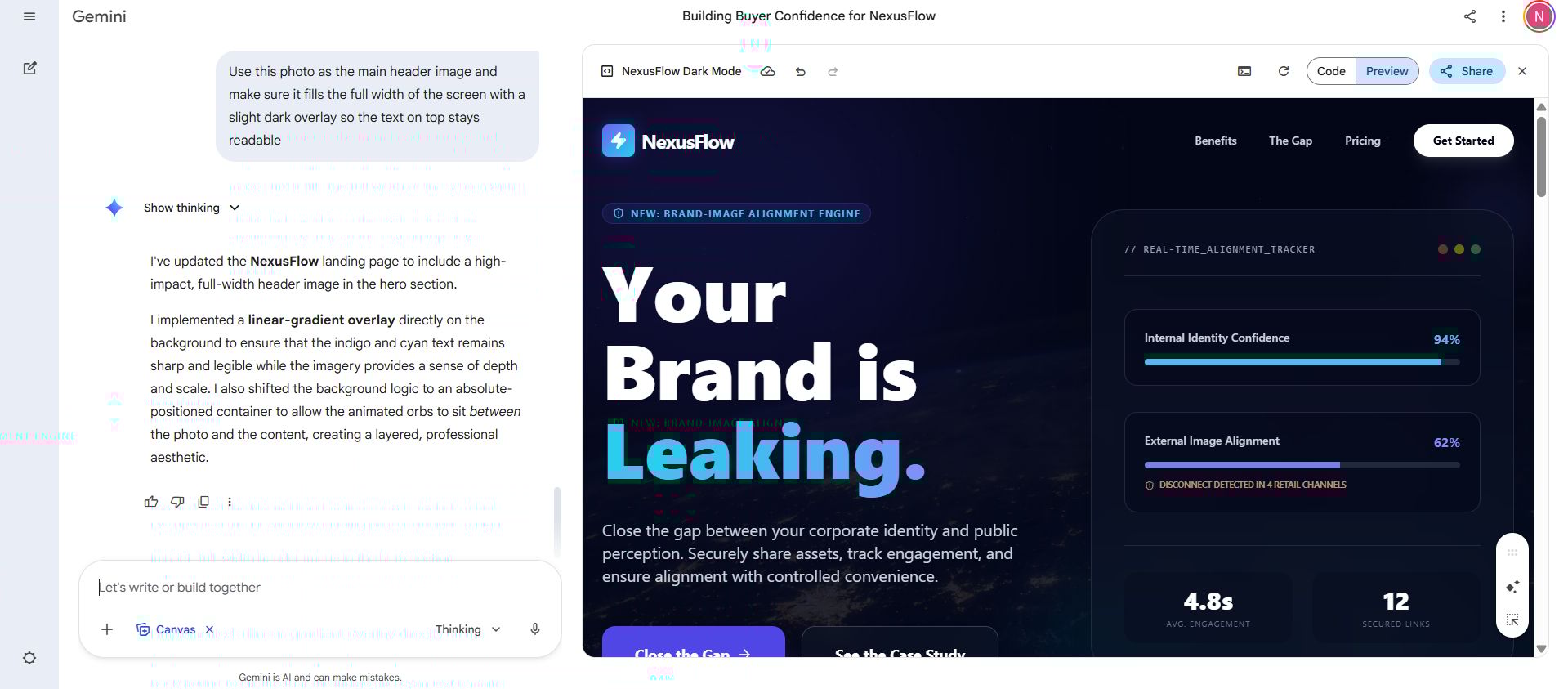
It’ll update the code instantly, and your actual image will appear exactly where the placeholder was.
Additional: Adding "Dark Mode"
This is one of those features that used to require a developer and a solid afternoon of coding. With Gemini Canvas, it takes about 10 seconds to ask for.
Add a toggle button in the top right corner that lets users switch between light mode and dark mode. Make sure the transition is smooth and that all text stays readable in both modes.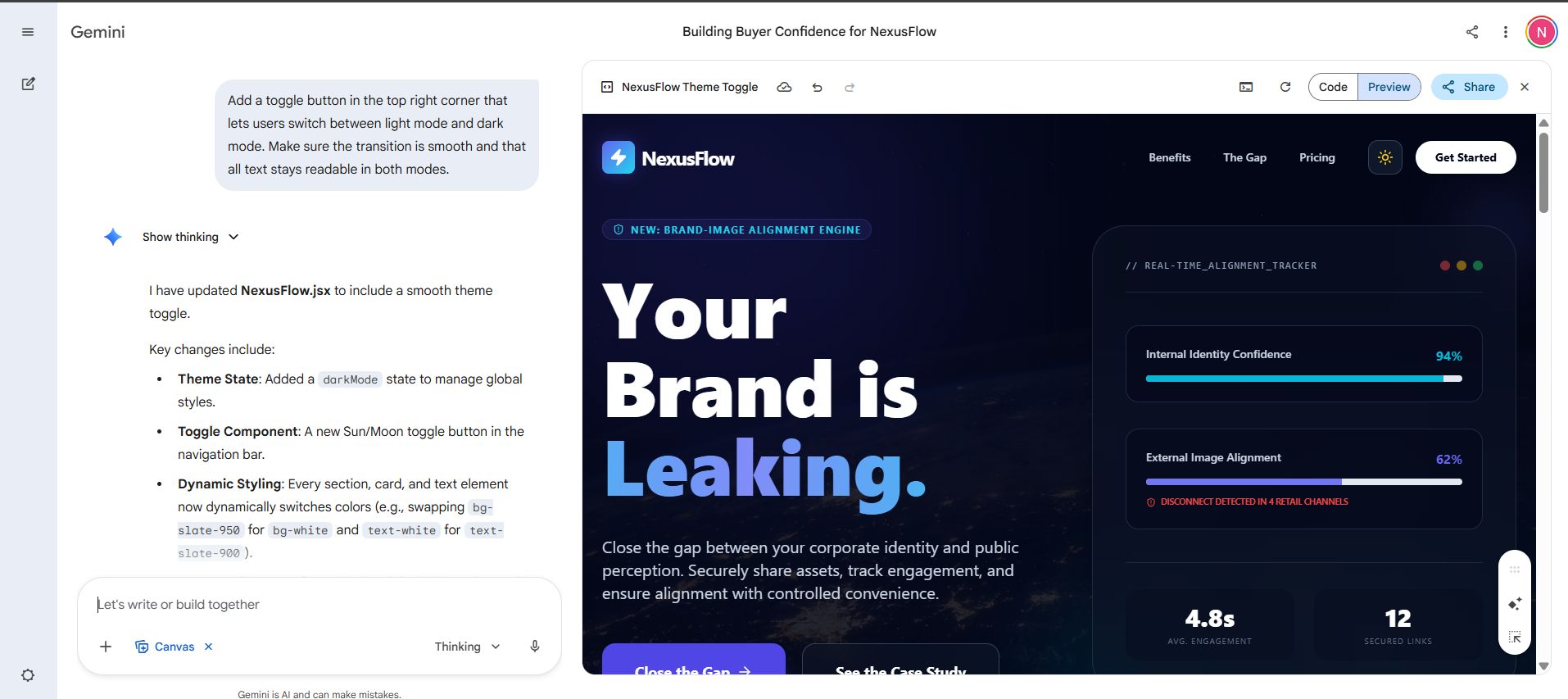
Watch the AI write out the logic in real time. It handles the color switching, the button state, and the animation all at once. The result looks and feels like something from a professionally built site.
💡 Pro tip: After adding dark mode, always ask the AI to "preview both modes and check that no text becomes invisible against the background." It's a small thing, but easy to miss and makes a big difference to the final polish.
How useful was this AI tool article for you? 💻Let us know how this article on AI tools helped with your work or learning. Your feedback helps us improve! |
VII. Sharing and Publishing Your Gemini Canvas Project
Once you're happy with the site, you probably want people to see it.
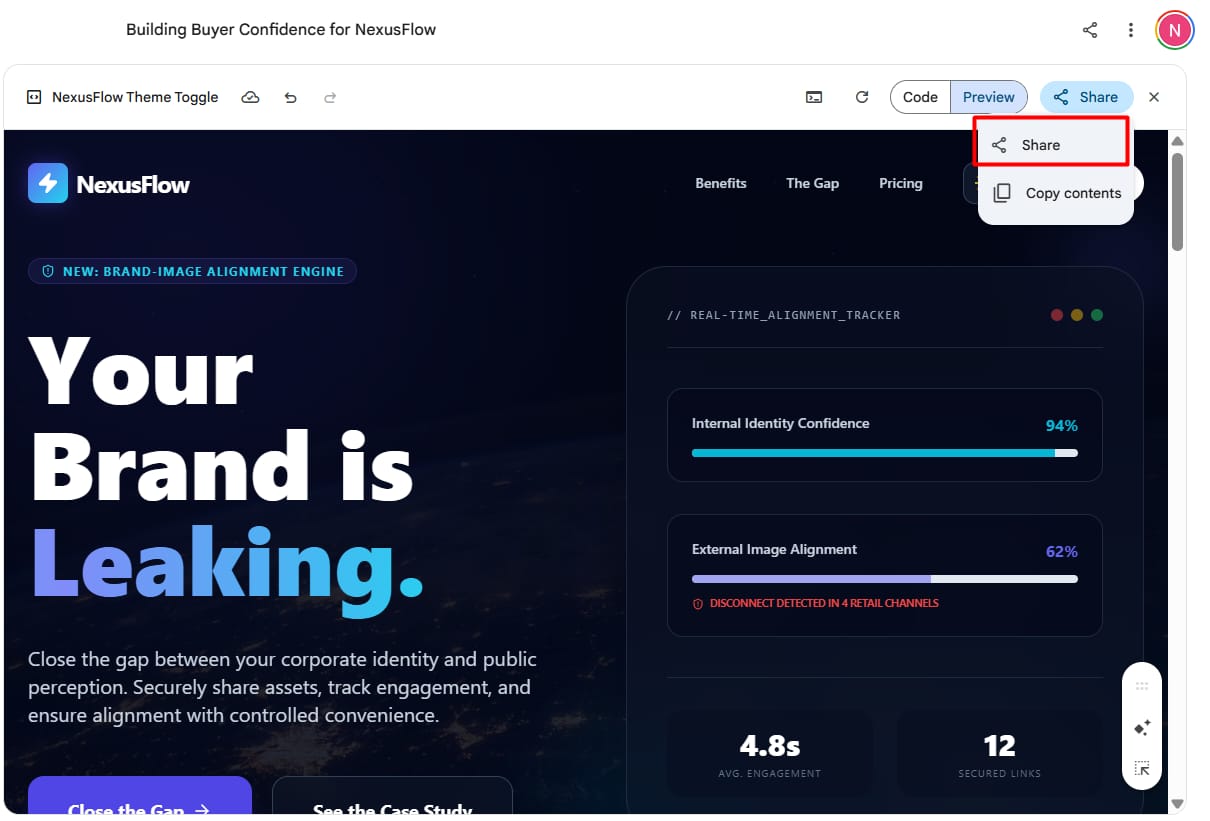
In the top right corner of the Canvas window, there's a "Share" button. When you click it, Google creates a public link.
→ Who can see it?
Anyone with that link can see your website. They don't need to have a Gemini account. They don't even need to be logged into Google. It works just like a public Google Doc.
If you make changes to the site later, the link usually stays the same, or you can generate a new one. This means you can keep improving your site without having to send a new link to everyone every single time.
VIII. Why Is Gemini Canvas Better for Non-Coders Than Wix?
I get asked this a lot. "Why wouldn't I just use a website builder?" Here is a simple table to show you why I prefer Gemini Canvas for quick projects.
Feature | Traditional Builders (Wix/Squarespace) | Gemini Canvas |
Speed | 2-5 hours for a basic site | 30-60 seconds |
Skill Level | Beginner (but needs learning) | Zero skill (just talking) |
Content | You have to write everything | It uses your NotebookLM notes |
Changes | You have to move boxes manually | You just ask the AI to move them |
Price | $15-$30 per month | Included with your Gemini plan |
As you can see, for things like reports, portfolios, or small business landing pages, Gemini Canvas is much faster and cheaper.
IX. One Trick to Use if You’re Not a Designer
If you aren't a designer, you might not know what looks "ood. But you probably know a website you like. You can use that to help Gemini Canvas.
If you find a website that looks beautiful, take a screenshot of it. Upload that screenshot to your Gemini chat and say:
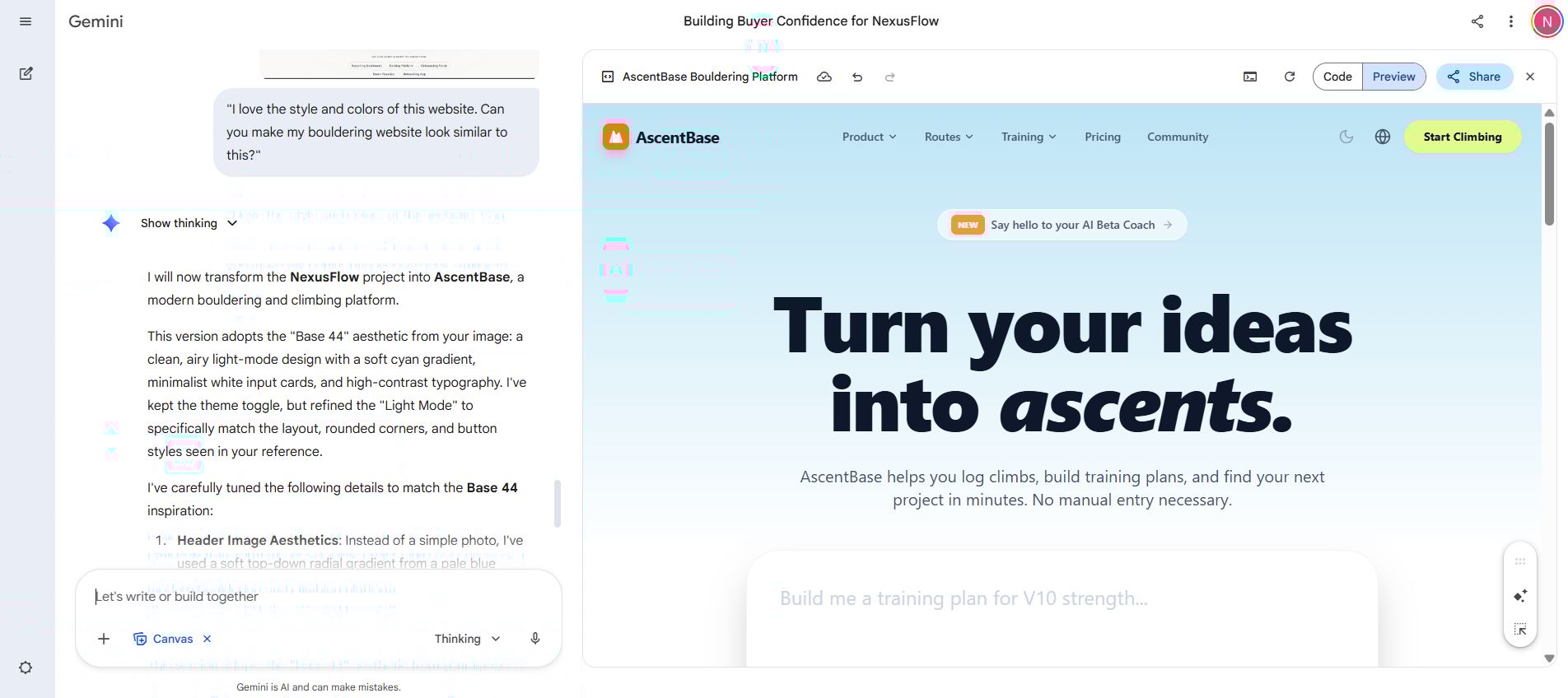
The AI will look at the colors and layout of the photo and try to copy the "vibe" for your site.
Gemini Canvas is very good at visual reasoning. It can see the padding between buttons and the way text is aligned in your video or photo.
This takes your website from looking "okay" to looking like it was made by a pro agency.
X. Frequently Asked Questions about Gemini Canvas
I've helped a lot of people start using this tool, and these are the questions I hear most often.
Is the website "real"?
Yes! It is made of HTML, CSS, and JavaScript. These are the same building blocks used for Facebook, Google, and every other site on the web.
Can I put this on my own domain (like www.myname.com)?
Right now, the easiest way is to use the Google share link. However, if you're a bit more tech-savvy, you can copy the code from Gemini Canvas and paste it into a free hosting service like GitHub Pages or Netlify.
Does it work on mobile?
If you use the Pro model, yes. It usually builds "responsive" sites, which means the buttons and text resize themselves to fit on a phone screen.
Can I make a shop with a shopping cart?
You can make the look of a shop and add buttons that link to PayPal or Stripe. But for a full database of 100+ products with accounts and passwords, a traditional builder is still better. Gemini Canvas is best for "front-end" design and interaction.
Conclusion
Building websites used to feel like a wall I couldn't climb. I had so many ideas but no way to show them to the world without spending days on a computer.
Now, with Gemini Canvas, that wall is gone. I can take any idea from my notebook and turn it into a professional, interactive experience before my coffee gets cold.
I really encourage you to try this today. Pick a topic you love, maybe it's your favorite recipes, your workout plan, or your business idea.
Put those notes into NotebookLM, fire up Gemini Canvas, and see what happens. You might be surprised at how creative you actually are when the "tech stuff" isn't in your way.
If you are interested in other topics and how AI is transforming different aspects of our lives or even in making money using AI with more detailed, step-by-step guidance, you can find our other articles here:
Building Apps with Bolt: A No-Code Guide to Turning Ideas into Reality
Detailed Guide: How To Automatically Get Unlimited High-Quality LinkedIn Jobs*
Prompt Engineering Automation: Build a Mini AI Assistant with n8n
Discover My Ultimate AI Tools Productivity Kit for 2024*
*indicates a premium content, if any
Reply