- AI Fire
- Posts
- 🚀 7 Secret Chrome Extensions for Power Users to Make NotebookLM 10x Faster for Research!
🚀 7 Secret Chrome Extensions for Power Users to Make NotebookLM 10x Faster for Research!
If you rely on NotebookLM for research, you’re probably missing key shortcuts. These 7 extensions remove friction and cut your workflow time in half.

Neil Phan
March 04, 2026

TL;DR
NotebookLM AI is a powerful research assistant, but its native interface lacks essential organizational and export features. To maximize its potential in 2026, users should leverage specific Chrome extensions to automate source importing from YouTube and websites, organize messy dashboards into folders, and export research directly into professional formats like PowerPoint and Word. By "stacking" these tools, you can transform NotebookLM from a simple note-taking app into a full-scale, professional research hub with private podcast feeds and watermark-free visuals.
Key points
Instant Sourcing: Tools like "YouTube to NotebookLM" and "Web Importer" allow one-click transfers of transcripts and articles directly into your notebooks.
Organization: The "Bookshelf Folder Manager" fixes the lack of native folders, allowing you to group projects by category.
Professional Exporting: "Ultra Exporter" bridges the gap between AI drafts and final presentations by enabling
.pptxand.docxdownloads.
Critical insight
In 2026, the real power of AI isn't just in the model's intelligence, but in how seamlessly you can move that intelligence into your existing professional workflow.
Which NotebookLM problem hurts you most? 😫 |
Table of Contents
Introduction
NotebookLM AI is a great tool that I use every day to help me learn and organize my thoughts. It is very good at reading long documents and giving you summaries. But, if you use it for a long time, you will find that some simple features are missing.
For example, you cannot put your notebooks into folders, and you cannot easily move your work to other apps like PowerPoint.
In this guide, I will show you how to fix these problems. We will go through each one step-by-step.
I. Why You Need to Improve Your NotebookLM AI
As your library grows to 20 or 30 notebooks, the native interface becomes a cluttered list that requires excessive scrolling to navigate. Furthermore, the manual process of copying links from YouTube or websites is a repetitive "focus killer" that slows down deep research. These third-party extensions provide essential "quality of life" features like folders and one-click importing that Google has yet to build into the core platform.

Key takeaways
Fact: Native NotebookLM lacks a folder system, making it difficult to separate work and personal projects.
Comparison: Manual link copying is a multi-click chore; extensions reduce this to a single button press.
Timeframe: Adding these tools takes minutes but saves hours of organizational maintenance every week.
Example: Use extensions to skip the "copy-paste" loop and keep your research momentum high.
When you first start using NotebookLM AI, everything looks clean. But after you make 20 or 30 notebooks, the main page becomes a mess.
It is just a long list of boxes and you have to scroll a lot to find your work. Also, adding a YouTube video takes too many clicks. You have to copy the link, open the app, click add, and then paste.
I found that using extensions helps me skip all these boring steps. These tools add "quality of life" features that Google has not built yet. I use them to keep my notes tidy and to move my data around. If you want to work faster, you should follow this guide and pick the tools that fit your needs.
II. NotebookLM AI Extension 1: YouTube to NoteBookLM
This extension places a dedicated "Add to Notebook" button directly underneath YouTube videos, allowing you to send transcripts to your sources without leaving the page. It eliminates the need to toggle between tabs and search for the right notebook manually, keeping you focused on the content you are studying.
Key takeaways
Feature: A custom button appears next to "Like" and "Share" on every YouTube video page.
Logic: The tool extracts the video transcript and places it directly into your selected notebook source list.
Stat: Learning a new language or complex skill typically requires roughly 200 hours of focused study.
Action: Ask the AI for the "3 main points made in the first 10 minutes" to quickly vet long tutorials.
Once added, you can instantly ask the AI to summarize key points or extract specific data from the video transcript.
This is the first tool I install on every new computer. It is called YouTube to NotebookLM. If you like to learn from videos, this will save you a lot of energy.

1. How This Tool Works for You
Usually, you have to go back and forth between YouTube and your notebook. This extension puts a special button right on the YouTube page.
You click it, and the video transcript goes straight into your source list.
2. Step-by-Step Setup
Go to the Chrome Web Store and add the extension using this link.

Open any YouTube video that you want to study.
Look below the video player. You will see a new button next to the "Like" and "Share" buttons.


Click that button. A small menu pops up. Search for the notebook you want to use and select it.

The video is now a source in your NotebookLM AI account.

Learn How to Make AI Work For You!
Transform your AI skills with the AI Fire Academy Premium Plan - FREE for 14 days! Gain instant access to 500+ AI workflows, advanced tutorials, exclusive case studies and unbeatable discounts. No risks, cancel anytime.
3. Why I Recommend This Tool
I hate wasting time on copying links. If I have to do it 10 times, I lose my focus. This button keeps me on YouTube so I can keep watching while the AI reads the transcript in the background. It is simple, free, and it works every time.
Prompt example for this tool:
Once you add a video, you can ask the AI:
I just added this video. Can you tell me the 3 main points the speaker made in the first 10 minutes?
Looking at the real result in the image, NotebookLM AI gave a very clear and easy-to-understand answer:
Focus and make learning a priority: To learn well, you need to focus completely and not get distracted. Never say "I don't have time" because that really means you don't think it is important.
Persistence is a long race: Learning a language is like a marathon, not a sprint. You will need about 200 hours of focused study with a guide to really move up to a new level.
Find and keep your motivation: You need clear and real goals. You must keep your motivation high by giving yourself small rewards when you reach a milestone.
III. NotebookLM AI Extension 2: Web Importer with One Click
If you do a lot of research on websites, the NotebookLM Web Importer is a must-have. I use it to grab news articles and blog posts quickly.
1. What You Can Do with It
This tool lets you save any webpage as a source. You don't have to highlight text or copy URLs. You just click the icon in your browser bar.
2. How to Use It Together
Step 1: Install the extension from the store.

Step 2: Go to a website like Wikipedia or a news site.
Step 3: Click the extension icon at the top of your Chrome window.

Step 4: A panel opens on the right. Choose your notebook.
Step 5: Click "Add to Notebook."

I often use this for text-heavy sites. It is better than the YouTube extension for reading articles because it grabs the clean text and ignores the ads.
This makes the AI work better because it doesn't get confused by random sidebar text.
IV. NotebookLM AI Extension 3: Bookshelf Folder Manager
This tool is the best solution for the biggest problem in NotebookLM AI: the lack of folders. Google has not added a way to group your work yet, but the Bookshelf Folder Manager adds a real organization system to your account. It feels like adding a clean shelf to a messy room.

1. The Simple “Bookshelf” System for Better Organization
Once you install this tool, it adds a bright blue sidebar to your home screen. I use this sidebar to separate my "Work" projects from my "Personal" notes. You can make as many "bookshelves" as you want, and they act just like folders on a computer.

2. How to Build Your First Folder Step-by-Step
Setting this up is very easy, and I'll walk you through it right now:
First, look at the left side of your screen and click that new blue button.
Next, click the "+" sign to create a new folder.

I recommend naming it something clear, like "Study Notes" or "Client Work."

Now, just grab your notebooks with your mouse and drag them into that folder.

When you click the folder name, the app will only show you the notebooks inside it.
The best part is that this sidebar stays there even when you open a notebook. I can jump from my "Taxes" notebook to my "Holiday Planning" notebook without going back to the home page. It feels much more professional.
V. NotebookLM AI Extension 4: Ultimate Hub for Your Work
Kortex is not just a small tool; it is like a professional manager for all your notebooks. Instead of opening many different features, Kortex puts everything in one clean place.

1. Syncing your Google Docs
This is very important. Usually, when you add a Google Doc to NotebookLM AI, it is just a snapshot.
If you edit the Doc, the AI doesn't see the changes. Kortex adds a "Sync" button. One click and all your Google Docs in that notebook update to the latest version. This saves me so much manual work.

2. Turn Your Audio Summaries into a Real Personal Podcast Feed
Kortex changes this by turning those audio files into a real, private podcast just for you.
It uses a clever system to move your audio from the browser directly to your favorite mobile apps. Instead of thinking about buttons or menus, think about how this changes your daily routine:
Your research summaries show up on your phone automatically, just like a regular show on Spotify or Apple Podcasts.
You can listen to your study notes or work reports while you are at the gym, cooking dinner, or walking your dog.
It even works on your smart watch, so you can learn while you are away from your phone or computer.
I find this very helpful because it turns "wasted time" into "learning time." You don't have to deal with manual downloads or messy file names on your phone.
Once you connect your account, your audio simply follows you everywhere you go.
3. Find Things Faster with Better Filtering and Data Backups
When your notebook has many sources, finding one specific file can be very hard. Kortex helps you solve this mess with smart filter buttons on your dashboard:

You can click a button to see only your PDF files, YouTube videos, or web articles.
It also lets you download all your sources to your computer at the same time.
This is very helpful if you want to keep your data safe offline or move your work to a different Google account.
Kortex has a free version, but you can also buy the Pro version for about $2.40 a month or a lifetime plan for $49.
If you use NotebookLM AI every day, I think this is a good way to save your time.
VI. NotebookLM AI Extension 5: Language Switcher
This tool is like a helpful translator for your work screen. Instead of guessing what English buttons mean, you can change them to Vietnamese or any language you feel comfortable with.

When you use this tool, familiar buttons become very friendly. I tried this with many languages and found the app much easier to use.

Buttons like "Add Source" or "Notebook Guide" will show in your language.
The whole dashboard and settings menus are also translated clearly.
This helps you work with confidence and you won't click the wrong thing.
3. What Stays the Same

There is one important thing I want you to know so you don't feel surprised. This tool only changes the "shell" (the system screen). Your "inside" content stays the same:
Your actual notes and the notebook titles you wrote will not change.
Only the labels and menus from Google are translated to be easy to read.
This is great because it helps you move around the app without being confused by hard English words.
VII. NotebookLM AI Extension 6: Ultra Exporter Sends Data to PowerPoint and Word
The NotebookLM Ultra Exporter is perfect for people who need to share their work with others. While NotebookLM AI is very good at creating content, it is usually quite bad at letting you take that content out.
This extension adds the "missing" export buttons so you can move your data wherever you need it.

1. Moving Slides to PowerPoint
If you use the AI to create a slide deck, you probably noticed that you can usually only look at it inside the browser. With this tool, you can finally download your slides as a .pptx file. This is a huge change because it lets you do the following:

You can open the file in Microsoft PowerPoint or Google Slides on your computer.
You can change the fonts and colors to match your own style.
You can add your company logo or your own pictures to the slides.
It turns a simple AI draft into a professional presentation in just a few seconds.
2. Exporting Your Chat History
I often have very long talks with NotebookLM, and I don't want to lose the smart ideas we discuss. Normally, these chats stay hidden inside the notebook, but this tool lets you save the whole conversation.

You can save the chat as a PDF or a simple text file.
I like to keep these files in a folder on my computer so I can read them even when I'm offline.
It is a great way to remember exactly how the AI helped you reach a specific conclusion.
3. Markdown for Bloggers
If you are a writer or a blogger who uses apps like Notion or Obsidian, you will love the Markdown feature. When you export your notes as Markdown, it keeps your work looking neat and organized.

It keeps your bold text, headers, and lists exactly as they are.
When you paste the text into your blog or your database, the formatting stays perfect.
This saves you from having to re-type or re-format your work all over again.
How useful was this AI tool article for you? 💻Let us know how this article on AI tools helped with your work or learning. Your feedback helps us improve! |
VIII. NotebookLM AI Extension 7: Magic Watermark Eraser
When you make an infographic or a slide, the app puts a "NotebookLM" logo in the corner. If you want a clean image for a meeting, you usually have to pay $250 a month for the Pro version. I found a way to do it for free using Magic Eraser.

1. Cleaning Your Infographics
If you only have a few pictures, Magic Eraser is the best tool. It's very easy and anyone can do it right away:
First, use the Ultra Exporter tool from the last section to download your image from NotebookLM AI to your computer.

Next, go to the Magic Eraser website and upload your picture.
After that, use the brush to paint over the logo in the bottom right corner.
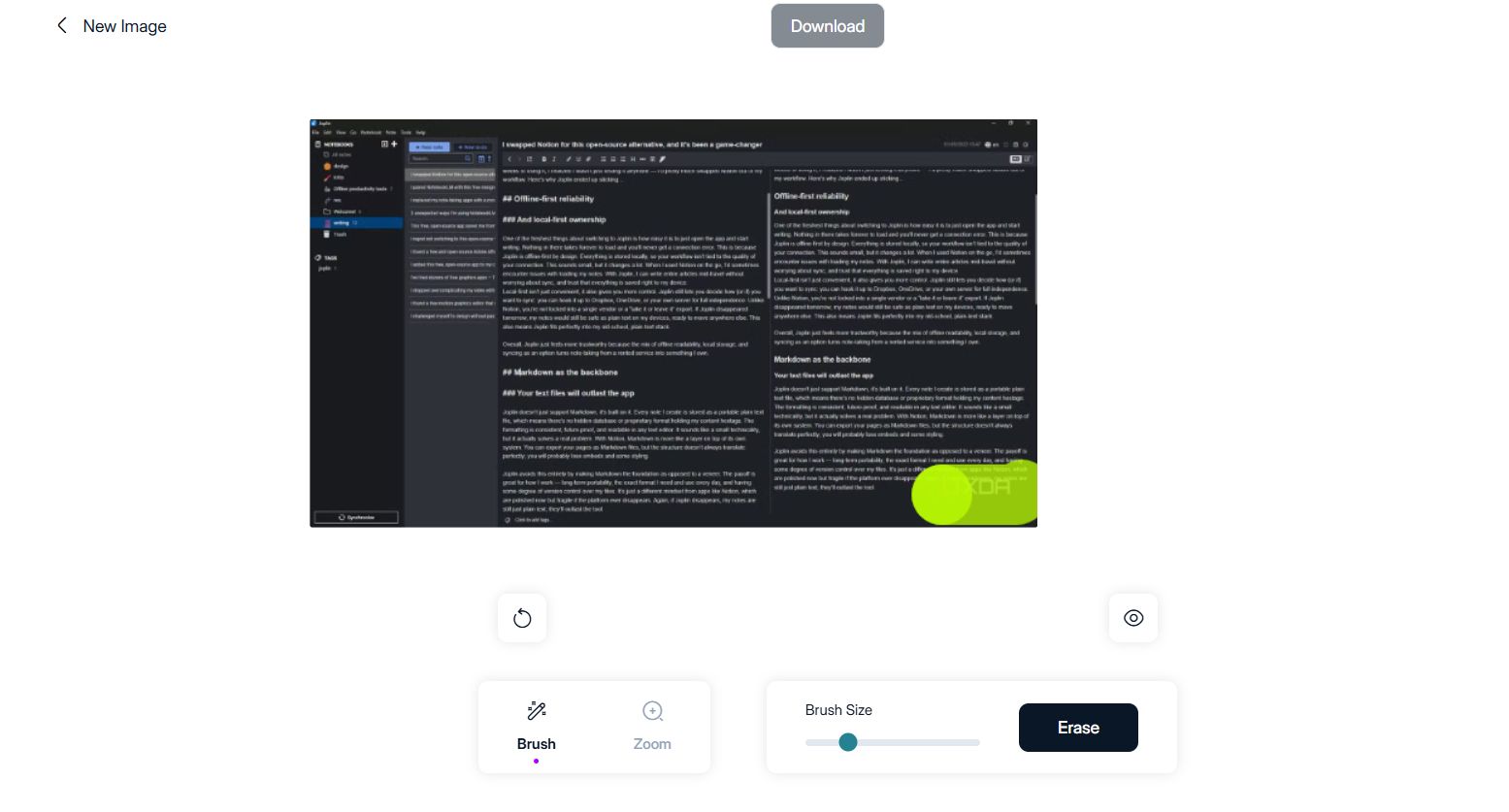
Finally, click Apply to let the system remove the logo and download the clean version to your computer.

2. Slide Deck Cleaner for Batch Work
Sometimes, you ask NotebookLM to make 10 or 20 slides at once. Cleaning them one by one takes a long time and is very boring. This is why you should use Slide Deck Cleaner to save your time.
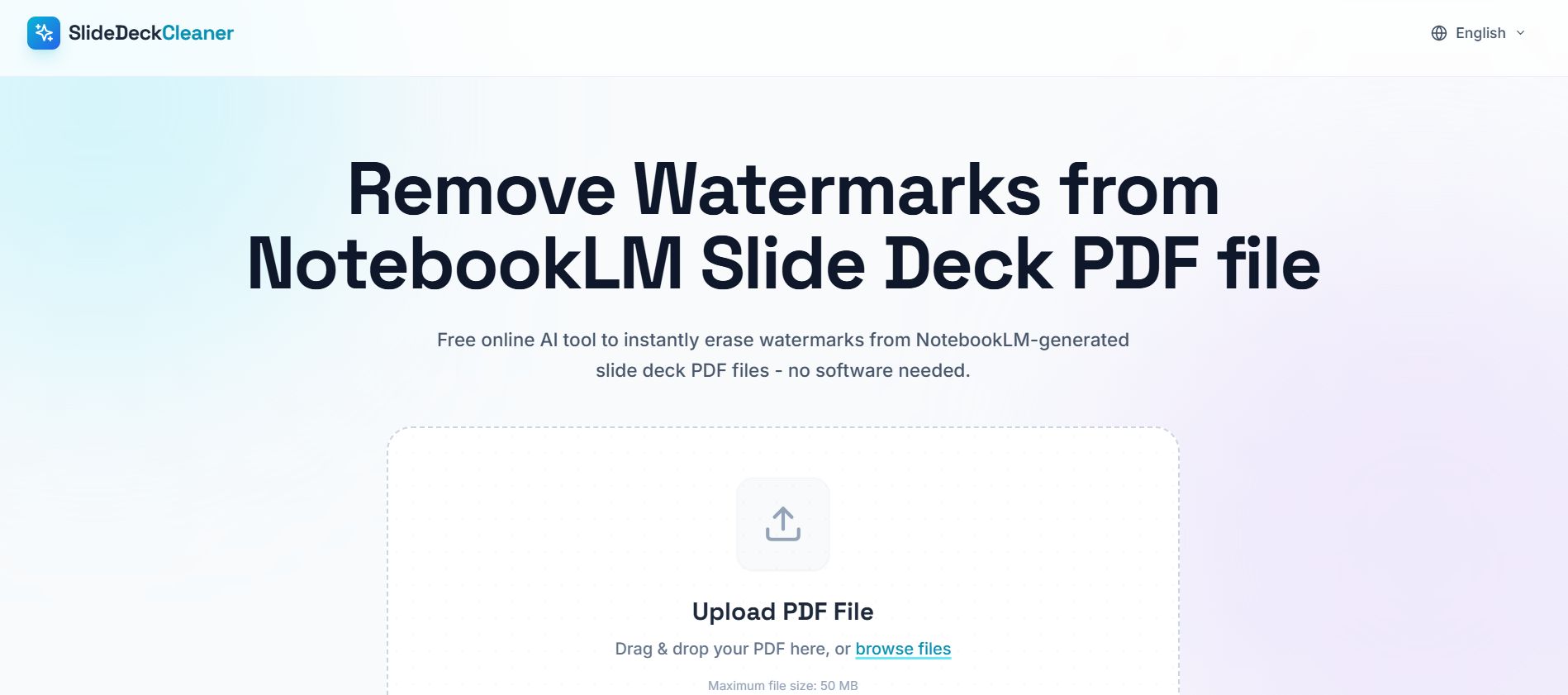
This tool lets you upload many slide images at once instead of doing them one by one.
It makes your presentation look like you spent many hours on the design.
Actually, the AI made it in 5 seconds, and you cleaned it in 2 minutes.
This is a small trick that makes a big change when you show your work to your boss or other people.
IX. Comparison of 7 NotebookLM AI Extensions
I made this table to help you decide which tools to get first. You don't need all of them at once.
Tool Name | What it is best for | Is it free? |
YouTube to NotebookLM | Saving videos with 1 click | Yes |
Web Importer | Saving articles and blogs | Yes |
Bookshelf Manager | Organizing your notebooks into folders | Yes |
Kortex | All-in-one hub and podcast feed | Free / Paid |
Language Switcher | Using the app in your own language | Yes |
Ultra Exporter | Moving data to PowerPoint and Word | Yes |
Magic Eraser | Removing logos and watermarks | Yes |
X. Common Questions About Using NotebookLM AI Extensions
I know that adding 7 different tools sounds like a lot for your browser. But after testing them for months, I can tell you they are built to help you, not to make things harder. Here is what you need to know to feel safe.
Can these extensions see my private notes?
Most of these tools only work on the "surface" of the website to help you click buttons. They do not store your private data on their own servers. Kortex is a professional tool used by many people, so it is very safe.
Will these tools slow down my browser?
No, I have all 7 installed and my computer still runs fast. They only "turn on" when you are actually on the NotebookLM AI website.
Do I need to be a tech expert?
Not at all. If you can click "Install" on the Chrome store, you can use these. I think they actually make the app easier to use for beginners because they remove the "copy and paste" steps.
Conclusion
You don't need to install all seven tools at once to see a big change in your work. Start small by picking the extension that solves your biggest problem today.
Here is a quick way to choose where to start:
For fast research: Use the YouTube extension or Web Importer to save content with one click.
For a messy dashboard: Get the Bookshelf Manager to put your notebooks into folders.
For professional sharing: Use Ultra Exporter to move your work to PowerPoint or Word.
For the "Pro" experience: Choose Kortex for its podcast feed and Google Doc sync features.
For clean images: Always keep Magic Eraser ready to remove logos from your infographics.
These tools exist because people love NotebookLM AI and want to make it the perfect assistant. By picking just one or two today, you can save hours of boring work every week.
If you are interested in other topics and how AI is transforming different aspects of our lives or even in making money using AI with more detailed, step-by-step guidance, you can find our other articles here:
Building Apps with Bolt: A No-Code Guide to Turning Ideas into Reality
Detailed Guide: How To Automatically Get Unlimited High-Quality LinkedIn Jobs*
Prompt Engineering Automation: Build a Mini AI Assistant with n8n
Discover My Ultimate AI Tools Productivity Kit for 2024*
*indicates a premium content, if any
Reply