- AI Fire
- Posts
- 🔓 12 Underrated ChatGPT Tricks That Feel like Cheat Codes for 2026
🔓 12 Underrated ChatGPT Tricks That Feel like Cheat Codes for 2026
Stop using AI like Google. I’ll show you the hidden 2026 tricks (from scheduled reports to project-only memory) that most users never touch.

Max Anh
January 23, 2026

TL;DR BOX
In 2026, the real gap isn’t about who uses ChatGPT. It’s about who knows how to orchestrate it instead of just chatting with it. Key hidden features like Context-Specific Memory allow the AI to switch writing styles instantly for different audiences, while Deep Research combined with personal files creates a specialized "Project Expert".
With the launch of Scheduled Daily Reports and Project-Only Memory, ChatGPT has evolved from a reactive tool into a proactive executive assistant that manages team knowledge bases, builds functional mini-apps in Canvas Mode and lets you run batch workflows much faster than older setups with less manual work. By mastering these 12 tricks, you move from a "tourist" who gets generic advice to a "wizard" who deploys high-fidelity AI systems for business, content and personal efficiency.
Key points
Fact: ChatGPT's Extended Thinking Mode allows the AI to spend up to 2 minutes reasoning through complex strategy, preventing the "hallucinations" common in faster, auto-mode responses.
Mistake: Using one set of Custom Instructions for everything. Professional users store Context-Specific Memory for different writing personas (e.g., "Team Email" vs. "LinkedIn Post").
Action: Activate Temporary Chat Mode when running sensitive financial or health-related experiments to prevent them from "polluting" your long-term account memory.
Critical insight
The defining advantage of 2026 is "Contextual Synthesis". By using Deep Research with your own uploaded business documents, you're not just searching the web; you're creating a master report that merges the entire internet's knowledge with your private company data.
Table of Contents
I. The Gap Between Tourists and Wizards
If you’re still using ChatGPT like fast food (“Write a blog post,” “Summarize this,” “Make it sound professional”), sure, that works.
But it is like owning a Ferrari and only driving it to the grocery store. ChatGPT has some insanely powerful hidden features that 95% of users have never touched.
I am talking about memory systems that remember your specific writing style, AI agents that research for hours while you sleep and tools that build functioning apps for you.
Today, I am going to show you 12 game-changing tricks that will transform you from a casual user into a power user.
Let me show you how to actually use it.
🛑 What’s your biggest frustration with ChatGPT? |
II. ChatGPT Trick #1: Context-Specific Writing Memory
The biggest problem with ChatGPT is that you do not write the same way in every situation. Your team emails are casual but your client emails are polished.
Normally, custom instructions apply to everything and that gets messy fast.
How to Fix This
Instead of custom instructions, teach ChatGPT your writing style for each specific use case and store it separately.
Here's the exact process:
Step 1: Give ChatGPT an example of your actual writing.
Analyze this email for tone, style, format and reading level:

[Paste your real email here]
Step 2: Tell it to remember this style for a specific context.
Remember my writing style for team emails and store this in memory.
When I ask you to write team emails, use this information.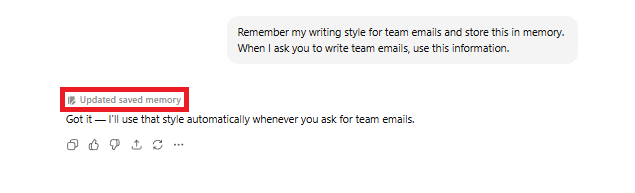
That's it. ChatGPT now knows how you write to your team. Now, you could repeat this for different contexts:
Client emails (formal, detailed, no typos)
Blog posts (conversational, story-driven)
Social media (punchy, engaging)
LinkedIn (professional, strategic)
From then on, ChatGPT can pull the right style automatically, without you re-explaining it every time.
You can check what ChatGPT remembers by asking: "What do you know about my writing style?" It’ll show you everything that’s stored.

III. ChatGPT Trick #2: Scheduled Daily Reports
Did you know that ChatGPT can now send you scheduled notifications on your desktop? Like actual desktop alerts that pop up at specific times. Most people have no idea this exists.
1. How It Works
First, you tell ChatGPT what you want and when you want it. Example:
Every morning at 8 a.m., send me three new AI updates. Focus on OpenAI, Google and Anthropic first.ChatGPT creates a scheduled task and delivers a notification every morning at 8 a.m. with the latest news.

And it doesn’t stop at news; you can schedule something like:
Daily industry news summaries.
Weekly goal review reminders.
Research updates on specific topics.
Task reminders at specific times.
2. Managing Your Schedules
ChatGPT has a dedicated page for scheduled tasks where you can pause, delete or edit any reminder. You control when notifications appear.
This turns ChatGPT from a reactive tool into a proactive assistant. Information comes to you instead of you hunting for it.

IV. ChatGPT Trick #3: Project-Only Memory
ChatGPT Projects are great for organizing. Each project can have its own custom instructions, uploaded files and chat history.
But here's what most people miss: Project-Only Memory.
1. What’s The Problem with Project-Only Memory?
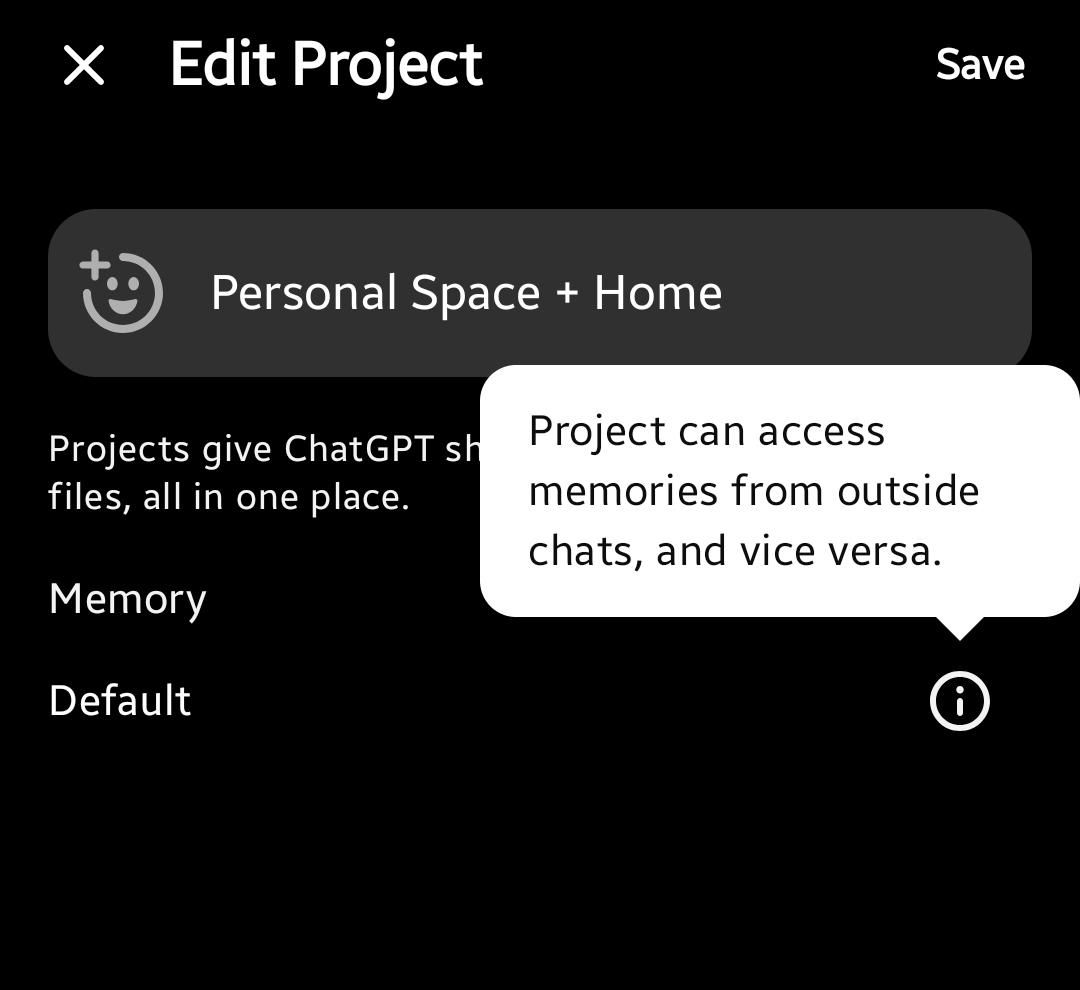
By default, every project can access all your account memories. If you've told ChatGPT about your personal life, your business, your preferences, it pulls that into every conversation. Even when it's completely irrelevant.
I used ChatGPT this way for months before realizing how much power I was wasting.
2. The Solution
The fix is simple: turn on Project-Only Memory. So, when creating a new project, you click the gear icon and enable it.

Now this project can only see:
Conversations within this project.
Files uploaded to this project.
Custom instructions set for this project.
This is perfect for client work where you do not want your personal data leaking into professional documents. It can also be used in other tasks like:
Client work → Keep each client's information completely separate.
Research projects → Only access specific documents.
Sensitive topics → Prevent information from bleeding between projects.
Focused tasks → When you only want ChatGPT to look at specific files.
*Important: You can't change this setting after creating a project. Decide upfront whether this project needs full memory access or should stay self-contained.
Learn How to Make AI Work For You!
Transform your AI skills with the AI Fire Academy Premium Plan - FREE for 14 days! Gain instant access to 500+ AI workflows, advanced tutorials, exclusive case studies and unbeatable discounts. No risks, cancel anytime.
V. ChatGPT Trick #4: New Personalization Settings
For years, ChatGPT's personalization was just a text box. You'd write custom instructions and hope for the best. Now, OpenAI finally upgraded this.
Go to Settings → Personalization and you'll now see preset tone options: Professional, Friendly, Candid, Casual and more.
Instead of writing "Please respond professionally" in custom instructions, you just pick it from a dropdown. Done.

These presets automatically adjust:
How ChatGPT addresses you.
Formality level.
Sentence structure.
Word choice.
And it applies account-wide unless you override it in a specific chat. And that’s not all. For maximum effectiveness, you can even stack your workflow:
Set a default tone in Personalization (e.g., "Friendly").
Fill out the "About You" section (your job, goals, industry).
Use context-specific memory for different writing scenarios.

Now ChatGPT knows how to talk to you, how to write for you and what you care about. This takes two minutes.
If you haven't done it yet, stop reading and go set this up now.
VI. ChatGPT Trick #5: Temporary Chats
You know how browsers have incognito mode? ChatGPT has the same thing for running a weird scenario or asking about a topic you don’t want stored in your history or used for training.
At the top of ChatGPT, click the icon that looks like a chat bubble with a slash through it. You're now in Temporary Chat Mode.
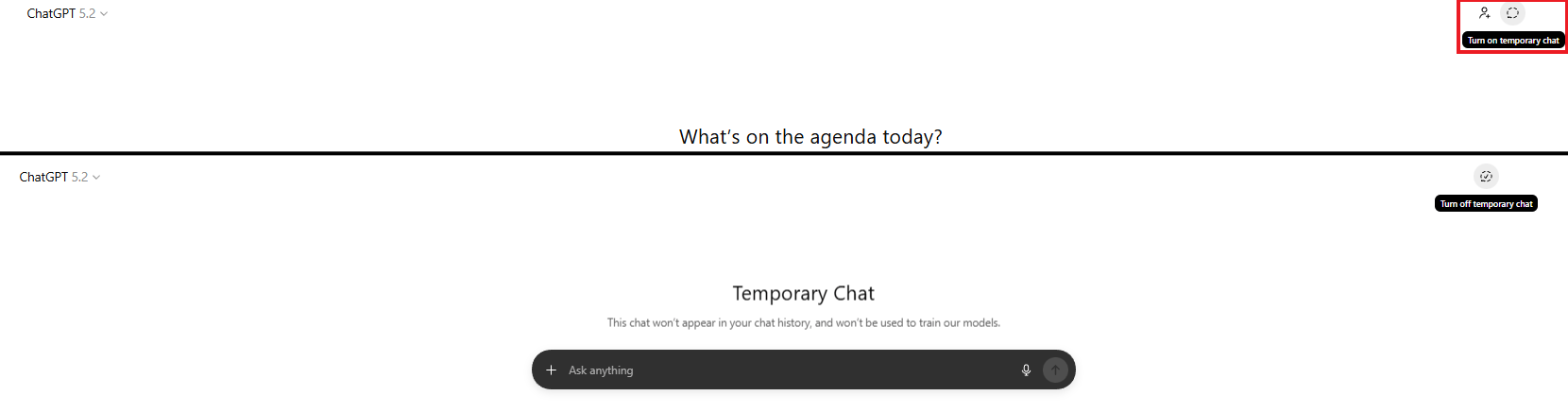
After you turn on this mode, it means:
Memory is disabled → ChatGPT won't remember this conversation.
Not saved to history → The chat doesn't appear in your sidebar.
No account impact → Won't affect future recommendations.
When to Use Temporary Chats
This mode is built for moments where you want freedom, not memory. You use it for:
Hypothetical scenarios → "If I were launching a competitor to [company], what would my strategy be?"
Sensitive topics → Personal health, financial questions, anything you don't want stored
Experimentation → Testing prompts without polluting your memory
One-off tasks → Quick translations, math problems
Without temporary chats, even random questions can influence future responses. Ask a random question and it might start recommending related content forever.
Temporary chats let you experiment without consequences.

How would you rate the quality of this AI Workflows article? 📝 |
VII. ChatGPT Trick #6: Company Knowledge Base (Team Feature)
This trick requires the ChatGPT Business plan ($30/month per user) but if you're on a team, it's worth the upgrade.
With this trick, your ChatGPT now connects directly to your company's: Google Drive, Dropbox, Google Calendar, Gmail, Slack, HubSpot, GitHub and more.
Once connected, anyone on your team can ask:
"What's on our team schedule today?"
"Find the Q4 budget spreadsheet"
"Summarize the latest client emails"
"What did we discuss in the marketing channel last week?"
How to Set It Up
Go to Business plan settings.
Click "Company Knowledge Base".
Click "Add Connector".
Choose your apps.
Authorize access.
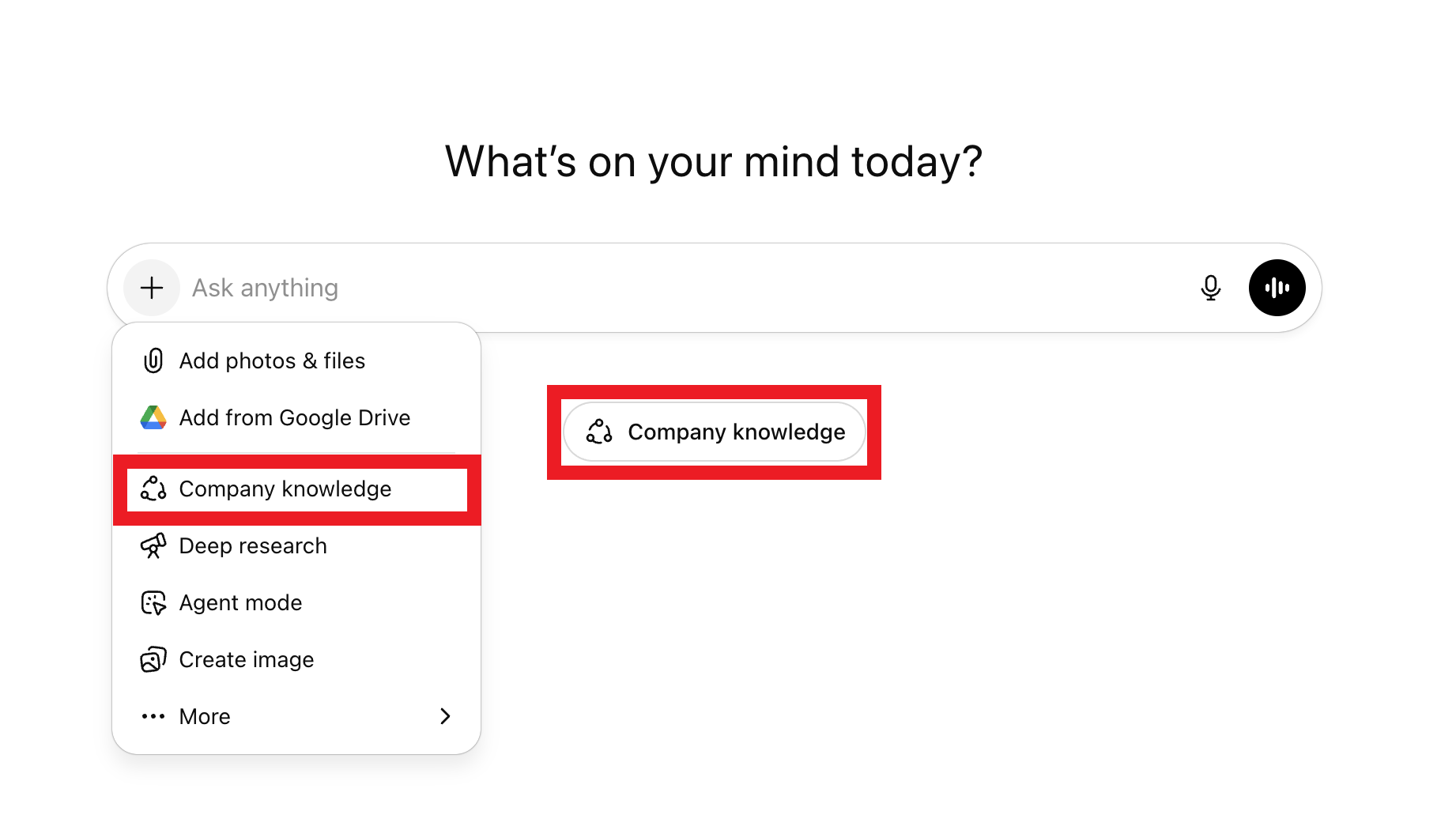
Now every chat can pull from your internal knowledge base, plus search the web. Want a real example? Here’s one I use.
Imagine your team stores project files in Dropbox and schedules meetings via Google Calendar. With this trick, all you have to do is ask:
What meetings do I have tomorrow and are there any related documents I should review beforehand?Then, your ChatGPT will:
Check your Google Calendar.
Find tomorrow's meetings.
Search Dropbox for relevant files.
Summarize everything in one response.

You're turning ChatGPT into your company's unified search engine without jumping between apps to find information.
VIII. ChatGPT Trick #7: ChatGPT Apps
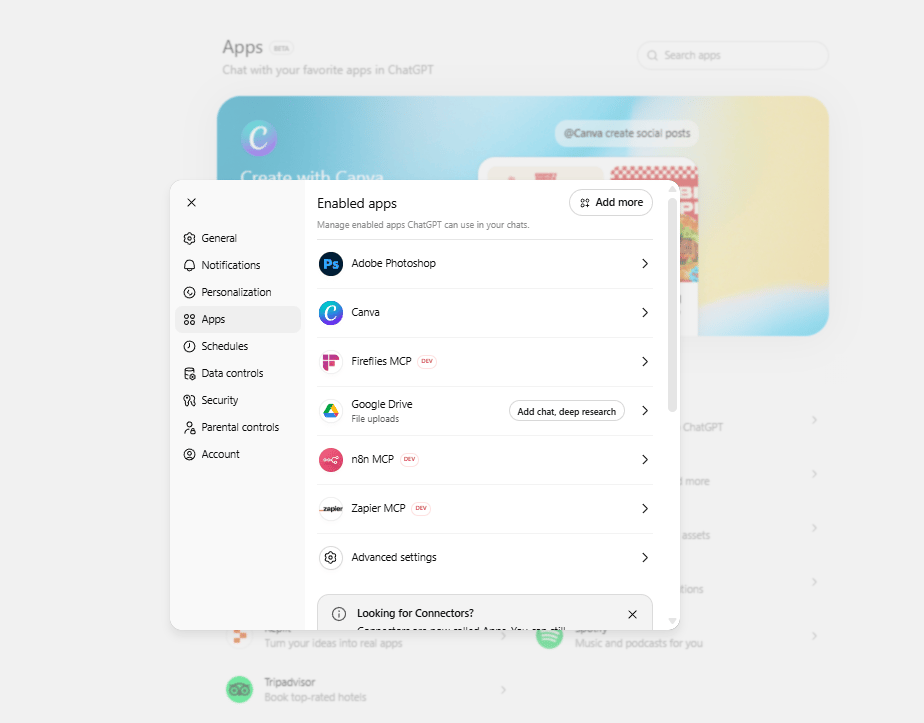
ChatGPT now has an integrated app ecosystem that allows you to call external tools directly in a chat.
To unlock this, you go to Settings → Apps and Connectors → Browse Apps. And you'll see integrations including: Adobe Photoshop, Canva, Notion,…
How It Works
After turning it on, inside any chat, you just type @ followed by the app name to pull in specialized tools.
Example:
@Photoshop change color of this hat in red, please.ChatGPT will connect to your Photoshop and start creating your image. But how did you know this is not ChatGPT Images 1.5? It’s because with Photoshop integration, you can edit your image color through the Properties Panel.

Here are some other use cases you could do with this trick:
@Canva design a presentation slide about AI trends.
Opens directly in Canva with a pre-made template.
@Notion create a new page with my meeting notes from this conversation.
Automatically saves the chat to your Notion workspace.
@Khan Academy create a practice problem for algebra.
Get the AI to walk you through it problems step-by-step. Instead of ChatGPT being a single tool, it becomes a hub connecting all your productivity apps. You're automating workflows without writing code.

IX. ChatGPT Trick #8: Updating Custom GPTs
Have you ever spent a full day building the perfect Custom GPT and it works perfectly. After 6 months, you still love it but it’s still stuck in GPT-4 and now we’re already on GPT-5.2. Finally, you have to customize your GPT from the beginning, just to add the new model.

Sadly, right? Don’t worry, here is the trick for you:
Go to your Custom GPT.
Click "Edit".
Under the “Recommended Model”, select the latest version.
Save changes.

Newer models are smarter, faster and more accurate. If your Custom GPT is still running on a model from six months ago, you're leaving performance on the table.
User Side Override
Even when someone else shares a Custom GPT with you, you can override the model. When you open the GPT, there's a dropdown at the top. Select the model you want to use.
This gets you better answers from GPTs that weren't optimized for newer models.

X. ChatGPT Trick #9: Batch Image Generation
You used to have to request images one at a time, waiting after each one. That’s no longer the case.
The newest GPT Image 1.5 is 4x faster, allowing for simultaneous image generation.
Example:
Create four logo concepts for a tech startup:
1. Minimalist geometric design
2. Bold typography-based logo
3. Abstract tech symbol
4. Modern gradient style
ChatGPT generates all four images at once and displays them back-to-back. What used to take two minutes now takes 30 seconds.
You could use it for:
Logo variations ("Show me 5 different color schemes").
Social media graphics ("Create Instagram versions for 3 products").
A/B testing ("Generate 3 versions of this ad with different headlines").
Mood boards ("Show me 4 interior design styles for a coffee shop").
You can instantly download or edit any of them from the chat.

XI. ChatGPT Trick #10: Canvas Mode Mini-Apps
This is actually my favorite one. Canvas Mode is ChatGPT's code editor interface. But instead of just showing code, it builds functioning mini-apps that run directly in your browser.
To unlock this trick: first, you click the “+” button in ChatGPT. Then, turn on Canvas Mode and give it a detailed prompt.
That’s it, super simple. Copy this prompt and paste it in your ChatGPT to test this trick:
Create a to-do list app with these features:
- Add new tasks
- Mark tasks complete
- Delete tasks
- Dark mode toggle
- Save tasks to local storage
ChatGPT will:
Write the HTML, CSS and JavaScript.
Display it in split-screen (code on left, preview on right).
Give you a live preview you can interact with.

What You Can Build
This is only limited by your imagination. You could build many things, like:
Calculators (mortgage, ROI, conversion).
Mini games (tic-tac-toe, memory games).
Productivity tools (timers, habit trackers).
Widgets for your website (contact forms, countdown timers).
Data visualizations (charts, graphs).

Once you've built something, just:
Download the code (copy-paste into your site).
Share a link (others can view/use it).
Embed it (ChatGPT gives you embed code).

After testing this for months, you can build client forms, event widgets and project estimators without writing a single line of code yourself.
Creating quality AI content takes serious research time ☕️ Your coffee fund helps me read whitepapers, test new tools and interview experts so you get the real story. Skip the fluff - get insights that help you understand what's actually happening in AI. Support quality over quantity here!
XII. ChatGPT Trick #11: Deep Research + Custom Knowledge
Many people still use the Deep Research feature as a quick search tool. I mean, that’s okay but it kind of wastes its potential.
It scans hundreds of websites, reads complete articles and reports and synthesizes everything into a detailed, source-backed report (often tens of pages long) in minutes.
But the real power shows up when you combine it with your own files.
This is where you level up your Deep Research.
You attach documents from Google Drive, Dropbox or direct uploads before running the research. From that point on, Deep Research pulls from two places at once: the open web and your internal knowledge.

That changes the output completely. Now the system works on two levels at once:
It searches the entire web for external knowledge
It pulls from your private files for internal context
It merges both into one coherent report.
Real Example
You're writing a business plan for a new SaaS product.
Research the competitive landscape for project management tools, focusing on pricing models, key features and market gaps. Use the market research files I've uploaded.Deep Research scans current industry trends, analyzes your documents and merges both into a single report that highlights pricing patterns, feature gaps and real opportunities.

This isn’t generic research pulled from the internet. It’s analysis shaped around your documents, your assumptions and your business context.
XIII. ChatGPT Trick #12: Extended Thinking Mode
Most people use ChatGPT on auto mode, which means the AI decides whether to respond instantly or take time to think.
And it often guesses wrong on complex problems, especially on complex problems. So you don’t leave it to chance.
The Better Way: Force Extended Thinking
At the top of any chat, click the model selector dropdown. You'll see:
Auto (default).
Standard.
Extended ← The secret.
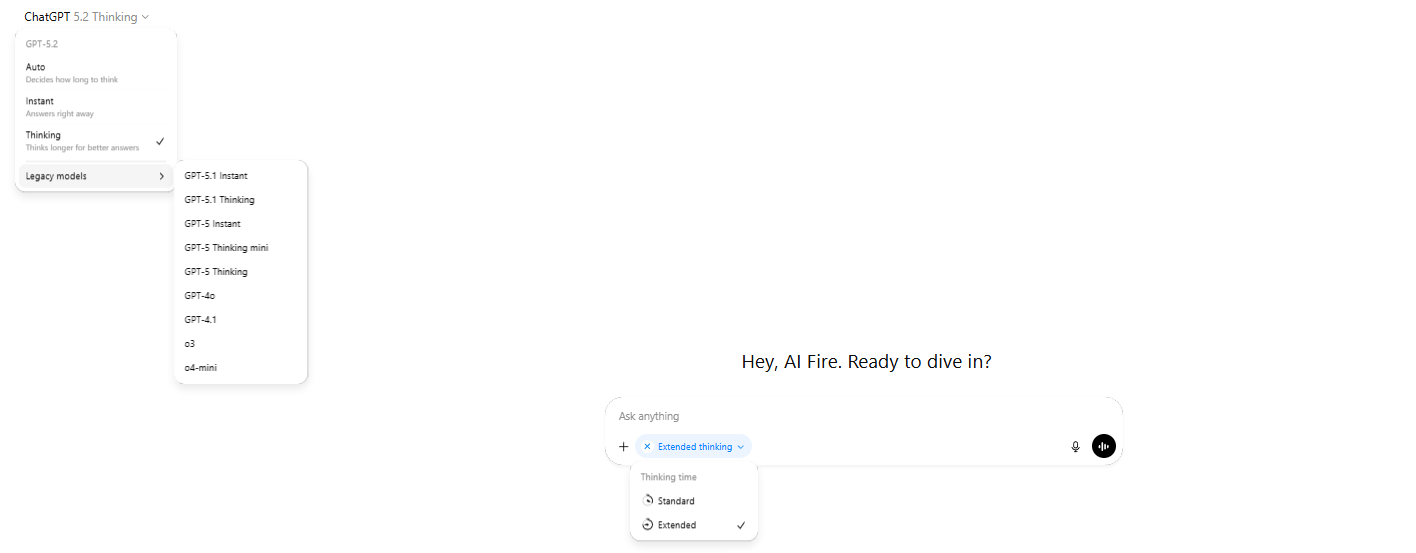
Extended is the one you use when the answer actually matters. Instead of responding instantly, ChatGPT will:
Think deeply about your question
Consider multiple approaches
Reason through the problem step-by-step
Only then give you an answer
This can take 30 seconds to 2 minutes but the quality difference is massive.
When to Use Extended Thinking
Extended thinking is for work that breaks normal chat mode:
Complex strategy questions ("What's the best go-to-market strategy for this product?")
Problem-solving ("How can I optimize this workflow?")
Creative challenges ("Brainstorm 10 unique angles for this campaign")
Technical advice ("What's the best architecture for this app?")
If you need depth, you switch it on.

The Pro Plan: Heavy Mode
If you have the $200/month Pro plan, you get access to Heavy Thinking. This spends even longer reasoning and tackles research-grade problems.
Honestly, 95% of people don't need this. So usually, you can skip it but if you're doing complex research, financial modeling or high-stakes strategy, it's worth it.

XIV. Bonus Trick: Chat Branching
Here's a scenario: You’re deep in a ChatGPT brainstorm and the conversation hits a fork. Should you go creative or analytical?
My answer is: you don’t have to choose. Chat branching lets you take both paths.
How Chat Branching Works
At any point in a conversation, you can split the discussion into parallel paths:
Click the three dots next to a message.
Select "Branch into new chat".
Now you have two identical chats up to that point.
Take one in Direction A, the other in Direction B.
This works because nothing gets overwritten.

You can test different tones, compare strategies or explore alternatives side by side without restarting or losing progress. It feels less like chatting and more like thinking on a whiteboard with multiple columns.
The Power Move
Once you have a few strong branches, you don’t leave them scattered.
You move each branch into a Project. Once they live there, the project holds the full history of your thinking. When you start a new chat inside that project, ChatGPT pulls from every branch at once.
That’s how scattered ideas turn into decisions.
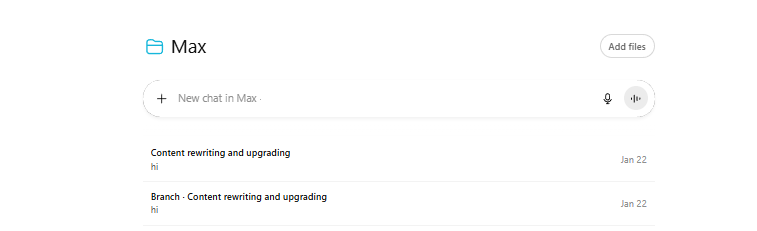
For example, you can explore email, social and partnerships in separate branches for a course launch. Then open a fresh chat and ask which combination works best with a limited budget and a 60-day timeline. The answer reflects everything you explored without repeating the work.
XV. Conclusion: Moving from Tourist to Wizard
New OpenAI features don’t arrive once a year. Every few weeks, there’s something new and most people miss them. Not because they aren’t paying attention but because OpenAI rarely makes noise about updates.
If you don’t want to track updates every day, the easiest option is to follow the AI Fire newsletter. That’s how you can stay on top of changes without constant checking.
If you want to set this up properly, here’s the ChatGPT Power User Setup Checklist I use.
Because the real difference between a casual user and a power user isn’t intelligence.
It's knowledge of these hidden features.
Now you’re in that group. The only step left is using it.
If you are interested in other topics and how AI is transforming different aspects of our lives or even in making money using AI with more detailed, step-by-step guidance, you can find our other articles here:
Scale To $1M Without Hiring: 4 AI Systems That Do The Heavy Lifting*
Only 7 Prompt Rules You Need to Master Any AI Video Tool (Veo, Sora, Even 2026 Ones)
Forget "Note-Taking"! NotebookLM Is Your Personal AI POWERHOUSE
7 Google Antigravity Features that Vibe Coders Use to Build IOX Faster
*indicates a premium content, if any
Reply