- AI Fire
- Posts
- 🎨 Gemini 3 Pro UI Hack: The 4-Step System That Beats Hiring Designers
🎨 Gemini 3 Pro UI Hack: The 4-Step System That Beats Hiring Designers
Learn how to design beautiful interfaces using Gemini 3 Pro before writing code. A simple 4-step system for beginners to build professional apps.

Neil Phan
December 10, 2025
TL;DR
You can build professional apps by using Gemini 3 Pro to generate detailed design plans and style guides before writing code. This 4-step system prevents ugly interfaces by prioritizing visual structure over backend logic.
Developers often create messy apps because they code first and design later. This guide uses AI to act as your Product Manager, generating a clear roadmap and visual system based on proven aesthetics. You will learn to define specific UI states like loading or empty screens to ensure a polished user experience.
Key points
Fact: A fuzzy idea leads to a messy app without a structured Product Requirements Document.
Mistake: Designing only the "Happy Path" and ignoring empty or error states.
Takeaway: Use mobile simulation prompts to visualize the phone layout accurately on desktop screens.
Critical insight
The biggest quality jump comes from treating design as an architectural blueprint rather than a final coat of paint added after coding.
🫣 Ever spent weeks coding an app that looked... ugly? |
Table of Contents
Have you ever spent weeks or even months building an app? You work hard on the login system, the database, and the features. You feel proud. But then, you look at the final result on your screen, and your heart sinks. It looks terrible. The buttons are messy, the colors don't match, and it looks like a website from 20 years ago.
I have been there so many times. We often make the mistake of coding first and designing later. We think, "I will make it pretty after it works." But we never do.
What if I told you there is a better way? You can create amazing, professional-looking apps without being a professional designer. You just need to change the order of your work. In this guide, I will share a simple 4-step system. We will use a smart AI tool called Gemini 3 Pro to handle the hard design work for us. We will plan everything before we write a single line of code.
Let's learn how to build apps that people actually want to use.
Part I: Why Should You Use Gemini 3 Pro To Plan Your App Features?
Answer
Apps often turn out messy because developers start building without a clear map. You should use Gemini 3 Pro to act as a "Product Manager" and generate a Product Requirements Document (PRD). This document lists the exact core features and user stories, forcing you to focus only on what is essential before writing code.
Key takeaways
Fact: A fuzzy idea leads to a messy app; a PRD provides a clear roadmap.
Comparison: It is like having a boss tell you exactly what to build so you don't waste time.
Detail: Request specific sections: Executive Summary, Core Features, and User Stories.
Action: Copy the "Act as an expert Product Manager" prompt to structure your initial idea.
Critical insight
You must solve the logical structure of the app before you ever worry about colors or buttons.
The biggest reason apps turn out ugly or confusing is that we don't have a clear plan. We have a fuzzy idea in our heads, like "I want to make a note-taking app." But a fuzzy idea leads to a messy app.
Before we worry about colors or buttons, we need a map. In the tech world, this map is called a PRD (Product Requirements Document). It sounds fancy, but it is just a list of exactly what your app will do.
1. The Role Of The Product Manager
Imagine you have a boss who tells you exactly what to build. This boss is a "Product Manager." Since we are working alone, we can ask Gemini 3 Pro to be our boss.
When you start with a clear plan, you don't waste time building things you don't need. You focus only on the important parts.
2. How To Write The Prompt
You need to talk to the AI like it is an expert. You give it your rough idea, and it gives you a structured plan.
Here is the exact prompt I use. You can copy this, fill in your idea, and send it to the AI:
"Act as an expert Product Manager. I have an app idea: [Insert your simple idea here, e.g., A daily journal app for people who hate writing].
Please write a Product Requirements Document (PRD) for me. I need these specific sections:
Executive Summary: A short summary of what the app does.
Core Features: List only the top 3-4 most important features. Do not list 10 features, keep it simple.
User Stories: Write these in this format: 'As a [type of user], I want to [action], so that [benefit]'.
Keep the language simple and clear."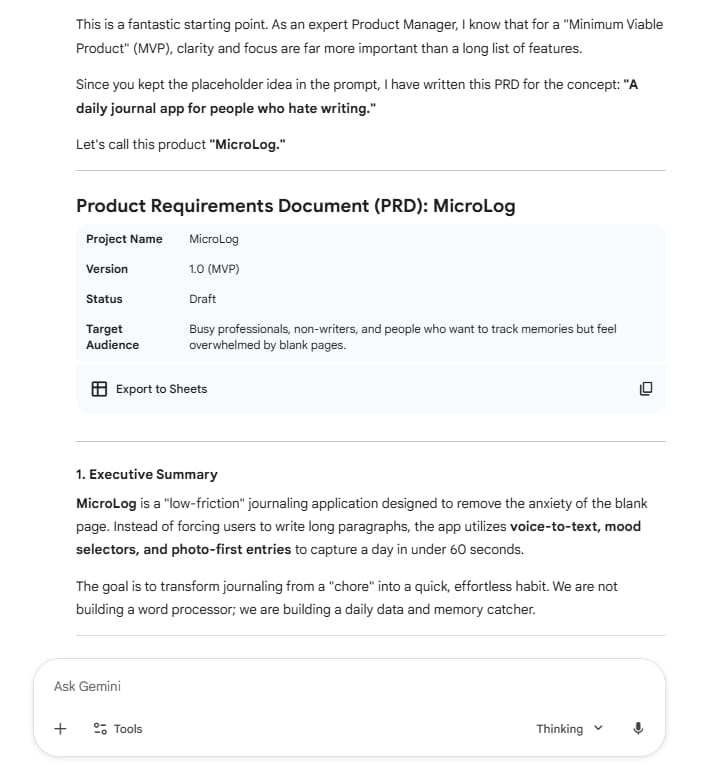
3. What You Get Back
After you run this prompt, Gemini 3 Pro will give you a document. For example, if you are building a journal app, it might tell you that you need a "Quick Entry" feature and a "Mood Tracker."
Now you are not guessing. You have a list. This is the foundation of your design.
Learn How to Make AI Work For You!
Transform your AI skills with the AI Fire Academy Premium Plan - FREE for 14 days! Gain instant access to 500+ AI workflows, advanced tutorials, exclusive case studies and unbeatable discounts. No risks, cancel anytime.
Part II: How Does Gemini 3 Pro Help Filter Out Complex Backend Noise?
Answer
A standard PRD contains technical details about databases that distract from visual design. You must instruct the AI to act as a "Lead Product Designer" to filter out this noise. The goal is to extract only the information that affects what the user sees, clicks, and touches.
Key takeaways
Comparison: Backend logic is like plumbing inside a wall; UI is the paint on the outside.
Detail: Use a "Feature Extractor" prompt to isolate UI elements from backend logic.
Fact: Focusing on visuals first prevents you from getting stuck on complex server rules.
Action: Explicitly tell the AI to ignore APIs and security to focus purely on the user experience.
Critical insight
You cannot design a beautiful interface if you are distracted by how the database works.
Now you have a PRD. But there is a problem. A standard PRD talks about a lot of boring technical things. It talks about databases, security, passwords, and server rules.
If you want to design a beautiful interface, you do not need to care about the database right now. You only care about what the user sees on the screen. We need to filter the list.
1. Separating The "Pipes" From The "Paint"
Think about building a house. The plumbing and wires inside the walls are important, but they don't decide what the living room looks like. The PRD has both the wires (backend) and the paint (frontend).
We need to ask Gemini 3 Pro to act like a Designer and ignore the wires for now. (If you haven't explored this tool yet, check out our guide on Google's Gemini 3 Pro: 1M Tokens & Thinking AI Is Now FREE).
2. The Feature Extractor Prompt
We will take the result from Part I and feed it back into the AI with new instructions. We want a list of only the visual things.
Prompt:
"You are now a Lead Product Designer. I will give you the PRD we just created.
Your goal is to extract ONLY the information that affects the User Interface (UI).
Ignore anything about databases, APIs, security, or backend logic.
Focus on what the user sees, clicks, and touches.
Add simple UX guidelines like: 'Make it look clean,' 'Use big buttons,' and 'Keep text short.'
Here is the PRD: [Paste the PRD from Part I]"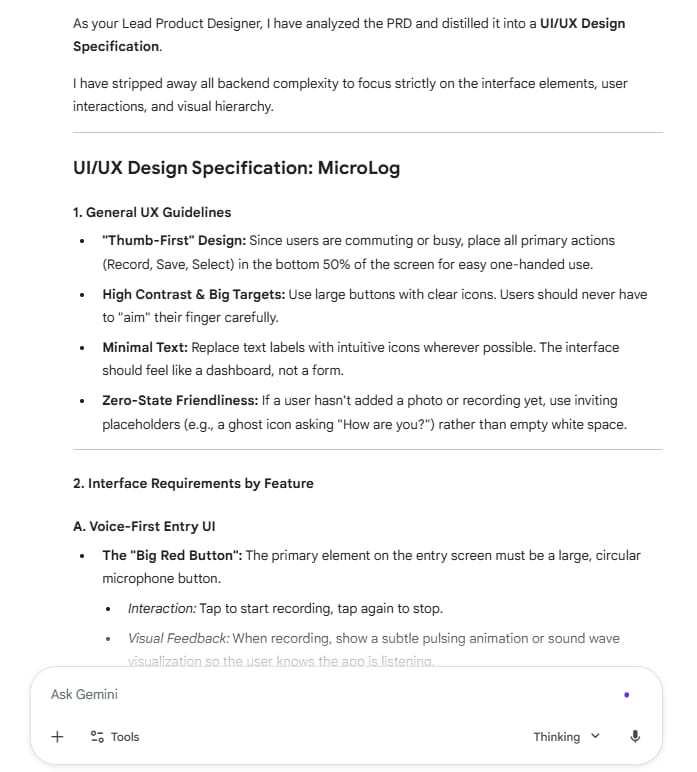
3. Why This Step Matters
When you do this, Gemini 3 Pro gives you a clean list. It might say:
"User needs a large text field to type notes."
"User needs a save button that changes color when clicked."
This is much easier to work with. You stop worrying about code and start thinking about the experience.
Part III: Can Gemini 3 Pro Generate A Complete Style Guide For You?
Answer
Picking colors from scratch is difficult for non-designers and often leads to ugly results. Instead, find inspiration from existing professional apps and ask Gemini 3 Pro to generate a Style Guide based on them. This guide defines your exact hex codes, font sizes, and spacing rules so you never have to guess.
Key takeaways
Tool: Use Mobbin to find screenshots of apps that have the aesthetic you want.
Fact: Great designers do not invent; they "steal" inspiration from what already works.
Detail: Your Style Guide must include specific hex codes, typography, and component rounding.
Action: Upload screenshots to Gemini 3 Pro and ask for a developer-ready "cheat sheet."
Critical insight
Never pick colors manually; always generate a strict system to ensure your app looks professional.
This is the fun part. This is where your app gets its personality. Most developers make a huge mistake here. They open a design tool or a code editor and try to pick colors from scratch.
Please, do not do this. Unless you went to art school, picking colors is very hard.
1. The Art Of "Stealing" Inspiration
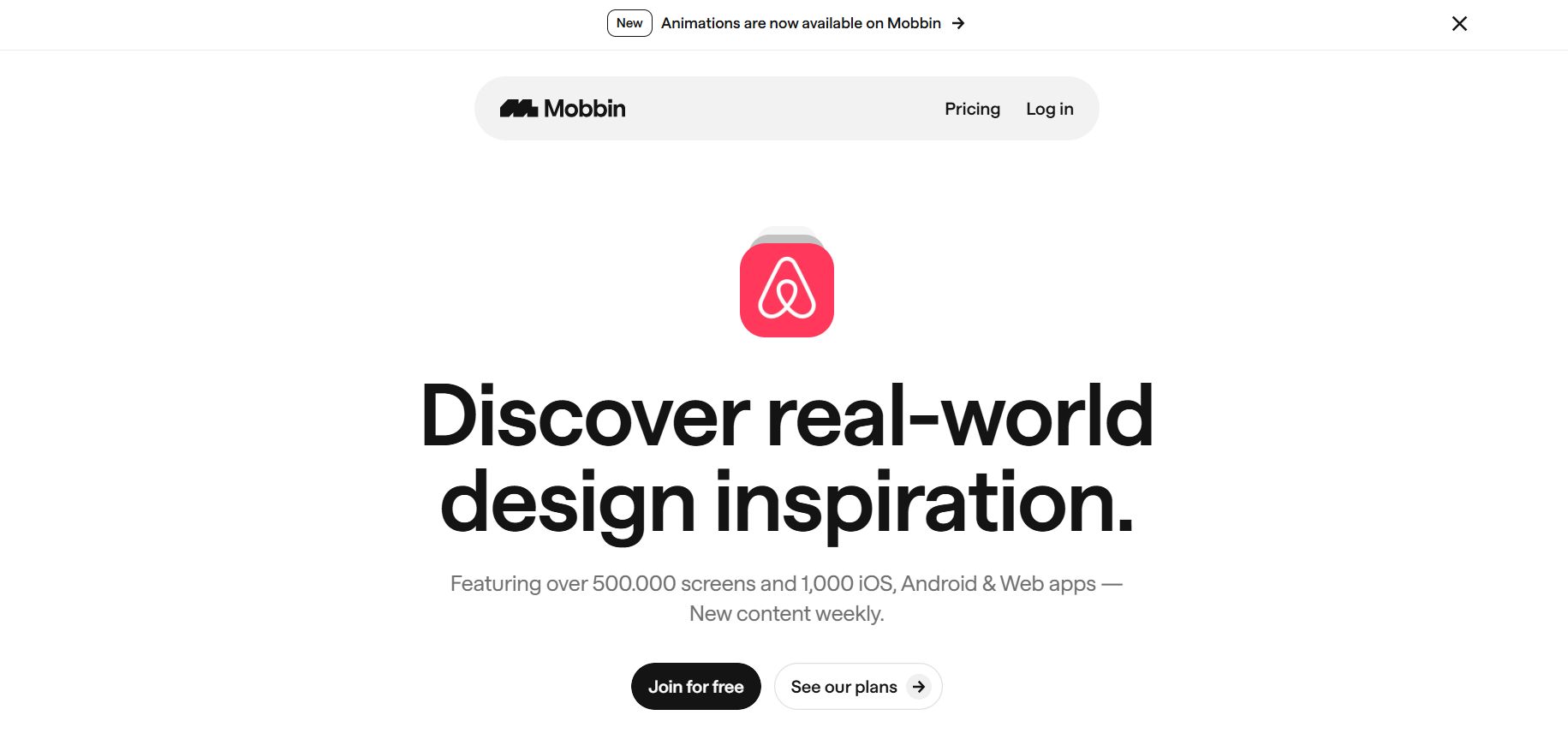
The best designers do not invent everything new. They look at what already works. You should find an app that looks beautiful and use it as a model.
I highly recommend a website called Mobbin. It is a library of screenshots from the best apps in the world (like Airbnb, Uber, or Duolingo).
Go there and find an app that has the "vibe" you want. Maybe you like the clean look of the Claude app, or the colorful look of Spotify. Take 3 or 4 screenshots of that app. But don't stop at the surface; find out if you are getting the most out of the model in my article [Just Chatting? 5 Deeper Ways To Actually Use Claude AI].
2. Creating The DNA Of Your App
Now, we will combine your feature list from Part II with your screenshots. We will ask Gemini 3 Pro to build a Style Guide. This guide tells you exactly which fonts, colors, and sizes to use.
Prompt:
"You are a Senior UI Designer. I am building an app and I need a Style Guide.
Inputs:
Here is my list of UI features: [Paste list from Part II]
I have attached screenshots of an app I like. Use this aesthetic as inspiration. [Upload your screenshots]
Task:
Create a complete UI Style Guide. Please format it like a cheatsheet for a developer. Include:
Color Palette: Give me the exact Hex codes (e.g., #FF5733) for Primary, Secondary, Background, and Text colors.
Typography: What font sizes should I use for Headings and Body text?
Components: How round should the buttons be? How much padding (space) inside the cards?
Spacing: simple rules for margins."
3. The Result
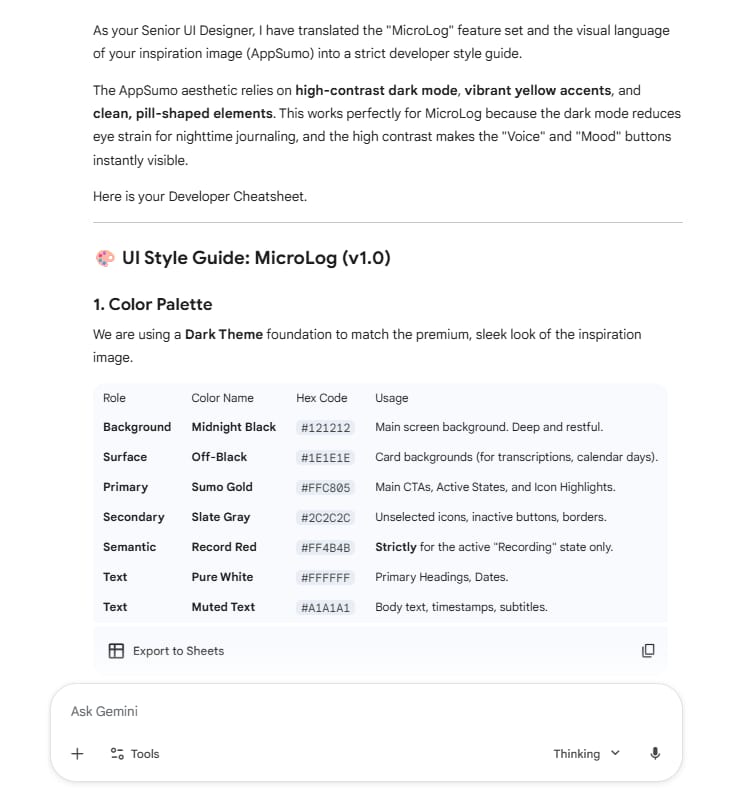
Gemini 3 Pro will give you a clear set of rules. It might say:
Primary Color: Sumo Gold (#FFC805)
Background: Midnight Black (#121212)
Surface: Off-Black (#1E1E1E).
Now, you never have to guess "Which red should I use?" You just look at your guide.
Part IV: How Do You Define UI States Using Gemini 3 Pro?
Here is a secret that separates beginner apps from pro apps: States.
Most beginners only design the "Happy Path." This is when everything works perfectly. But what happens when the user has no data? What happens when the internet is slow? What happens when there is an error?
If you don't design these, your app will look broken.
1. The Four Key States
You need to define four versions of every screen:
Zero State: The user just opened the app. It is empty.
Loading State: The app is thinking.
Error State: Something went wrong.
Active State: The app has data and is working.
2. Generating The Details
We can use Gemini 3 Pro to describe these for us so we don't forget.
Prompt:
"Take my feature list and my Style Guide. I need to define the UI States for my main 'Dashboard' screen.
Describe exactly what the user sees in these 4 scenarios:
Zero State: (No data yet). What text and buttons show?
Loading State: (Fetching data). Do not just say 'spinner'. Describe a friendly message.
Error State: (Failed to load). What does the user see?
Active State: (Full data).
Use the colors and fonts from my Style Guide."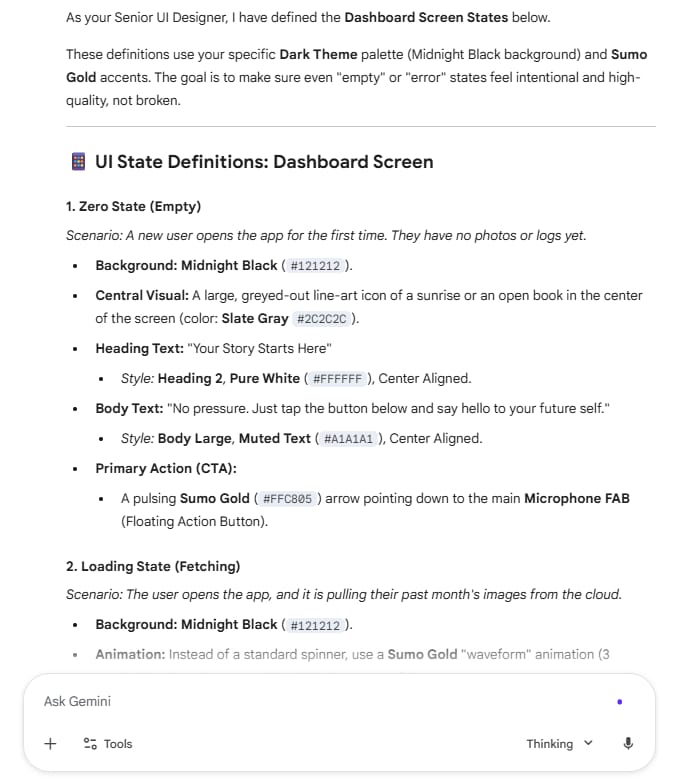
3. Why This Changes Everything
Instead of a blank white screen when there is no data, Gemini 3 Pro might tell you:
Zero State (Empty)
Scenario: A new user opens the app for the first time. They have no photos or logs yet.
Background: Midnight Black (#121212).
Central Visual: A large, greyed-out line-art icon of a sunrise or an open book in the center of the screen (color: Slate Gray #2C2C2C).
Heading Text: "Your Story Starts Here"
Style: Heading 2, Pure White (#FFFFFF), Center Aligned.
Body Text: "No pressure. Just tap the button below and say hello to your future self."
Style: Body Large, Muted Text (#A1A1A1), Center Aligned.
Primary Action (CTA):
A pulsing Sumo Gold (#FFC805) arrow pointing down to the main Microphone FAB (Floating Action Button).
This makes your app feel friendly and complete.
Part V: How Do You Write Code With Gemini 3 Pro In An IDE?
We have done a lot of planning. Now, coding will be easy. We are not "figuring it out." We are just following the instructions we created.
You can use any code editor, but I like using Google's Project IDX or Google Antigravity IDE if available, or even VS Code with an AI extension. We will use a modern stack: React (for logic), Tailwind CSS (for styling), and Lucide React (for icons).
If you are curious about the IDE, check out how this new AI uses a Chrome extension to "watch" and fix visual bugs in real-time.
1. The "Mobile Simulation" Trick
If you are building a mobile app but working on a laptop, it looks weird. You should ask the AI to simulate a phone frame.
2. The Builder Prompt
Do not tell the AI to "Build my whole app." It will fail. You must build one feature at a time.
Here is the master prompt to generate your code:
"I am building a mobile-first web app using React, Tailwind CSS, and Lucide React icons.
Constraints:
Simulate an iPhone device frame in the browser so it looks like a mobile app.
Do not show scrollbars.
Design Context:
[Paste your Style Guide from Part III]
Task:
Build the [Name of Feature, e.g., Capture Screen].
Implement the Zero State and the Active State based on these requirements:
[Paste the State description from Part IV].
Write the full code."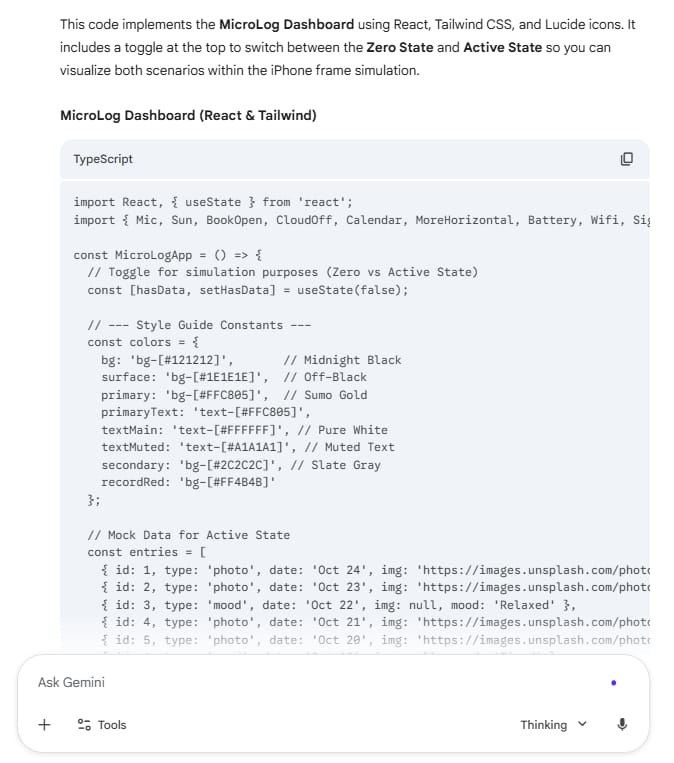
3. Iterating
You copy the code Gemini 3 Pro gives you and run it. It usually looks great because you gave it the specific hex codes and spacing rules.
If a button looks too small, you simply ask: "Make the button full width and use the Primary Color." Because you have a plan, fixing things is fast.
Part VI: What Mistakes Should You Avoid When Using Gemini 3 Pro?
I have used this system for many projects. Along the way, I made mistakes. Here is how you can avoid them.
1. Skipping The Context
Sometimes you might start a new chat with Gemini 3 Pro and just say, "Make a settings page."
The AI does not remember your style guide from the other chat. You must always paste your Style Guide in every new prompt. Think of it as reminding the AI who you are.
2. Ignoring The Icons
Text is boring. Icons make an app look easy to use.
Always tell Gemini 3 Pro to use "Lucide React" or "Heroicons." If you don't ask for them, it might just use text buttons like [Edit] instead of a nice pencil icon.
3. Making Generic Requests
Do not say "Make it look modern." "Modern" means nothing.
Be specific. Say "Use the color palette I gave you" or "Use rounded corners of 12px." The more specific you are, the better the result.
4. Forgetting The "Empty" User
I see this all the time. Developers build the screen assuming there are 100 items in the list. But for a new user, there are 0 items.
If you don't design the "Zero State," your new users will see a blank screen and think the app is broken. Always ask Gemini 3 Pro to design a welcoming empty state.
Conclusion
Building beautiful apps is not magic. It is a process.
When you try to code and design at the same time, you get overwhelmed. By using Gemini 3 Pro to handle the planning, the style guide, and the state definitions, you make the work simple.
You act less like a tired coder and more like a smart architect. You define what you want, and the AI helps you build it.
Next Steps for You:
Think of a very simple app idea (like a grocery list).
Open Gemini 3 Pro.
Run the "Product Manager" prompt I gave you in Part I.
Don't code yet! Just see what plan it creates.
Once you see the plan, you will feel much more confident. Go give it a try!
If you are interested in other topics and how AI is transforming different aspects of our lives or even in making money using AI with more detailed, step-by-step guidance, you can find our other articles here:
1 Hour Of This AI Prep Will Save You 100+ Hours Of Study (Part 1)
Earn Money with MCP in n8n: A Guide to Leveraging Model Context Protocol for AI Automation*
Transform Your Product Photos with AI Marketing for Under $1!*
Forget ChatGPT: 10 New AI Tools Minting Millionaires In 2026 List
*indicates a premium content, if any
How useful was this AI tool article for you? 💻Let us know how this article on AI tools helped with your work or learning. Your feedback helps us improve! |
Reply