- AI Fire
- Posts
- 📌 How to Use Claude Co-work Step by Step (From Setup to Automation)
📌 How to Use Claude Co-work Step by Step (From Setup to Automation)
A beginner-friendly guide to using Claude Co-work to organize files, build skills, and automate recurring tasks

Robin Do
April 21, 2026
TL;DR
Claude Co-work is a task execution tool that helps you complete real work with files, not just generate answers. To use Claude Co-work effectively, you need a clear folder, a clear outcome, and a structured workflow.
This guide shows you how to use Claude Co-work step by step, from setup to automation. You will learn how to organize your workspace, turn tasks into reusable skills, and schedule recurring work without writing code.
The main idea is simple. Claude Co-work works best when you treat it like someone you assign tasks to. Instead of chatting, you define the result and let it handle the process.
Key points
Claude Co-work can read, write, and organize files across your workspace.
Common mistake: treating it like a chat tool instead of delegating tasks.
Practical takeaway: turn repeated tasks into skills to save time and reduce token usage.
Critical insight
The biggest improvement comes when you stop focusing on prompts and start building systems that Claude can run for you.
What feels like the biggest waste of time? |
Table of Contents
Introduction
Most people still use AI like a chat tool. They ask a question, get an answer, copy a few lines, and move on. That works for simple tasks, but it also keeps AI in a very limited role.
Claude Co-work is different. It is built for delegated work, not just back-and-forth conversation. Instead of helping you think through a task, it can take the task, work through the steps, and give you finished output inside a folder on your computer.
That difference matters more than most people realize.
Let’s say you have a folder full of invoices. They are not organized. Some are PDFs, some are screenshots, and everything is mixed together. In a normal AI chat, you would need to upload files one by one, explain what you want, and still do a lot of manual work yourself. With Claude Co-work, you can give it access to that folder, tell it to sort the invoices by category, pull out the important numbers, and create a spreadsheet with subtotal, tax, and total. Then it handles the process for you.
This is where people start to understand how useful it can be. Claude Co-work is not just answering. It is executing.
If you are a business owner, operator, marketer, creator, or just someone who deals with repetitive computer work, this changes how you use AI. You do not need to know how to code. But you do need to know how to set it up properly, how to structure your workspace, and how to give it tasks in a way that leads to good output.
That is what this guide is for. I’m going to walk you through how to use Claude Co-work step by step, starting with what it actually is, how it differs from Claude Chat and Claude Code, and then how to set it up so it can do real work for you. By the end, you should not just understand the tool. You should know how to use Claude Co-work in a way that is practical, efficient, and far better than most first-time users.
I. What Claude Co-work actually is?
To understand how to use Claude Co-work properly, you need to get one thing clear first: this is not a chat tool. If you treat it like Claude Chat, you’ll get average results and probably stop using it.
Claude Co-work is an agentic tool inside the Claude desktop app. That sounds technical, but here’s what it really means in practice.
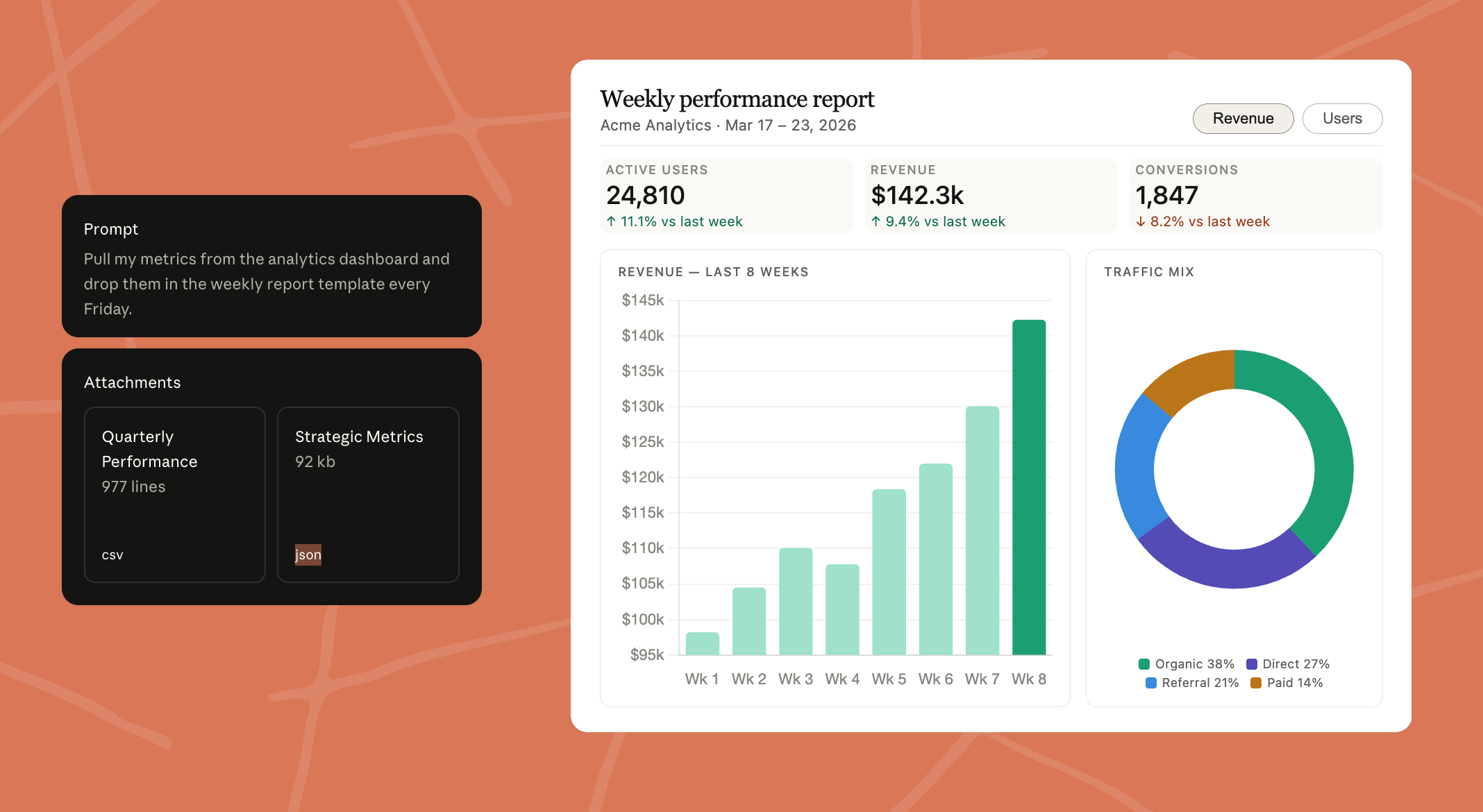
It can access folders on your computer. You give it permission once, and from that point, it can read files, edit them, create new ones, and organize everything inside that workspace. This is very different from uploading one file at a time in a chat.
When you give Claude Co-work a task, it does not just respond with text. It creates a plan, breaks the task into smaller steps, and executes them one by one. You can actually see this happening as it works through a task list in the background.
For example, if you ask it to organize documents in a folder, it will:
scan all files inside that folder
decide how to group them
create subfolders
move files into the right place
and then generate a summary or output if you asked for one
You are not guiding every step. You are assigning the outcome.
This leads to the most important mindset shift when learning how to use Claude Co-work: you are not having a conversation, you are delegating work.
With Claude Chat, you stay involved the whole time. You ask, it answers, you refine, and repeat. It is interactive. With Claude Co-work, you define the task clearly, then step away and let it run. When it finishes, the result is already saved in your folder.
Another important detail is why this only works in the desktop app. Claude Co-work needs direct access to your local files and the ability to execute multi-step tasks. That is not possible in a normal browser experience. So if you try to use it like a web tool, you will miss the main value.

If you remember just one thing from this section, keep it simple: Claude Chat helps you think, but Claude Co-work helps you finish tasks. Once you understand that difference, the rest of the setup and workflows will make much more sense.
II. A simple example: organizing invoices
The easiest way to understand how to use Claude Co-work is to watch it handle a real task from start to finish. A good beginner example is invoice organization because it shows the full workflow clearly.
Start by creating a folder on your computer that contains your invoices. These files can be PDFs, screenshots, or other common formats. They do not need to be organized first. In fact, a messy folder is a good test because this is the kind of work Claude Co-work is meant to handle.
Next, open Claude Co-work in the desktop app and give it access to that folder. Once the folder is connected, write a simple instruction that explains the result you want. For example, you can tell it to go through all the invoices, sort them into subfolders by category, and create an Excel sheet that lists each invoice with category, subtotal, tax, and total.
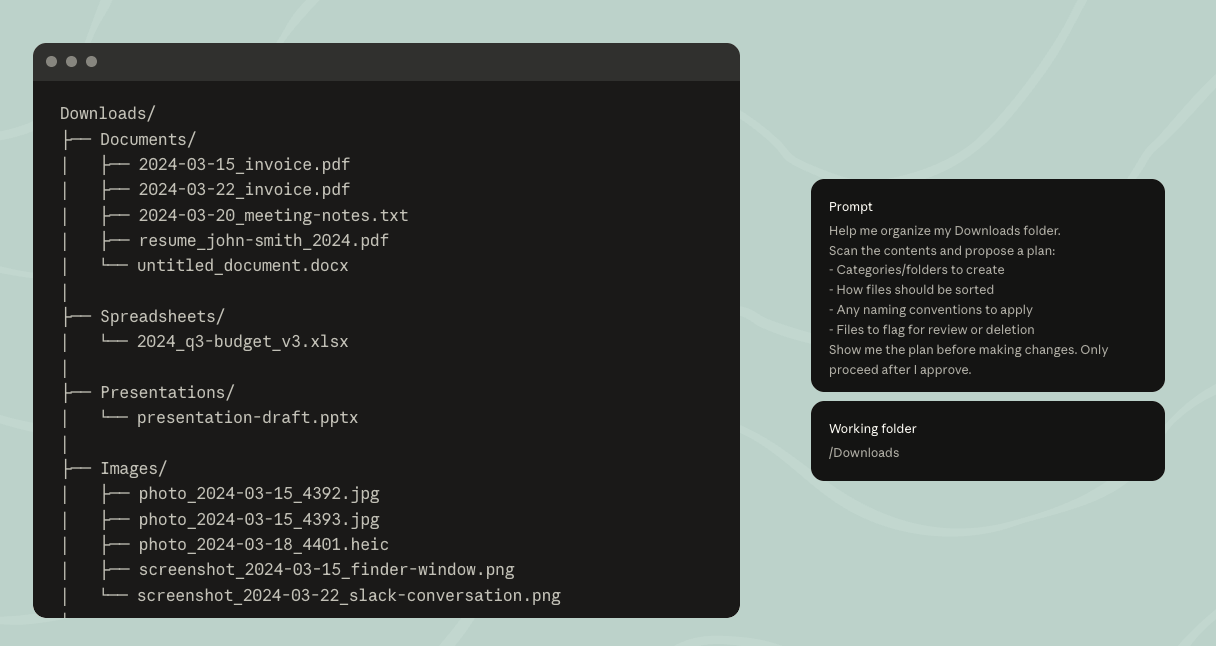
This is the first important lesson. Do not focus on writing a clever prompt. Focus on giving a clear task and a clear output. Claude Co-work works best when you tell it what finished work should look like.
After you start the task, Claude Co-work begins working through the folder. It reads the files, creates a task list, categorizes the invoices, pulls out the important details, and then generates the spreadsheet. You can see that progress as it works through each step.
When it finishes, go back to your folder and check the result. You should now see organized invoice subfolders and a spreadsheet with the key numbers already logged. This is what makes the tool useful. You are not manually opening every invoice, copying numbers into a sheet, and trying to keep everything clean yourself. Claude Co-work is doing the operational work for you.
Learn How to Make AI Work For You!
Transform your AI skills with the AI Fire Academy Premium Plan - FREE for 14 days! Gain instant access to 500+ AI workflows, advanced tutorials, exclusive case studies and unbeatable discounts. No risks, cancel anytime.
III. Claude Chat vs Claude Code vs Claude Co-work
Before you go deeper into how to use Claude Co-work, you need to understand where it fits. A lot of people get confused here, and that’s why they either use the wrong tool or expect the wrong result.
There are three main versions you’ll hear about: Claude Chat, Claude Code, and Claude Co-work. Each one is built for a different type of work.
Tool | Role | What it does | Best for | Limitation |
|---|---|---|---|---|
Claude Chat | Assistant | You type a prompt, it responds, and you go back and forth | Quick tasks like writing, brainstorming, summarizing, and answering questions | You still have to guide, correct, and refine it step by step |
Claude Code | Developer | Writes and runs code in a terminal, and can handle things like GitHub repos | Technical work, automation, and building tools | Not beginner-friendly and not visual |
Claude Co-work | Employee | Completes tasks in a visual workspace with files and folders | Work you want assigned and completed inside a workspace | Better for execution than simple idea generation |
Let’s go through them simply.
1. Claude Chat = assistant
Claude Chat is what most people already use. You type a prompt, it gives you a response, and you go back and forth until you get what you need.
This works well for quick tasks like writing, brainstorming, summarizing, or answering questions. You are always involved in the process. You guide it, correct it, and refine the output step by step.
So if your task takes 5–10 minutes and needs thinking more than execution, Claude Chat is usually enough.
2. Claude Code = developer
Claude Code is much more technical. It runs in a terminal, can write and execute code, and manage things like GitHub repositories.
If you are a developer, this is extremely powerful. You can automate workflows, build tools, and handle complex systems directly through code.
But if you are not technical, this is where most people get stuck. It is not designed for a visual, beginner-friendly experience.
3. Claude Co-work = employee
Claude Co-work sits in the middle, and this is why it matters.
It has the execution power of Claude Code, but instead of using a terminal, it gives you a visual interface with folders and files. You can assign tasks, and it completes them inside your workspace.
Think about it this way. Claude Chat answers. Claude Code builds. Claude Co-work executes.
When you are learning how to use Claude Co-work, this framing helps a lot. You are not asking it for ideas. You are giving it work to complete.
4. When Claude Co-work is the best choice
Claude Co-work is best when the task involves files, has multiple steps, and needs a finished output saved in a folder. That is the easiest way to decide when to use it.
For example, it works well for organizing documents, processing invoices, creating recurring reports, summarizing research folders, and preparing content from saved files. These are tasks with a clear input, a clear process, and a clear result.
A simple rule I’d use is this: if you want AI to complete work, not just answer you, Claude Co-work is usually the better choice.
This is why it is so useful for non-technical users. You do not need to build software or write code to automate practical work. You can set up a folder, give Claude a task, and let it handle the steps for you.
Still, it is not for everything. If you only need quick ideas or writing help, Claude Chat is faster. If the job is highly technical and code-heavy, Claude Code is the better fit. Claude Co-work shines when the work is operational, repeatable, and tied to files.
Claude Co-work is powerful, but it is not always the most efficient option. This is important to understand early, because many people try a big task, hit usage limits, and assume the tool is the problem.
The issue is simple. Every time Claude Co-work has to inspect a large folder, read many files, and reason through them, it uses tokens. So if you drop 100 invoices into a folder and ask it to process all of them from scratch, that can get expensive fast.
This is why repeated manual analysis is not the best long-term setup. If the same kind of task happens every week, you do not want Claude rethinking the whole workflow every time.
A better approach is to use Claude Co-work once to build the process, then turn that process into a reusable skill. In some cases, it can even create a script that handles the repetitive part more efficiently, while the skill gives you a simple way to run it.
The practical lesson is simple: use Claude Co-work to create the workflow, not always to brute-force the workflow. That is how you save time, reduce token waste, and get more reliable results.
V. Turning one-off work into a reusable skill
This is where Claude Co-work becomes much more useful.
Let’s say you gave it a task once, and it worked well. Maybe it sorted invoices, created a spreadsheet, and saved everything in the right folder. If that task is something you will repeat, do not keep rewriting the same prompt every time. Turn it into a skill instead.
A skill is a reusable workflow. It saves the process so you can trigger it again later without rebuilding everything from scratch.
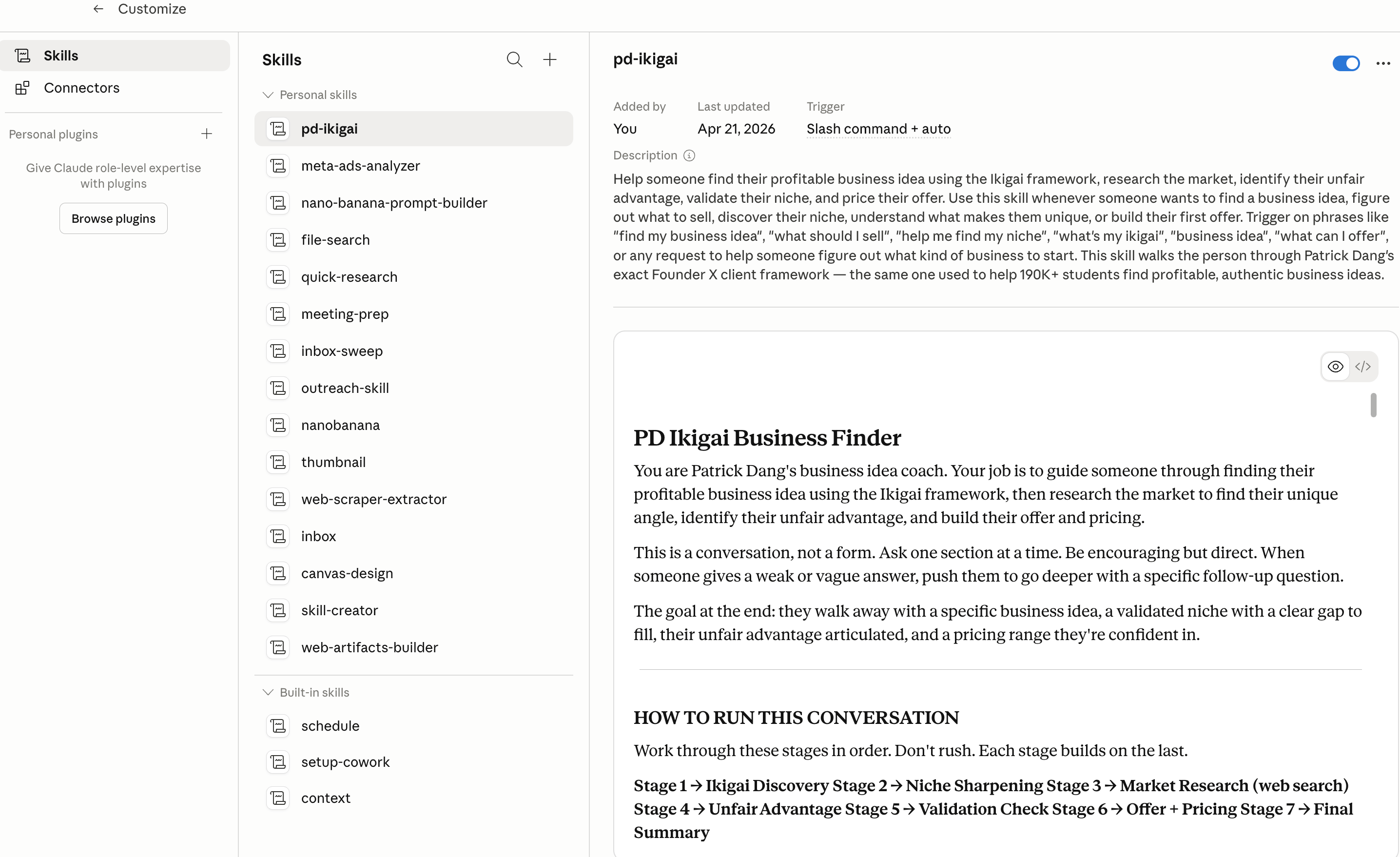
The best way to create one is simple. First, run the task manually in Claude Co-work and make sure the result is good. Then ask Claude to turn that exact process into a reusable skill. You can even give it a clear trigger name, like “summarize invoices,” so it is easy to run again.
This matters because custom skills are usually better than generic templates. They are based on your real files, your folder structure, and your desired output.
There is also another benefit. Newer skill flows can evaluate and improve the process before you fully use it, which helps make the results more consistent.
The simple rule is this: if a task works once and you know you will need it again, turn it into a skill.
VI. Scheduling recurring work
Once you have a skill that works well, the next step is to schedule it. This is how you move from one-time delegation to recurring automation.
The process is simple. First, make sure the task already works as a skill. Then ask Claude Co-work to create a scheduled task that runs that skill at a specific time, such as every Monday through Friday at 8:00 a.m. Claude can attach the skill to that schedule and save it for you.
This works best for tasks that repeat on a fixed rhythm. Good examples are weekly reports, recurring file cleanup, regular content prep, or invoice summaries that need to happen every week.

There is one important limitation you need to know. Scheduled tasks only run when the Claude desktop app is open and your computer is turned on. If your machine is asleep or the app is closed, the task will not run.
So the best way to use scheduling is simple: first prove the workflow manually, then turn it into a skill, then schedule it only after you trust the result. That gives you a much cleaner and more reliable setup.
VII. How to set up Claude Co-work the right way
If you want good results, setup matters more than prompting. Most people rush this part, then wonder why Claude Co-work feels inconsistent.
Start with the basics. You need a paid Claude plan. Claude Co-work does not work on the free tier, so you will need Pro or Max. If you are just starting, Pro is enough. You can upgrade later if you hit usage limits.
Next, download the Claude desktop app. This is important because Claude Co-work does not run in the browser or on your phone. Its main advantage is that it can access files on your computer, so everything happens inside the desktop app. Once installed, log in with your account.
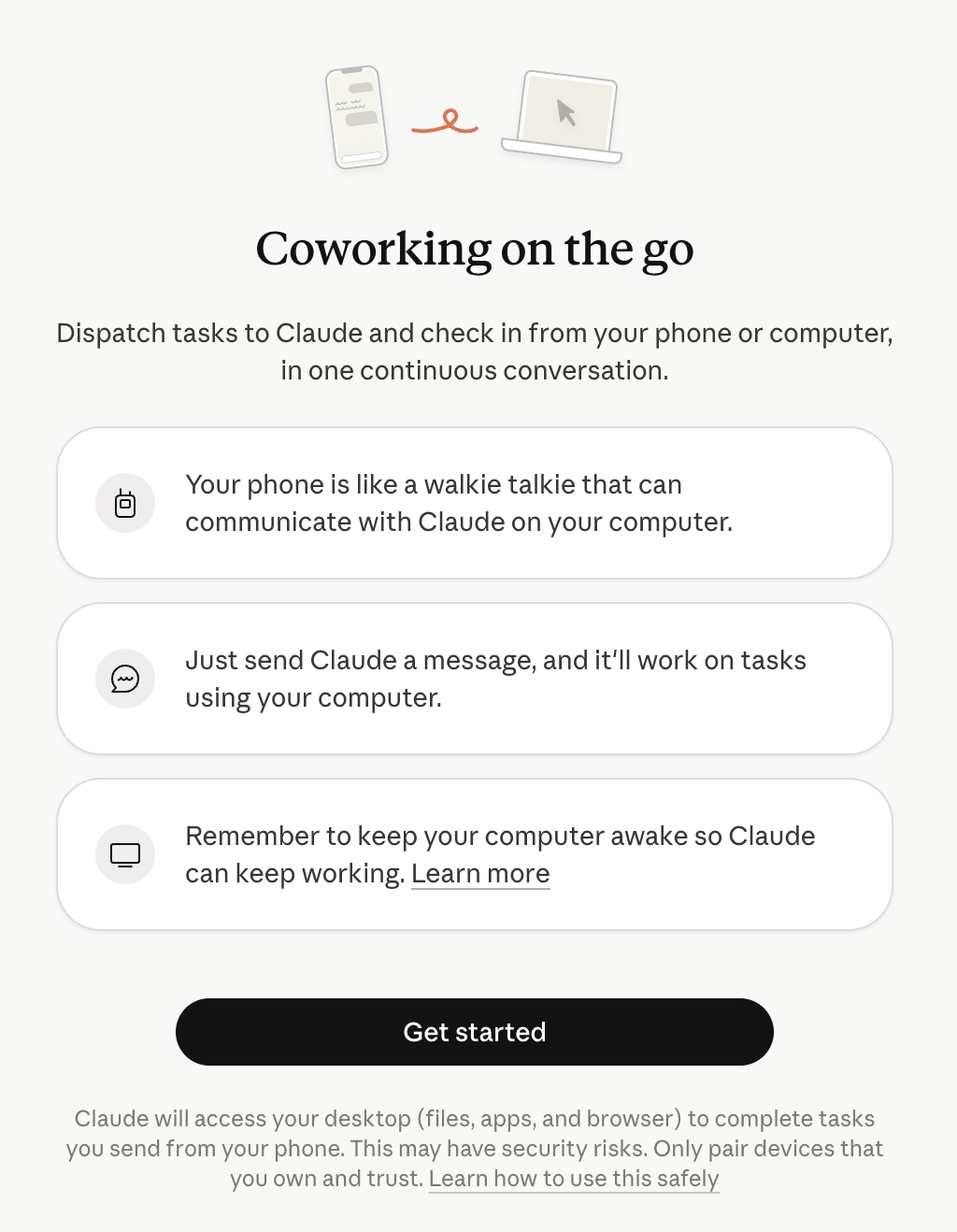
Now create your first working folder. This is where many people make mistakes. Do not give Claude access to random folders on your computer. Instead, create a clean folder, for example “Claude Workspace,” and use this as your main working area. Then connect this folder inside Claude Co-work and allow access.
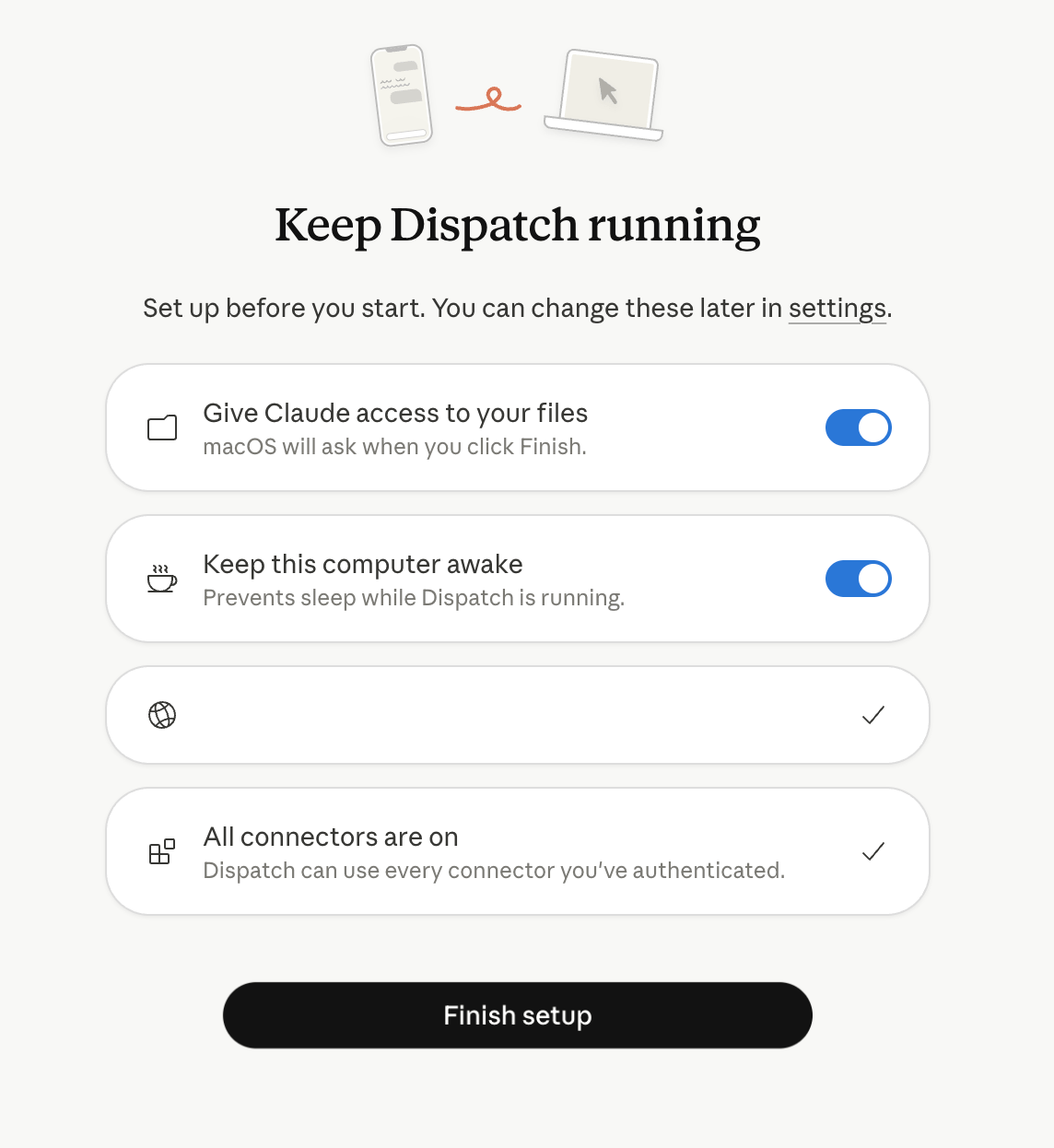
From here, you can start giving it tasks. But before that, one small habit will save you a lot of trouble. Keep copies of important files when you are starting. Claude can read, edit, and move files, so having backups helps avoid accidental loss while you are still learning.
So the setup process is simple. Get a paid plan, install the desktop app, create a dedicated workspace folder, and connect it properly. Once this is done, you are ready to build a structure that Claude can actually work with.
VIII. Build a workspace Claude can actually use
Once your setup is ready, the next step is organizing your workspace. This is where a lot of people go wrong. They connect a folder, throw random files into it, and expect Claude Co-work to figure everything out. It can help, but the results will not be consistent.
A clean structure makes a big difference.
Start by creating three main folders inside your workspace: context, projects, and output. This gives Claude a clear system to follow from the beginning.
The context folder is where you store long-term information. These are files that describe how you work, what your goals are, and anything Claude should remember across tasks.
The projects folder is for active work. Every new task or project should live here so things do not get mixed together.
The output folder is where finished work goes, so you always know where to find results.
After creating these folders, add a simple README file inside each one to explain what it is used for. This helps both you and Claude stay consistent when new tasks are created.
Here is how you should use this structure step by step. When you start a new task, place your files inside the projects folder. If Claude needs background information, store that in the context folder. Then tell Claude where to save the final result, usually in the output folder.
The main idea is simple. Do not just give Claude files. Give it a system. The clearer your structure is, the better it can execute tasks without confusion.
IX. Create persistent context files
If you want Claude Co-work to give consistent results, you need to stop repeating yourself. This is where persistent context files come in.
Instead of explaining who you are, how you work, and what you want every time, you store that information once inside your workspace. Claude can read these files at the start of each task and adjust its output based on them.
There are three core files you should create.
Start with about-me.md. This file explains who you are, what you do, your goals, and your current priorities. Keep it simple and practical. For example, include your role, the type of work you focus on, and what you are trying to achieve right now.
Next is brand-voice.md. This is especially important if you create content. Write down how you like to communicate, what tone you prefer, phrases you often use, and phrases you want to avoid. You can also include a few writing samples so Claude can match your style more closely.
The third file is working-preferences.md. This tells Claude how to work with you. Include how you start projects, how you want tasks to be handled, where outputs should be saved, and any rules you want it to follow while executing work.
Here is how to set this up step by step. First, create these three files inside your context folder. Second, let Claude ask you questions to fill in the details if needed. Third, update these files over time as your workflow becomes clearer.
The main idea is simple. The more context you give once, the less you need to explain later, and the better Claude Co-work performs across every task.
X. Use global instructions to make Co-work smarter
After setting up your context files, the next step is adding global instructions. This is a small step, but it makes a big difference in how consistent Claude Co-work is.
Global instructions are settings that Claude reads every time it starts a new task. Instead of repeating the same guidance again and again, you define it once in the settings panel.
To set this up, go into your Claude Co-work settings and find the global instructions section. Then write a short set of rules that guide how Claude should behave.
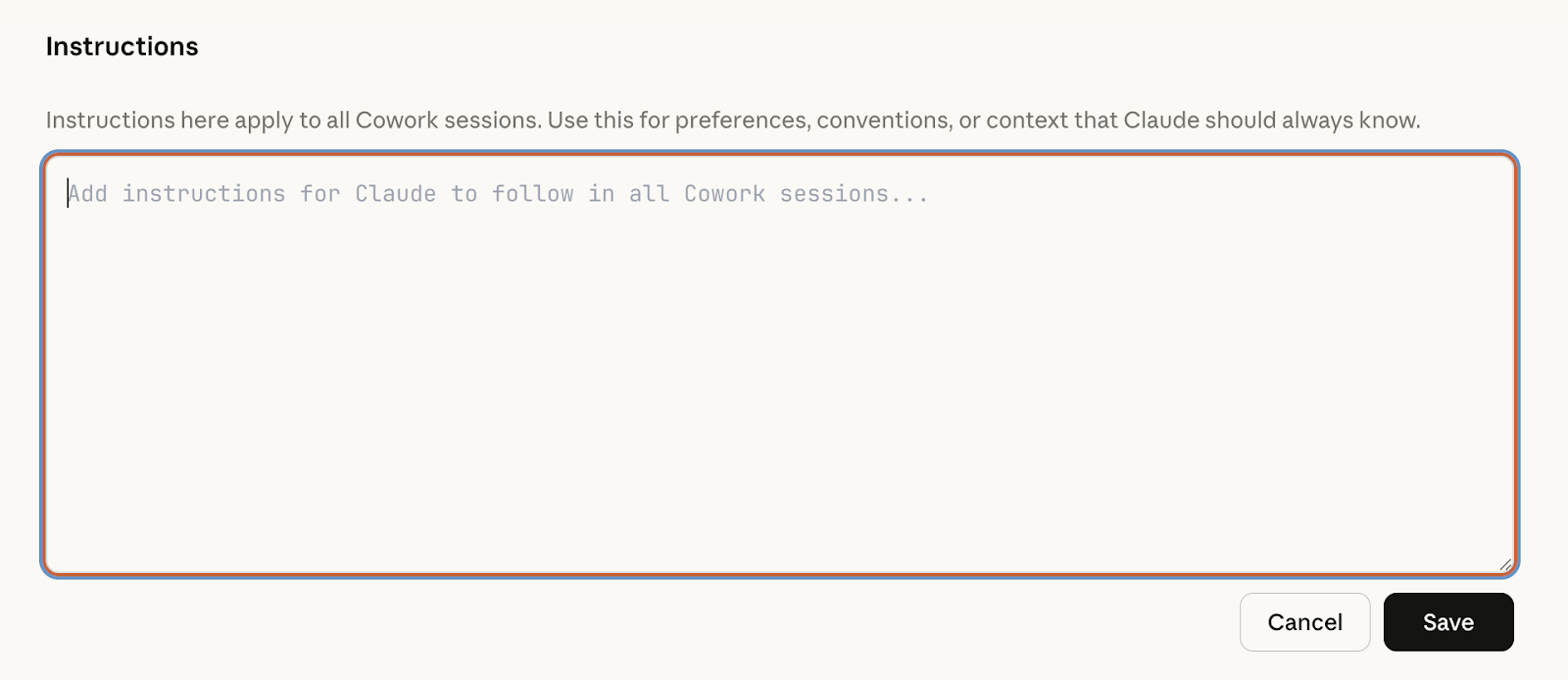
The most important instruction you should include is this: tell Claude to always read the relevant context and markdown files before starting any task. This ensures it uses your about-me.md, brand-voice.md, and working-preferences.md every time.
You can also add a few simple preferences, like where to save outputs, how to structure results, or how detailed you want the work to be.
Keep this part simple. Do not try to control everything. Just focus on high-level guidance that applies to all tasks.
XI. Skills, connectors, and plugins: the three capability extenders
Up to this point, you’ve seen how Claude Co-work can handle tasks inside your folders. But this is only the starting point. Its real value comes from three things that extend what it can do: skills, connectors, and plugins.
Start with skills. You already used this earlier. A skill is a reusable workflow. Instead of repeating the same task again and again, you save it once and trigger it when needed. This is how you turn manual work into a system. Over time, you can build multiple skills for different tasks, like processing invoices, summarizing documents, or preparing reports.
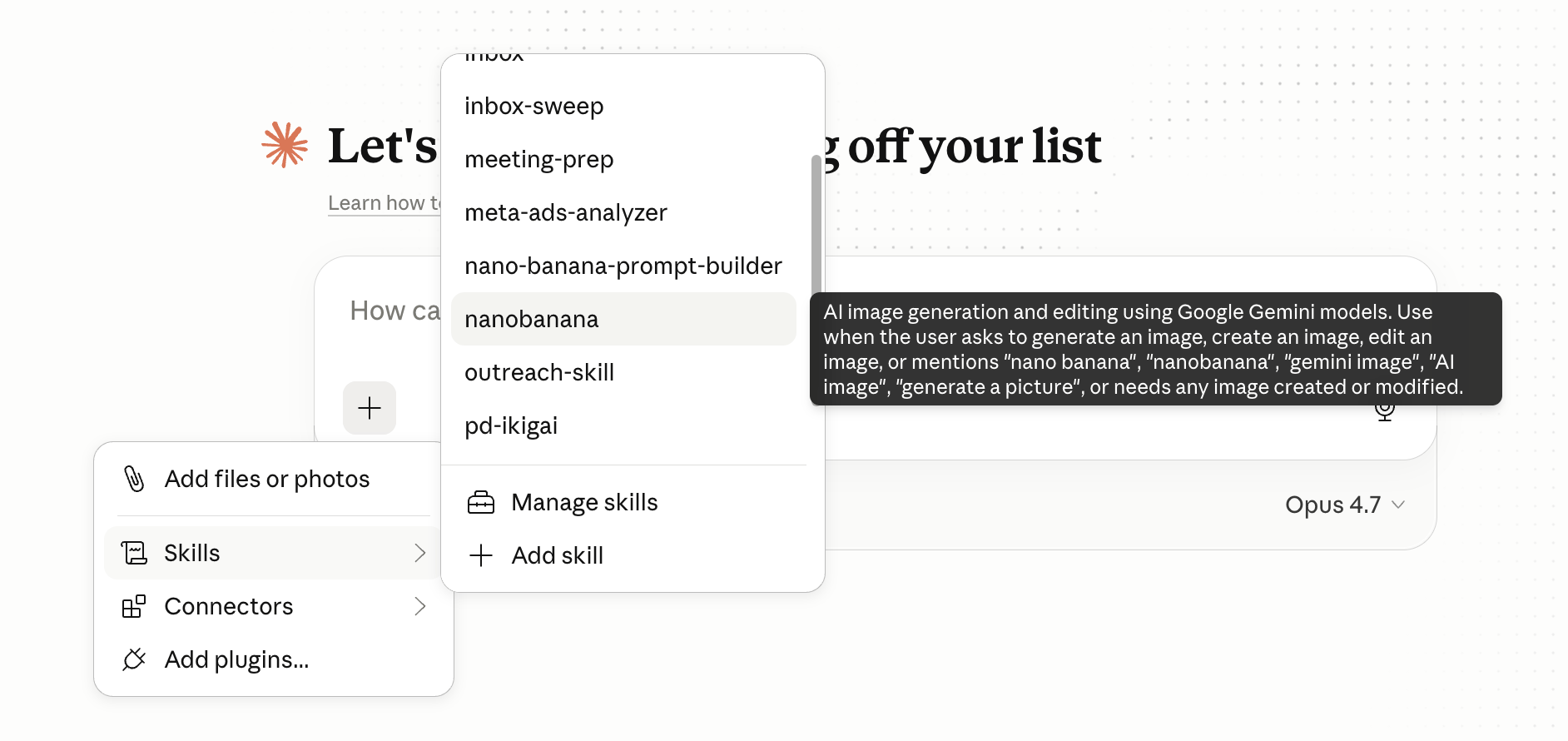
Next are connectors. These allow Claude Co-work to work with tools outside your local folders, like Gmail, Google Drive, Slack, or other platforms. Once connected, Claude can read data from these tools or take actions based on your permissions. For example, it can pull emails, organize files from Drive, or support workflows that go beyond your computer.
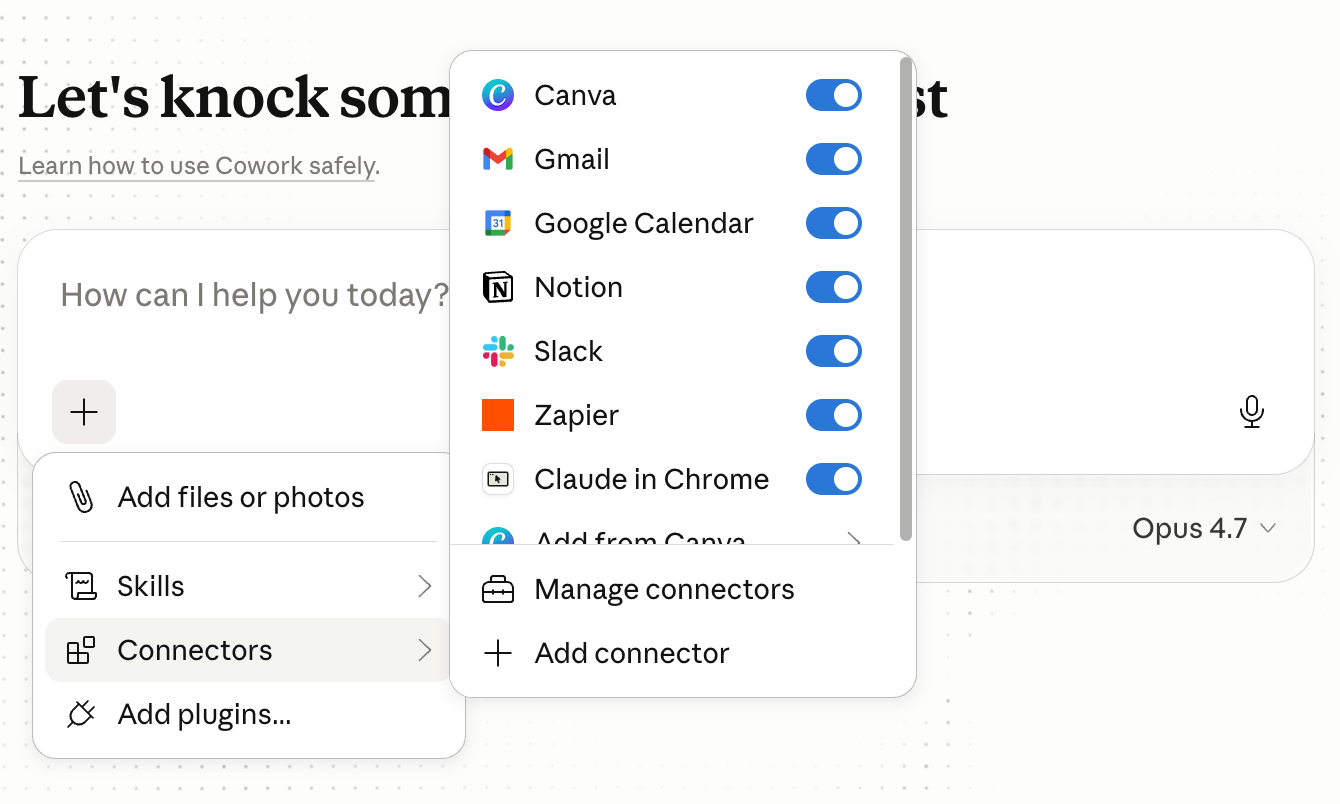
Then you have plugins. This is where things come together. A plugin is a combination of skills and connectors grouped into a larger workflow.
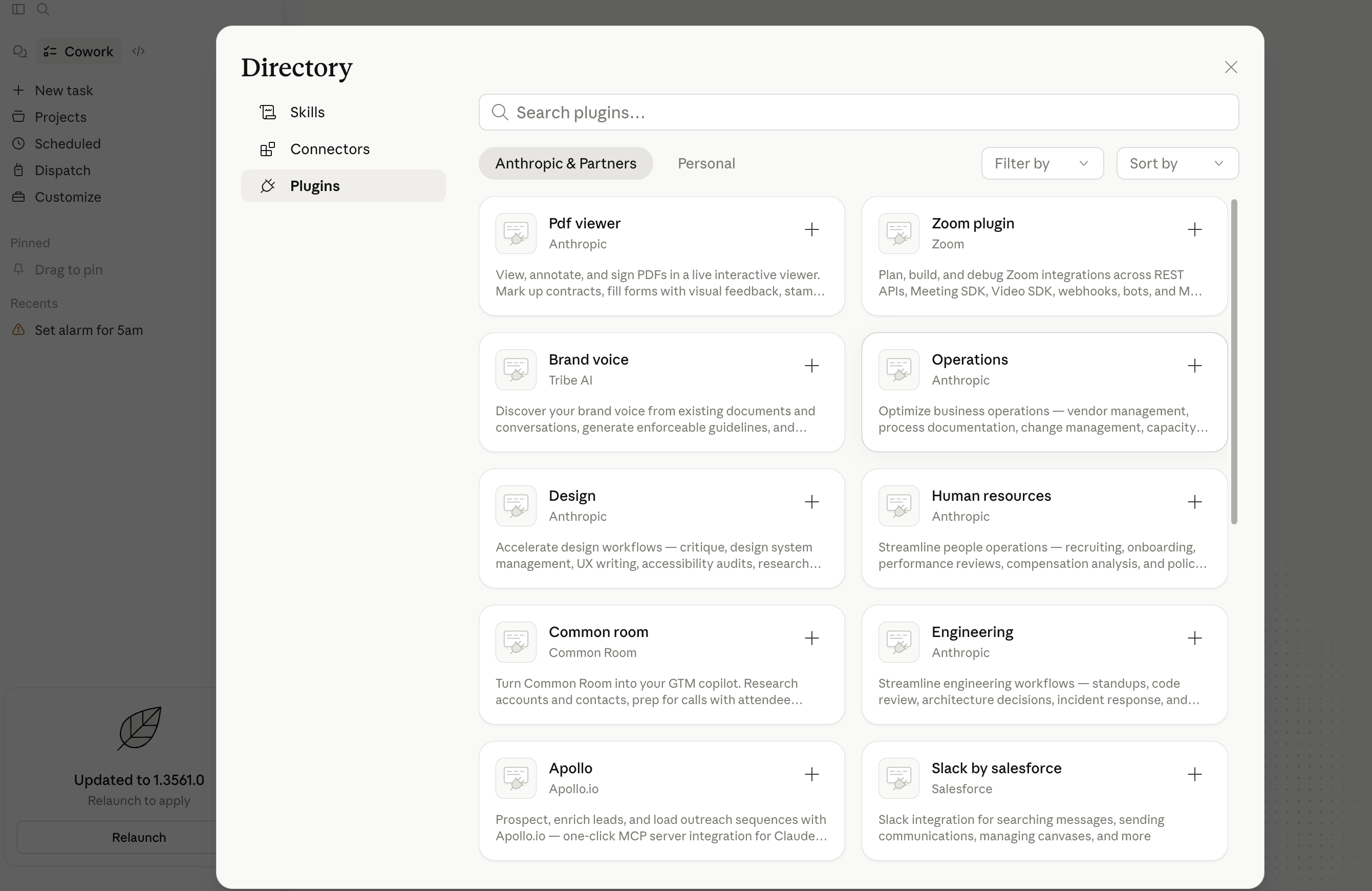
You can think of it as packaging multiple steps and tools into something closer to a full role. For example, instead of just one task, a plugin could handle an entire process like content production or sales outreach.
The main idea is this: skills help you repeat tasks, connectors expand where Claude can work, and plugins let you combine everything into something much more powerful.
XII. Common mistakes to avoid
Most people don’t fail because Claude Co-work is hard. They fail because they use it the wrong way from the start.
The first mistake is treating it like a chat tool. If you keep going back and forth, correcting every step, you lose the main benefit. Claude Co-work is meant for delegation. Give it a clear task and let it complete the work.
The second mistake is using messy folders. If your files are unstructured, unclear, or mixed across different tasks, the output will also be messy. Always start with a clean workspace and a clear folder for each job.
Another common issue is ignoring token usage. Running large tasks again and again without turning them into skills wastes resources and slows everything down. If something works once, turn it into a reusable workflow.
Finally, many users forget that scheduled tasks only run when the app is open. They set automation and expect it to run in the background like a cloud tool, which is not how it works.
Avoiding these mistakes will already put you ahead of most users.
Conclusion: the real mental model
At this point, you should have a clear understanding of how to use Claude Co-work and where it fits.
Claude Chat helps you think.
Claude Code helps developers build.
Claude Co-work helps you delegate and finish work.
Its real strength comes from combining everything you’ve set up. You give it access to files, define tasks clearly, turn repeated work into skills, and schedule what you trust. Then you extend it further with connectors and plugins when needed.
When you use it this way, Claude Co-work stops feeling like a tool you occasionally try. It becomes part of how you handle daily work. Not by replacing thinking, but by taking over the repetitive, structured tasks that slow you down.
That is the shift most people miss. And once you see it, it becomes much easier to use Claude Co-work in a way that is practical, efficient, and worth your time.
If you are interested in other topics and how AI is transforming different aspects of our lives or even in making money using AI with more detailed, step-by-step guidance, you can find our other articles here:
Overall, how would you rate the AI Fire 101 Series? |
Reply