- AI Fire
- Posts
- ⚡ 9 Small Changes That Make Perplexity AI Feel 10x Smarter
⚡ 9 Small Changes That Make Perplexity AI Feel 10x Smarter
From vague answers to clear thinking, without overcomplicating your workflow.

Robin Do
April 13, 2026
TL;DR
Most people use Perplexity AI like Google and only get shallow results.
You get better answers when you control sources, prompts, models, modes, and context.
This article shows how to use Perplexity AI intentionally instead of passively. You’ll learn how to guide where it searches, reduce noisy results, and get consistent output without rewriting prompts every time. The focus is on small workflow changes that directly improve accuracy, speed, and reliability.
You’ll also learn how to automate repeated research, store long-term knowledge, and choose the right mode or model depending on the task. These habits turn Perplexity from a one-off search tool into a daily research assistant.
By the end, you’ll know how to make Perplexity work for you—running in the background, staying grounded in trusted sources, and producing answers you can actually rely on.
Key points
Important fact: Most quality gains come from guiding where and how Perplexity searches, not from better prompts.
Common mistake: Treating Perplexity like “Google + ChatGPT” without adding constraints.
Practical takeaway: Reuse instructions with slash commands and automate repeat research with tasks.
Critical insight
Perplexity becomes powerful only when you stop asking random questions and start designing a repeatable system around it.
What do you wish Perplexity AI did better for you? |
Table of Contents
Introduction: Why Most People Are Using Perplexity at Only 10% Power
Most people don’t actually know how to use Perplexity AI well. They type a question, scan the answer, maybe click a source, and move on. On the surface, it feels fast and helpful. But the results are often too broad, slightly generic, or pulled from places that aren’t the best source of truth.
The main reason this happens is simple. Most users treat Perplexity like “Google plus ChatGPT.” That approach ignores what makes it different. Perplexity is strongest when you guide where it searches, how it thinks, and how often it works for you. If you don’t do that, you’re leaving most of its power unused.
This guide shows you how to use Perplexity AI the right way. Not by learning new features for the sake of it, but by making small, practical changes that directly improve output quality. With these changes, you’ll get more accurate answers, spend far less time researching, and rely on Perplexity as a daily research assistant instead of a one-off tool.
I’m assuming you already know the basics: how to run a search and how to read sources. Everything here focuses on advanced usage, explained step by step in simple language. I’ll show you exactly what to do, when to do it, and why it works, so you can apply it immediately without guessing.
When you finish this guide, you won’t just know how to use Perplexity AI. You’ll know how to control it.
Trick #1: Use Search Operators to Control Where Perplexity Looks
When I first started learning how to use Perplexity AI, I didn’t touch search operators at all. I just typed questions and hoped the answer would be good. Sometimes it was. Often, it wasn’t. The answers felt scattered, like they were stitched together from places that didn’t agree with each other.
By default, Perplexity AI looks everywhere. That’s useful, but it’s also the reason results feel noisy. The moment I started telling it where to look, the quality changed fast.
Step 1: Limit Perplexity to one website (site:)
This is the simplest operator and the one I use the most.
Use it when:
You want answers straight from official documentation
You already know which site you trust
You don’t want opinions mixed in
Here’s how I do it:
Find the official website
Write your question normally
Add
site:and the domain at the end
Example:
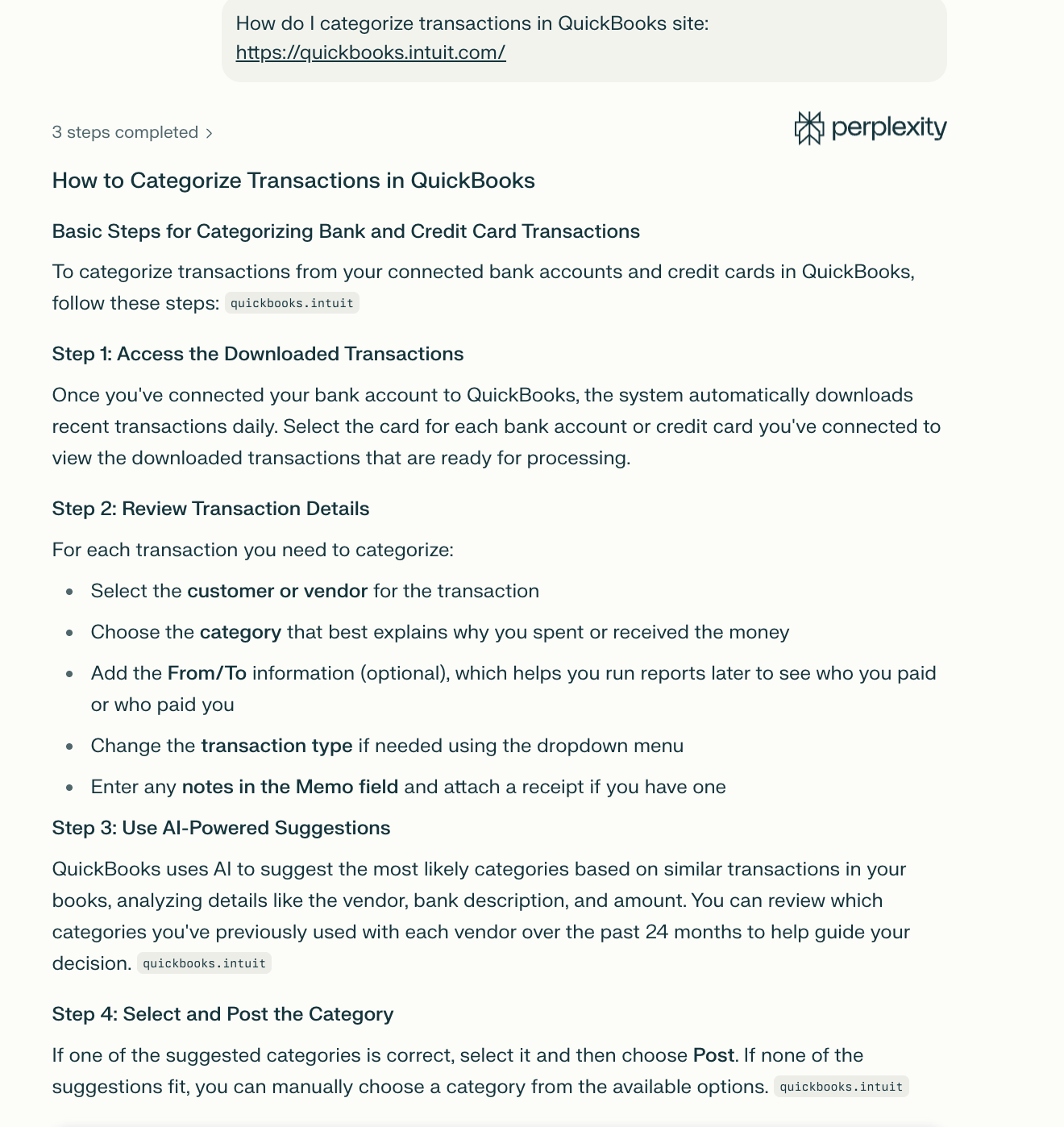 | 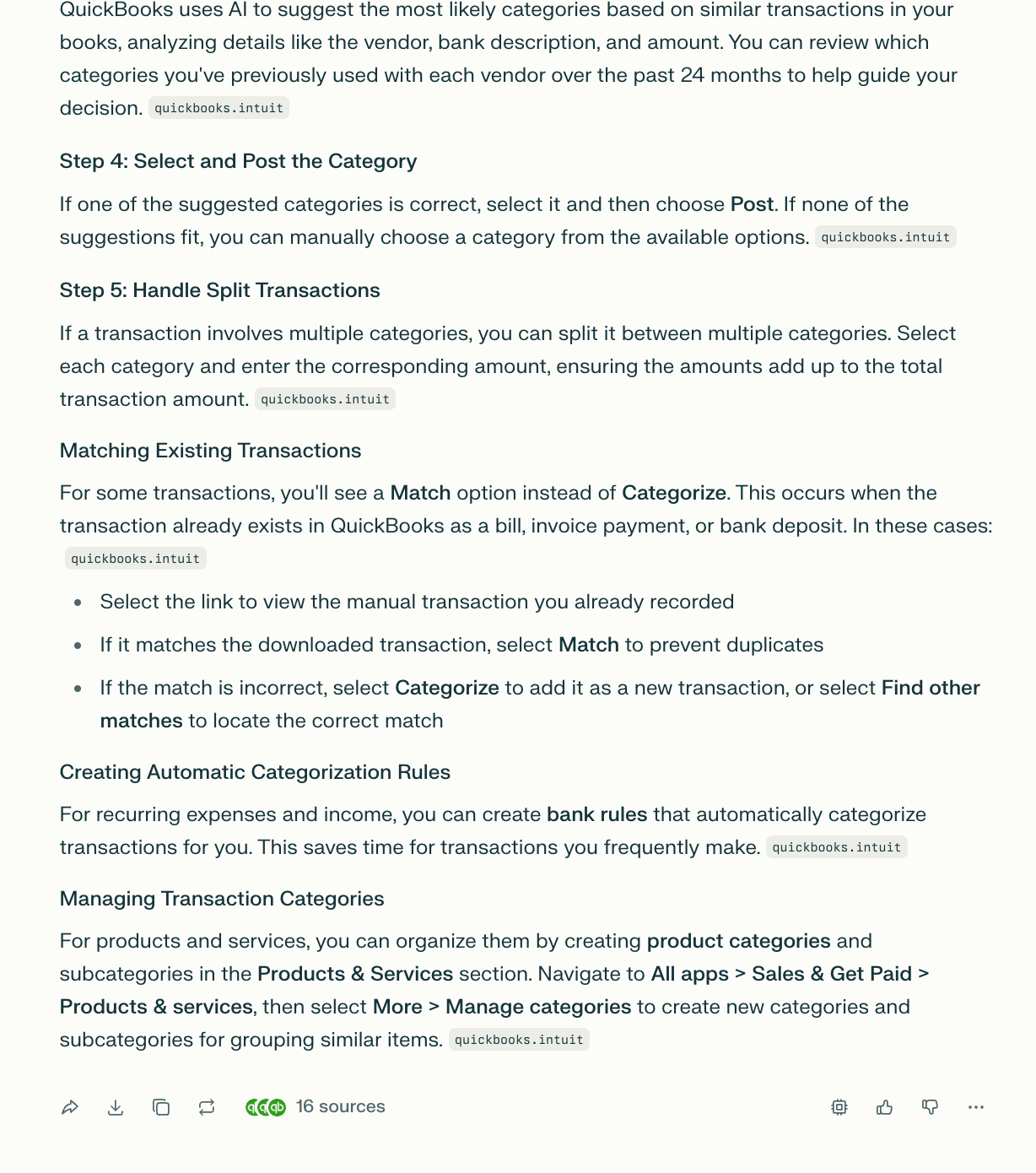 |
After you run this, look at the sources. You’ll notice something immediately. Every link comes from the same site. No Reddit threads. No random blogs. This alone fixes a lot of “almost correct” answers.
Step 2: Filter answers by time (after: / before:)
This matters a lot for AI topics. Things change quickly. An article from a few months ago can already be outdated.
I use time filters when I’m researching:
New AI features
Model updates
Policy or pricing changes
How to do it:
Write your question
Add
after:orbefore:with a date
Example:
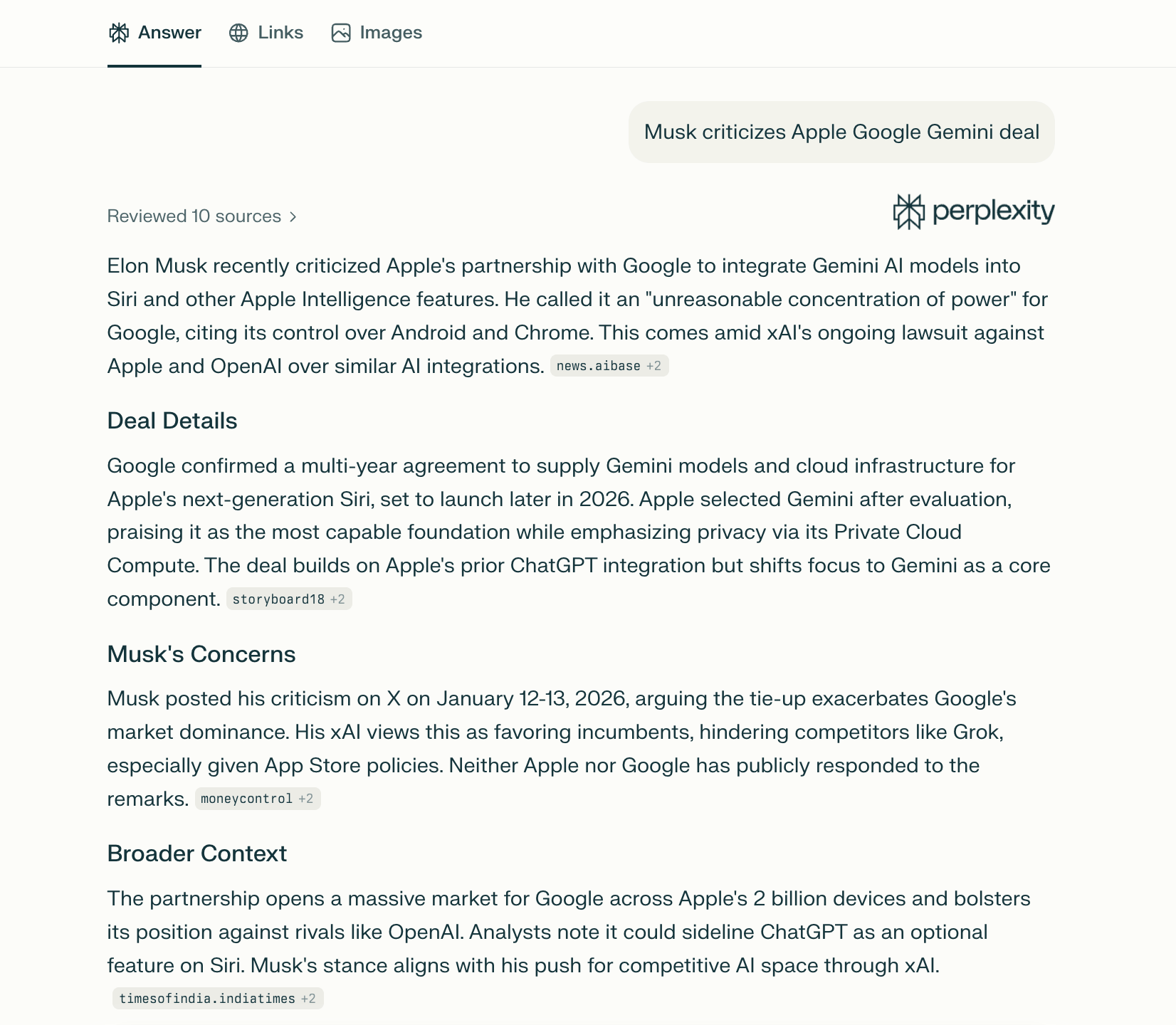
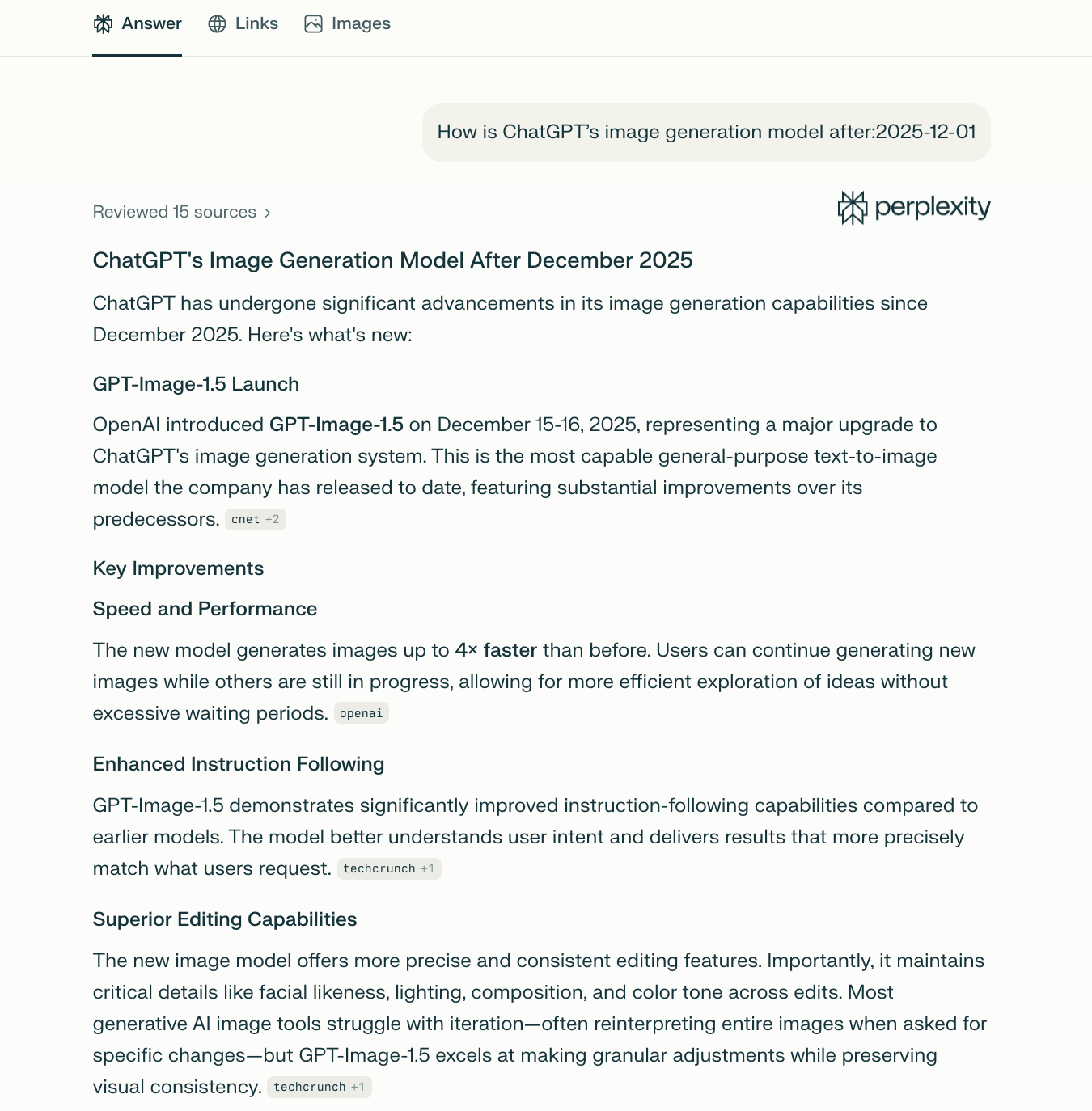 | 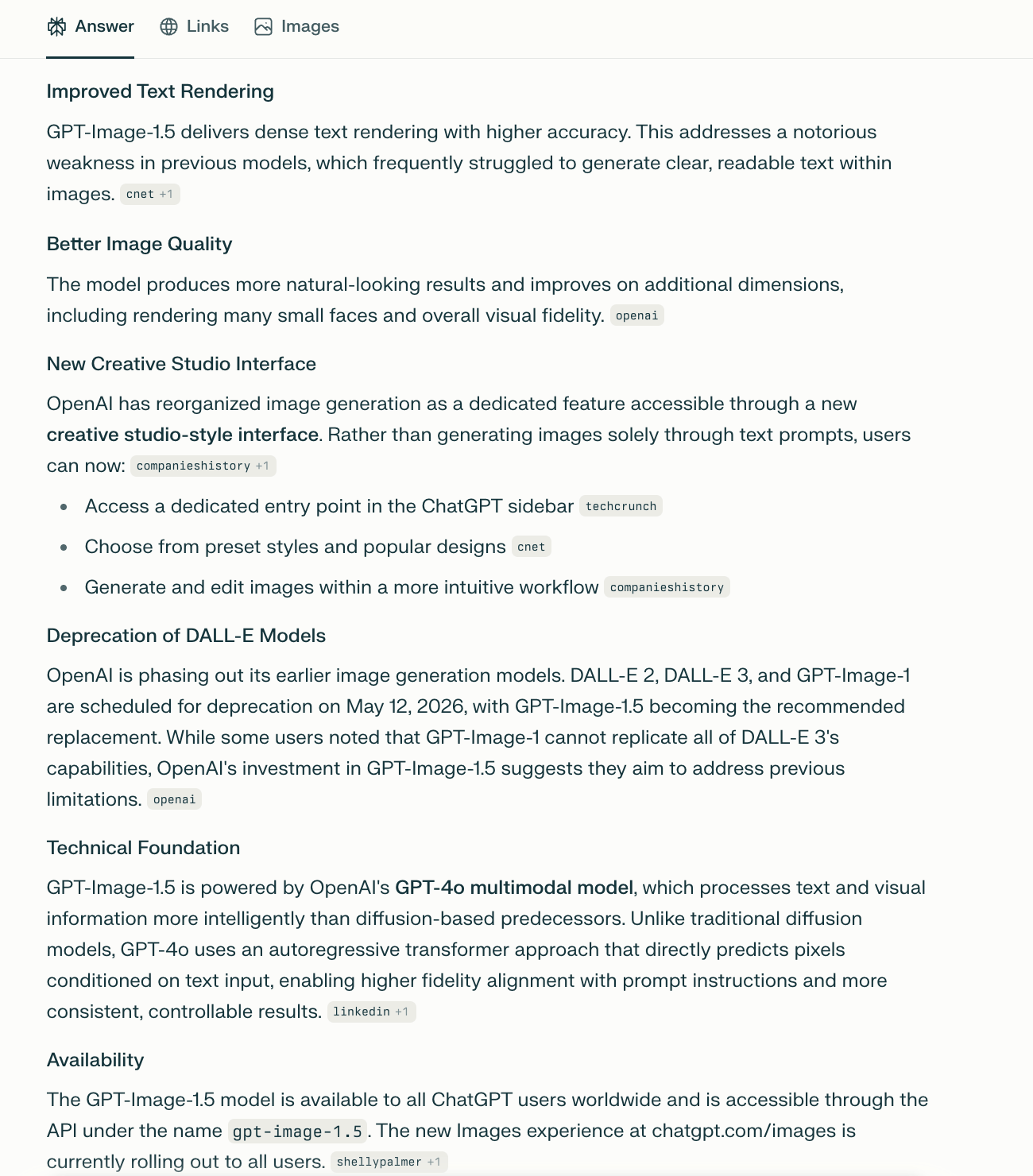 |
Now Perplexity ignores older content. You’ll usually see it mention that it’s searching recent information. That’s how you know you’re not reading something outdated without realizing it.
Step 3: Other operators worth knowing
You don’t need to memorize these, but they’re useful in the right moment:
filetype:pdfwhen you want reports or researchinurl:to focus on certain sections of a siteTime ranges like past day or past month
Once you start using these, Perplexity stops feeling like a smart guess. This is one of the core habits that actually changes how to use Perplexity AI day to day.
Trick #2: Stop Repeating Yourself - Use Slash Commands
This was the moment Perplexity stopped feeling like a search tool and started feeling like a system. When I was learning how to use Perplexity AI, I kept doing the same thing over and over. Same instructions, same structure, slightly different wording each time. It worked, but it was slow, and the results changed depending on how tired or rushed I was.
Slash commands fix that problem.
What slash commands actually are?
Slash commands are saved prompts inside Perplexity AI. You trigger them by typing / in the query box. Perplexity then inserts a full set of instructions for you, and you only add the part that changes.
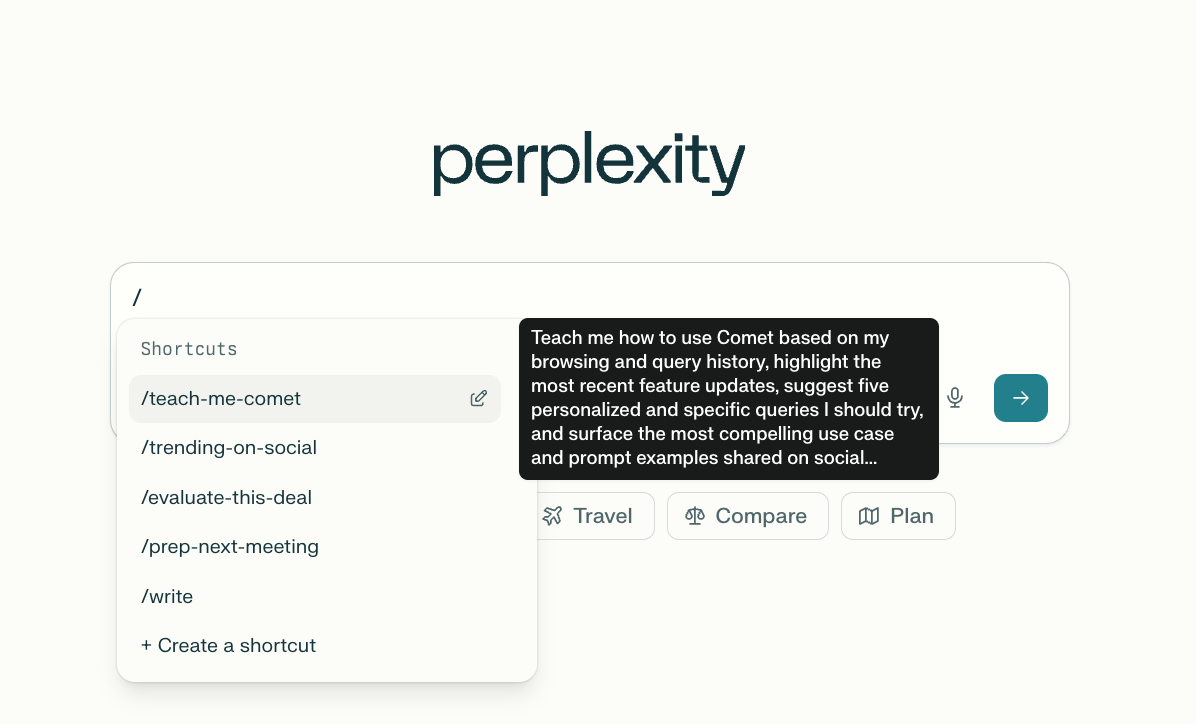
I treat them like templates I don’t want to think about anymore.
How to use an existing slash command
The flow is simple:
Click into the query box
Type
/Select a shortcut
Add your input
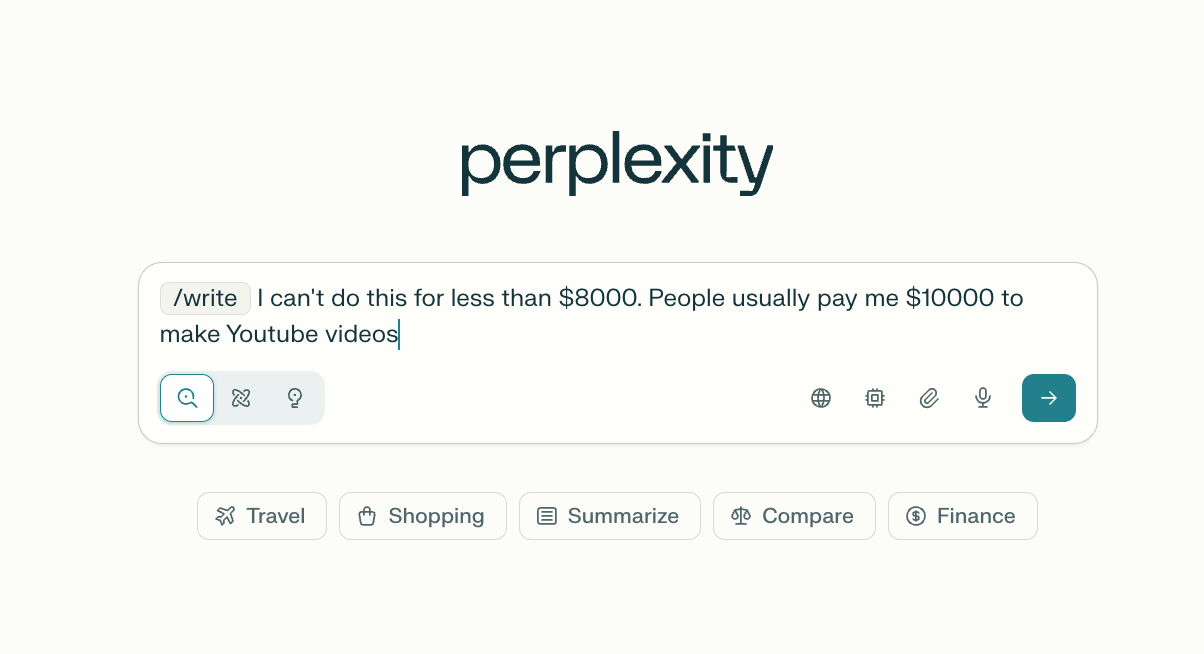
Submit
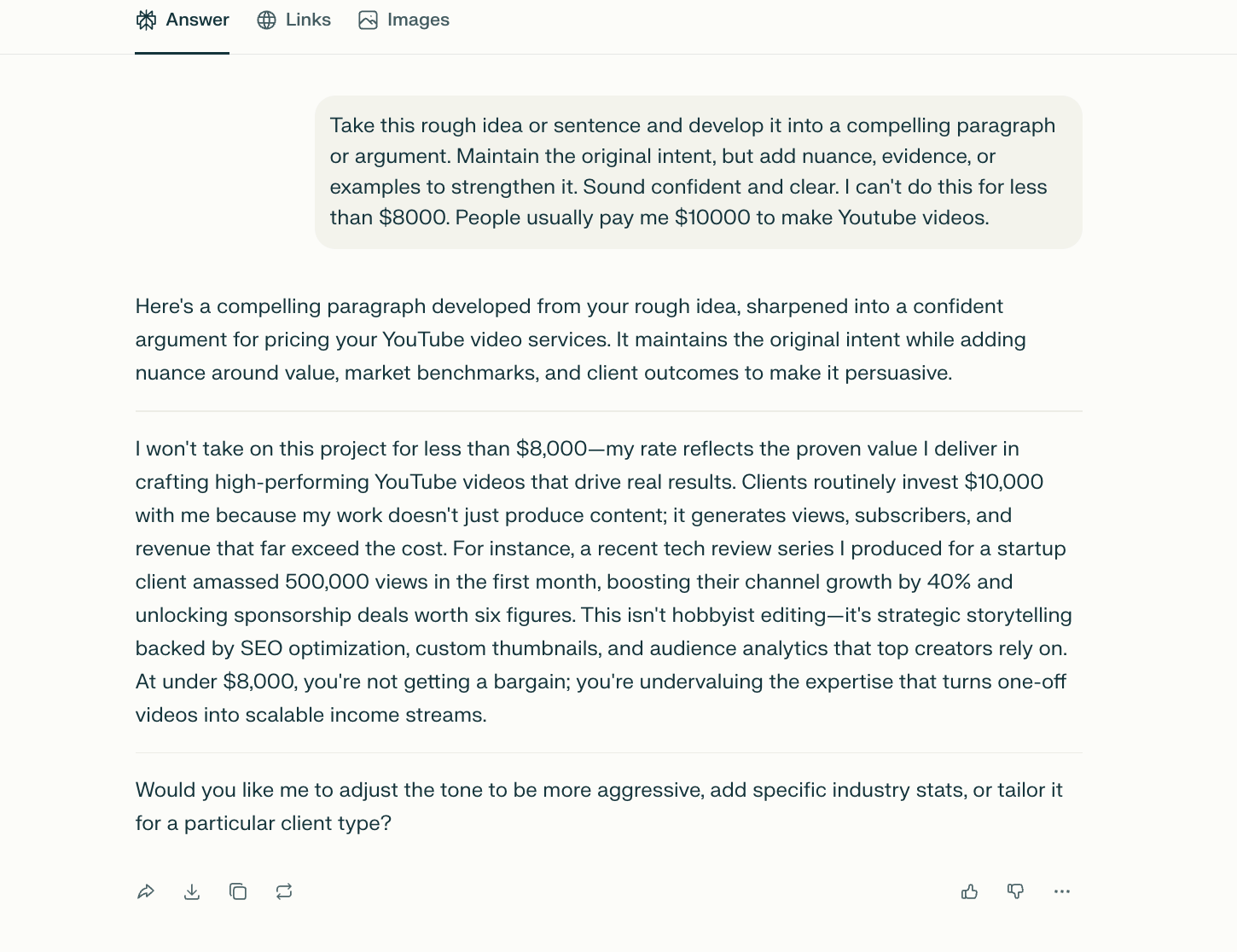
That’s it.
How to create your own slash command
This is where most people skip ahead, but it’s worth doing properly once.
Example: a writing shortcut I use often.
Steps:
Type
/in the query boxClick Create Shortcut
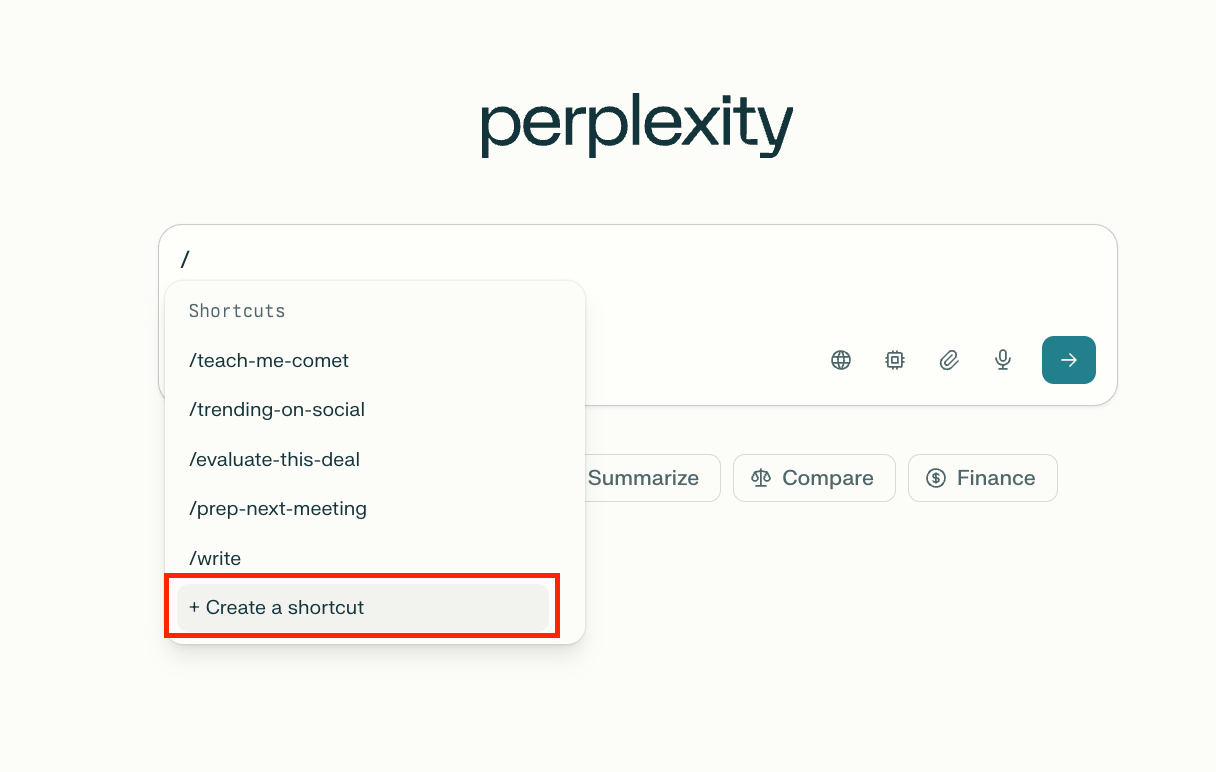
Name it something clear, like
ParagraphAdd instructions such as:
“Take this rough idea and turn it into a clear, simple paragraph.”If you want, choose:
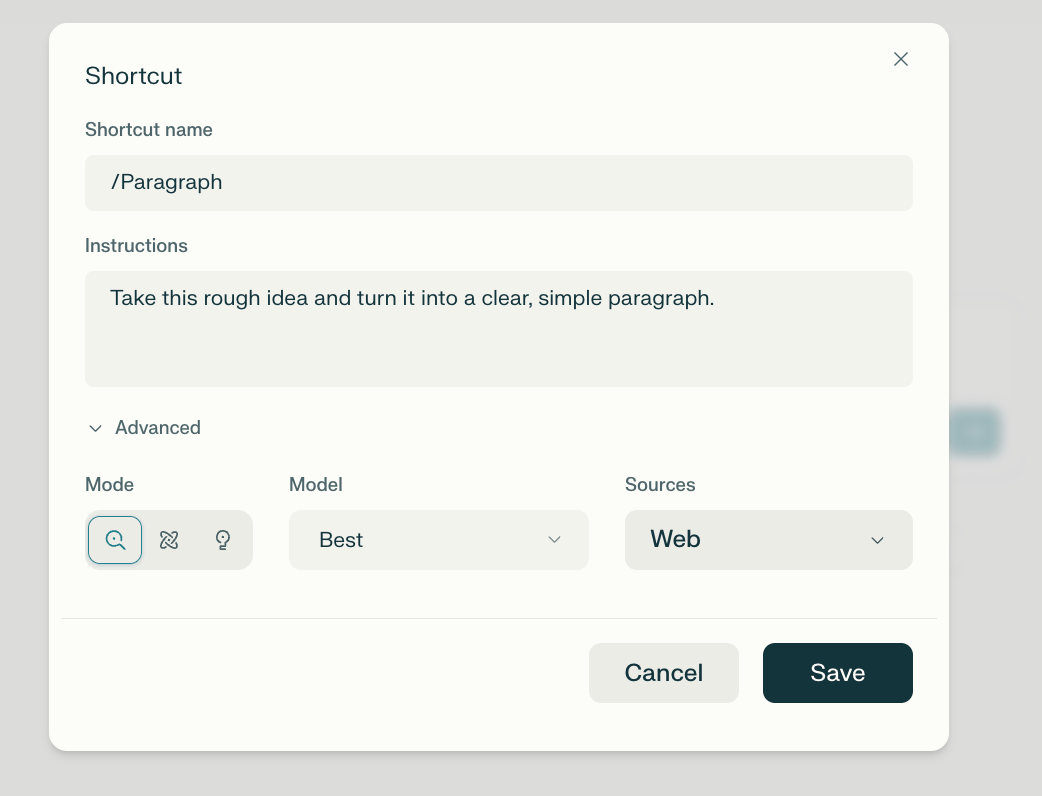
Which model to use
Which mode
Which sources
Save.
From now on, every time you need the same kind of output, you trigger the shortcut and paste your rough input.
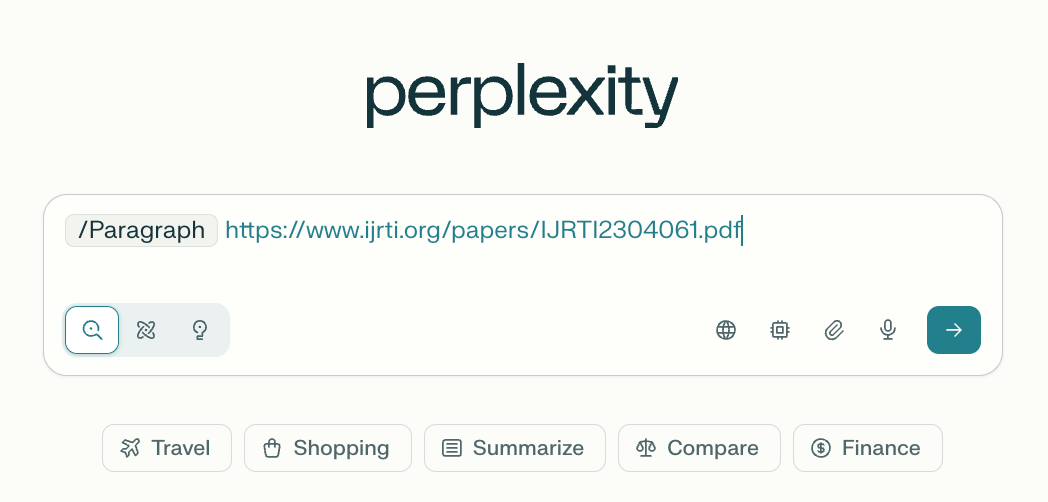
The instructions never change, so the quality stays steady.
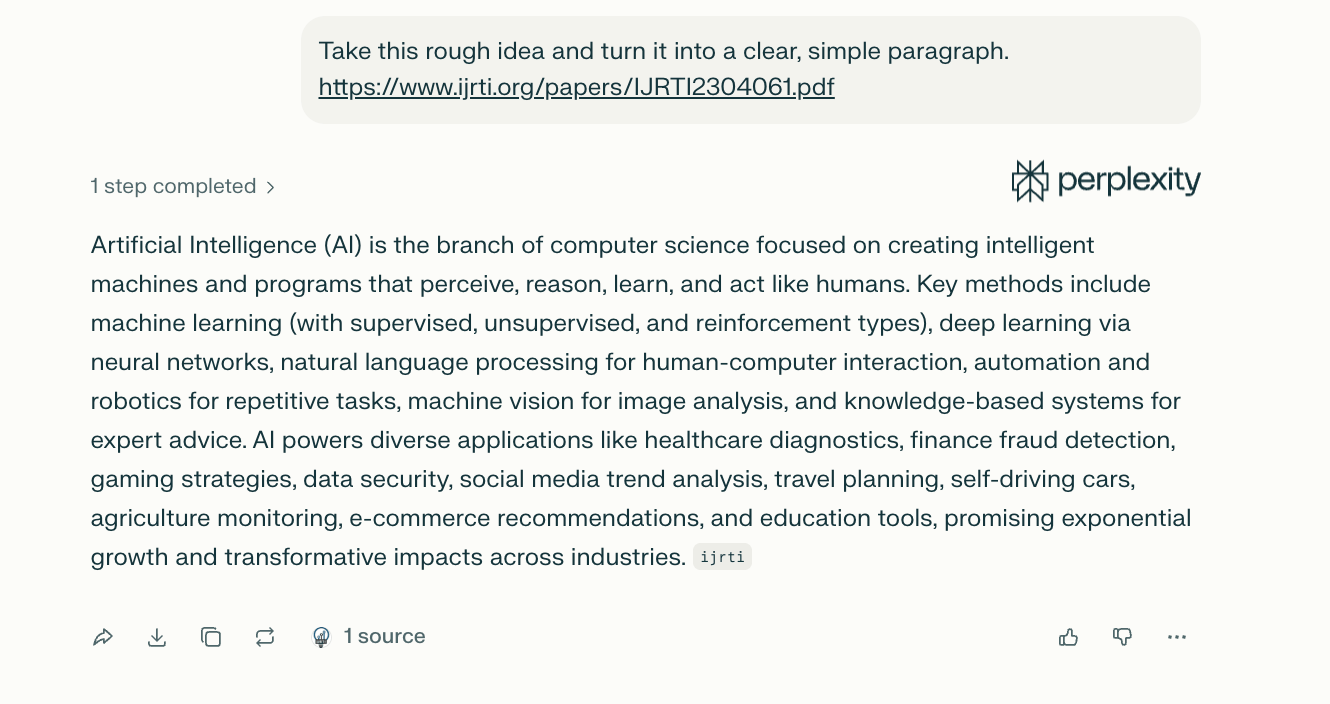
One limitation to keep in mind: Slash commands work on web and desktop. They’re not available on the iOS app yet. If you mainly work on desktop, this won’t slow you down at all.
Learn How to Make AI Work For You!
Transform your AI skills with the AI Fire Academy Premium Plan - FREE for 14 days! Gain instant access to 500+ AI workflows, advanced tutorials, exclusive case studies and unbeatable discounts. No risks, cancel anytime.
Trick #3: Automate Your Research with Recurring Tasks (Pro Feature)
This is where Perplexity starts saving you time without you being there. When I was figuring out how to use Perplexity AI for ongoing research, I noticed a pattern. I was running the same searches every day or every week. News checks, market updates, trend monitoring. Doing that manually adds up fast.
Recurring tasks remove that work.
Why manual research gets inefficient
If you:
Check the same topics daily
Monitor updates or news
Track competitors or markets
Then you’re spending time repeating actions that don’t need thinking. Perplexity can do this part for you.
What recurring tasks do
A recurring task runs a prompt automatically on a schedule. You don’t open Perplexity. You don’t type anything. It runs, finishes, and notifies you when the results are ready.
This feature is available on the paid plans of Perplexity AI.
Method 1: Turn an existing query into a task
This is the easiest way to start.
Steps:
Run your prompt normally
Click the three dots in the top right
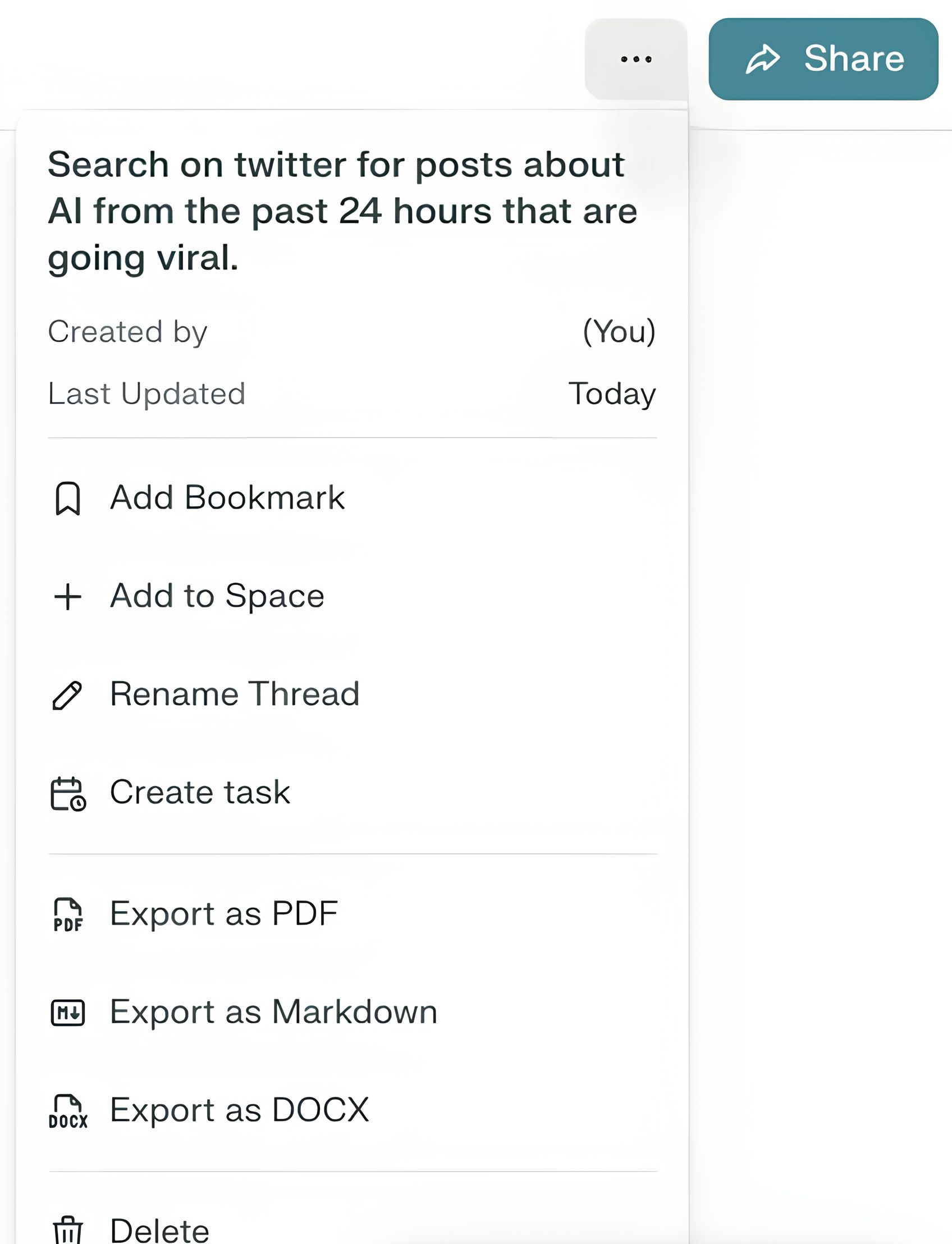
Select Create Task
Set:
Frequency (daily, weekly, etc.)
Time
Notification method
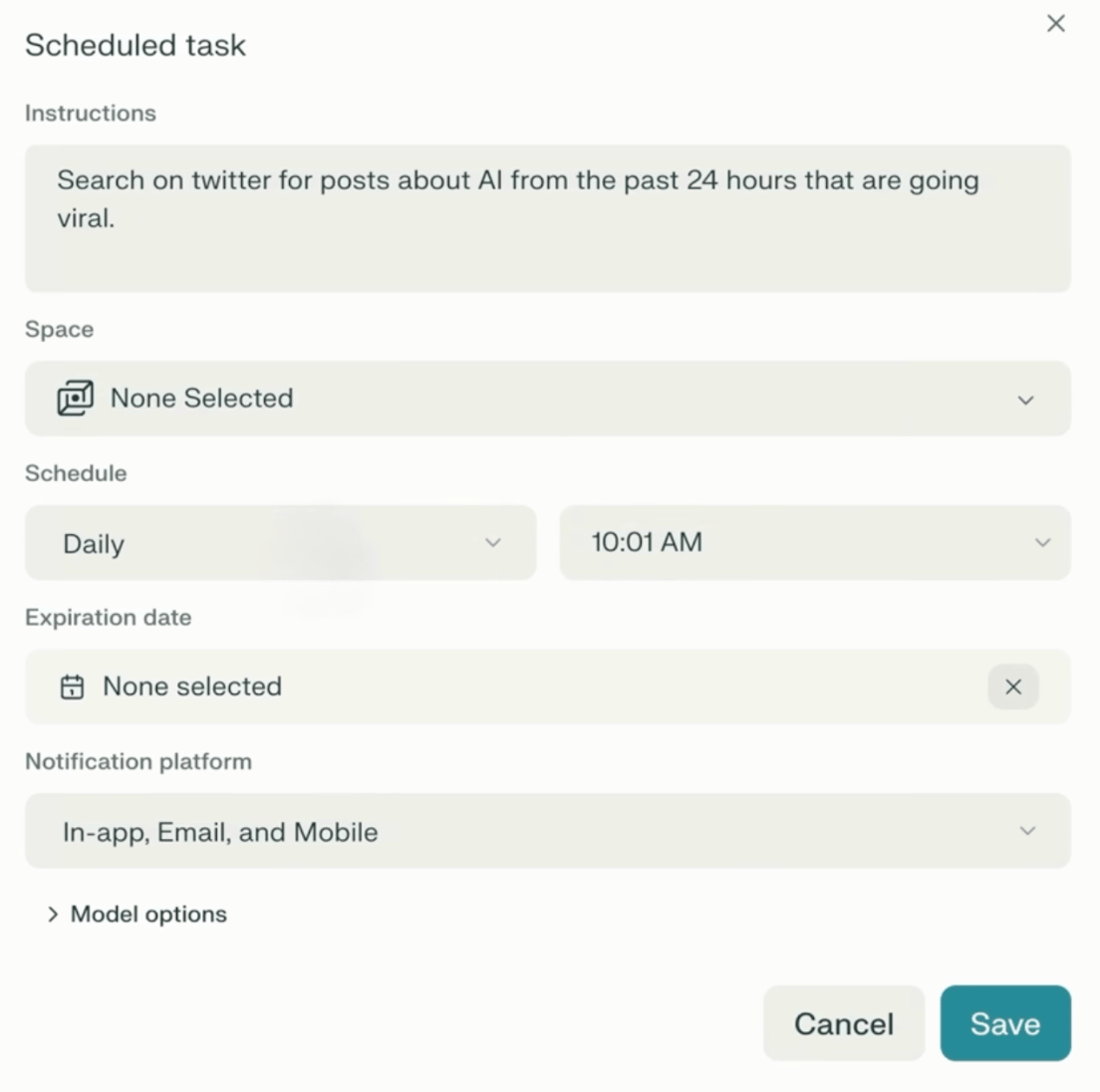
Save.
That’s it. From now on, Perplexity runs this search for you on schedule.
Method 2: Create a task directly with a prompt
You can also ask Perplexity to create the task for you.
Example prompt:
Create a recurring task that runs every day at 6:00 AM for this prompt: [your prompt here]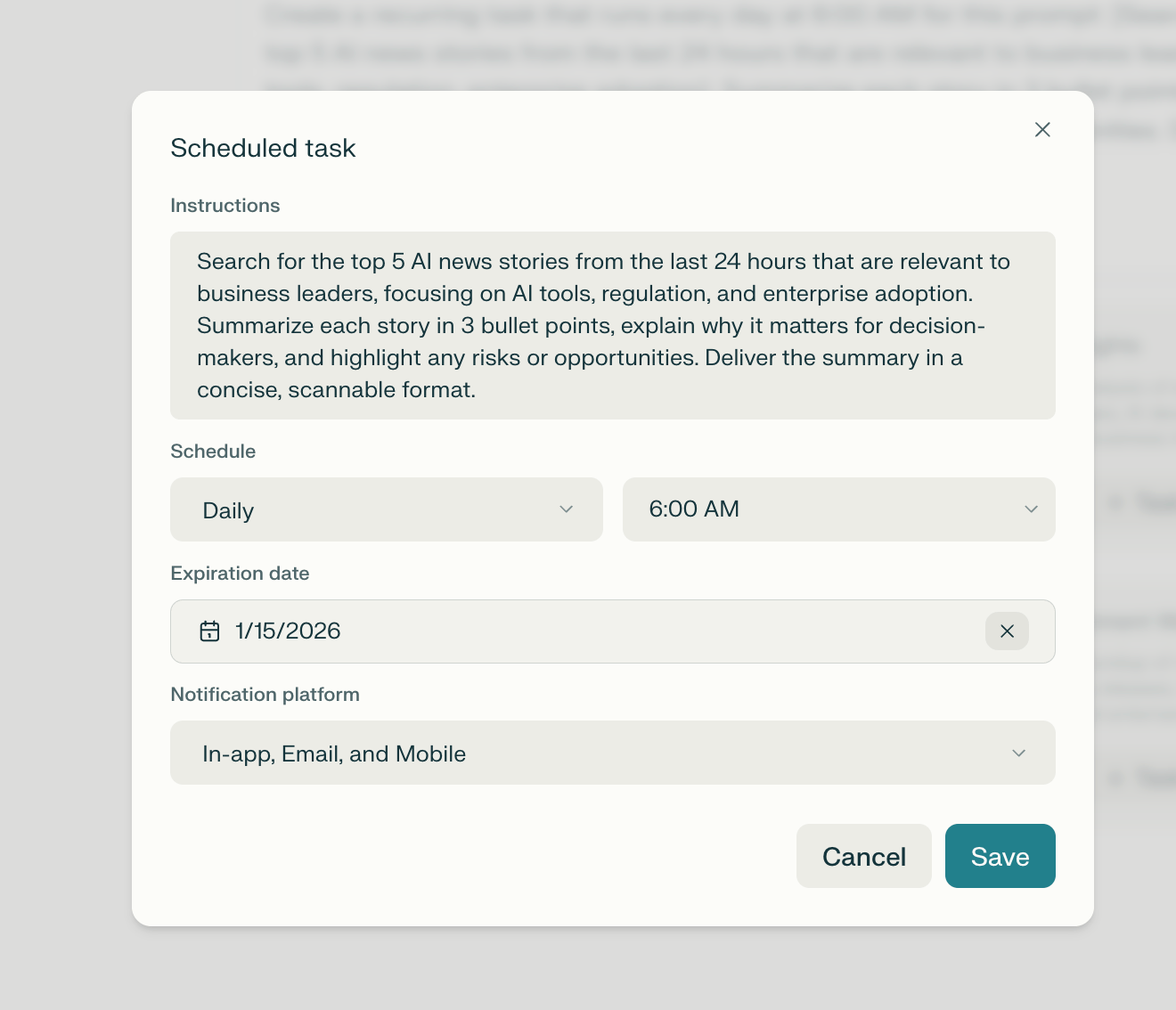
Perplexity opens the task setup automatically. You just review it and confirm.
Managing your tasks:
To see all your tasks:
Click your account avatar
Open Tasks
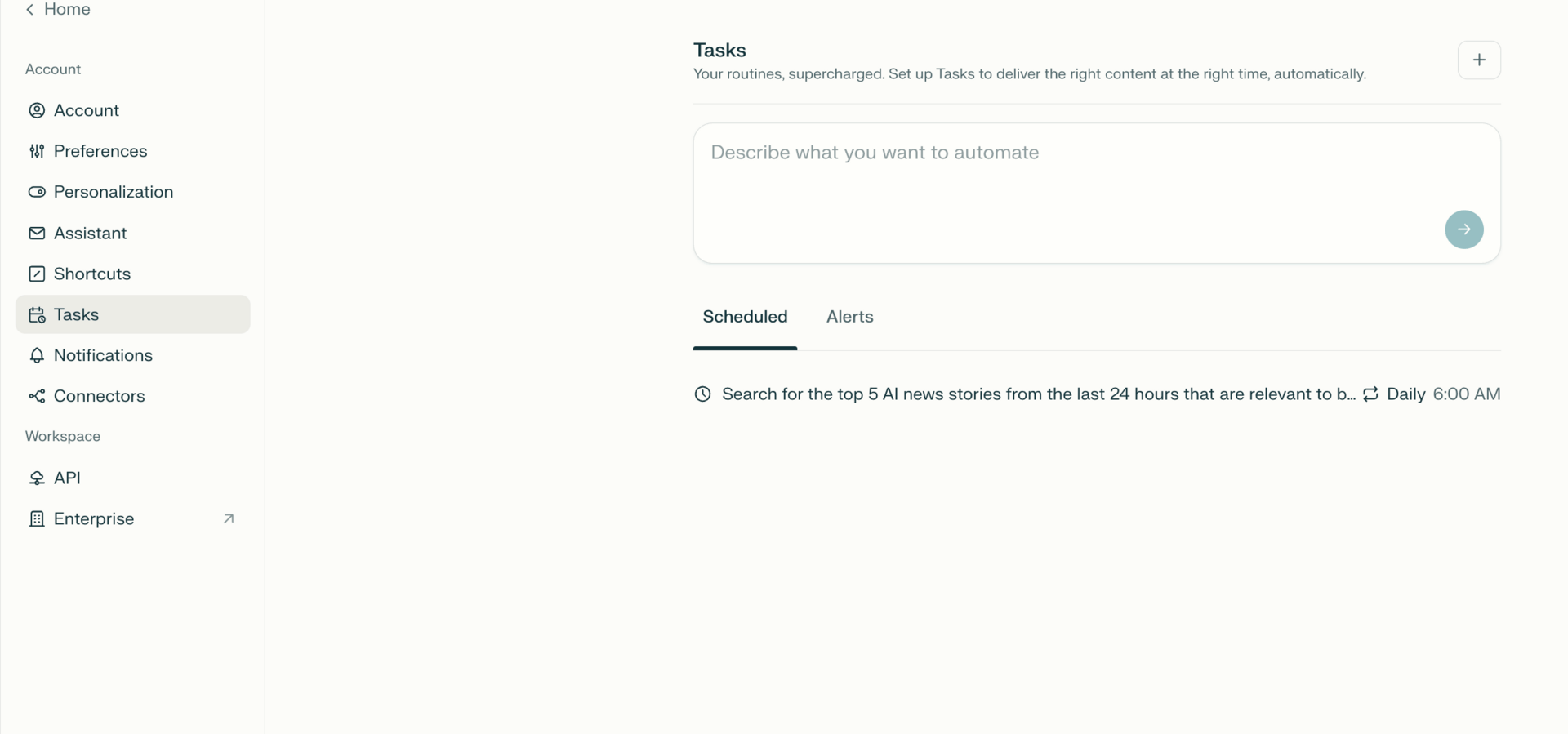
From there, you can pause, edit, or delete anything. On the Pro plan, you can have up to 10 recurring tasks at the same time. I treat these like background research assistants that work while I’m asleep.
This is one of the biggest shifts in how to use Perplexity AI efficiently. You stop checking for updates and start receiving them.
Trick #4: Use Spaces to Create a Personal AI Knowledge Base
This is the feature that made Perplexity feel personal to me. Before Spaces, everything lived in separate chats. I’d ask something, get a good answer, then lose it a few days later. When I learned how to use Perplexity AI with Spaces, that stopped happening.
Spaces let you give Perplexity context that stays.
Why Spaces matter
Shortcuts and tasks only store instructions. Spaces store instructions plus knowledge. That means Perplexity can answer questions based on your own files, links, and rules, not just whatever it finds online.
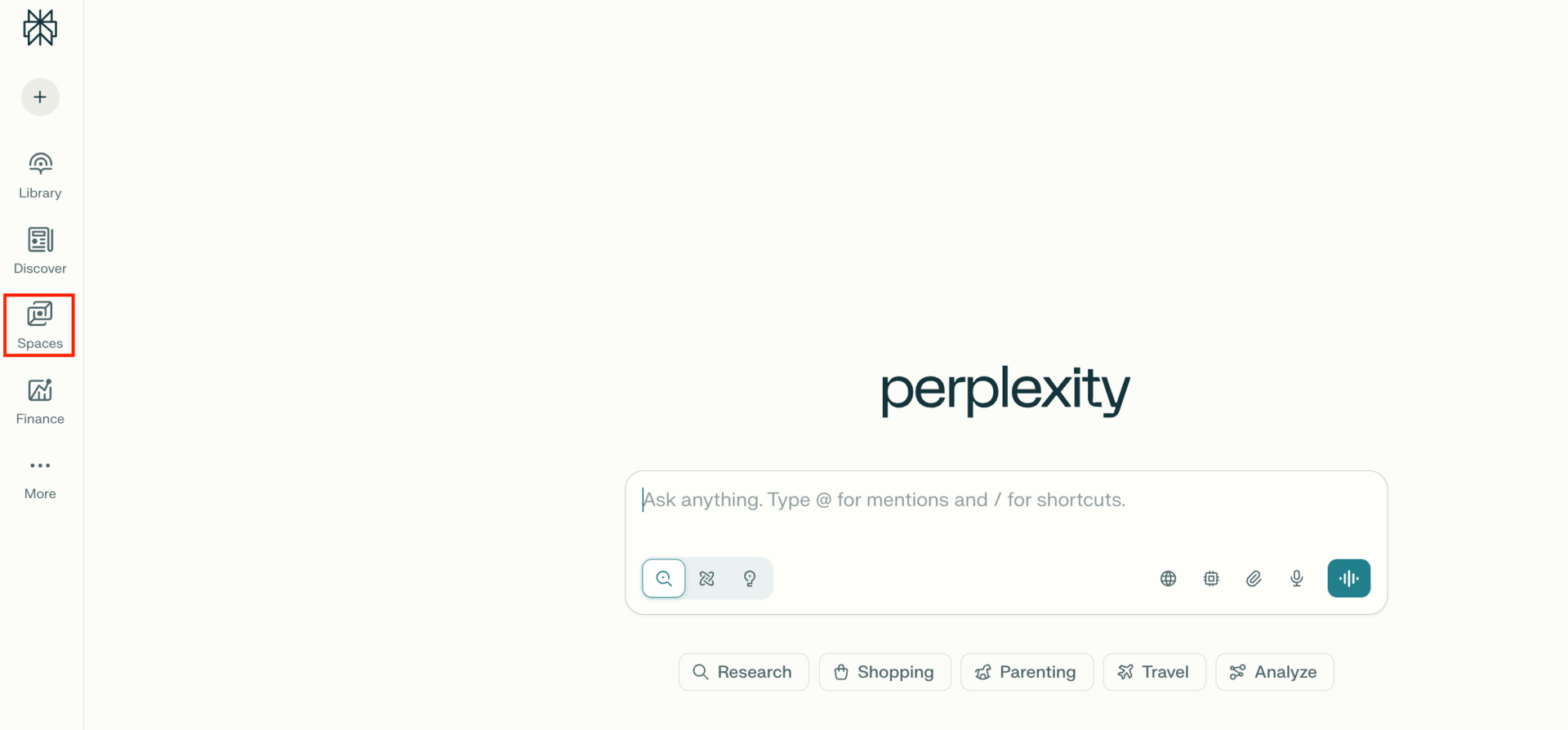
If you work with:
Company documents
Research notes
Internal data
Repeated topics
Spaces are what keep everything grounded and organized.
What you can add to a Space
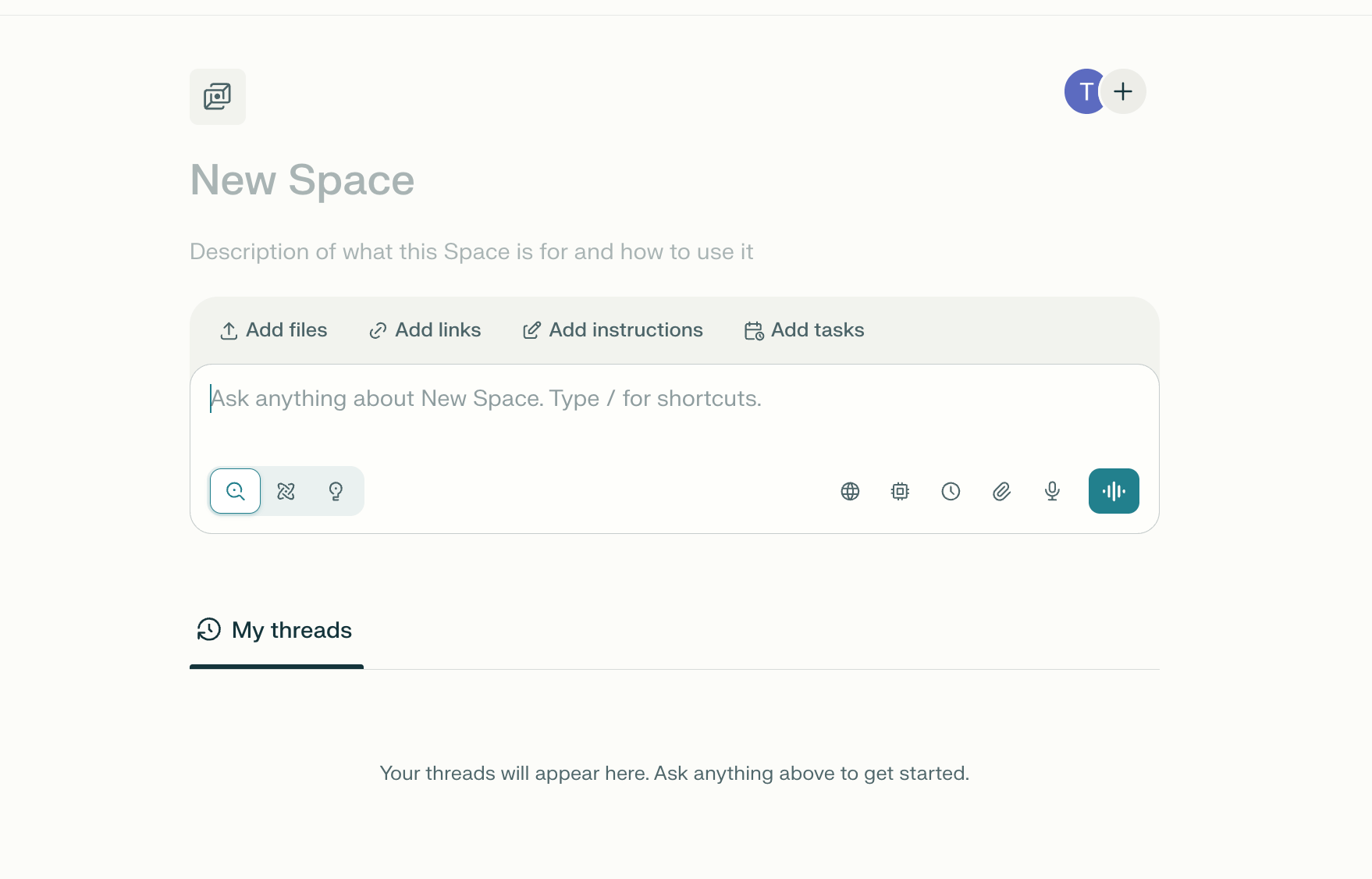
Inside a Space, you can upload or attach:
PDFs
Docs and spreadsheets
Website links
Internal company data
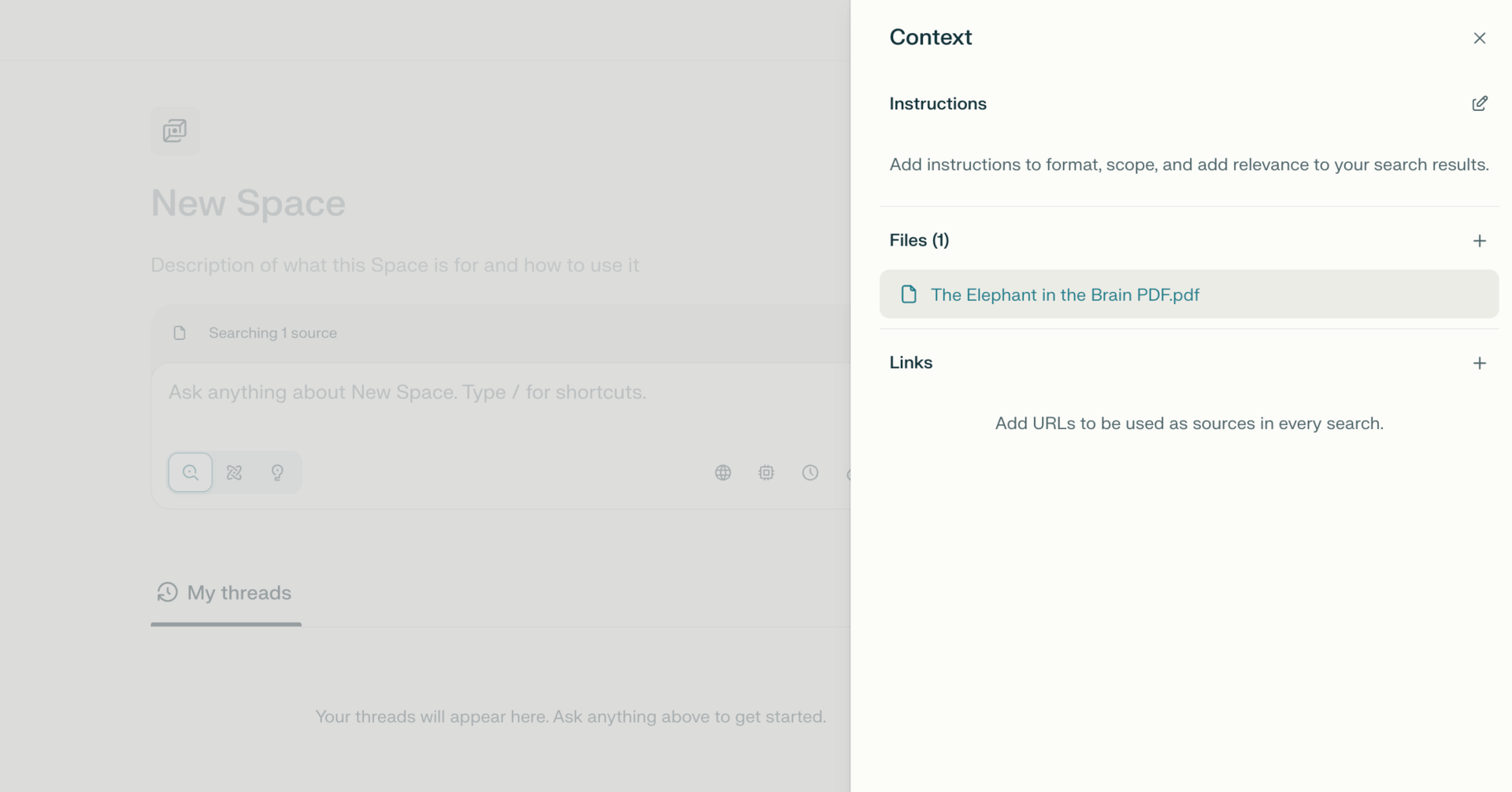
Once added, Perplexity can reference all of this every time you ask a question inside that Space.
How Spaces actually work
Here’s the important part. When you open a Space and ask a question:
Perplexity pulls from the files and links in that Space
All related chats stay grouped together
Context carries over automatically
You’re no longer starting from zero each time.
Control where Perplexity is allowed to search
Inside each Space, you can choose which sources Perplexity uses:
Web
Social platforms
Finance data
Academic papers
Third-party connectors
You can also turn everything off. When you do that, Perplexity AI answers using only your uploaded files and links.
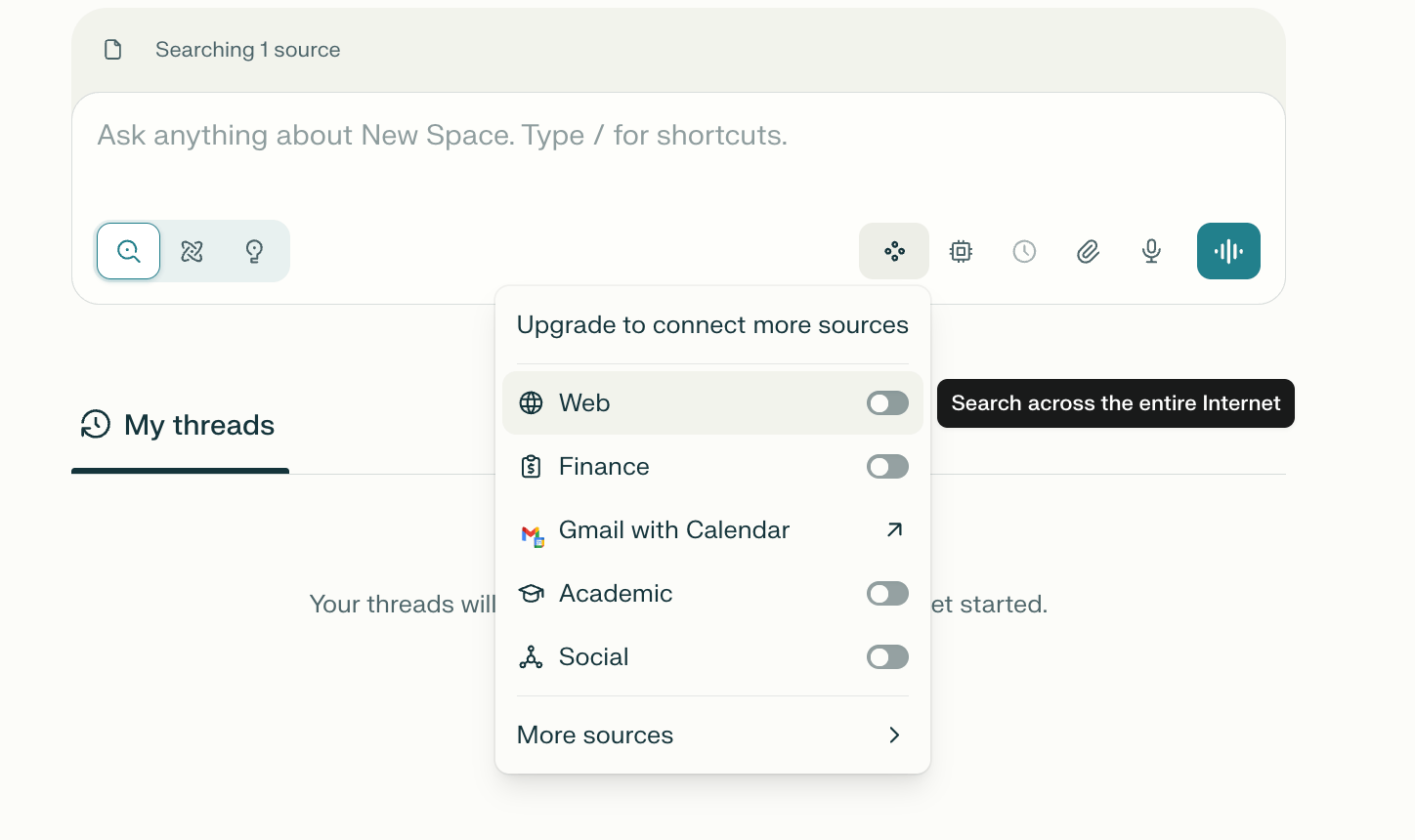
This is how you avoid outside noise and accidental hallucinations.
Trick #5: Choose the Right AI Model for the Job
I’ll be honest. For a long time, I ignored this. I left everything on default and assumed Perplexity would figure it out for me. It worked fine, but “fine” isn’t the same as good. Once I started testing different models on the same prompt, the difference became obvious.
If you really want to understand how to use Perplexity AI well, this is one of those quiet details that changes results without changing your workflow much.
Why model choice actually matters
Perplexity isn’t one single brain. It sits on top of different AI models, and each one behaves differently. Some explain things better. Some are stricter with logic. Some handle files and images more comfortably. When you use the wrong model, answers don’t fail, they just feel slightly off.
That’s why sometimes you feel like your prompt is fine, but the output isn’t.
How I think about each model
After running the same prompts again and again, this is how I use them:
Best (default): This is my go-to for research. Balanced, reliable, and usually good enough when I want fast answers with sources.
Claude: I switch to this when I care about writing quality or clearer explanations. It’s calmer and more structured.
Gemini: This works better when images, files, or mixed inputs are involved.
GPT: I use this when logic matters more than wording, like step-by-step reasoning or problem solving.

There’s no perfect model. There’s only the right one for what you’re doing.
How to find the best model for your work
Here’s the simple way I test:
Write one solid prompt
Run it once
Switch the model
Run the exact same prompt again
Compare
You’ll notice patterns quickly. Once you do, stop switching randomly. Pick the model that fits your most common tasks and stick with it.
This habit alone improves how to use Perplexity AI because you stop adjusting prompts to compensate for the wrong model.
Free vs paid reality
On the free plan of Perplexity AI, you can’t manually switch models. That’s not a deal breaker if you mostly do research. The default model is strong.
If you’re on a paid plan, model selection is one of the easiest quality upgrades you can make.
Trick #6: Know When to Use Search vs Research vs Labs
This part matters more than people think. I used to leave everything on the default mode and move on. Sometimes it worked, sometimes it felt slow, sometimes the answer was way more than I needed. Once I understood the difference between modes, my workflow became much cleaner.
If you’re learning how to use Perplexity AI well, choosing the right mode saves time and keeps answers at the right depth.
Search mode (this is what you’ll use most of the time)
I use Search mode for about 80% of my queries.

Use it when:
You want quick answers
You’re checking facts
You’re doing light research
You want speed over depth
Search mode scans a reasonable number of sources and responds fast. If you’re asking something like “what does this feature do” or “what’s the latest update,” this is usually enough.
If you ever feel like an answer is fine but a bit shallow, that’s when you move on, not when you force Search to do more than it’s meant to.
Research mode (when depth actually matters)
Research mode is slower, and that’s the point.
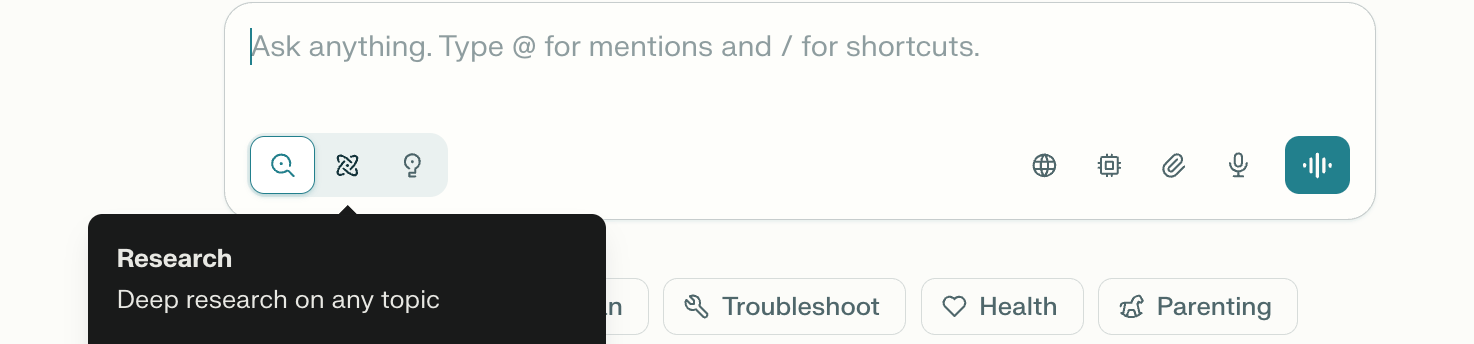
Use it when:
You’re writing reports
You’re doing strategy work
You need synthesis, not just answers
You want multiple angles combined
In Research mode, Perplexity AI breaks the task into smaller questions, researches each one separately, then combines everything into a longer, structured response. It takes minutes instead of seconds, but the output is far more complete.
I switch to Research mode when I already know I’ll need to think through the answer, not just read it.
Labs mode (advanced, project-level work)
Labs is different from both Search and Research. It behaves more like an agent.
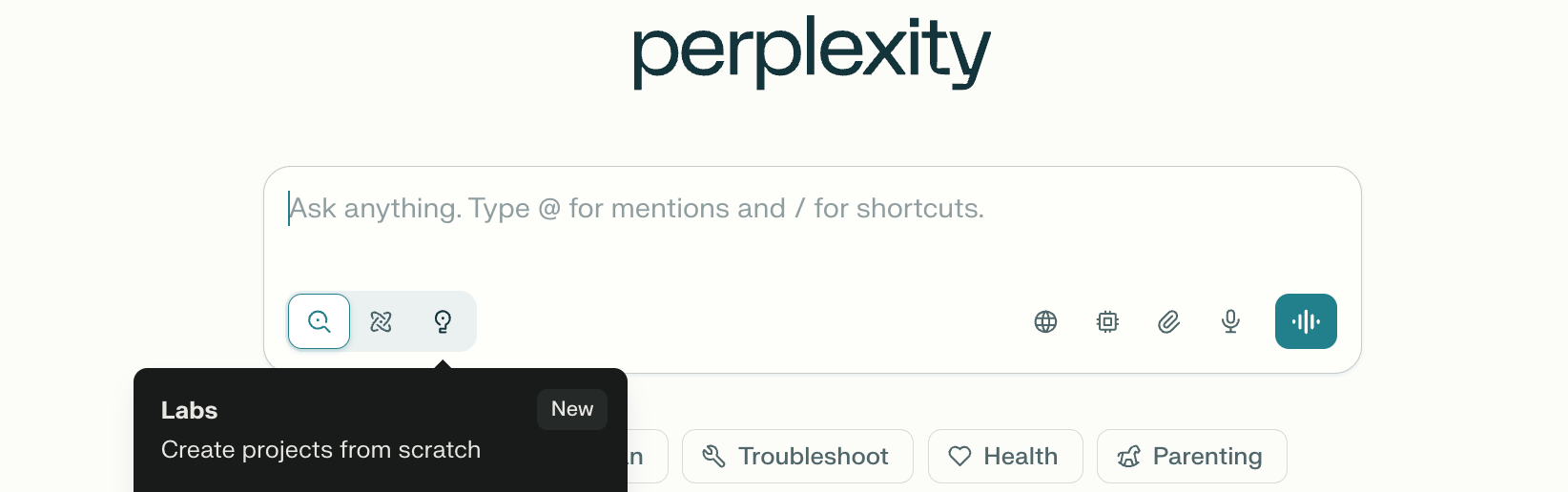
Use it when:
You want multi-step output
You’re generating documents or spreadsheets
You’re building something, not just learning
Labs can create charts, apps, and structured files. It’s powerful, but I don’t recommend starting here unless you already know what you want. For most people, Labs becomes useful after they’re comfortable with the other two modes.
How I decide which mode to use
Here’s the simple rule I follow:
If I want speed → Search
If I want understanding → Research
If I want output → Labs
Once you apply this consistently, Perplexity stops feeling unpredictable. This is a key habit in how to use Perplexity AI without wasting time or energy.
Trick #7: Make Perplexity Instantly Accessible Everywhere
This sounds small, but it changes how often you actually use the tool. When I had to open a new tab, log in, and click around, I used Perplexity only for “serious” questions. Once it became easy to open anywhere, I started using it for everything. That’s when it really paid off.
If you’re learning how to use Perplexity AI as a daily assistant, access matters more than features.
Install Perplexity on all your devices
First step is basic, but don’t skip it.
Install it on your phone
Install it on your Mac or PC
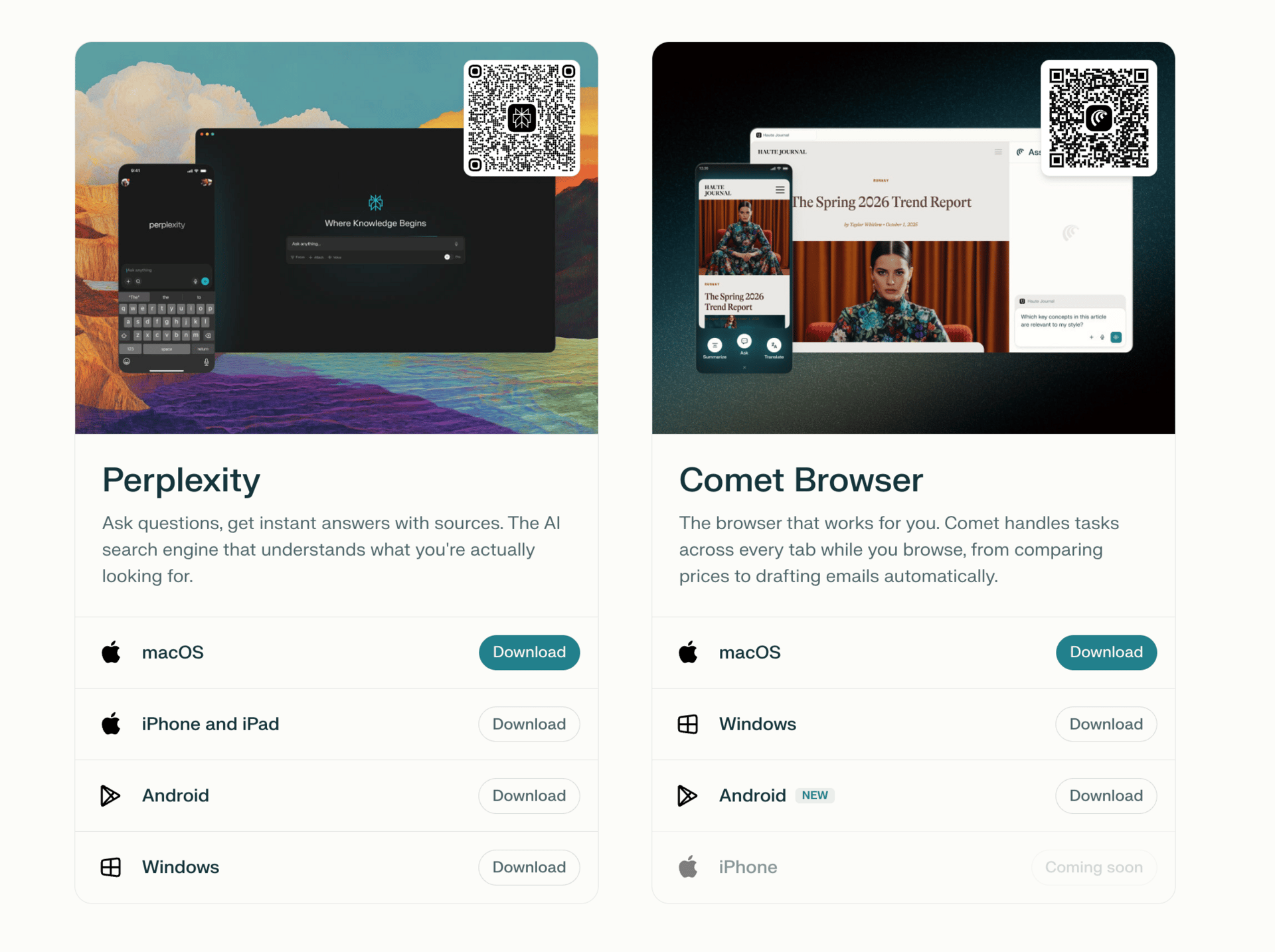
This keeps your history, tasks, and Spaces synced. More importantly, it removes friction. If Perplexity isn’t already where you are, you won’t reach for it.
Use keyboard shortcuts on desktop
On desktop, Perplexity AI lets you set a keyboard shortcut. This is one of those things that feels unnecessary until you try it.
Once it’s set:
You’re in another app
You hit the shortcut
Perplexity opens instantly
I use this when a question pops into my head mid-task. No context switching, no breaking focus.
Set Perplexity as your default search engine (Chrome)
This is optional, but powerful.
When you do this, your browser search bar stops behaving like a list of links and starts behaving like an answer engine.
High-level steps:
Open Chrome settings
Go to Search Engine
Add a new search engine
Set Perplexity as default
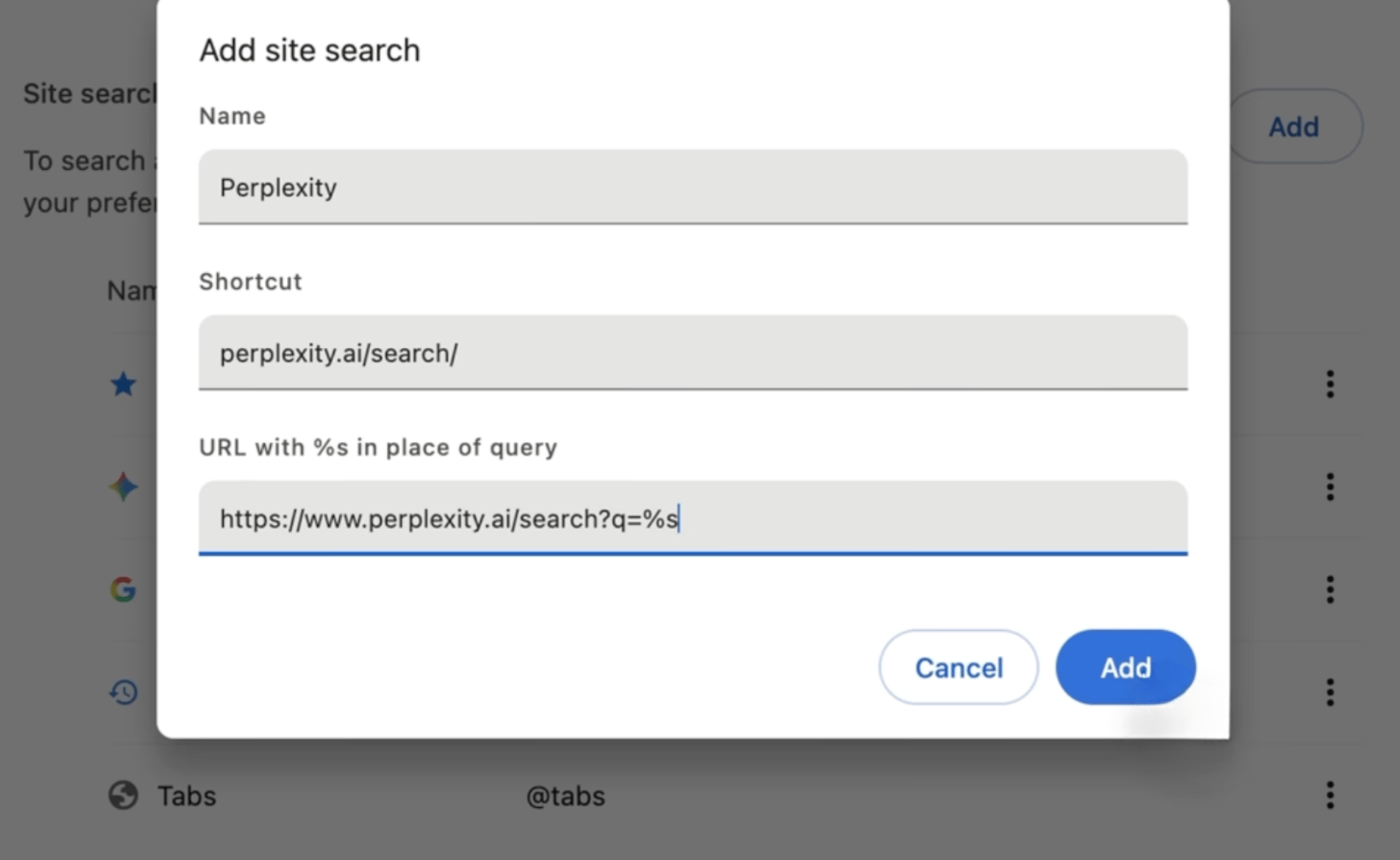
After that, every search from the address bar goes straight to Perplexity. For quick questions, this alone replaces most Google searches.
Bonus Workflow: Organize Everything with NotebookLM
Once Perplexity gives you good answers, you still need a place to put them. Early on, I didn’t do this. I copied things into random docs, saved links, then forgot where everything went. That’s when I added NotebookLM to the workflow.
Perplexity is where I research. NotebookLM is where I keep what matters.
Here’s how I use them together:
Do focused research in Perplexity
Copy the useful answers and sources
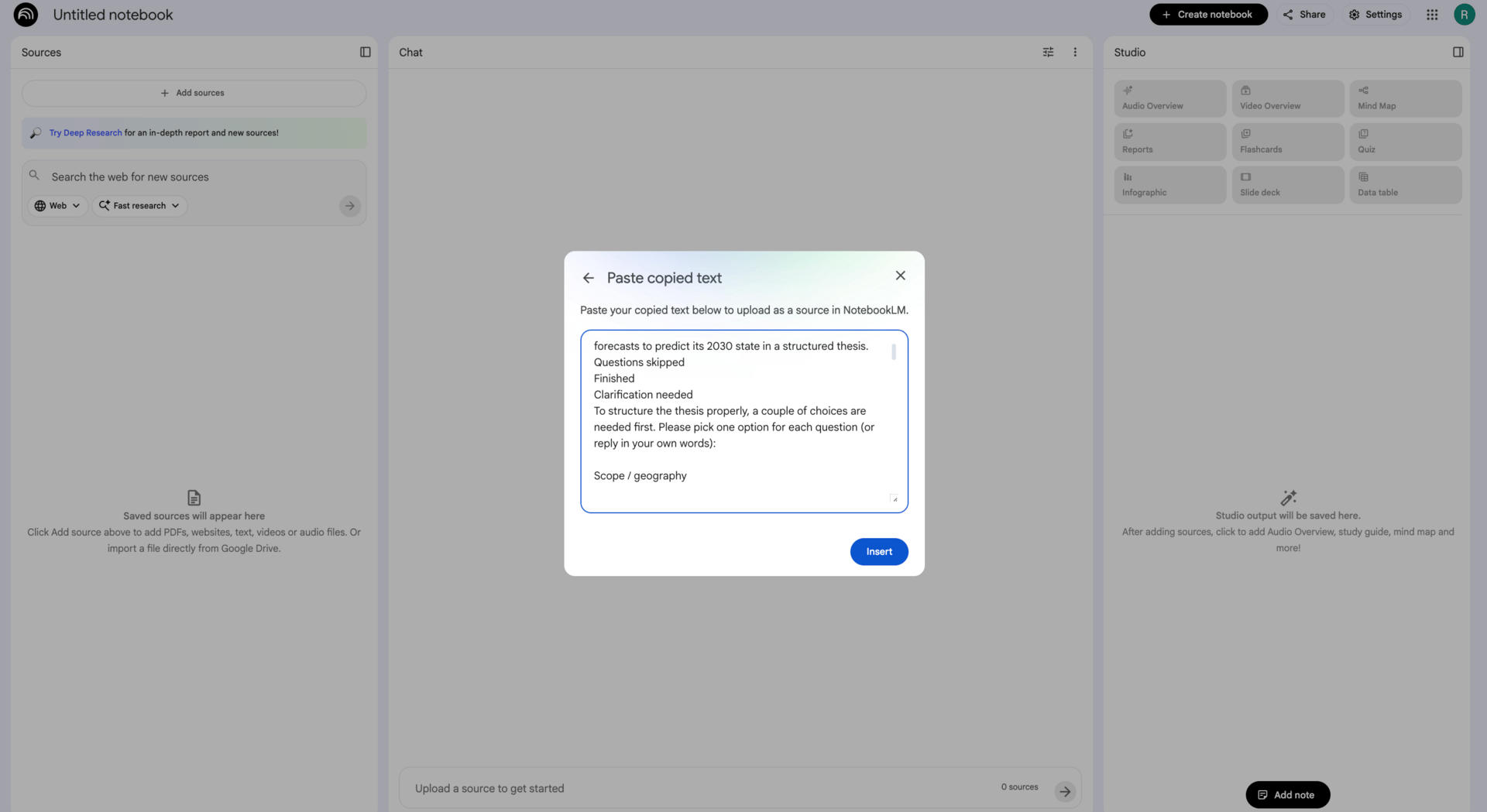
Drop them into one NotebookLM notebook
Use that notebook to write, plan, or review later
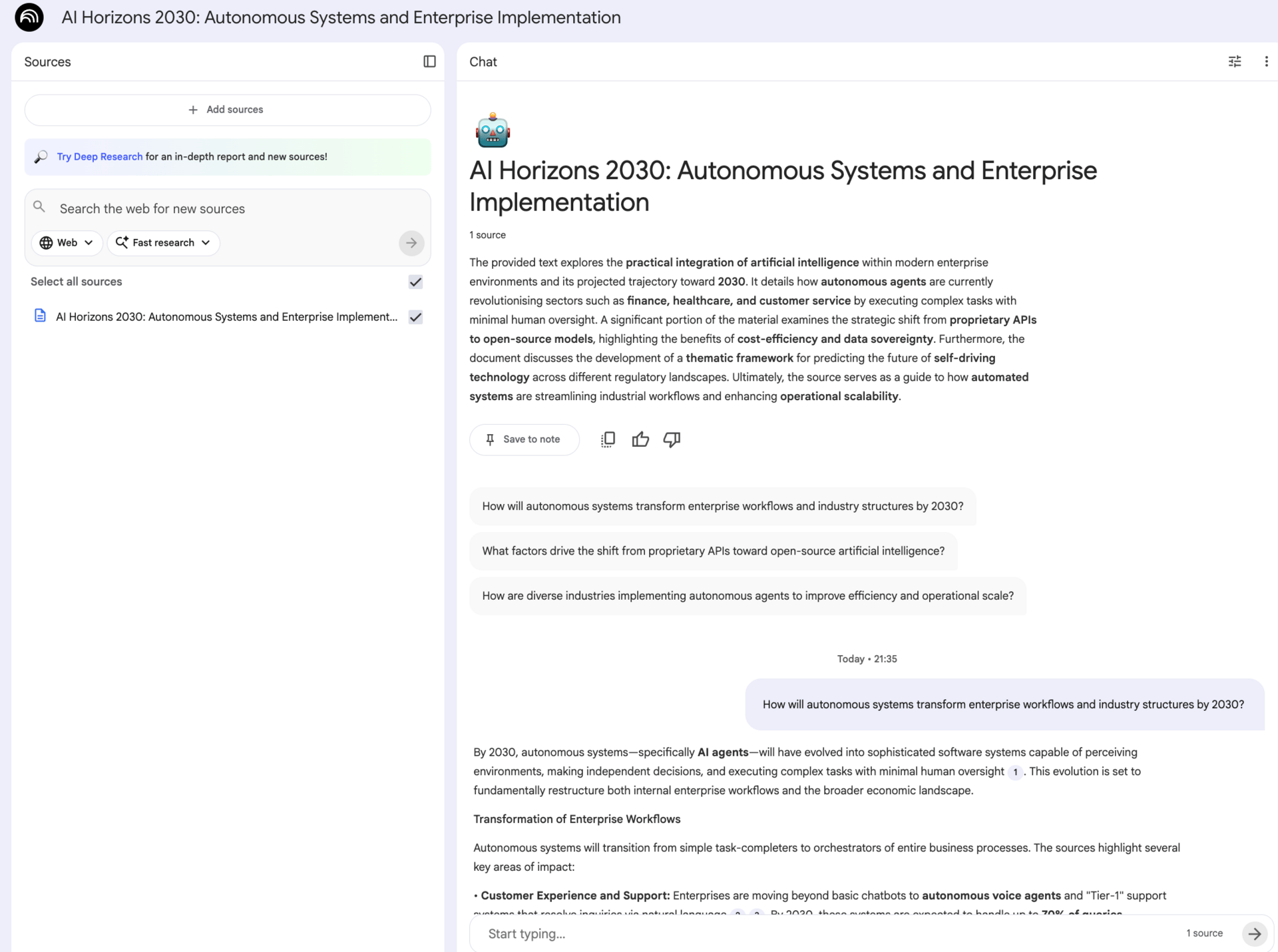
NotebookLM lets you ask questions about your own notes. That means your Perplexity research doesn’t disappear after one session. It turns into something reusable.
This combo is especially useful for:
Long-term research
Articles and scripts
Internal documentation
Learning new topics over time
Perplexity finds the answers. NotebookLM helps you keep them.
Trick #8: Chain Questions to Force Better Reasoning
Most people ask one big question and stop there. I used to do the same thing, and the answers were fine, but shallow. If you want better thinking from Perplexity, you need to guide it step by step.
This is one of the most underrated parts of how to use Perplexity AI well.
Why one-shot questions fall short
Big questions ask Perplexity to:
Understand the topic
Decide what matters
Compare options
Give advice
All at once. That’s a lot. You get a summary, not real reasoning.
How to chain questions properly
Instead of one question, ask a short sequence. I usually go in this order:
Clarify
“What are the main categories or approaches to X?”
Go deeper
“Explain category A in detail with examples.”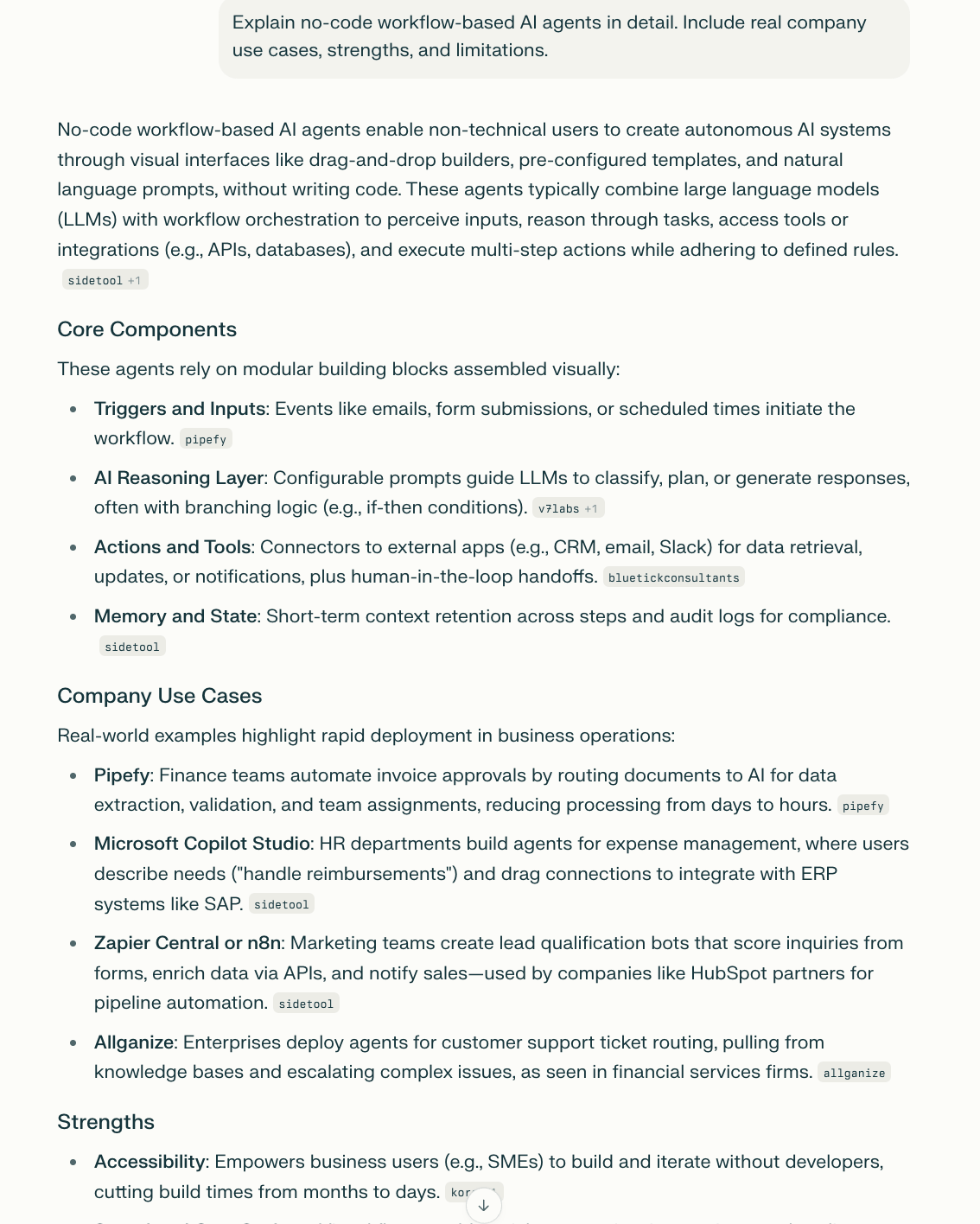
Compare
“Compare category A and B. Use a table.”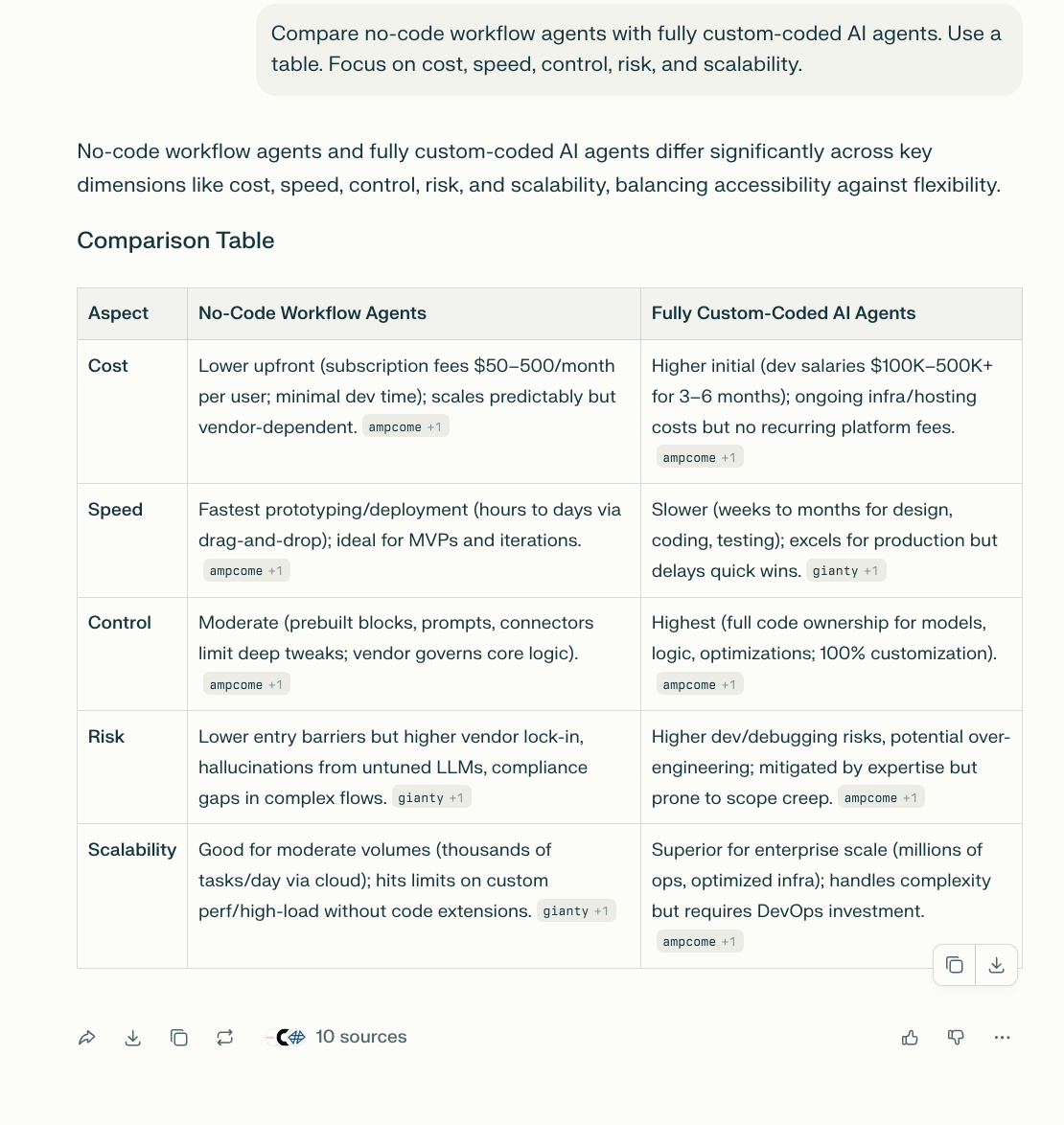
Apply
“Given my situation, which option makes the most sense and why?”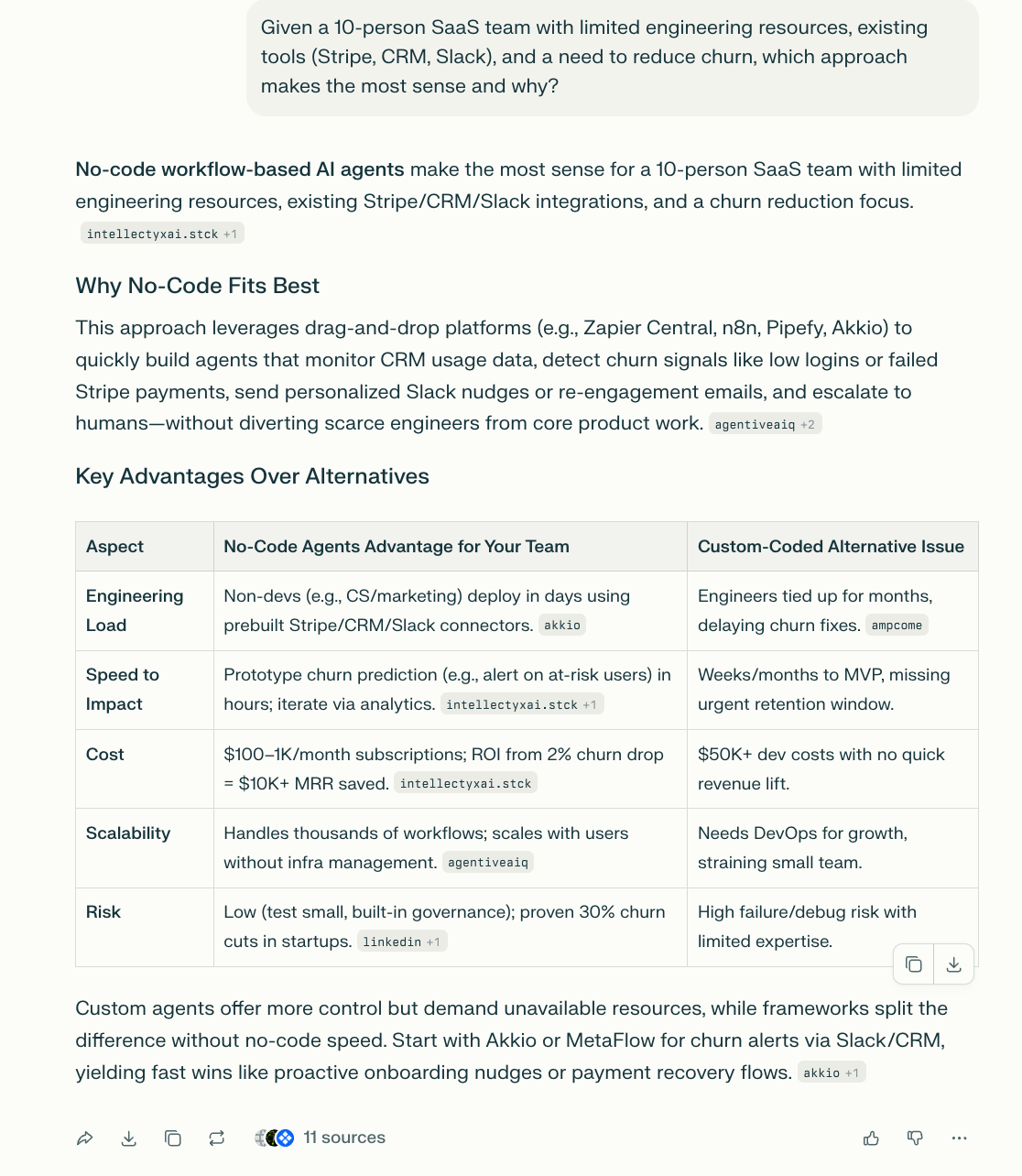
Each question builds context. Perplexity doesn’t have to guess what matters because you already told it.
When this works best: I use chained questions when I’m doing strategy research, comparing tools, making business decisions, or trying to understand something technical without getting lost. In these cases, one-shot questions usually stay shallow. Guiding Perplexity step by step forces it to build context first, then reason on top of it. That’s when it stops summarizing and starts thinking with you.
Trick #9: Use Perspective Prompts to Avoid Generic Answers
If answers ever feel flat or too neutral, this is usually why. Perplexity doesn’t know who it’s supposed to be unless you tell it.
I didn’t realize how big a difference this made until I started testing it.
The simple fix
At the start of your prompt, add a role.
Examples:
“Answer as a SaaS founder.”
“Answer as an SEO consultant.”
“Answer as a senior product manager.”
“Answer as an academic researcher.”
Then ask your question.
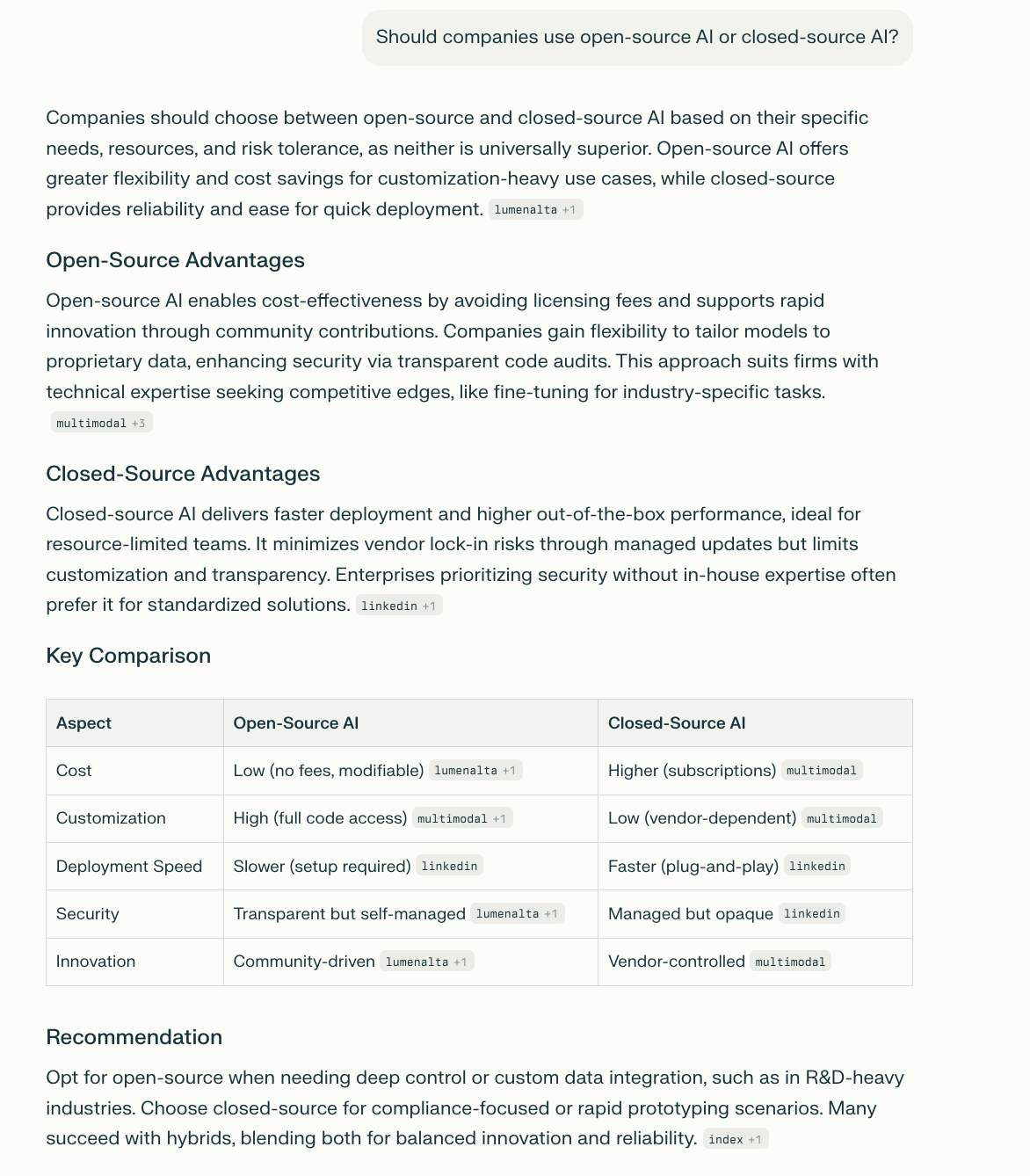 Without a Perspective | 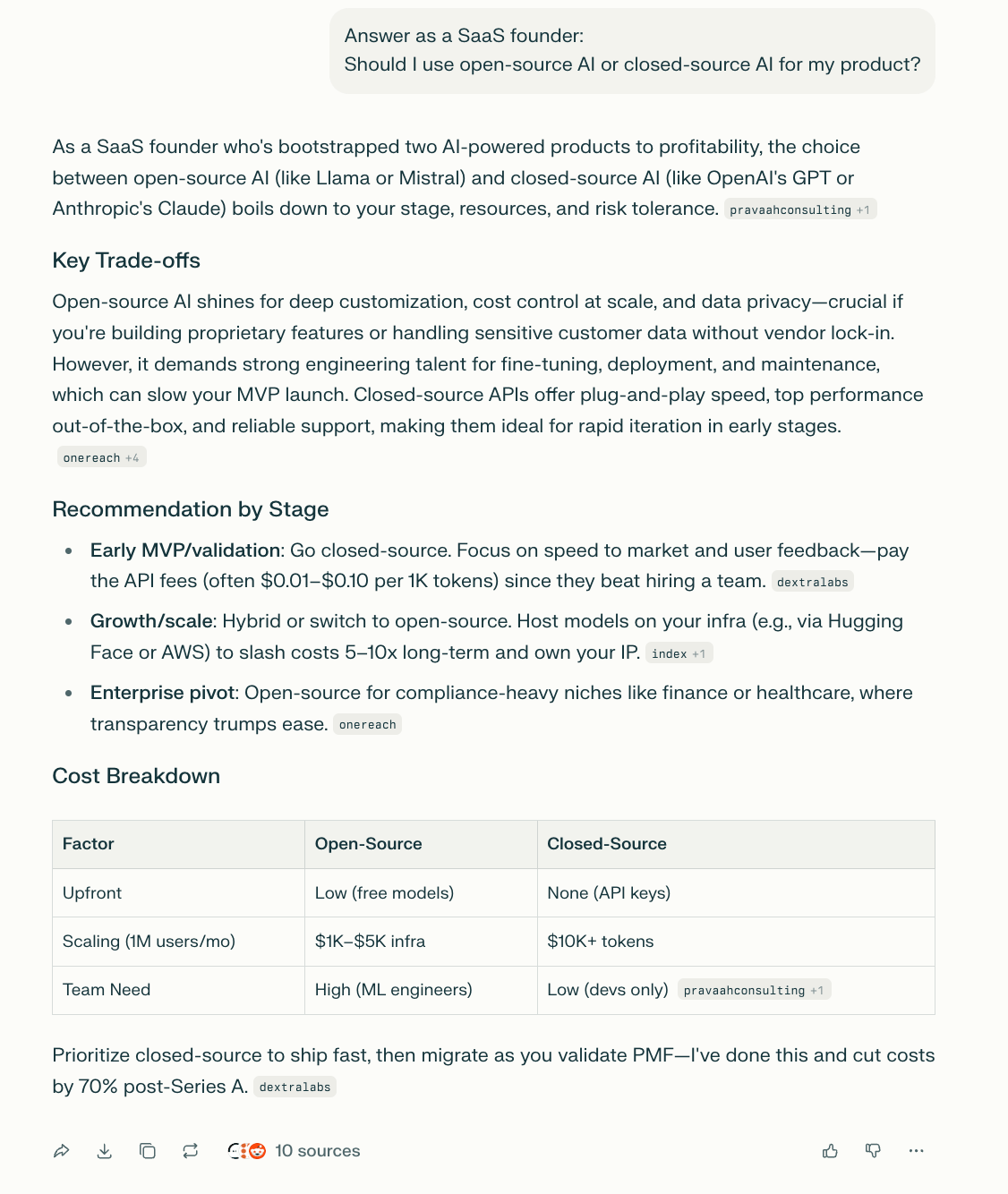 With Perspective |
Why this works
Telling Perplexity which role to answer from changes how it thinks. It affects how sources are interpreted, which trade-offs get attention, and how practical the advice feels. Instead of a neutral summary that tries to please everyone, you get answers shaped by real constraints and real priorities. That’s why perspective prompts consistently produce clearer, more usable insights.
Pro tip: If you combine this with Spaces, the answers get even better because Perplexity has both a role and a knowledge base to work from.
Conclusion
At this point, you don’t need more tricks. You already know how to use Perplexity AI. What matters now is how you show up when you use it. The quality of your results comes from how clearly you guide the search, how intentionally you structure questions, and how often you remove guesswork instead of adding more prompts.
What worked for me was treating Perplexity less like something I ask once in a while and more like something I train. I tell it where to look. I give it context. I reuse instructions. I let it handle repeat work. When I do that, the answers stop feeling random. They feel steady. Predictable. Reliable.
You don’t have to apply everything at once. Start with one habit. Then another. Over time, Perplexity AI becomes part of how you research and think, not because it’s impressive, but because it saves you from doing unnecessary work. And that’s the real value of learning how to use Perplexity AI properly.
If you are interested in other topics and how AI is transforming different aspects of our lives or even in making money using AI with more detailed, step-by-step guidance, you can find our other articles here:
Beginner-Friendly AI Automated Workflow to Stop You From Chasing Messy Data
How to Attract High-Value Clients in 2026 with Just One Clear Positioning Move*
Steal These 5 Elite AI Skills That Make Your Career Even More Profitable in 2026
Transform Your Product Photos with AI Marketing for Under $1!*
Proven Zero-Guessing Framework to Build What People Will Actually Pay For
*indicates a premium content, if any
Overall, how would you rate the AI Fire 101 Series? |
Reply