- AI Fire
- Posts
- 🚀 Best 7 AI Tools You Need After ChatGPT to Automate Daily Real Work
🚀 Best 7 AI Tools You Need After ChatGPT to Automate Daily Real Work
Most people use AI wrong. These 7 AI productivity tools handle real tasks, organize files, and fix edits better than any chatbot you have ever used.

Neil Phan
February 24, 2026

TL;DR
The AI market in 2026 is no longer about finding one "best" tool, but about choosing the specific agent for the job. Google Workspace (Gemini) leads in searching internal files, while Notion AI acts as a digital agent that can physically organize databases. For creativity, Midjourney offers unmatched artistic control, while Google's newer models provide precision editing and text rendering. By matching the tool to a specific friction point like voice dictation with Wispr Flow or consistent character generation with ChatGPT, you can build a high-efficiency workflow without feeling overwhelmed by the "AI Jungle."
Key points
Information Retrieval: Gemini's native integration allows it to search Gmail, Docs, and Calendar simultaneously without broken plugins.
Agentic Action: Notion AI can modify database rows and reorganize messy notes, moving beyond simple text generation.
Creative Precision: New tools like "Nano Banana Pro" allow for specific regional editing and high-fidelity text in images.
Critical insight
AI productivity is not about the smartest model; it is about the shortest path between your intent and the finished result.
🤯 What's the one work task you'd love AI to kill? |
Table of Contents
Introduction
Every single week, a new company announces "the smartest model ever." OpenAI says they are the best. Google says Gemini is the most capable. Everyone is shouting that they are number one.
If you are feeling a little overwhelmed by this "AI Jungle," please know that you are not alone. I have felt that way too.
After 3 years of testing these apps every single day, I figured out something very important. It is not about finding the "best" tool in the world. It is about finding the specific tool that does one specific job better than all the others.
In this guide, we are going to break down the specific AI productivity tools that handle your work and your creativity. I will show you exactly what each tool does best.
Let’s get started.
I. AI Productivity Tools #1: Google Workspace (Gemini) - The Ultimate Search Engine
Gemini is uniquely powerful because it lives natively inside your Google account, allowing it to search through your Gmail, Docs, and Calendar without third-party plugins. It acts like a resident in your digital house, finding specific decisions in old email threads and synthesizing them with project documents. This deep integration makes it the most effective tool for generating instant project recaps from multiple scattered sources.

Key takeaways
Fact: Gemini can access Drive, Gmail, and Calendar at once without requiring manual data copying.
Difference: While ChatGPT needs permission for every "drawer," Gemini is built natively into the Workspace.
Update: The Google Workspace extension allows for multi-source prompts to summarize last month's decisions.
Tool: Use the Gemini Extension to find specific budget arguments buried in long-forgotten email threads.
Let's start with a problem we all face at work: finding information.
Imagine you just finished a big project. Your boss asks you for a summary. You know the information is somewhere, but where? Is it in that email from three weeks ago? Is it in the Google Doc you shared with the marketing team? Or is it in the meeting notes on your Calendar?
Usually, you would spend hours digging through folders. This is where Gemini shines. It is one of the most powerful AI productivity tools because it lives inside your Google account.
1. Why Native Integration Matters
You might be asking, "Can't I just connect ChatGPT to my Google Drive?"
Technically, yes. But that is like inviting a guest to your house. They don't know where you keep your spoons. They have to ask permission to open every drawer. The connection can break, or it might not be able to read complex files like Google Sheets.

Gemini is different. It lives in the house. It is built natively into Google Workspace. It can "see" your Gmail, Docs, Drive, Slides, and Calendar all at the same time without needing special plugins.
2. Step-by-Step: The "Project Recap" Workflow
Let’s look at a real-life example. Instead of spending a week manually gathering information, we can use Gemini to do it in seconds.
Step 1: Open the Gemini Extension
Go to your Gemini chat and make sure the "Google Workspace" extension is active.
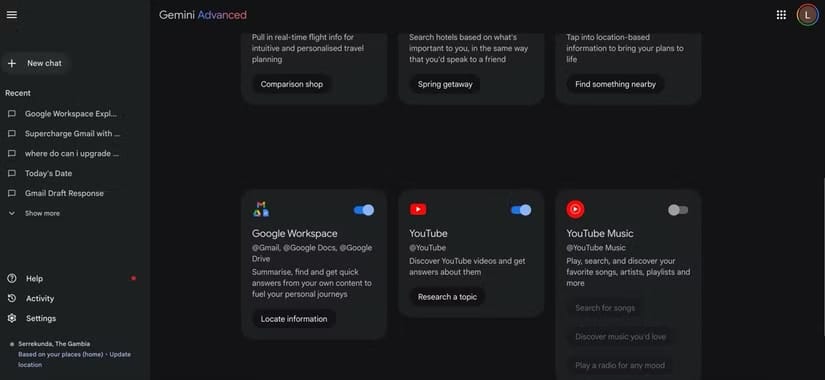
Step 2: Use a Multi-Source Prompt
You want to ask a question that forces the AI to look at multiple apps at once.
Try this prompt:
Find all emails, calendar meetings, and Google Docs related to 'Project Alpha' from last month.

Based on these, summarize the key decisions we made, the timeline delays we faced, and the final results. Draft a structured email to my team with these details.
3. Why This Is a Game-Changer
Because Gemini is one of the few AI productivity tools with this deep access, it does three things:
Retrieval: It finds the specific email threads where you argued about the budget.
Synthesis: It combines that with the dates from your Calendar.
Creation: It writes a cohesive document.
If your work lives in Google, stop copying and pasting text into other bots. Use the tool that is already there.
Learn How to Make AI Work For You!
Transform your AI skills with the AI Fire Academy Premium Plan - FREE for 14 days! Gain instant access to 500+ AI workflows, advanced tutorials, exclusive case studies and unbeatable discounts. No risks, cancel anytime.
II. AI Productivity Tools #2: Notion AI - The Agent That Takes Action
Notion AI functions as an "agent" because it can physically manipulate your workspace by creating database rows and moving blocks of text. Unlike passive chatbots, it can take a template for one job listing and automatically generate a new, customized version within your hiring database. It also acts as a digital janitor, instantly organizing messy meeting notes into structured headings and actionable checklists.
Key takeaways
Fact: Notion AI can perform "agentic" tasks like setting database statuses and start dates automatically.
Contrast: Most chatbots only provide text; Notion AI physically clicks buttons and fills in spreadsheet properties.
Detail: Use the "Organize this" command to turn random meeting dumps into clean, structured project pages.
Example: Generate a "Customer Success Manager" listing based on an existing "Operations" template with one prompt.
Notion AI is different. It is one of the best AI productivity tools because it acts like an "agent." An agent is a tool that can take action inside your workspace.

1. Level 1: Drafting Content
Yes, Notion AI can write blog posts and summaries just like ChatGPT. That is basic. We want to go deeper.
2. Level 2: Managing Databases
This is the superpower. Notion is famous for its "Databases" (which are like smart spreadsheets).
Let's say you are a hiring manager. You have a database of job listings. You already have a page for an "Operations Manager," but now you need to hire a "Customer Success Manager."
In the past, you would manually copy the page, paste it, and edit every single line.
Now, you can use this prompt inside Notion:
Create a new job opening in this database for a Customer Success Manager.

Base it on the Operations Manager template, but change the requirements to focus on communication and empathy. Set the status to 'Active' and the start date to next month.
Notion AI will actually create the new row in the database, fill in the properties, and write the text. It does the clicking for you.
3. Level 3: Cleaning Up the Mess
We all have "messy" pages. You know, that one note where you dumped all your ideas during a meeting. It has bullet points, random links, and half-finished sentences.
You can highlight all that text and tell Notion AI:
Organize this. Group related ideas together using headings. Turn action items into a checklist.
It physically moves the blocks of text around to make it pretty. If you want AI productivity tools that act like a digital janitor for your messy thoughts, Notion AI is the only option that takes this kind of action.
III. AI Productivity Tools #3: Wispr Flow - Writing at the Speed of Thought
Now, let's talk about how we get ideas out of our heads.
The problem with typing is that we naturally "filter" ourselves. As you type, you delete words. You worry about spelling. You think, "Is this sentence good enough?" This slows down your creativity.
With voice, we can provide much richer context. We speak 3x faster than we type. Wispr Flow is one of the most unique AI productivity tools because it fixes the biggest problem with voice dictation: the messiness.

1. The "Auto-Edit" Feature
If you use Siri or Google Voice Typing, it writes down exactly what you say.
You say: "Um, hi John, I mean, hi Mr. Smith, are we... are we still meeting?"
It types: "Um hi John I mean hi Mr Smith are we are we still meeting."
That is useless. You still have to edit it.
Wispr Flow listens to you, understands what you meant to say, and rewrites it perfectly instantly.
2. Real-World Example: The "Brain Dump"
Imagine you need to write a difficult email to a client explaining why a project is late. If you type it, you might stare at a blank screen for 10 minutes, worrying about being polite.
With Wispr Flow, you just close your eyes and talk.
You can say:
Hi Wispr, I need to email the client. Tell them I am really sorry but we are going to be three days late.

It's because the supplier didn't send the parts. But tell them we are working overtime to fix it. Make it sound professional but not like I'm making excuses.
Wispr Flow will type:
Dear Client, I wanted to provide an update on our timeline. Unfortunately,

we are experiencing a slight delay due to a supplier issue. We anticipate being ready in three days. Please know that the team is working overtime to ensure this is resolved quickly.
It captures your intent, not just your words.
3. A Note for iPhone Users
Currently, the experience on iPhone is a little clunky because you have to switch between apps. But for desktop and Android users, this is one of the top AI productivity tools to save time on writing.
IV. AI Productivity Tools #4: Midjourney - Total Creative Control
We have covered productivity at work. Now let's look at creativity.
When it comes to generating images, Midjourney is the industry standard. But I want to be honest with you: it has a learning curve.

1. The "Manual Camera" Analogy
Think of the camera app on your phone.
Most AI image generators are like Auto Mode. You point, shoot, and hope it looks good.
Midjourney is like Manual Mode on a professional DSLR camera. You have to control the lighting, the focus, and the style.
2. Understanding Parameters
To get the best results from Midjourney, you cannot just chat with it like a friend. You need to use "syntax" or code.
Example of a Basic Prompt: "A woman giving a speech."
(Result: Boring, generic image)

Example of a Midjourney Power Prompt:
A professional woman giving a keynote speech on stage, dramatic studio lighting, photorealistic, 8k --ar 16:9 --style raw --stylize 50 --v 6.0"
Let me explain those codes:
--ar 16:9: This tells the AI to make the image wide, like a TV screen.--style raw: This tells the AI to make it look like a photo, not a cartoon.--no text: This tells the AI to ensure there is no writing in the background.
I use Midjourney mostly for inspiration. Even if I don't use the final image, the quality is so high that it helps me brainstorm ideas.
If you are a designer who needs exact control over every pixel, Midjourney is the king of creative AI productivity tools.
V. AI Productivity Tools #5: Google Nano Banana Pro - Precision Editing
If Midjourney sounds too hard, do not worry. There is a much easier tool for the rest of us.
The source video refers to this as the "Nano Banana Pro" model (available through Google's ImageFX or Gemini Advanced). This tool is amazing because it understands regions and plain English.

1. The "Excel vs. Sheets" Comparison
If Midjourney is Microsoft Excel (powerful but complex), then this Google tool is Google Sheets (simple and collaborative).
2. How to Edit Without Starting Over
In many AI tools, if you generate a picture of a dog and you don't like the tail, you have to generate a whole new picture. You might get a better tail, but now the face is wrong. It is frustrating.
With Google's model, you can edit just one part.
Step-by-Step Workflow:
Initial Prompt:
"Create a minimalist infographic about coffee."Result: It looks okay, but there is a weird box at the bottom.

Follow-up Prompt:
"Remove the box at the bottom. Change the background color to soft beige."Result: The AI keeps the coffee cup exactly the same. It only changes the background.

3. Handling Text
For a long time, AI was terrible at spelling. If you asked for a sign that said "Welcome," it would write "Welcomee."
The Nano Banana Pro model is excellent at text rendering.
Try this prompt:
Create a photo of a neon sign on a brick wall. The sign should say 'Open Late' in bright pink letters.
It will actually spell it correctly. This makes it one of the most useful AI productivity tools for making quick slides, social media posts, or thumbnails.
VI. AI Productivity Tools #6: ChatGPT Image Model - Consistency and Memory
We just talked about editing a single image. But what if you need to tell a story with multiple images? This is where ChatGPT beats Gemini. Its superpower is Memory.
1. The "Mascot" Test
Let’s say you are making a training manual and you want a mascot character, a little robot named "Beep."
Prompt 1:
Create a cute robot character named Beep. He is round, white, and has blue eyes.
Both tools will make a good robot. But now, let's move to the next scene.
Prompt 2:
Show Beep holding a wrench and fixing a pipe.
The Difference:
Gemini often forgets what Beep looked like. In the second picture, Beep might be square, or have green eyes. It treats every prompt like a new start.
ChatGPT remembers. It looks back at the first image and ensures Beep still looks like Beep. It keeps the "white round body" and "blue eyes" consistent.
2. Real-World Application
If you are creating a storyboard, a comic, or a presentation where characters need to appear on multiple slides, consistency is key. You don't want your character changing clothes in every slide.
For this specific task, ChatGPT is one of the more reliable AI productivity tools.
VII. AI Productivity Tools #7: Google Flow - Animation Made Simple
Finally, let's talk about video. We are not talking about generating a full movie from scratch. We are talking about connecting two ideas.
Google Flow (often powered by the Veo model) allows you to take two static images and animate the movement between them.
Usually, creating video is hard. You need keyframes, timeline editors, and expensive software like After Effects.
Imagine you are an interior designer.
Image A: A photo of an empty, ugly room.
Image B: A computer rendering of that same room, fully decorated with furniture.
You want to show a video of the room transforming.
How to do it with Google Flow:
Upload Image A as the First Frame.
Upload Image B as the Last Frame.
Prompt: "Smooth transformation, furniture appearing, lighting improving, static camera."
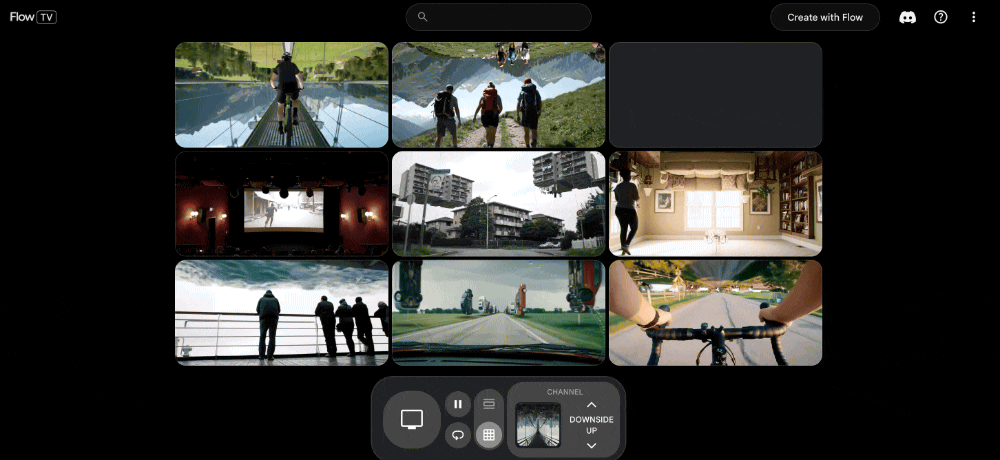
The AI calculates the pixels in between. It creates a smooth video where the sofa fades in and the walls change color.
You did not have to learn animation software. You just needed a start point and an end point.
This is one of the best AI productivity tools for marketers and creators who want to make their content pop without hiring a video editor.
Conclusion: Pick the Right Tool for the Job
We have covered a lot today. I know it can feel like a lot to learn. But remember the rule I told you at the beginning: You do not need to use all of them.
The secret to mastering AI productivity tools is to match the tool to the specific problem you have right now.
Let’s recap one last time:
Searching your files? Use Google Workspace (Gemini).
Organizing data and taking action? Use Notion AI.
Writing emails by voice? Use Wispr Flow.
High-end artistic images? Use Midjourney.
Simple edits and text on images? Use Google Nano Banana Pro.
Consistent characters? Use ChatGPT.
Simple animation? Use Google Flow.
Here is my challenge to you:
Pick just one tool from this list. Just one. Spend 15 minutes today trying it out. If your inbox is a disaster, try the Gemini extension. If you hate typing, try Wispr Flow.
Don't try to build the perfect system overnight. Build it one tool at a time.
If you found this guide helpful, share it with a friend who is also trying to navigate this "AI Jungle." We can all learn to work smarter, together.
If you are interested in other topics and how AI is transforming different aspects of our lives or even in making money using AI with more detailed, step-by-step guidance, you can find our other articles here:
Building Apps with Bolt: A No-Code Guide to Turning Ideas into Reality
Detailed Guide: How To Automatically Get Unlimited High-Quality LinkedIn Jobs*
Prompt Engineering Automation: Build a Mini AI Assistant with n8n
Discover My Ultimate AI Tools Productivity Kit for 2024*
*indicates a premium content, if any
Reply