- AI Fire
- Posts
- 💰 How To Build A RAG Agent For Pennies (Using This n8n Workflow)
💰 How To Build A RAG Agent For Pennies (Using This n8n Workflow)
Stop overpaying for Pinecone. This no-code guide shows how to use Gemini's new File Search API in n8n to build a 10x cheaper RAG agent in minutes

Max Anh
November 30, 2025
TL;DR BOX
Gemini's new File Search API simplifies building RAG (Retrieval-Augmented Generation) agents by automatically handling document chunking, embedding and storage. This eliminates the need for complex vector databases like Pinecone, significantly reducing setup time and cost.
The service charges $0.15 per 1 million tokens for initial indexing but currently offers free storage and retrieval for most use cases. Developers can integrate this functionality into n8n workflows using just four standard HTTP request nodes.
Key points
Stat: Indexing a 121-page PDF costs less than $0.02 (approx. 95,000 tokens), making it 10x cheaper than traditional vector setups.
Mistake: Uploading duplicate files updates without version control; you must manually delete old versions to prevent database clutter.
Action: Use the "n8n Binary File" option in the HTTP request body to properly upload documents from form triggers.
Critical insight
Gemini File Search excels at factual retrieval ("needle in a haystack") but struggles with holistic document analysis (e.g., "summarize the entire book"), as its chunk-based architecture cannot "see" the full text at once.
🤯 What’s your biggest frustration with building AI agents? |
Table of Contents
I. Introduction: RAG Just Got Ridiculously Easy (and Cheap) with an n8n Workflow
If you've built RAG agents, you know the pain. Chunking docs, generating embeddings, managing vector databases like Pinecone; it's a massive technical headache.
Google just changed the game.
With Gemini's new File Search API, you simply drop in a document and Google handles the rest: embeddings, storage, everything. You can chat with your file instantly.
The best part? It's extremely cheap.
In this guide, I'll show you how to use this API in an n8n workflow to build RAG agents without the complex data pipeline. We'll cover the build, the cost and the honest limitations you need to know.
II. What Is Gemini File Search?
Answer:
File Search stores documents, embeds them and makes them searchable through simple API calls. You upload a file and Gemini creates a ready-to-query index. This lets agents retrieve grounded answers without maintaining your own vector stack.
Key takeaways
Upload → auto-chunk → embed → query.
Replaces vector DB steps.
Handles many file types.
Ideal for lightweight RAG agents.
Critical insight
It makes RAG usable for people who can’t afford full infrastructure.
Before we build, let's understand what we are actually working with.
1. How It Works
The basic process is very straightforward:
Upload your files to Gemini.
Gemini automatically chunks and embeds them for you.
Your n8n workflow agents can immediately use this as a knowledge base.
2. Comparison to Traditional RAG
If you have ever built a RAG agent before with a vector database, you know the pain.
Traditional RAG Pipeline: You have to understand the file type, add metadata, add context, split documents into chunks, run them through an embeddings model, store them in a vector database, configure the search and maintain the infrastructure.
Gemini File Search: You upload the document to Google. Google handles everything else. You plug your AI agent into the Google Store via your n8n workflow and start getting answers.
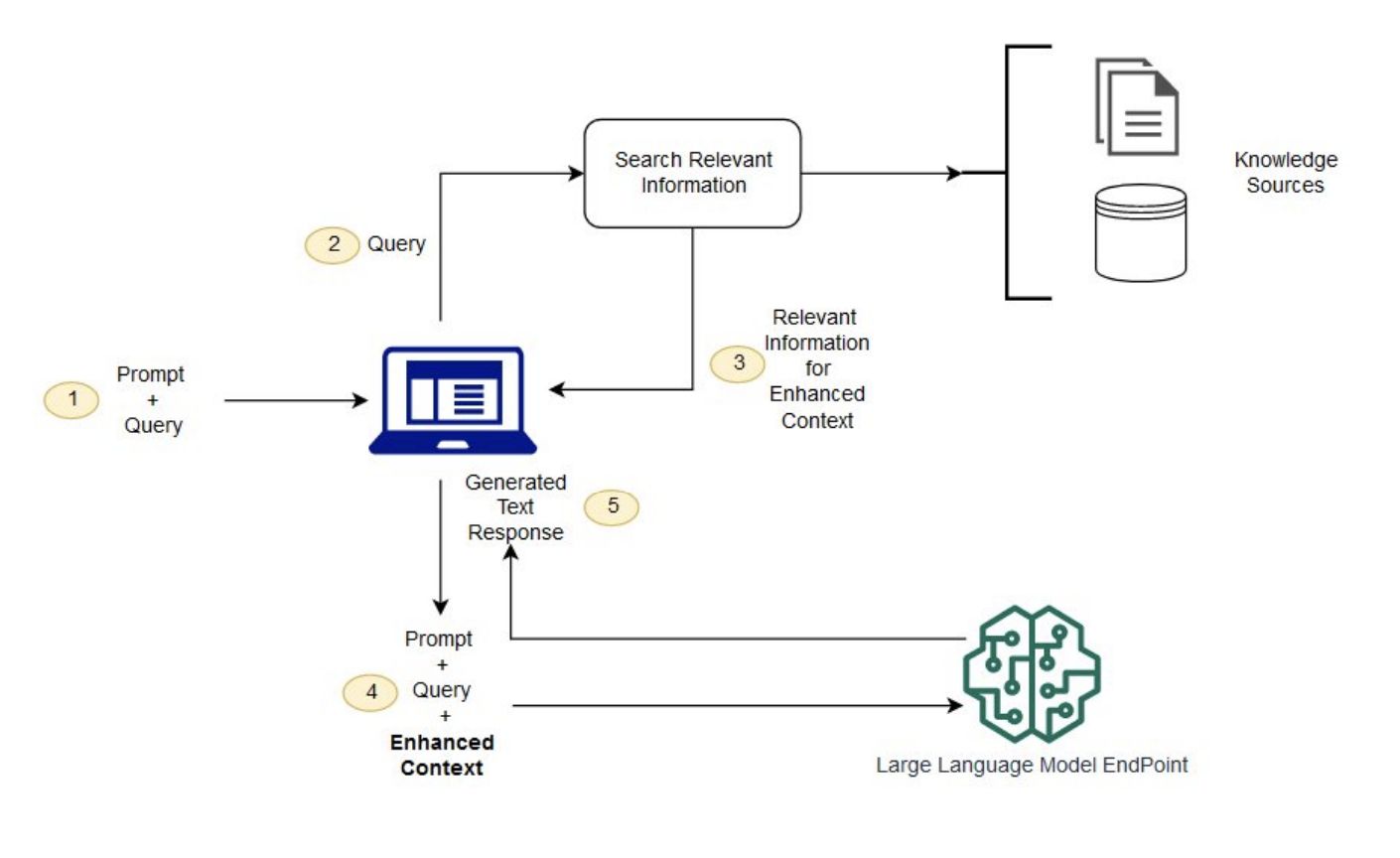
Traditional RAG Pipeline
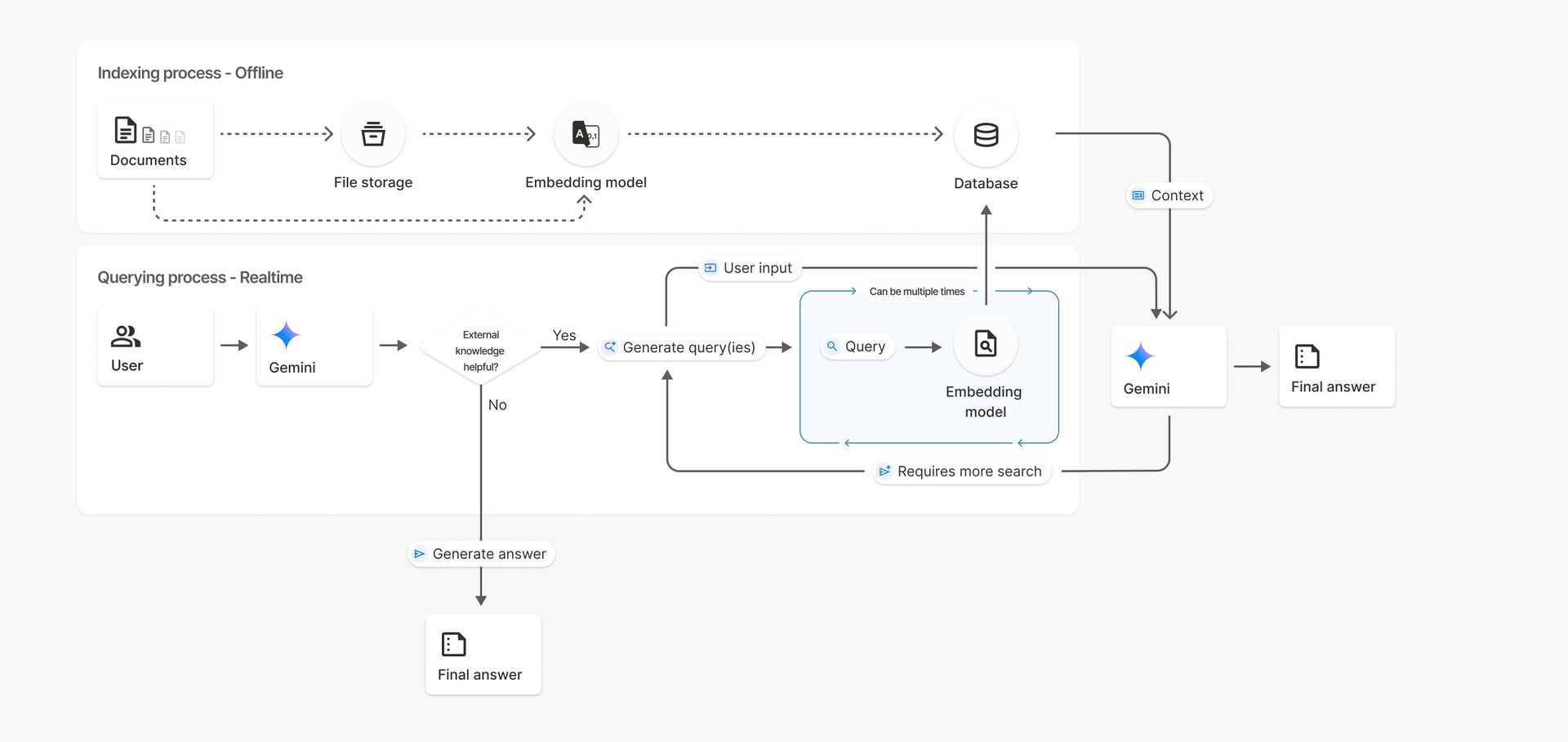
Gemini File Search
3. Why It Is Useful
You Don't Need To: Build your own search system, set up a database, handle storage and searching manually or worry about technical infrastructure.
All You Need: Know how to upload files through the Gemini File API and have a basic n8n workflow setup. No special technical setup is required.
Learn How to Make AI Work For You!
Transform your AI skills with the AI Fire Academy Premium Plan - FREE for 14 days! Gain instant access to 500+ AI workflows, advanced tutorials, exclusive case studies and unbeatable discounts. No risks, cancel anytime.
III. Why Is Gemini File Search Pricing So Cheap?
Answer:
Costs come mainly from token processing during upload, not storage. Storage is free for now and queries only charge for model usage unless you hit extreme scale. This makes experimentation and small production setups very inexpensive.
Key takeaways
Upload cost is ~$0.15 per 1M tokens.
Storage currently free.
Query cost tied to chat model.
Much cheaper than Pinecone or custom hosting.
Critical insight
The low cost encourages rapid iteration instead of worrying about infrastructure budgets.
Let's talk money, because this is where Gemini really shines.
1. The Cost Breakdown
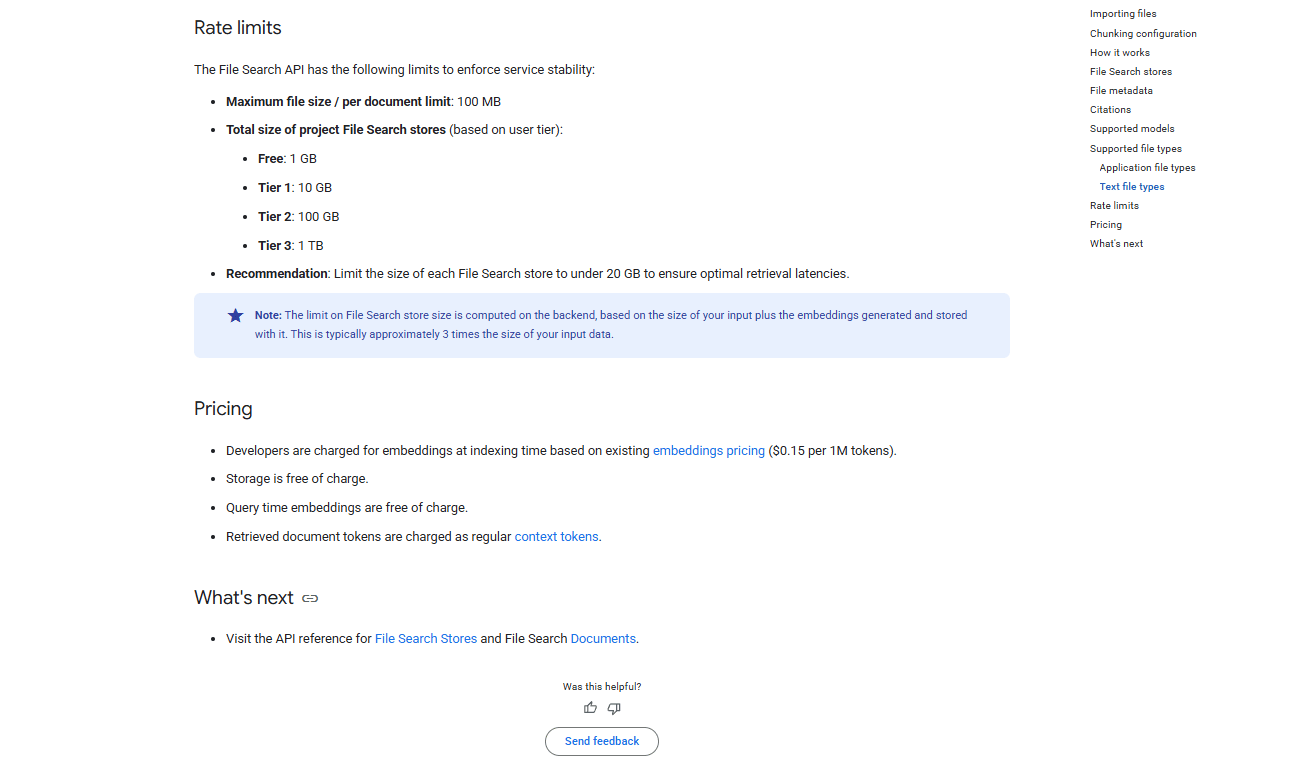
Indexing/Embedding: You are only charged when uploading. The cost is $0.15 per 1 million tokens processed.
Real Example: A 121-page PDF is about 95,000 tokens. That is not even one-tenth of what it would cost you 15 cents. It is extremely affordable.
Storage: Currently, this is completely free. Regardless of how much you store, there are no storage fees at all.
Querying: There is some limit when queries get really high but you basically only pay for the chat model usage. There is a base fee only for extremely high volume (1M+ queries/month).
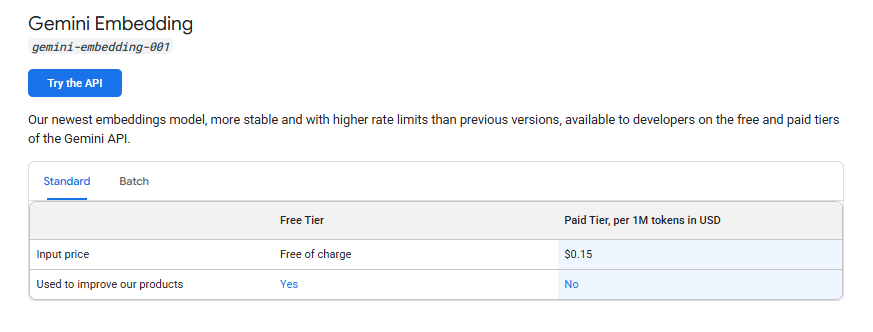
2. Cost Comparison Table
Let's look at a scenario with 100 GB storage + 1 million queries per month.
Service | Storage Cost | Indexing Cost | Base Fee | Total First Month |
Gemini File Search | $0 | ~$12 (one-time) | ~$35 (high vol only) | ~$47 |
Supabase (PG Vector) | Affordable | Complex Setup | Maintenance | Variable |
Pinecone / OpenAI | Expensive | High | High | Significantly Higher |
The Verdict: Gemini is super cheap for a file search API. You might be able to get something cheaper if you build it all yourself from scratch but considering how easy and quick it is to set up in an n8n workflow, that cost is completely justified.
IV. What We Are Building in n8n
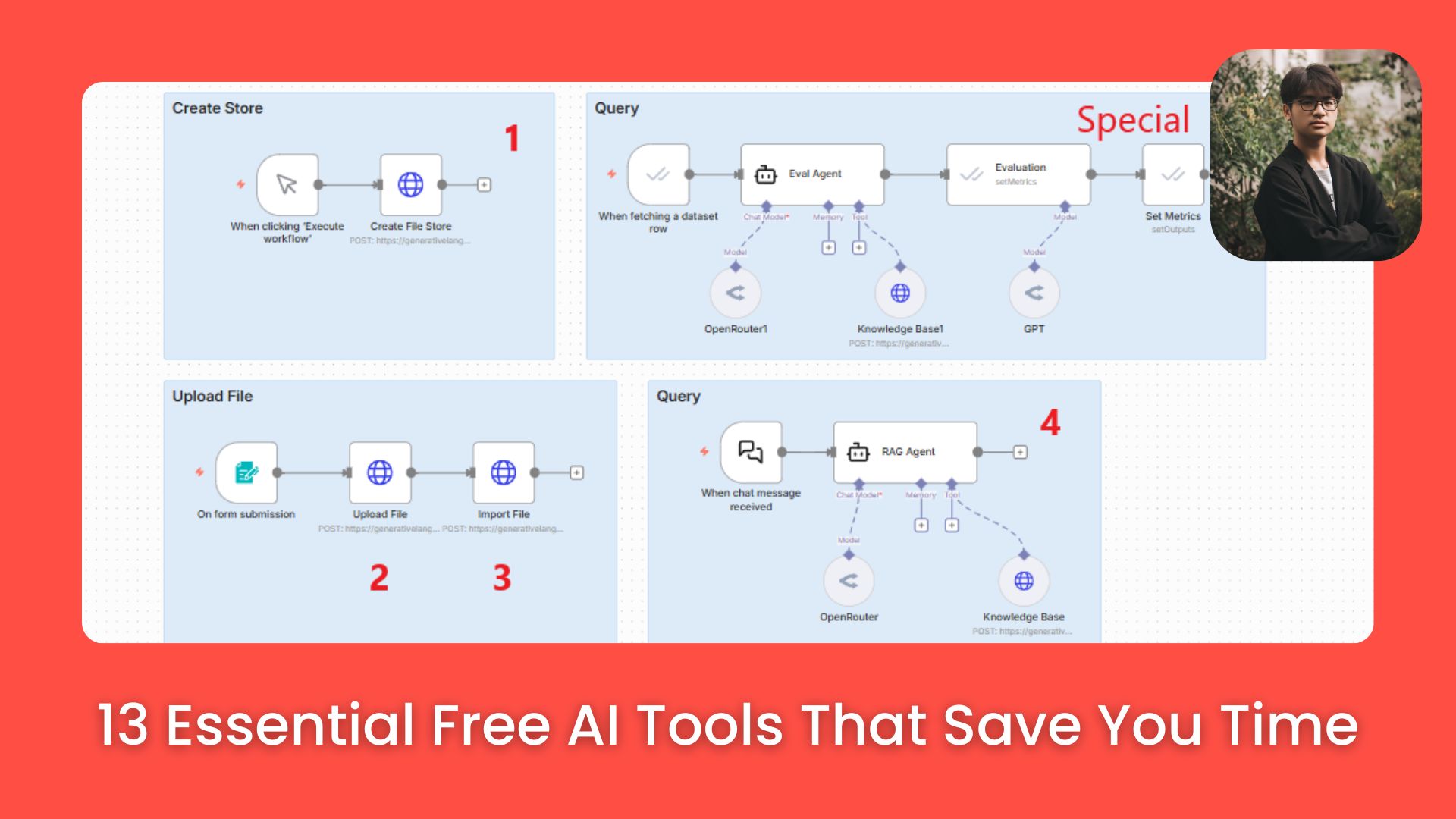
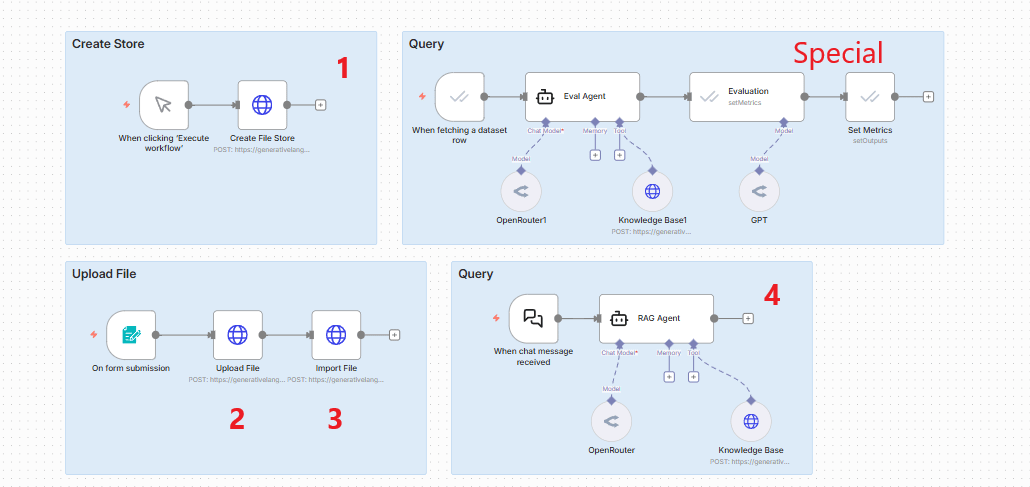
We are going to build a simple, four-step workflow in n8n.
1. Four HTTP Requests Overview
Request 1: Create Store (Folder): Think of this as creating a folder to organize your documents.
Request 2: Upload File: Upload the file to the Google Cloud environment (it is not in the folder yet).
Request 3: Move File to Store: Take the uploaded file and move it into the folder created in step 1.
Request 4: Query the Store: Set up the request to query the documents and get answers back.
2. The Workflow Visual
In n8n, it looks like a straight line: Create store node → Upload file node → Import file to store node → Query agent node.
After we set it up, we will run a quick evaluation to see how accurate the results actually are.
V. Step 1: Setting Up Gemini API Authentication
Honest assessment: Google's API documentation is not intuitive. It can be very confusing compared to other platforms. I will show you exactly what you need.
1. Finding the File Search API
You need to navigate to the File Search API documentation. Look for scenarios like "Directly uploading", "Importing files", "Chunking" and "Metadata".
Pro Tip: I often view the documentation as Markdown and paste it into an LLM to help me set up the requests. It is not perfect but it helps.
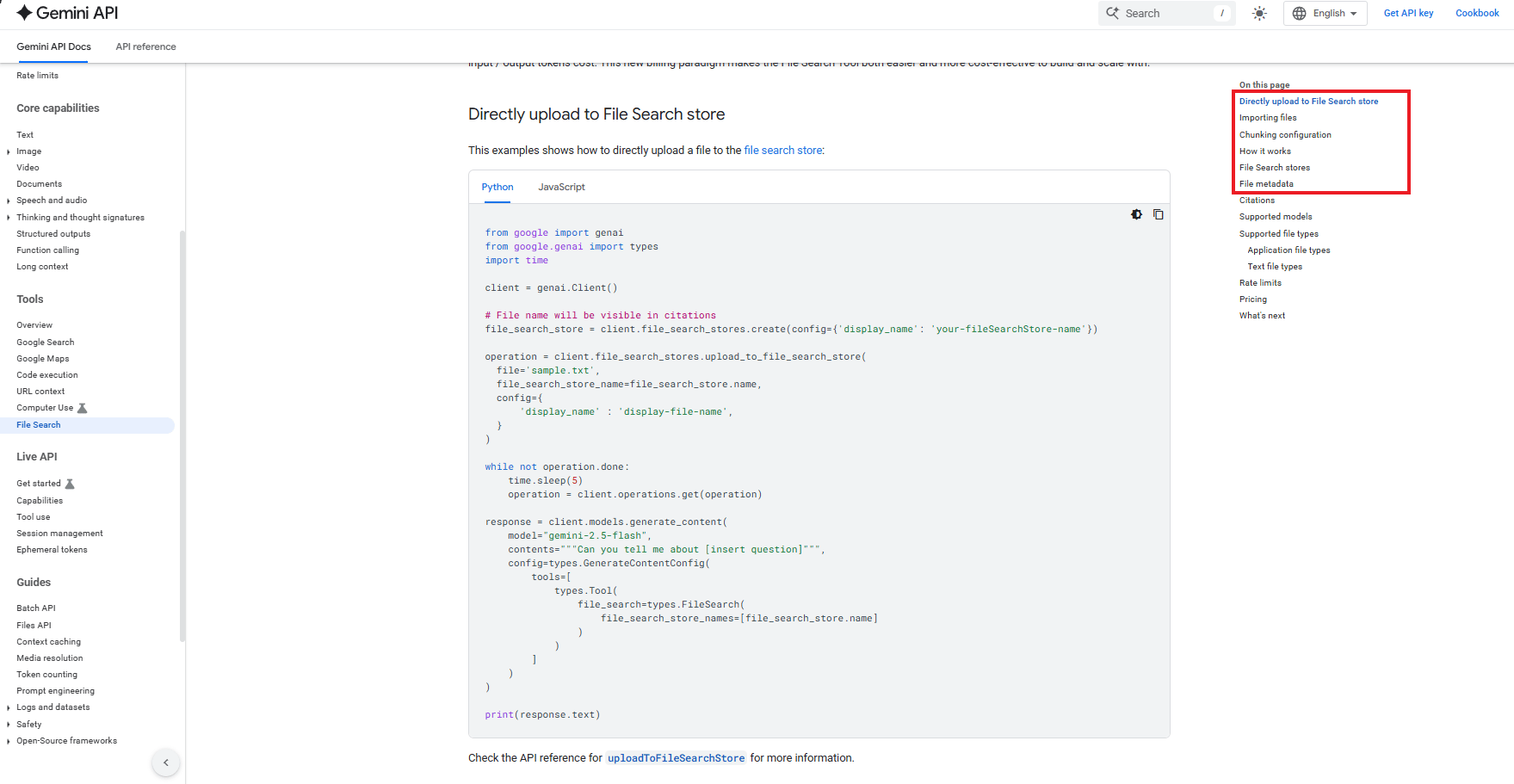
File Search API documentation
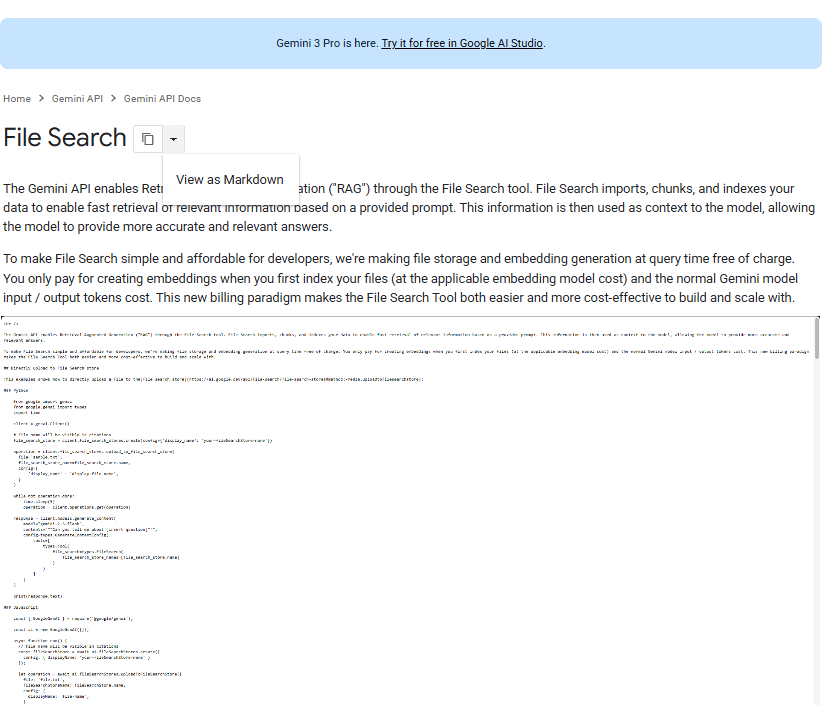
Markdown
2. Getting Your Gemini API Key
Go to Google AI Studio.
Create your profile if you haven't already.
Create a new key (name it something like "test").
Copy the generated key.
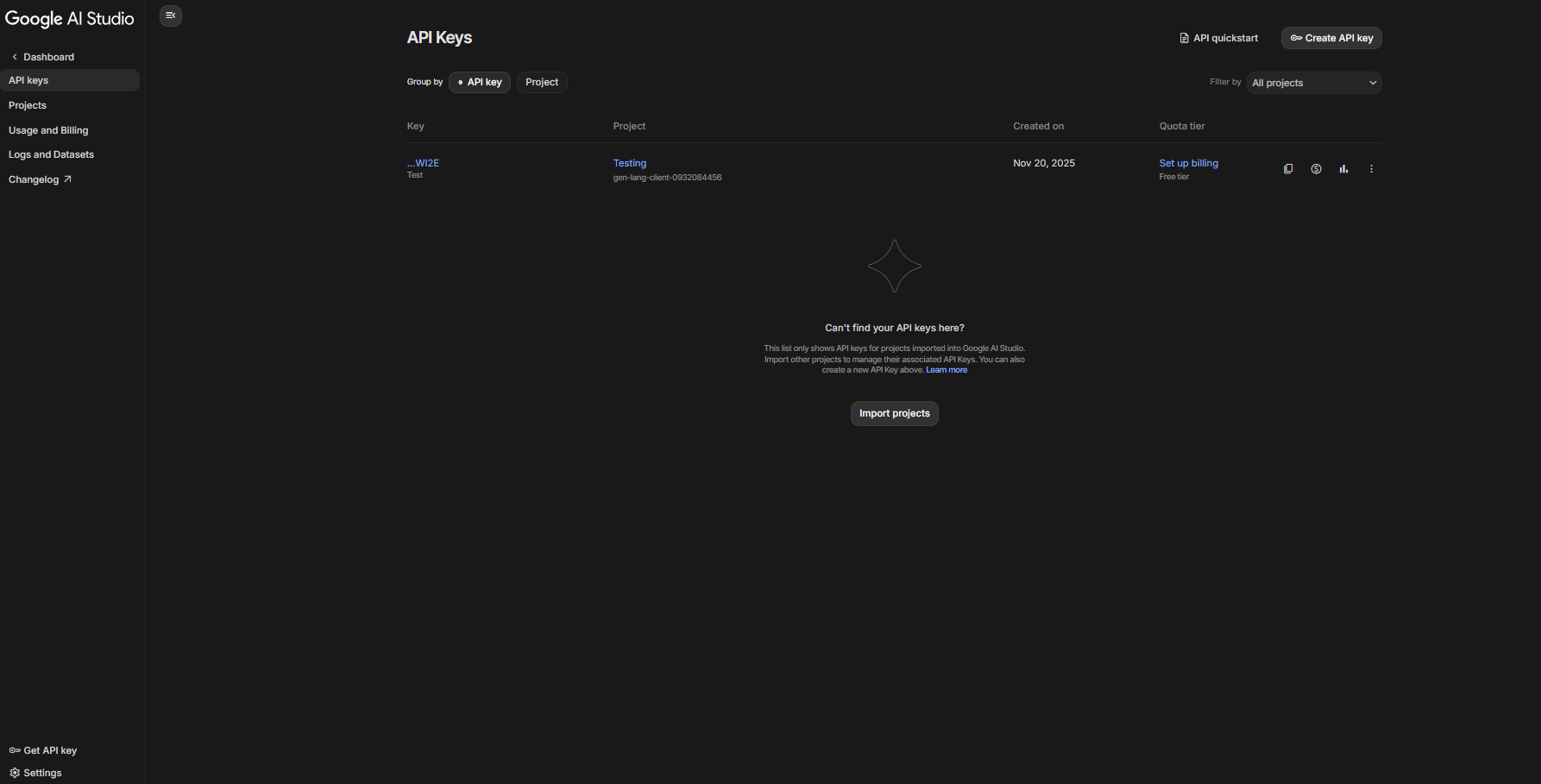
3. Two Ways to Configure Authentication
Basic Method (Not Recommended): Copy/paste the API key directly as a query parameter in every node. This is boring and kind of dangerous.
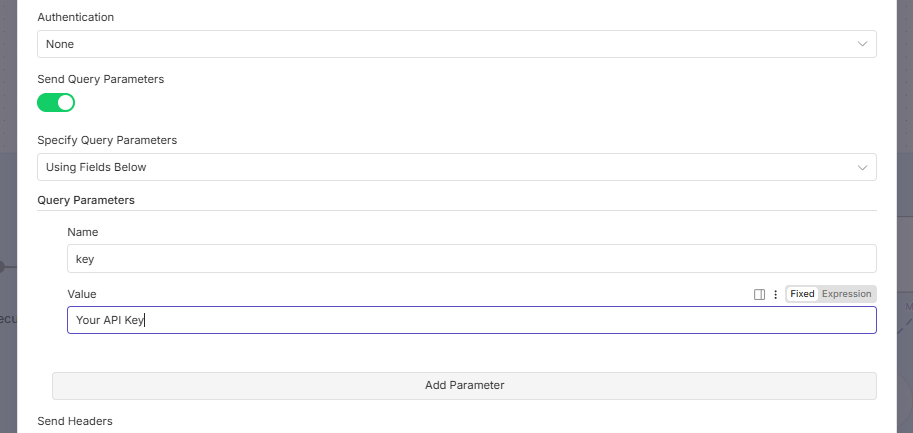
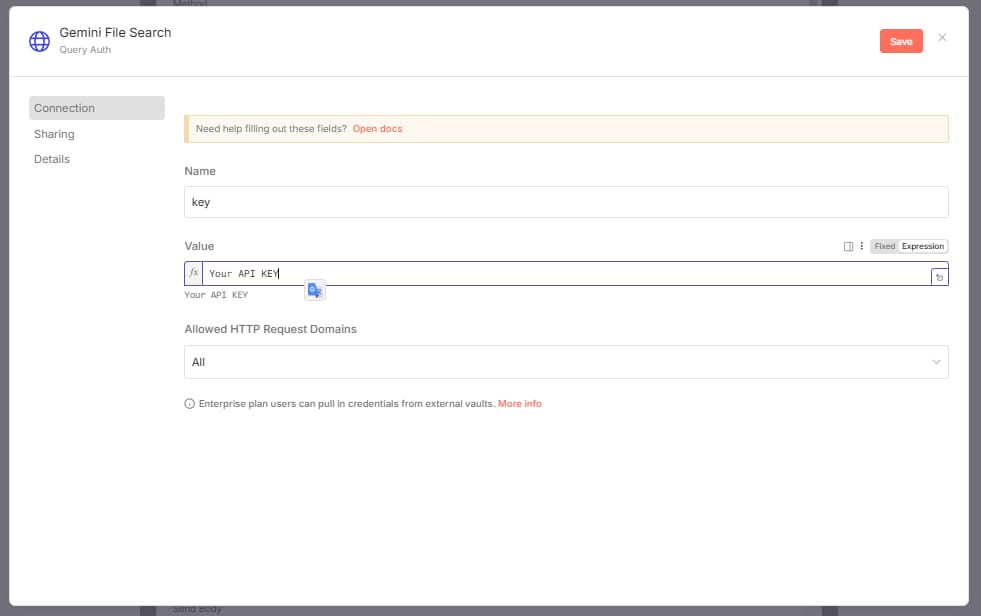
Better Method (Create Authentication):
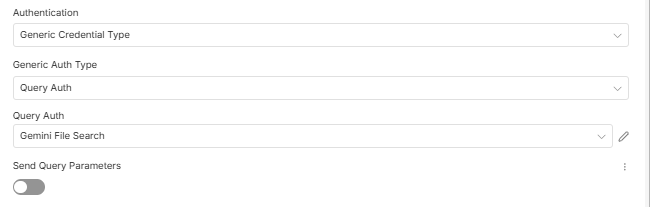
In n8n, choose "Generic Credential Type" authentication type.
Select the "Query Auth" option.
Create a new query auth.
Name field:
keyValue field: Paste your API key.
Name the credential: (e.g., "Gemini File Search").
Save. Now you can just select this credential for every node in your n8n workflow.
VI. Step 2: Creating a File Search Store
First, we need a place to put our files.
1. Configure the HTTP Request
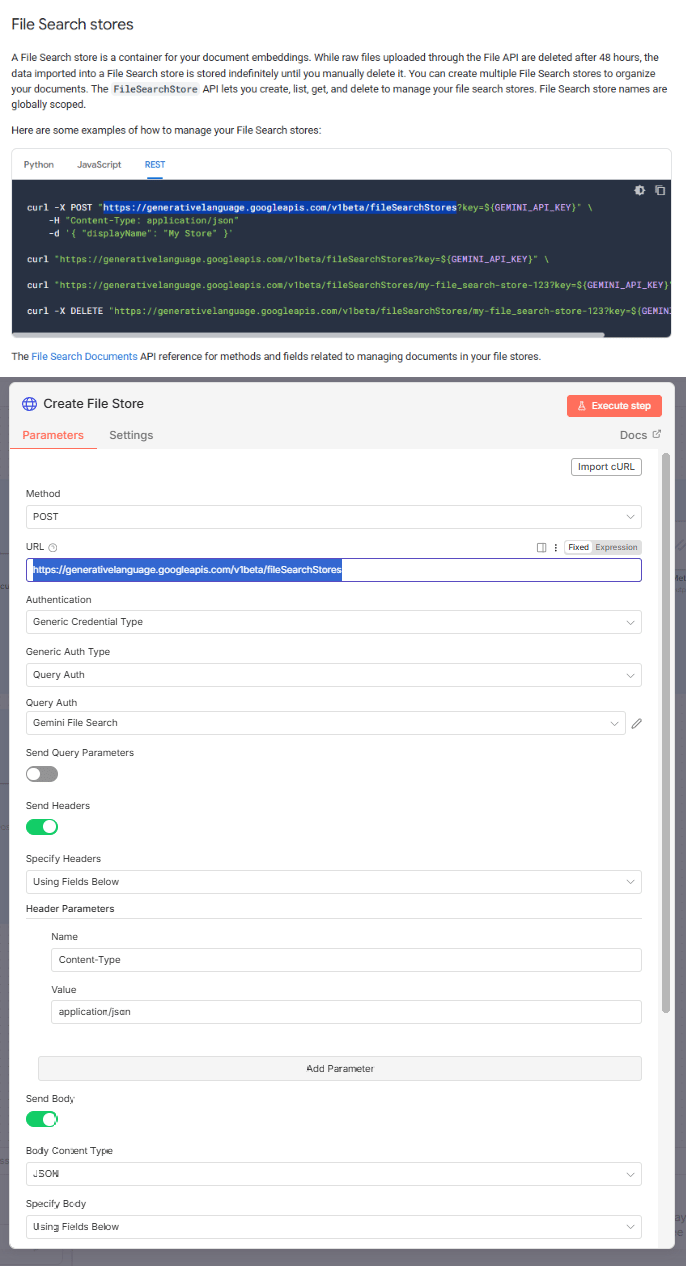
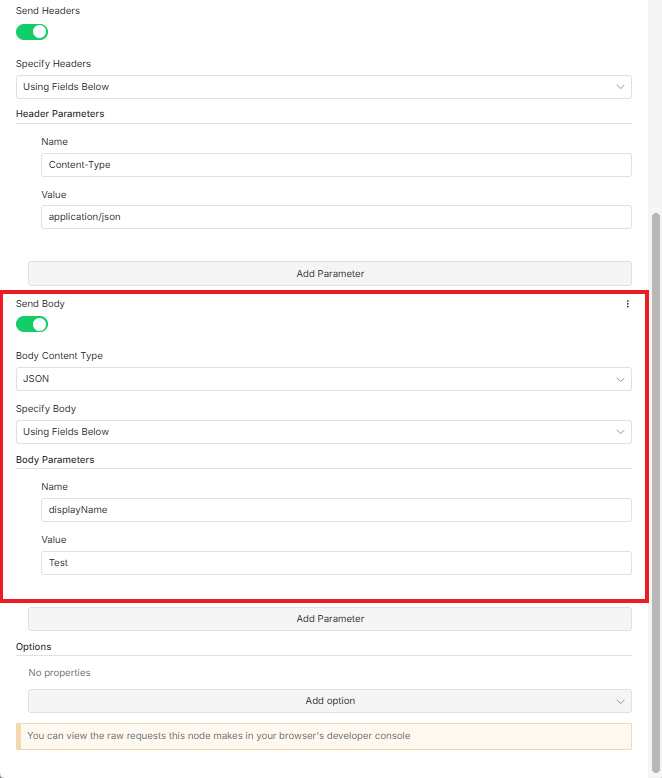
Endpoint: Find the "Create Store" POST request in the documentation and paste the URL into your n8n node.
Authentication: Select the "Gemini File Search" credential we just made.
Headers: Set
Content-Typetoapplication/json.
2. The Body Configuration
This is the most important part. In the JSON body, you need to choose a name for your file store.
Example:
{"displayName": "Test"}
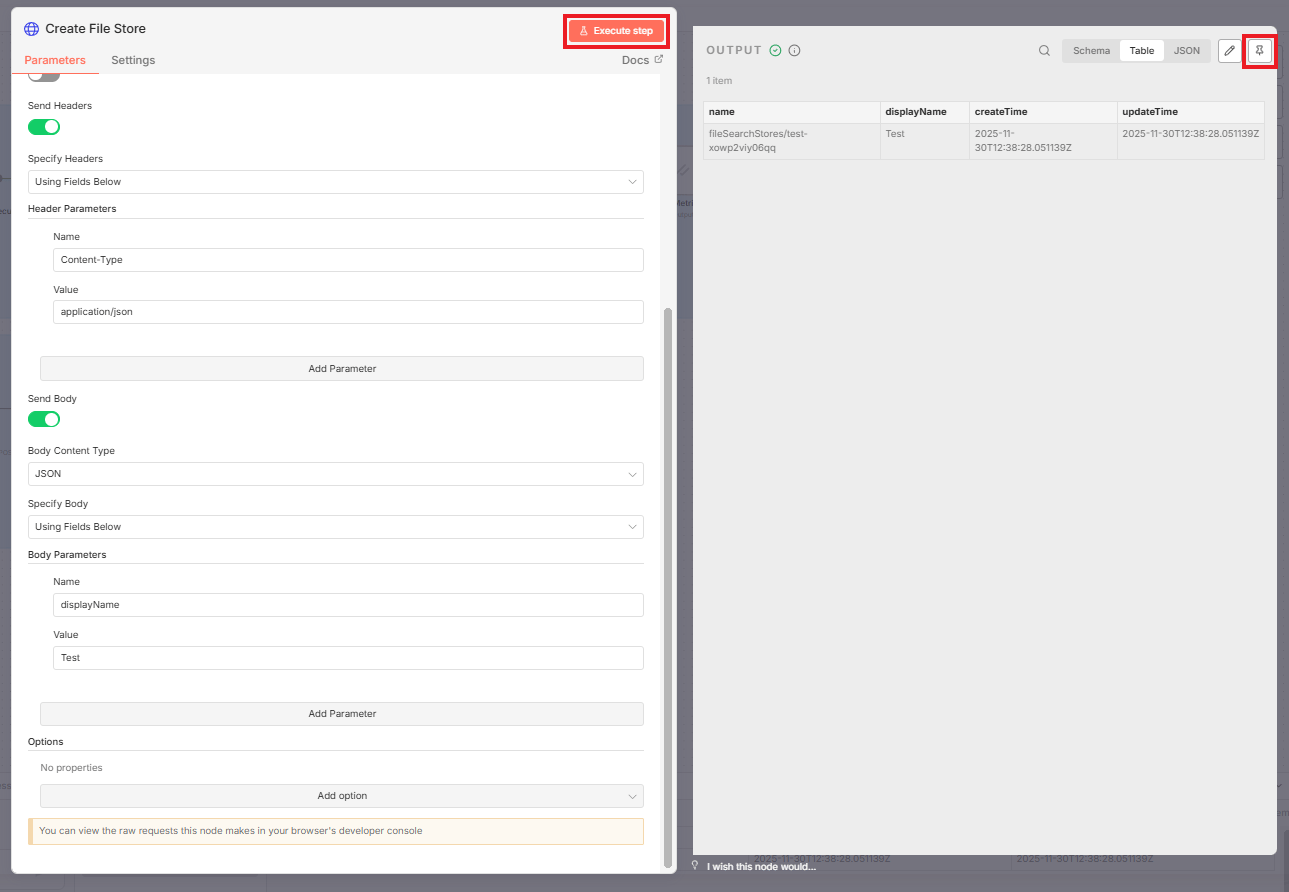
3. Execute and Pin
Click "Execute". You will get a successful response from Google containing the name of the file store (it will look like an ID) and the display name.
Critical: Pin this data. You will need the store name ID for the next steps.
VII. Step 3: Uploading the File to Gemini
This is a two-step process. First, we upload it to the cloud. Then, we move it into the store.
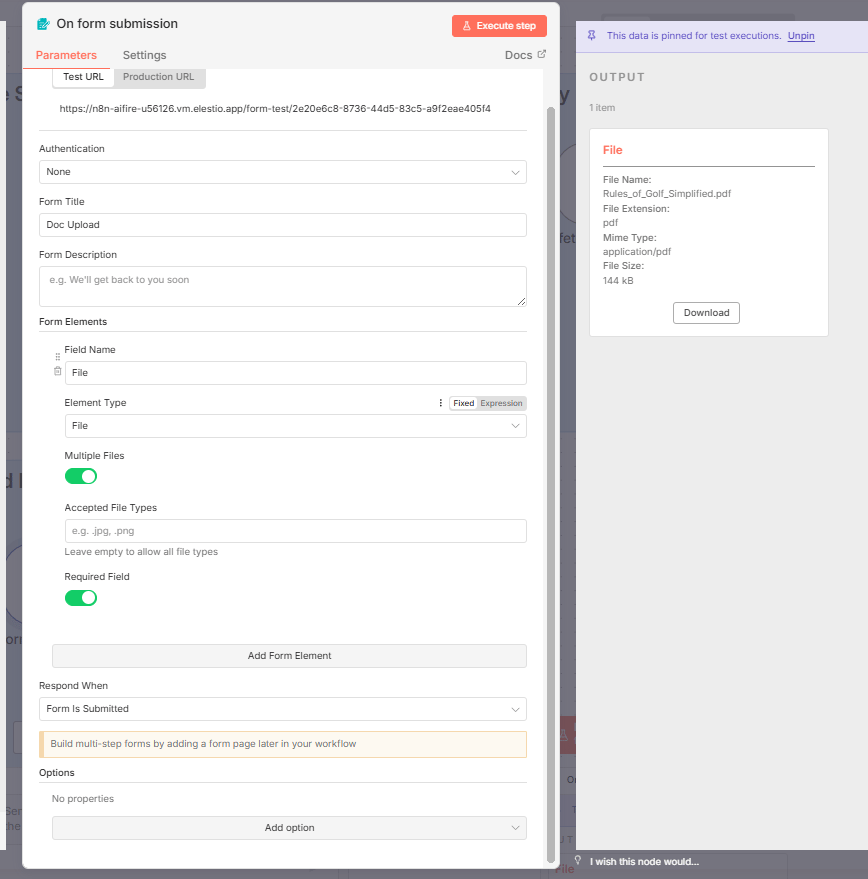
Before uploading the file, we need a file, right?
Let’s get started by adding a Form Trigger.
Then customize it with a File field, which allows us to upload multiple files.
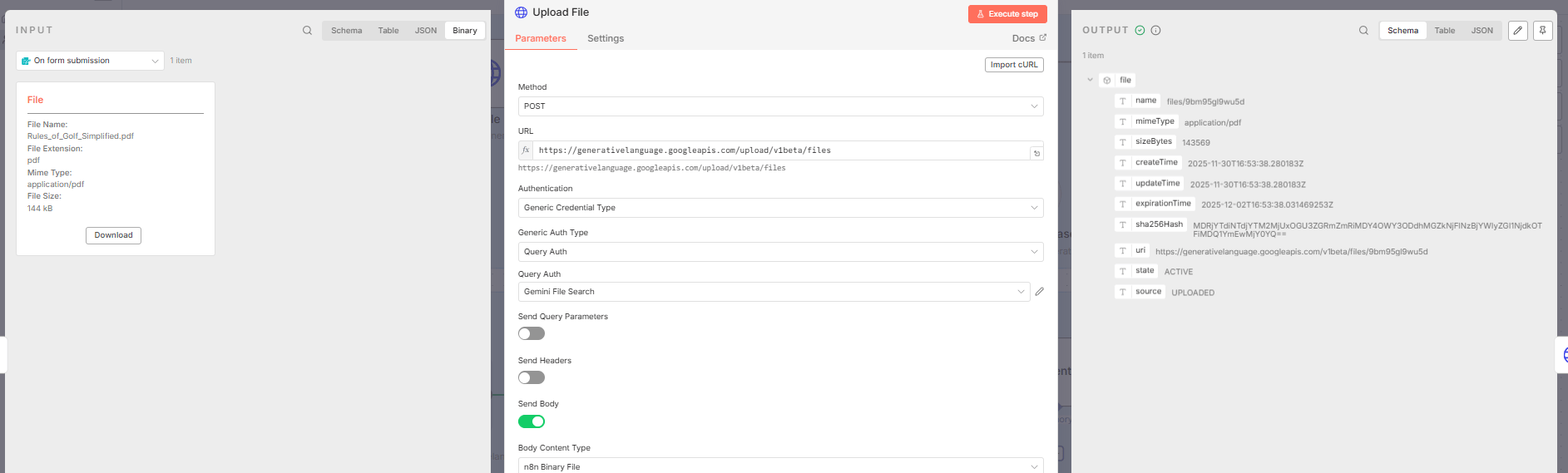
1. Setting Up the Upload Request
Endpoint: Look for "Initiate resumable upload to store" in the documentation. It is a POST request ending in
/upload/v1beta/files.Authentication: Use your saved credentials.
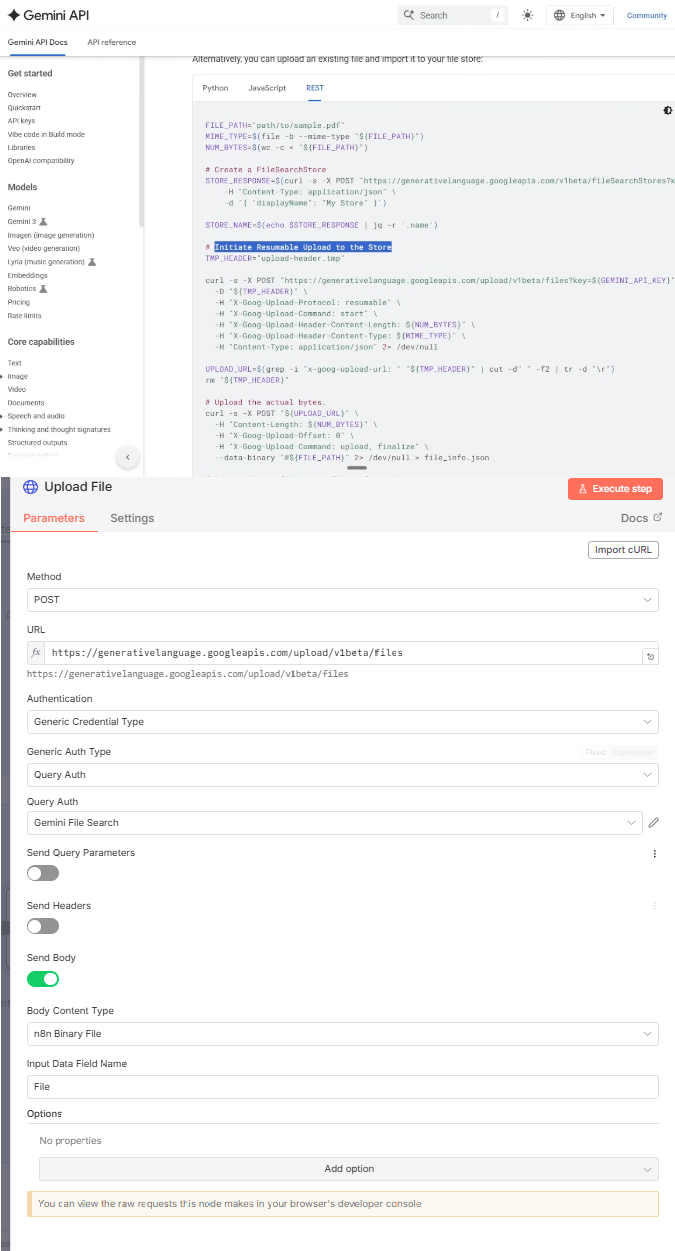
2. Sending the File
Body Configuration: Choose the "n8n Binary File" option.
Input Data: Look at your trigger data (where your file came from). Find the binary file name (e.g., "file") and type that name into the "File Name" field in the HTTP request.
3. Execute the Upload
Click "Execute". You will get a success message with details like the file name, MIME type, size and URI.
Important: This file is now in the Google environment but it is just floating there. It has an expiration time. If you don't move it to a folder (store), it will be deleted.
VIII. Step 4: Moving the File Into the Store
Now we connect the file to the store we created in Step 2.
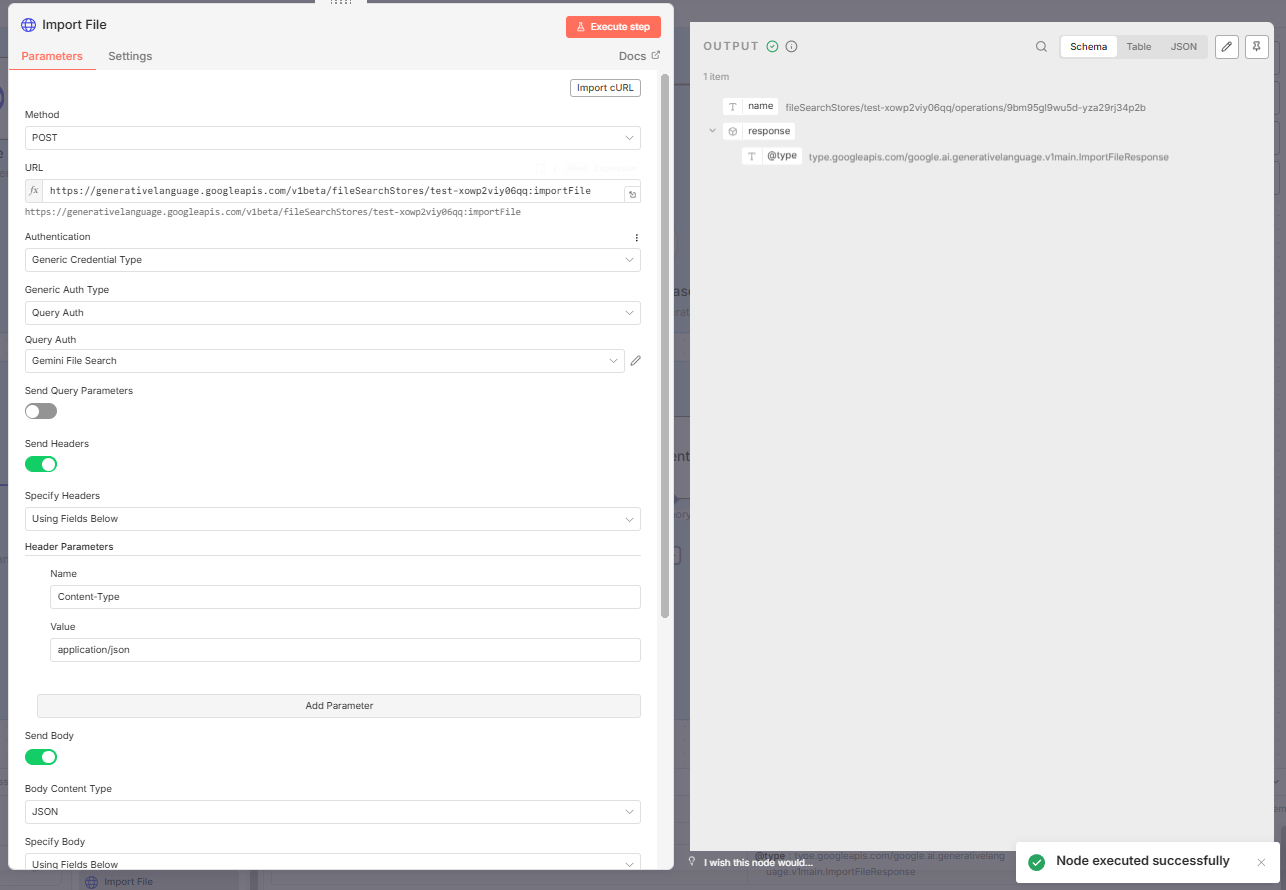
1. Configure the Import Request
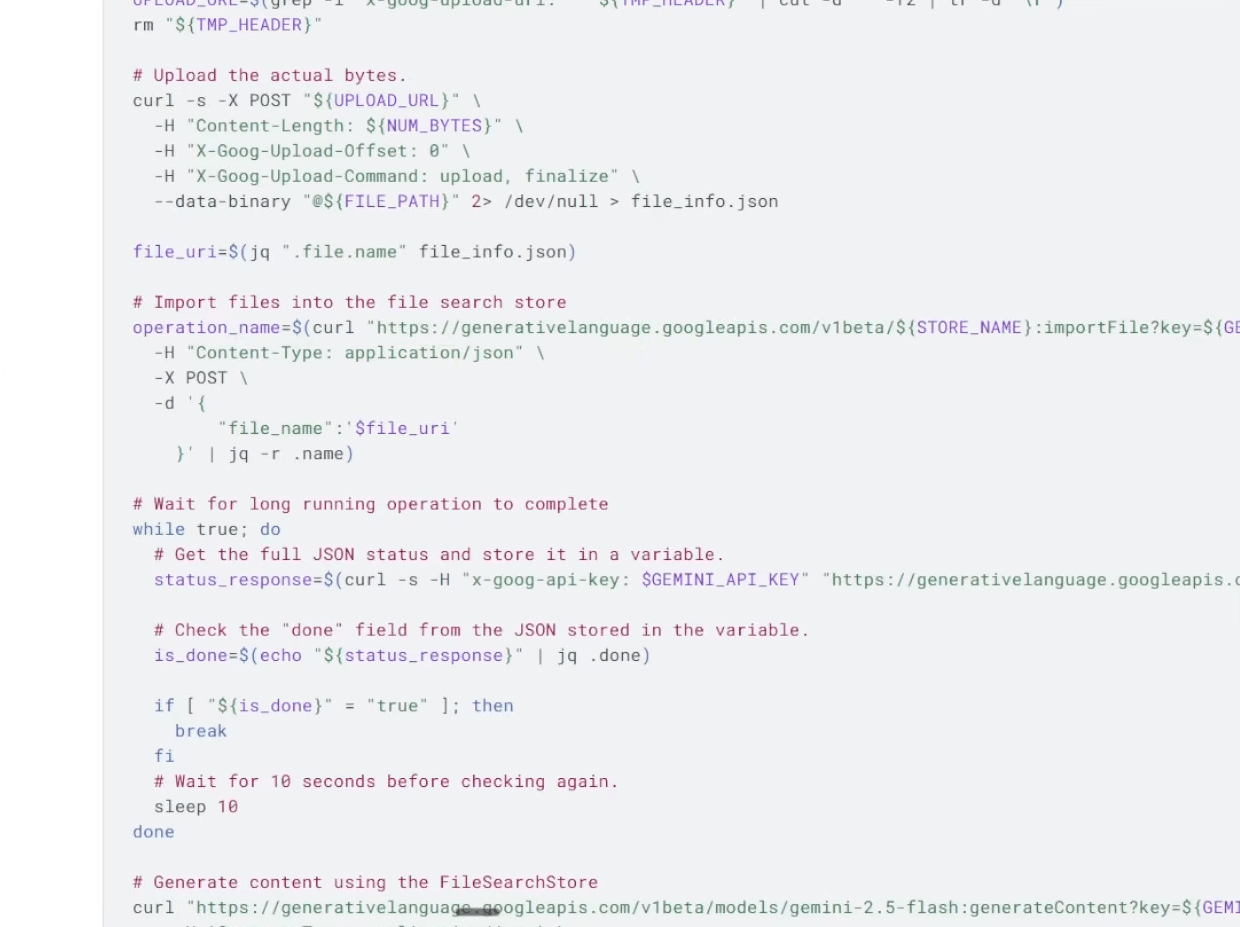
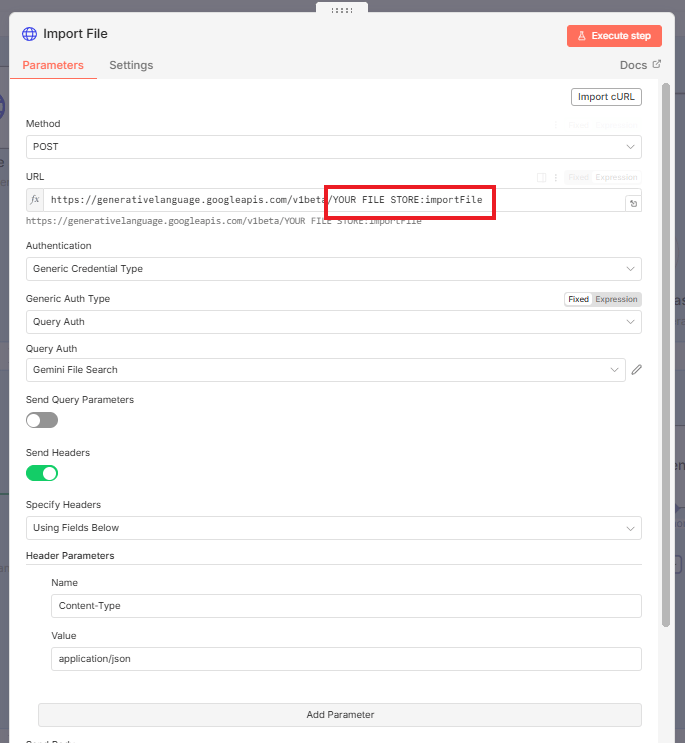
Endpoint: Find "Import files into file store" in the documentation.
Critical Detail: The URL includes a variable for the store name:
.../{storeName}:importFile.
How to Configure: Go back to your "Create Store" node (Step 2), copy the store name ID from the pinned data and paste it into the URL where
{storeName}appears.
2. JSON Body
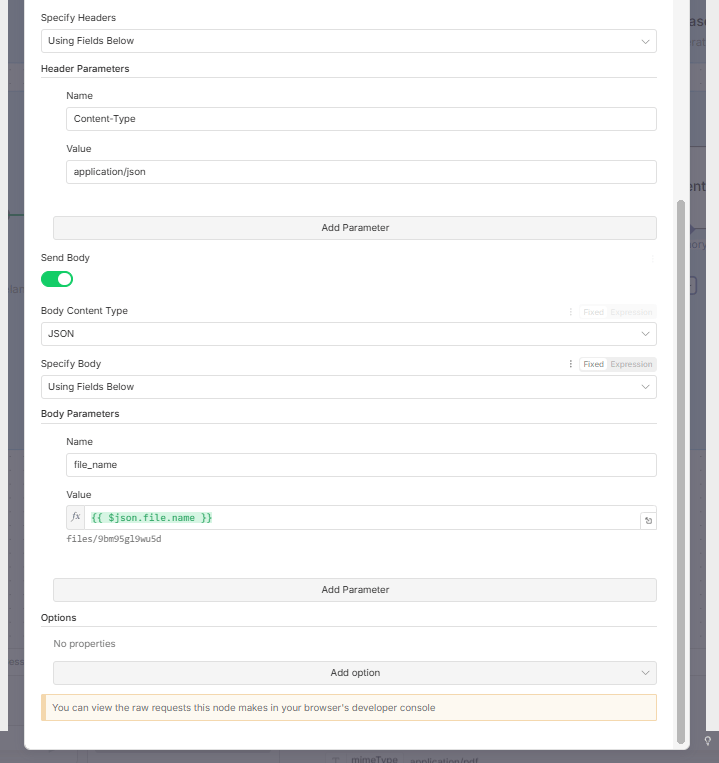
You need to tell it which file to import.
In the JSON body, you need to send the resource name of the uploaded file.
Drag the
name(oruri) field from the "Upload File" node's output (Step 3) into the JSON body value.
3. Execute the Import
Click "Execute". You will get a success message. The file has been moved into the folder and is now ready to be queried by your n8n workflow.
IX. Step 5: Setting Up the RAG Agent
Now for the fun part: chatting with your data.
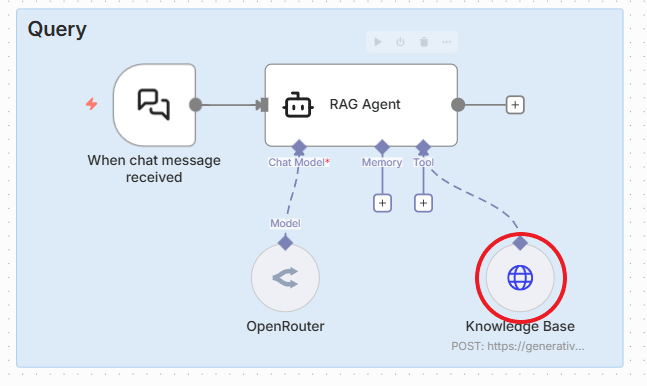
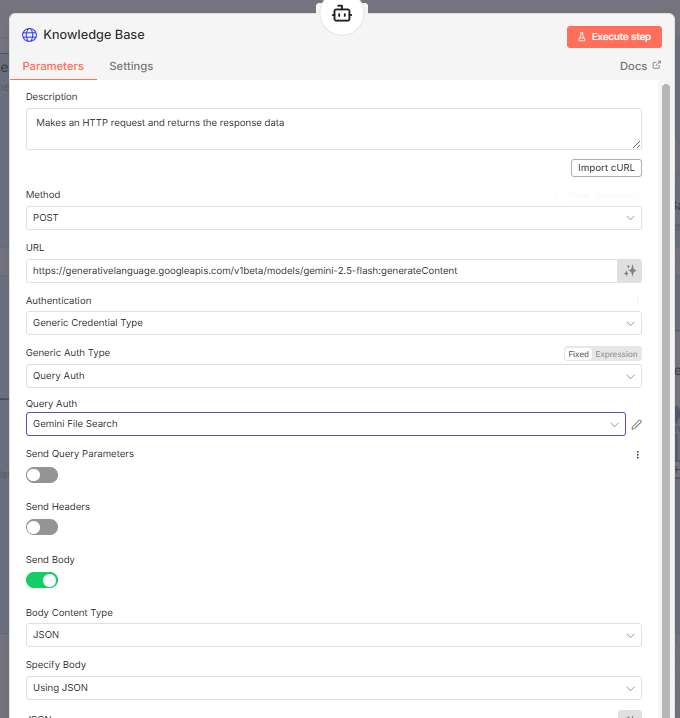
1. Configuring the Knowledge-Based Tool
We will use another HTTP Request tool to query the store.
Endpoint: Use the "Generate content" request for the Gemini 2.5 Flash model.
Method: POST.
2. Critical Configuration: Store Name
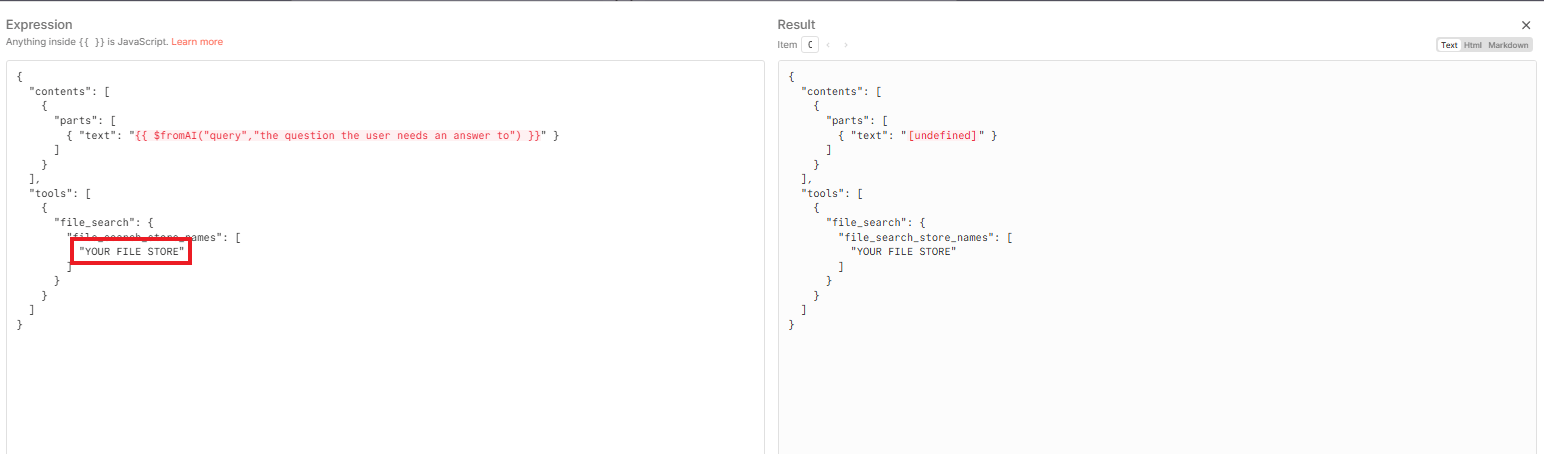
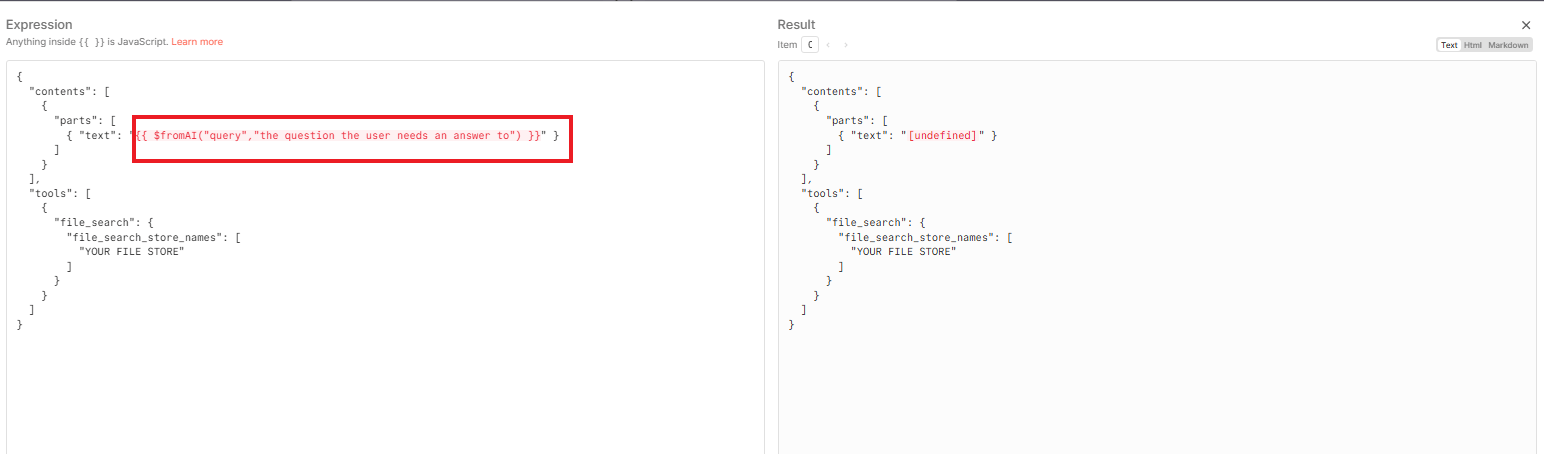
In the JSON body of this request, you need to tell the agent which store to search.
Paste the store name ID (from Step 2) into the appropriate field in the JSON body. Now the agent knows where to look.
3. Setting Up the Query
We use the fromAI function in n8n.
Query: Set the query value to "the question that the user needs an answer to".
The AI agent controlling this tool will automatically fill in this query based on the user's chat input.
4. Prompt Engineering
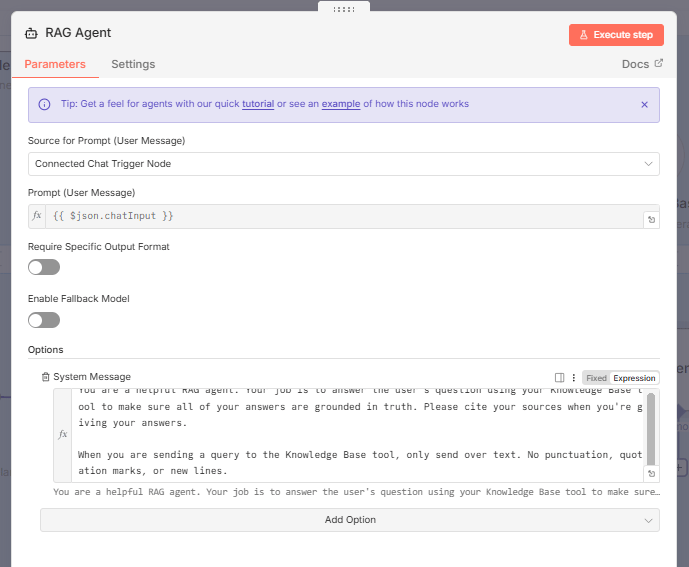
We need to give the agent clear instructions.
You are a helpful RAG agent. Your job is to answer the user's question using your Knowledge Base tool to make sure all of your answers are grounded in truth. Please cite your sources when you're giving your answers.

When you are sending a query to the knowledge base tool, only send over text. No punctuation, quotation marks or new lines.
Why This Matters: The instruction about punctuation keeps the JSON structure intact, preventing errors.
Creating quality AI content takes serious research time ☕️ Your coffee fund helps me read whitepapers, test new tools and interview experts so you get the real story. Skip the fluff - get insights that help you understand what's actually happening in AI. Support quality over quantity here!
X. Testing the Agent: Does It Work?
Answer:
The agent correctly retrieves answers from uploaded documents and cites them. In testing, it handled golf rules, financial results and mixed-topic queries across multiple PDFs. It responds cleanly and grounds answers in the correct source chunk.
Key takeaways
Handles multi-file stores.
Returns cited responses.
Works with diverse content.
Performs well with structured PDFs.
Critical insight
A simple four-node setup is enough to produce reliable retrieval.
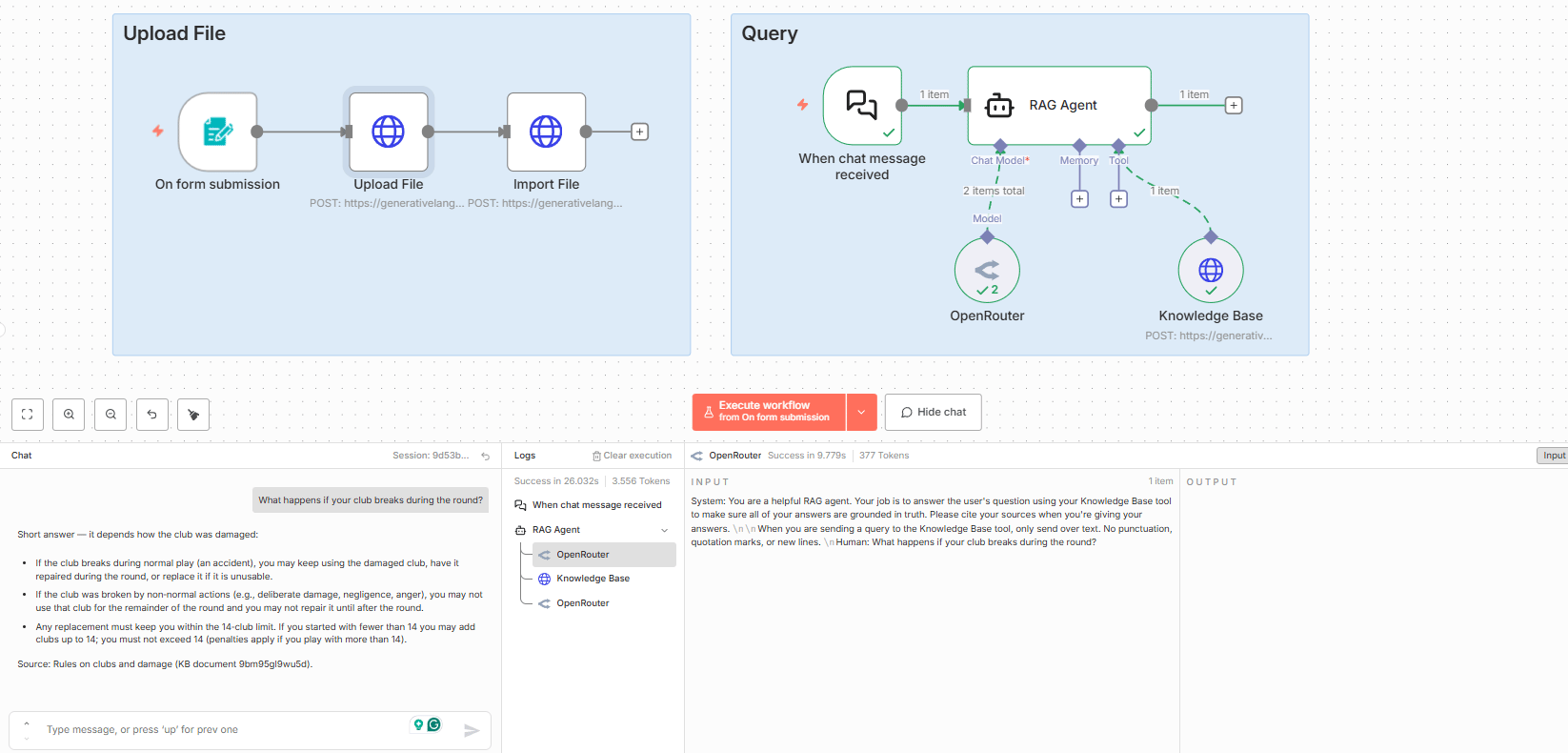
I uploaded the Rules of Golf PDF as a test document.
Test Question: "What happens if your club breaks during the round?"
The Result:
Short Answer: "If a club breaks during the round because of normal play, you may continue to use the damaged club, have it repaired or replace it... But if it breaks for non-normal reasons, you may not use that club…"
Source Cited: "Rules on clubs and damage".
Verdict: It successfully handled the document and gave a correct, cited answer.
Testing with Multiple Documents
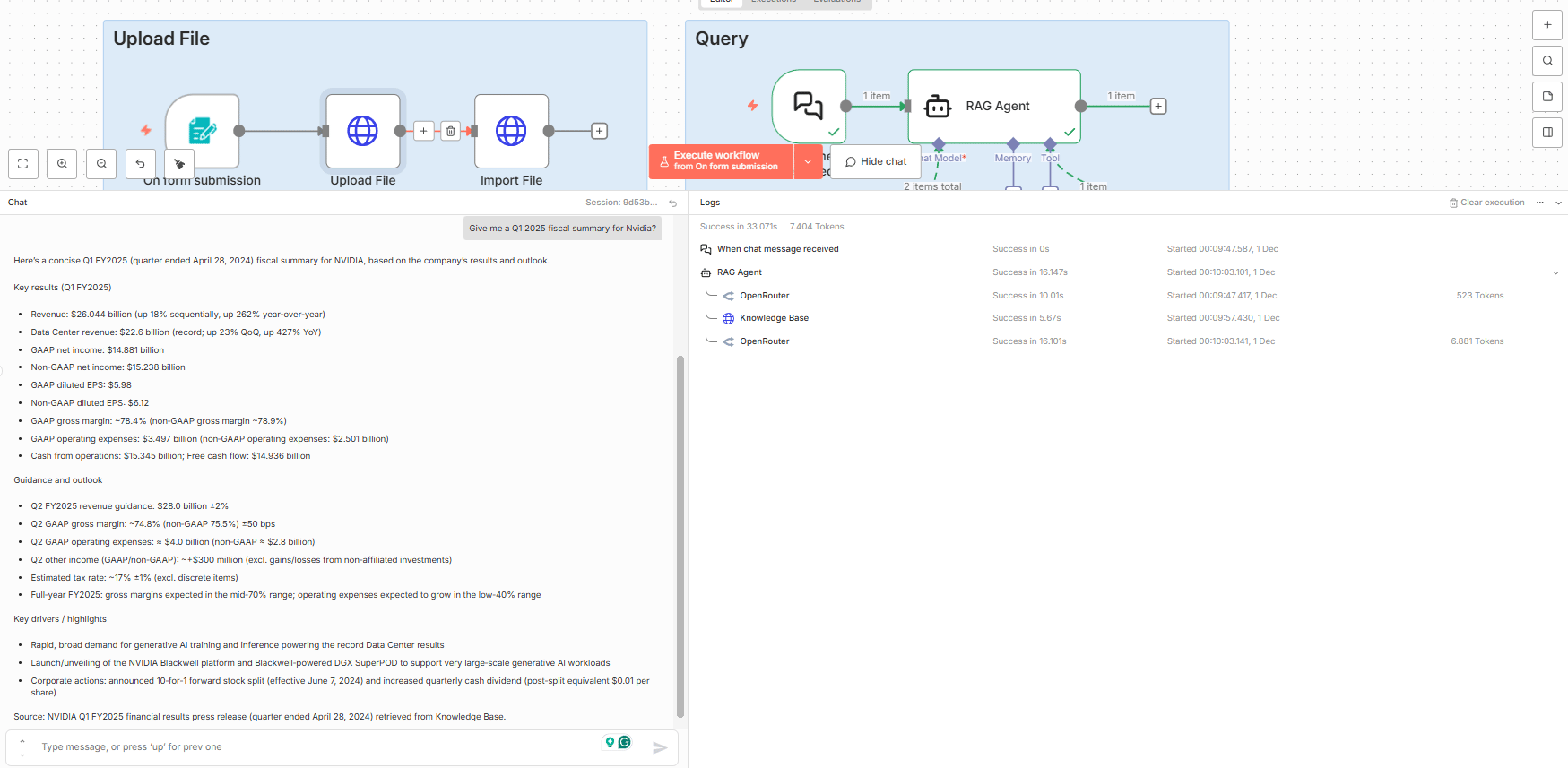
I added a second file: an Nvidia press release (completely different topic).
Test Question: "Give me a Q1 2025 fiscal summary for Nvidia".
The Result:
Summary: It provided total revenue ($26 billion), data center revenue ($22 billion) and other key stats.
Source Cited: "NVIDIA Q1 FY2025 financial results press release (quarter ended April 28, 2024) retrieved from Knowledge Base".
Verification: I cross-referenced it with the actual document and the information was correct.
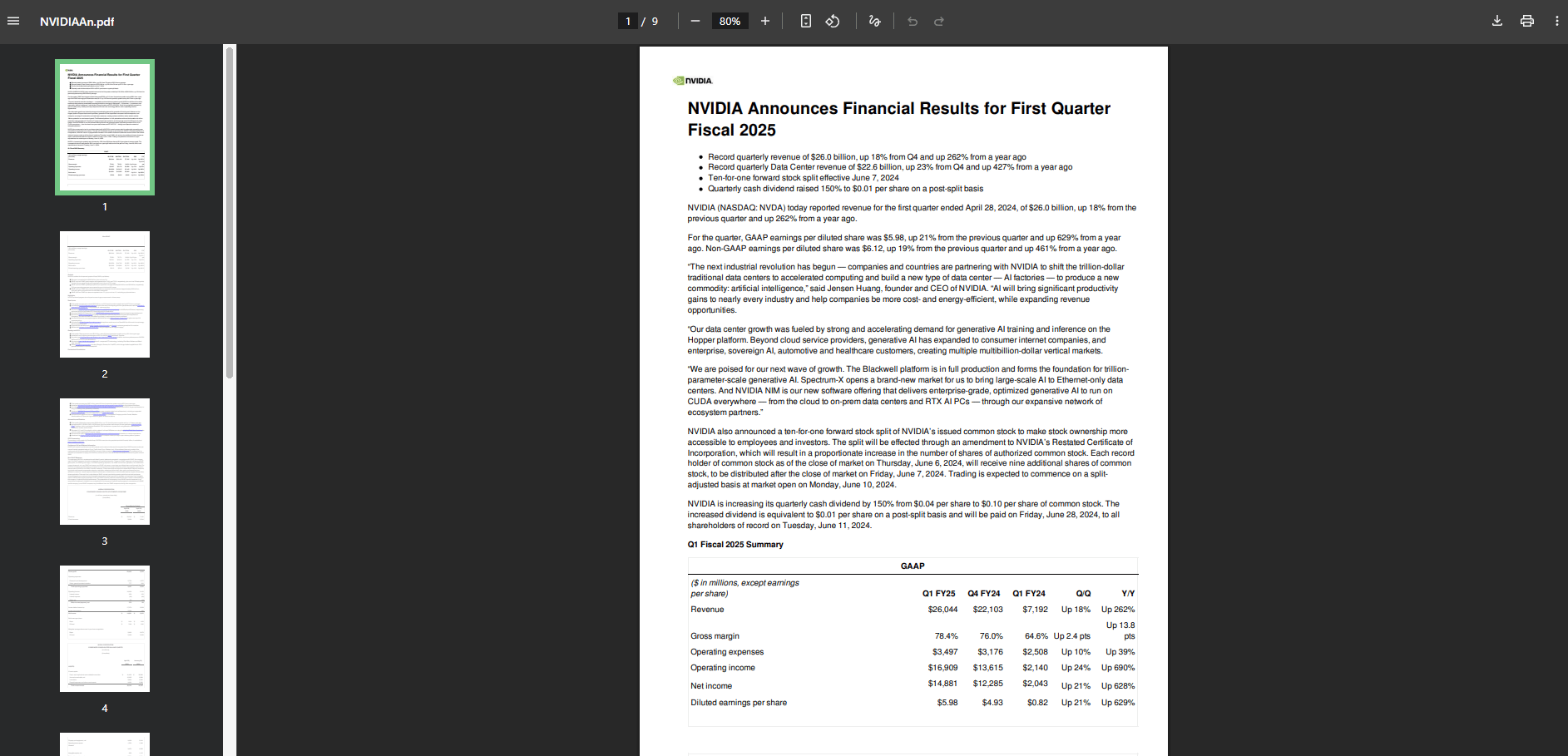
Verification (Nvidia Financial 2025)
XI. Evaluating Accuracy
I ran a more rigorous evaluation. I had three documents in the store:
Rules of Golf (22 pages)
Nvidia Announcement (9 pages)
Apple 10-K (121 pages)
Total: Nearly 200 pages across three completely unrelated topics.
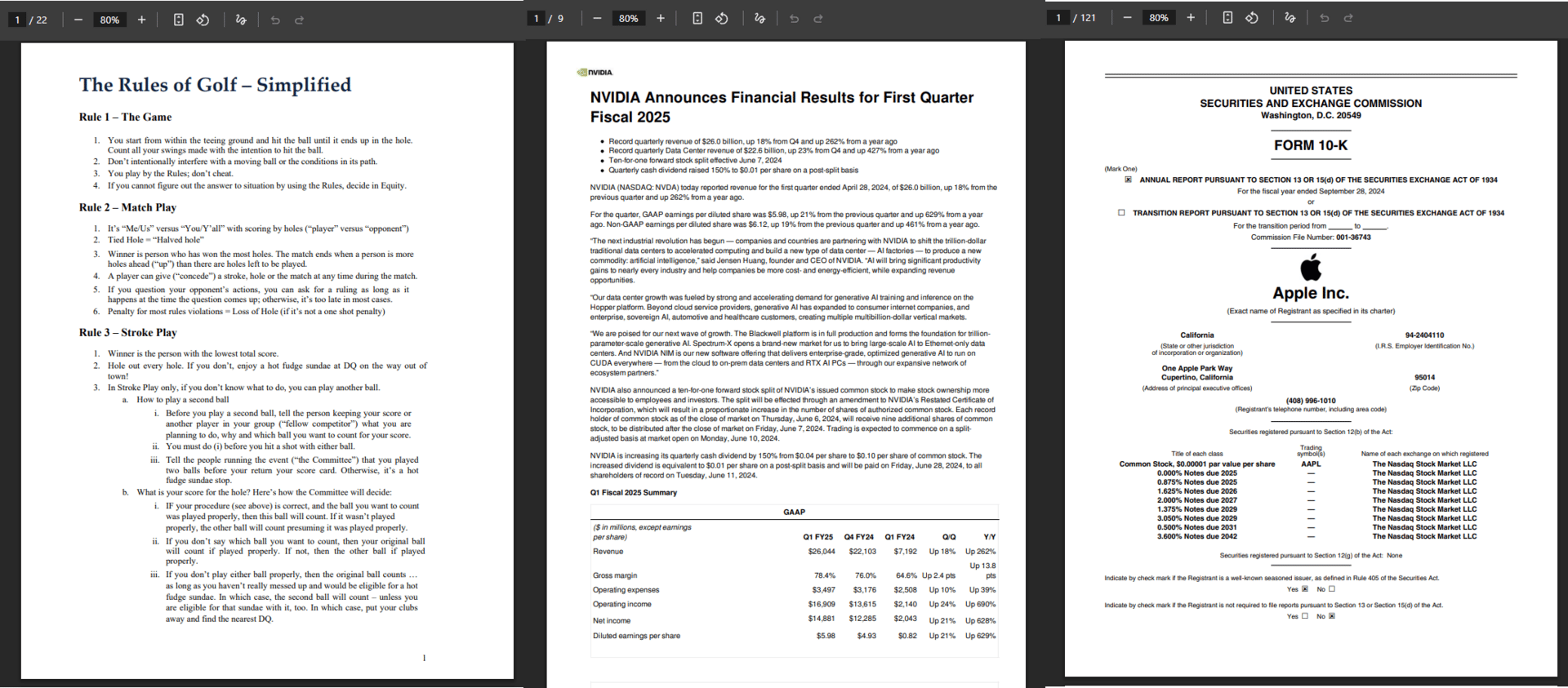
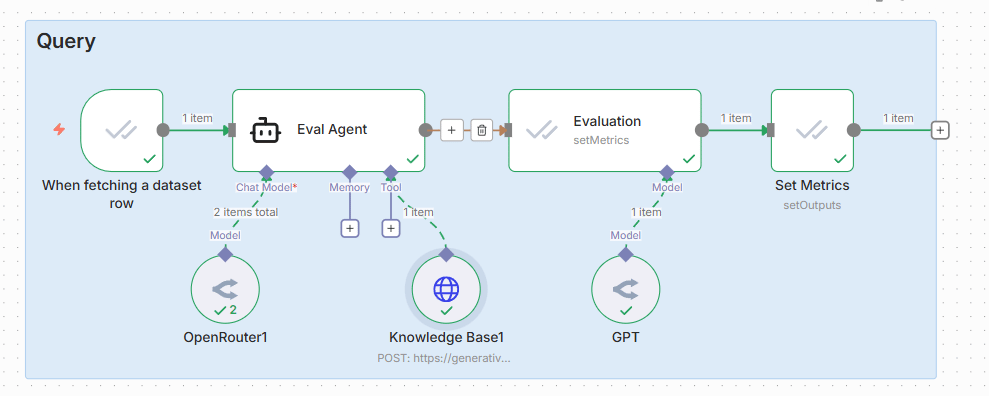
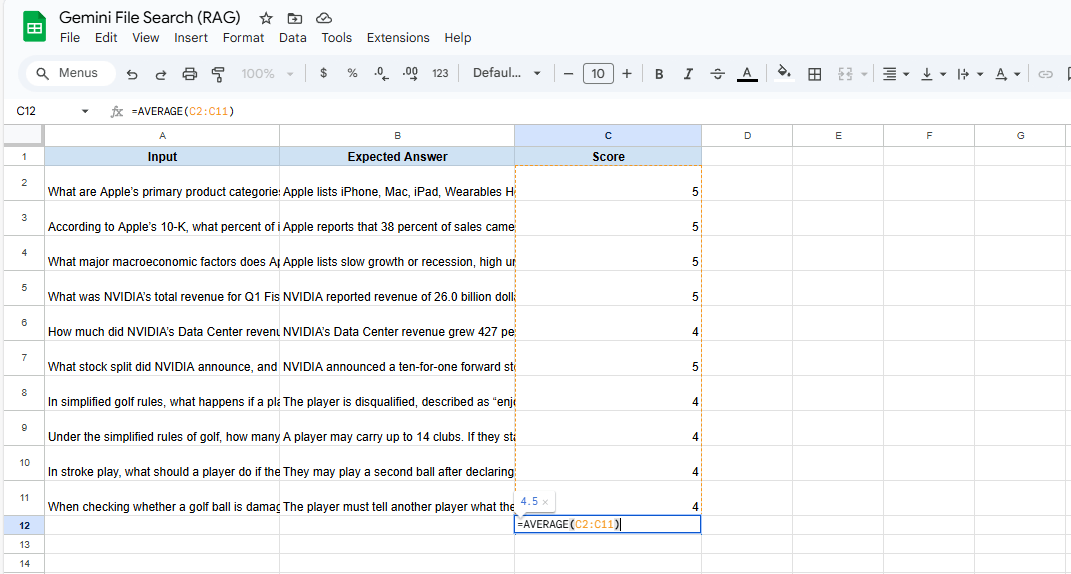
I asked 10 difficult questions spanning all three PDFs.
Overall Score: 4.5 out of 5 for correctness.
Individual Scores: Most were 5/5.
Assessment: For a system with no special processing and minimal prompting, these results are impressive.
XII. What Limitations Should You Know Before Using File Search?
Answer:
File Search can duplicate documents, struggles with messy scans and cannot process full-document reasoning without metadata. Security concerns apply since content is stored on Google’s servers. You may need your own version-cleaning workflow.
Key takeaways
No version tracking.
OCR limits affect results.
Chunked retrieval misses global patterns.
Not suited for sensitive data.
Critical insight
It’s powerful for retrieval but still requires thoughtful data hygiene
While it is great that you can drop in files easily, there are important limitations you must understand when building this n8n workflow.
Consideration #1: Duplicate Data Management
The Problem: Google isn't tracking versions. If you upload an updated version of a file, it creates a duplicate.
The Impact: Your database explodes with duplicate data, which lowers the agent's response quality.
The Solution: You must build your own file management system. Track versions manually and delete old files before uploading new ones.
Consideration #2: Garbage In, Garbage Out
The Reality: Gemini has some OCR capability but it can't fix a super messy document. If your source material is bad, the answers will be bad.
The Solution: You might need to pre-process or clean up messy scanned documents before dropping them into Gemini.
Consideration #3: Chunk-Based Retrieval Limitations
When Semantic Search Works: It is great for finding a "needle in a haystack", specific facts like "What is Rule 28?"
When It Fails: It struggles with holistic understanding.
Example: I asked, "How many total rules are in your PDF?" It answered "Five". The reality is there are many more but the chunk-based retrieval couldn't "see" the entire document at once to count them.
The Bottom Line: Unless you use advanced metadata tagging, this is not the best path for comprehensive document analysis or summarization.
Consideration #4: Security and Privacy
The Reality: Your documents are uploaded and stored on Google's servers.
What This Means: Do not upload sensitive PII (Personally Identifiable Information) or highly confidential trade secrets unless you are comfortable with Google processing and indexing that data.
Compliance: Always consider GDPR, HIPAA and CCPA regulations.
XIII. Conclusion: Is Gemini File Search Worth It?
For most use cases, the answer is Yes.
Let's look at the math:
Setup Time: 30 minutes.
Cost: Essentially free for moderate usage.
Quality: 4.5/5 accuracy with minimal tuning.
Simplicity: Just four HTTP requests.
Compare this to traditional RAG, which takes hours or days to set up, costs significantly more and has much higher complexity.
Who Should Use This:
Developers testing RAG concepts.
Small businesses with basic Q&A needs.
Content creators organizing knowledge.
Anyone starting with RAG agents who is budget-conscious.
Who Should Avoid This:
Enterprises with strict compliance needs.
Scenarios requiring full document context (like "summarize this whole book").
Highly sensitive data.
Gemini's file search API dramatically lowers the barrier to entry for RAG agents. It is not perfect but the combination of ease, speed and cost makes it a compelling choice for 90% of use cases.
Stop overthinking your RAG infrastructure and start building n8n workflows that actually deliver value.
If you are interested in other topics and how AI is transforming different aspects of our lives or even in making money using AI with more detailed, step-by-step guidance, you can find our other articles here:
⭐ How would you rate this article on AI Automation?If you want the full workflow, just vote. I’ll send everything to you. Your vote helps us improve future content. |
Reply