- AI Fire
- Posts
- ⚡ Do NOT Use NotebookLM Without These 2 FREE Hacks (7x Your Productivity)
⚡ Do NOT Use NotebookLM Without These 2 FREE Hacks (7x Your Productivity)
Google forgot folders, but these NotebookLM extensions add them back. Capture web pages faster and download your research safely with two free tools.

Neil Phan
February 03, 2026
TL;DR
NotebookLM is a powerful research assistant, but it currently lacks native features like folder organization, bulk web capture, and source downloading. By using free Chrome extensions like NotebookLM Tools and NotebookLM Exporter, you can bypass these limitations to build a more efficient research workflow. These tools allow you to turn entire webpages or multiple open tabs into notebooks instantly and provide a way to securely back up your data in clean Markdown format.
Key points
Capture: NotebookLM Tools acts as a bridge, sending web content and filtered external links directly to your notebooks.
Organization: Use Tags within the extension to create a color-coded folder system for better project management.
Backup: NotebookLM Exporter allows you to download audio, sources, and AI notes that are otherwise locked in shared notebooks.
Critical insight
Don't wait for Google to update the platform; use extensions to turn NotebookLM from a simple note-taker into a professional-grade research library today.
🤯 What drives you CRAZY about NotebookLM? |
Table of Contents
Introduction
Maybe you love using Google’s NotebookLM just like me. It is a smart tool that helps us learn and organize information. But, if you use it often, you probably feel frustrated sometimes.
You can’t put your notebooks into folders. You cannot download the sources from a notebook that a friend shares with you. Adding links from the web takes a long time because you have to copy and paste.
These problems can make your work slow. But I have good news.
In this post, I will show you 2 specific NotebookLM extensions that fix these issues for free. We will look at how to install them and how to use them step-by-step.
By the end, you will have a faster and better way to manage your research.
I. Why Do You Need NotebookLM Extensions?
Native NotebookLM lacks folders and direct web-saving, forcing slow manual uploads. Extensions fix this by enabling one-click web capture and bulk tab imports, turning a simple tool into a high-speed research library.
However, NotebookLM is just one weapon in the arsenal; to truly dominate your digital workspace, it is worth seeing how other popular Google AI tools can be combined to handle everything from complex data analysis to instant video creation.
Key takeaways
Gap: Google has not yet added native folders or direct "one-click" web saving.
Solution: Extensions like NotebookLM Tools add new buttons and bridge features to Chrome.
Safety: These tools are free, safe, and specifically designed to solve power-user frustrations.
Impact: You can manage 50+ notebooks across work, school, and hobbies without clutter.
NotebookLM is great, but it is still new. Google has not added some basic features yet.
Imagine you have 50 notebooks. Some are for work, some are for school, and some are for personal hobbies. Without folders, they are all mixed up in one big list. It is hard to find what you need.
You want to save it to NotebookLM. Usually, you have to copy the text, paste it into a document, save it as a PDF, and then upload it. That takes too much time.
This is where NotebookLM extensions come in to help. An extension is a small software program that you add to your Chrome browser. It adds new buttons and features to the websites you visit.
The two tools we will use today are:
These tools are free, safe, and very easy to use. Let’s start learning how to use them together.
Learn How to Make AI Work For You!
Transform your AI skills with the AI Fire Academy Premium Plan - FREE for 14 days! Gain instant access to 500+ AI workflows, advanced tutorials, exclusive case studies and unbeatable discounts. No risks, cancel anytime.
II. Instant Web Capture with NotebookLM Tools
NotebookLM Tools acts as a bridge, allowing you to capture entire webpages, or instantly transforming a single article into a deep library of verified sources.
To replicate this efficiency in your daily life, check out these practical AI hacks that save hours on everything from emails to home repairs without any coding.
Key Takeaways:
Instant Action: Use the "Page" button to turn your current tab into a notebook source.
Smart Filtering: Use "Exclude" to block junk links (like wikipedia.org) from your research.
Resource Depth: Expand one article into 100+ external sources by extracting its links.
Clean Data: All content is saved in Markdown to keep your AI training data organized.
The first tool we will use is called NotebookLM Tools. This extension does not work inside the NotebookLM website itself.
Instead, it works on other websites while you browse the internet. It acts like a bridge. It takes information from the web and sends it straight to your notebook.
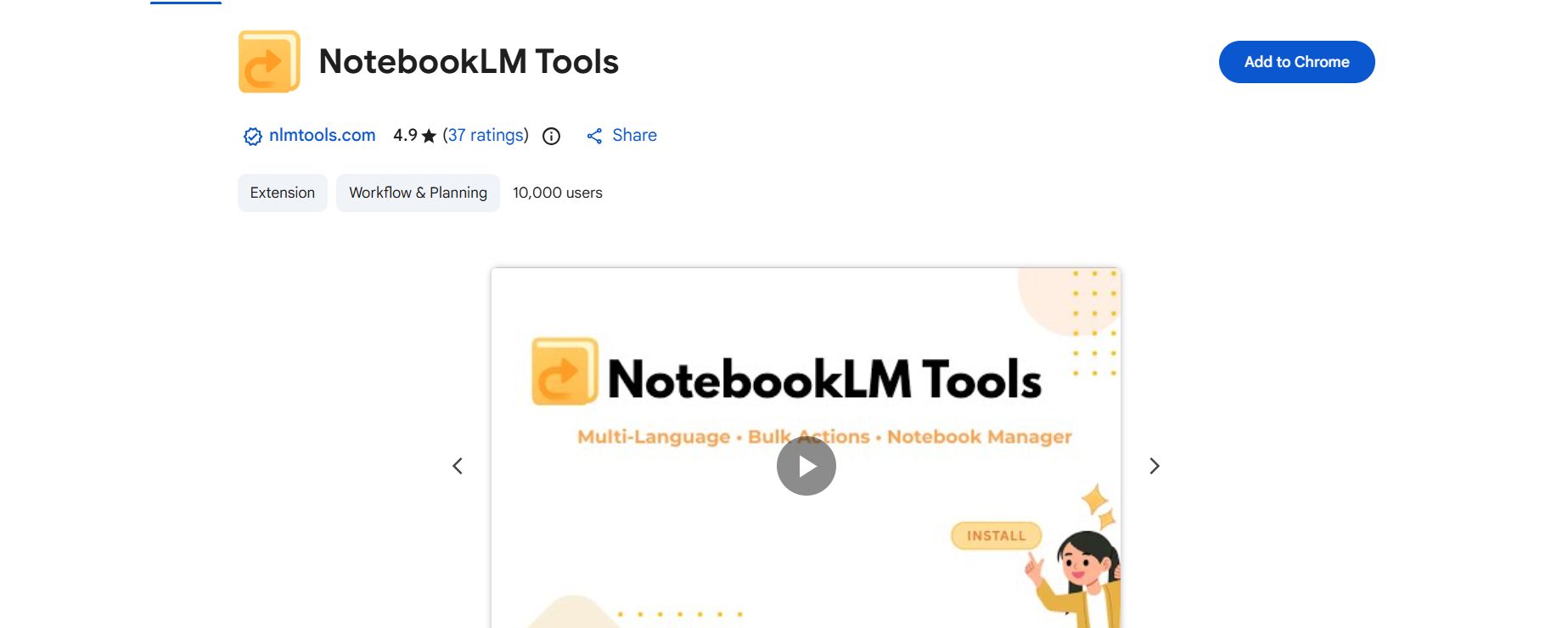
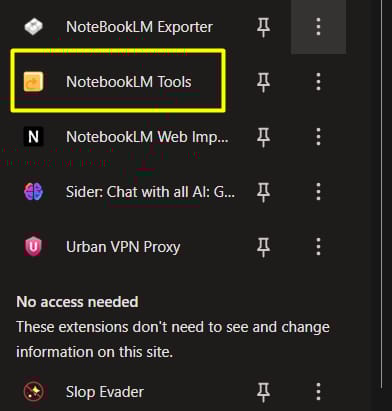
First, you need to install it. Go to the Chrome Web Store and search for "NotebookLM Tools". Click the button that says "Add to Chrome". After it installs, you should see a small icon in the top right corner of your browser. If you do not see it, click the puzzle piece icon and pin it.
Now, let’s look at how this NotebookLM extension changes the way you save information.
1. Saving a Whole Webpage Instantly
Let’s say you are reading a long article about AI on Wikipedia or any other sites. You want to ask NotebookLM questions about this article later.
The Old Way:
You copy the text. You open Google Docs. You paste the text. You download it as a PDF. You open NotebookLM. You upload the PDF. This takes about 3-5 minutes.
The New Way:
Go to the Wikipedia page you want to read.
Click the NotebookLM Tools icon. I suggest you open it in the "Side Panel". This lets you see the tool on the right side of your screen while you read the page on the left.
Look at the "Home" tab in the extension.
Click on the button that says "Page".
You will see a blue button that says "Create new notebook". Click it.
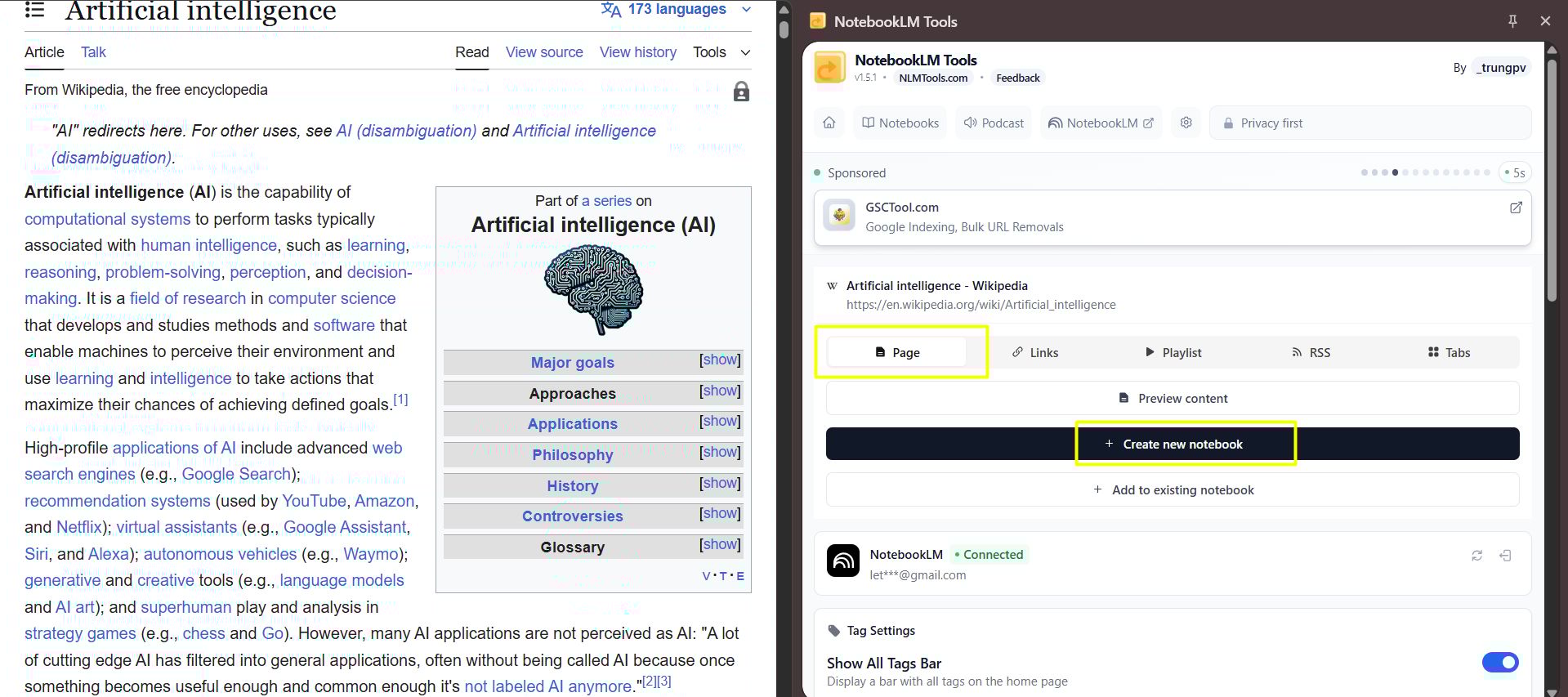
That is it. The extension takes all the text from that page and makes a new notebook for you. If you go to NotebookLM now, you will see a new notebook with the title of the article.
Inside, you will see two sources. One is the text in "Markdown" format (which is just clean text). The other keeps the links.
Try this Prompt: Once you capture the page, open your new notebook and type this:
Please summarize the main history of AI based on this source. Make a bulleted list of the most important dates.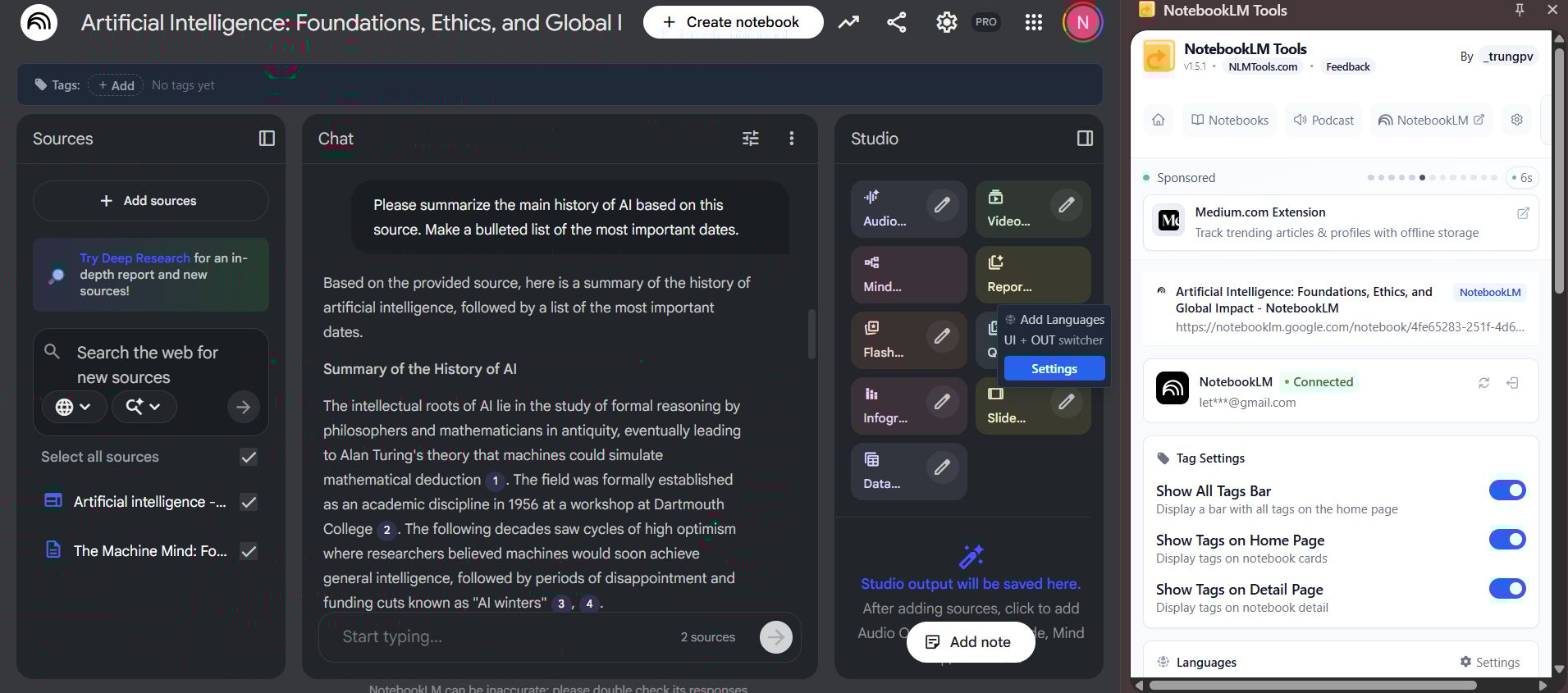
2. Getting All Links From a Page
This is my favorite feature. Sometimes, the article itself is not enough. You want the sources that the article uses.
For example, a Wikipedia page about "Space Travel" might have 100 links to other news sites and NASA reports. You want to read those reports, not just the Wikipedia summary.
These NotebookLM extensions can find every link on a page and turn them into sources for you.
How to do it:
Stay on the Wikipedia page.
Open the extension sidebar again.
Click on the "Links" tab at the top.

Click the button "Extract links from this page".
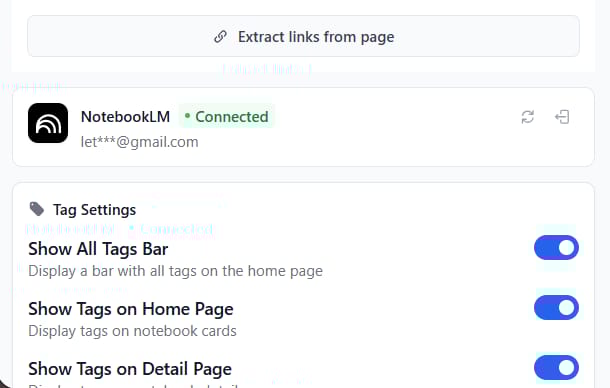
The tool will scan the page. It might tell you it found 1,000 links! But be careful. Many of these links are useless. They are links to other internal Wikipedia pages, like "Edit this page" or "Home". We do not want those. We only want outside sources.
How to filter links:
You will see an "Exclude" box. This is very important.
Type
wikipedia.orgin the box.
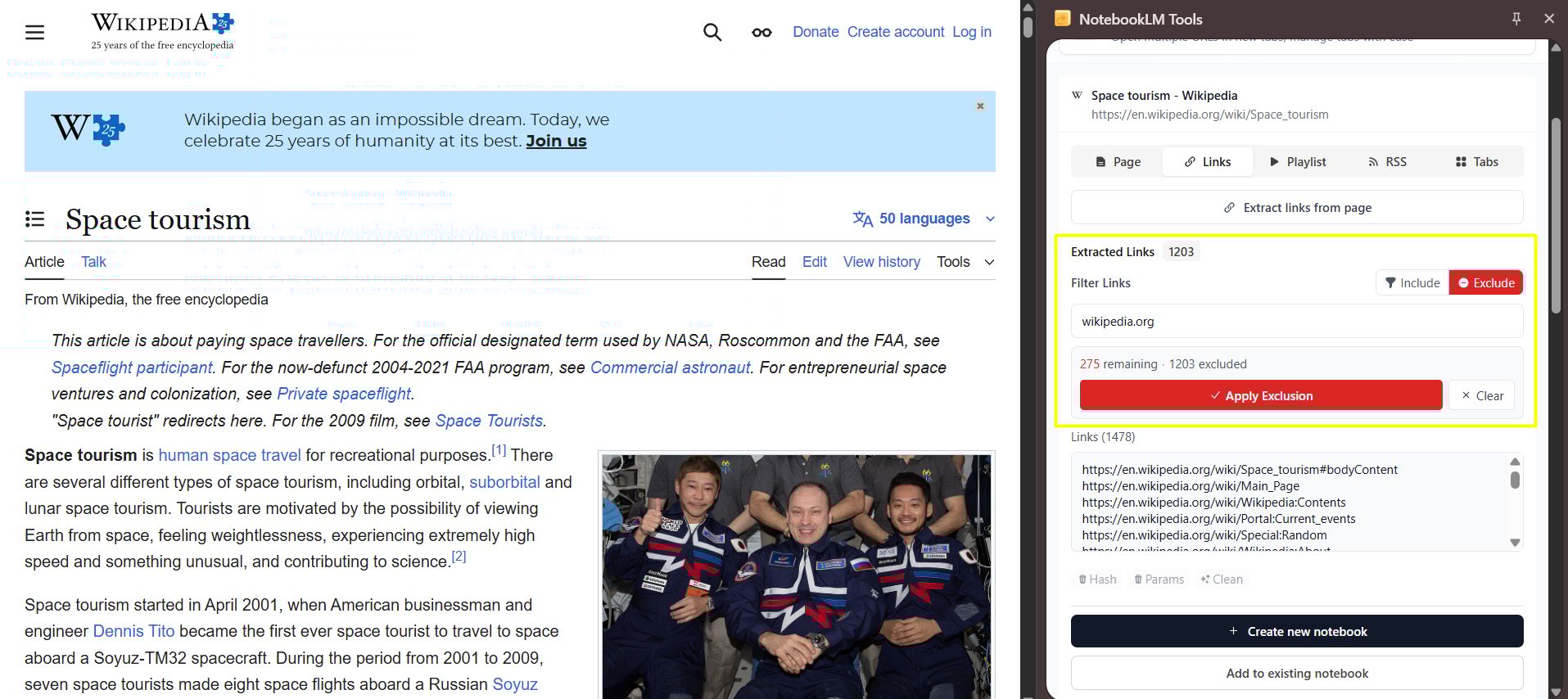
Click "Apply". The tool hides all links that go to Wikipedia. Now you might see 275 links left.
If you see other useless links, like
wikimedia.org, type that in the box too.
Now you have a clean list of external news and research. You can select "Add to existing notebook" and choose the notebook you made earlier.
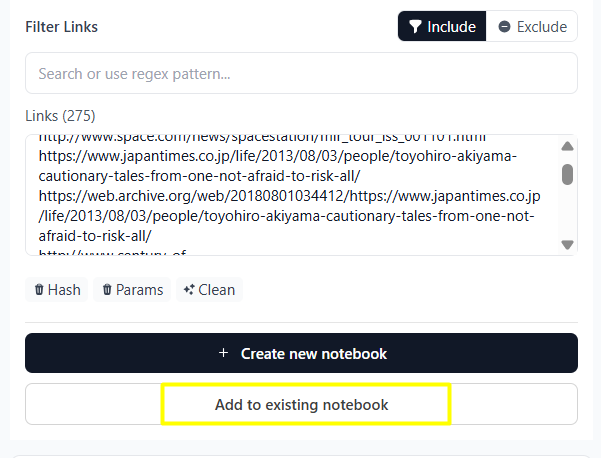
Why this is powerful:
You just turned one article into a library of 150 real sources. This is great for writing essays or finding facts that others miss.
Try this Prompt:
I have added many external news links.

Please read through them and tell me if they agree with the main Wikipedia article, or if they offer different opinions.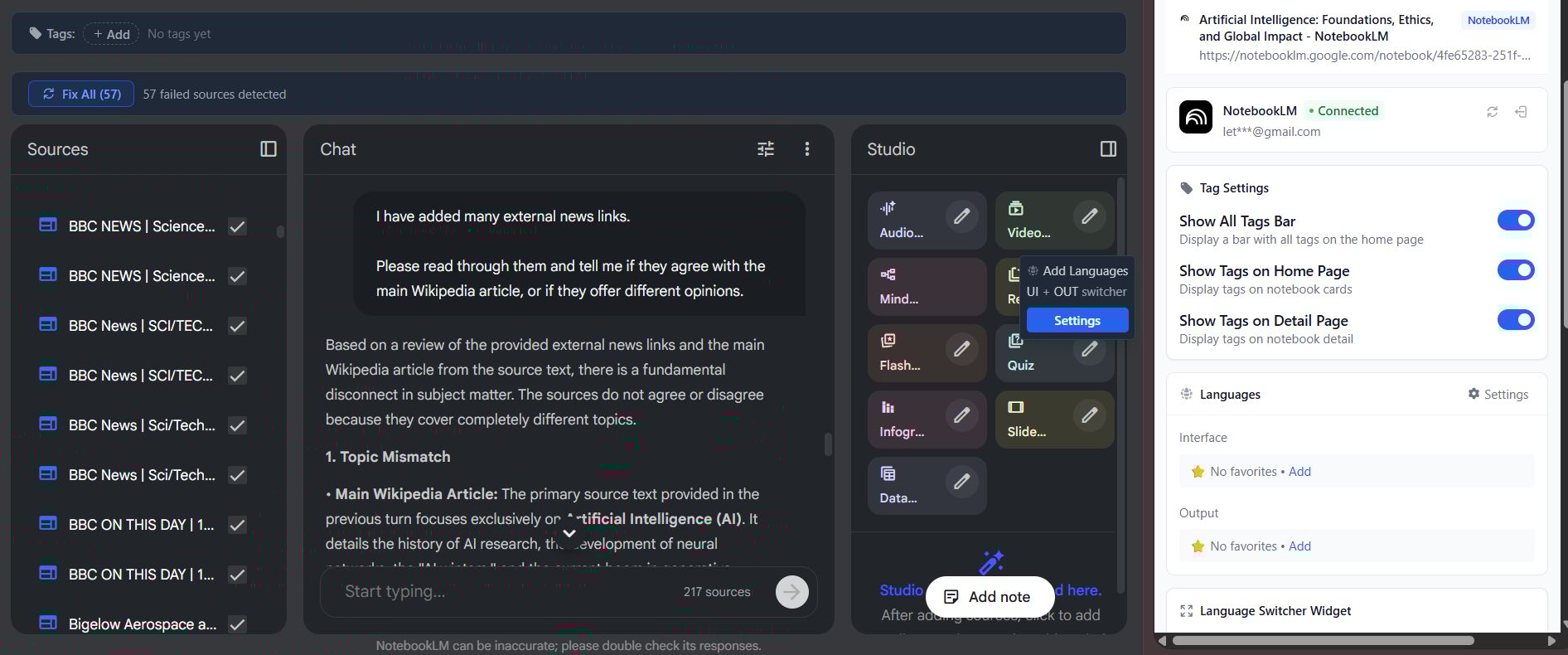
III. Which NotebookLM Extensions Help With Bulk Organization?
We have talked about capturing one page. But real research is messy. Usually, when I work, I have 10 or 15 tabs open in my browser. I have one tab for email, one for music, and 8 tabs for my research topic.
Cleaning this up is hard. But the NotebookLM extensions have a feature called "Tabs" that solves this.
1. Capturing Multiple Tabs at Once
Let’s imagine you are researching "Healthy Cooking". You have 5 recipes open in different tabs. You want to compare the ingredients in NotebookLM.
Step-by-Step:
Keep all your recipe tabs open. Open the NotebookLM Tools extension.
Click on the "Tabs" button in the menu.
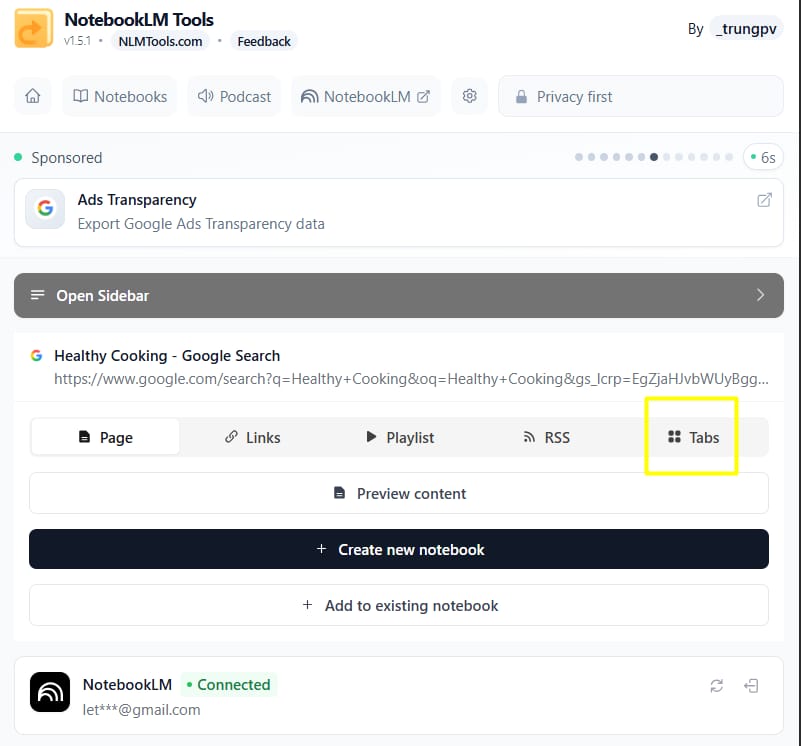
The extension will show you a list of every tab open in your window. Uncheck the boxes for tabs you do not want (like your email or music).
Click "Create new notebook".
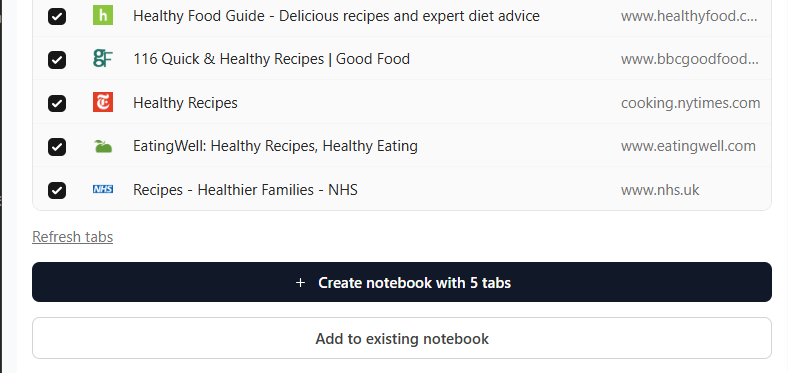
Name it "Healthy Recipes".
The tool will visit each tab, take the text, and put it all into one single notebook. Now you have a database of recipes without copying anything.
Try this Prompt:
Look at all 5 recipes. Create a single shopping list that combines all the ingredients I need. If an ingredient appears in two recipes, just list it once.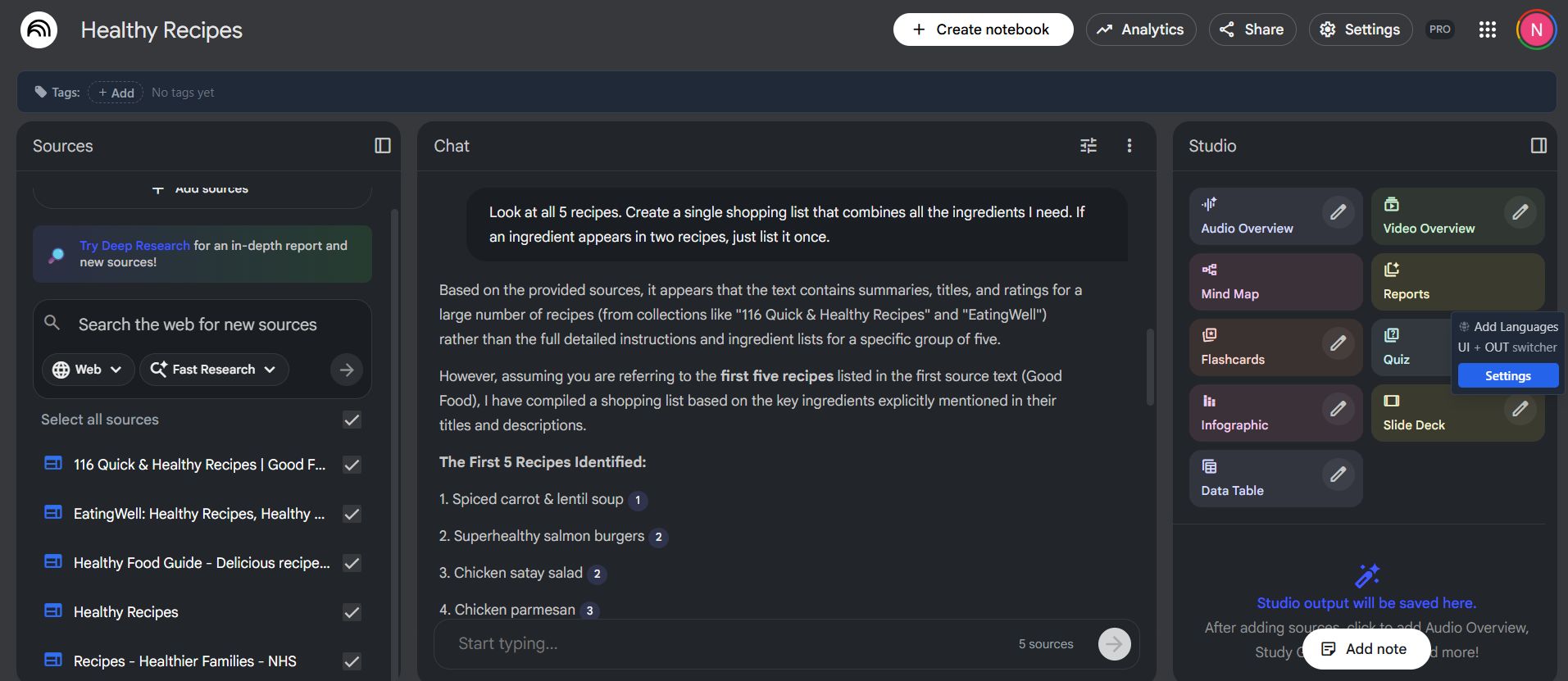
This is the biggest problem with NotebookLM right now: there are no folders. If you use it a lot, your home screen looks messy. You cannot put your "Work" notebooks in one place and your "School" notebooks in another.
These NotebookLM extensions fix this by using "Tags". A tag is like a label or a sticker you put on a notebook.
How to set it up:
Open the extension sidebar. Click on "Notebooks". This shows a list of all your notebooks.
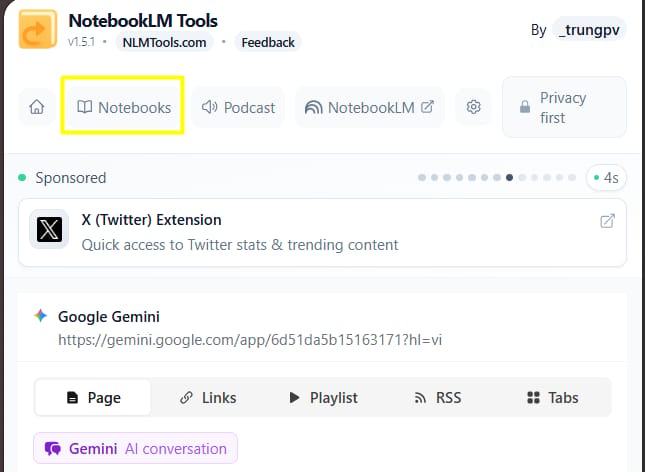
Click "Tags" at the top.
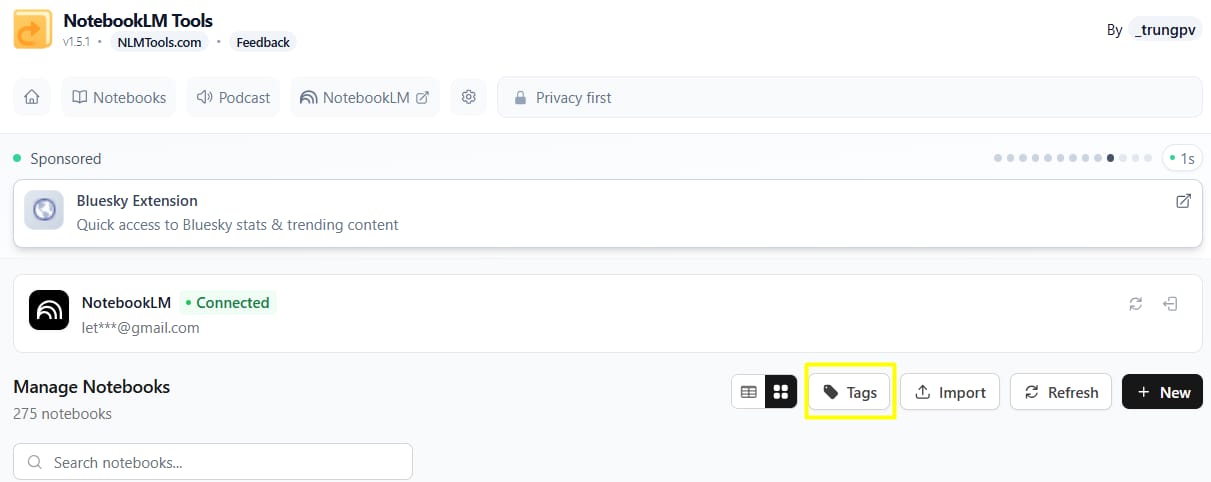
Then, click "Create New Tag".
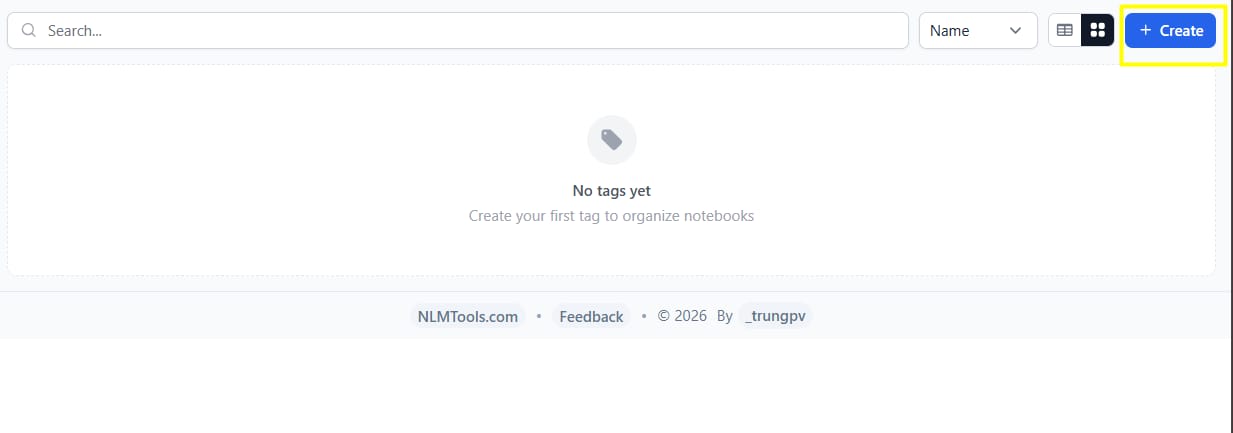
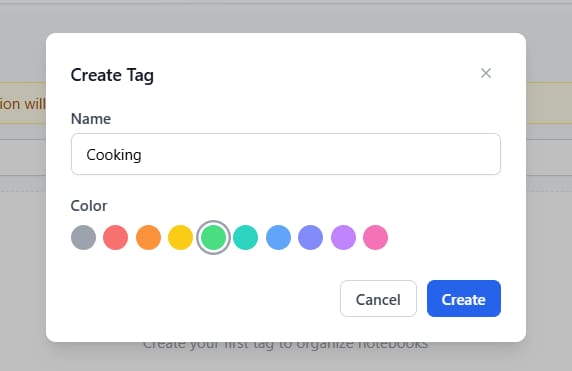
Let’s make a tag called "Cooking". You can even pick a color, like green.
Now, go back to your list of notebooks. Find your "Healthy Recipes" notebook.
Click the tag icon next to it and select "Cooking".
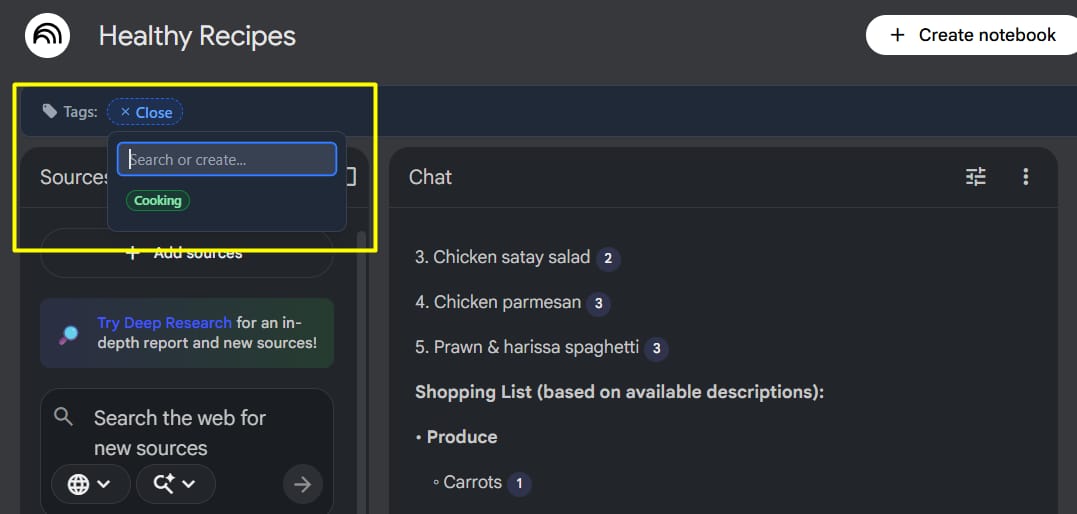
How to view your folders: When you want to find your recipes later, you do not need to scroll through everything.
Open the extension.
Go to the "Notebooks" section.
Click on the green "Cooking" tag.
You will only see the notebooks with that sticker.
This acts exactly like a folder system. You can make tags for "Marketing," "English Class," "Project A," or anything else. It helps you keep your mind clear.
IV. Secure Data Export via NotebookLM Extensions
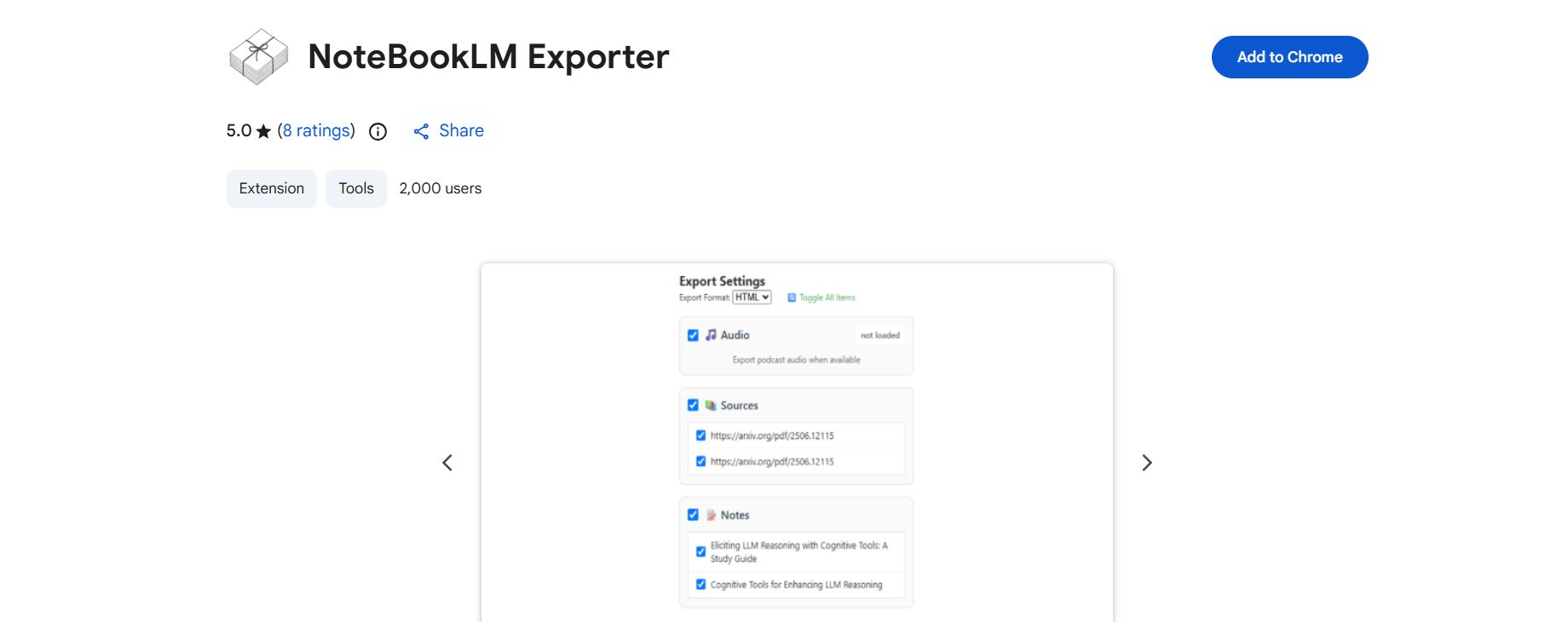
Now we will look at the second tool: NotebookLM Exporter.
Sometimes, Google or a friend will share a notebook with you. For example, Google has a "Shakespeare" notebook with all his plays. You can read it, but you cannot download the files. This is annoying if you want to read the text offline or use it in another app like Notion or Obsidian.
Also, you should always have a backup of your work. If you lose access to your Google account, you lose your notes. These NotebookLM extensions let you download everything.
1. How to Download Sources
Let’s say you have a notebook full of important notes. You want to save it to your computer.
Step-by-Step:
Open the notebook you want to save in your browser.
Click the NotebookLM Exporter icon in your toolbar.
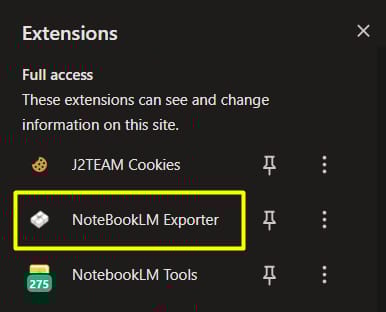
A small window will pop up. It will ask you what you want to download:
Audio: This downloads the podcast if you made one.
Sources: This downloads the articles and PDFs inside.
Notes: This downloads the responses from the AI.

Select "Sources". Click the "Download" button.
2. Choosing the Right Format
When you download, you’ll get a ZIP file. Inside, you will see your text. You can often choose between HTML and Markdown.
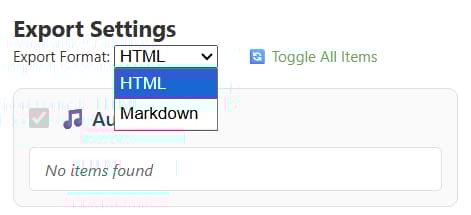
HTML: This looks like a web page. It is good if you just want to read it in your browser.
Markdown: This is a simple text format. It is very light and clean.
My advice:
I recommend you download in Markdown. Why? because it is easy to move Markdown files into other notes apps. If you use Notion, Obsidian, or Evernote, Markdown is the best language.
How useful was this AI tool article for you? 💻Let us know how this article on AI tools helped with your work or learning. Your feedback helps us improve! |
V. Best Practices for NotebookLM Extensions
Now you have the tools. But to really get the best results, you need a good workflow. I have used these NotebookLM extensions for months, and here are the best ways to use them.
1. The "Browse First, Capture Later" Rule
Do not stop reading every time you find something interesting. It breaks your focus. Instead, open many tabs as you research. Let the tabs pile up.
When you are done reading for the hour, use the "Tabs" feature in the NotebookLM Tools extension. Capture them all at once into a "Inbox" notebook. This keeps you focused on reading, not managing files.
2. Color Code Your Tags
Visuals help our brains work faster. When you make tags in the extension, use colors that make sense:
Red for urgent projects.
Green for personal hobbies.
Blue for work or school.
Grey for archives (old stuff).
When you open the extension list, you can scan the colors and find what you need in one second.
3. Clean Your Links
When you use the Link Extractor, do not just click "Add All." If you add 1,000 links, you might hit the limit of your NotebookLM account. (Free accounts have a limit of 50 sources per notebook).
Always use the filter. Type youtube.com, facebook.com, and twitter.com in the exclude box. Usually, you want articles, not social media posts.
4. Backup Weekly
Make a habit. Every Friday, use the NotebookLM Exporter. Go to your most important notebook and download the ZIP file. Save it to a folder on your computer called "My Brain Backup."
You probably will never need it. But if Google changes the tool or deletes your data, you will be very happy you have it.
VI. Troubleshooting Your NotebookLM Extensions?
Sometimes things do not work perfectly. Since these are free tools made by independent developers, they might have small bugs. Here is how to fix common problems with these NotebookLM extensions.
1. The extension icon is gone
"I installed it, but I cannot see it!"
Fix: This happens often in Chrome. Click the puzzle piece icon (Extensions) in the top right. Find "NotebookLM Tools" in the list. Click the "Pin" icon next to it. Now it will stay on your bar.
2. "No links found" error
"I am on a page, but the Link Extractor says 0 links."
Fix: This usually happens if you click the extension before the page finishes loading. Refresh the web page. Wait until you see everything clearly. Then click the extension again. Also, make sure you are not on a PDF viewer; the tool works best on regular HTML web pages.
3. "Limit Reached" message
"I tried to add tabs, but it says I cannot add more."
Fix: NotebookLM has limits. A free account lets you have 50 sources in one notebook. If you try to add 10 tabs to a notebook that already has 45 sources, it will fail.
You have two choices:
Delete old sources from the notebook.
Create a brand new notebook for the new tabs.
Conclusion
NotebookLM is an amazing tool, but it is not perfect yet. We do not have to wait for Google to fix it. By using these two NotebookLM extensions, you can solve the biggest problems today.
You can now organize your messy list of notebooks with tags. You can capture 20 websites in seconds without copy-pasting. You can extract hidden links for deep research. And you can download your data to keep it safe.
All of this is free. If you are serious about using AI for learning or work, I highly recommend you install NotebookLM Tools and NotebookLM Exporter right now.
Here is your next step:
Open your browser now. Install the "NotebookLM Tools" extension. Go to a topic you love on Wikipedia, and try the "Page Capture" feature. See how fast it is. You will wonder how you ever lived without it!
If you are interested in other topics and how AI is transforming different aspects of our lives or even in making money using AI with more detailed, step-by-step guidance, you can find our other articles here:
Building Apps with Bolt: A No-Code Guide to Turning Ideas into Reality
Detailed Guide: How To Automatically Get Unlimited High-Quality LinkedIn Jobs*
Prompt Engineering Automation: Build a Mini AI Assistant with n8n
Discover My Ultimate AI Tools Productivity Kit for 2024*
*indicates a premium content, if any
Reply