- AI Fire
- Posts
- 🤖 10 AI Chrome Extensions That Will Save You Hours Every Single Day
🤖 10 AI Chrome Extensions That Will Save You Hours Every Single Day
I spent the whole year testing hundreds of tools. Here are the top 10 winners that save me hours of boring work and keep my money safe every day.

Neil Phan
December 07, 2025
TL;DR
The top Chrome extensions of 2025 use AI to automate browsing tasks, summarize content, and track prices. Tools like Monica and Fireflies.ai turn your browser into a proactive workspace.
Sidebar assistants read long PDFs and analyze images without requiring new tabs. Writing and learning tools correct grammar and explain complex math problems instantly. Productivity extensions record meetings and compare shopping prices in the background.
Key points
Fact: HARPA AI monitors price drops and website changes 24/7.
Mistake: Installing too many tools simultaneously leads to browser fatigue.
Takeaway: Pin your most used extension to the toolbar for immediate access.
Critical insight
True productivity comes from letting extensions handle passive tasks like note-taking while you focus on active decision-making.
😫 What drains your energy the most online? |
Table of Contents
Introduction
Do you ever open your computer, look at twenty open tabs, and feel tired? Last year, I was exactly like that. I had to answer emails, find documents, and check prices all at the same time. It was a mess. The web browser should help us work, but sometimes it just makes us lose focus.
But 2025 is a very interesting year. I spent the whole year installing, testing, and deleting hundreds of different extensions. Finally, I kept 10 tools that are actually useful. They are not just tools; they are like quiet helpers. One helper helps me read faster, another helps me write better, and another helps me save money.
In this article, I will be your guide. I will show you exactly how I use them. Most importantly, I will tell you exactly what to type and where to click to make them work for you. Let’s start.
Part I: Smart AI Assistants
How Can You Have A Helper Right In Your Browser?
In the past, if I wanted AI to help me, I had to open a new tab, go to ChatGPT, and copy-paste text. It took a lot of time. Now, I use tools that sit on the side of my screen (sidebar). They are always there, watching the website with me, ready to help when I need them.
1. Monica
Before, I was scared of reading long PDF files or long news articles. My eyes got tired, and I often missed important information. But since I started using Monica, everything changed.
This is a powerful all-in-one tool. I use it when I find a long article. Instead of reading every word, I ask it to read for me and summarize the main points. The best part is that I can ask specific questions. For example, if I am reading about health, I can ask: "What does the writer say about breakfast?" It finds the exact answer for me.
Specific example of how I use it:
Imagine you open a PDF file that is 30 pages long about "New Labor Laws in 2025" and you do not want to read it all.
Step 1: Open the PDF file in Chrome.
Step 2: Click the Monica icon on the screen.
Step 3: Type this detailed prompt:
"Pretend you work in HR. Please read this file and list the 5 most important changes for workers. For each change, explain simply if it is good or bad for me."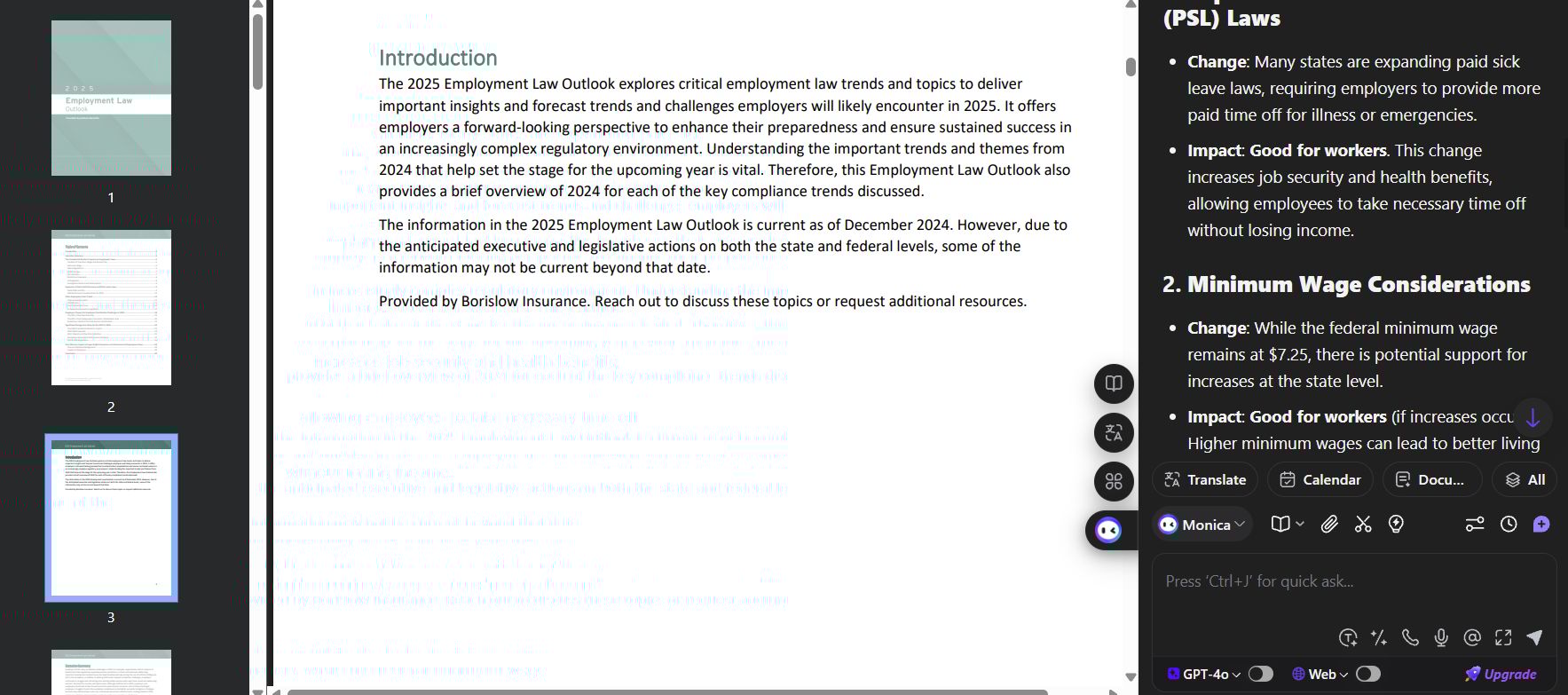
Result: You understand the main points in 1 minute instead of reading for 1 hour.
Learn How to Make AI Work For You!
Transform your AI skills with the AI Fire Academy Premium Plan - FREE for 14 days! Gain instant access to 500+ AI workflows, advanced tutorials, exclusive case studies and unbeatable discounts. No risks, cancel anytime.
2. Sider
If Monica is good with text, Sider is great with images. Sometimes I browse the web and see complex charts, or a restaurant menu in a foreign language.
I remember once I needed to look at a sales chart of a competitor. The chart was messy with many lines. Instead of staring at it, I used the "Vision" feature in Sider. I took a screenshot and asked the AI directly. It is like sitting next to an expert and pointing at the screen asking, "What does this mean?"
Specific example of how I use it:
You see a computer error message on your screen, but it is in difficult English words.
Step 1: Open the Sider toolbar on the right.
Step 2: Choose the "Screenshot" tool and select the error box.
Step 3: Type this prompt:
"Look at this error in the picture. Explain to me what is wrong with my computer in simple English. Then, give me 3 easy steps to fix it."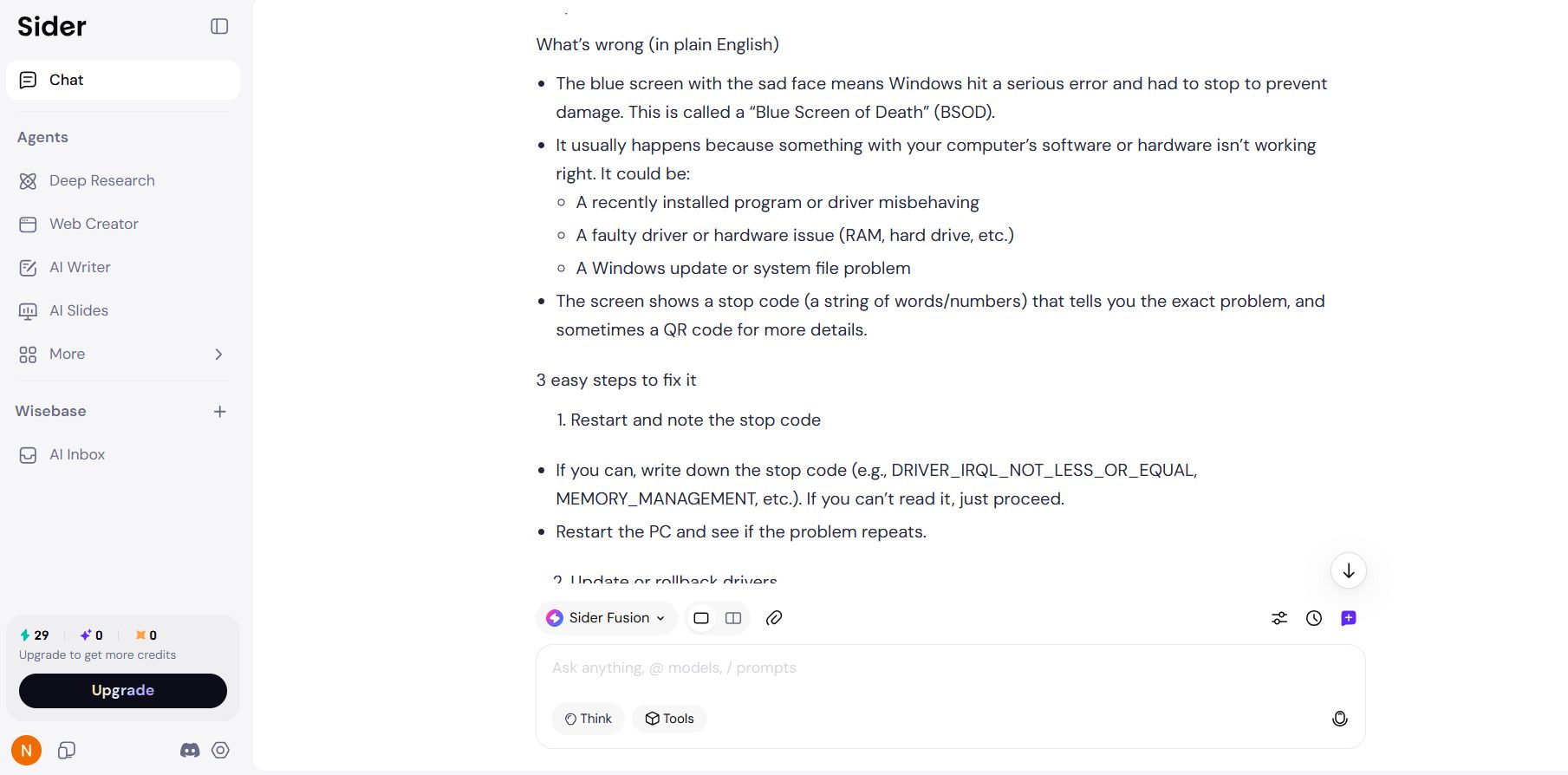
3. HARPA AI
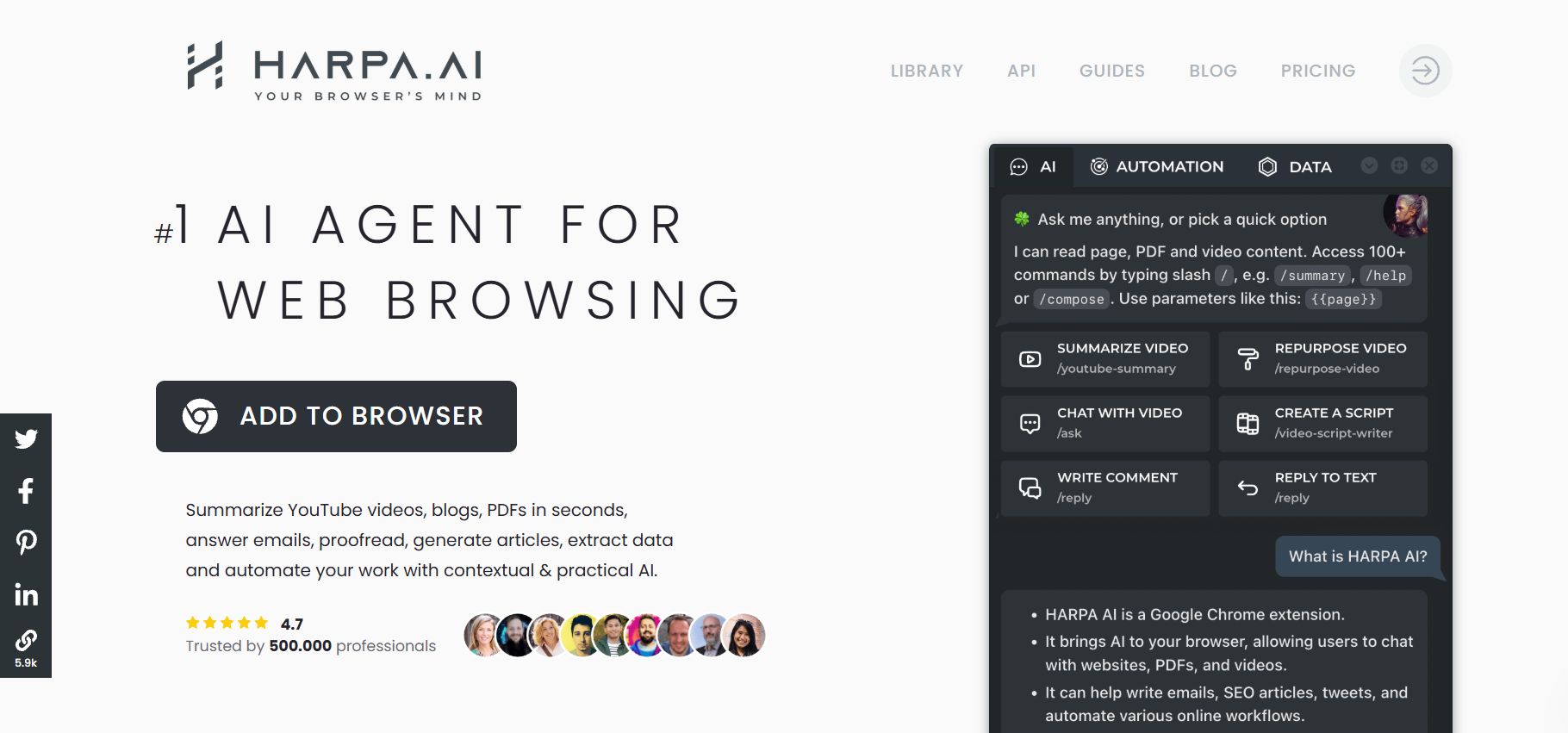
This is the tool I use for "watching" things. Do you know the feeling of waiting for a cheap flight ticket, or waiting for a discount on Amazon? I hate pressing the "Refresh" button (F5) all day.
HARPA AI solves this. I just tell it to watch the price on a website. It runs quietly in the background. Every hour, it checks the page. If the price changes, it tells me. I also use it to watch competitors. If they change the text on their homepage, I know immediately.
Specific example of how I use it:
You want to buy an old camera on a website, but nobody is selling the one you want right now.
Step 1: Go to the camera category page.
Step 2: Open HARPA AI and choose the "Monitor" tab.
Step 3: Choose the option to track changes on the page.
Step 4: Set up this automatic prompt:
"Scan the list of new products on this page. If you see the words 'Sony A6000' with a price under $300, send me a notification immediately."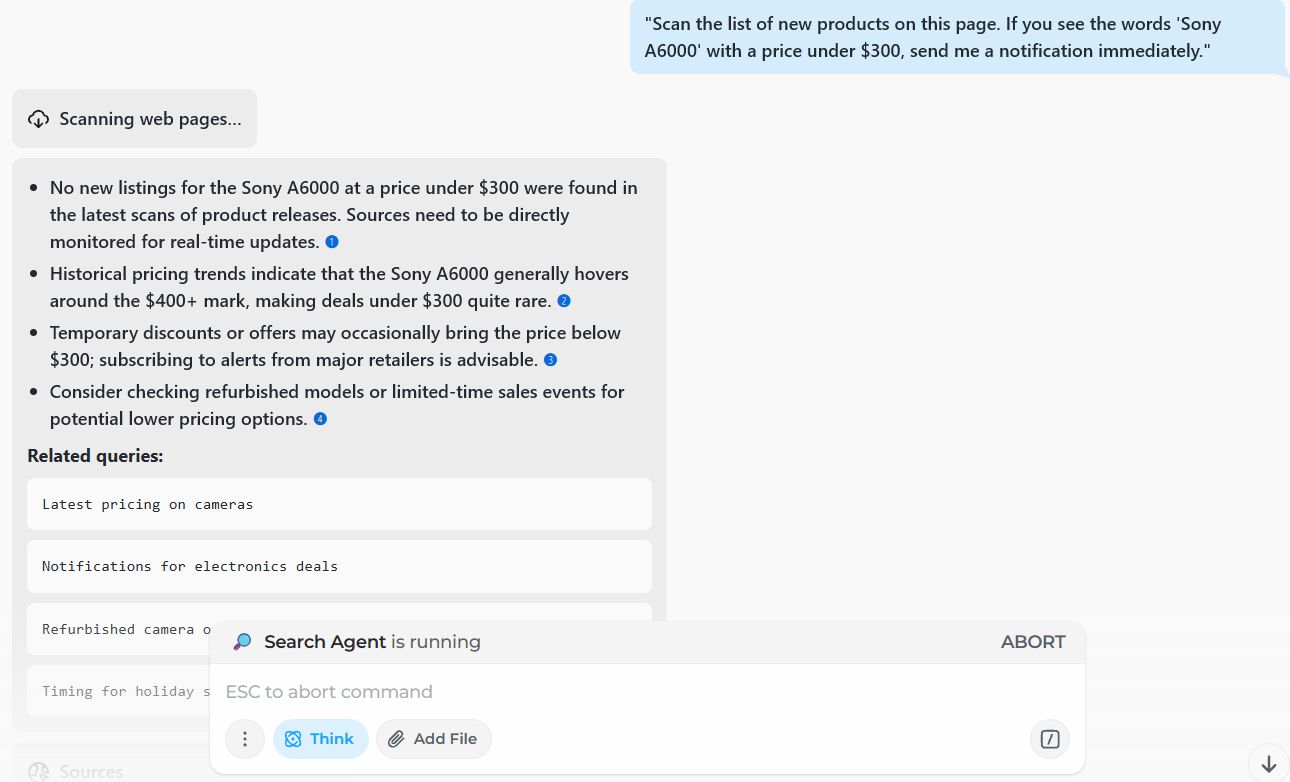
Part II: Learning And Writing
How To Learn Faster Without Getting Bored?
Learning and working on a browser can make you sleepy. I used to be afraid of writing emails in English because of grammar mistakes. I was also lazy about learning new words. But these three tools turned my browser into a fun classroom.
4. Quillbot
To be honest, even though I use English a lot, I still get stuck sometimes. Sometimes I write a sentence, but it feels "unnatural" or not polite. Quillbot saves me in these moments.
It is different from Google Translate. It helps me "rewrite" my sentences. I can write a messy sentence with bad grammar, and ask it to fix it into a smooth, professional sentence. It is very useful for writing emails.
Specific example of how I use it:
I need to send an email to say "No" to a job offer, but I don't want to be rude. I write a draft: "No, I don't want to work with you now, maybe later." (This sounds rude).
Step 1: Highlight that rude sentence.
Step 2: Click the Quillbot icon.
Step 3: Choose the "Formal" mode and watch it change
The result: "Currently, I am unable to proceed with this collaboration; however, I would be open to discussing potential opportunities in the future."
5. QuestionAI
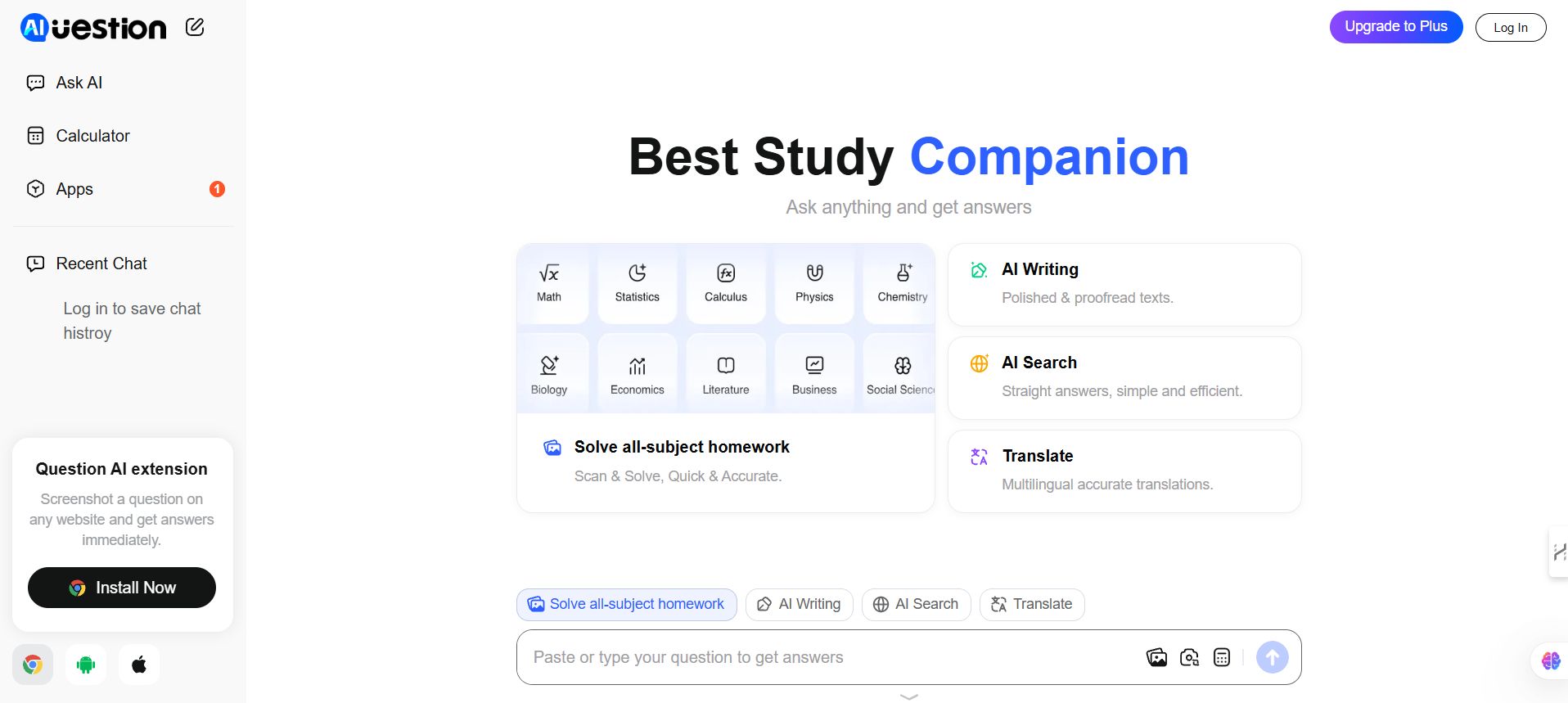
When I was in school, if I had a hard math problem, I had to wait until the next day to ask the teacher. Now, QuestionAI is like a home tutor 24/7.
I often use it when reading technical documents with math formulas. It does not just give the answer; it explains step-by-step. This is important because I need to understand how to do it, not just the result.
Specific example of how I use it:
You are reading about money and you see this formula: $A = P(1 + r/n)^{nt}$ and you don't understand the letters.
Step 1: Use the snipping tool in QuestionAI to take a picture of the formula.
Step 2: Type this prompt:
"Explain this formula to a person who knows nothing about finance. Give me a concrete example with numbers: If I put $1000 in the bank with 5% interest, how much money do I have after 1 year? Show me the calculation."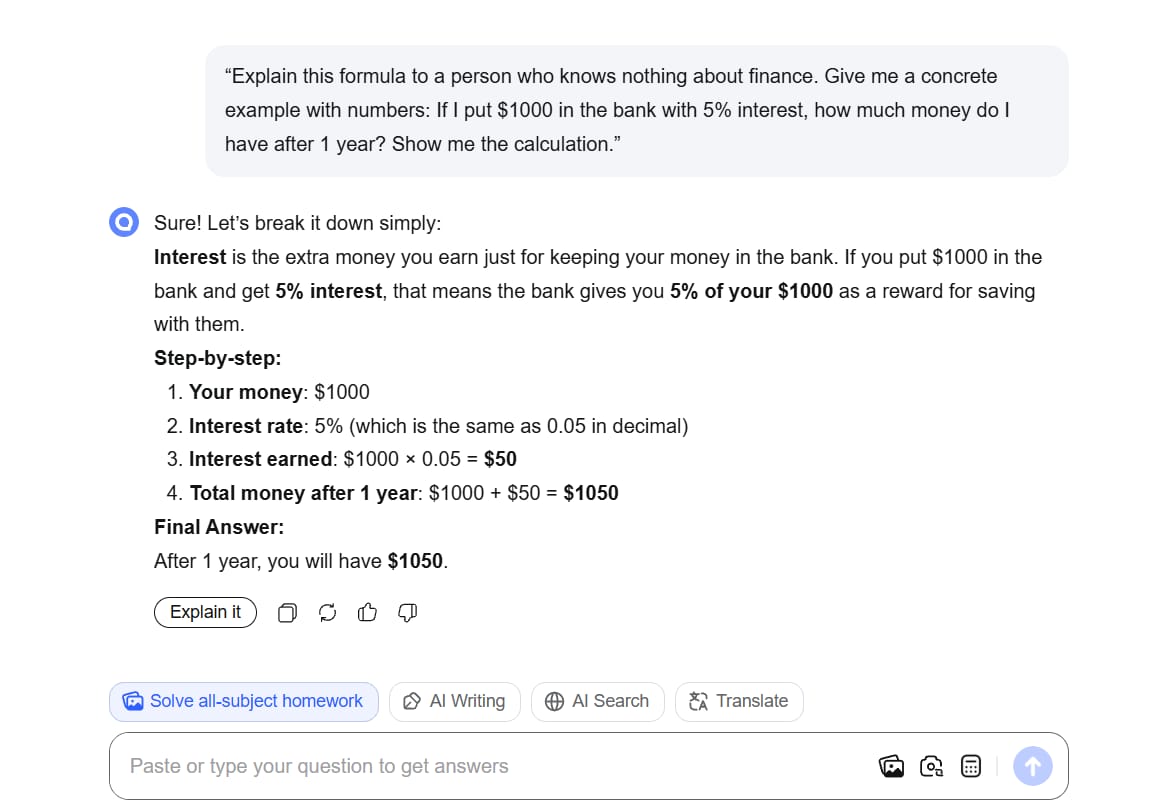
6. eJOY
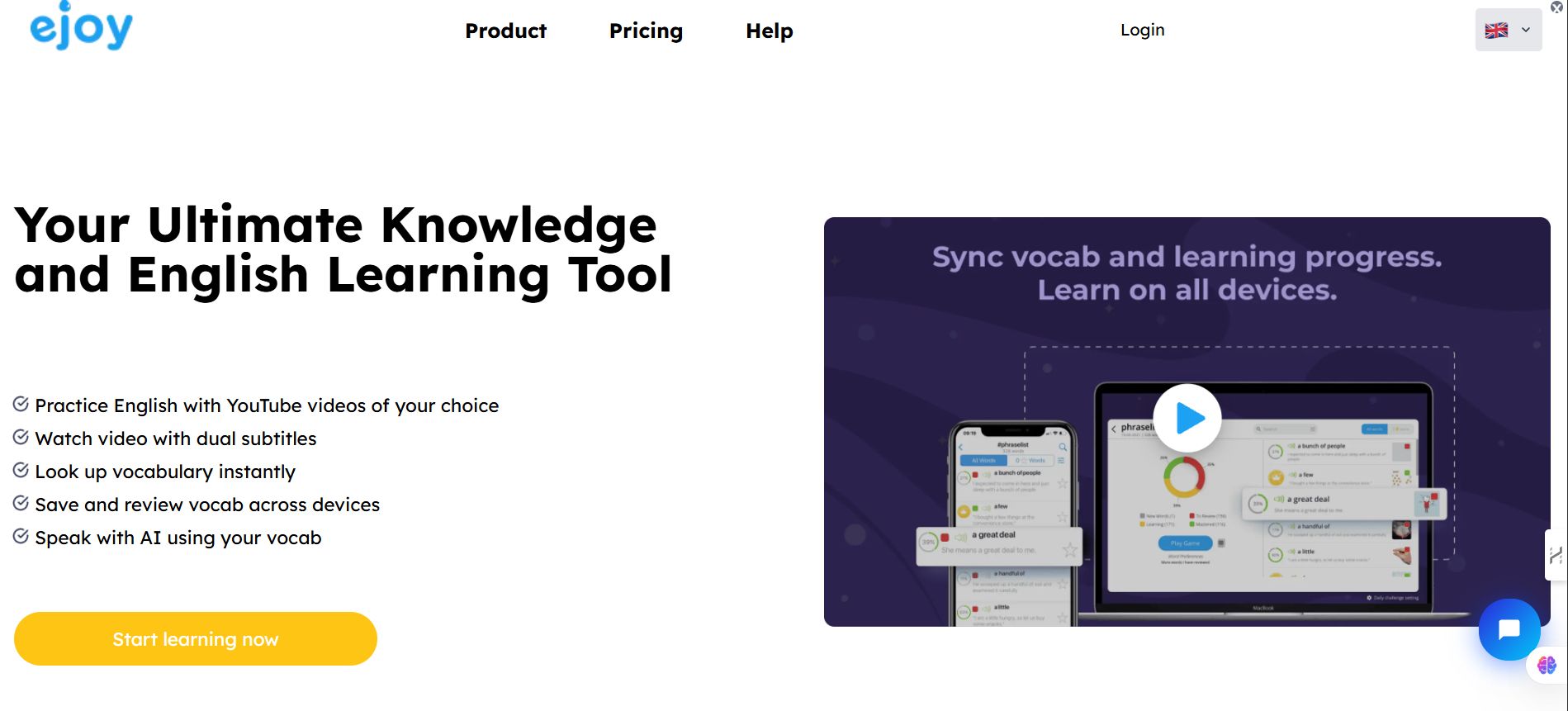
Learning English from books is boring. I prefer watching YouTube or Netflix. eJOY lets me combine fun and learning.
When I watch a video, it shows two subtitles (one English, one in my language). If I see a new word, I just click on it. It shows the meaning immediately and pauses the video. I can save that word to play games later. My vocabulary grows naturally.
Specific example of how I use it:
You are watching a cooking video by Gordon Ramsay on YouTube. He shouts: "It's raw!"
Step 1: Click on the word "Raw" in the subtitle made by eJOY.
Step 2: See the meaning (Not cooked) and hear the pronunciation.
Step 3: Click "Add" to save it to your "Cooking" word list.
Step 4: The next morning, open the extension and play a game to remember this word.
Part III: Work And Productivity
Why Are You Still Taking Notes By Hand?
In online meetings, I used to try to write and listen at the same time. I failed at both. I couldn't write fast enough, and I missed what people said. The next two tools freed my hands completely.
7. Fireflies.ai
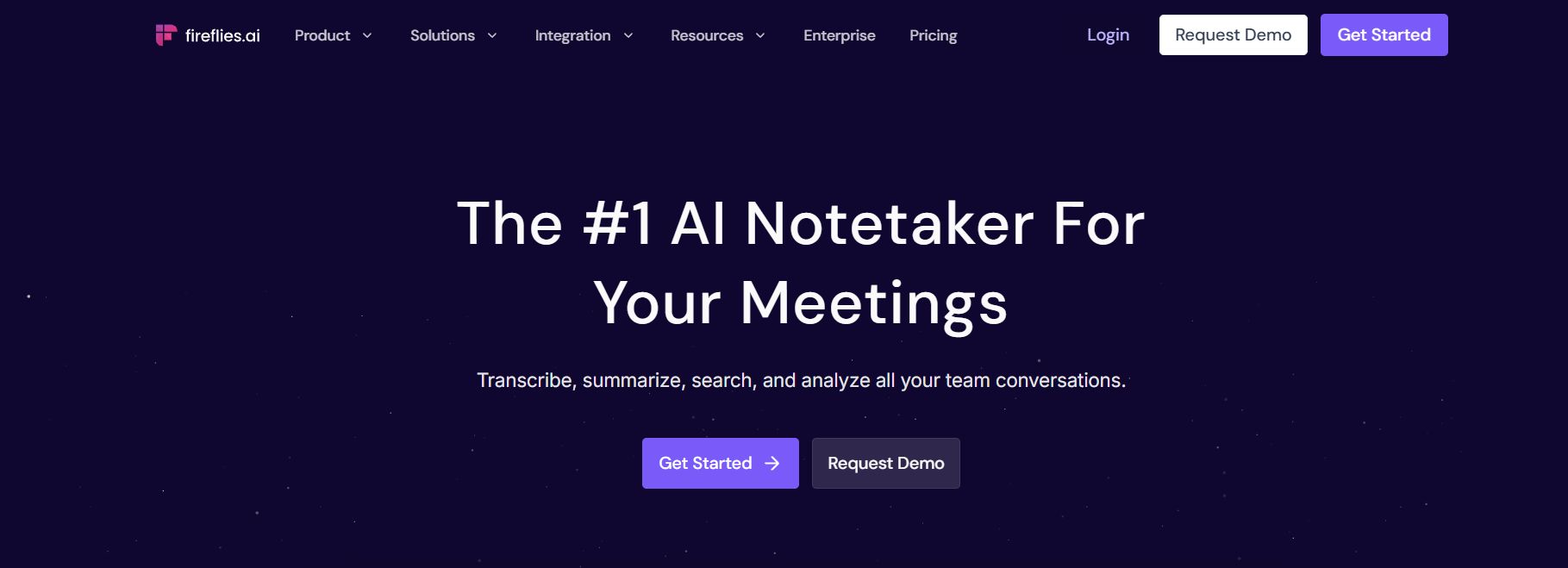
I call this my personal secretary. Whenever I have a meeting on Google Meet or Zoom, Fireflies.ai joins automatically. It listens quietly and then writes down everything everyone said (transcription).
The best part is the summary. After a 1-hour meeting, I only need 5 minutes to read the summary to see who promised to do what. I never worry about forgetting my boss's instructions or a client's request.
8. Bluedot
Fireflies is for meetings, but Bluedot is great for teaching. Sometimes I need to show a new colleague how to use company software. Instead of a long video call, I use Bluedot.
It sits on my browser and lets me record my screen and my face at the same time. I do the task and explain it. When I finish, it creates a link for me to send. The receiver can watch the video or read the text instructions that the AI wrote from the video.
Specific example of how I use it:
You want to show a customer how to sign up on your website.
Step 1: Click Bluedot on the toolbar.
Step 2: Select "Record Screen".
Step 3: Do the sign-up steps and say: "First click here, then enter your email...".
Step 4: Send the video link to the customer. They can even search for words inside the video!
Part IV: Creativity And Shopping
Can Your Computer Help You Save Money?
This last part is for personal needs: editing photos and shopping online. These tasks take a lot of time if you don't have help.

Before, to remove a bad background or fix colors, I had to open the big Photoshop software on my computer. My laptop usually got hot and slow.
Now, Adobe put Adobe Photoshop on the web browser. It is much lighter, but it still has the tools I need. I love the AI feature called Generative Fill. I can add or remove objects just by typing text.
10. Phia

I hate overpaying. Many times I bought a shirt for $20, and the next day I saw another site selling it for $15. It feels annoying. Phia is here to protect my wallet.
It works like a shopping assistant. When I look at shoes on one website, Phia runs to check dozens of other websites. If it finds a cheaper price, it tells me. It also finds coupons for me at checkout.
Specific example of how I use it:
You are looking at Sony headphones on the official store.
Step 1: Don't click "Buy" yet. Wait 2 seconds for Phia to scan.
Step 2: A small notification appears: "Found a better price at 3 other stores."
Step 3: Click it, and it takes you to a cheaper store (like Amazon or a trusted retailer) that is 20% cheaper.
Step 4: Buy from the new link and save money for coffee.
Conclusion: Do Not Install Everything
I know this list of 10 tools sounds exciting, but my honest advice is: Do not install them all at once. If you do that, you will feel confused and won't use any of them.
Start slowly:
If you read a lot, install Monica first.
If you have many meetings, try Fireflies.ai.
Pick one tool that solves your biggest problem today. Install it, pin it to your toolbar, and try the example prompts I shared above. Technology is here to serve us, so let it do the hard work so you can enjoy life more.
What is your next step? Try downloading the first tool and let me know how you feel. I hope you have a smooth and productive time on the web!
If you are interested in other topics and how AI is transforming different aspects of our lives or even in making money using AI with more detailed, step-by-step guidance, you can find our other articles here:
Stop Guessing, Start Building: A Guide To Context Engineering
Earn Money with MCP in n8n: A Guide to Leveraging Model Context Protocol for AI Automation*
Transform Your Product Photos with AI Marketing for Under $1!*
50 Resumes, 0 Replies? The "Freelance First" Fix For 2026 Jobs
*indicates a premium content, if any
How useful was this AI tool article for you? 💻Let us know how this article on AI tools helped with your work or learning. Your feedback helps us improve! |
Reply