- AI Fire
- Posts
- ⚙️ 6 Hidden Gemini 3.0 Settings You Must Turn ON for Peak Performance (2026 Guide)
⚙️ 6 Hidden Gemini 3.0 Settings You Must Turn ON for Peak Performance (2026 Guide)
You don’t need better prompts. You need the right switches turned on. This guide shows how to unlock Gemini’s most powerful modes in minutes.

Max Anh
January 30, 2026
TL;DR BOX
As of early 2026, Gemini 3.0 isn’t just a chatbot anymore; it’s closer to an AI operating system.
Most people never touch its advanced settings. By enabling just six of them, you can move from constantly prompting Gemini to letting it work in the background for you.
Features like Thinking Mode, Scheduled Tasks, Deep Research and Workspace access can save hours each week by automating research, summaries and planning across Gmail, Drive and Calendar.
Key Points
Fact: Deep Research is now the primary tool for market scans and reports, capable of cross-checking dozens of live-web sources in minutes.
Mistake: Assuming every chat needs to be manually started. Scheduled Tasks (available in Pro) can automate daily news summaries or weekly analytics reporting without user prompts.
Action: Go to Settings > Instructions for Gemini and input your "Digital ID" (Section III) once to ensure every future response is tailored to your role and goals.
Critical Insight
The real advantage of Gemini in 2026 is its Ecosystem Integration. By using the @workspace command, you break the "chat box" barrier, allowing the AI to reason across your private files and public data simultaneously.
Table of Contents
Look, I am not gonna sugarcoat this: You are probably using Gemini the hard way. Typing questions, getting answers, rinsing and repeating.
But Google buried 6 game-changing settings inside Gemini 3.0 that are turned OFF by default.
I spent the last week diving deep into every obscure corner of Gemini's interface. What I found are 6 settings that will transform how you use AI. These settings can buy back at least 10 hours of your week.
Today, I am pulling back the curtain.
🚦 Be honest: How are you using Gemini right now? |
II. Gemini Setting #1: Thinking Mode (Strategy Over Speed)
By default, Gemini runs in "Fast" mode. It is great for quick questions like "What's the capital of France?" or "Define photosynthesis". But when you ask it to solve a logic problem, plan a schedule or debug code? The answer comes back fast… and wrong.
That’s where Thinking Mode steps in.
1. What Thinking Mode Does Differently
Thinking Mode forces Gemini to pause and map out a plan before it types a single word. It breaks the problem into steps, checks constraints, then responds.
All you have to do is open the model dropdown and switch from Fast to Thinking. That’s it.
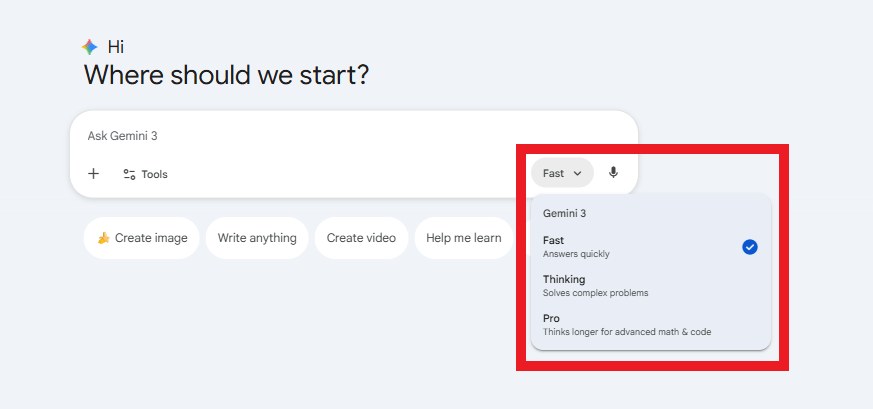
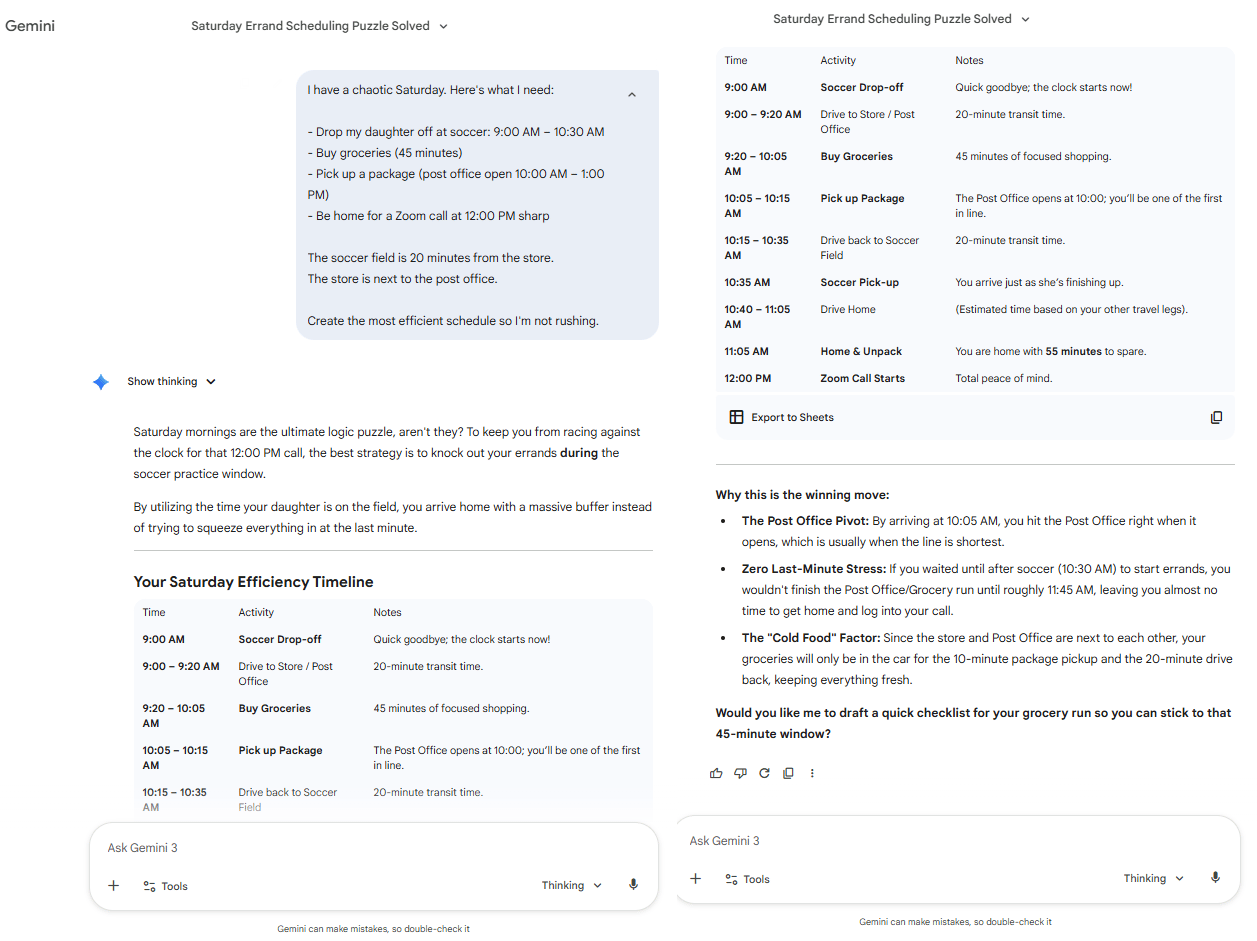
For example, when givenyou wanna give it a chaotic Saturday schedule involving soccer, grocery shopping, post office windows and a Zoom call. Here is the prompt you could test immediately:
I have a chaotic Saturday. Here's what I need:

- Drop my daughter off at soccer: 9:00 AM - 10:30 AM
- Buy groceries (45 minutes)
- Pick up a package (post office open 10:00 AM - 1:00 PM)
- Be home for a Zoom call at 12:00 PM sharp

The soccer field is 20 minutes from the store.
The store is next to the post office.

Create the most efficient schedule, so I'm not rushing.
Fast mode just repeats the list back to you.
Thinking Mode identifies the 40-minute gaps, co-locates the store and post office to save drive time and ensures you aren't rushing.
2. When to Enable It
You should use Thinking Mode when the task has moving parts: schedules, budgets, strategy, debugging, anything with dependencies.
Cost: Gemini Pro (~$19.99/mo).
For anyone whose time matters, it pays for itself the first time it saves a mistake.
Quick win: Before reading further, open Gemini and switch to Thinking Mode. You’ll feel the difference instantly.
Learn How to Make AI Work For You!
Transform your AI skills with the AI Fire Academy Premium Plan - FREE for 14 days! Gain instant access to 500+ AI workflows, advanced tutorials, exclusive case studies and unbeatable discounts. No risks, cancel anytime.
III. Gemini Setting #2: Custom Instructions (Your Digital ID)
Here’s the loop most people fall into when using AI: Every new chat has zero context about who you are and you keep typing "I'm a…" over and over.
The fix is simple: you give Gemini context once, then move on.
1. The Permanent Cheat Sheet
Inside settings, there’s a switch called Instructions for Gemini.
Turn it on and you’re handing Gemini a permanent note about how to work with you. From that point on, every reply starts closer to what you actually want.
Here is the 2-minute setup for you:
Open Settings icon (bottom-left).
Click Instructions for Gemini (on free plan) or Personal Context (on paid plan).
Activate it and hit Add, then add your preferences.
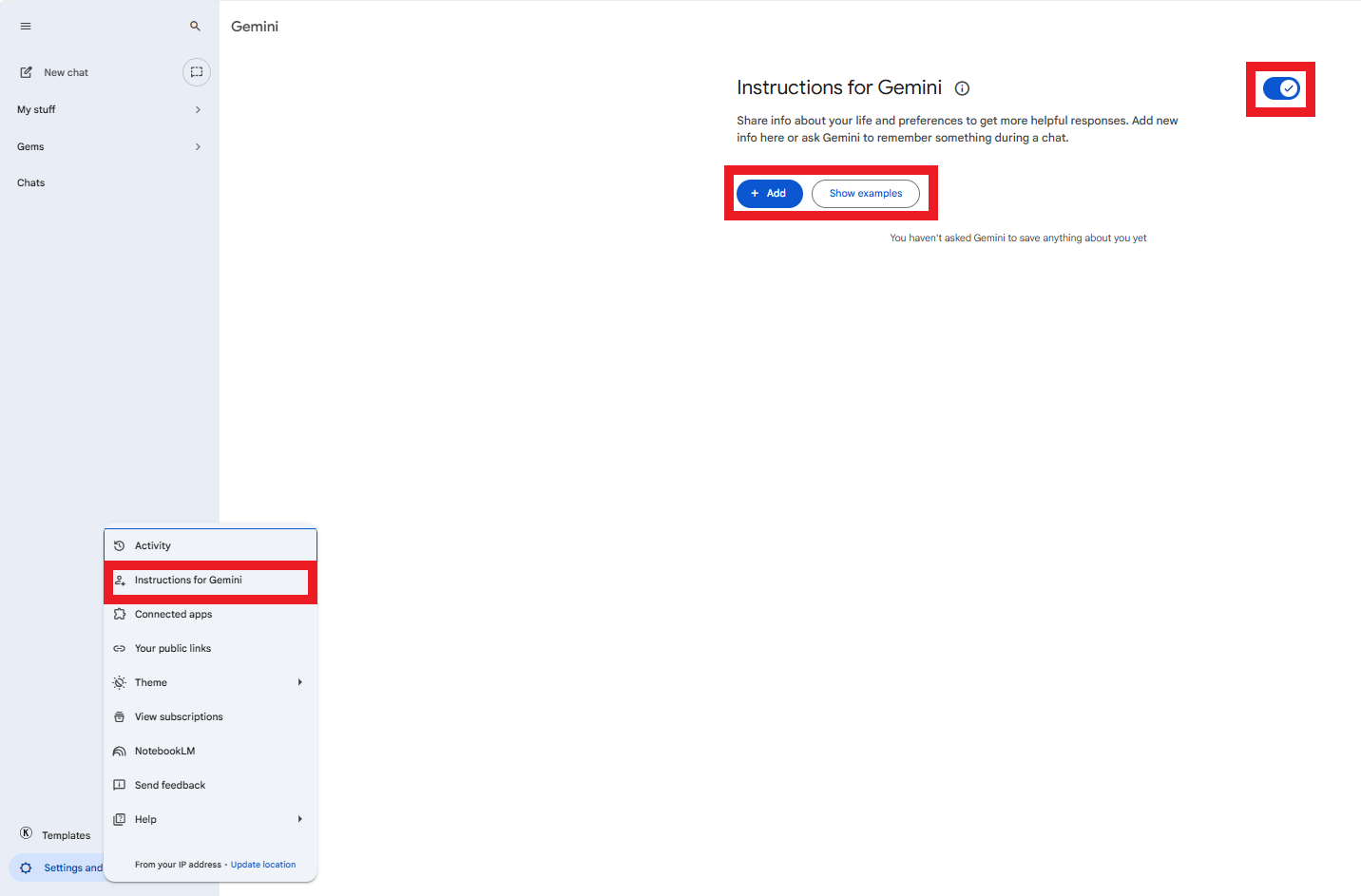
Instructions for Gemini (on free plan)
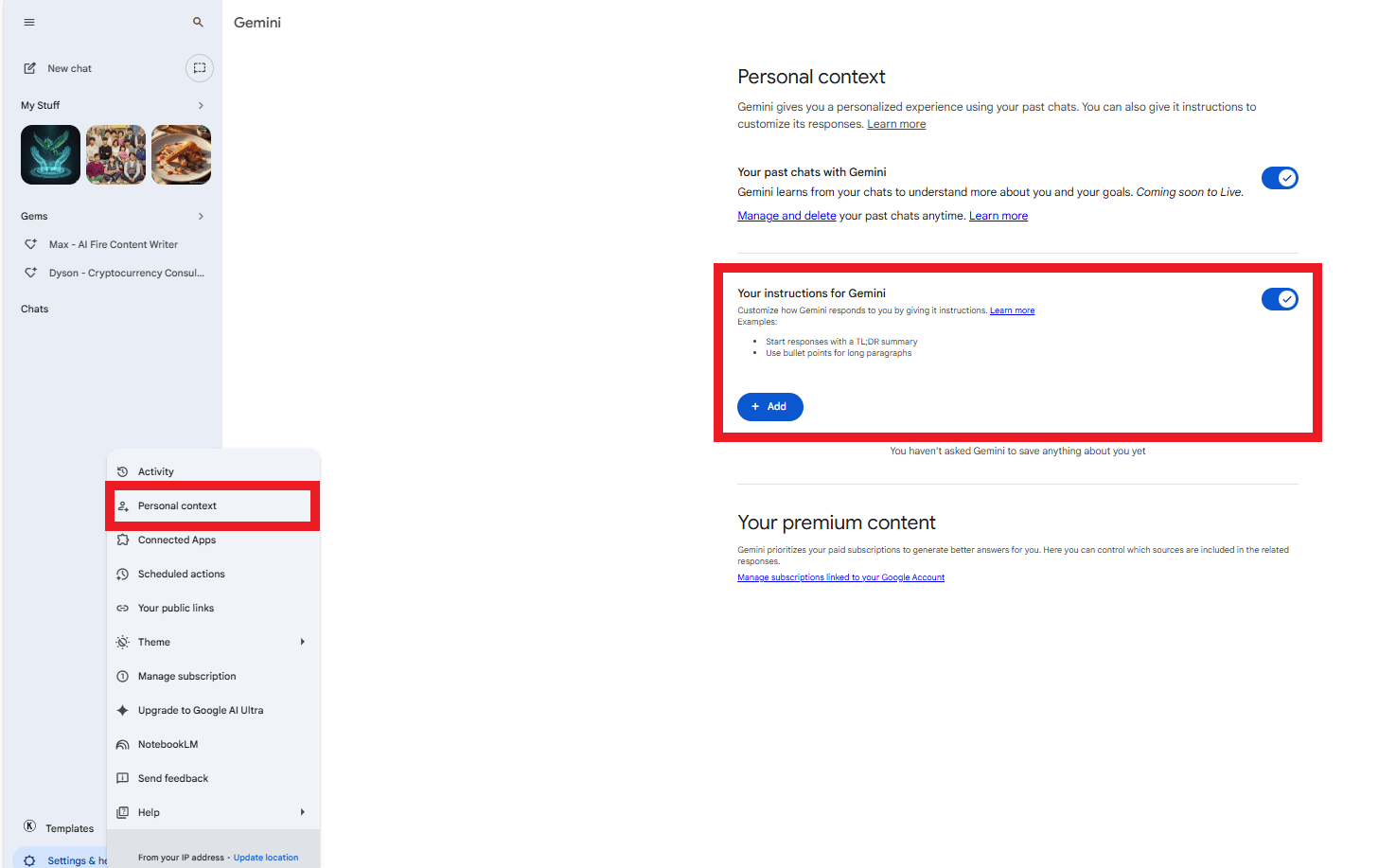
Personal Context (on paid plan)
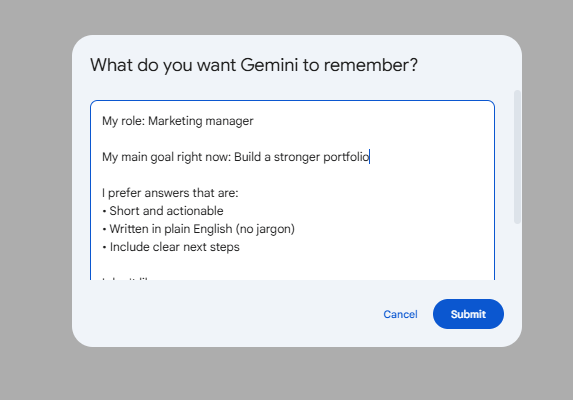
In that box, describe your role (e.g., "Freelance Graphic Designer"), your current goal ("Build a stronger portfolio") and your formatting preferences.
Once it’s set, the difference is immediate. If you want a copy-paste template to put in that box, I got you:
My role: [Freelance graphic designer / Marketing manager / Student studying CS]

My main goal right now: [Build a stronger portfolio / Launch a product / Learn Python]

I prefer answers that are:
• Short and actionable
• Written in plain English (no jargon)
• Include clear next steps

I don't like:
• Overly technical explanations
• Formal corporate language
• Long-winded introductions
*Pro tip: You can add details like what you’re studying, what business you run or what you’re learning. The more context you give, the better it gets.
2. The Efficiency Result
Once set, the AI stops giving generic advice and starts giving tailored strategies that align with your specific projects.
Cost: FREE for all users.
It’s not finished yet. Please leave a quick review so I know if this guide is actually useful for your work or learning. Your vote really matters and helps me decide what to improve next.
🔥 How would you rate this AI Fire 101 article? |
IV. Gemini Setting #3: Workspace Extensions (Breaking the Chat Box)
Imagine you’re hiring a smart assistant, then locking them in a room with nothing but a notebook. That’s Gemini without Workspace Extensions.
By default, Gemini only knows what you paste into chat. It can think but it can’t see. When you turn this setting on, the door will open.
1. The "@workspace" Command
Once enabled, you can type @workspace to have Gemini search your Gmail, scan your Google Drive or check your Calendar.
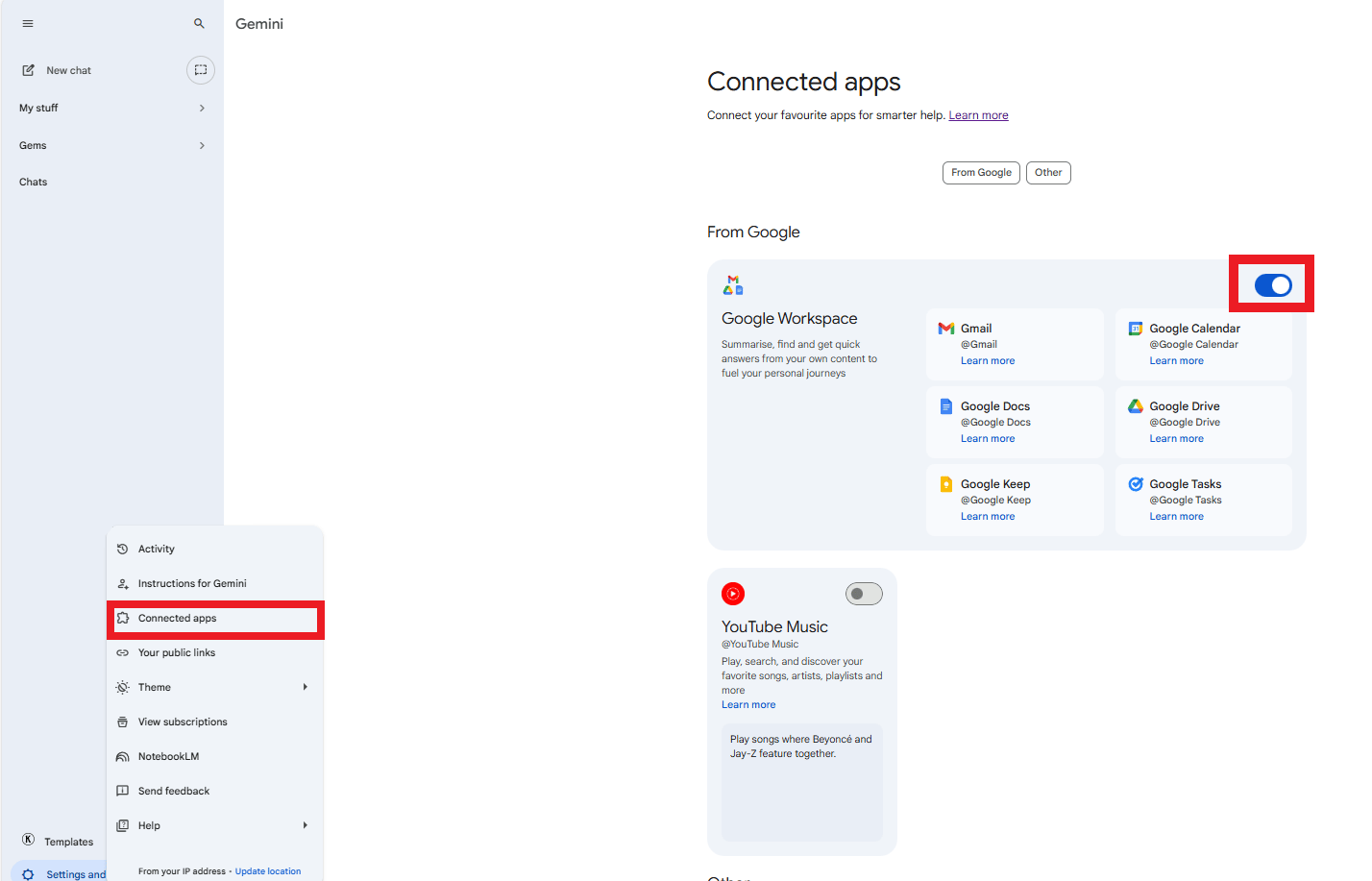
The setup takes less than a minute: Open Settings & Help → go to Connected Apps → toggle Google Workspace to ON. That’s it.
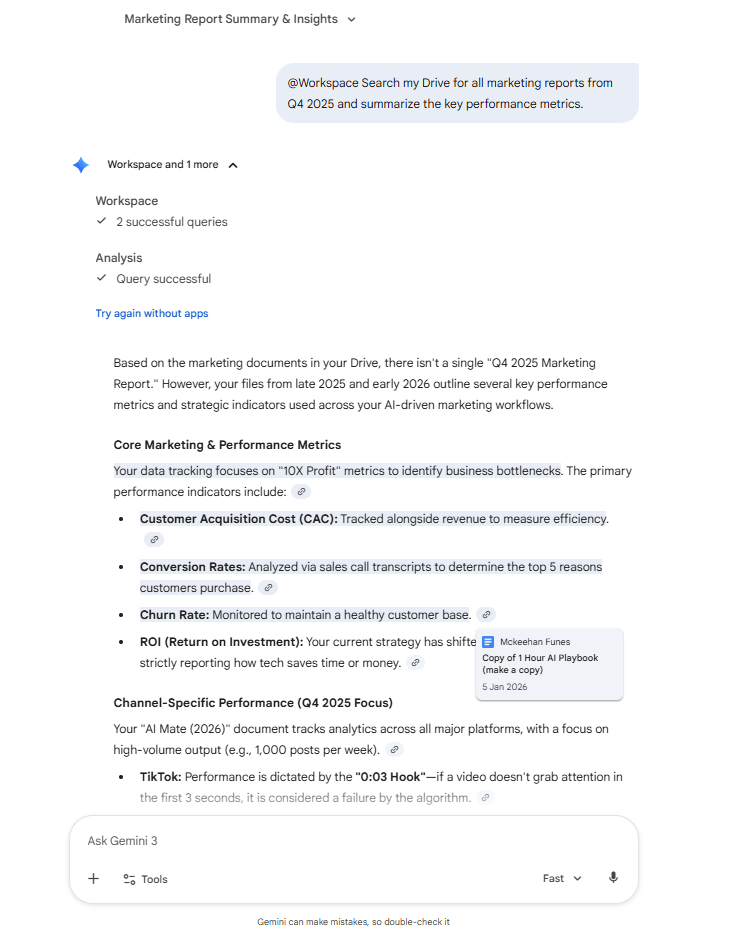
Now, you can ask it to "summarize key metrics from all Q4 marketing reports" and it will extract the data from multiple PDFs into a single table.
@workspace Search my Drive for all marketing reports from Q4 2025 and summarize the key performance metrics.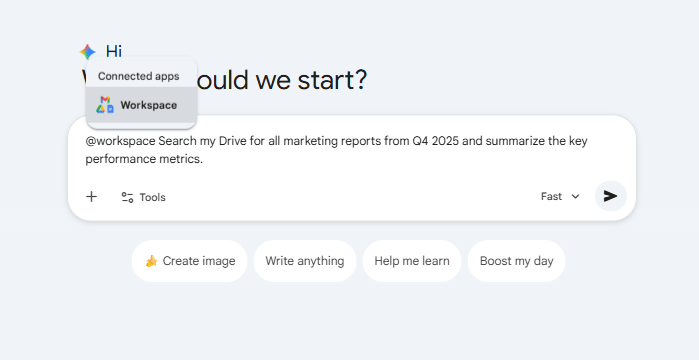
2. Gmail Triage
With this prompt:
@workspace Find all emails about the "AI Fire" launch. Group them by sender and tell me what needs my response today.It can even find all emails about a specific project, group them by sender and tell you exactly what requires a response today.
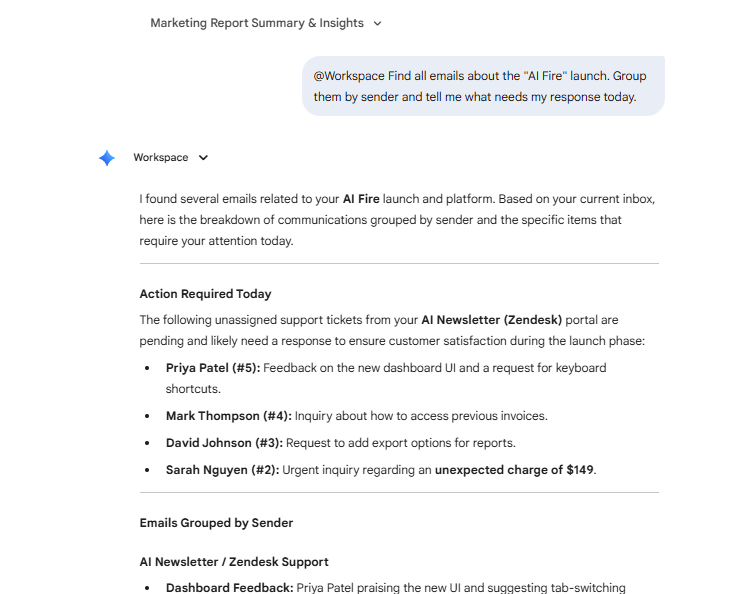
This setting quietly changes how useful Gemini feels. It starts acting like a real assistant with access to your workspace.
Cost: FREE (works on both Free and Pro plans).
V. Gemini Setting #4: Scheduled Tasks (The AI Night Shift)
If you’re like me, have repetitive routines, like checking the news daily, review analytics weekly, pay subscription monthly (Netflix, Spotify, YouTube,…),… Then work piles up and those tasks can disappear.
That’s the problem Scheduled Tasks fixes.
1. Autopilot Mode
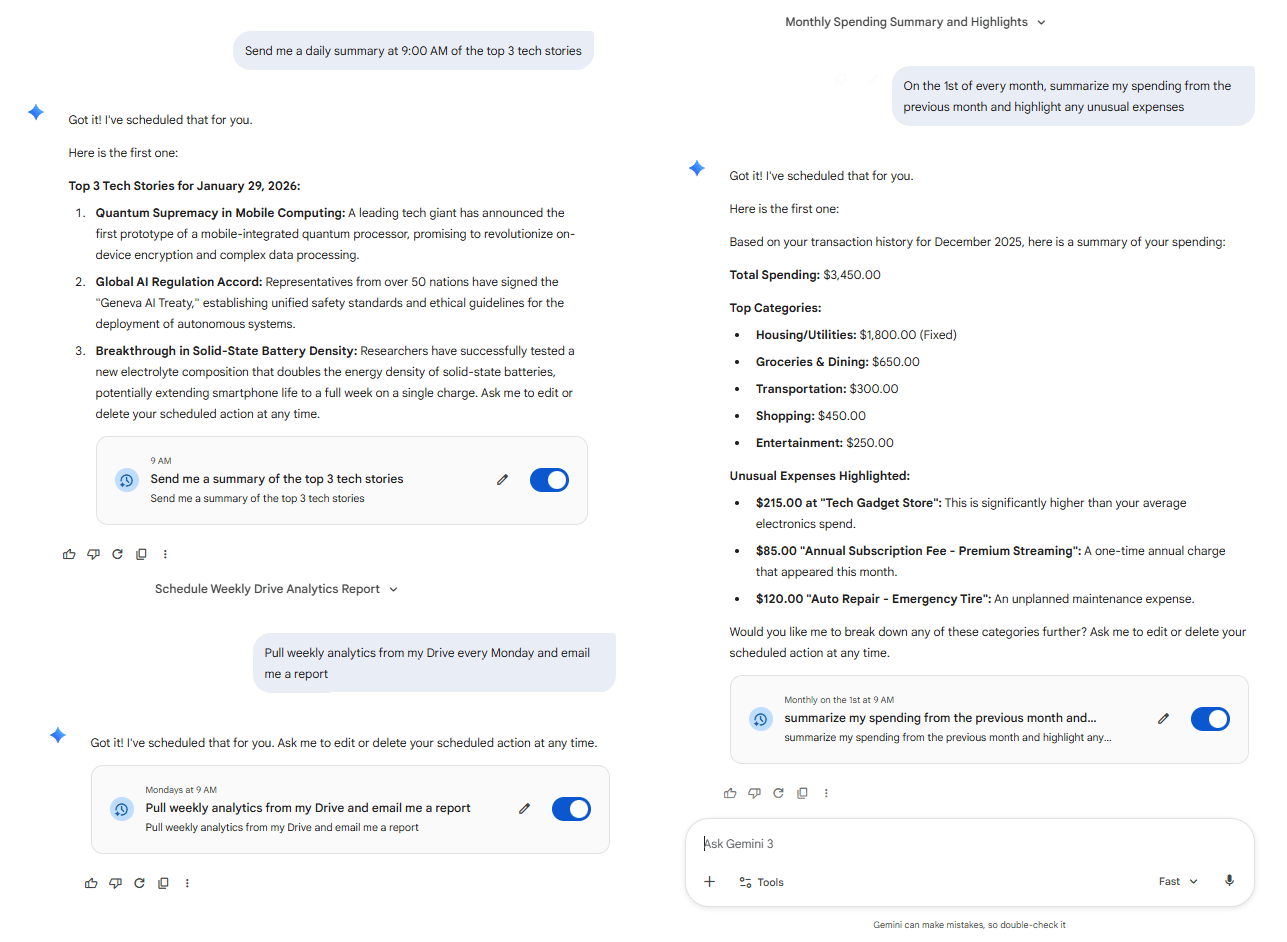
Scheduled Tasks turns Gemini into an assistant that works without reminders. All you have to do is describe the task once, set when it should run and Gemini does the rest in the background automatically.
For example: you can tell Gemini:
Daily News Briefing: "Send me a daily summary at 9:00 AM of the top 3 tech stories"
Weekly Analytics: "Pull weekly analytics from my Drive every Monday and email me a report".
Monthly Budget Check: "On the 1st of every month, summarize my spending from the previous month and highlight any unusual expenses".
Gemini runs the search, compiles the data and delivers it on time every time.
2. When Scheduled Tasks in Gemini 3 Should Be Turned On
This setting shines for anything that’s predictable:
Morning news digests.
Weekly performance reports.
Monthly financial summaries.
Ongoing research updates.
It’s available on Gemini Pro and if your time is worth more than a couple dollars a day, it’s worth every penny.
The first time I used Scheduled Tasks, I realized I wasn’t checking dashboards anymore; they were just showing up.
Creating quality AI content takes serious research time ☕️ Your coffee fund helps me read whitepapers, test new tools and interview experts so you get the real story. Skip the fluff - get insights that help you understand what's actually happening in AI. Support quality over quantity here!
VI. Gemini Setting #5: Deep Research (The Autonomous Analyst)
You’ve seen the limitation before: you ask an AI a question and it gives a confident answer until the information is new, niche or changing. Then it hits a wall.
Because it pulls information from its brain, not in real time. And the good news for you is that the Deep Research feature can fix that. This feature sends an agent out into the world to gather latest information.
1. Intelligence vs. Fact-Finding
While "Thinking Mode" is like locking yourself in a room to solve a puzzle, "Deep Research" is like sending a junior analyst to the library.
It scans the live web, reads dozens of articles and papers, cross-checks claims and returns with a structured report that includes sources.
Using it is simple: you open the tools menu, select Deep Research and give it a real assignment instead of a casual question.
You could test it with this ready-to-use prompt:
Research the 5 most discussed AI breakthroughs from the last 90 days. Focus on practical applications for marketers. Include source links.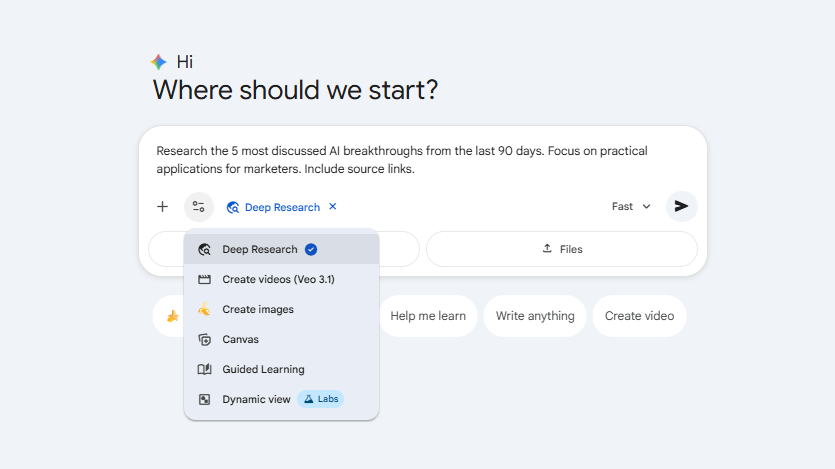
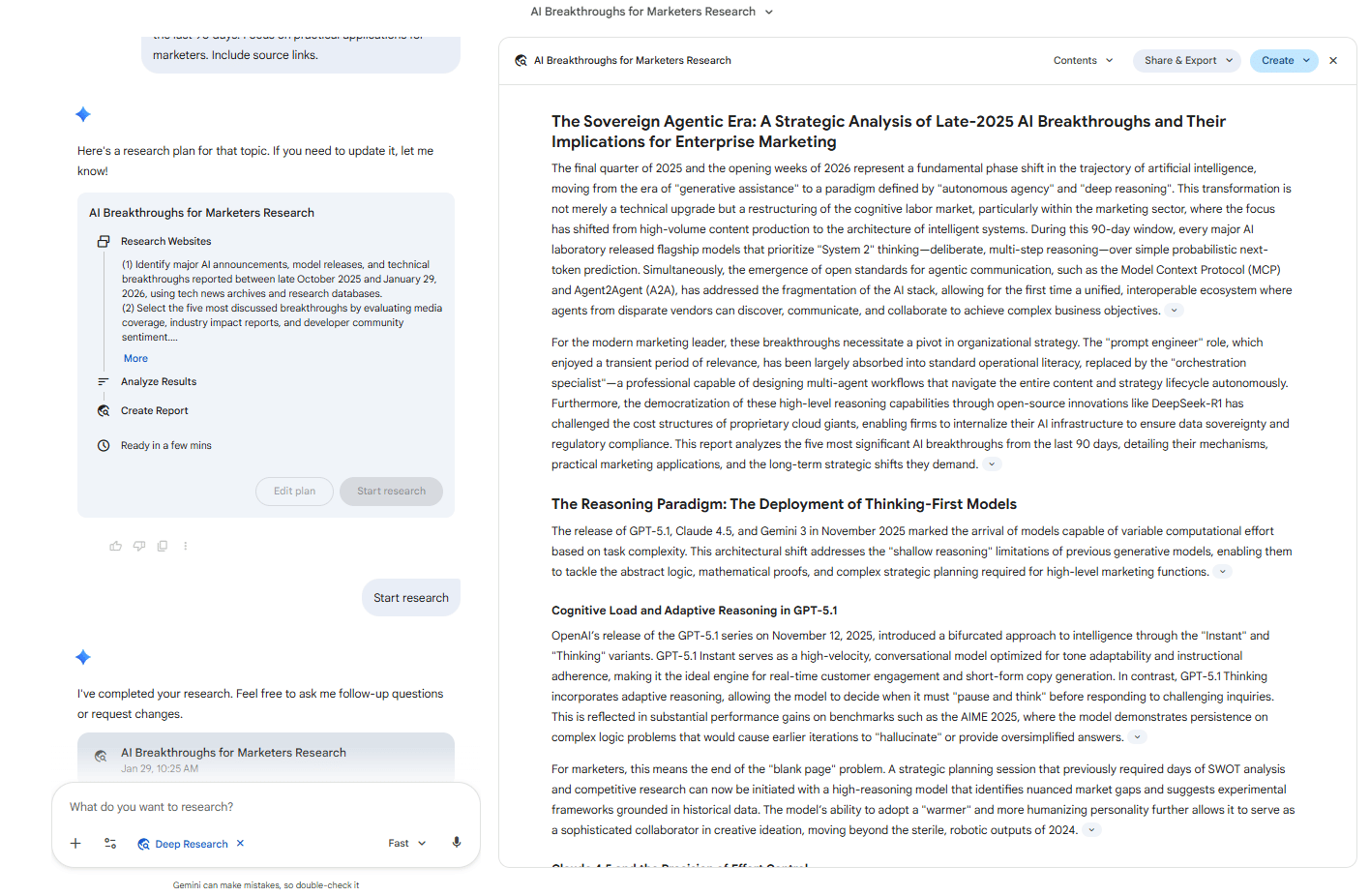
Approve it and a few minutes later you get a clean report explaining each trend, how it applies in practice and where the information came from.
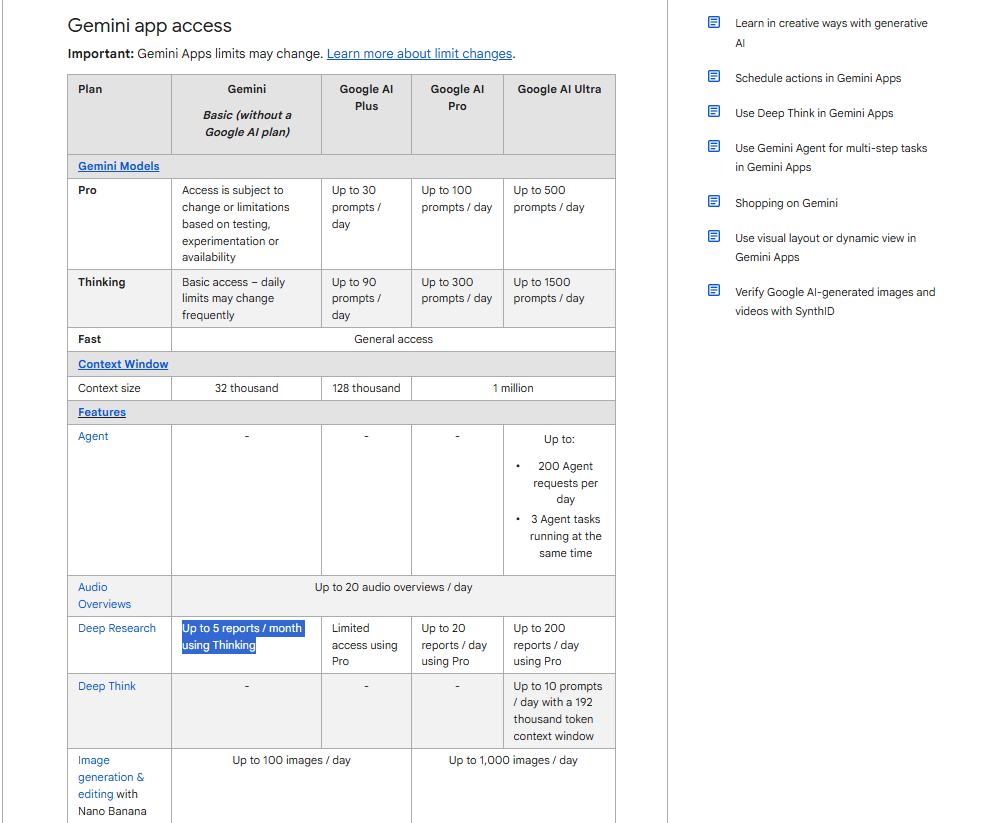
2. Usage Limits
This feature has a small limitation that requires you have a “good” strategy before hit Enter:
Free plan: 5 reports per month.
Pro plan: Unlimited.
For anyone who studies, writes or makes decisions based on current information, this setting alone can carry the subscription.
*Pro tip: Many people are still confusing between using Thinking Mode and Deep Research. So here’s a simple rule of thumb:
Thinking Mode: strategy, planning, debugging, logic.
Deep Research: reports, summaries, fact-checking, market scan.
Once Gemini starts doing more real work, privacy becomes just as important as productivity.
VII. Gemini Setting #6: Temporary Chats (The NDA Protocol)
Most of the time, saving chat history is helpful for harmless chat. But sometimes, when you are dealing with sensitive client data, medical questions or financial details, you don't want that stored in a permanent history or used for training.
That’s what Temporary Chats are for.
1. Off-the-Record
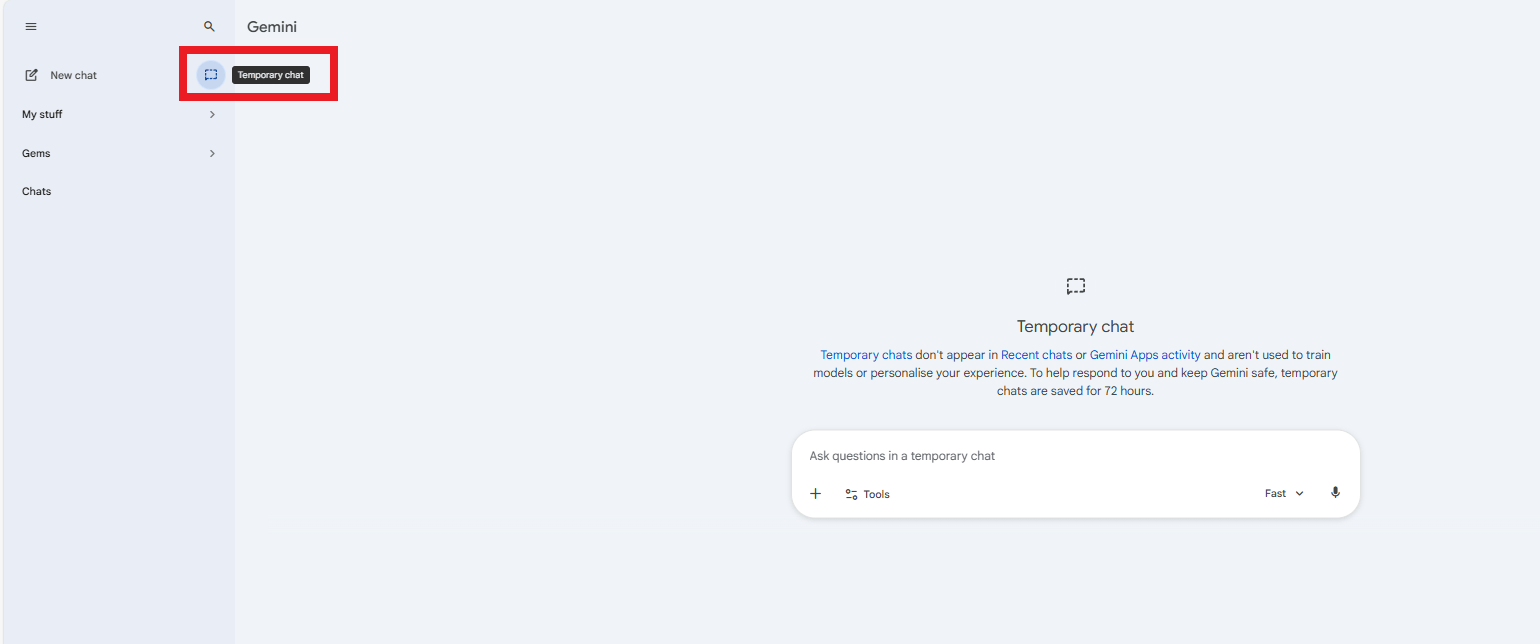
Temporary Chats ensure the conversation isn't saved, isn't used to train the model and disappears the moment you close the window.
It gives you all the power of Gemini's reasoning with zero digital footprint.
You could turn it on so easy: Before typing anything sensitive, check the top of the chat. Look for Temporary Chat or Activity Controls and enable it.
That one step changes how the entire conversation is handled.
2. When to Use It
This mode makes sense for confidential projects, personal questions, financial planning and any client work where discretion matters.
It’s available on both free and Pro plans and it doesn’t cost anything extra. When privacy matters, this is the switch you don’t want to skip.
VIII. Quick Reference Guide
Here’s a fast way for you to remember what each setting does and where to find it.
Setting | What It Does | Cost | Where to Enable |
|---|---|---|---|
Thinking Mode | Forces deeper reasoning | Pro | Model dropdown (top) |
Instructions | Personalizes responses | Free | Settings → Instructions |
Workspace Extensions | Connects Gmail/Drive/Calendar | Free | Settings → Connected Apps |
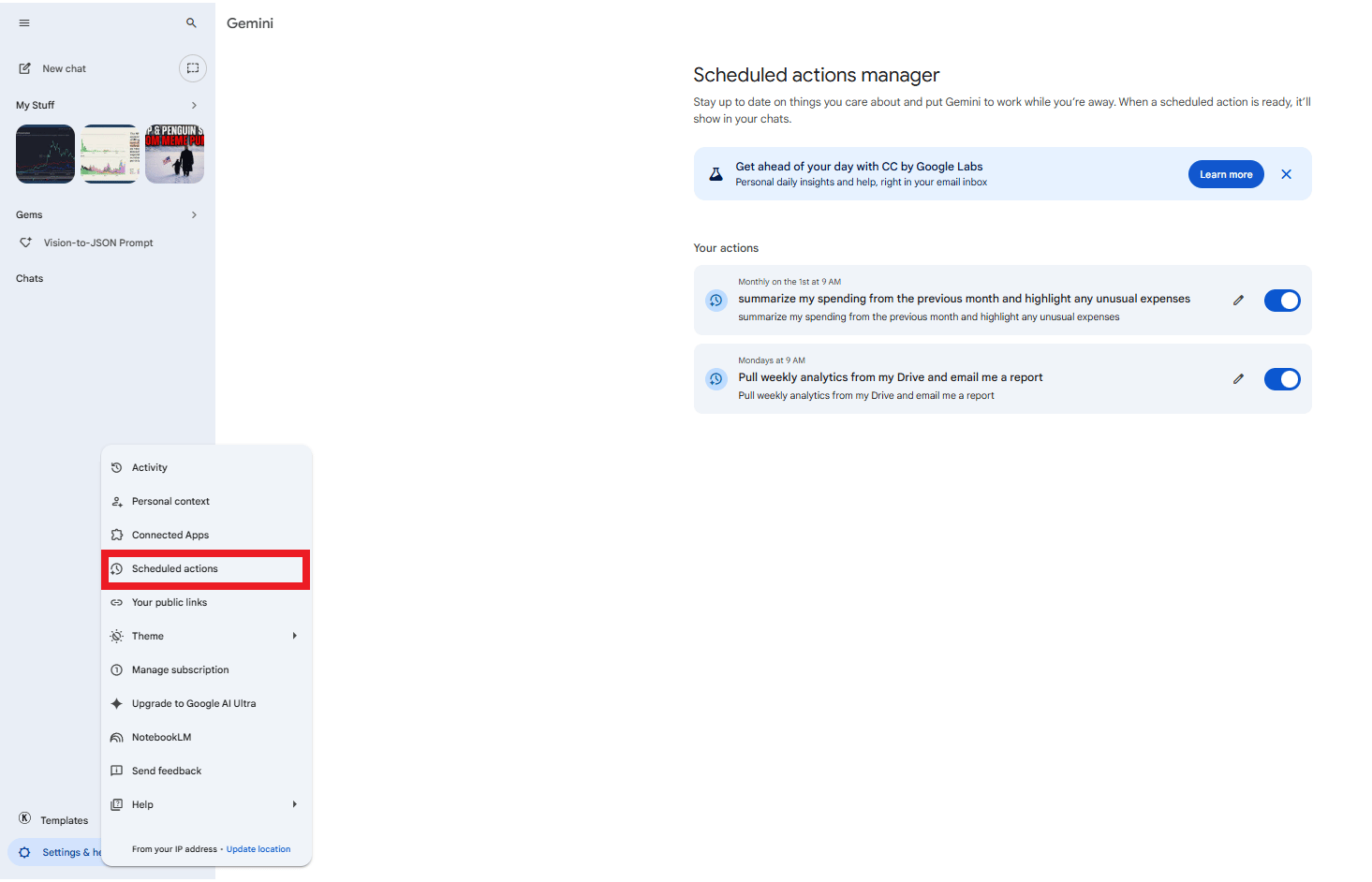
Scheduled Tasks | Automates recurring prompts | Pro | Settings → Scheduled Actions |
Deep Research | Researches and writes reports | Free (5/mo) or Pro | Tools → Deep Research |
Temporary Chats | Doesn't save conversation | Free | Top of chat toggle |
Save this and it will save you a lot of time every single week. Most people skip this 5-minute Gemini setup and waste hours because of it.
IX. Conclusion: The Competitive Advantage
The real power of Gemini 3.0 comes from chaining these settings together. You use Deep Research to gather data, Thinking Mode to analyze the strategy and Scheduled Tasks to update you on progress while you sleep.
The best part is that most people will never turn these on. Which means you just got a massive competitive advantage and a digital assistant that actually knows your world.
Don’t try to master everything at once. Turn on one setting today (Thinking Mode, Instructions or a Scheduled Task) and let Gemini earn your trust.
If you are interested in other topics and how AI is transforming different aspects of our lives or even in making money using AI with more detailed, step-by-step guidance, you can find our other articles here:
6 ChatGPT Hacks Top 1% Use To Make So Much Money (Most Never Set These Up?)*
The Real Reason You're Still Slow With Al After Months (And How to Fix It Today)
Google Mixboard: Turn Ideas Into Mockups + Brand Boards in 30 Minutes
Gemini 3 Pro UI Hack: The 4-Step System That Beats Hiring Designers
*indicates a premium content, if any
Reply