- AI Fire
- Posts
- 🔄️ Why I Switched From ChatGPT to Claude Without Losing a Single Thing (Full Migration Guide)
🔄️ Why I Switched From ChatGPT to Claude Without Losing a Single Thing (Full Migration Guide)
This guide shows how to migrate your memory, workflows, and writing style from ChatGPT into Claude’s 4-layer ecosystem in under 30 minutes.

Max Anh
April 14, 2026

TL;DR BOX
In April 2026, you don't have to start from zero when you switch AI tools. You can move your old notes and style from ChatGPT to Claude in just two minutes. The real advantage of switching isn't just a smarter chatbot; it's the Claude Ecosystem, a four-layer workspace that connects your browser, your desktop files and your code into a single, working system. Instead of starting fresh every time, you keep your context inside one long-term Claude Project. That means Claude Chat doesn’t just answer questions, it actually helps you run real work across your files, browser and tools.
Key Points
Fact: As of April 2026, Claude's Memory Import tool uses a standardized protocol to ingest your historical data from other LLMs, ensuring zero loss of personal context during migration.
Mistake: Using Claude only for its web chat. To be a pro, you should use the Claude Chrome extension for research and Claude Cowork to help with the files on your computer.
Action: Run the Memory Import (Section VII) first. It takes two minutes and prevents the "blank page syndrome" that kills most people's interest in switching.
Table of Contents
🧠 Is your AI's "memory loss" keeping you from switching? |
I. Introduction
Most people don’t openly admit this but switching AI tools feels risky.
You've been using ChatGPT for months. It already knows your tone, your weird writing habits, your half-finished business ideas and the fact that you've rewritten the same email subject line seven times and still aren't happy with it.
So when someone tells you to just switch AI tools, what they're really saying is: "Please enjoy rebuilding everything from scratch".
But switching from ChatGPT to Claude does not have to disrupt your workflow, the transition can be much smoother than expected.
Once you see how Claude connects chat, browser, desktop and coding tools into one environment, you quickly realize this is not just another chatbot. It functions more like a workspace designed for ongoing knowledge work.

II. The Real Reason People Are Switching
A lot of people try Claude Chat once, compare it to other models and move on. On the surface, it can feel similar but after a bit of real use, the differences start to show.
Not just in how it answers but in how it thinks through problems and how the tools around it actually fit together. That’s why more people are switching.
1. Output Quality That Actually Feels Different
The main reason many people move to Claude is simple: the results often feel more thoughtful.
The writing tends to feel sharper, more aware of context and closer to what you’d expect from a colleague who spent time thinking about the problem instead of rushing to summarize it.
The best way to see this is in long-context, analysis-heavy work.
When reviewing customer intake forms, studying feedback from a launch or pulling patterns from meeting notes, Claude often surfaces insights that feel more specific and usable.
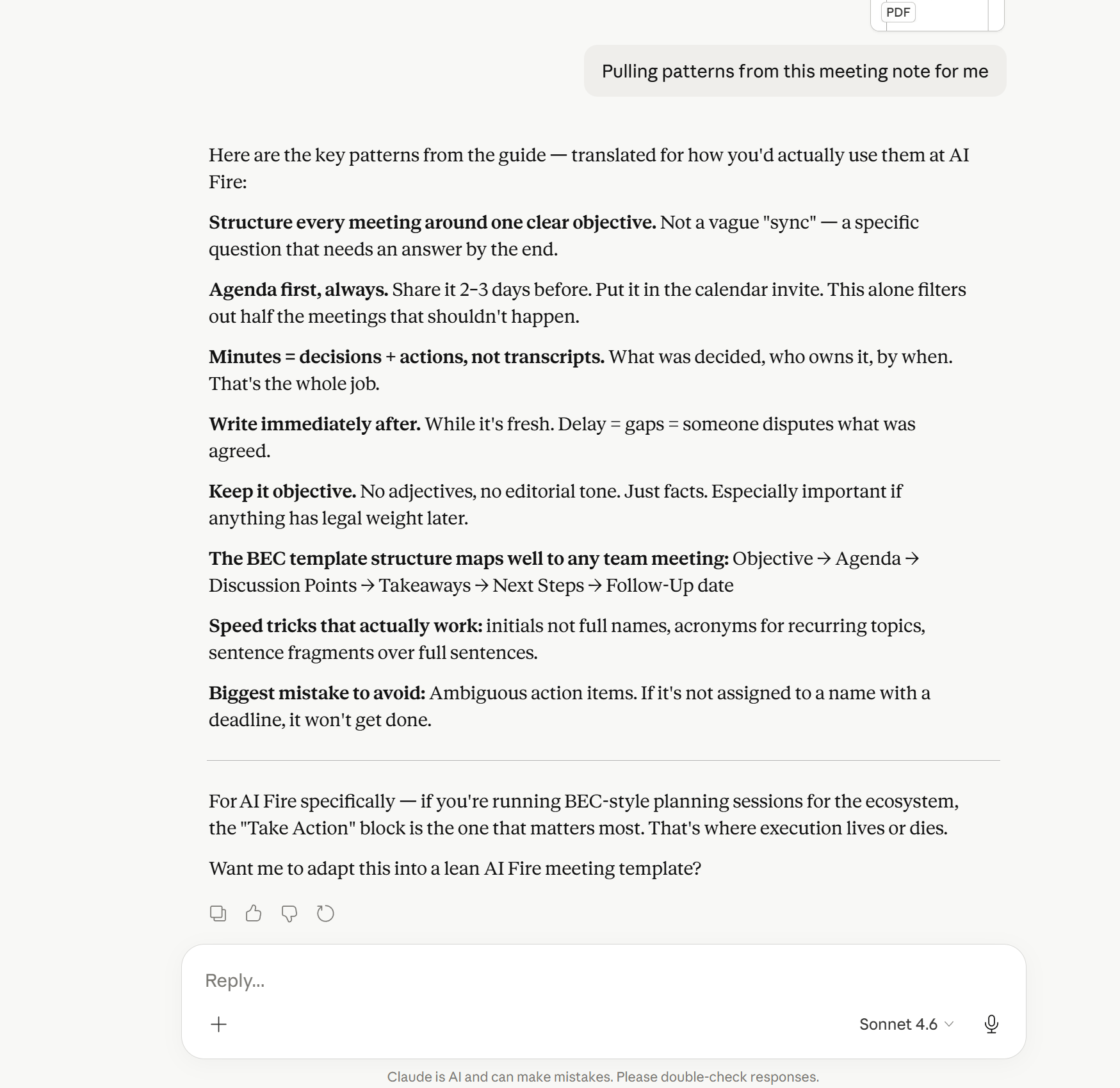
Here is an example of how Claude handles a long-context task
2. Ecosystem Over Single Chat
Claude doesn't live only in a chat window. It has a browser tool, a desktop automation layer and a code generation environment. Each part plays a different role and the system becomes more useful when they are used together.
Here’s the simple way I think about the structure:
Claude Chat → thinking, writing, strategy.
Claude in Chrome → browser-based research and web tasks.
Claude Cowork → desktop automation and file work.
Claude Code → building custom tools and pages.
Each layer builds on the previous one: Chat helps you clarify ideas, the browser helps you gather context, desktop tools help you execute tasks and code lets you create custom solutions.
To understand why Claude feels different, we need to look at the system layer by layer.
Learn How to Make AI Work For You!
Transform your AI skills with the AI Fire Academy Premium Plan - FREE for 14 days! Gain instant access to 500+ AI workflows, advanced tutorials, exclusive case studies and unbeatable discounts. No risks, cancel anytime.
III. Layer 1: Claude Chat
Claude Chat is where most work begins. This is where you clarify problems, shape ideas, write outlines, analyze data, and more.
1. How It Works in Real Life
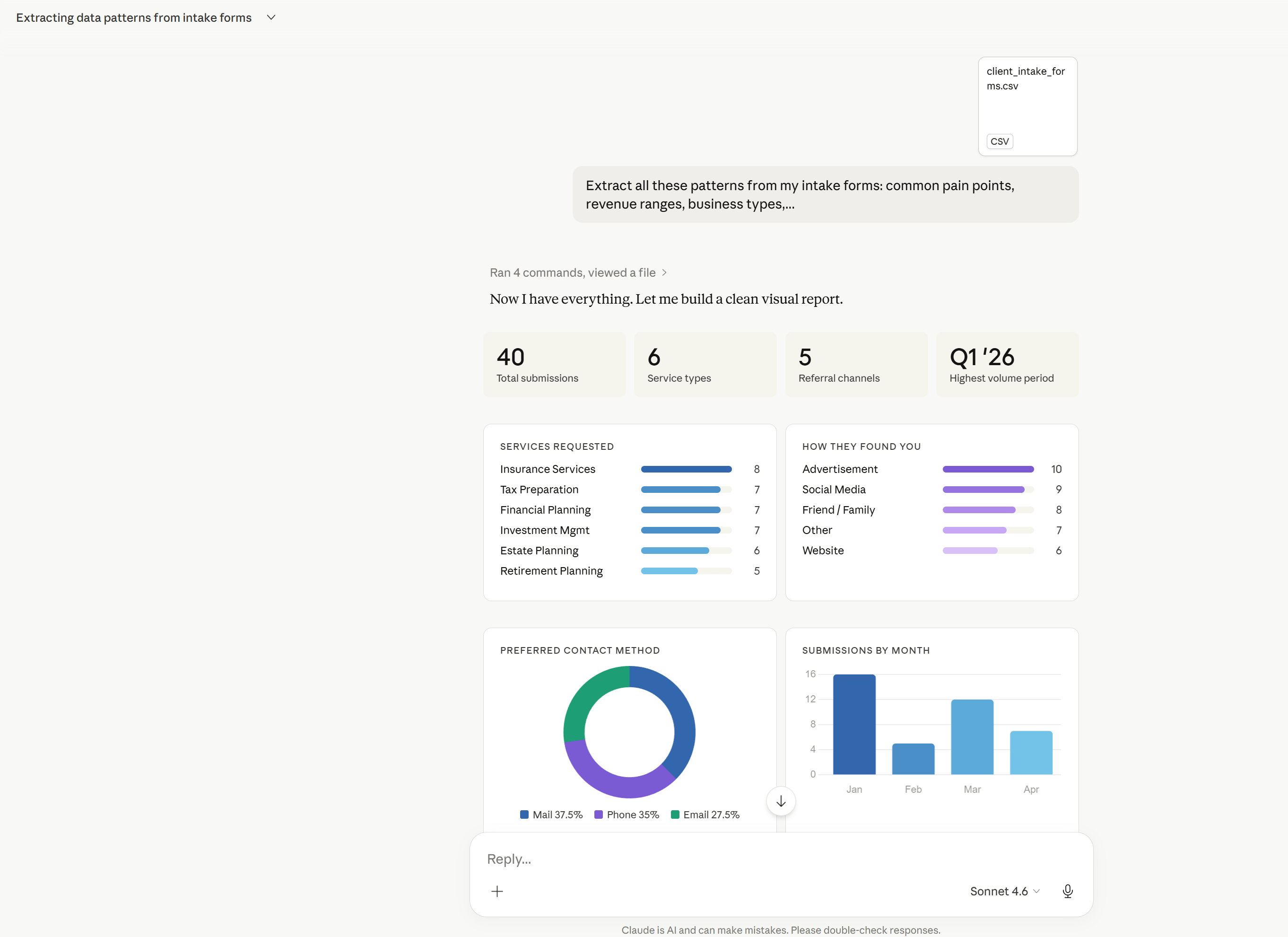
Imagine you're running a business and you receive 40 intake forms from potential clients or applicants.
You could read them all manually or you could paste them into Claude Chat and ask it to extract patterns: common pain points, revenue ranges, business types, where the real problems are clustering.
Claude usually pushes past surface summaries and starts connecting patterns. Instead of just listing what people said, it connects what's underneath. That's the difference between getting a list and getting an insight.
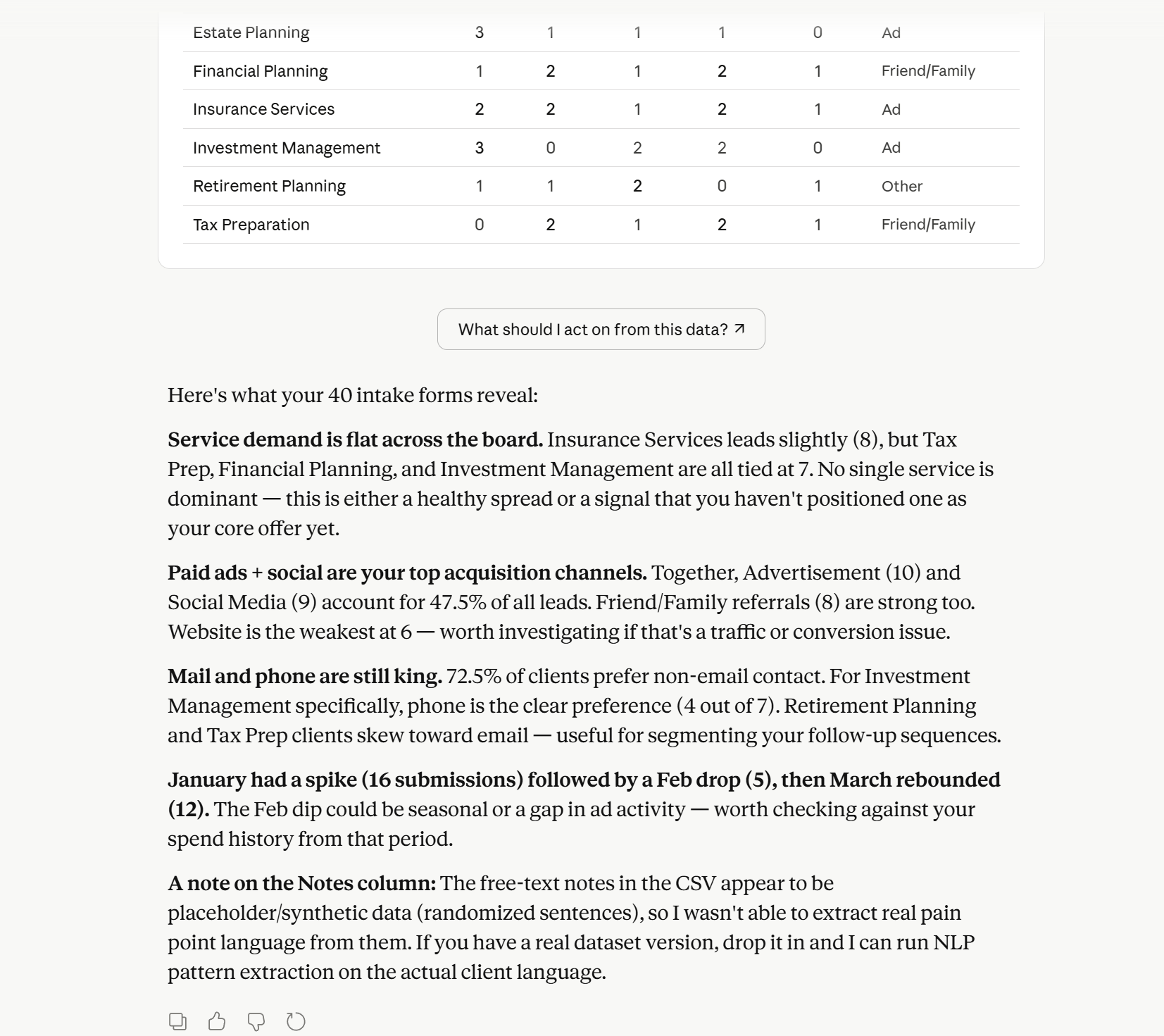
Here is the result
2. The Practical Rule
Before you ask Claude to do anything, start by asking it to help you define the problem clearly. Once Claude understands the context, the goal and the constraints, everything downstream becomes sharper.
IV. Layer 2: Claude in Chrome
Claude in Chrome is a browser extension that sits in a panel on the side of your screen. It can read the page you're currently on and let you ask questions or assign tasks based on whatever is actually visible in your browser.
At the time of writing, this feature is Chrome-specific. Other browsers aren't supported yet, so if you live in Firefox or Safari, this one requires a browser switch first.
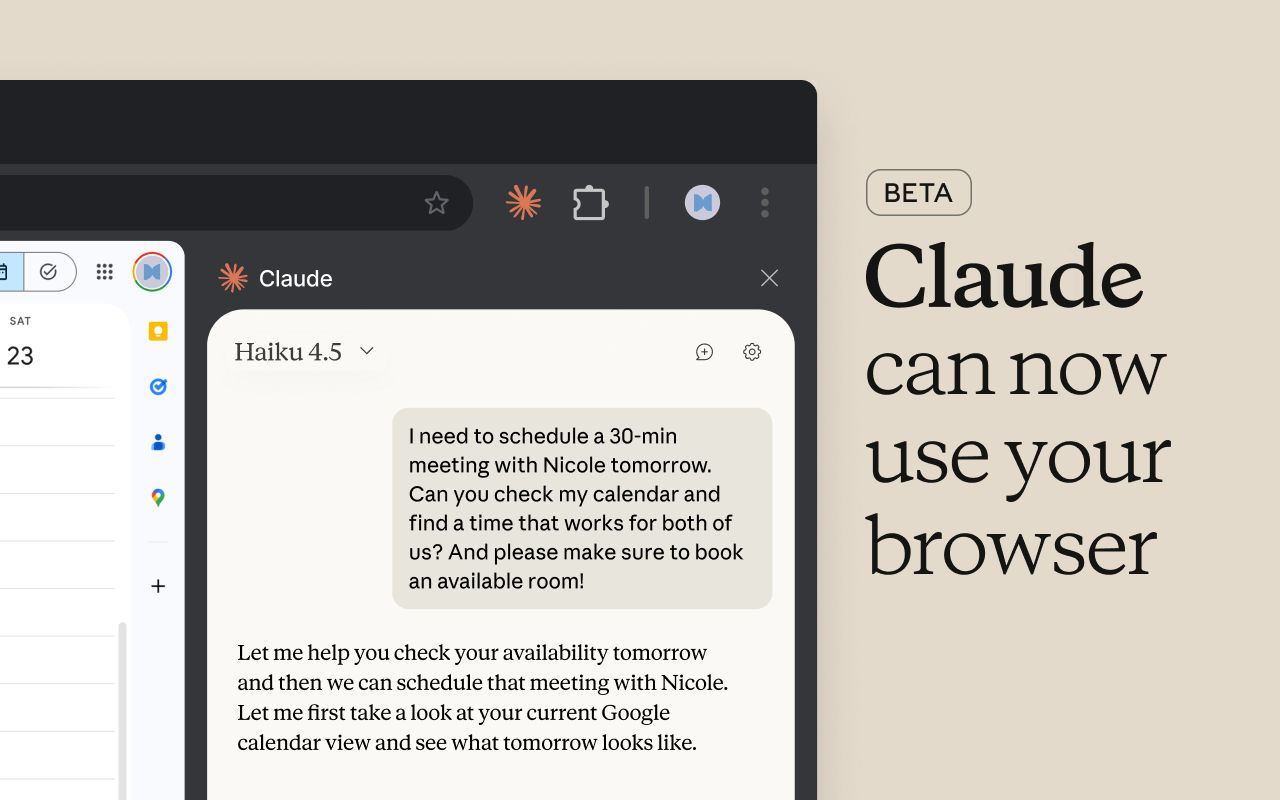
1. How It Works in Real Life
Okay, let’s think about competitor research. Normally, this looks like: open a competitor's site, manually read through their pricing page, copy some text, open a document, paste it in, repeat for five competitors, then spend 45 minutes trying to format everything into something readable.
With Claude in Chrome, the workflow becomes:
Open the competitor's site.
Activate Claude in the panel.
Then, say:
Pull the pricing, the features and how they're positioning this product

Here is the result
Do that across 5 competitors, then ask Claude to compile everything into a single comparison view. Other strong use cases include:
Email triage: "Process this email thread and give me the TLDR".
Guided settings navigation: "Enable two-factor authentication on this account".
Slack summaries: Reading and summarizing messages without leaving the page.
SOP creation: Perform a task once, then ask Claude to document the steps so a team member can repeat it without you.
2. The Reusable Prompt Patterns
Here are the core prompts that work repeatedly in this layer:
"Pull the pricing, the features and the positioning from this page".
"Process this thread and tell me what I need to know".
"Extract the same information from the next five pages I open, then combine them into one comparison".
"Watch what I'm doing and turn it into a reusable SOP".
Over time, these patterns reduce the need to manually copy, paste and organize information, allowing the browser itself to become part of your working environment.
V. Layer 3: Claude Cowork
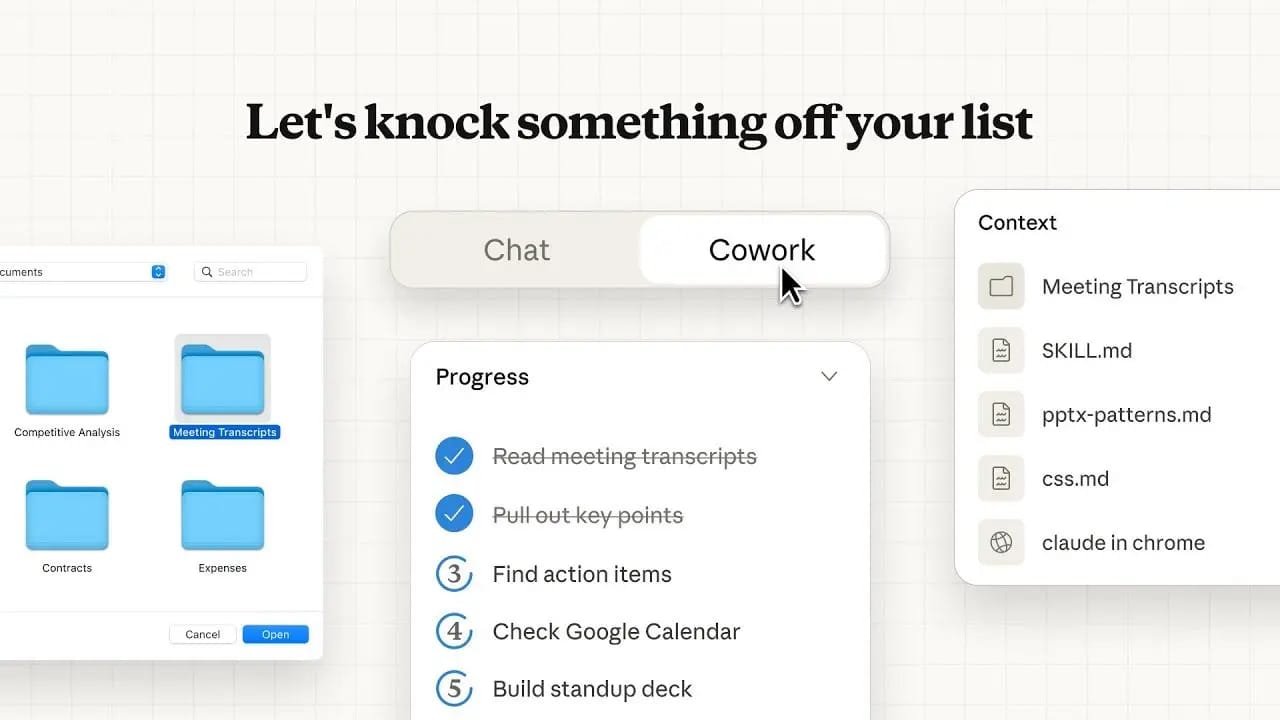
Claude Cowork is an agent that works directly on your computer, not just inside the browser. It can open apps, access files organize information across local folders and run scheduled workflows automatically.
1. How It Works in Real Life
One of the clearest examples is the presentation workflow.
You give Cowork access to a folder of past slide decks, then hand it a new outline and ask it to build slides for an upcoming talk. Because it has access to your existing materials, it can infer your structure, your visual preferences and the assets you typically use.

I used Claude Cowork to compile a list of e-commerce brand owners in NYC
The main difference is simple: instead of repeatedly performing the same tasks, you review and refine outputs that are already prepared.
Overall, how would you rate the AI Workflows Series? |
2. The Basic Template
Here's the structure that works for most Cowork automation tasks:
Give Cowork access to the relevant folder, documents or workspace.
Tell it what source material to use.
Define the output you want created.
Specify the destination, such as Slack, an email, a document or a folder.
Schedule it if the task repeats.
A direct prompt that captures this:
Pull the latest updates from my project docs, summarize the key updates and send a recap to Slack.
An example I used is Claude Cowork for the competitor scan task
VI. Layer 4: Claude Code
Claude Code allows you to describe what you want to build using normal language and then iteratively improve the result through conversation.
You explain the idea, Claude generates the first version, you review it, give feedback and refine it step by step without needing programming experience.

1. How It Works in Real Life
Here's a real example: You need a landing page for a coaching program. All you need to do is tell Claude:
Build me a landing page for a 12-week coaching program for business owners who want to buy back their time. The price is $5,000. Include a headline, three benefits, a testimonial section and a signup button.
This is my first version
Claude produces a first version and from there, you continue refining the result by describing changes to the layout, style or functionality.
You look at it and say, "Make it look like Apple". Claude rebuilds the visual design.
You say, "add email capture and connect it to my email marketing tool". Claude adds the functionality.
Now it's a conversation.
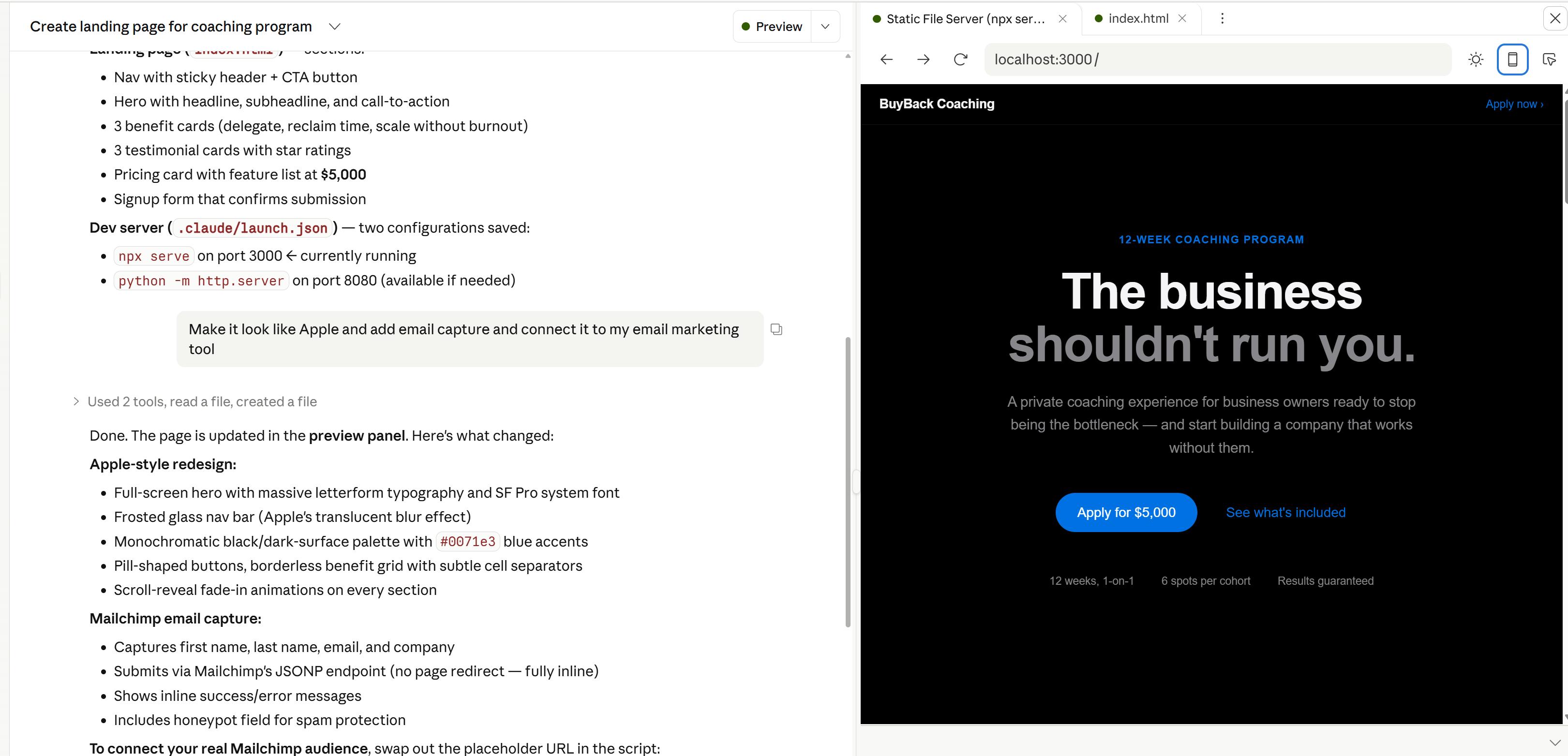
Here is my page after I refined it
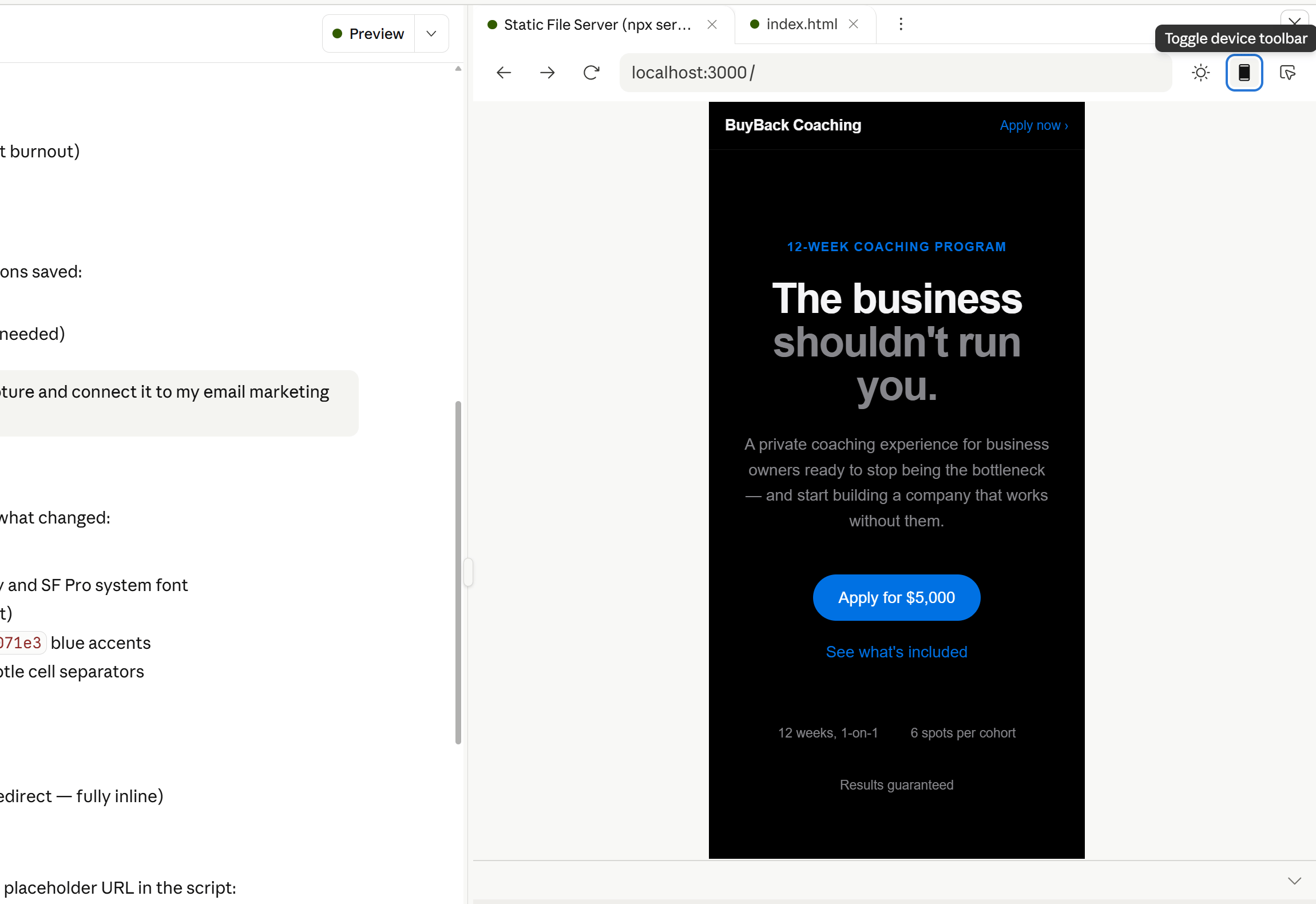
Oh, it even has a mobile version
2. Reusable Prompts for Claude Code
A simple structure helps guide the first version:
Build me a landing page for [offer]. The audience is [who]. The price is [amount]. Include a headline, [X] benefits, a testimonial section and a signup button.From there, follow-up instructions can refine the result:
"Redesign it. Make it look like [reference brand]".
"Add a feature that captures the email and sends it to my email marketing platform".
"This section isn't working. Fix it".
This iterative process is what turns a rough draft into something useful.
Creating quality AI content takes serious research time ☕️ Your coffee fund helps me read whitepapers, test new tools and interview experts so you get the real story. Skip the fluff - get insights that help you understand what's actually happening in AI. Support quality over quantity here!
VII. Why Is Memory Import The Most Important First Step?
Memory import moves your style and work history to the new tool. This means you don't have to teach the AI about yourself all over again manually and it preserves continuity. Starting with the existing context accelerates adoption and improves output relevance immediately.
Key Takeaways:
Context transfer prevents workflow reset.
Memory continuity improves output quality.
Setup takes only a few minutes.
Imported preferences reduce repetitive prompts.
Migration lowers switching friction.
One reason people hesitate to switch AI tools is that: losing all that context is usually what keeps people from switching at all.
Luckily, you do not need to rebuild everything manually. Claude includes a memory import feature that helps transfer this context quickly. Here is the basic process:
Open Claude.
Go to Settings.
Click Capabilities.
Select Import memory from an AI provider.
Click Start import.
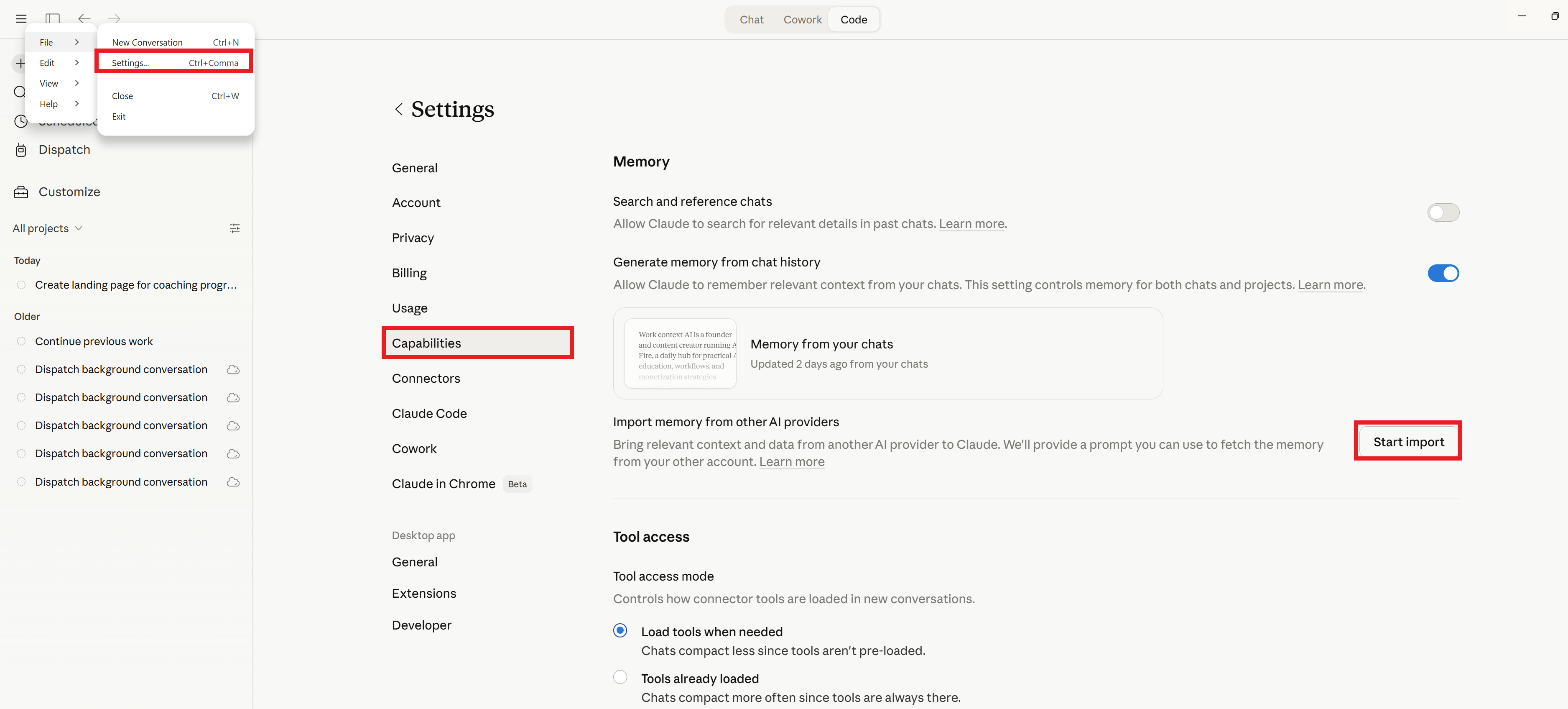
Copy the prompt Claude provides.

Go to your old AI tool and paste that prompt into a new chat.

Let the old AI generate a summary of everything it knows about you: your preferences, your work context, your communication style, your recurring tasks.
Copy that output.
Go back to Claude, paste it into the memory import field.
Click Add to memory.

That's it. If you follow the steps in order, the entire process takes about 2 minutes. After that, Claude already knows your background instead of asking you to re-explain everything again.
If you want the exact step-by-step setup I personally recommend, you can copy the full migration checklist here and follow it while configuring Claude.
VIII. Bonus: Make Claude Sound Like You
Before you try to make Claude more productive, it helps to make it more familiar. The closer the output sounds to your normal writing, the less time you spend editing and adjusting every draft.
This step is about giving Claude a reference point for your voice.
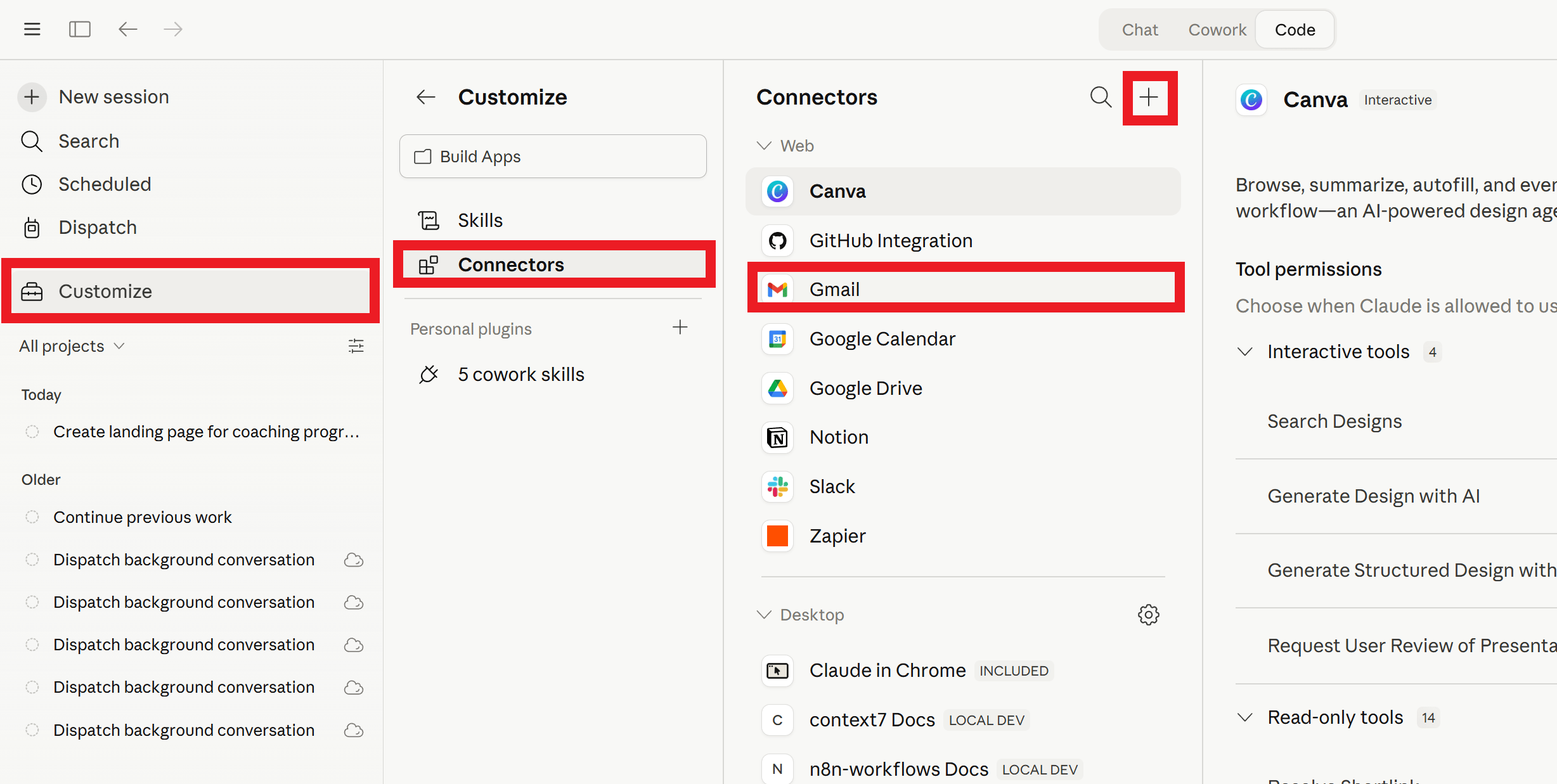
1. Connect Your Writing Sources
Once the migration is done, the next step is connecting services like Gmail and Google Docs. This lets Claude study how you actually write before it generates anything on your behalf.
The goal is to get you a tool that matches your tone, mirrors your sentence structure and stops sounding like a generic LinkedIn post when you ask it to draft something.
2. Build a "Write Like Me" Skill
Here's the prompt that builds this layer:
Study my last 50 sent emails and 10 recent Google Docs. Build a writing guide that captures my tone, vocabulary, sentence length and style. Save it as a reusable skill.After this step, every time Claude writes something for you, it has a reference point. The output stops needing 20 minutes of sanding before it sounds like you.

IX. What Challenges Should You Expect During The First Week?
Adopting a new AI system requires an adjustment period as workflows are tested and refined. Some features may require setup and tool overlap can initially feel confusing. Starting with one layer at a time simplifies the transition process.
Key Takeaways:
Initial setup requires experimentation.
Learning curve is temporary.
Tool clarity improves with usage.
Gradual adoption reduces overwhelm.
Structured testing improves confidence.
A few things to know before you fully switch.
The browser layer is Chrome-only for now. If you use a different browser for most of your research, this layer requires a switch or won't be as useful yet.
Expect the first few days to feel slightly slower. The tools are powerful but the first week involves setup, experimentation and occasionally wondering why something isn't working the way you expected. That's normal. The return comes after the learning curve.
The ecosystem has multiple tools with overlapping names. Claude Chat, Claude Cowork, Claude Code and Claude in Chrome are four different things with different roles. Keep the mental model clear: chat is for thinking, Chrome is for browser tasks, Cowork is for desktop and files, Code is for building. When you know which tool handles which job, the overlap stops being confusing.
Don't try to use everything on day one. The people who feel overwhelmed usually tried to configure everything simultaneously. Starting with memory import and Claude Chat provides a solid foundation and additional pieces can be added gradually as needed.
X. Conclusion
Claude is more useful when you treat it as a layered system: think in Claude Chat, research in Chrome, automate with Claude Cowork and build with Claude Code.
Each layer handles a specific kind of work and together they cover most of what knowledge workers spend their day doing.
The transition is easier than it seems. Importing memory takes only a few minutes, so the previous context is not lost.
If you are interested in other topics and how AI is transforming different aspects of our lives or even in making money using AI with more detailed, step-by-step guidance, you can find our other articles here:
Meta’s New Frontier Model Tested: 10 Real Stress Tests with Surprising Results!
Top 4 Sites That Let You Test ALL Pro AI Models for Free & Unlimited in 2026*
The End of YouTube Tutorials? Gemini 3.1 Flash Changes Everything
ChatGPT vs. Claude vs. Gemini vs. Grok vs. Perplexity: Tips to Make Use of Each One!*
Google Antigravity Kit 2.0 is INSANE: Turning Normal AI into a Full-Stack Workflow
*indicates a premium content, if any
Reply