- AI Fire
- Posts
- 🤯 Stop Paying for These: 12 Free AI Tools to Replace Paid Ones in 2026 & Forever
🤯 Stop Paying for These: 12 Free AI Tools to Replace Paid Ones in 2026 & Forever
Stop falling for “14-day trial” traps. Here are 12 free AI tools that do real work (writing, research, visuals, and automation).

Max Anh
January 05, 2026
TL;DR BOX
There are free AI tools in 2025 that can replace paid apps if you avoid the fake “free trial” stuff. Key highlights include Napkin AI for instant text-to-visuals, NotebookLM for deep research and audio overviews and n8n for advanced, self-hosted automation that acts as a free alternative to Zapier.
This list bypasses "freemium" traps to focus on tools that provide genuine, full-featured utility. Highlights include Google's experimental Pomelli for social media campaigns, Wispr Flow for high-quality voice-to-text and Goblin.tools for breaking down overwhelming projects into manageable steps.
For power users, ChatHub allows simultaneous comparison of multiple AI models, ensuring the best result for any specific task.
Key points
Fact: Napkin AI gives 500 AI credits/week on the free plan, which is plenty for weekly visuals.
Mistake: Paying for tools like Zapier before trying n8n. Its Community Edition is a powerful and free alternative.
Action: Use Wispr Flow to dictate emails or notes in real-time, as its AI-driven cleanup removes filler words more effectively than standard transcription tools.
Critical insight
The most valuable AI tool free options in 2025 are those that reduce "friction", the cognitive load and time wasted switching between apps to perform simple tasks like summarizing a meeting or designing a social post.
🥨 Tired of "Free" AI tools that are actually expensive traps? |
Table of Contents
I. Introduction: The "Free" Trap
Let’s be honest: so many "free AI tools" lists are basically scams.
You click, sign up, then boom: "14-day trial before we charge you $29/month". You get hit with a trial wall. Or the free version is so weak that it is basically a calculator that can only do addition.
But what if there were legitimately powerful free AI tools that are completely free? These are not "freemium" traps. They are real, helpful tools you can use right now without a credit card.
So I made a list of tools that are actually usable for free. Maybe it’s not perfect but it’s real. One of them is literally named after a snack (we will get to that) and it is a game-changer for visuals.
Here is the breakdown of all 12 tools, exactly how they work and how you can use them to save hours of work today.
II. Tool 1: Google Workspace Studio (Your Personal Google Robot)
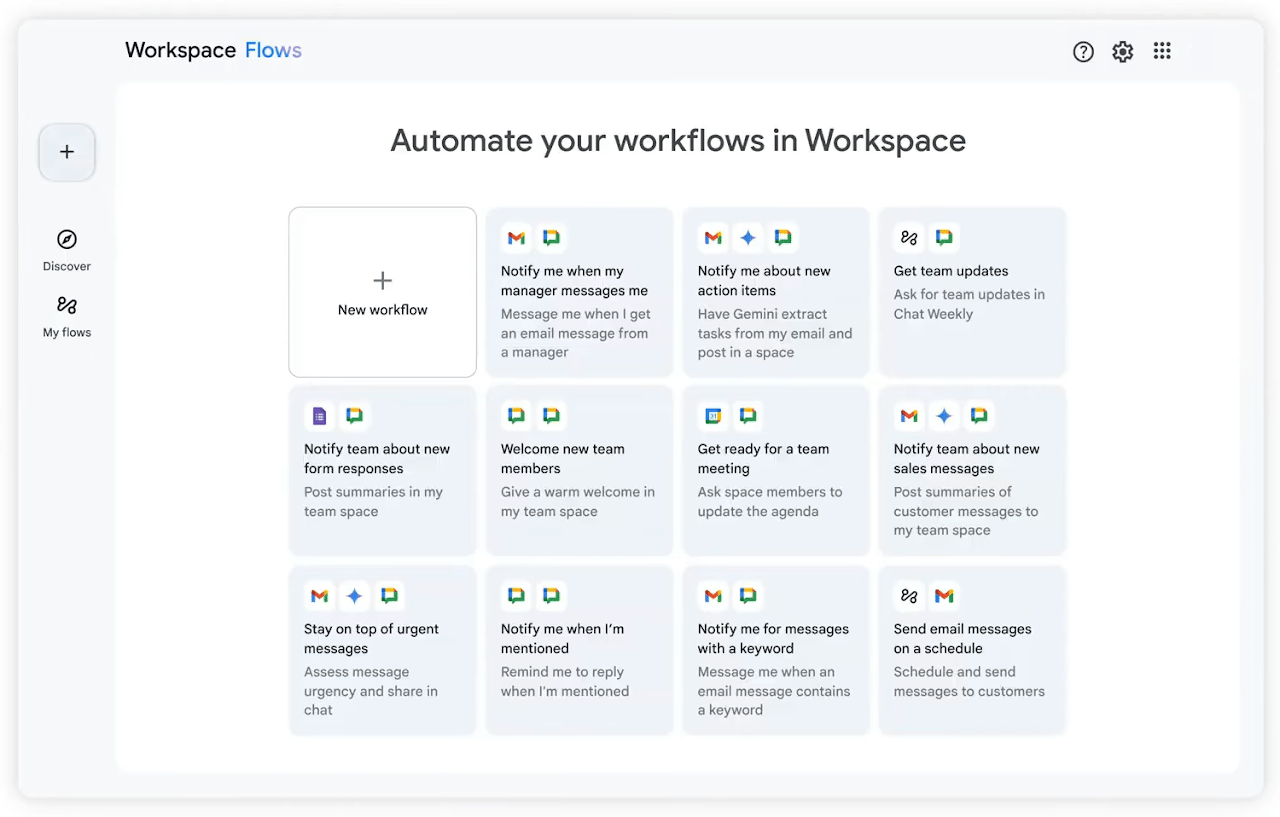
This tool is an automation builder that connects your entire Google life (Gmail, Calendar, Docs, Drive and Meet).
Why It Matters
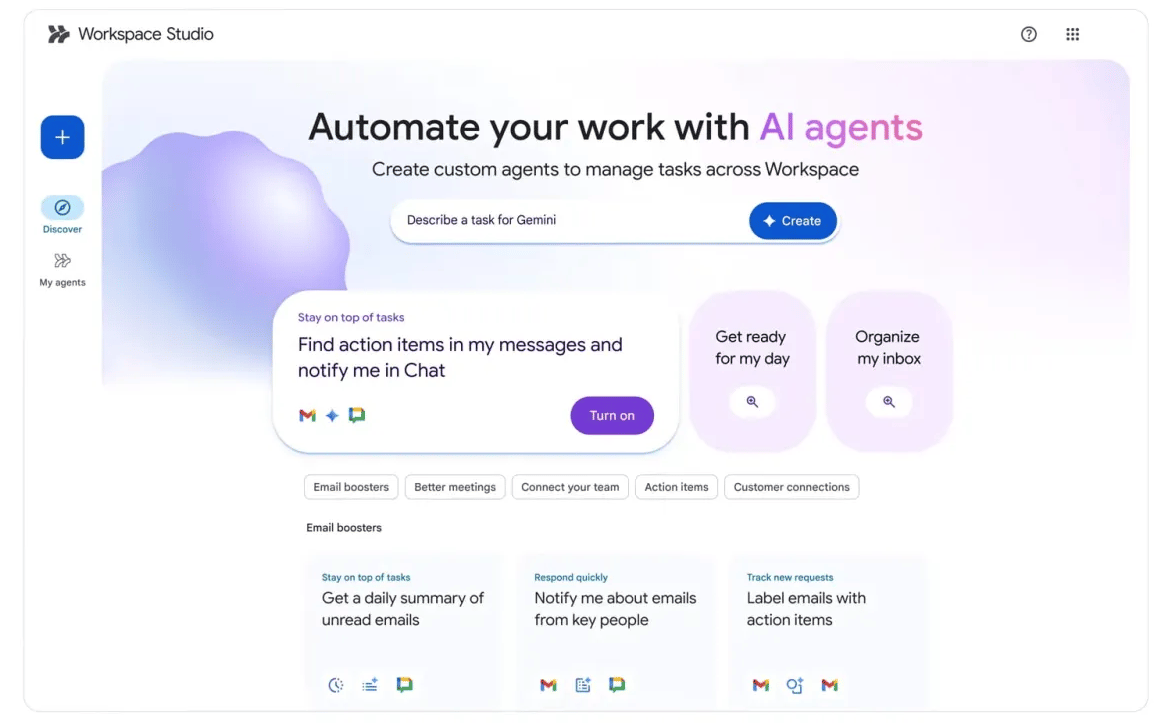
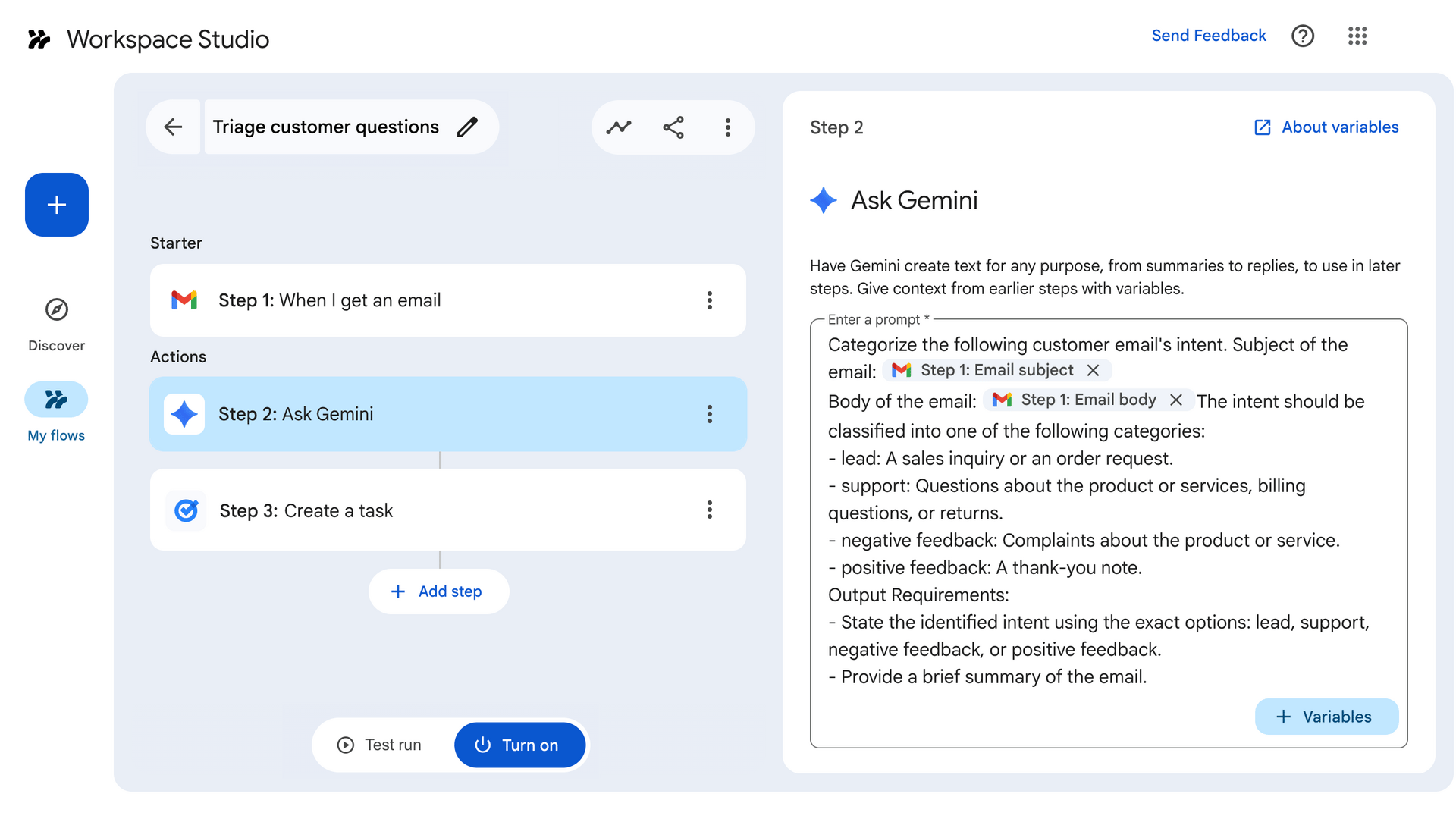
Instead of manually switching between apps and copy-pasting stuff like a robot, you can build workflows that do it for you. You do not need to be a coder. You just describe what you want and Gemini builds it as a standard AI tool free feature.
How It Works in Real Life
Connect your tools: Link your Google apps.
Describe the automation: Type something like "Notify me in Google Chat when I receive an email from a VIP client".
Let AI build it: Gemini sets up the triggers and actions.
Activate it: Turn it on and forget about it.
Real-World Use Cases
Daily Digest: Get a summary of unread emails sent to your chat every morning.
Meeting Notes: Automatically create a Google Doc with action items after every calendar meeting.
Receipt Tracker: Auto-log receipts from Gmail directly into a Google Sheet.
Note: You need to be in the Google ecosystem for this. If you are an Apple or Microsoft loyalist, this one isn't for you.
This is a Google Labs experiment that generates entire on-brand social media campaigns in seconds.
Why It Matters
Normally, you do everything by hand. You upload logos, choose fonts, match colors and even design each post one by one. It’s slow and boring.
Pomelli skips all that. You give it your website and it figures out your "brand DNA" automatically (fonts, colors, tone, overall look). It builds a rough “brand brain” without you setting anything up.
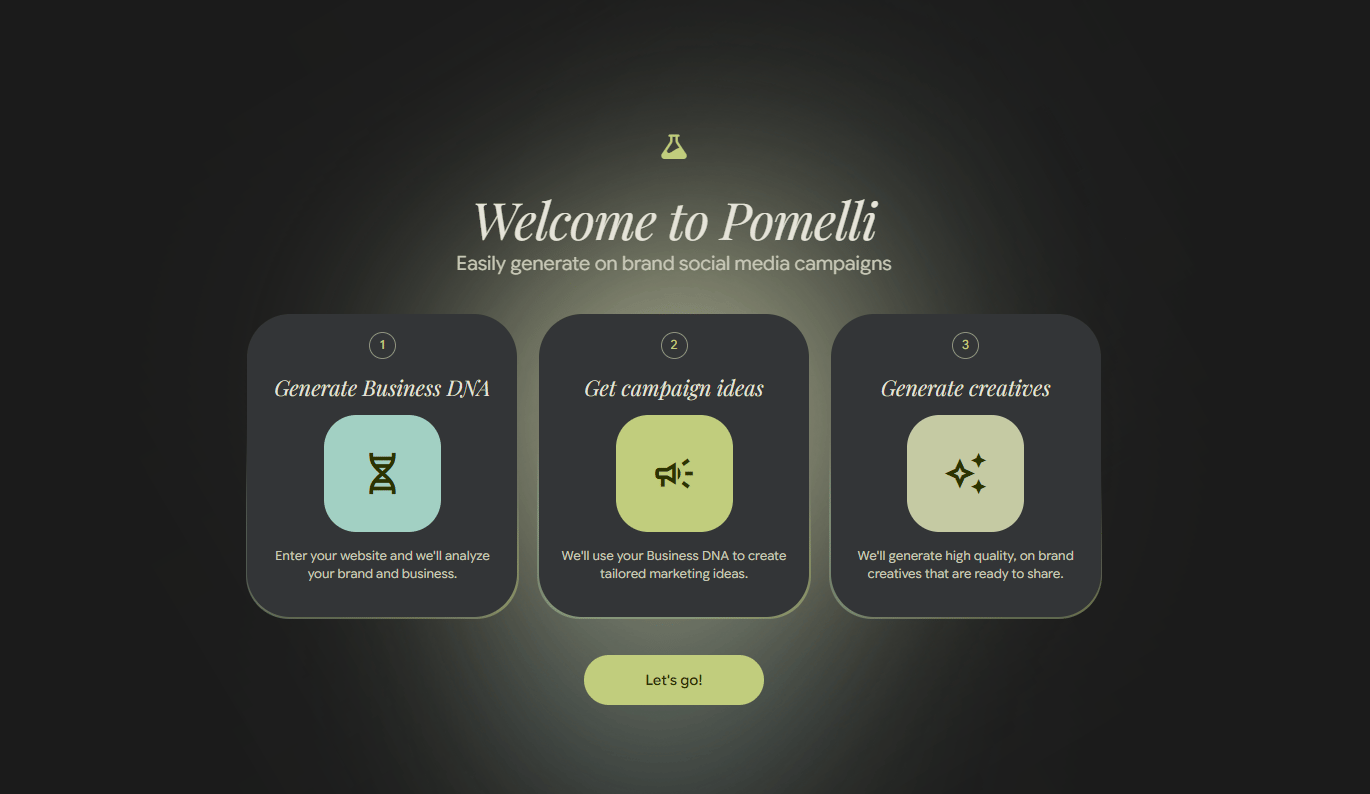
How to Use It
It is very easy to start: just paste your website URL.
From there, Pomelli does the heavy lifting:
It scans your site and picks up your colors, fonts and visual style.
It suggests campaign ideas, like a seasonal sale or a product launch.
After you pick an idea. It could generate a whole series of graphics in your brand style.
Finally, you can edit the text or images and download everything. You go from zero assets to a full campaign without touching a design tool.
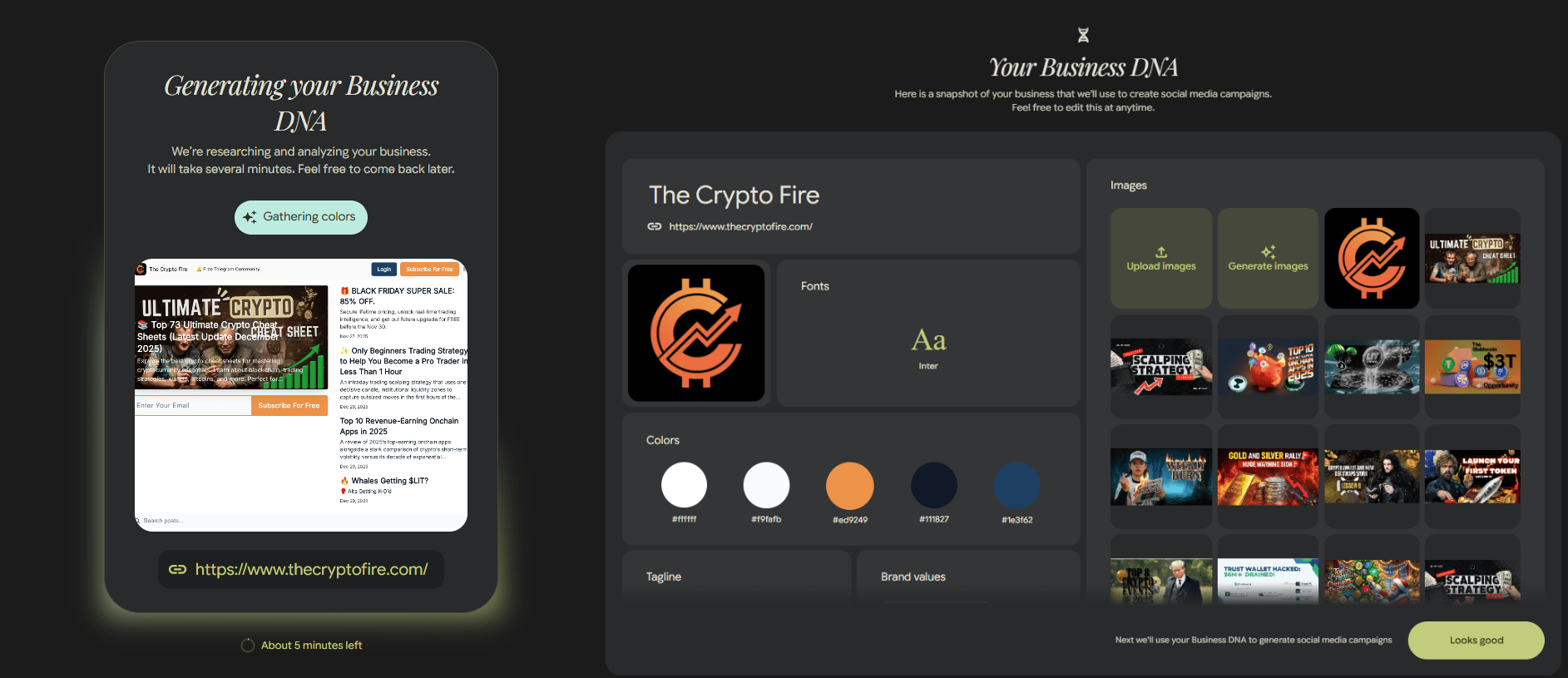
Generated Business DNA.
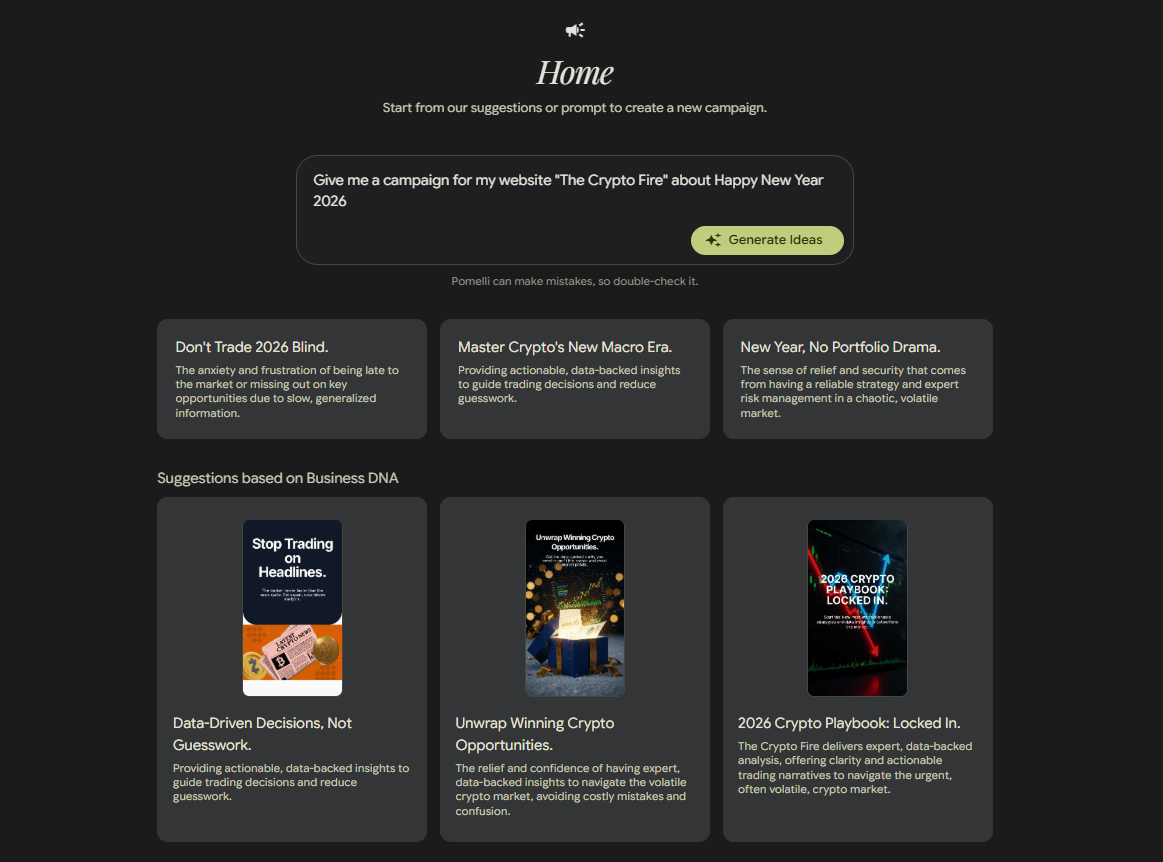
Get Campaign Ideas.
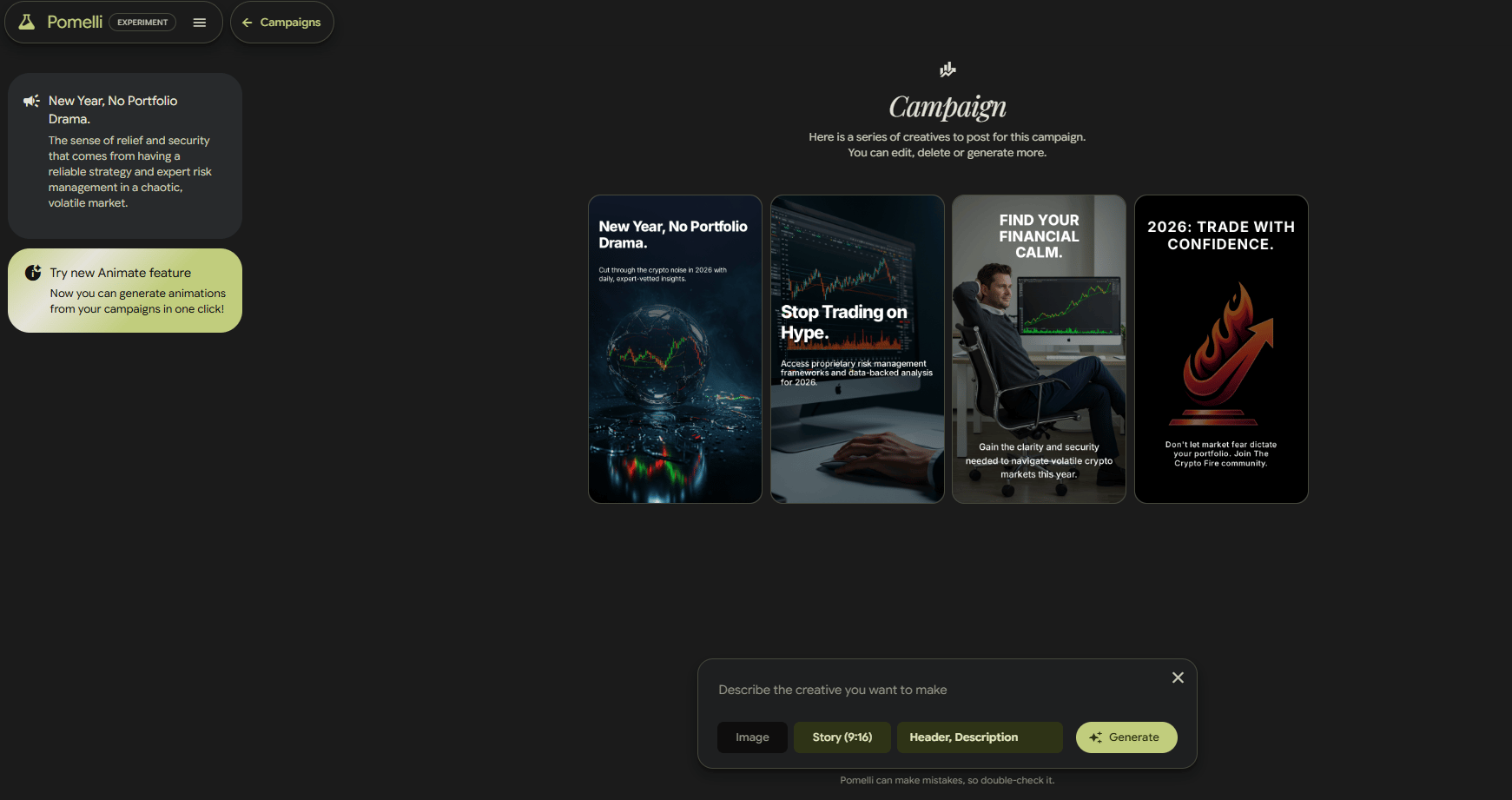
Generate Creatives.
Pro Tip: This is great when you need speed. Think New Year promos, Black Friday, product launches or any moment where you need 10-15 visuals fast and consistent.
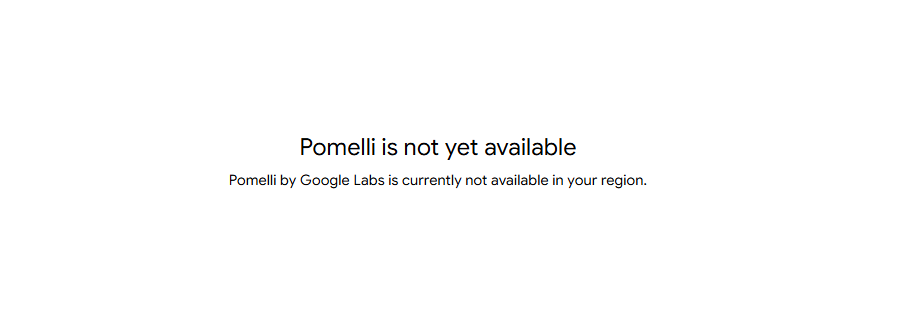
Small Note: Pomelli is still in public beta. As of December 2025, it only works in the US, Canada, Australia and New Zealand.
It’s not perfect yet but for quick campaigns, it saves hours and removes a lot of friction.
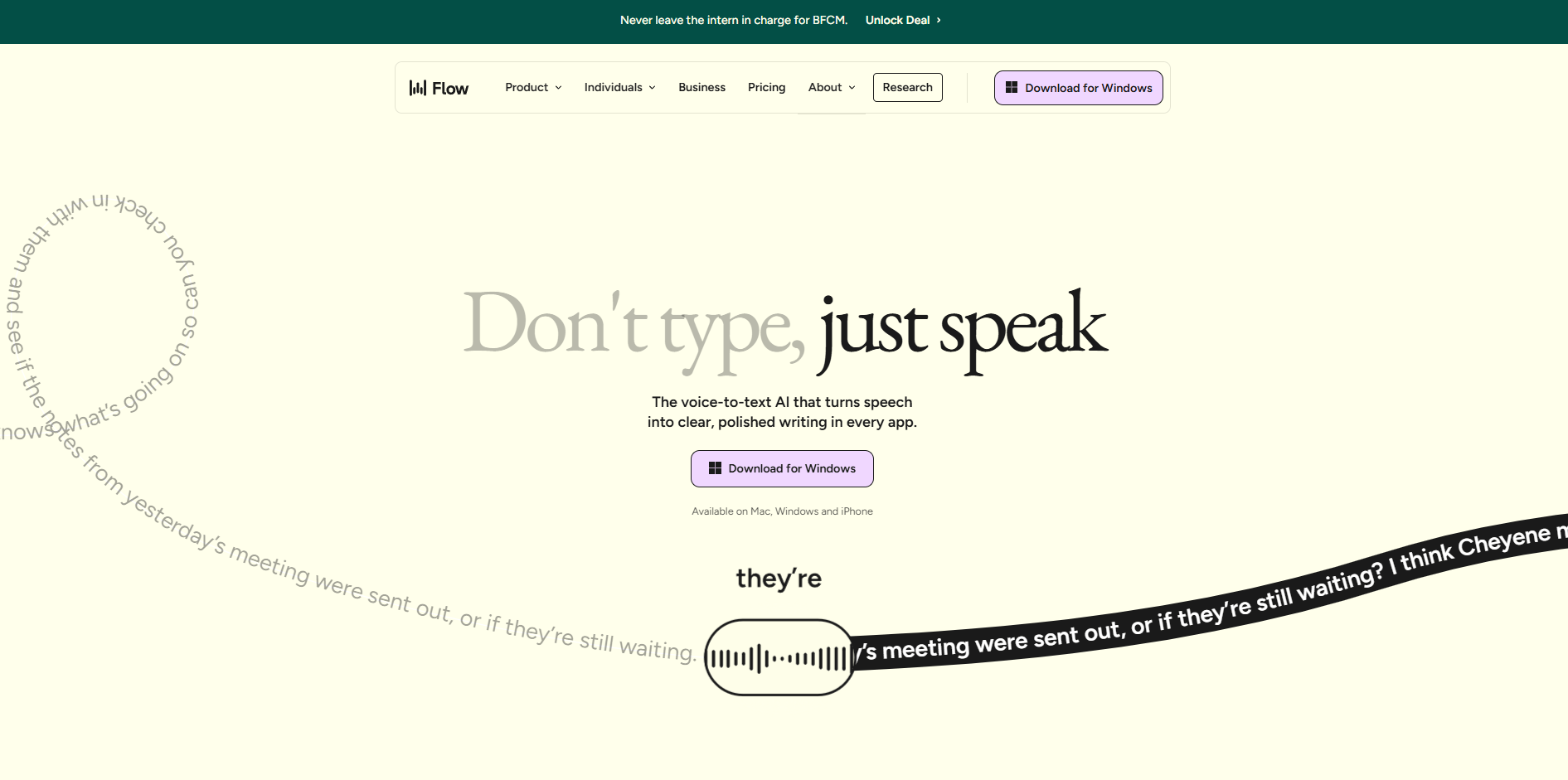
IV. Tool 3: Wispr Flow (Voice-to-Text That Actually Works)
Most voice-to-text tools (like Siri) sound rough. They capture every “um,” every pause, every half-thought. You end up spending more time fixing the text than typing it yourself.
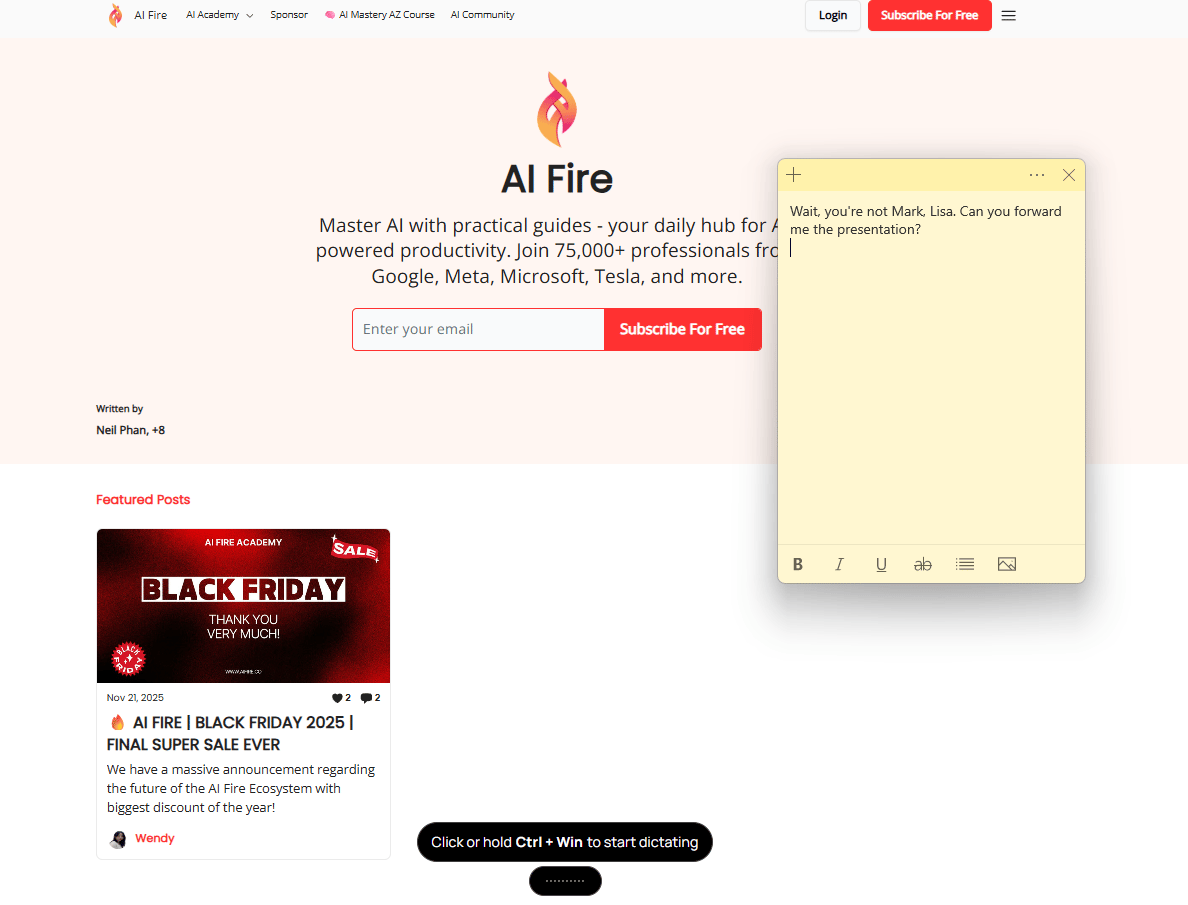
Wispr Flow is different. You speak normally and it turns your words into clear text without any filler words or awkward phrasing. It sounds like you actually sat down and wrote it.
How It Works
Getting started is simple:
You don’t have to slow down or “talk like a robot.” All you have to do is speak.
The Real Value
I used this for "brain dumps" while walking. You can dictate entire emails or notes without touching a keyboard. Once you start using this, typing feels painfully slow.
Pricing: The free plan gives you about 2,000 words per week on desktop, which is more than enough for notes, messages and a few longer drafts.
If you think better out loud, this tool quietly changes how you work.
Learn How to Make AI Work For You!
Transform your AI skills with the AI Fire Academy Premium Plan - FREE for 14 days! Gain instant access to 500+ AI workflows, advanced tutorials, exclusive case studies and unbeatable discounts. No risks, cancel anytime.
V. Tool 4: NotebookLM (The Ultimate Research Assistant)
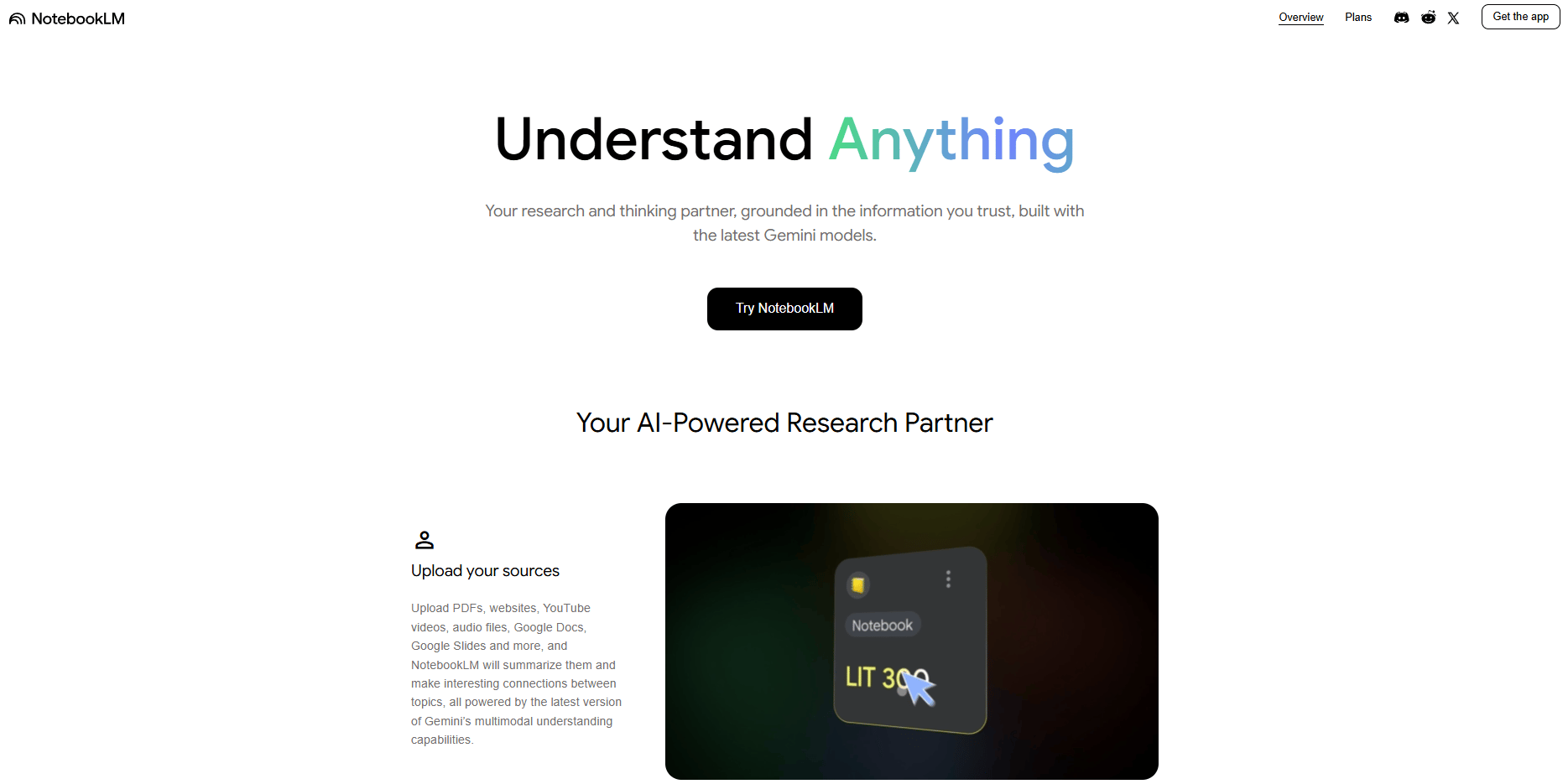
NotebookLM is Google’s AI tool free for people who deal with too much information and don’t want to drown in it.
Why It Matters
Normally, research is messy: PDFs here, docs there, links everywhere, videos you “plan to watch later.”
With NotebookLM, you dump everything into one place (PDFs, Google Docs, web pages, even YouTube videos) and it reads all of it for you. Then it connects the dots and answers questions based only on your material.
You’re not guessing anymore. You’re working from what’s actually there.
What You Can Do With It
Audio Overviews: It can turn your documents into a short AI “podcast” where two voices explain the key ideas. It sounds surprisingly real and makes long material easier to absorb.
Study Guides: You can take a 50-page PDF and turn it into a short briefing, FAQ, timeline or checklist in seconds.
Slide Decks: This is a great feature. You can upload your research and ask the AI to make a presentation. NotebookLM builds a clean slide deck using real facts from your sources, not made-up filler.
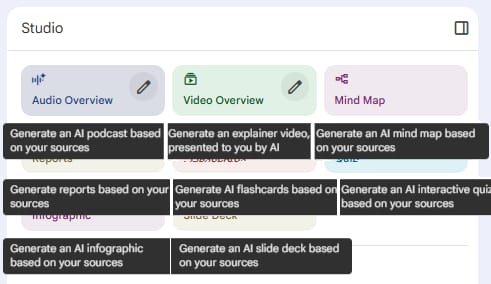
Why do people underrate it? I think most tools help you write faster. But NotebookLM helps you understand faster. It feels like having someone who has already read everything and can explain it back to you clearly, whenever you ask.
This tool is a hack, seriously. You never have to worry about made-up answers, because NotebookLM only responds using the documents you give it. Nothing else. On top of that, with the Nano Banana Pro integration, any images it generates come out clean and accurate.
If you want to go deeper, I already broke down how to master NotebookLM properly in a previous post.
If you research, teach, plan or think for a living, this tool quietly becomes hard to replace.
VI. Tool 5: Granola (Meeting Notes That Don't Suck)
Most meeting tools give you a long transcript and call it a day. You scroll once, get tired and never open it again. Granola does something smarter.
How It Works
Once you set it up, it handles meetings on its own:
Connect your calendar. It knows which meetings are coming up.
Join automatically. It jumps into your Zoom or Google Meet calls.
Do the hard part for you. After the meeting, you get clean, structured notes instead of a text dump.
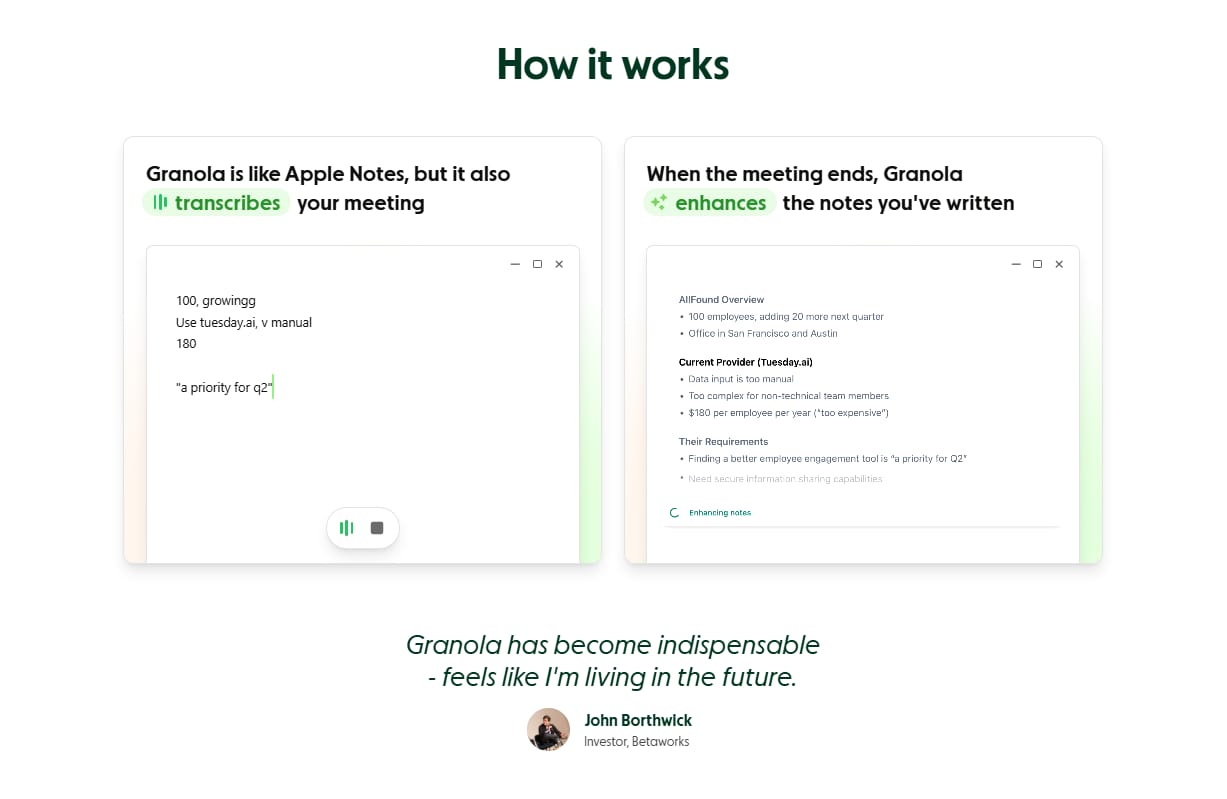
You’ll see:
A clear summary
Action items
A draft follow-up email you can send right away
You don’t have to dig or rewatch recordings anymore.
Custom Recipes
Granola lets you choose how notes are organized based on the meeting type.
For example:
Sales calls: pulls out pain points, objections and next steps
Team standups: highlights blockers, updates and decisions
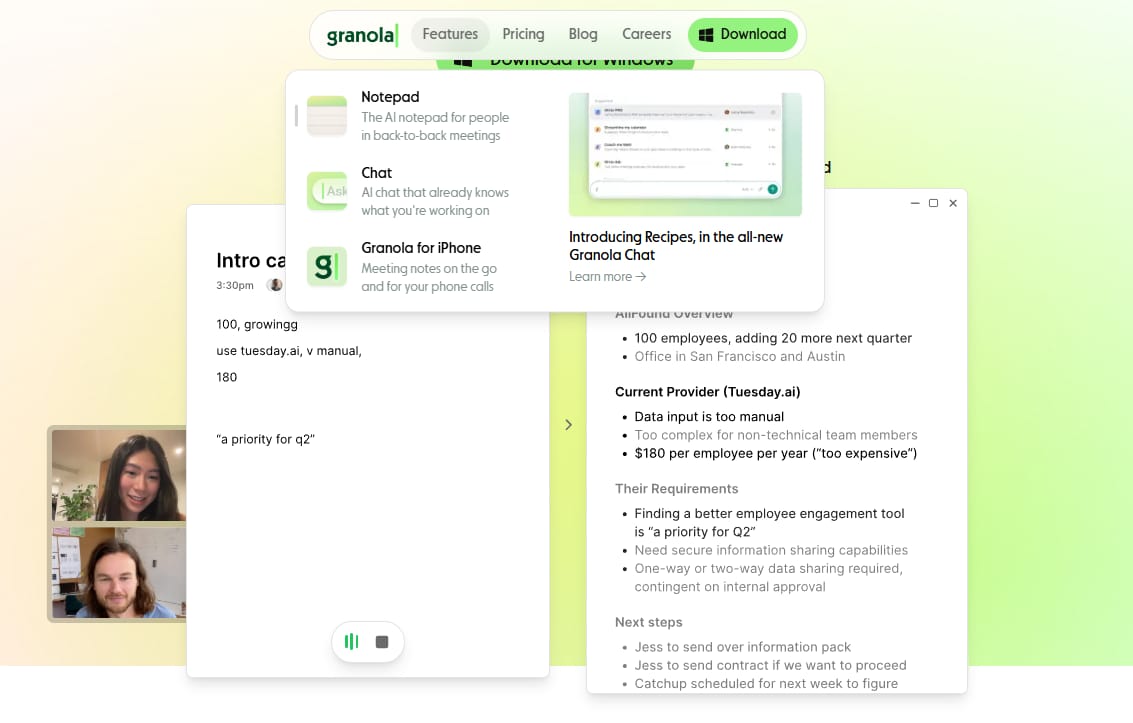
This matters because not all meetings need the same notes. Granola adjusts the output to match what you actually care about.
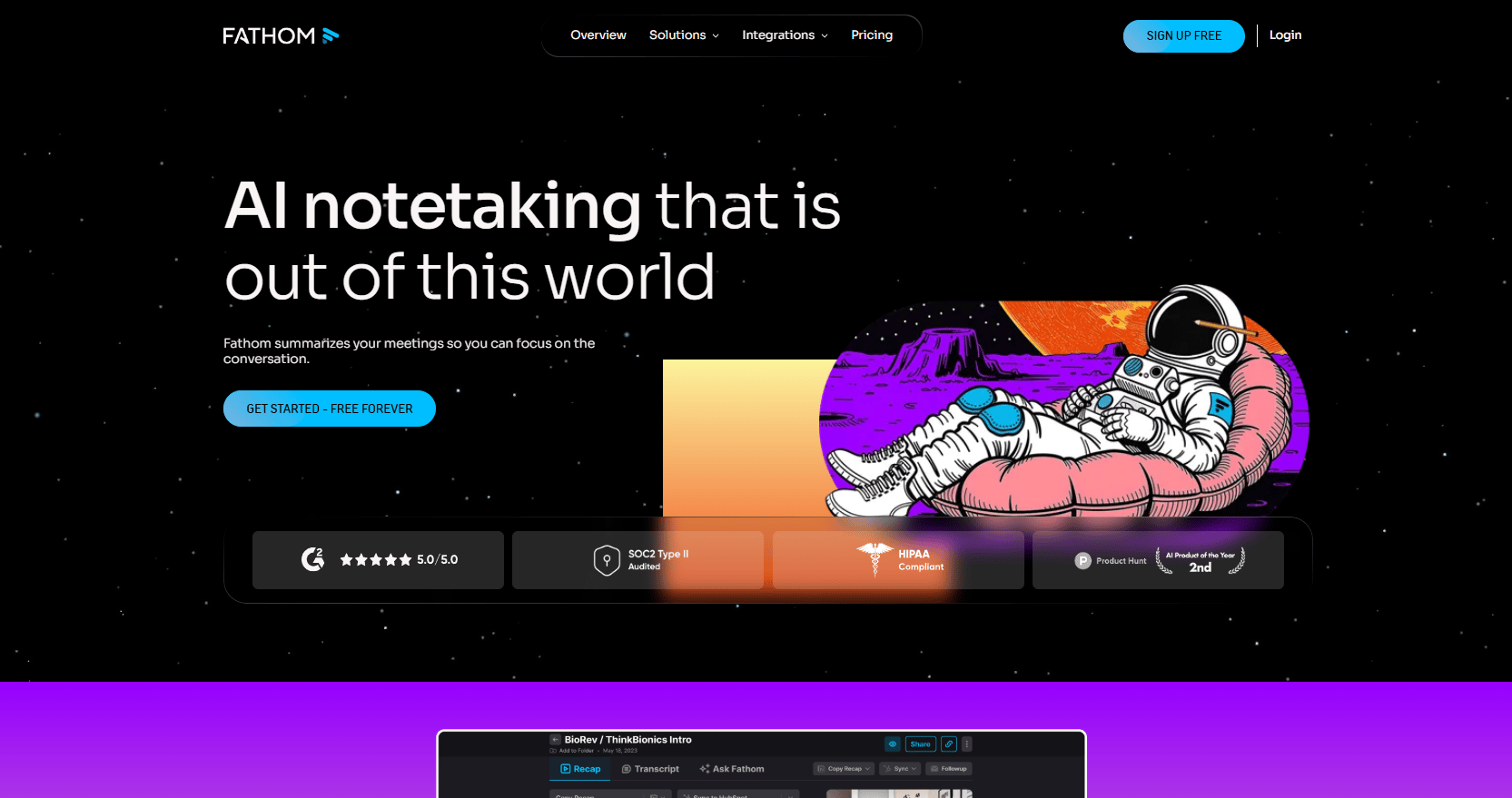
Note: Granola is currently Mac-only. If you’re on Windows, a decent free alternative is Fathom. If you sit in meetings all day, this turns “What did we decide?” into a problem you stop having.
VII. Tool 6: Goblin.tools (For When You Are Overwhelmed)
This tool was built for neurodivergent users but honestly, it’s useful for anyone who feels stuck, overwhelmed or frozen by a big task. It’s not about speed. It’s about getting moving again.
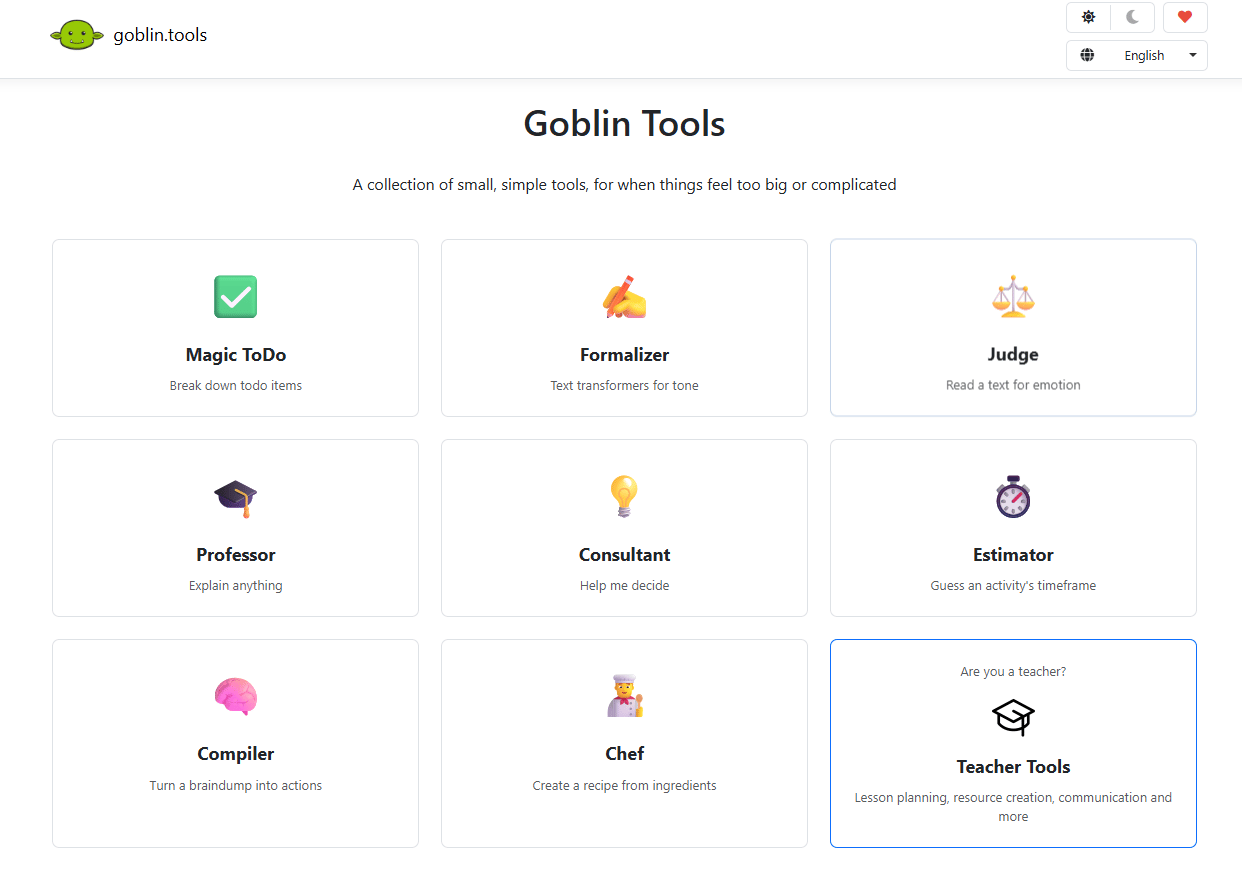
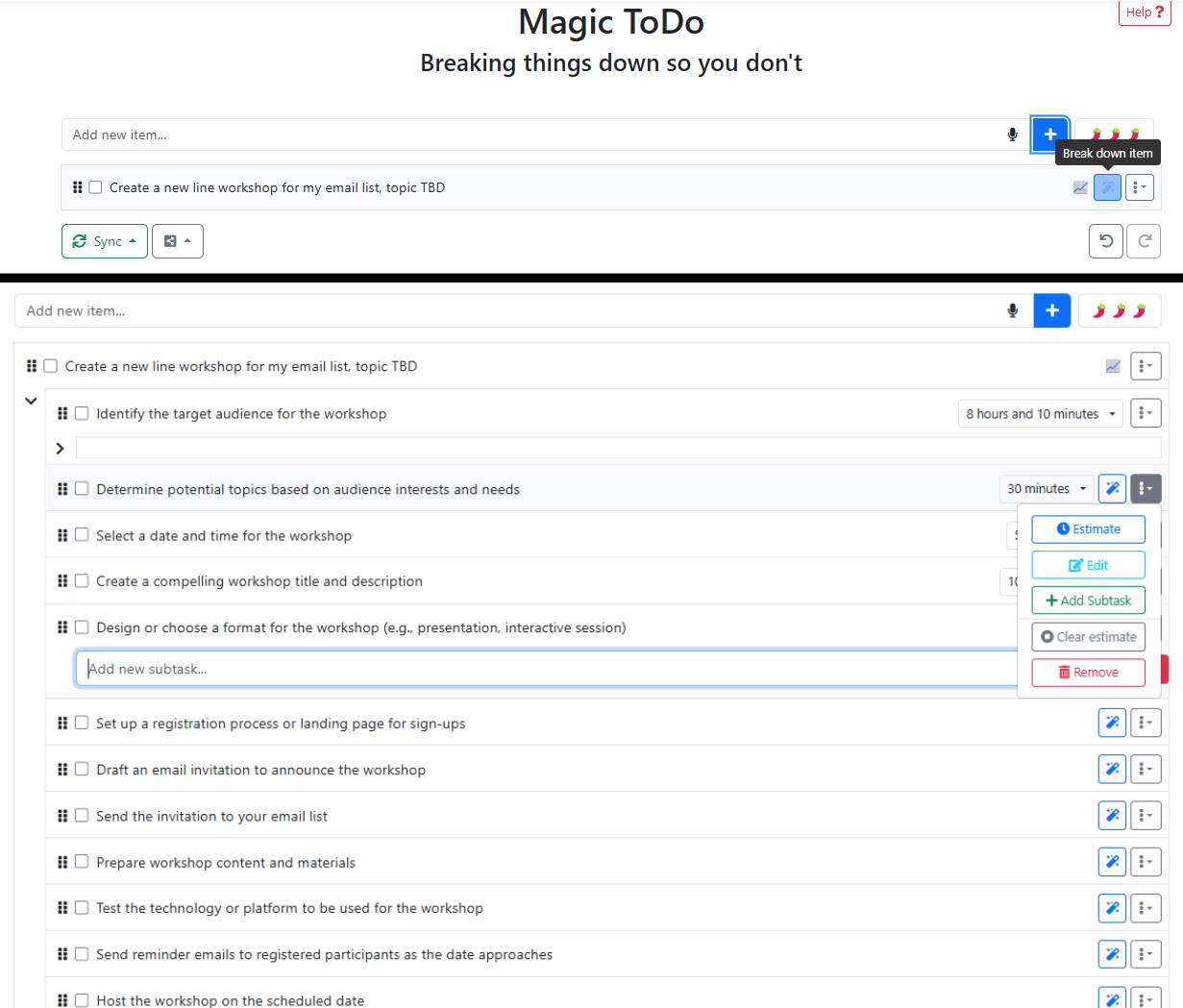
The "Magic ToDo" Feature
You type in a big, scary task, like: “Create a new workshop for my email list, topic TBD.”
Goblin.tools immediately breaks it into clear, doable steps without guessing or planning spiral.
You’ll see things like:
Define the topic (30 mins).
Outline content (1 hour).
Create slides (2 hours).
Each step is small and easy to do. This makes the big task feel much simpler.
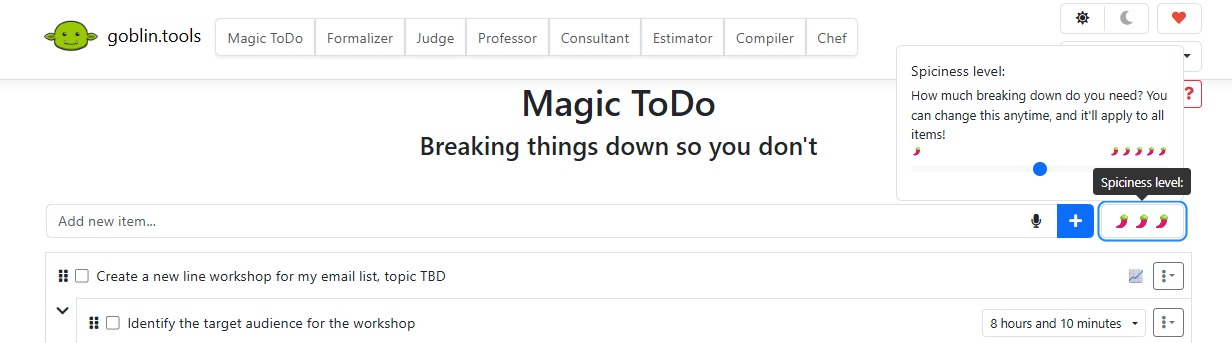
The "Spicy" Slider
This is the secret weapon. There’s a slider that controls how detailed the breakdown gets. Turn it up and one step becomes several tiny ones. Turn it down and you get a higher-level plan.
When your energy is low, more detail helps. When you’re focused, less detail is enough. You adjust it based on how your brain feels that day.
Why does it work? Sometimes you don’t need motivation or advice. You just need someone to tell you, “Do this next.” Goblin.tools does exactly that. It feels like a calm project manager sitting next to you, helping you take the next step without judgment.
VIII. Tool 7: MyMap.ai (Ideas Into Diagrams)
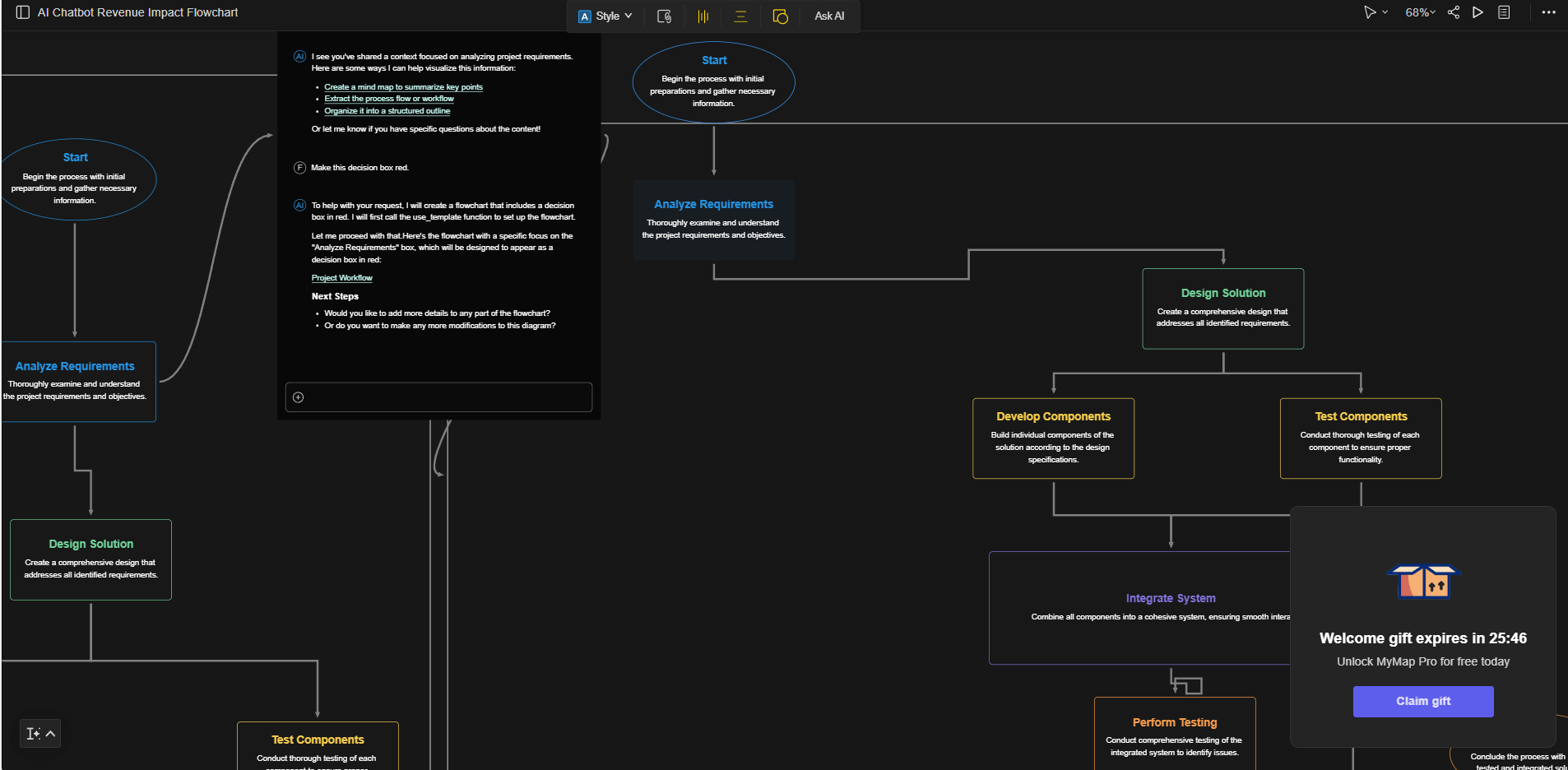
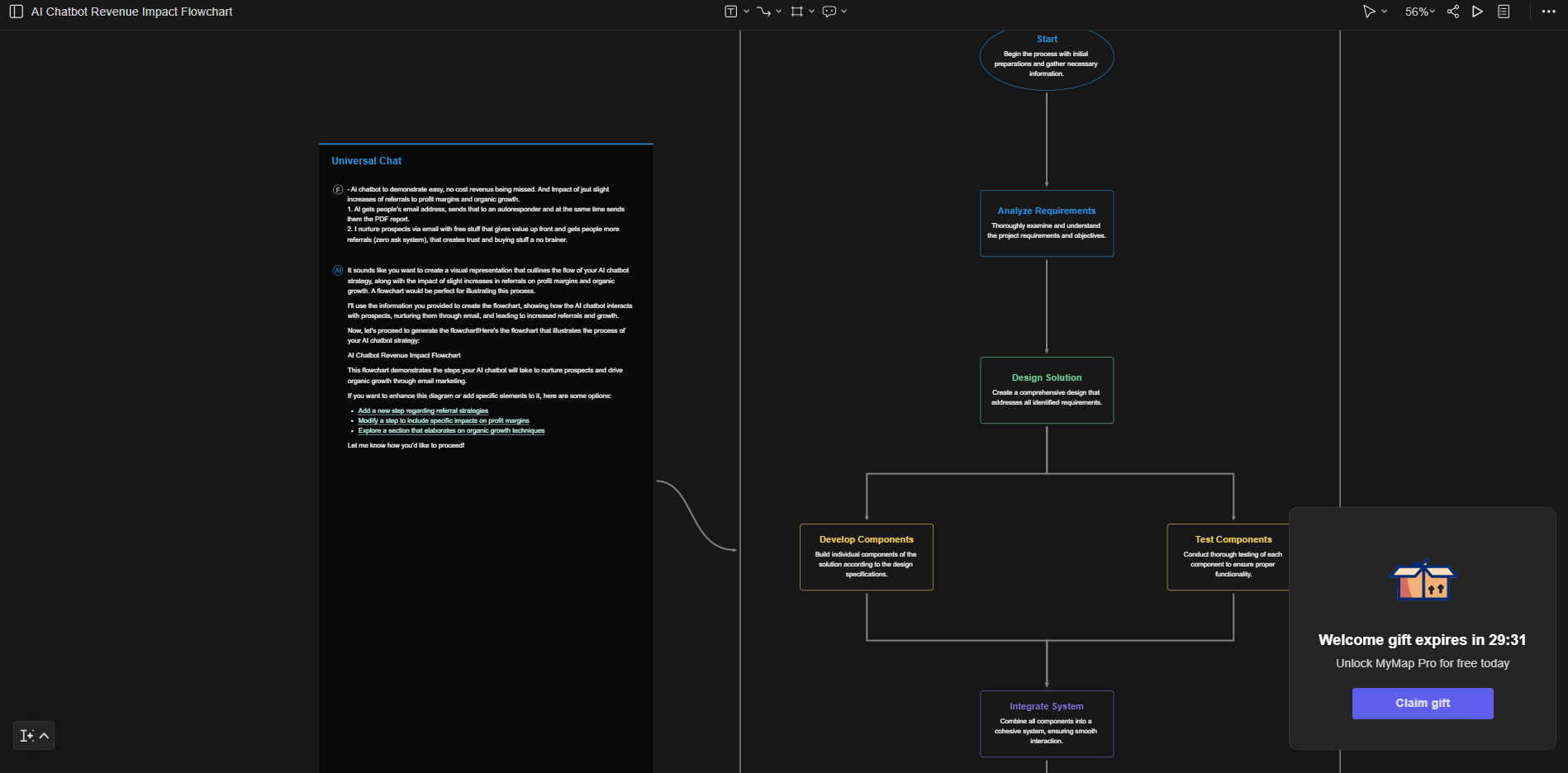
Some ideas make sense in your head but fall apart when you try to explain them. MyMap.ai fixes that by turning text into diagrams you can actually point to.
How It Works
You don’t need design skills or diagram software.
Pick a format. Flowchart, mind map, matrix or presentation.
Describe the idea. For example: “Show how a lead becomes a customer.”
Get a visual. The tool creates a clean diagram with arrows, steps and decisions laid out clearly.
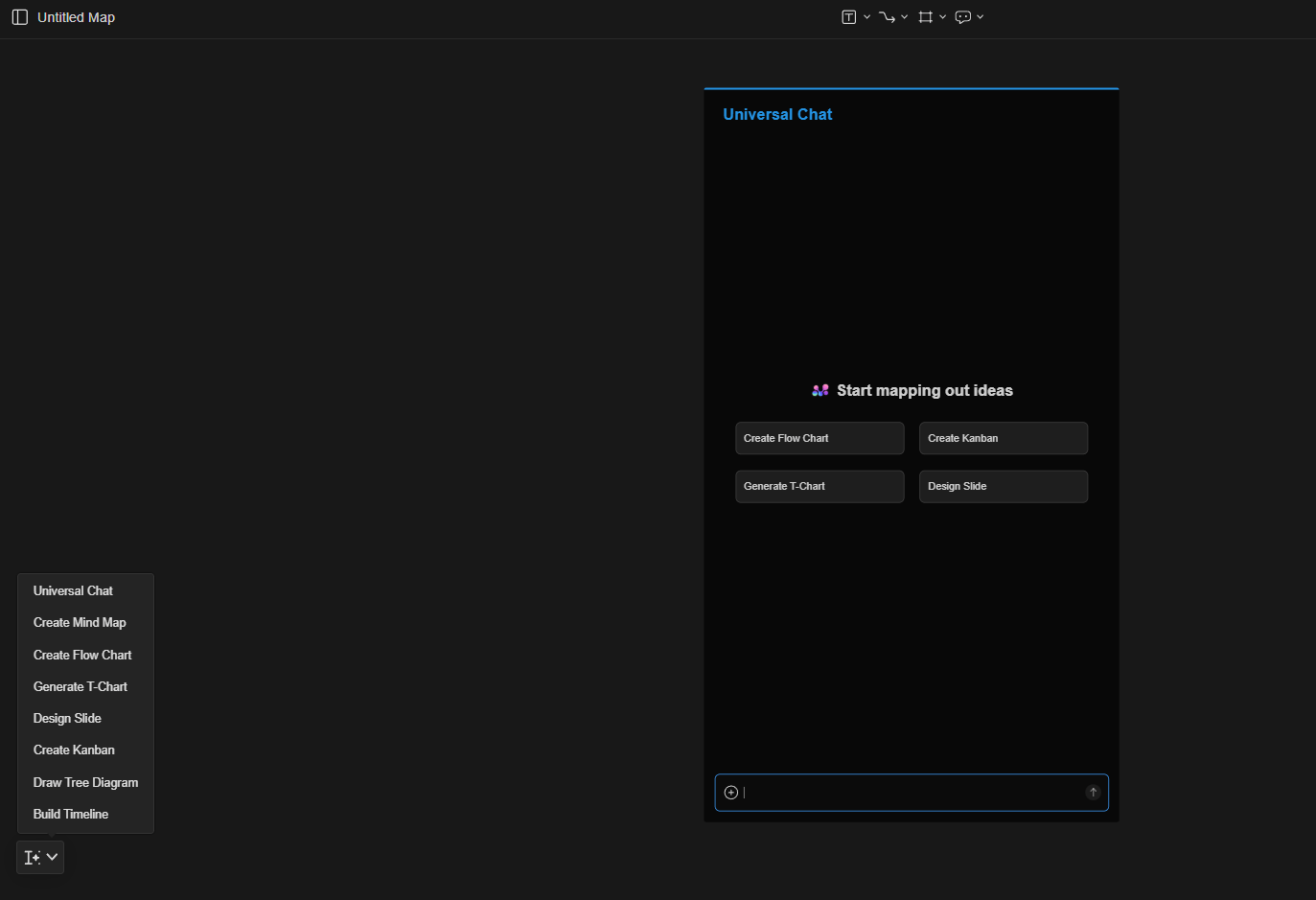
After that, you can talk to it like a teammate:
“Make this decision box red.”
“Add a step between these two stages.”
The diagram updates right away.
When This Is Useful
This shines when you need clarity fast:
Onboarding docs for new hires.
Sales funnels and customer journeys.
Explaining complex processes to a team or client.
Instead of long explanations or messy slides, you get one visual that makes everything click.
IX. Tool 8: Napkin AI (The Snack-Named Tool)
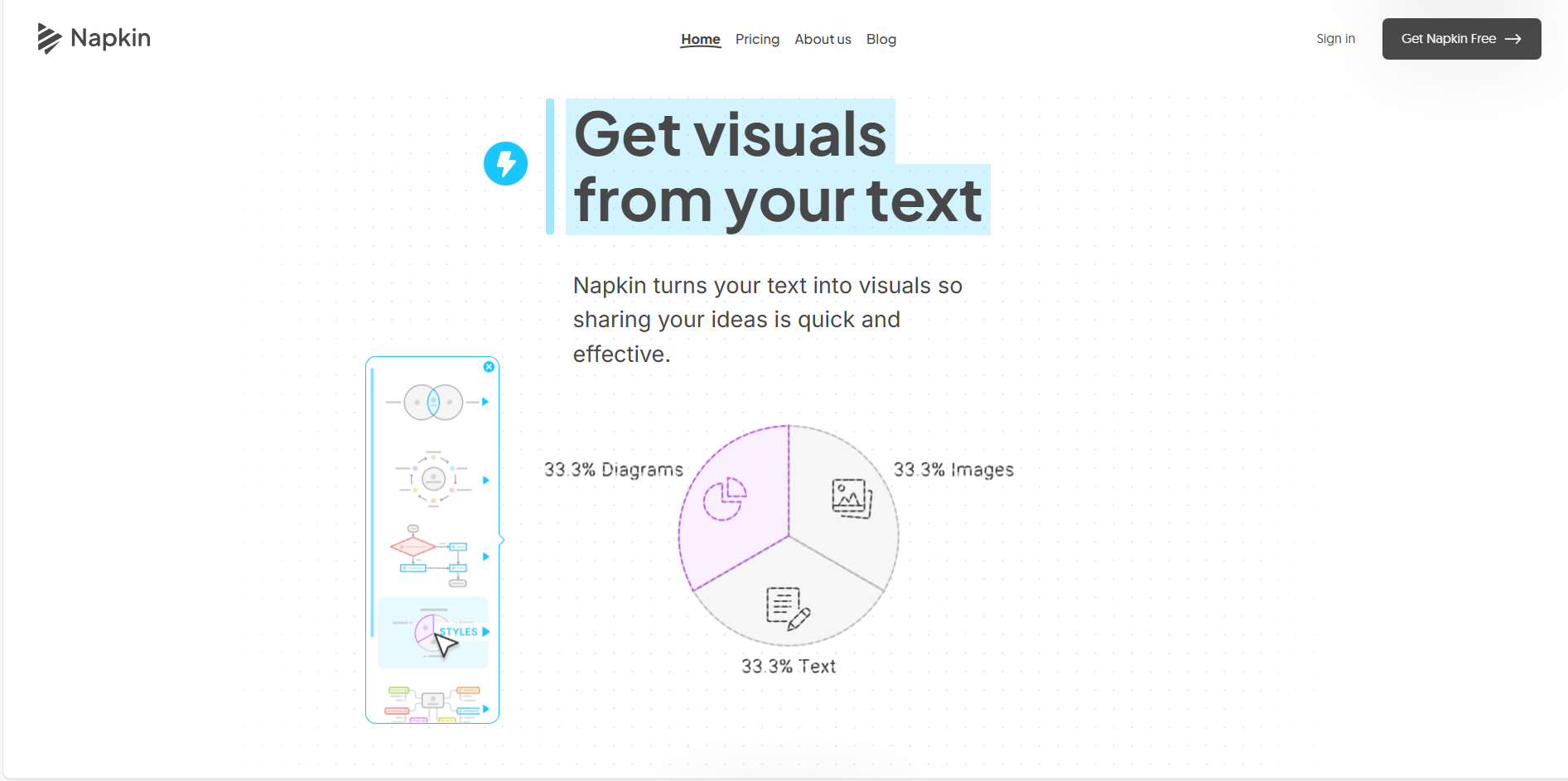
The name sounds playful but this tool is serious. Napkin AI turns plain text into visuals faster than almost anything else out there. If Canva feels slow or heavy, this feels like a shortcut.
Why It Is A GOAT Tool
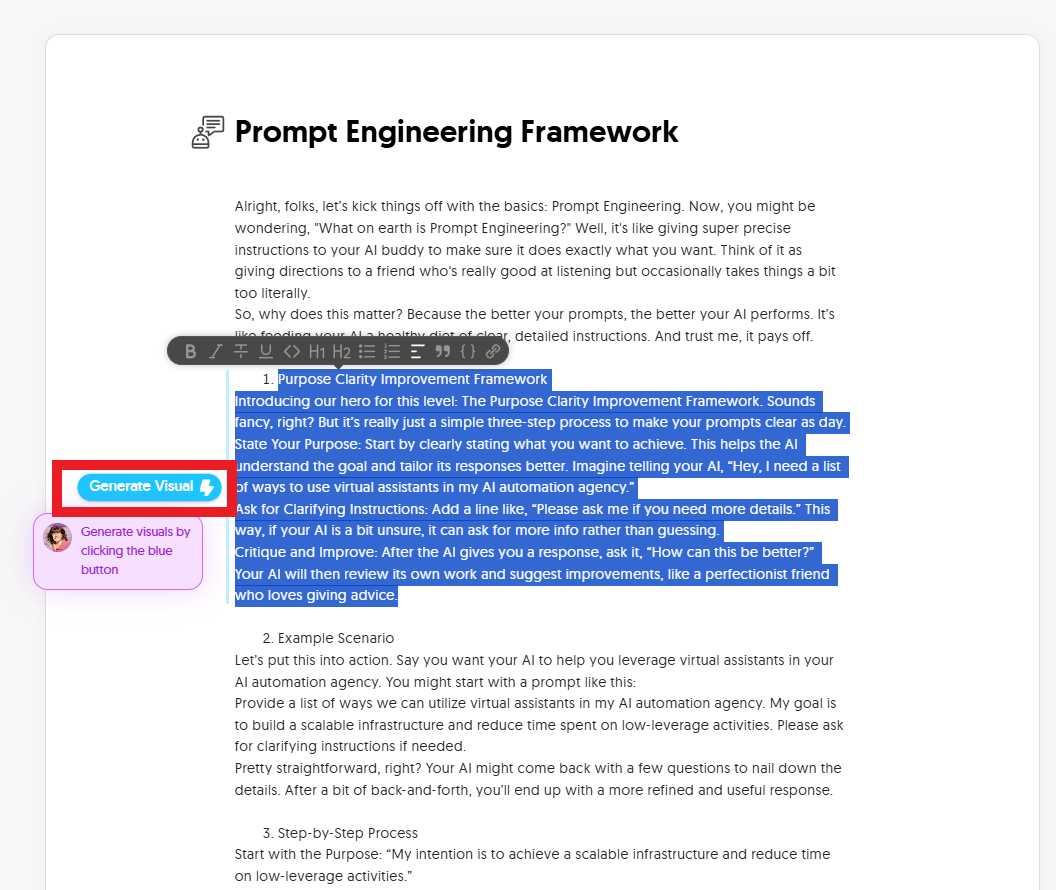
It is amazing because you do not need design skills. Just paste your text, highlight a sentence and click the lightning bolt icon.
That’s it. Napkin instantly creates a visual that explains your idea without layout work or dragging boxes around. No guessing which icon looks right.
What You Get
Instant Options: It generates icons, charts, process flows or diagrams that explain your text.
Customization: You can change the style from "sketch" to "professional" instantly.
Export: Download as PNG, SVG or PDF.
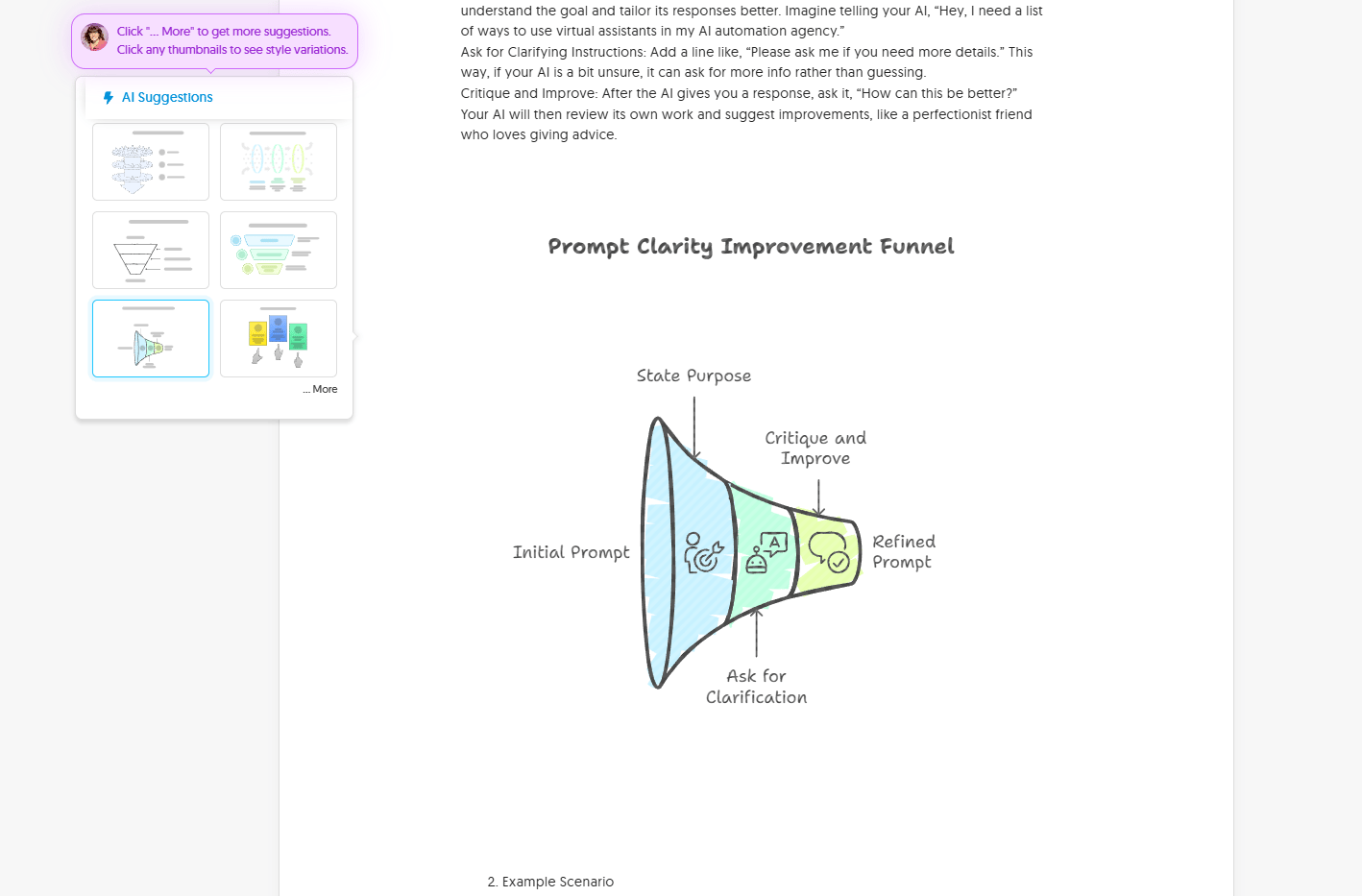
Pricing: The free plan includes 500 AI credits per week, which is more than enough for most people. This is a top-tier AI tool free option for those who hate dragging boxes in Canva. You can create a lot before hitting any limits. If you think visually but hate designing, this tool saves time in a way that feels almost unfair.
X. Tool 9: Headline Studio (Click Optimization)
You can write the best content in the world. But if your headline is weak, nobody clicks. That’s the hard truth. Headline Studio is built for one job: making sure your headline actually earns attention.
How It Works
The process is simple and fast:
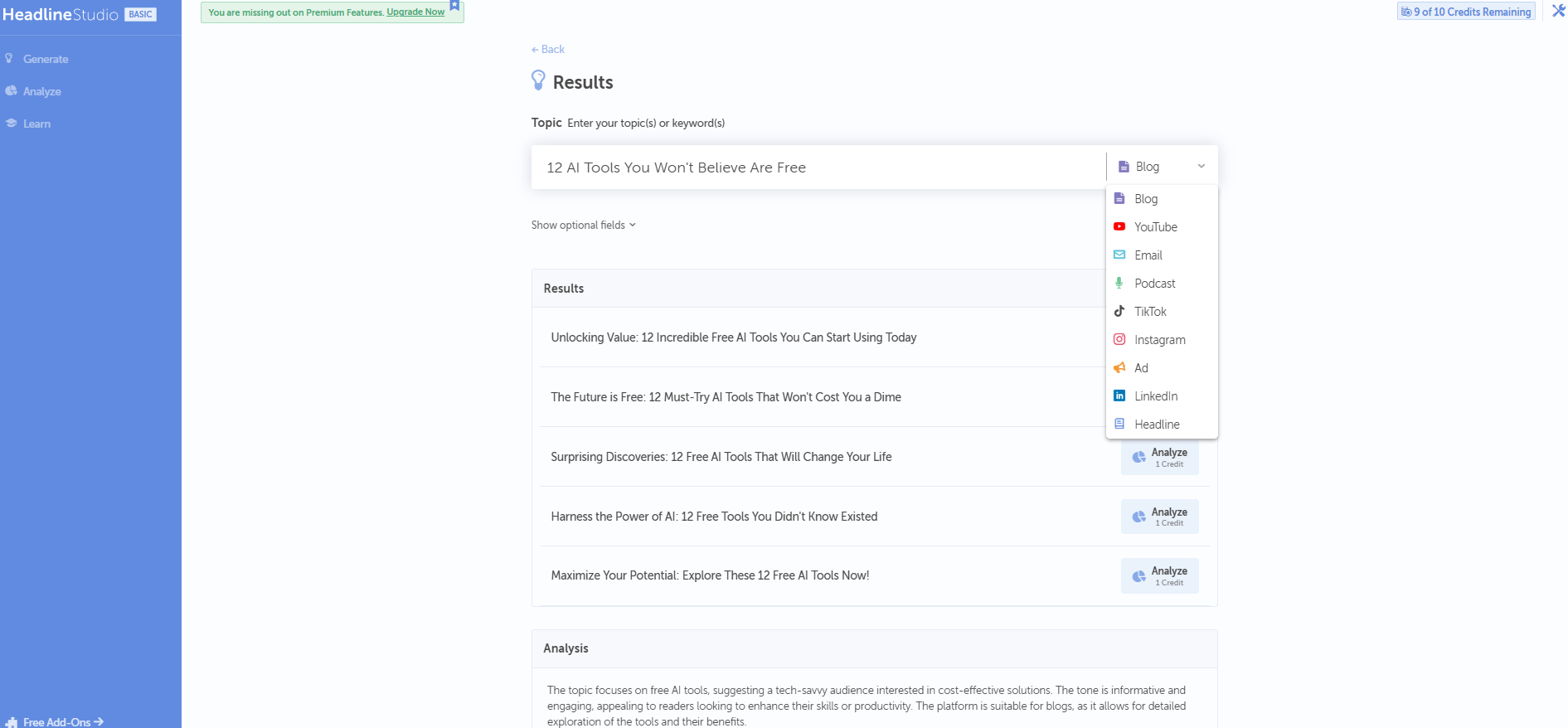
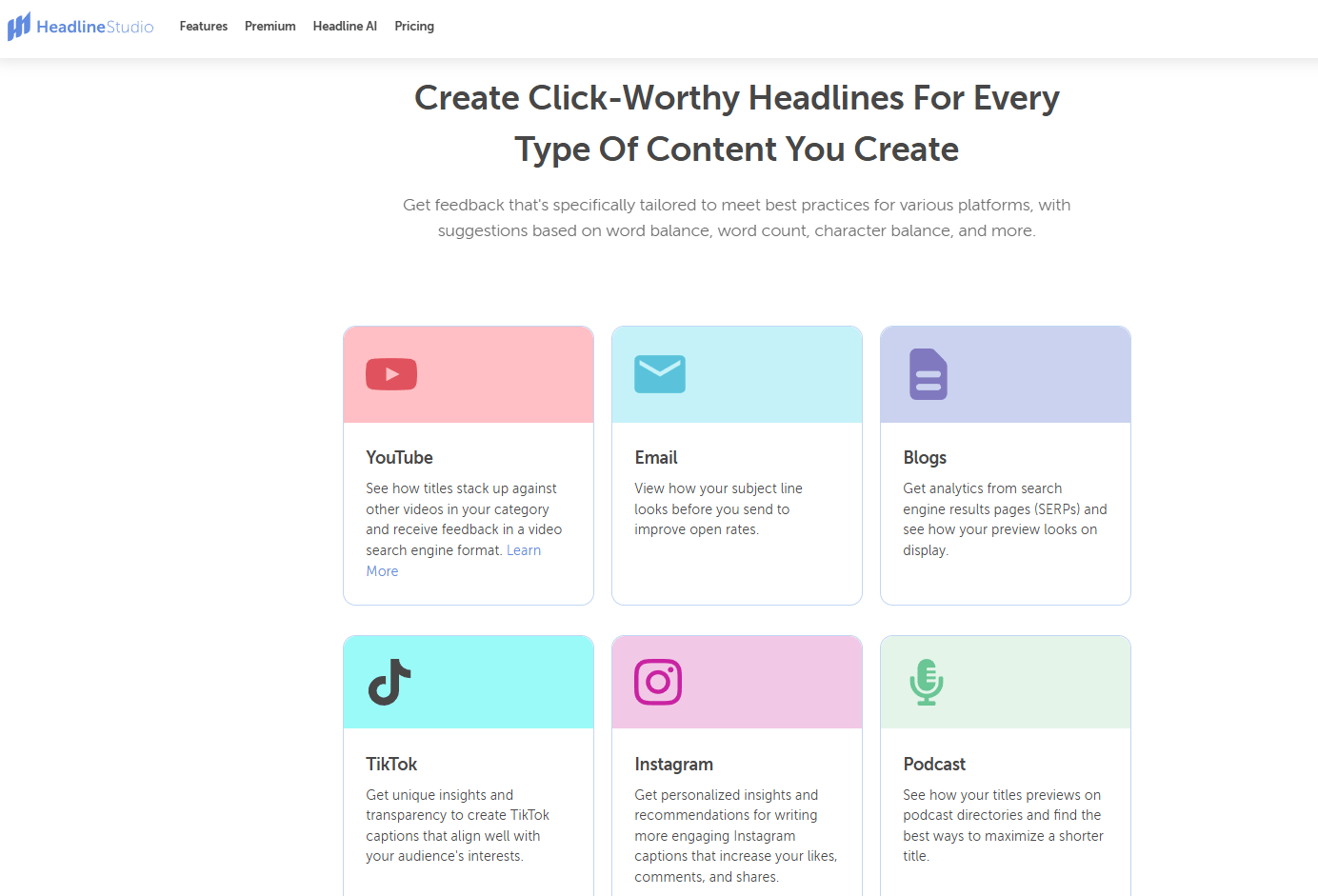
Choose where the headline will live. YouTube, email, TikTok and blog; each platform has different rules.
Paste your headline idea. No need to overthink it.
Get a score. It gives you a score based on word balance, emotional words and clarity.
Improve: It tells you exactly how to fix it. "Add a power word" or "Shorten it for mobile".
You’re not guessing. You’re adjusting based on clear feedback.
Why this matters
Small headline changes can double clicks. After testing this over and over, you start to see patterns you’d miss on your own. If views matter to you, this tool earns its place fast.
XI. Tool 10: n8n (The Advanced Automator)
If Zapier feels like a toy, n8n feels like a workshop. It does the same kind of automation but with way more control. And if you self-host it, it’s the best free AI tool for life.
Why It Is Different
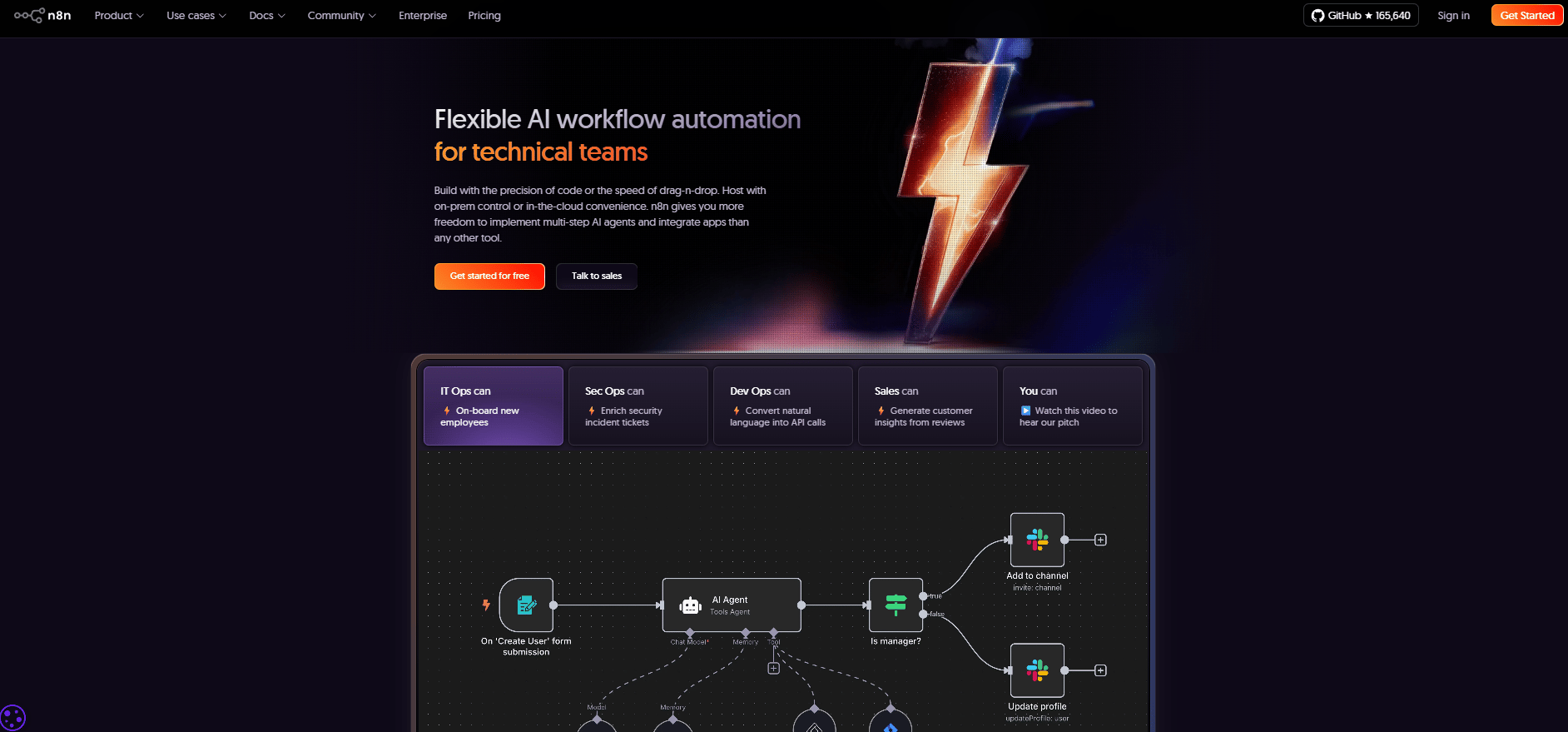
This tool is open-source. That matters because you are not boxed into pre-made actions. You can connect almost anything: apps, APIs, databases and AI models. You decide how data flows, step by step.
After spending time with it, you realize this isn’t about saving a few clicks. It’s about removing entire chunks of work from your week.
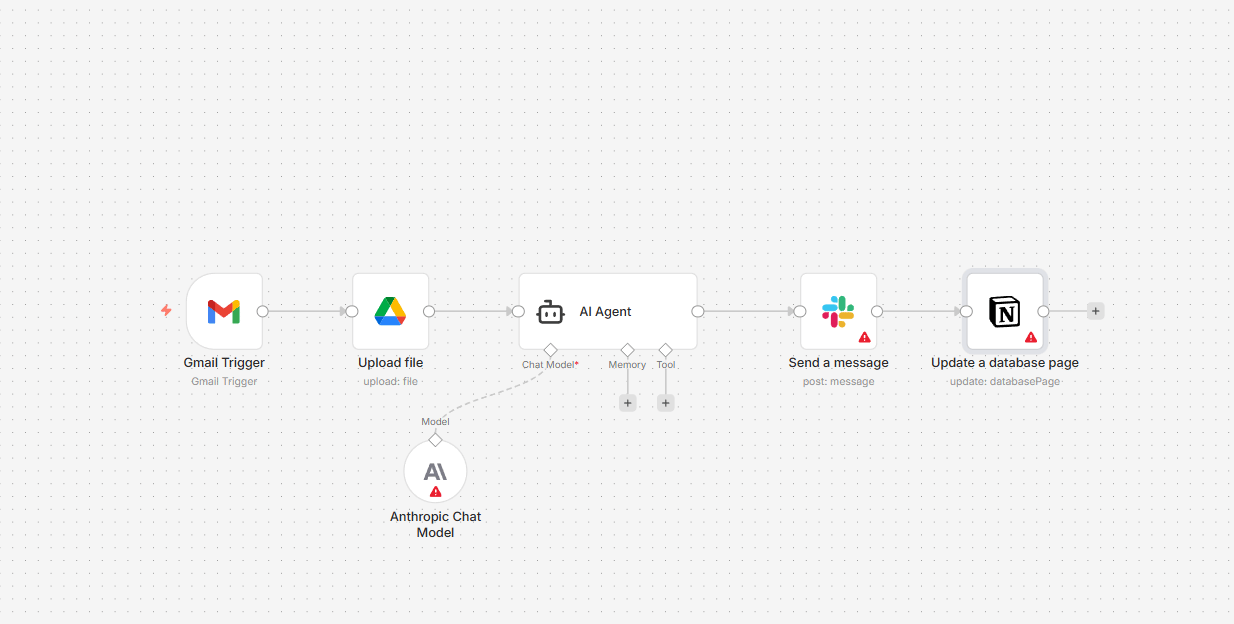
Real Workflow Example
Here’s a simple one that shows the power:
An email arrives with an attachment.
n8n saves it to Google Drive.
Then it sends the file to Claude for analysis.
Claude creates a summary.
That summary gets posted to Slack.
A follow-up task is added to Notion automatically.
Warning: This is not beginner-friendly. You’ll need basic comfort with servers, GitHub or self-hosting. If that already makes you tired, skip it for now. But if you like control and hate repetitive work, n8n becomes addictive fast.
XII. Tool 11: ChatHub (Compare The Models)
Every AI model has its strengths: GPT-5 is good at writing, Claude is good at analysis, Perplexity is good at research... The problem is you usually have to guess which one to use. ChatHub removes the guessing.
The "Side-by-Side" Feature
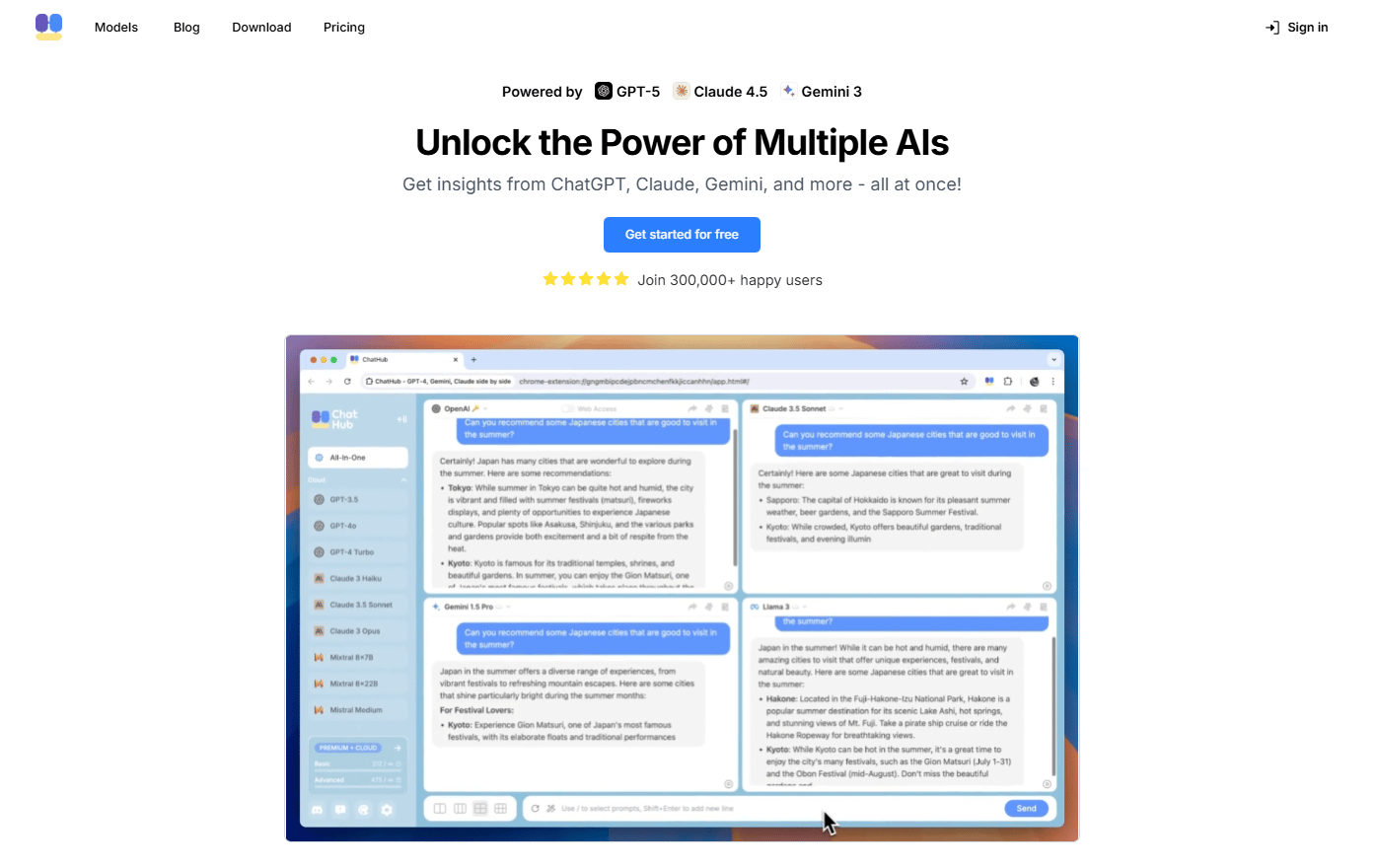
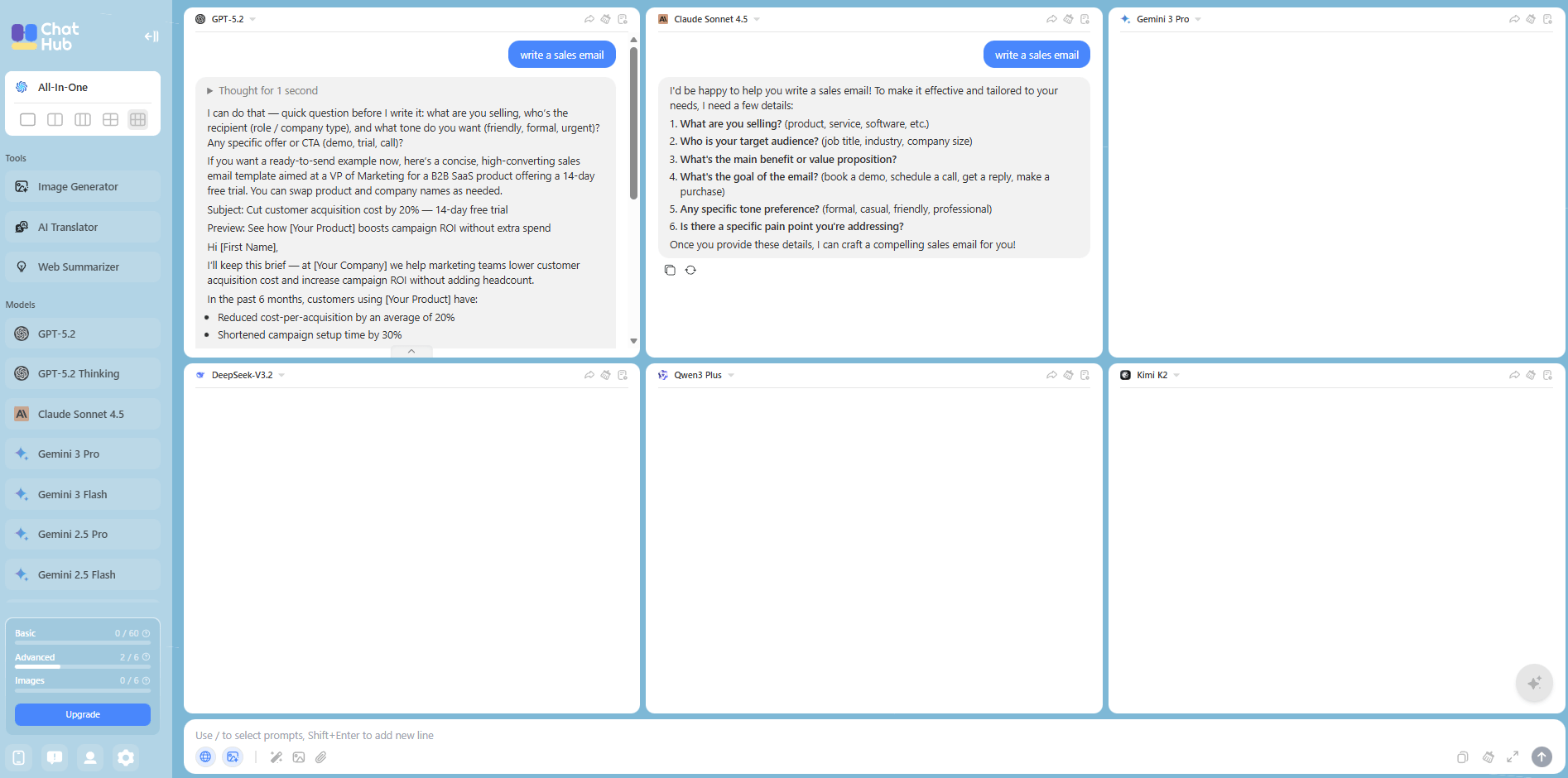
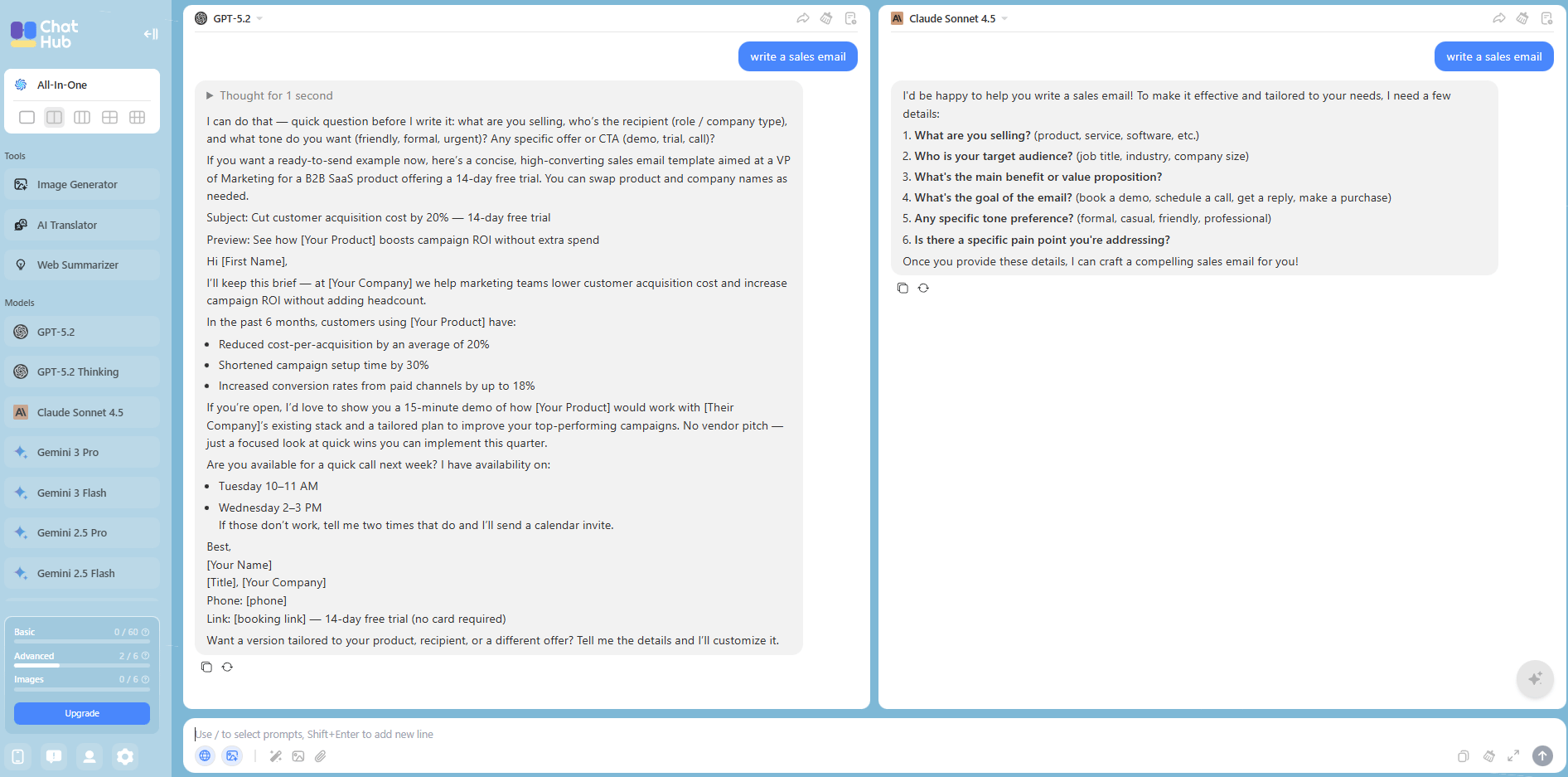
ChatHub is a Chrome extension. You write one prompt, hit enter and it sends that same prompt to multiple AI models at once. GPT, Claude, Gemini, all in parallel.
You see the responses next to each other on one screen.
Why Use It?
Instead of debating which model is “best,” you just test it. Try something real, like “write a sales email” or “analyze this idea.” One answer will clearly stand out.
Once you use this a few times, you stop having opinions about models. You let results decide.
XIII. Tool 12: Snipd (Podcast Knowledge)
Most people listen to podcasts and forget everything five minutes later. Snipd fixes that. It turns podcasts from background noise into something you can actually use.
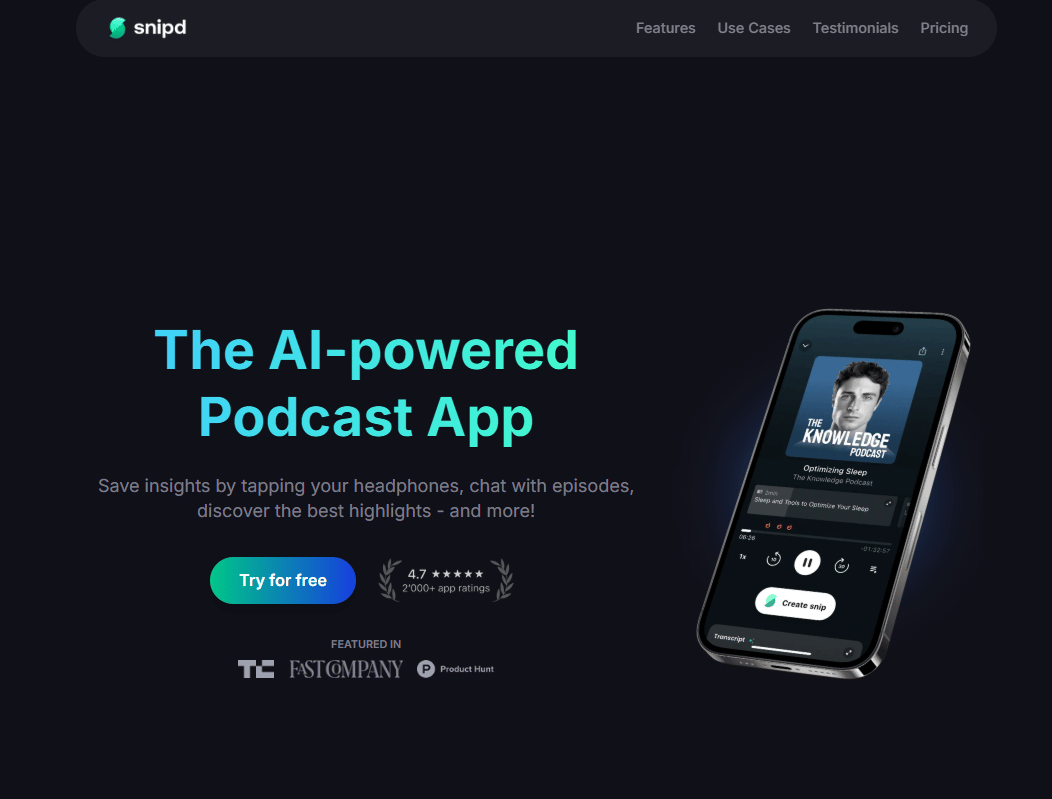
The AI Features
Summaries: Before you listen, you can see a short AI summary. You know right away if the episode is worth your time.
Chapters: You can jump straight to the interesting parts instead of sitting through ads or long intros.
Snips (the best part): When you hear something good, you tap your headphones. Snipd saves that moment, transcribes it and adds it to your notes automatically.
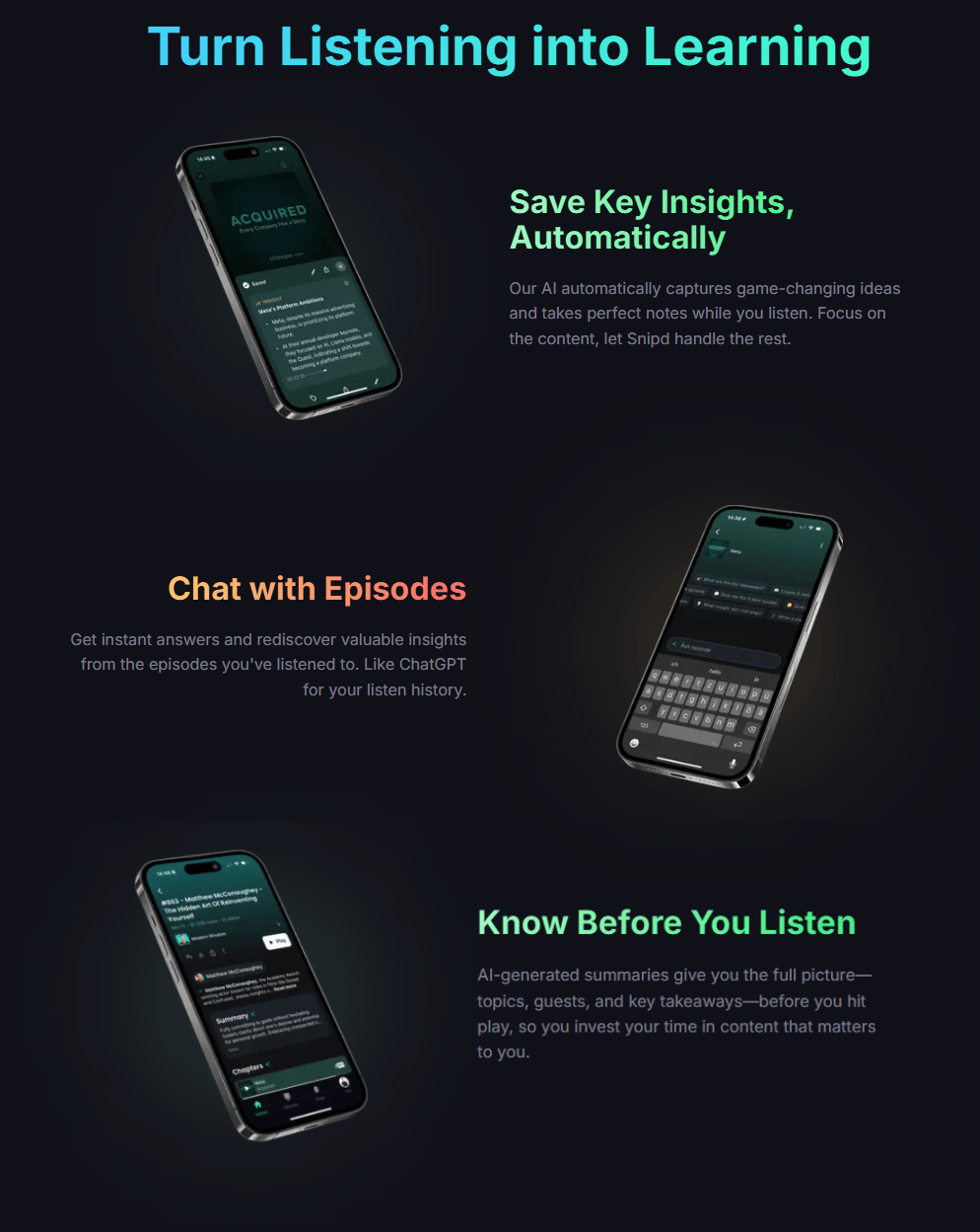
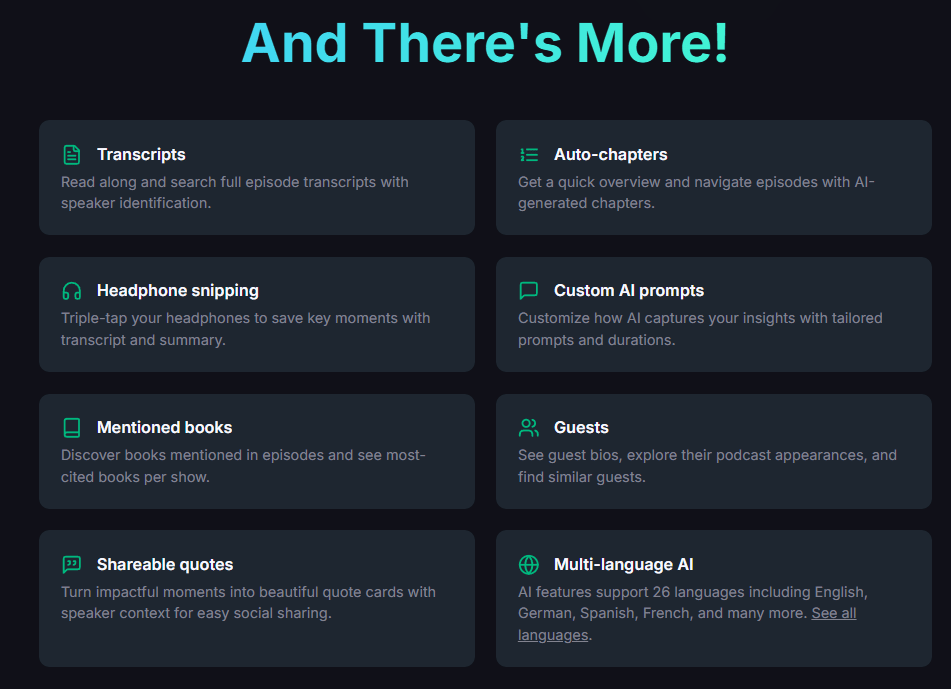
Why it matters: If you listen to business or learning podcasts and feel like nothing sticks, this changes that. You walk away with actual notes, ideas and quotes you can reuse later.
XIV. How to Actually Use These 12 Free AI Tools?
Here is the thing: a list of 12 tools is useless if you don't know when to use them. You will just have 12 open tabs and a headache.
I recommend "process mapping". This means finding the daily tasks in your business where these tools can help.
Workflow | Step | Tool | What It Does |
|---|---|---|---|
Content Creation | 1 | Goblin.tools | Breaks “Create YouTube video” into clear, actionable steps |
2 | NotebookLM | Researches the topic using uploaded sources | |
3 | Wispr Flow | Voice-dictates the script outline | |
4 | Headline Studio | Optimizes the video title for clicks | |
5 | Napkin AI | Creates thumbnail graphics | |
6 | Pomelli | Generates social media promo graphics | |
7 | Snipd | Repurposes audio into shareable clips | |
Client Management | 1 | Google Workspace Studio | Auto-logs client emails into a spreadsheet |
2 | Granola | Takes structured notes during client calls | |
3 | MyMap.ai | Creates a visual process map for the project | |
4 | n8n | Automates follow-up sequences | |
5 | ChatHub | Tests different AI models for client reports |
The Key: Don't try to use all 12 at once. Pick 2-3 that solve your biggest pain points and master those first.
XV. Which 2-3 Free Tools Should You Start with First?
Start with tools that match your biggest weekly pain. If you research or teach, begin with NotebookLM. If you create content, add Napkin AI for visuals and Headline Studio for titles. If your work is meetings-heavy, use Granola or a similar note tool.
Key takeaways
Pick tools based on pain, not novelty.
“More tools” differs from a cleaner workflow.
Try using one tool for a full week before you try a new one.
A simple starter stack: NotebookLM + Napkin AI + Headline Studio.
The best tool is the one you use every week.
If you are overwhelmed, here is my recommendation based on your needs:
If you're drowning in meetings: → Granola (Mac) or Fathom (Windows).
If you create a lot of visual content: → Napkin AI + Pomelli.
If you need better headlines: → Headline Studio.
If you're doing research or learning: → NotebookLM + Snipd.
If you're overwhelmed by big projects: → Goblin.tools.
If you dictate content: → Wispr Flow.
If you need process documentation: → MyMap.ai.
If you use Google Workspace: → Google Workspace Studio.
If you're a power user/developer: → n8n + ChatHub.
Creating quality AI content takes serious research time ☕️ Your coffee fund helps me read whitepapers, test new tools and interview experts so you get the real story. Skip the fluff - get insights that help you understand what's actually happening in AI. Support quality over quantity here!
XVI. Why Are These Tools Free in the First Place?
Some tools are experiments from big companies. They are free while the companies improve them. Others use free tiers to drive upgrades later. Open-source tools rely on community or paid hosting options. Free today does not guarantee free forever.
Key takeaways
Labs tools often change fast and may get gated later.
Freemium differs from open-source in how it’s funded.
Expect limits like quotas, exports or region restrictions.
Action: save your workflows so you can switch tools if needed.
Free is great but portability protects you.
Let’s address the elephant in the room: why are these free?
There is no free lunch. Here is the reality:
Google Labs tools (Pomelli, NotebookLM, Workspace Studio) are experiments. Google is using them to gather data and test capabilities.
Freemium models (Wispr Flow, MyMap.ai, Snipd) offer free tiers to get you hooked so you eventually upgrade.
Open-source projects (n8n) are supported by the community.
Strategic loss leaders (Headline Studio) give away value to sell you other products later.
The takeaway: Enjoy them while they're free but don't be surprised if some eventually add paid tiers or limitations. That is just the nature of the game. But right now, today, you can use all of these without spending a cent.
We have a weird psychology where we value paid things more than free things. Do not fall into that trap.
Tools like NotebookLM and Napkin AI are world-class software that just happen to be free right now. Your job is to use each AI tool free of charge to save time, not just to fill your browser with more tabs. Pick 2 tools, use them for 7 days, then add the next one.
XVII. Quick Reference: All 12 Tools at a Glance
Tool | Best For | Truly Free? |
Google Workspace Studio | Google ecosystem automation | ✅ Yes |
Pomelli | Social media campaign generation | ✅ Yes (Labs) |
Wispr Flow | Voice-to-text transcription | ✅ Yes (2k words/week) |
NotebookLM | Research & content analysis | ✅ Yes |
Granola | AI meeting notes (Mac) | ✅ Yes (free tier) |
Goblin.tools | Breaking down complex tasks | ✅ Yes (no sign-up) |
MyMap.ai | Visual diagrams & flowcharts | ✅ Yes (limited usage) |
Napkin AI | Text-to-visual graphics | ✅ Yes (500 credits/week) |
Headline Studio | Headline optimization | ✅ Yes (basic features) |
n8n | Advanced automation workflows | ✅ Yes (Community Edition) |
ChatHub | Comparing AI model outputs | ✅ Yes (basic comparison) |
Snipd | Podcast learning & note-taking | ✅ Yes (core features) |
If you are interested in other topics and how AI is transforming different aspects of our lives or even in making money using AI with more detailed, step-by-step guidance, you can find our other articles here:
How would you rate this article on AI Tools?Your opinion matters! Let us know how we did so we can continue improving our content and help you get the most out of AI tools. |
Reply