- AI Fire
- Posts
- 🎬 3 Easiest & Free Methods to Turn Raw Videos Into Viral & Shareable Shorts with AI
🎬 3 Easiest & Free Methods to Turn Raw Videos Into Viral & Shareable Shorts with AI
You don’t need advanced editing. Descript lets you cut video by editing text, plus Studio Sound and clip creation to ship faster.

Max Anh
January 05, 2026
TL;DR BOX
In 2025, the fastest way to make Shorts is to treat video editing like text. Descript AI lets you write, cut and polish by editing the transcript.
The "Underlord" agent within Descript AI can autonomously remove filler words and bad takes, while "Studio Sound" provides professional audio quality instantly. Key methods include generating faceless videos from prompts, using AI voice clones and utilizing automated scene detection to format horizontal footage into 9:16 vertical Shorts. Success requires high-impact 2-second hooks, dynamic captions and strategic looping to boost retention.
Key points
Fact: Descript can help you find strong clip candidates fast by scanning the transcript for punchy moments and clean cut-points. You still review before posting.
Mistake: Spending hours on manual editing; use text-based editing to delete words and automatically remove the corresponding video sections.
Action: Apply "Studio Sound" to all recordings to remove background noise and isolate your voice for a professional podcast-quality finish.
Critical insight
The shift in 2025 is moving from "manual editing" to "orchestration", where Descript AI handles the technical execution while you focus on creative strategy and hook optimization.
🚀 Is editing YouTube Shorts still your biggest headache? |
Table of Contents
I. Introduction: The Shorts Gold Rush
YouTube Shorts is exploding right now. If you are not creating them, you are missing out on millions of potential views and subscribers. No Cap.
A report showed that YouTube Shorts gets 90 billion daily views from 2 billion monthly users, with creators gaining 17 subscribers per 10k views (one channel hit 4.9B views & 5.93M subs with content about Rubik's Cubes).
But here is the problem: creating high-quality Shorts consistently is a massive headache. You have to brainstorm ideas, write scripts, record footage, edit the video, add captions and optimize everything for the vertical format. Just thinking about it makes you tired.
That is where AI comes in.
In this 2026 guide, I’m going to show you exactly how to use Descript AI to automate this entire process. I have spent months testing different workflows and this tool is the G.O.A.T. (Greatest of All Time) for video editing right now.
You will learn three specific methods:
Generate from Scratch: AI creates the script, voiceover and visuals for you.
Edit Your Own Footage: AI cleans up your mistakes and polishes your content.
Repurpose Content: AI extracts viral-worthy clips from your long videos automatically.
If you use these three workflows, you’ll ship faster and test more hooks. That’s what wins in Shorts.
II. Why Descript AI Works So Well for Shorts
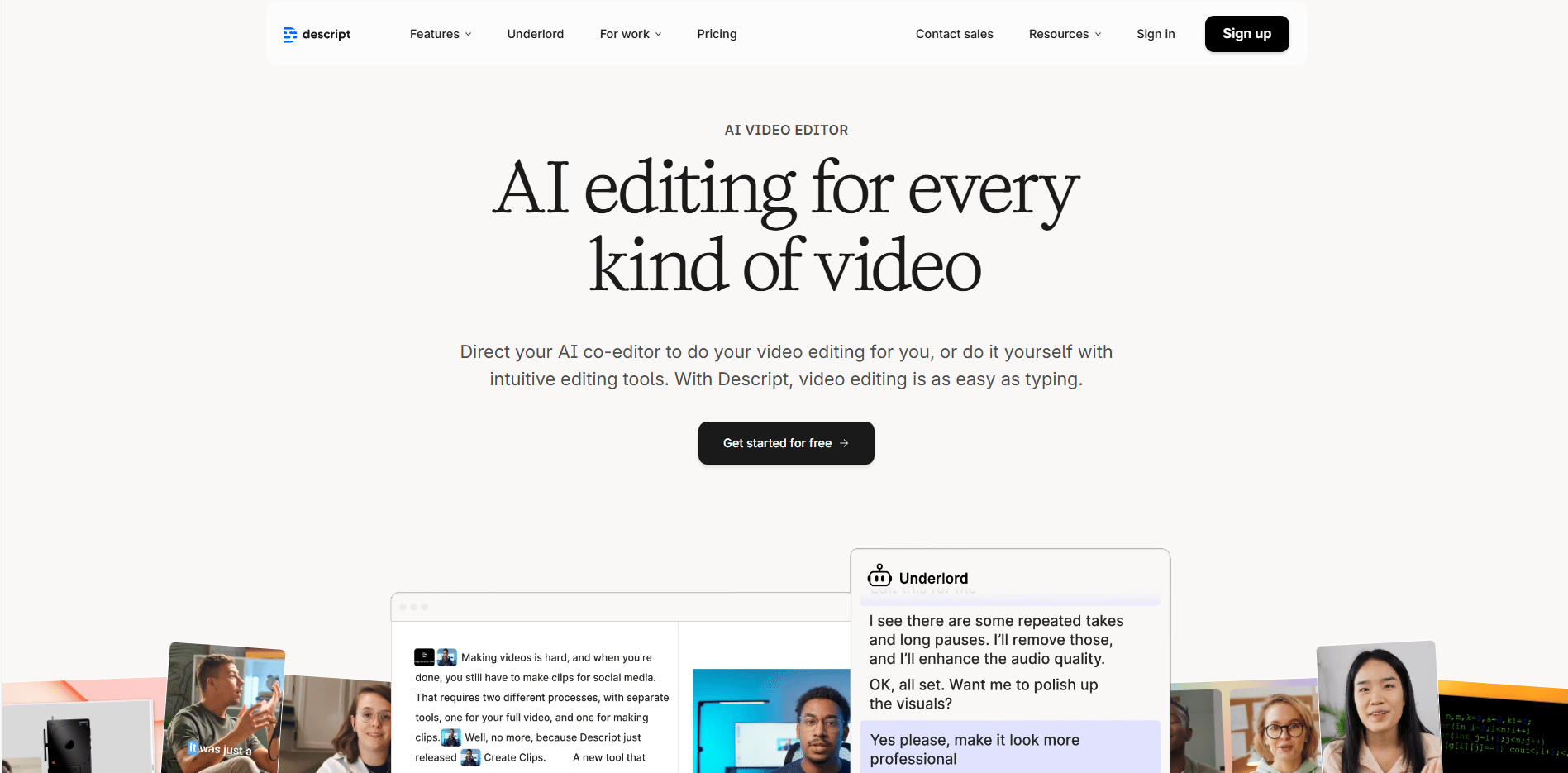
Descript AI allows you to edit videos by changing the text. When you delete words in the script, those parts are removed from the video. It also includes AI tools for audio cleanup, clip creation and fast commands. This reduces the time between idea and upload.
Key takeaways
Text-based editing is faster than timeline-only editing.
Descript differs from classic editors because the transcript is the controller.
Key features: AI Video Generator, Studio Sound, Underlord, scene detection.
Action: use transcript edits first, then add B-roll and captions.
For me, speed comes from fewer decisions. I cut the transcript first, then style the video. Here is what makes it powerful:
All-in-One Platform: You can record, edit and upload in one place.
AI Video Generator: It creates videos from simple text prompts.
Studio Sound: It automatically cleans up audio quality (this is magic).
Underlord AI Agent: You can edit videos using natural language commands.
Scene Detection: The AI identifies and organizes scenes automatically.
Learn How to Make AI Work For You!
Transform your AI skills with the AI Fire Academy Premium Plan - FREE for 14 days! Gain instant access to 500+ AI workflows, advanced tutorials, exclusive case studies and unbeatable discounts. No risks, cancel anytime.
III. Method 1: Create YouTube Shorts From Scratch (AI Generates Everything)
This method is perfect if you do not want to appear on camera, need content ideas fast or want to test new topics without filming. The AI handles the script, voiceover and visuals.
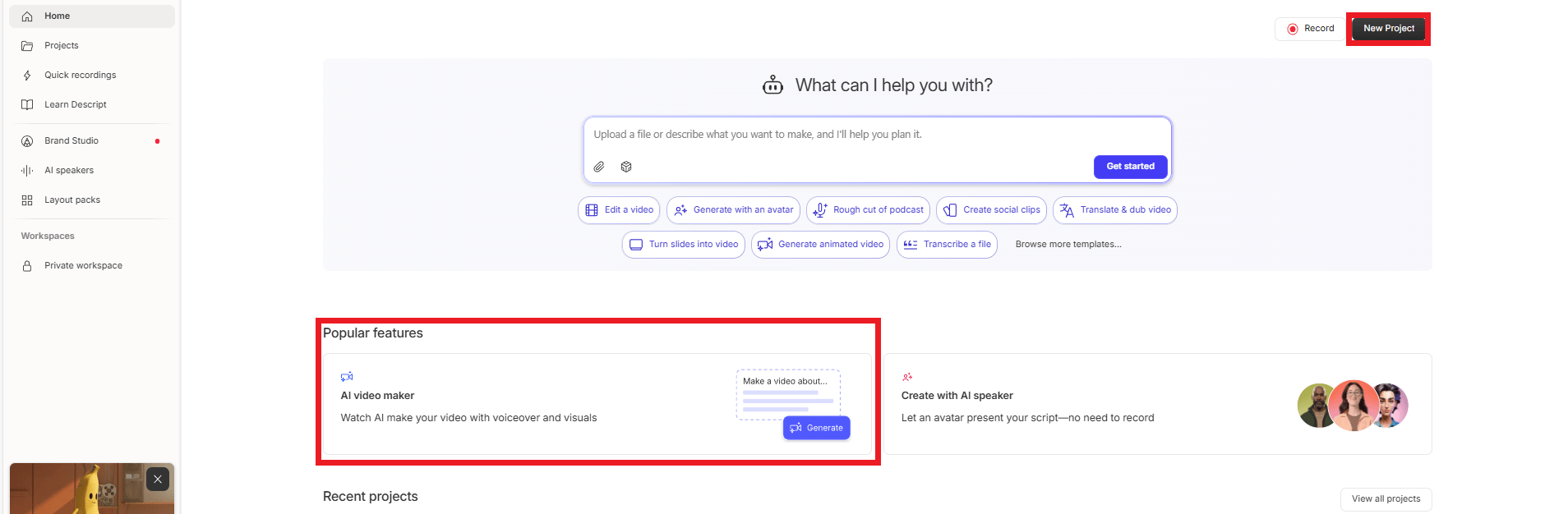
Step 1: Start a New AI Video Project
Like other tools on the internet, the first thing you need to do is log in.
Go to the Descript web app or desktop app.
To create a new project, you just need to click the New Project button.
In the Popular Features section of your dashboard, select AI Video Maker.
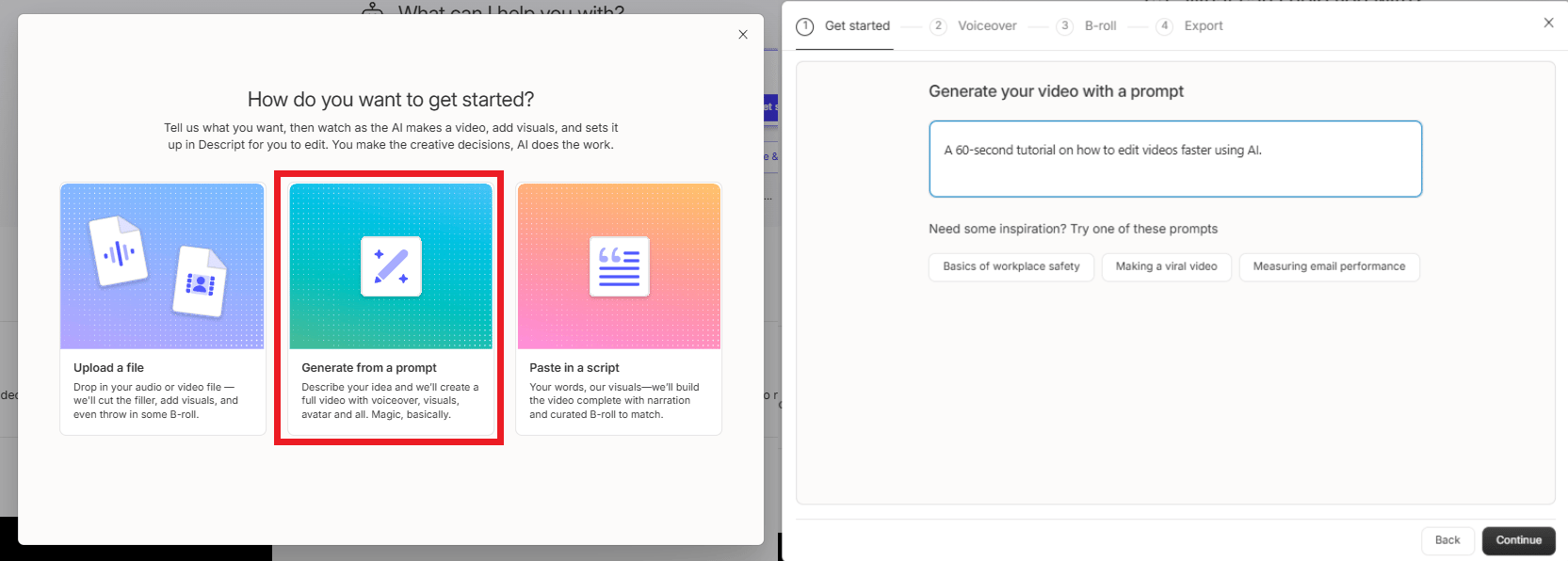
Step 2: Generate From a Text Prompt
Then, you select "Generate from a prompt". This is where you tell the AI what you want. One note to remember: Be specific when you prompt.
Think of it like ordering a pizza. If you just say "pizza", you might get anchovies. If you say "Large pepperoni with extra cheese", you get exactly what you want.
Example Prompts:
"A YouTube Short on top video recording tips for beginners. Casual tone".

"A 60-second tutorial on how to edit videos faster using AI".

"5 productivity hacks for content creators in under a minute".
Pro Tip: Include the target audience, the desired tone (energetic, professional) and the length (30-60 seconds) in your prompt for the best results.
Before you let AI write anything, the hook matters more than the tool. Here are 10 hooks I reuse for Shorts that actually stop the scroll.
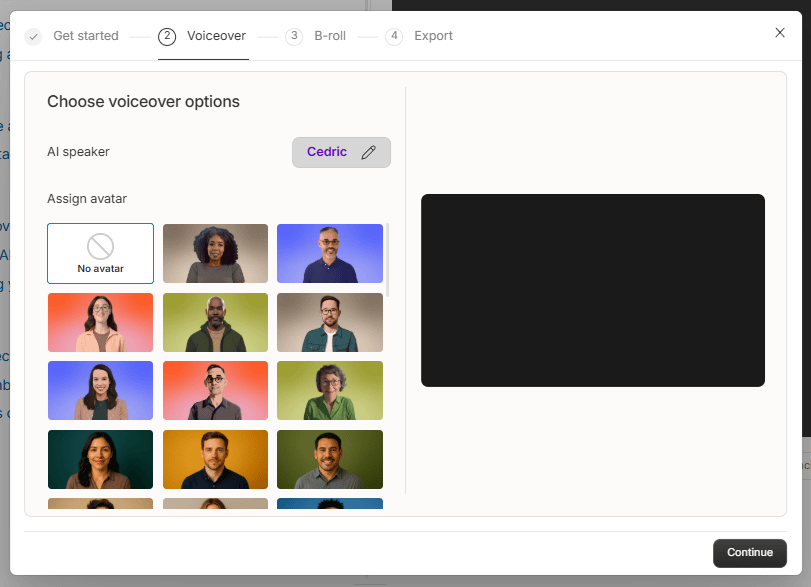
Step 3: Choose Your Voiceover
You have three options here:
Option A (AI Speaker): Browse the library of AI voices. Preview them to find one that matches your brand.
Option B (Your Voice Clone): You can train the AI on your own voice. You record a few sentences and it generates speech that sounds exactly like you.
Option C (On-camera): record yourself, then use Studio Sound + transcript edits to polish fast.
Step 4: Select Your Visuals
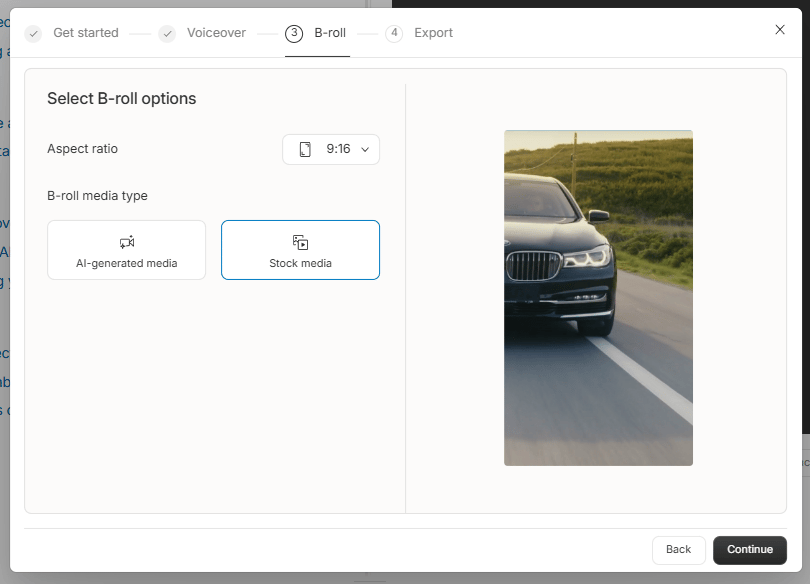
Set your Aspect Ratio to 9:16 (Portrait). This is the standard vertical format for Shorts and TikTok.
For the B-roll Media Type, select Stock Media. The AI will pull relevant video clips from libraries like Pexels or Unsplash. If you want something more abstract, you can choose AI-Generated Media.
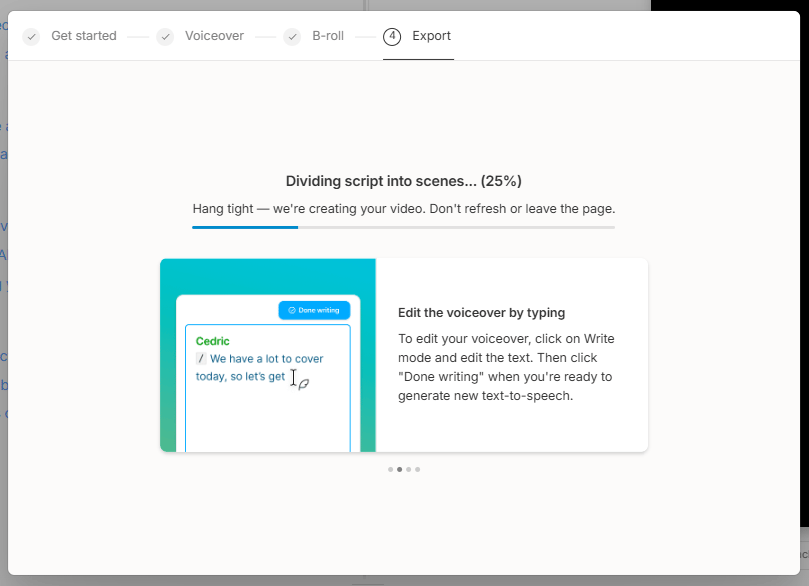
Click Continue and let the AI work. It will write the script, create scenes, add the voiceover and find relevant stock footage.
Step 5: Edit and Customize
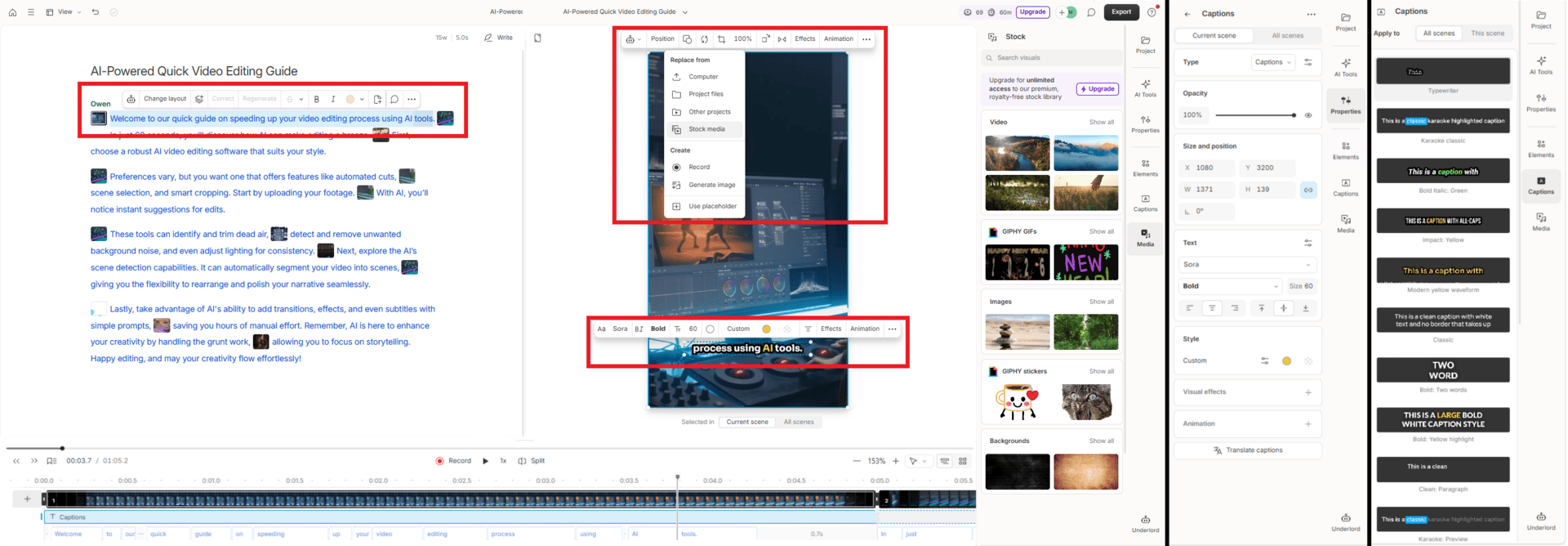
Do not export it immediately. You know average content gets average results, right? So, you must polish your work to make it better.
Edit the Script: AI loves to add fluff like "Hey guys, welcome back!" Delete that. You need to hook viewers instantly.
Replace Media: Sometimes the AI picks a weird clip. If the script mentions "cooking" and the video shows a car, click on the clip, select Replace Media and search for a better one.
Customize Captions: Change the font to something bold and easy to read (like Montserrat or Bebas Neue). Make sure the size is large (48-60pt) and the color has high contrast.
IV. Method 2: Create Shorts With Your Own Footage (AI Cleans It Up)
This method is perfect if you want to build a personal brand and appear on camera but hate the tedious editing process.
Step 1: Upload and Transcribe
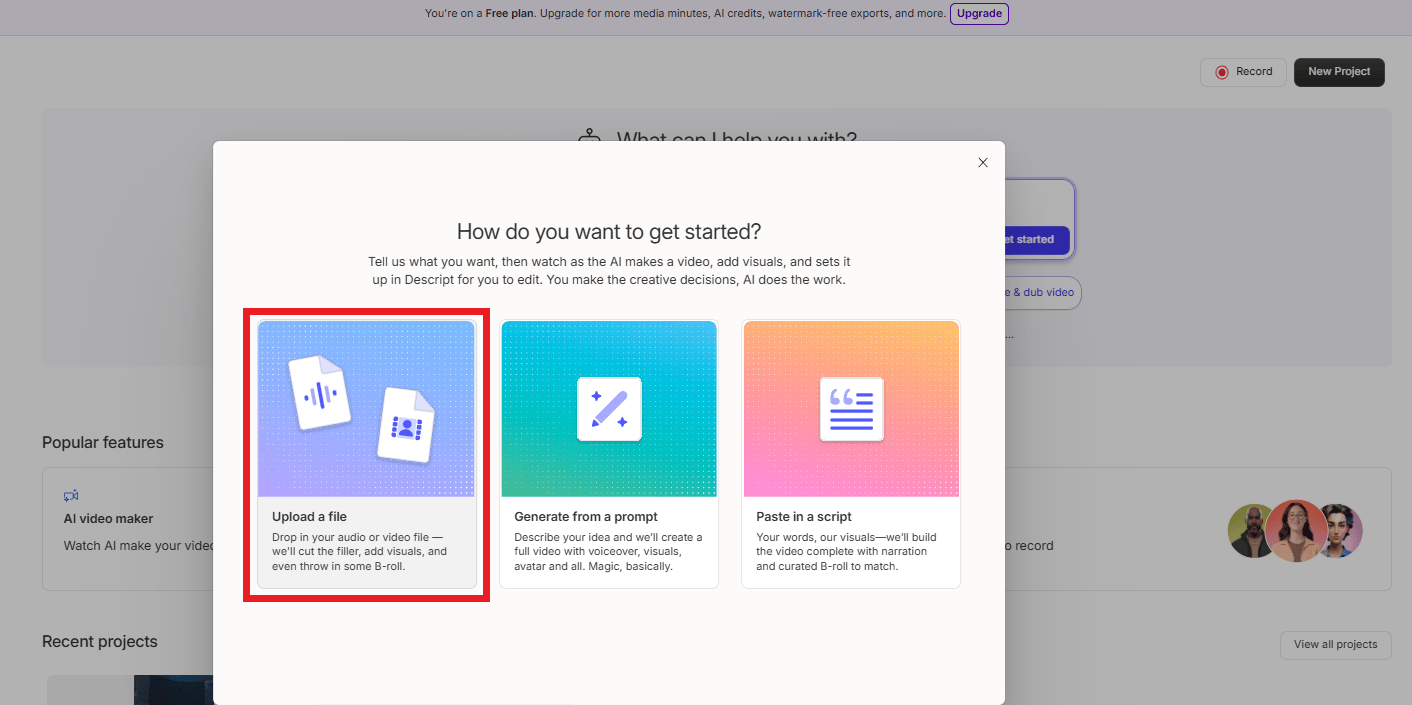
Once again, you need to create a New Project and select AI Video Maker. Choose "Upload a file" and select your video.
Descript AI will automatically transcribe the speech into text.
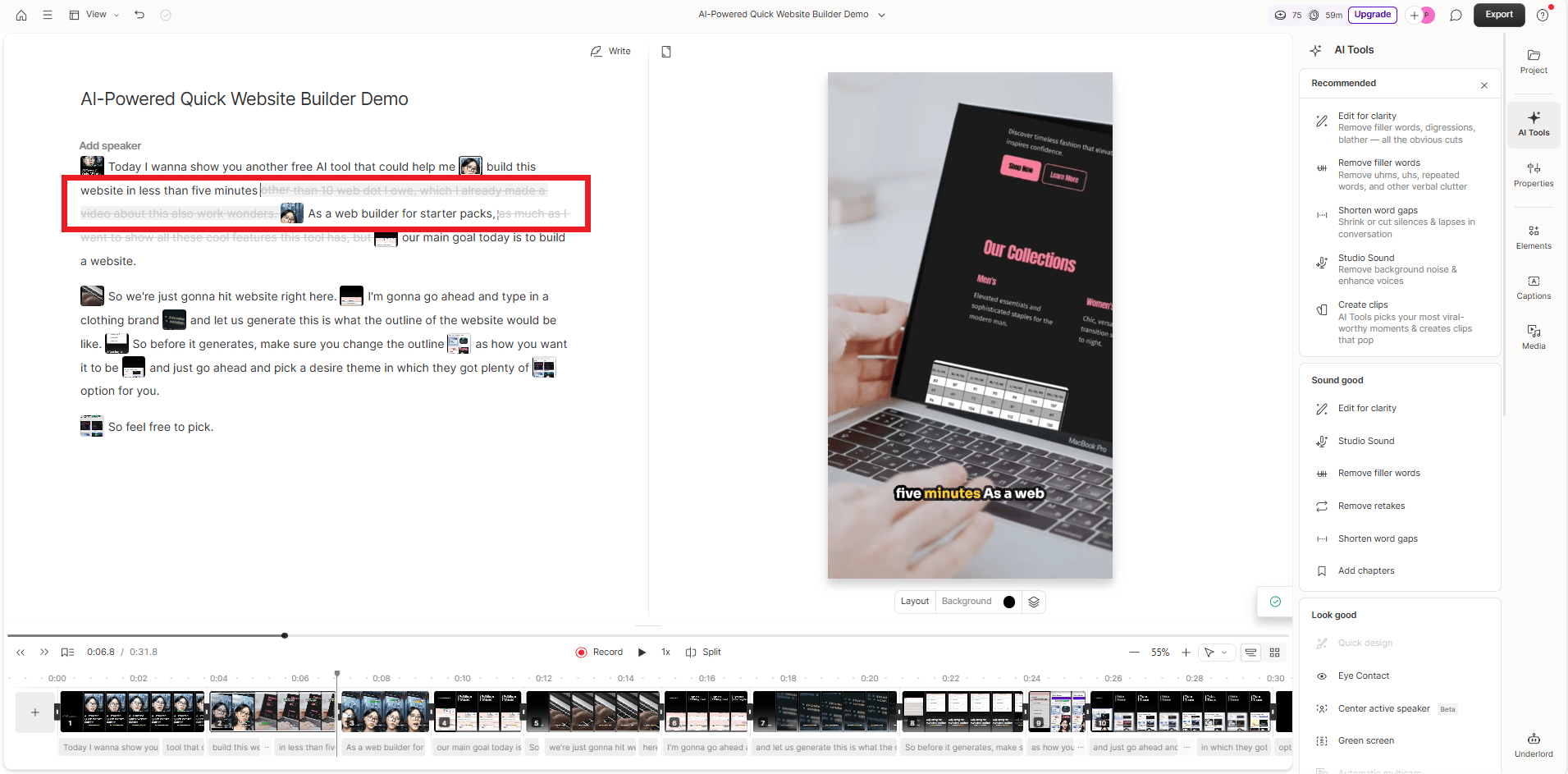
Step 2: Use Studio Sound
This is a game-changer. Even if you recorded in a noisy room, you can turn on Studio Sound. It uses AI to isolate your voice and remove background noise. It makes you sound like you are recording in a professional studio.
Step 3: Advanced Editing with "Underlord"
Descript has an AI agent called Underlord. Instead of manually cutting out mistakes, you give it commands.
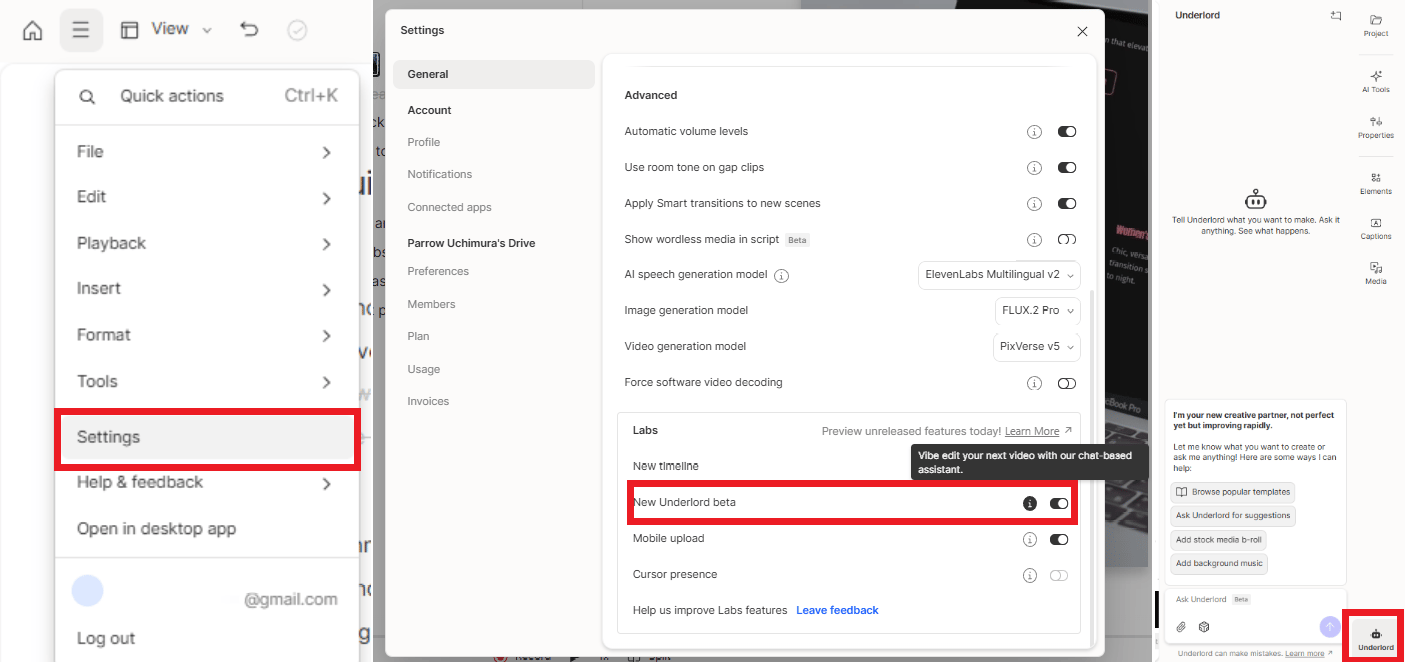
Enable it by going to Settings > Labs > New Underlord Beta. Then, click the Underlord icon (magic wand) and try these commands:
"Remove all bad takes": The AI analyzes where you repeated yourself and keeps only the best version.
"Remove filler words": It deletes every "um", "uh" and "like" instantly.
"Shorten the video": Tell it to cut the video to under 60 seconds while keeping the key points.
Here is the prompt that I used. I used this prompt to stop the AI from cutting sentences in half. You can use this as an example:
Remove (set to ignore-don’t actually remove from the script) all bad takes and mistakes. STRICTLY do not cut sentences in half. If there is a mistake, double-up or retake, ONLY use the final take in its entirety. The last take will always be the best one and the one I would like you to always use.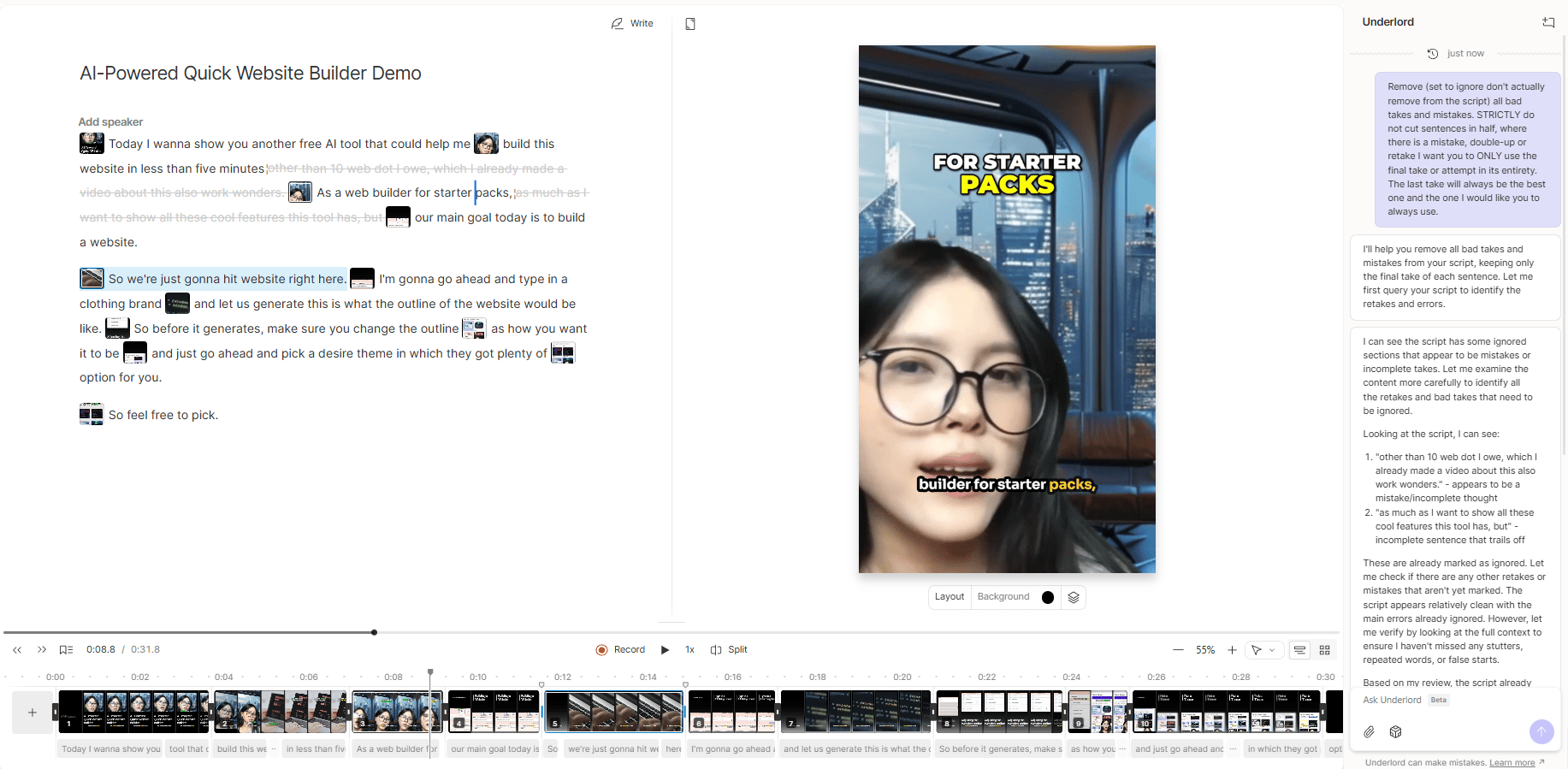
Step 4: Add Visual Variety
If you are just a talking head for 60 seconds, people will scroll away. Use Stock Media to add B-roll (supplemental footage) over specific parts of your video to keep it visually engaging.
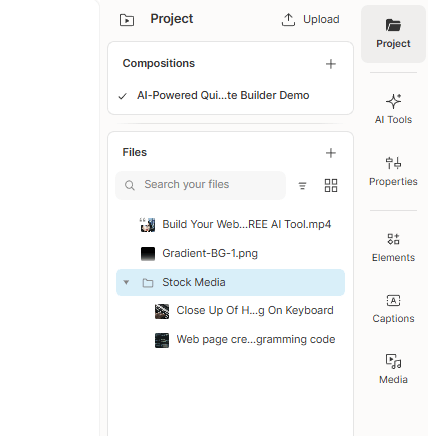
V. Method 3: Repurpose Long-Form Content (AI Extracts Viral Clips)
This method is the holy grail for podcasters and streamers. You take one long video and turn it into 10+ Shorts effortlessly.
Step 1: Import Your Long Video
Create a New Project and import your podcast, interview or vlog. The AI will transcribe the video and identify different speakers.
Step 2: Use AI Actions to Find Clips
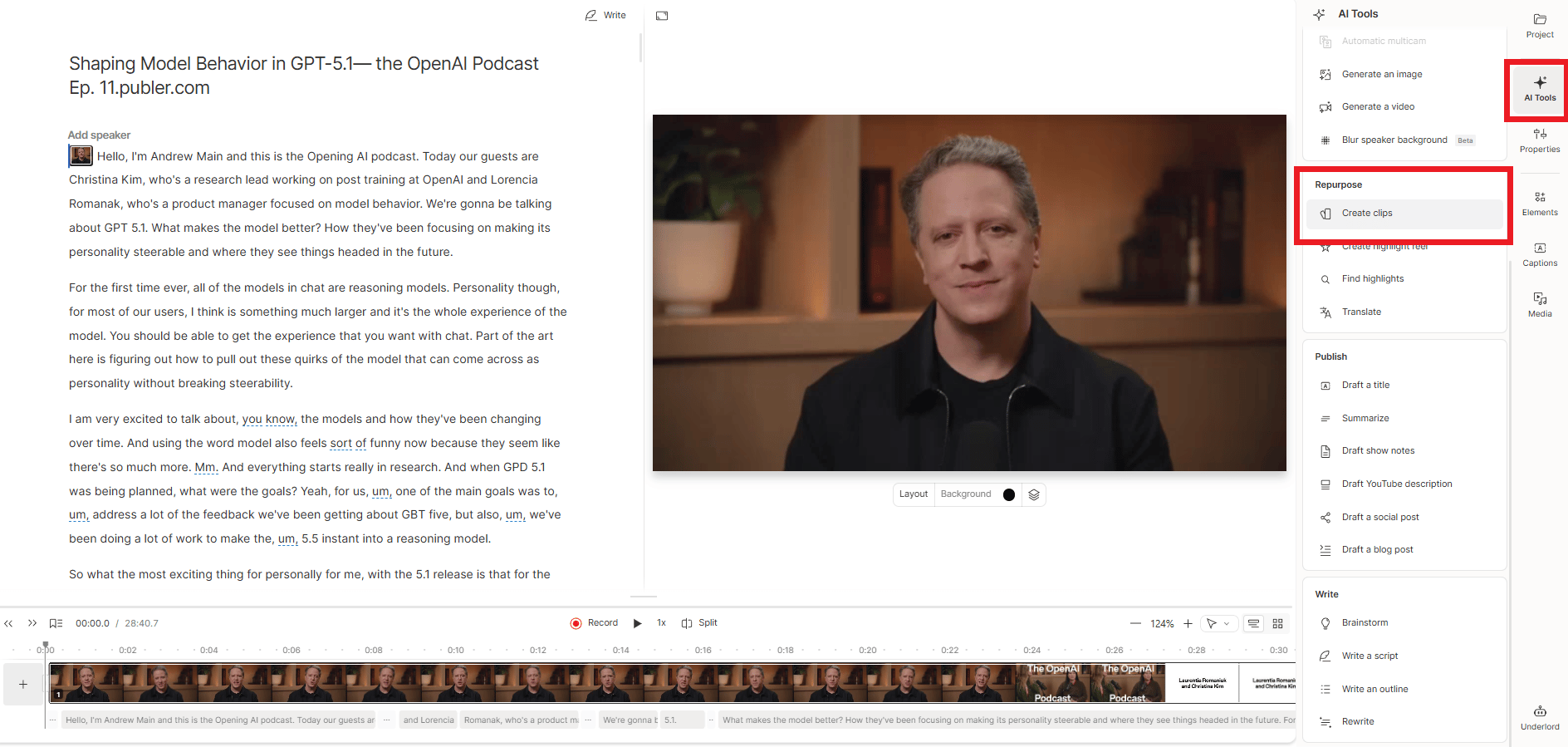
In the right-hand panel, click AI Tools and select "Create Clips".
Step 3: Configure Clip Settings
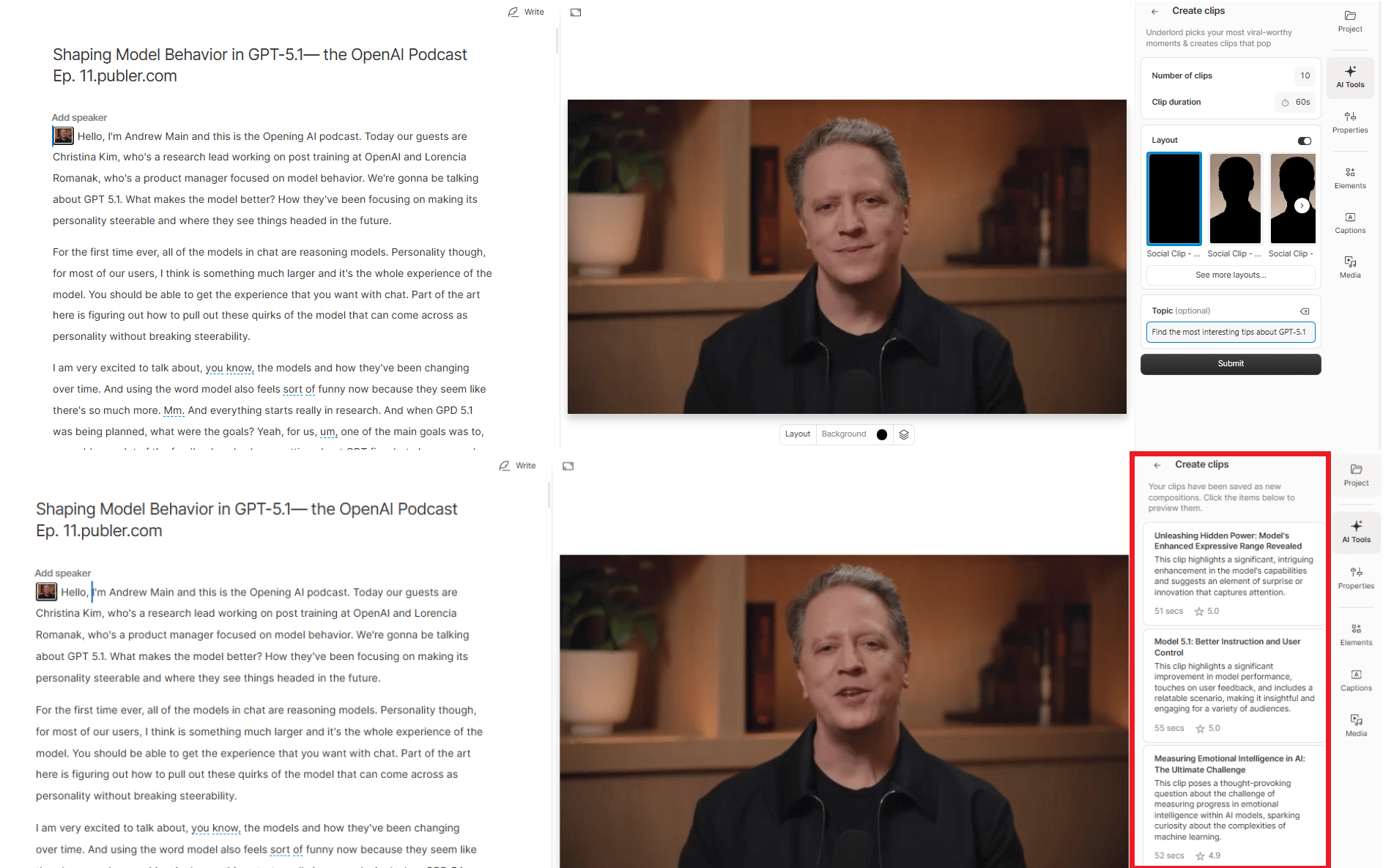
Number of Clips: Choose how many you want (e.g., 10 clips).
Duration: Set the target length to roughly 60 seconds.
Context: Tell the AI what you are looking for. For example: "Find the most interesting tips about GPT-5.1" or "Find the funniest moments".
Step 4: Review and Refine
The AI will give you a list of viral clips with titles and "viral scores" to show why they might be popular (e.g., "Bold claim", "Curiosity gap"). Treat those as suggestions, not truth.
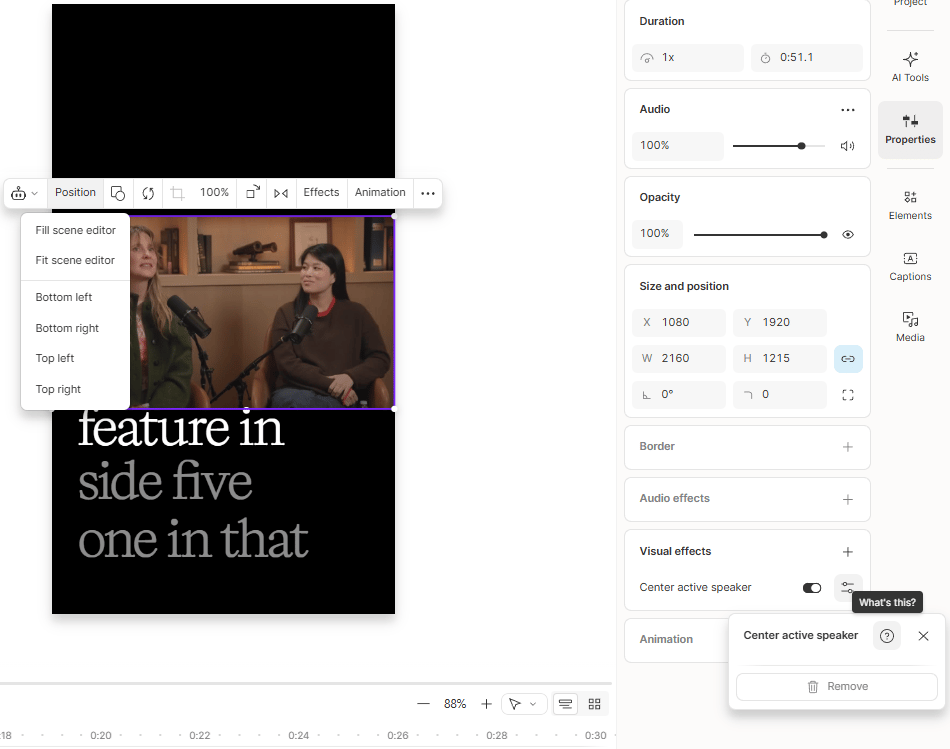
Click on a clip to open it. Since your original video is likely horizontal (16:9), you need to make it vertical. Use the “Center Active Speaker” tool to keep your face in the middle of the screen automatically.
Step 5: Apply Templates
Create a custom template with your captions, logo and brand colors. Apply this template to all your clips with one click. Now you have 10 branded Shorts ready to go.
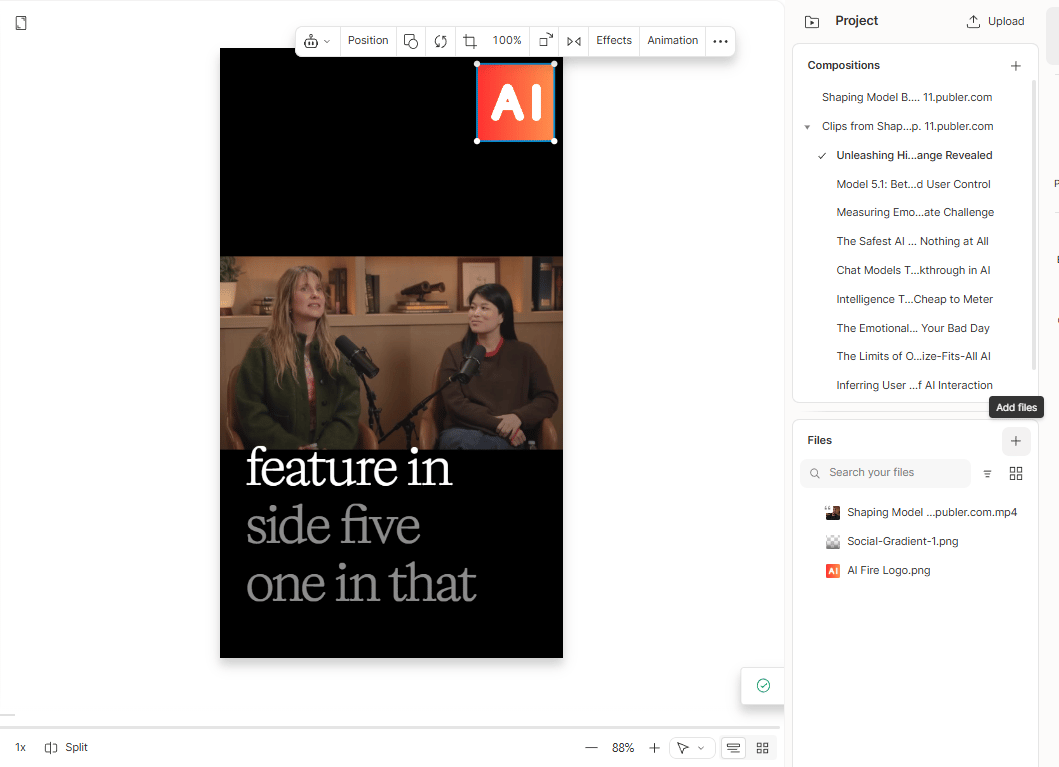
Before you export or post anything, I run every Short through this quick checklist.
Creating quality AI content takes serious research time ☕️ Your coffee fund helps me read whitepapers, test new tools and interview experts so you get the real story. Skip the fluff - get insights that help you understand what's actually happening in AI. Support quality over quantity here!
VI. Bonus: 5 Tips to Make Your Shorts Go Viral
Making the video is only half the battle. You need to package it right. Here is the secret sauce.
Tip 1: The 2-Second Hook
You have exactly 2 seconds to stop the scroll. Do not waste time with intros.
Bad: "Hey everyone, today I want to talk about…"
Good: "Stop making this mistake if you want more views".
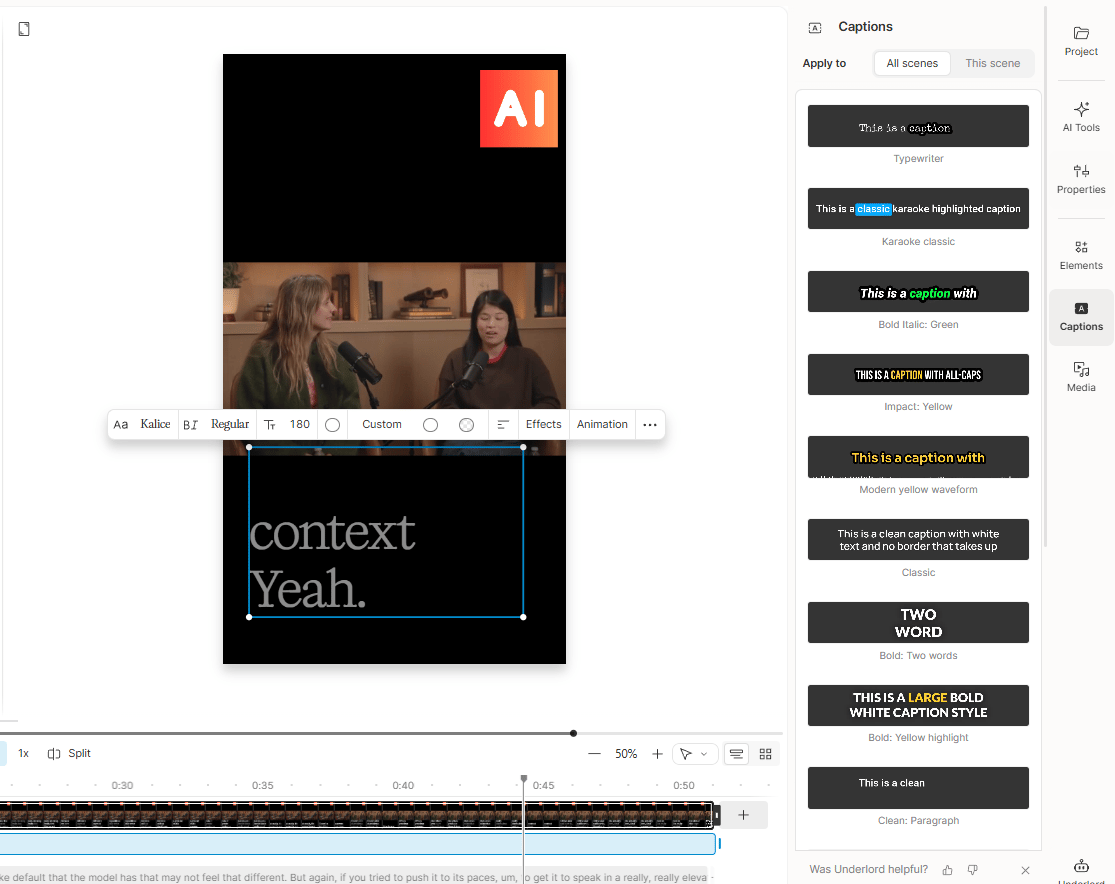
Tip 2: Use Dynamic Captions
85% of people watch Shorts with the sound off. If you do not have captions, you are invisible. Use the Word-level animation setting so words pop up one at a time. This keeps the viewer's eyes glued to the screen.
Tip 3: The Infinite Loop
Make the end of your video flow perfectly back into the start.
Here is example 1:
End of video: "...and that is exactly..."
Start of video: "...why you are failing at YouTube".
Here is example 2: End with a sentence that leads into your first line. Example: end = “…and that’s the mistake.” start = “That mistake is why your Shorts die.”
This tricks people into watching twice, which skyrockets your retention rate.
Tip 4: Consistent Branding
Viewers should recognize your content instantly. Use the same font, color palette and logo placement across all your videos. This builds familiarity and trust.
Tip 5: Test AI Voices
If you are using Method 1, experiment with different voices. A professional narrator works for educational content, while an energetic voice works better for motivation. Run A/B tests to see what your audience prefers.
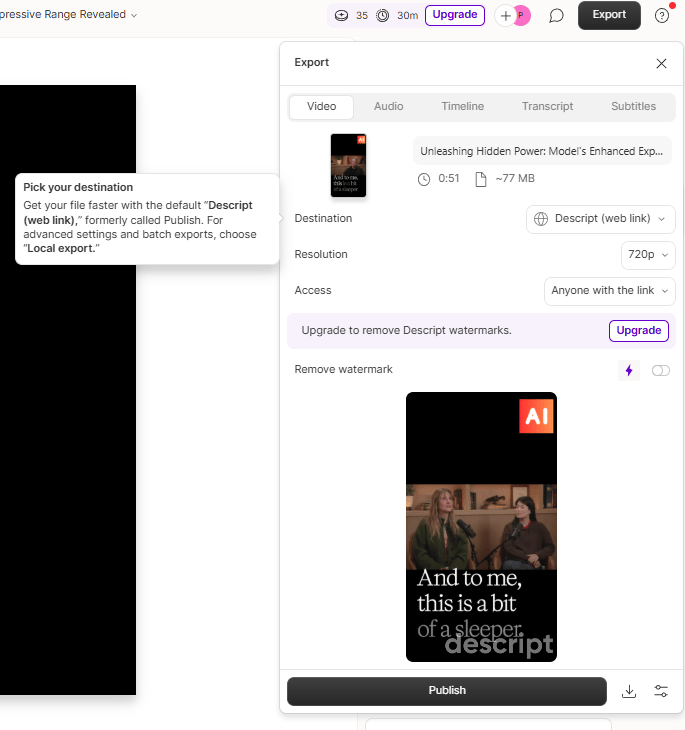
VII. Exporting Settings for Maximum Quality
You worked hard on the video; do not ruin it with the wrong export settings. Use these exact settings to ensure your Shorts look crisp on mobile.
Resolution: 1080p (1080x1920). This is the standard for high quality.
Frame Rate: 30fps (or match your source footage).
Codec: H.264. This is the most compatible format for YouTube.
Quality: Select High (or Maximum).
Audio: AAC, 192 kbps. Good audio is more important than good video.
File Size: Aim for a reasonable file size so uploads are fast. If your file is too large, lower the bitrate slightly.
VIII. Comparison: Which Method Should You Use?
If you are confused about which path to take, use this table to decide.
Method | Best For | Time Required | Skill Level |
|---|---|---|---|
Method 1: From Scratch | Faceless channels, testing new ideas | 10-15 mins | Beginner |
Method 2: Your Footage | Personal brands, tutorials, on-camera content | 20-30 mins | Intermediate |
Method 3: Repurposing | Podcasters, streamers, educators | 30-45 mins (for 10+ clips) | Intermediate |
My Recommendation:
Just starting? Use Method #1 to test ideas quickly without buying a camera.
Building a personal brand? Use Method #2 to connect with your audience.
Already have long videos? Use Method #3 to 10x your output immediately.
IX. What Are the Most Common Mistakes That Kill Shorts Growth?
The biggest mistakes are dragging the video too long, using horizontal framing, skipping captions, using boring titles and ending with no clear CTA. These issues reduce retention and clicks. Shorts are a tight format, so every second and every visual choice matters. Fixing these basics often improves results more than changing tools.
Key takeaways
Keep most Shorts in the 30-60 second range.
Vertical video is better than cropped horizontal video because it looks natural on a phone.
Captions matter because many viewers watch with sound off.
Action: end with one simple CTA like “subscribe for part 2.”
Creators don’t fail from lack of ideas. They fail from weak packaging.
I have seen creators make these mistakes over and over again. Avoid them to grow faster.
Mistake | What Goes Wrong | What to Do Instead | Why It Matters |
|---|---|---|---|
1. Shorts Too Long | Videos drag. Viewers leave early. | Keep your videos between 30 and 60 seconds. Be ready to cut parts out. | Higher completion rates = better algorithm reach. |
2. Horizontal Footage | Video looks tiny and awkward on phones. | Always shoot or format 9:16 vertical. | Vertical looks native and professional. |
3. Ignoring Captions | Viewers scroll past without sound. | Add big, readable captions every time. | Captions capture attention and boost watch time. |
4. Generic Titles | Nobody clicks boring titles. | Use curiosity-driven titles (clear benefit or outcome). | Strong titles stop the scroll. |
5. No Call-to-Action | Viewers watch but don’t follow. | End with a simple CTA (“Subscribe”, “Link in bio”). | Growth doesn’t happen unless you ask. |
X. Final Thoughts: The AI Advantage
Look, you can keep editing the hard way. You can spend 4 hours editing one Short or you can use AI to do the heavy lifting so you can focus on creativity.
The best creators in 2025 won’t be the ones who are the best manual editors. They will be the ones who leverage Descript AI to create more content, test more ideas and iterate faster.
Use these tools to make something awesome, not just to spam the internet with junk.
Your action plan:
Sign up for Descript (get the free trial).
Create your first AI Short today using Method 1.
Post consistently (3-5 times a week).
If you want results, don’t over-edit. Ship, learn, iterate. Post 3 to 5 Shorts per week for two weeks and track your audience retention.
If you are interested in other topics and how AI is transforming different aspects of our lives or even in making money using AI with more detailed, step-by-step guidance, you can find our other articles here:
How would you rate this article on AI Tools?Your opinion matters! Let us know how we did so we can continue improving our content and help you get the most out of AI tools. |
Reply