- AI Fire
- Posts
- 🎨 Step-by-step Guide to Create Consistent & Complete Slides with Zero PowerPoint
🎨 Step-by-step Guide to Create Consistent & Complete Slides with Zero PowerPoint
My presentation process changed forever after using this AI tool. We create beautiful decks using simple scripts. No more dragging boxes or fonts.

Neil Phan
January 21, 2026
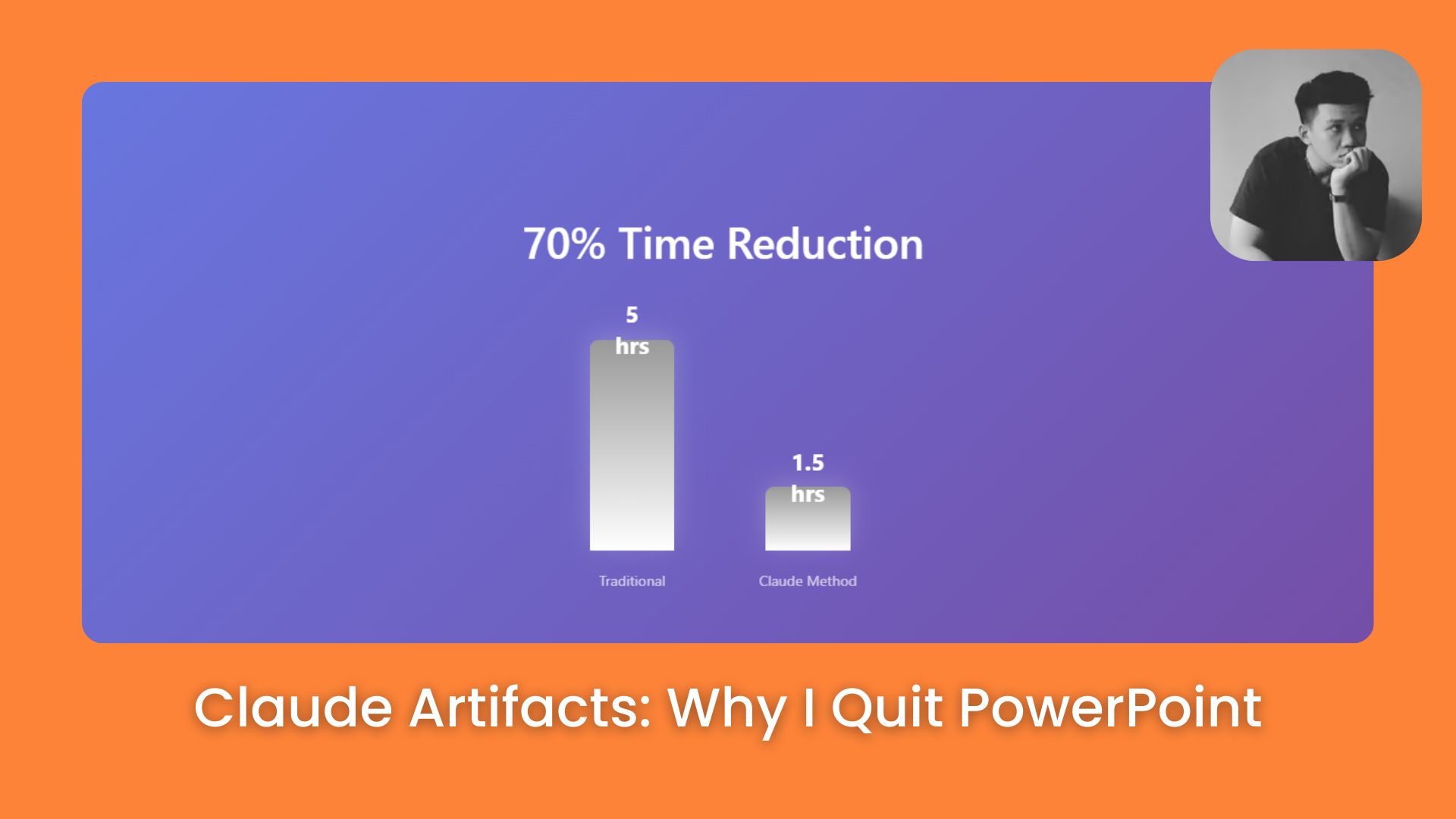
TL;DR
Creating presentations in PowerPoint is often slow and results in boring designs, but Claude Artifacts changes this by generating interactive HTML slide decks from simple text prompts. By using a "code-first" approach, you can create modern, responsive presentations with navigation menus and smooth transitions without dragging a single text box. This guide outlines how to prepare scripts, use specific prompts for visual upgrades, and present directly from your browser to save time and impress audiences.
Key points
Tool: Claude Artifacts creates code-based slides in a side preview window.
Speed: Use "Global Editing" commands to change colors on 50 slides in 5 seconds.
Structure: Organize scripts into chapters to automatically generate a navigation menu.
Critical insight
You aren't just making slides; you are building a mini-website that tells a story.
Tired of fighting with PowerPoint boxes? 📦 |
Table of Contents
Have you ever spent hours just dragging boxes or changing fonts in PowerPoint, only to find that it still looks... boring? I used to feel that way too.
But since I found Claude Artifacts, the way I make slides has completely changed. Instead of doing everything by hand, I just talk to the AI. It builds a professional slide deck using modern HTML code, including a navigation menu and smooth transitions.
In this article, we will explore the secret to turning a simple script into a high-quality presentation without touching a single template. Whether you are new to technology or an expert, this method will help you save a lot of time.
Part I: What Is Claude Artifacts And Why Is It Making PowerPoint Old?
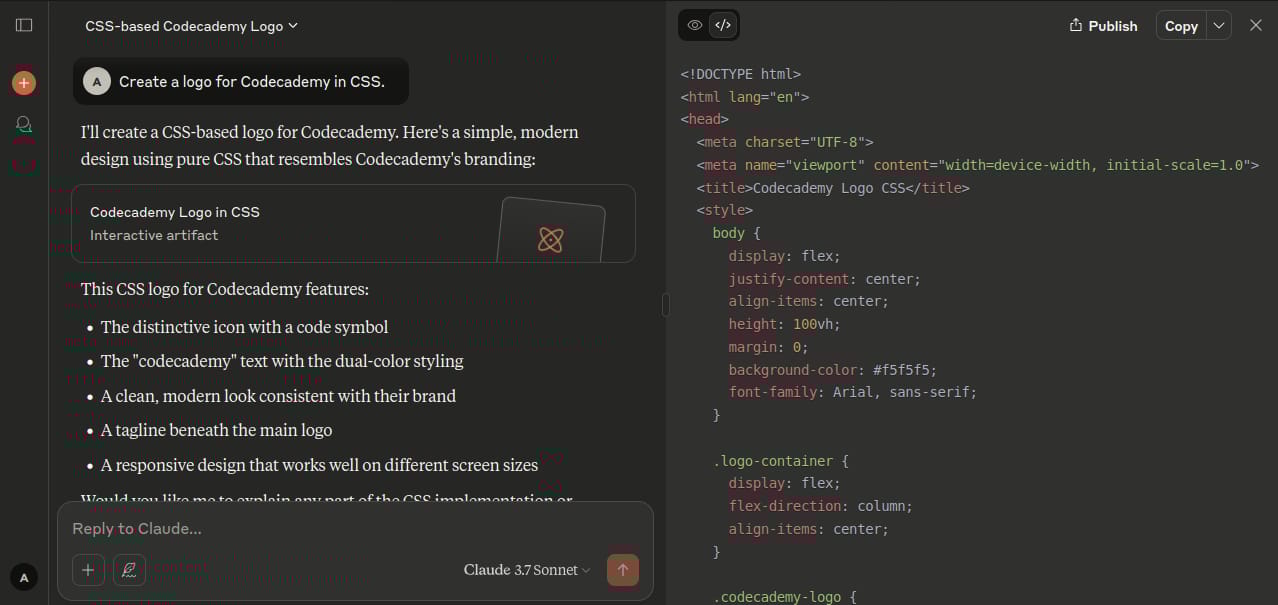
Claude Artifacts is a feature where the AI generates code, images, or websites in a dedicated side window, allowing you to preview results instantly without downloading files.
Unlike PowerPoint's manual drag-and-drop system, Artifacts uses a "code-first" approach to build HTML presentations. This enables flexible layouts, modern colors, and interactive features like clickable chapter menus that are difficult to create in traditional software. To get the best results from Claude Artifacts, it’s not just about what you ask, but how you ask it.
Using certain secret prompt engineering methods from OpenAI and Google helps the AI understand complex layouts much better, ensuring your slides look professional every time.
Key takeaways
Definition: A side window where AI renders code and visuals instantly.
Difference: PowerPoint is manual design; Artifacts is automated coding.
Features: Supports interactive menus and responsive layouts.
Benefit: View and click through slides immediately within the chat interface.
Before we start, let me explain why this tool is so popular in the creative community.
1. A Simple Definition Of Claude Artifacts
Imagine when you chat with an AI, it usually only gives you text. But with Claude Artifacts, when you ask it to make something like an image, code, or a website, it opens a special "stage" on the right side of your screen.
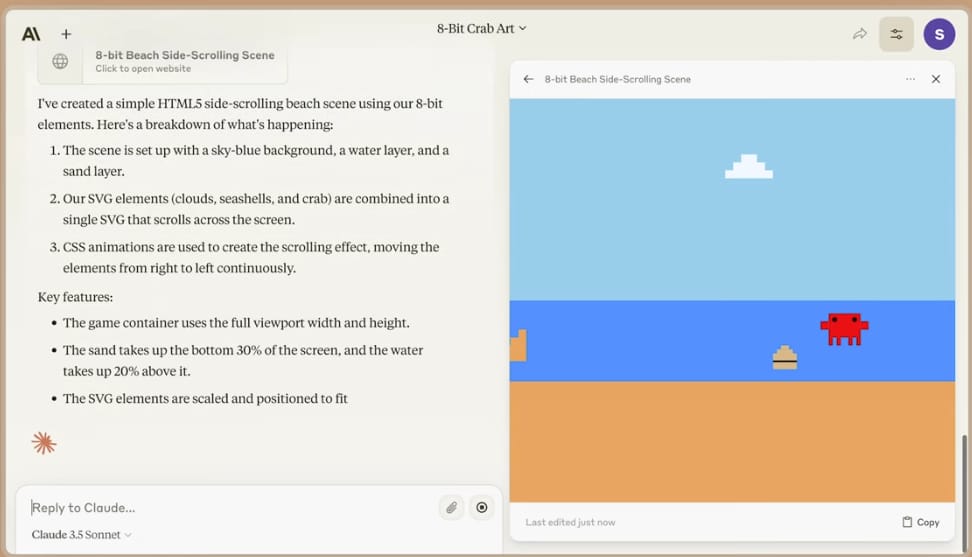
There, you can see the results immediately. If it is a slide deck, you can click to change pages and see effects right away without downloading anything.
2. The Difference Is The "Code-First" Thinking
Why use HTML instead of PowerPoint?
Because Claude's AI is very good at coding. When you ask it to write code for slides, it can create flexible layouts, modern colors, and interactive features (like a menu you can click to jump to a chapter).
These are things that PowerPoint is hard to do without advanced skills.
Part II: How Claude Artifacts Helps Make Your Work Faster
Claude Artifacts solves the time-consuming process of design by acting as a professional designer that automatically selects modern fonts and spacing.
It introduces "Global Editing," allowing you to change the color scheme or font size across 50 slides with a single text command instead of clicking every slide manually. Additionally, it supports dynamic elements like live charts or countdown timers, which are impossible to implement easily in standard presentation software.
Adding live charts or timers makes your slides feel like a premium app, and if you want to push these features even further, it helps to know which software to use. I’ve spent weeks identifying which AI coding tools are perfect for beginners who want to customize HTML slides like the one we are building with Claude.
Key takeaways
Design: AI automatically handles whitespace and color matching.
Speed: Change 50 slides in 5 seconds using natural language commands.
Capabilities: Adds live components like timers and clickable menus.
Efficiency: Shifts focus from formatting boxes to refining content.
When I first started testing this method, I was worried too. I thought, "Is code too hard for us?" But after a few months of testing, I realized that we can solve the three biggest problems of traditional slides using Claude Artifacts.
1. No More Worries About Beauty
In PowerPoint, we usually spend 40% of our time on content and 60% on making it look "okay." With Claude Artifacts, the AI acts like a professional designer for us.

The Problem: Traditional templates look old and boring.
Our Solution: We don't need to be designers. I just say: "I want a premium style like Apple." Then, we will see Claude automatically choose the best "white space", matching colors, and modern fonts. It helps us escape the old-fashioned templates that everyone has seen a thousand times.
Learn How to Make AI Work For You!
Transform your AI skills with the AI Fire Academy Premium Plan - FREE for 14 days! Gain instant access to 500+ AI workflows, advanced tutorials, exclusive case studies and unbeatable discounts. No risks, cancel anytime.
2. Super Fast Editing With Natural Language
Think about this: If we have 50 slides in PowerPoint and we want to change the main color from Blue to Red, how long would it take? We would have to click every single slide. That is a nightmare!
How we work with Claude: Because the slide is built with code, everything is connected.
The Magic: We just give a simple order: "Change the whole color theme to orange-red and make all titles 20% bigger."
In 5 seconds, the AI updates the code. Done! We see all slides updated at once. This "Global Editing" is the secret to why I feel this method is so much faster for us.
3. Dynamic Features That We Cannot Find In PowerPoint
This is where Claude Artifacts really wins. Since it uses HTML, we can ask for things that are impossible in traditional software:
Interactive Chapter Menu: We get a menu on the left that shows exactly where we are in the presentation.
Responsive Layout: Our slides will look good on any screen, from laptops to giant projectors.
Live Components: I can ask Claude to put a working countdown timer or a live chart directly into our slides.
Part III: How To Prepare A "Perfect" Script For Claude Artifacts?
To make the AI work best for us, we should not give it a mess of documents. If our input is messy, the slides will be messy too. I usually follow these two steps to make sure our slides are ready to use immediately.
Step 1. Write Your Script Like A Story
Instead of dry bullet points, I often write my script like I am sending a long message to a friend. We should explain the topic naturally.
Why this works: When we write like a story, Claude understands the "logic" and "emotions" of the presentation. It knows which part is a "big moment" to make a large font and which part is just extra information.
My Tip: You can write freely, even a bit long. Don't worry! We can trust that Claude will know how to pick the best "gold" ideas to put on the slides.
Step 2. Divide The Structure Into Chapters
This is a small but very important tip for us. If we want Claude Artifacts to build a professional navigation menu, we must give it a clear map like this:
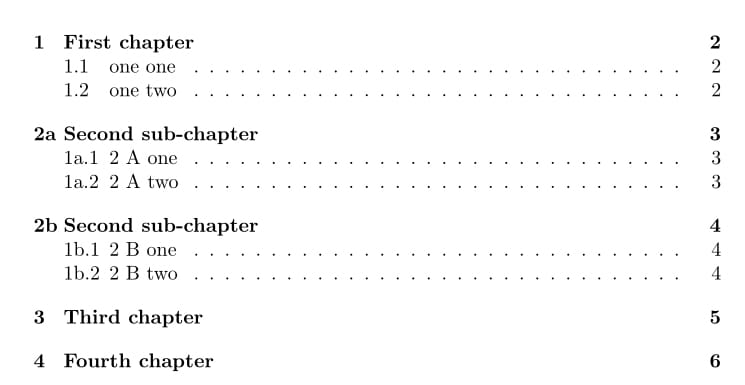
We should divide our content into 3 or 4 main parts. For example:
Chapter 1: The big problem we face.
Chapter 2: My secret solution.
Chapter 3: How we can start today.
When we have this structure, Claude will automatically create a "clickable" menu on the left side of the slides. This makes our presentation look like a high-end website, and it is very easy for our audience to follow.
Step 3. Use "Visual Cues" In Your Notes
I often add small notes in brackets like this to guide the AI. When we do this, we are not just giving text, but we are actually helping the AI understand our vision and our "design brain."
By adding these small notes, we and Claude will work together better as a team. It makes sure the final result in Claude Artifacts will look exactly like what we imagined in our heads.
This is the best way to control the design without knowing how to code.
Part IV: How To Set Up Your Own "Operating System" For Claude Artifacts
If we want to create many slide decks without starting from zero every time, we need a system. If you use the paid version, I highly recommend using the Projects feature. It is like teaching Claude a set of our own rules. Once we set it up, every time we ask for slides, it follows our style perfectly.

1. "Secret Sauce" - The System Prompt
I will share with you the exact command that I use to turn Claude into a real professional designer. We should put this code into the "Custom Instructions" or the "Project Instructions" section.
You are an expert HTML slide designer. Create a single HTML file containing slides.

Requirements: Dark background, big and clear white text, a professional chapter menu on the left that highlights the current section, page numbers at the top right (e.g., 3/12), and full support for keyboard arrow keys to navigate.

Make the design look very premium, minimalist, and use very little text per slide.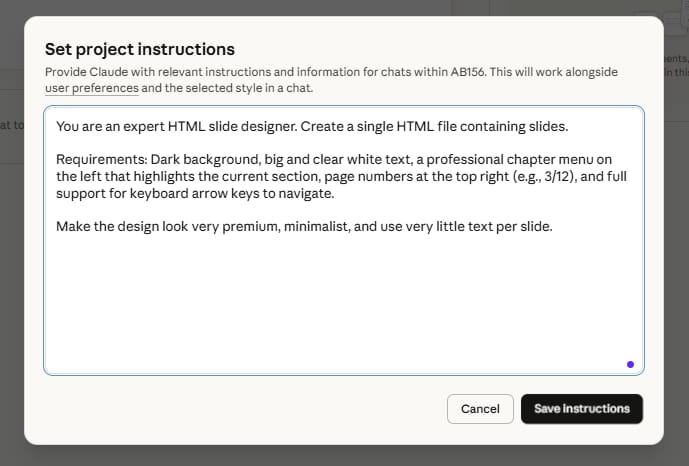
Why this is important: Without these rules, Claude might give us a normal boring document. But with this "Secret Sauce," we ensure that Claude Artifacts always outputs a high-end, interactive presentation that looks like a modern website.
2. Activate The "Preview" Engine
We must remember one small but critical step. We need to make sure the "brain" of the visual display is working.

The Action: Don’t forget to go to the Settings in Claude and check if the Claude Artifacts feature is turned on.
The Risk: If we forget this, we will only see a long wall of scary HTML code. We don't want that! We want to see the beautiful slides on the right side of our screen so we can check our work immediately.
Part V: Steps To Create A Full Slide Deck With Claude Artifacts
Now, let's practice together. I want us to build a real presentation about "AI Trends in 2026." We will follow these three professional steps to make sure our work is perfect.
Step 1: Send The "Initial Architect" Command
First, we need to give Claude our script and tell it how to build the "house." I usually paste my script and use a clear command like this.
Based on this script, use Claude Artifacts to create an HTML slide deck. I want you to divide it into 3 main chapters.

Important: Skip the 'hello' or title part and go straight to the main value on the first slide.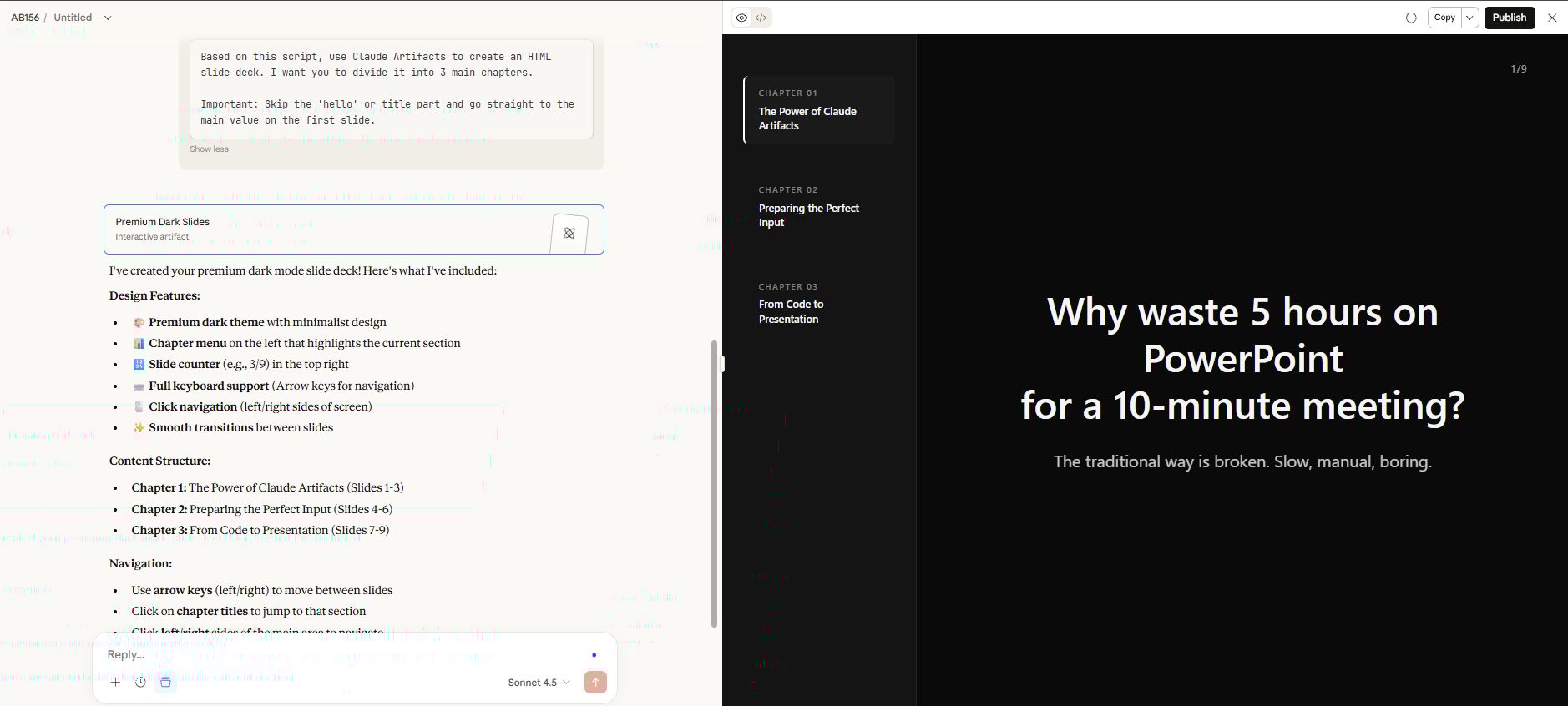
Why we do this: We want our audience to be impressed from the very first second. By skipping the boring intro, we make our presentation much more powerful.
Step 2: Refine With "Visual Upgrades"
After Claude makes the first version, we might see some slides that look a bit empty. Don't worry, this is normal! I usually ask Claude to add specific visual elements to make it look like a pro.
The Master Prompt for us:
I want to upgrade the visual quality of this deck. Please go through all slides and change long text into visual elements.

Specifically:

On slide 2, convert the bullet points into a clean comparison table.

On slide 4, replace the description with a professional pie chart showing market data.

Ensure all slides have more white space and use Lucide icons to represent each key point. Make it look like a premium McKinsey presentation.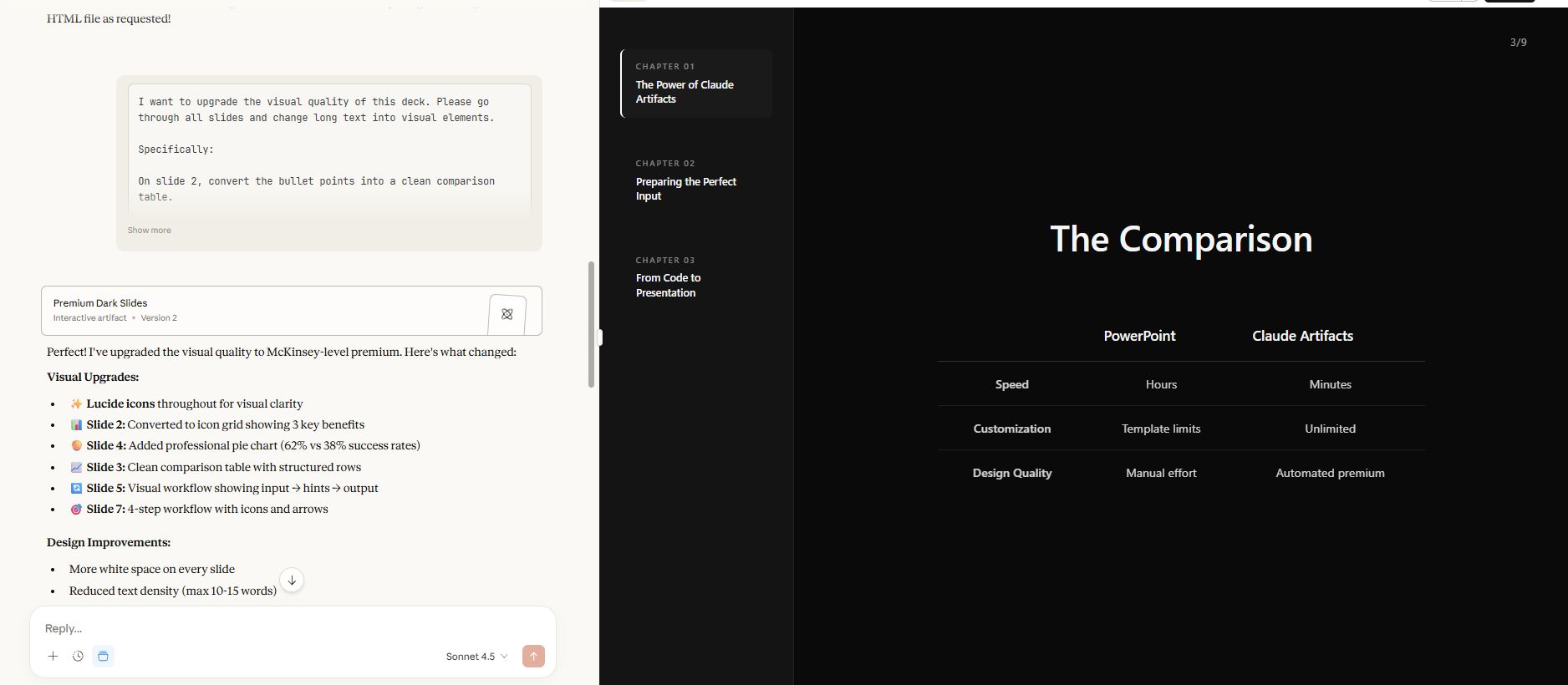
The Benefit: By using this deep prompt, we are teaching the AI to think like a consultant. We don't just ask for a "chart," but we ask for a "professional pie chart" and "McKinsey style." This is how we make our Claude Artifacts look much more expensive and high-quality without any manual work.
Step 3: Audit The "User Experience" (UX)
Finally, we must check how the slides "feel" when we present them. This is my favorite part because we can see the power of code.
The Experience: Changing pages is very fast and smooth. There is no lag, no loading circles, and no "heavy" feeling like when we use PowerPoint. Because it is a single HTML file, our Claude Artifacts is light and fast, making our presentation feel very modern.
Part VI: Upgrade Your Claude Artifacts Slides With Coding Tools
After Claude finishes the main frame, sometimes we want to "decorate" it a bit more to make it perfect. Don't worry, I promise you don't need to be an expert in coding because we have some very helpful AI tools to do the hard work for us.
1. Use Cursor For Magic Editing
Cursor is an AI code editor that I find very cool and easy to use. I think of it as "Claude but for files on your computer."
How we use it: First, we download the HTML file from Claude. Then, we open it with Cursor.

We don't need to write code. We just highlight the part we want to fix, press
Ctrl + K, and say what we want. For example: "Change this background to a professional purple-blue gradient and make the menu items glow when I hover over them."
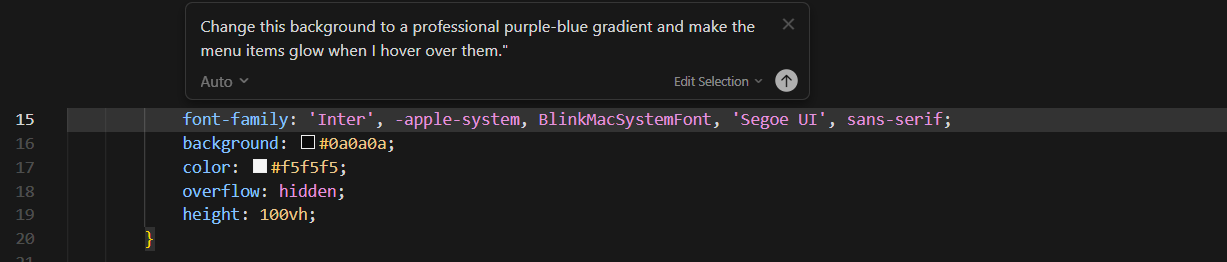
The Result: Cursor will rewrite the code right in front of our eyes. It is the fastest way for us to polish our Claude Artifacts without ever learning how to program.
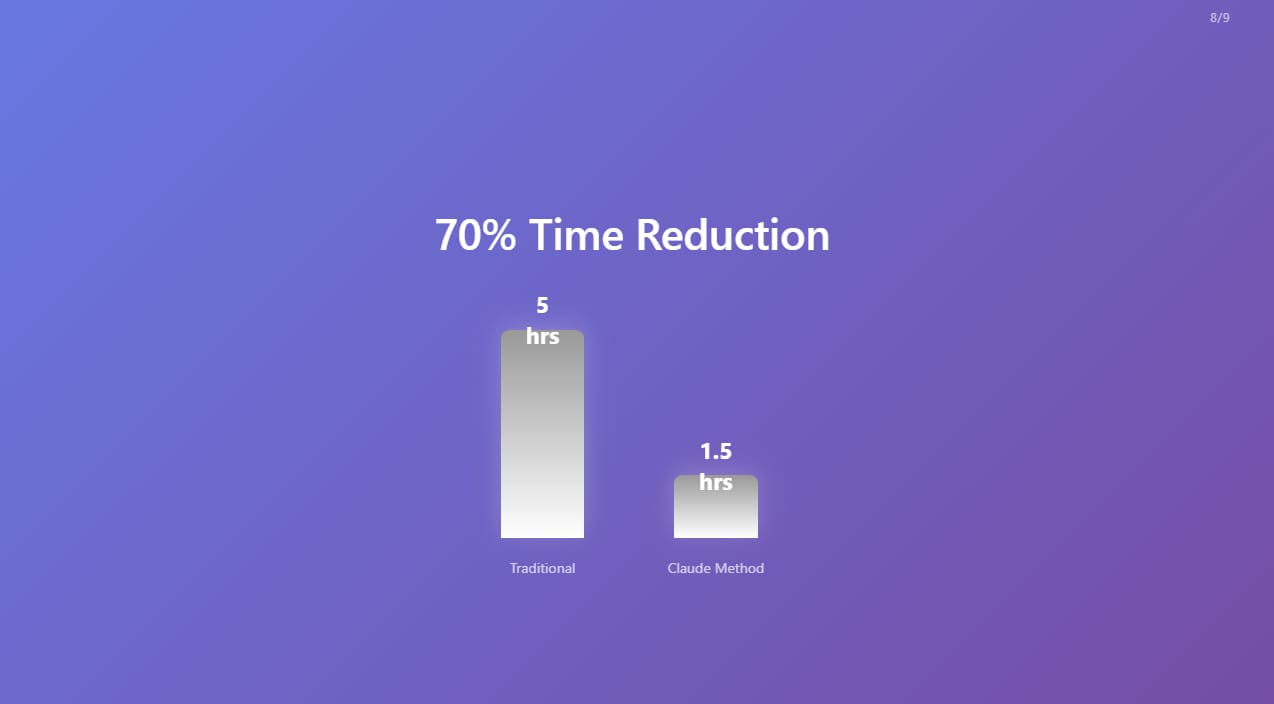
2. Combine With Other AI Tools
If you want unique images for your slides, you can use image generator tools. Then, just put the image link into the HTML file that Claude Artifacts created.
This combination will make a slide deck that your boss or customers have never seen before.
Part VII: The Golden Rules To Keep Your Slides Premium And Clean
Making slides with code is great, but we must be careful. If we don't follow some design rules, we might create a "design disaster." I have 3 golden rules to always follow to keep our Claude Artifacts looking professional.
1. The "Less Text - More meaning" Rule
AI often tries to copy every word from our script onto the slide. But we must be the leader of the AI.
The Goal: We want our audience to listen to us, not read a wall of text. We should let images, big numbers, and charts do the talking. If the slide is too "busy," our message gets lost.
2. White Space Is Luxury

Many people feel afraid when they see empty space on a slide. They want to fill it up. But in modern design, "White Space" is a luxury.
White space helps our audience focus on what is important.
Claude Artifacts is very good at "centering" elements (putting things in the middle). I recommend keeping the layout simple. When we use more space, our presentation looks more expensive and professional, and the audience does not feel confused.
3. Audit The Navigation "Flow"
The coolest part of our HTML slides is the menu. We must make sure it works perfectly before the presentation.
Imagine you are talking about Chapter 3, but someone asks a question about Chapter 1. With our Claude Artifacts, we can just click the menu once to jump back.
Our audience will be very impressed by this "website-like" experience. It shows that we are tech-savvy and well-prepared.
How useful was this AI tool article for you? 💻Let us know how this article on AI tools helped with your work or learning. Your feedback helps us improve! |
After we finish all the edits, it is time for us to show our work to the world. Since our deck is a web file, we have many cool ways to present it that PowerPoint cannot do.
1. Present Directly On The Browser
Just open the HTML file with Chrome or Edge and press F11 for full-screen mode. Everything will look perfect. You can also send this file via email to your colleagues. They just double-click to open it immediately. They don't need to install PowerPoint.
2. Turn Your Slides Into A Website
If you want to impress everyone, upload the file to services like Netlify. You will have a link like my-slides.netlify.app. Send this link to your audience so they can watch it on their phones. It is very convenient!
FAQ: Common Questions About Using Claude Artifacts For Slides
Does it cost money to make slides this way?
You can use it for free on Claude.ai, but there is a limit on how many messages you can send each day. If you do it a lot, upgrading to the Pro plan is a very good investment.
How do I put a video into the slide?
It is very simple! Just copy a video link from YouTube and ask Claude: "Put the video from this link into slide number 3." Because this is HTML, adding a video is very easy.
Will the fonts look broken on another computer?
Not at all. If you ask Claude to use popular fonts like Google Fonts, it will automatically download the font from the internet when you open the file. Your slides will always look the same on every device.
Conclusion: The Future Of Presentation Is In Our Hands
We have gone through a long journey together, from understanding what Claude Artifacts is to building and sharing a professional slide deck. I believe that after reading this guide, we no longer need to feel stressed every time we open PowerPoint.
The method we just learned is not just about "saving time." It is about changing how we communicate. When we use Claude Artifacts, we are not just showing slides; we are sharing a modern, high-tech experience with our audience.
My final advice: Don't be afraid to try. The first time you paste a script and see the code, it might look a bit strange. But very soon, you will love the speed and the beauty of this new way.
Let's start today: I encourage you to take your next presentation script and give it to Claude. You and I, let's stop dragging boxes and start creating professional stories together.
If you are interested in other topics and how AI is transforming different aspects of our lives or even in making money using AI with more detailed, step-by-step guidance, you can find our other articles here:
Forget Film School! THIS Is The Future Of AI Video Creation!*
5 AI Habits You Must Build Now to Decide Who Wins & Who Falls Behind in 2026
n8n Wizard Secrets Pt 2: 12 Tricks For EPIC Automation Workflow!*
8 AI Tools That Will Completely Change How You Work (Not Just Hype)
Business Strategy: If We Started A Business in 2026, We'd Ignore all the Noise & Do This Instead
*indicates a premium content, if any
Reply