- AI Fire
- Posts
- 🎬 LTX Just Dropped a First AI-Native Video Editor and It Is Wild (Completely Free)
🎬 LTX Just Dropped a First AI-Native Video Editor and It Is Wild (Completely Free)
Stop jumping between 5 different tools. This guide shows how to install LTX Desktop, bypass VRAM limits, and generate AI video directly on the timeline.

Max Anh
March 16, 2026
TL;DR BOX
In early 2026, LTX Desktop has emerged as the first true AI-Native Non-Linear Editor (NLE). Unlike traditional editors that "bolt on" AI features, LTX is built around the LTX 2.3 multimodal model, which generates synchronized video and audio (speech, SFX and music) in a single pass. It is fully local and open-source, meaning zero subscription fees and total privacy.
The 2026 update introduces Storyboard-to-Timeline automation, IC-LoRA integration for precise structural control (depth/canny) and the landmark Bridge Shots feature (powered by Gemini) that generates missing transition footage between clips. While the official hardware gate requires 32GB of VRAM, the open-source community has already released forks (like WanGP) that run the full editor on consumer cards with as little as 6GB of VRAM.
Key Points
Fact: LTX 2.3 is the first production model to generate native vertical 9:16 video (1080x1920) without cropping, making it the elite choice for short-form content.
Mistake: Paying for "Retakes". While cloud APIs charge per edit, running LTX Desktop locally allows for unlimited non-destructive "Rerolls" directly on the timeline.
Action: Install the community-optimized fork if you have less than 32GB VRAM. This bypasses the software lock and enables local generation on RTX 30/40 series cards.
Critical Insight
The defining shift of 2026 is Timeline Continuity. LTX Desktop isn't just a clip generator; its "Thinking Tokens" allow the AI to look at the entire sequence on your timeline to ensure that character consistency and lighting stay identical across multiple cuts.
Table of Contents
I. Introduction
For a long time, if you wanted to make an AI-generated video, you open one tool to generate a clip, download it, open your video editor, import it, hate how it turned out, go back to the first tool, repeat.
But what would a video editor look like if it were built around AI from the start, instead of having AI features added later?
Most tools only solved part of the problem, like Premiere Pro adding AI tools, CapCut adding generation buttons, Runway offering a timeline of sorts,... But the core workflow still felt split.
Lightricks recently released LTX Desktop alongside the new LTX 2.3 model and it moves closer to answering that question.
It’s a fully local, open-source, non-linear video editor where AI generation isn’t just a feature inside the editor; it’s central to how the editor works. And the software is completely free.

In this post, we’ll break down what LTX 2.3 actually improved, how to install LTX Desktop step by step, what it can do today, what it still can’t do and why the open-source approach could make this ecosystem grow very quickly.
🎞️ What is the most annoying part of your current AI video workflow? |
II. What's New in LTX 2.3: The Model Behind Everything
LTX 2.3 is the model powering the LTX Desktop editor. It improves visual quality, motion, vertical video output and audio generation. These upgrades aim to solve common issues from earlier versions. The result is a cleaner and more stable video output.
Key takeaways
New visual autoencoder improves texture and sharpness.
Motion training reduces frozen or static frames.
Native vertical video supports 1080×1920 output.
Audio generation uses the HiFi-GAN vocoder.
Model improvements matter because the editor depends entirely on generation quality.
Before looking at the editor, it helps to understand the model running underneath it. LTX 2.3 launched alongside the desktop version and brings four upgrades that actually change the output quality.
1. A Rebuilt Visual Autoencoder (VAE)
The visual autoencoder (VAE) controls how the image itself is rendered, like how sharp the frames look, how clean the edges are and how detailed the textures appear.
Lightricks rebuilt this component from the ground up, which leads to noticeably sharper images and cleaner textures. If you've used earlier LTX versions and noticed the output looked slightly soft or muddy, this update fixes that.

2. Better Image-to-Video Motion
Earlier versions had a common problem: clips would start with good movement and then slowly freeze or become static, which used to be one of the most complained-about issues.
LTX 2.3 fixes much of that by retraining the image-to-video motion data. So, movement stays more natural throughout the clip and the chance of scenes going lifeless midway through generation is much lower.

3. Native Portrait Video at 1080x1920
This sounds like a small thing but for short-form content creators, it matters a lot.
Previously, portrait videos were often just landscape footage cropped into a vertical frame, which produced awkward compositions. LTX 2.3 now trains on true vertical video data, so 9:16 content looks far more natural.

4. Cleaner Audio with a New Vocoder
The audio training set was cleaned up to remove silence gaps and noise artifacts and the model now ships with a new vocoder called HiFi-GAN.
The practical result is tighter audio sync and cleaner sound across generations.
Where to access LTX 2.3:
Hugging Face: LTX-2.3.
ComfyUI: Day-one support available.
LTX Playground via API.
Learn How to Make AI Work For You!
Transform your AI skills with the AI Fire Academy Premium Plan - FREE for 14 days! Gain instant access to 500+ AI workflows, advanced tutorials, exclusive case studies and unbeatable discounts. No risks, cancel anytime.
III. What LTX Desktop Actually Is?
LTX Desktop is not a web app. There's no subscription, no credit system, no "you've used your 10 free generations this month" message.
It’s a fully local, open-source non-linear video editor (NLE) that runs directly on Windows or Mac, with Linux support on the way.
What that means in plain language:
All generation happens on your machine, not on a remote server.
You pay nothing per generation when running locally.
The software is yours to use, modify or extend if you want.
Nobody sees your footage or your prompts.
Lightricks described it on Reddit as: "A fully local, open-source video editor powered by LTX-2.3. It runs on your machine, renders offline and doesn't charge per generation".

Source: Reddit.
This is the first tool that truly deserves the label “AI-native NLE". Everything in the editor is designed around AI generation, not retrofitted to include it.
IV. How to Install LTX Desktop: Step by Step
Before getting into what LTX Desktop can actually do, you need to get it running on your machine.
The good news is that this is one of the smoother installs you'll find for an open-source AI tool without terminal commands or hunting for dependencies.
But there are a few decision points and potential hiccups worth knowing before you start, especially if you're on Windows or working with limited storage.
1. Download the Installer
Go to ltx.io/ltx-desktop, pick your OS (Windows or Mac) and hit download.
The setup process is straightforward for an open-source tool. There are no terminal commands or complicated dependencies.

2. Run as Administrator on Windows
If you're on a PC and the installer keeps failing or freezing, the fix is easy: right-click the installer file and choose "Run as Administrator".
This usually resolves the issue for most PC users.

3. Wait for the Models to Download
After installation starts, the app downloads the required models. This step takes time.
Depending on what you already have installed (Python, etc.), the full installation can range from about 70 GB to 150 GB. You can make a cup of coffee and come back later.

4. Choose Your Text Encoder: API or Local
Here's a decision point that trips people up.
The text encoder is the part that translates your written prompt into something the video model can understand. You have 2 options:
Option | Extra Storage | Fully Offline | Cost |
|---|---|---|---|
LTX API (recommended) | 0 GB | No (text encoding goes via API) | Free |
Local Encoder | +25 GB | Yes, 100% offline | Free |
Most users choose the API option because it is free and saves you 25 GB of storage. The only trade-off is that your text prompt goes through LTX's API before the actual video generation happens locally.
If you're on a fully offline setup, download the local encoder instead.

5. Set Up Your API Key
If you chose the API encoder, open the API Keys tab inside the app, create a new key, name it whatever you want, paste it into the field and click Save Key.
Once that’s done, text prompts will be processed through the LTX API automatically, with no added cost.

If you want a quick reference while installing, download the LTX Desktop setup checklist.
How would you rate this article on AI Tools?Your opinion matters! Let us know how we did so we can continue improving our content and help you get the most out of AI tools. |
V. The VRAM Problem And Why It's Already Being Solved
Here's my honest review: LTX Desktop currently requires 32 GB of VRAM to run local generation.
In today’s consumer GPU market, that basically means one card: the RTX 5090. For most people running a normal gaming PC, that makes local generation seem out of reach.
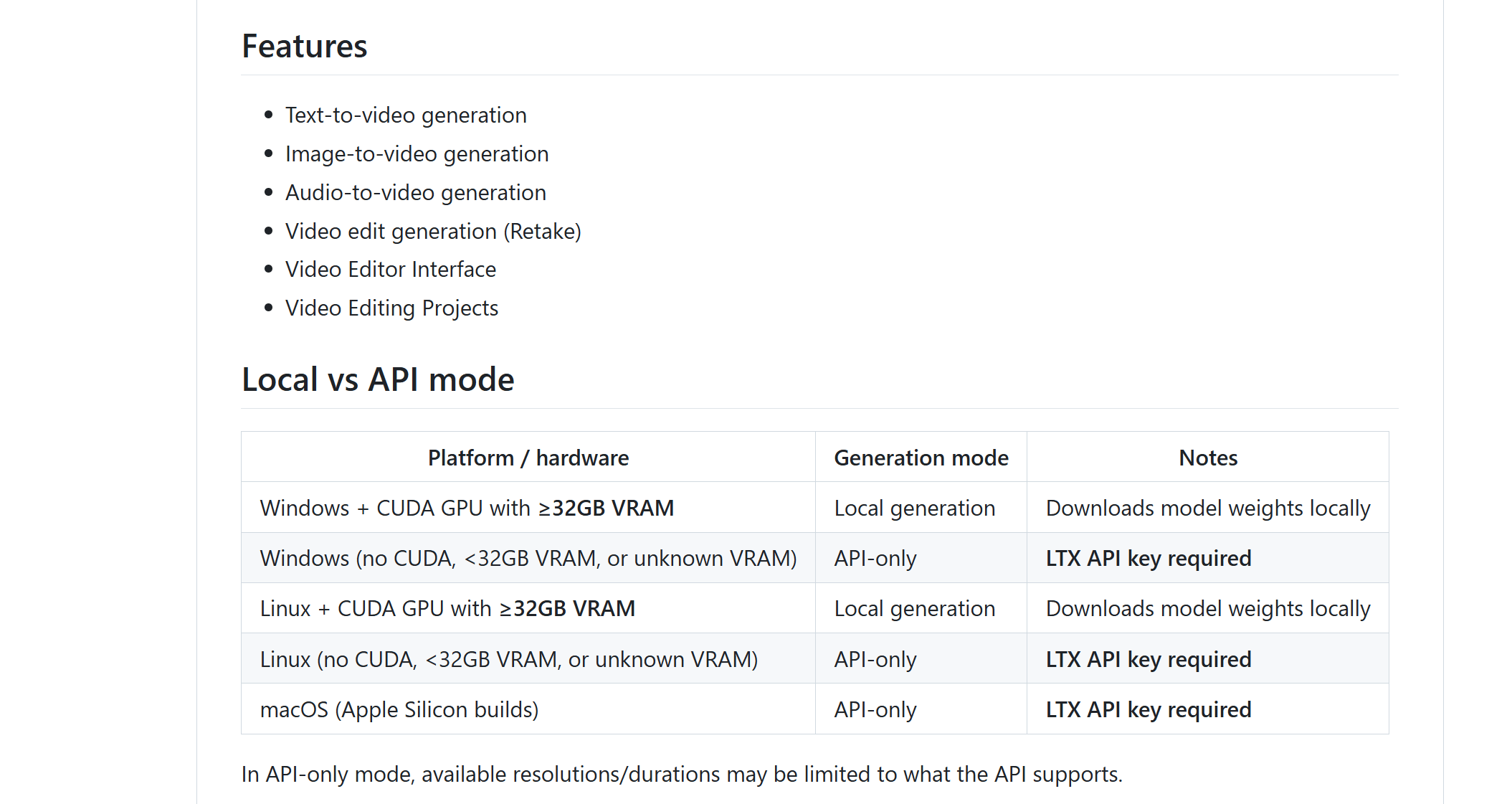

But here’s why that matters less than it sounds.
The community has already bypassed it. Because LTX Desktop is open source, a developer went into the source code, removed the VRAM gate and got it running on a 24 GB card in roughly a week using AI coding tools. The community has since published tutorials for bypassing the gate on cards as low as an RTX 3090 with 12 GB of VRAM.
In other words, the 32 GB requirement is mostly a software gate, not a true hardware limit.

Mac optimization is actively in progress. Apple Silicon users currently generate through the API, which charges per render. But Lightricks has confirmed they’re working on native Apple Silicon support. If that lands, it opens the door for a massive user base.
LTX 2.3 already runs on lower VRAM in ComfyUI. This is important: the 32 GB gate is specific to the Desktop app, not the model itself. You can run LTX 2.3 comfortably in ComfyUI on a 12 GB+ card today.
Your options based on your setup:
Situation | Best Workaround |
|---|---|
Windows PC, less than 32 GB VRAM | Use community bypass fork (tutorials available on Reddit) |
Mac (any spec) | Use "Generate via API" inside the editor, costs money per generation |
Low VRAM, don't want API costs | Run LTX 2.3 in ComfyUI, import the footage into Desktop for editing |
No local GPU | Use the LTX API Playground online |
The key point: the hardware barrier looks big at first glance but the community has already found multiple ways around it.
VI. Inside the Editor: What It Can Actually Do
Once LTX Desktop is running, the interface centers around 2 main areas.
1. The Gen Space
This is where you generate clips from scratch, either text-to-video or image-to-video.
You can render at 540p, 720p or 1080p. Clip length depends on resolution: up to 20 seconds at 540p, shorter at higher resolutions and around 5 seconds at 1080p. There’s also a built-in 2x upscaler.
The usual workflow is simple: generate at 720p, then upscale the final clip. You get better quality without wasting generation time.

2. The Video Editor
The editor itself is a real non-linear timeline and for a first release, it’s surprisingly more capable than you'd expect.
Here's what's included:
Standard timeline tools: ripple cut, trimming and clip splitting.
In/Out points can be set directly on the timeline to organize clips quickly.
Basic color correction per clip (double-click opens the properties panel).
Adjustment layers (genuinely notable for a V1).
Auto letterbox with selectable aspect ratios.
Basic transitions: dissolve, fade and auto-transition when clips are bumped together.
Audio unlinking from video clips.
XML export for finishing in Premiere Pro, DaVinci Resolve or Final Cut Pro.

To be clear about what it isn't: this isn’t a full professional system like DaVinci Resolve. There are no VST plugins, no advanced color science, no multi-track audio mixing.
You can think of it as a capable lightweight editor designed to combine basic editing with AI-driven video generation.
VII. The AI-Native Features: Where This Gets Genuinely Interesting
This is the part that makes LTX Desktop different from everything else. The AI isn’t sitting in a side panel. It’s built directly into the timeline
1. Regenerate Shot (Right-Click Reroll)
Any clip on the timeline can be regenerated instantly by right-clicking the clip and choosing Regenerate Shot and the system reruns the original prompt without leaving the editor.
Each regeneration creates a new version while keeping the previous ones intact. You can flip between them with a small navigation button on the clip. That means you can split a clip, use Version 1 for the first half and Version 3 for the second and stitch them together into one seamless shot.
Traditional editors don’t have anything like this.

2. Image to Video on the Timeline
You can also convert still images into motion directly on the timeline. Drag an image into the sequence, right-click it, select Image to Video, enter a prompt and define the camera movement. The generated video replaces the image in place.
You’re not limited to LTX’s own models either. You can import footage generated in Kling, MiniMax, Runway or any other tool and mix it freely on the same timeline.

3. Bridge Shots (Fill With Video)
This might be the feature with the most long-term potential.
Leave a gap between 2 clips, right-click the space and select “Fill With Video.” With a Gemini API key (available for free from Google AI Studio), Gemini will analyze the last frame of your first clip and the first frame of your second clip, then generate a bridging shot between them based on your prompt.
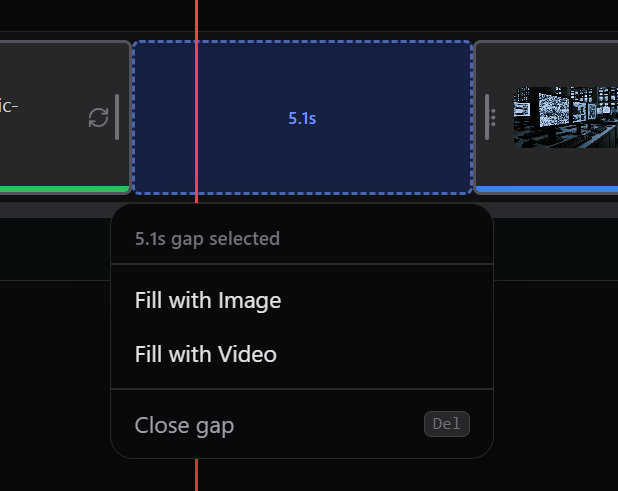

In the current version, the frame-matching process isn’t fully accurate yet, so the result relies more on the prompt than on the adjacent frames. This limitation is already known and expected to improve in upcoming updates.
But when it does work properly, this feature alone could transform how creators handle continuity across multi-shot sequences
4. Retake (In-Paint on the Timeline)
If a clip contains a small visual problem (such as an AI glitch, a weird motion artifact or a character doing something unintended), you can fix just that section.
Right-click the clip, choose “Retake Shot,” in-paint the area and enter a corrected prompt. The system regenerates just that segment while keeping the rest of the clip untouched.

Note for V1: the scroll inside the retake panel doesn't reach far enough down in long clips. You may need to return to the Gen Space to complete a retake on longer footage. This is a known bug expected to be patched soon.

Creating quality AI content takes serious research time ☕️ Your coffee fund helps me read whitepapers, test new tools and interview experts so you get the real story. Skip the fluff - get insights that help you understand what's actually happening in AI. Support quality over quantity here!
VIII. Why Open Source Changes Everything About This Tool
Yes, the first version has flaws:
The VRAM requirement is annoying.
Bridge shots don't fully work yet.
The retake panel has a scroll bug.
These are all valid criticisms but here’s the key point: LTX Desktop is fully open source. That means none of these limitations are permanent and they don’t depend on Lightricks to fix them.
Any developer can step in and:
Fork the repo and remove the VRAM gate (already done within the first week of release).
Add API integrations for Kling, MiniMax, Runway or any other generation model.
Connect locally running models through ComfyUI.
Run the entire editor as a node inside ComfyUI.
Build new features using Claude Code, Cursor or any other AI coding tool.
The community can often move faster than a single internal team. Features that would take months on a closed platform can appear as community forks in weeks.
And that’s not theory; it already happened with the VRAM bypass.
If you have the skills, you can fork the project and build the feature you wish existed. With modern AI coding tools, that could happen in a week.
That's a genuinely different relationship between user and software than any closed tool can offer.

IX. Will AI Replace Traditional Video Editing?
AI will not replace video editors completely. Editing involves pacing, rhythm and narrative structure. Current AI models generate short clips but struggle with longer storytelling. AI tools are better seen as assistants.
Key takeaways
Most AI video clips last 5-15 seconds.
Multi-shot storytelling still requires human control.
AI helps generate and refine footage.
Editors remain responsible for sequencing and pacing.
AI works best when it augments human editing rather than replacing it.
This question comes up often in creator communities. The short answer is: no or at least not in the way people imagine.
Multi-shot generation from tools like Kling 3.0 and Veo 3.1 can generate impressive multi-shot clips and some systems can chain scenes together automatically. But there’s a structural challenge: rhythm and pacing.

Most AI video generations operate within a short window, usually 5-15 seconds. When you chain those clips together, each generation focuses on its own scene. It doesn’t understand the rhythm of the cut before it or the moment after it.
What LTX Desktop represents is a different idea: not automation of editing but augmentation of it.
Editors can regenerate, adjust or extend individual shots directly on the timeline without leaving the project. The editor keeps control of the sequence, while the AI helps with generating and refining footage.
That’s a far more realistic future for video editing: human control, AI assistance.
X. Honest Assessment: What Works and What Doesn't in V1
Feature | Status |
|---|---|
Core editing tools | Functional, basic but solid for a V1 |
AI shot regeneration | Works well, non-destructive version history |
Image to video on timeline | Works well |
Bridge shots (Fill with Video) | Partially working, first/last frame conditioning not active yet |
Retake / in-paint | Works but has a UI scroll bug in V1 |
VRAM requirement | 32 GB gate, community bypass available |
Mac native performance | API-only currently, local support in development |
Plugin/VST support | Not in V1 |
Advanced color grading | Basic only |
XML round-trip export | Works, compatible with Premiere, DaVinci, Final Cut |
Open source / forkable | Fully open source on GitHub |
Cost | Free |
The honest takeaway is that this is an early version with real limitations and a few bugs. Still, the foundation is solid, the core ideas feel new and the open-source model means progress can move quickly.
A year from now, the tool may look very different in a good way.
XI. Conclusion
LTX Desktop isn’t a polished, finished product yet. It’s the first version of something new: an AI-native video editor where generation and editing happen in the same workflow instead of two separate steps.
Some friction points still exist.
Because the project is open source, progress doesn’t depend only on a company's roadmap. The community can experiment, modify and expand what the tool becomes.
If you’re creating video or even just curious about AI video tools, it’s worth installing, exploring the Gen Space and watching what the community builds next.
The idea of an AI-native NLE is only just beginning.
If you are interested in other topics and how AI is transforming different aspects of our lives or even in making money using AI with more detailed, step-by-step guidance, you can find our other articles here:
*indicates a premium content, if any
Reply