- AI Fire
- Posts
- 🎬 2 Free AI Video Generators You Can Run Offline to Replace Sora 2/Veo 3.1 (No Limits)
🎬 2 Free AI Video Generators You Can Run Offline to Replace Sora 2/Veo 3.1 (No Limits)
Stop paying $30/month for Sora or Veo. This guide shows how to install the Pinokio + Wan2GP stack to run LTX-2 and Wan 2.2 locally (free, private, and on your own PC).

Max Anh
February 04, 2026
TL;DR BOX
In early 2026, open-source AI video models became good enough to replace most cloud tools for real work. Instead of paying monthly credits, you can now run powerful models locally using Pinokio (a one-click AI launcher) and Wan2GP (a unified video interface).
Wan 2.2 is best for realistic visuals, while LTX-2 creates video and sound at the same time. With the distilled LTX-2 version, most people can generate a 10-second dialogue scene on consumer GPUs in under two minutes, fully offline and privately.
Key Points
Fact: LTX-2 is a 19B-parameter model released in January 2026 that handles Foley, Ambience and Lip-Sync natively without external tools.
Mistake: Assuming you need a $5k rig. While 24GB VRAM is ideal for 4K, the Distilled 20GB version of LTX-2 runs smoothly on 8-12GB VRAM with optimized "Memory Profiles".
Action: Download the Pinokio installer from
pinokio.coand search for the Wan2GP script to automate the entire environment setup in one click.
Critical Insight
The real advantage of open-source AI in 2026 isn't just cost; it's Latency and Privacy. You can iterate on a storyboard 10x faster because you aren't waiting in cloud queues and your creative "IP" never leaves your hard drive.
Table of Contents
I. Introduction
Tired of monthly fees, usage limits, and corporate filters blocking your video ideas? Or are you worried about your creative work living in a black-box cloud?
What if you could generate AI videos directly on your own computer, completely free, with no limits and total privacy?
That is exactly what we are covering today. I am going to show you how to run powerful, state-of-the-art open-source AI video models locally on your PC, including LTX-2 (which creates video, audio and narration together) and Wan 2.2 (known for high-quality video output).
Don’t worry, you don’t even need a cloud server, subscriptions or corporate servers analyzing your prompts. This setup needs only you, and your ideas.
And the setup is simpler than you think, even if you've never touched AI tools before.
🔓 If you had unlimited AI video generation, what would you make? |
Real test: you will generate a 10-second video with dialogue on a regular consumer GPU in under 2 minutes. You will get natural character voices and smooth video, all running on your own computer.
II. Can Your Computer Actually Run AI Video Models?
Most modern PCs can handle local AI video. You don’t need enterprise hardware. A mid-range GPU is enough for practical results.
Key takeaways
Nvidia RTX GPUs work best.
8 GB VRAM supports 720p video.
12+ GB VRAM for smoother output.
16 GB system RAM recommended.
So the next step is a quick reality check on your own machine.
The short answer for most people is yes and you don’t need a monster setup. Just mid-range hardware works fine.
You’re good to go if your system looks like this:
GPU: NVIDIA RTX series (ideally 30, 40 or the new 50 series).
VRAM: 8 GB minimum for 720p video (12 GB+ for 1080p; 24 GB for 4K).
Disk Space: ~40 GB (full models) or ~20 GB (distilled versions).
RAM: 16 GB+ recommended.
More VRAM gives smoother performance and longer clips but plenty of people run this comfortably at 6-8 GB with the right settings.
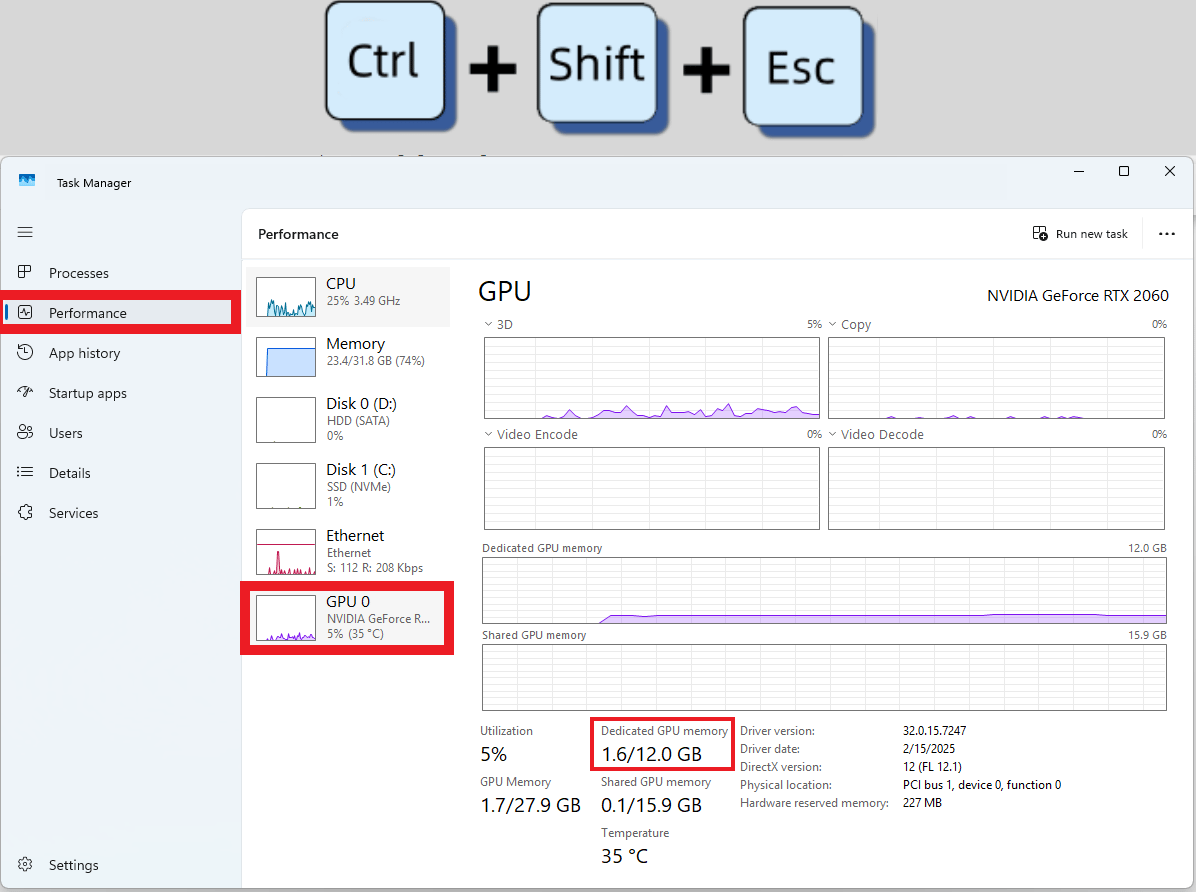
To check VRAM on Windows, open Task Manager with Ctrl + Shift + Esc, go to Performance, click GPU and look for Dedicated GPU Memory. That number tells you what’s possible.
If it says 6 GB or higher, you’re ready.
III. Install Pinokio: The One-Click AI Installer
Anyone who’s installed AI models manually knows the pain: Python conflicts, broken dependencies, CUDA version mismatches and hours of troubleshooting.
The good news is that Pinokio removes all of that. You can think of it like Steam for AI. With only one launcher and one click, it handles dependencies, environment setup and installation automatically.
Here’s the simple flow to install Pinokio:
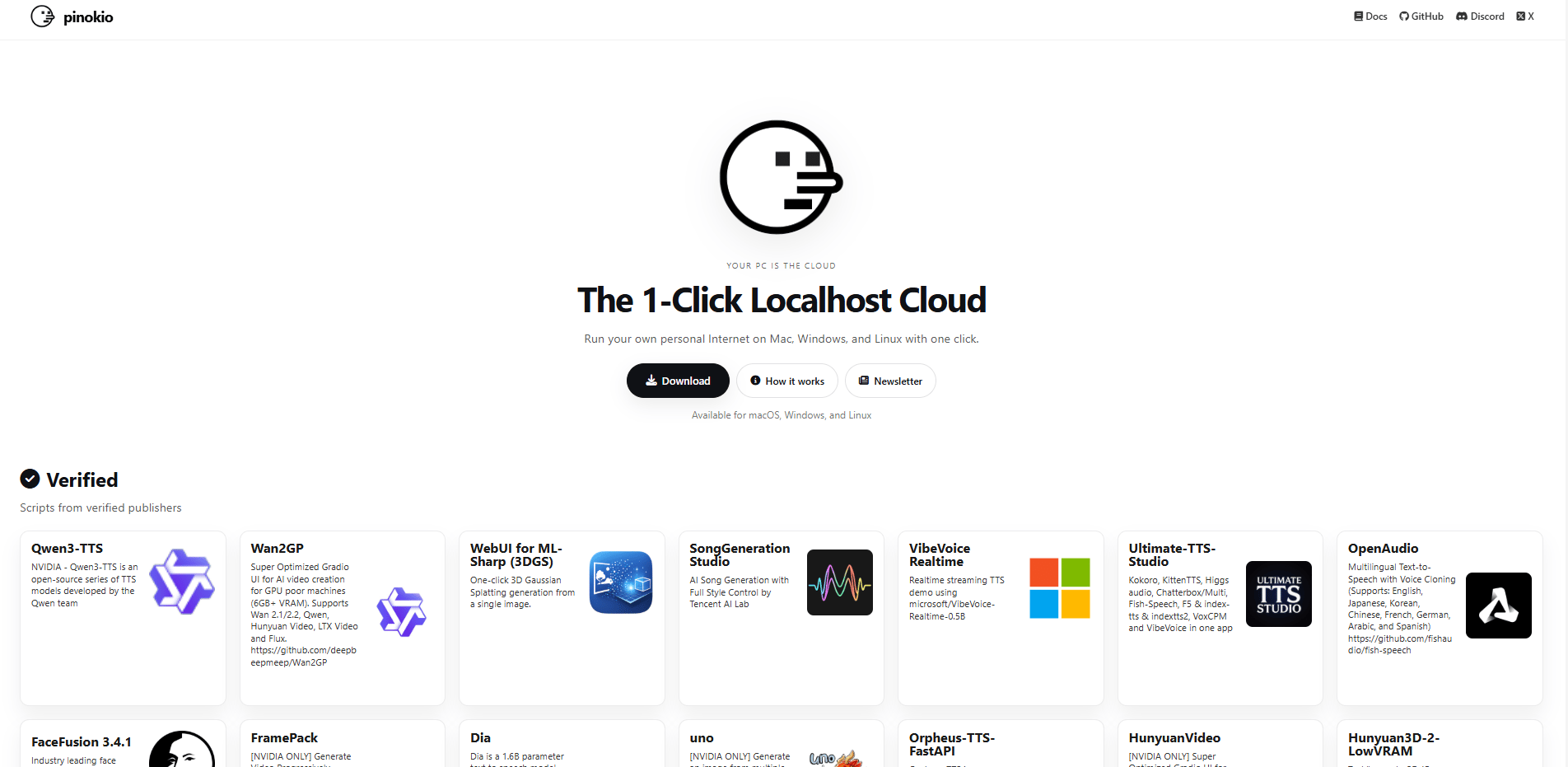
Go to Pinokio.co.
Download the installer for your OS (Windows, Mac or Linux).
Run the installer.
Launch Pinokio.
Installation takes 5-10 minutes, depending on internet speed. You only do it once and you never fight dependencies again.
IV. Install Wan2GP: Your Local AI Video Studio
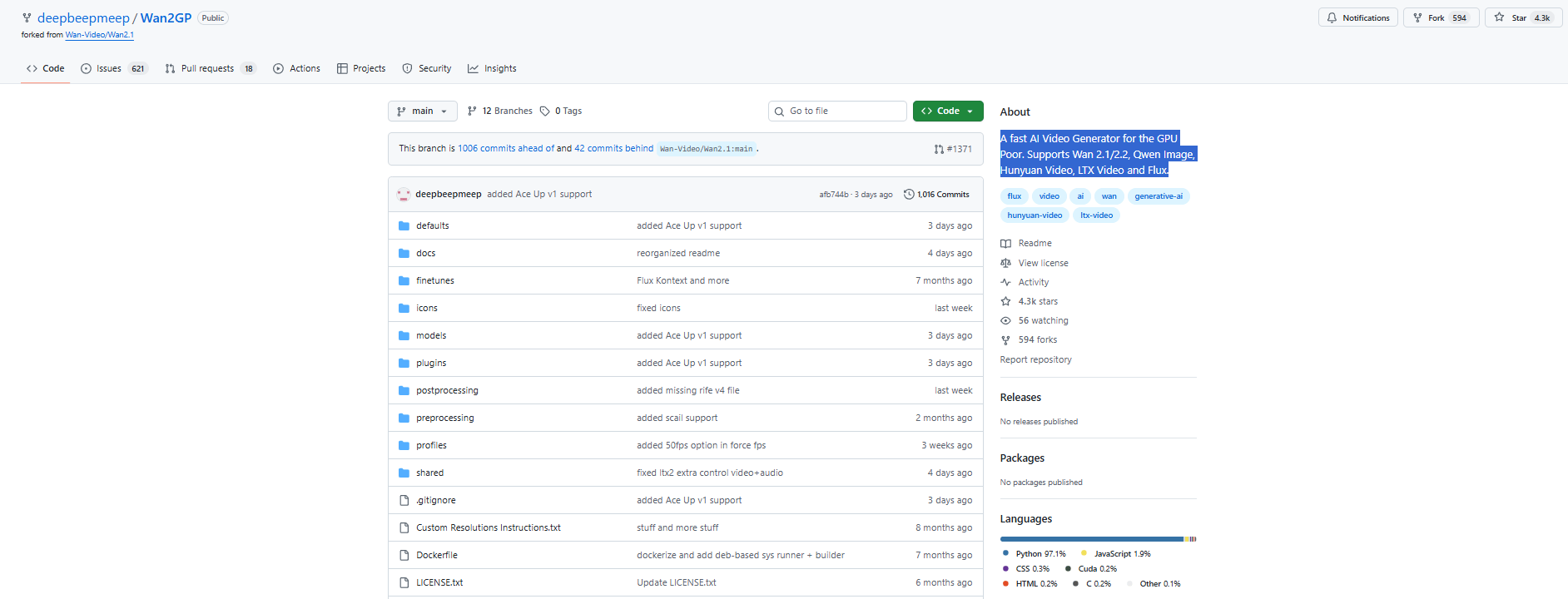
Think of Pinokio as the launcher and Wan2GP as the engine. Together, they turn your machine into a local AI video studio.
But what is Wan2GP actually? Wan2GP is a clean interface that lets you run multiple open-source AI video models from one place:
If you want Hollywood-level visual fidelity, Wan 2.2 is the current open-source AI benchmark. It excels at complex physics, natural textures and cinematic lighting.
LTX-2 for video with audio and narration (I will explain why this is the first pick among many models).
And as new models ship, they plug into the same setup.
To install it, you only need to follow these steps:
Open Pinokio and click on Discover.
Scroll through the script library or just search for Wan2GP.
Click Install and wait a few minutes while everything sets itself up.
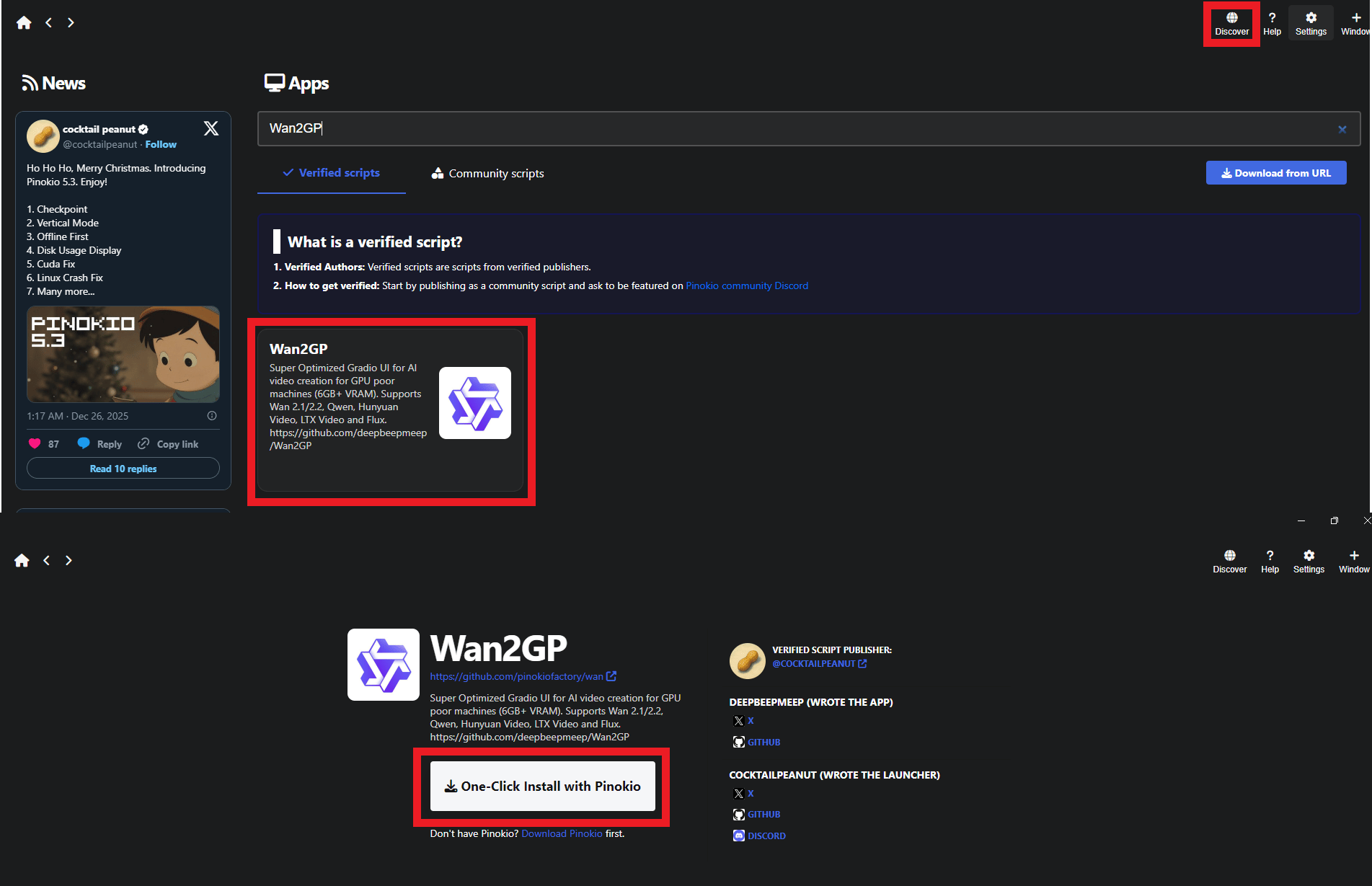
Without Pinokio, this would mean installing dozens of packages by hand. Here, it’s one click.
*P/S: If your Pinokio UI looks different from mine, don’t worry. I’m using an older version. The steps are the same, only the layout changed slightly.
V. Launch Your Local Video Studio Using Open-Source AI
Once installed, you click Start and a browser interface opens automatically. Inside it, you’ll see the following in the interface:
Top tab/Left tab: Web UI.
Main section: Video generator.
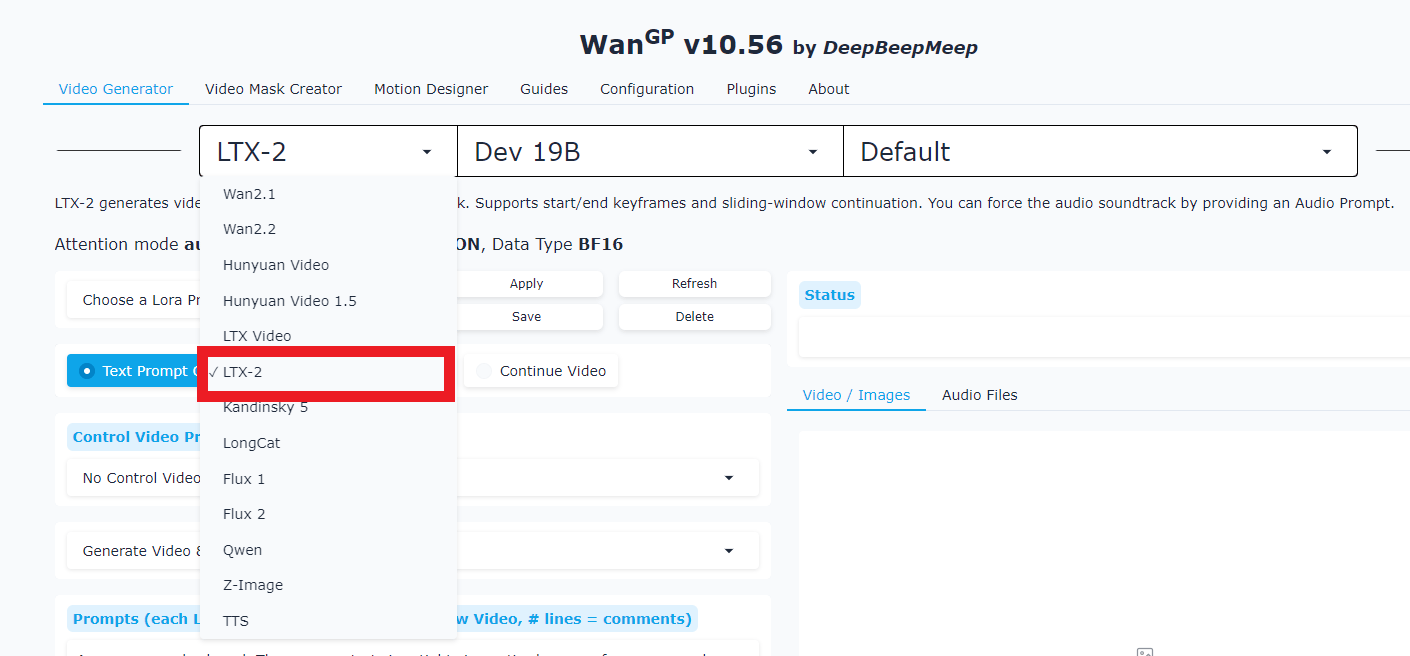
Model dropdown: Choose which AI model to run (Wan, LTX-2, etc.)
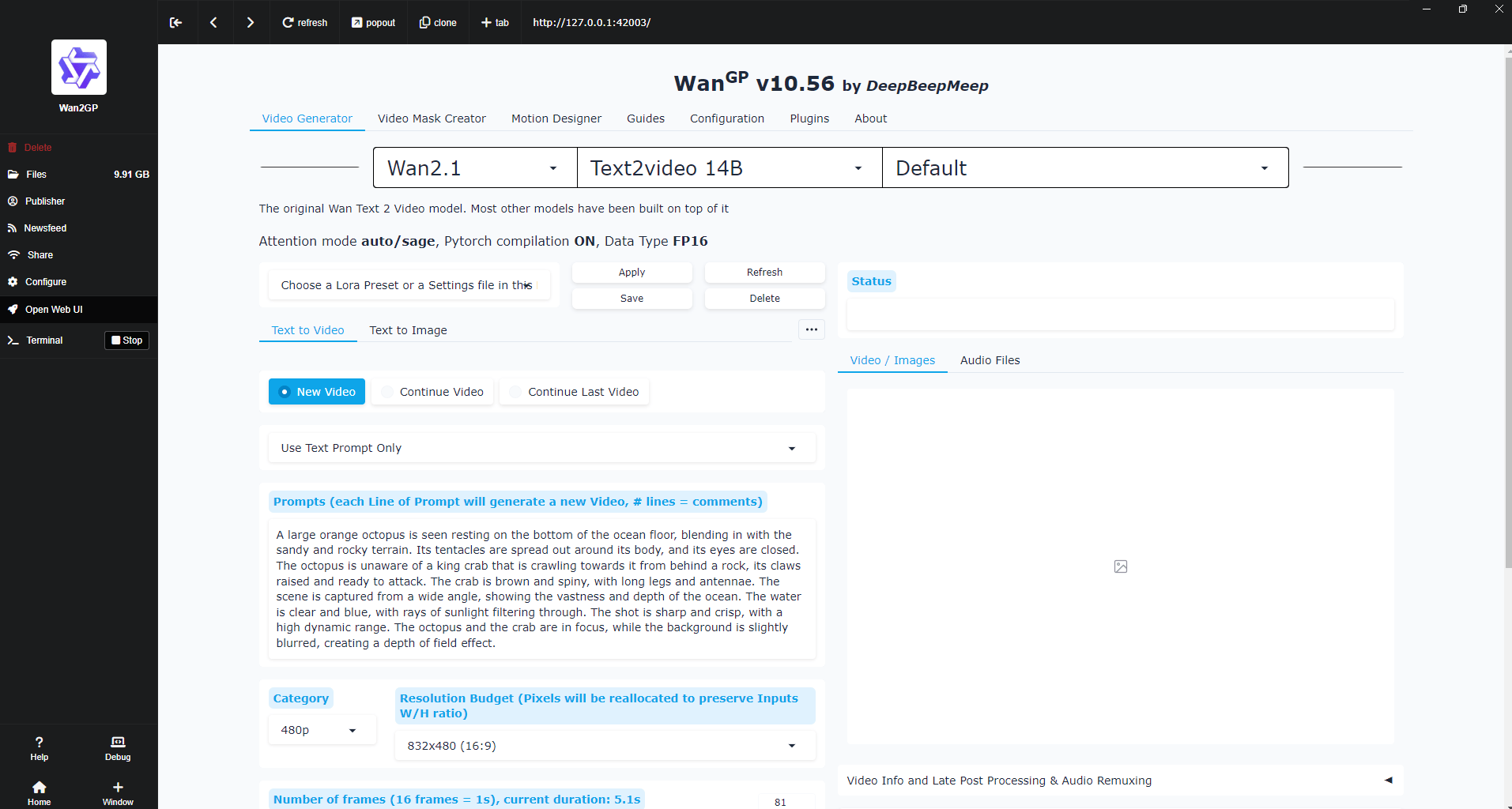
It feels like a web app but every frame is generated on your own GPU. You set it up once and after that, it’s just generate, switch models, repeat.
If this is your first time running AI video locally, start with this 10-minute checklist.
How would you rate this article on AI Tools?Your opinion matters! Let us know how we did so we can continue improving our content and help you get the most out of AI tools. |
VI. Choosing the Right Open-Source AI Video Model
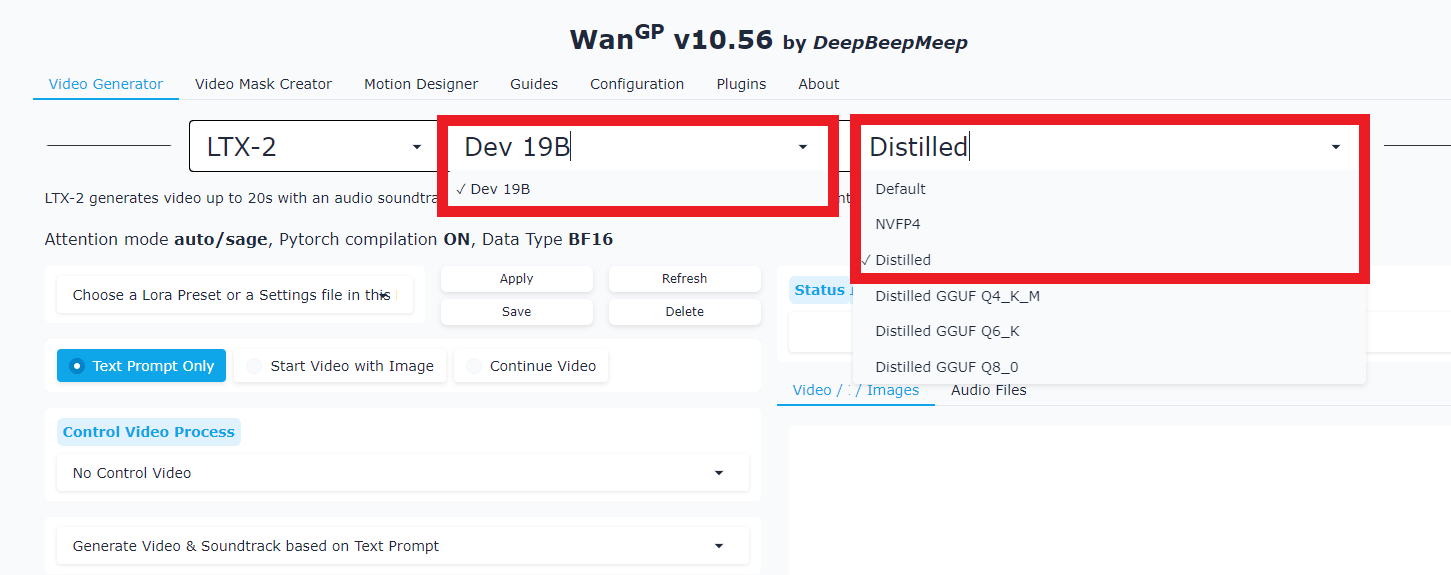
Now, it’s time to show you why LTX-2 is the first pick.
When you reach the model selection step, the choice matters more than it looks. Many models promise cinematic output but most require server-grade machines. And that’s where LTX-2 come in.
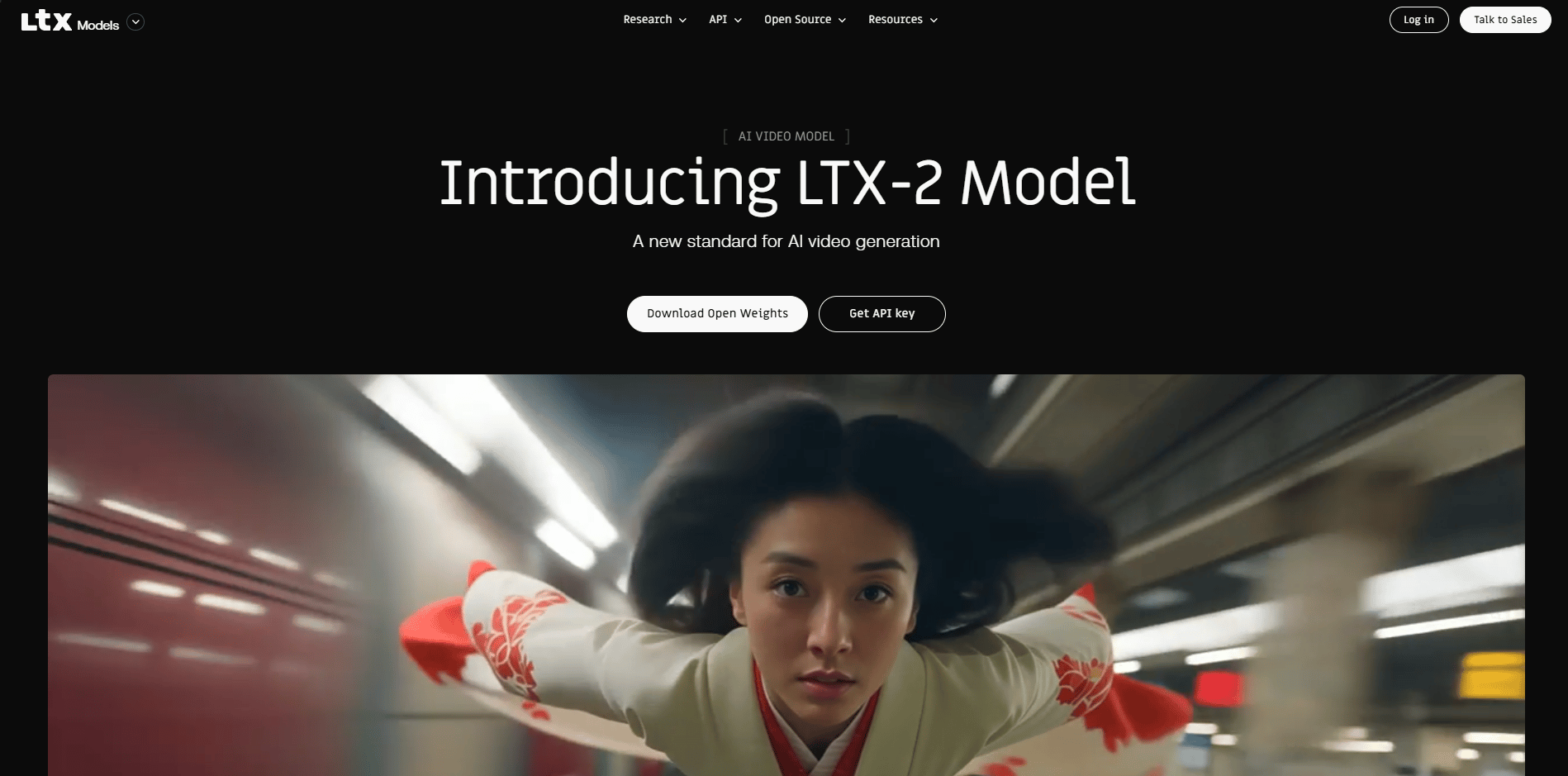
Released in January 2026, LTX-2 is a revolutionary 19B-parameter model. Unlike older models that only generate silent video, LTX-2 generates temporally synchronized video and audio in a single pass.
Synchronized Speech: It matches lip movements to dialogue perfectly.
Foley & Ambience: It generates background noises (footsteps, wind, traffic) that match the visuals.
Specs: Supports up to 20 seconds of footage at native 4K resolution (though 720p is the sweet spot for home setups).
Also, LTX-2 is the practical choice because it does three things well at once:
Generates video, audio and narration together.
Delivers quality close to Google Veo 3.1 and OpenAI Sora 2.
Runs smoothly on normal consumer hardware.
That combination is what makes it usable, not just impressive. Under the hood, the full model weighs in around 35-40 GB with roughly 19 billion parameters. There’s also a distilled version at about 20 GB.
On paper, the full version sounds better but surprisingly, in practice, the distilled version wins for most people.
You get:
Half the storage requirement (~20 GB).
More stable on consumer GPUs.
Slightly lower quality (barely noticeable in practice).
If you’re not using a powerful computer, choose the distilled version. For most setups, a faster speed is much more important than a tiny boost in “smartness”.
VII. How to Optimize Open-Source AI's Performance
Before generating anything, you should take a minute to tune the system. This step prevents crashes and saves time later:
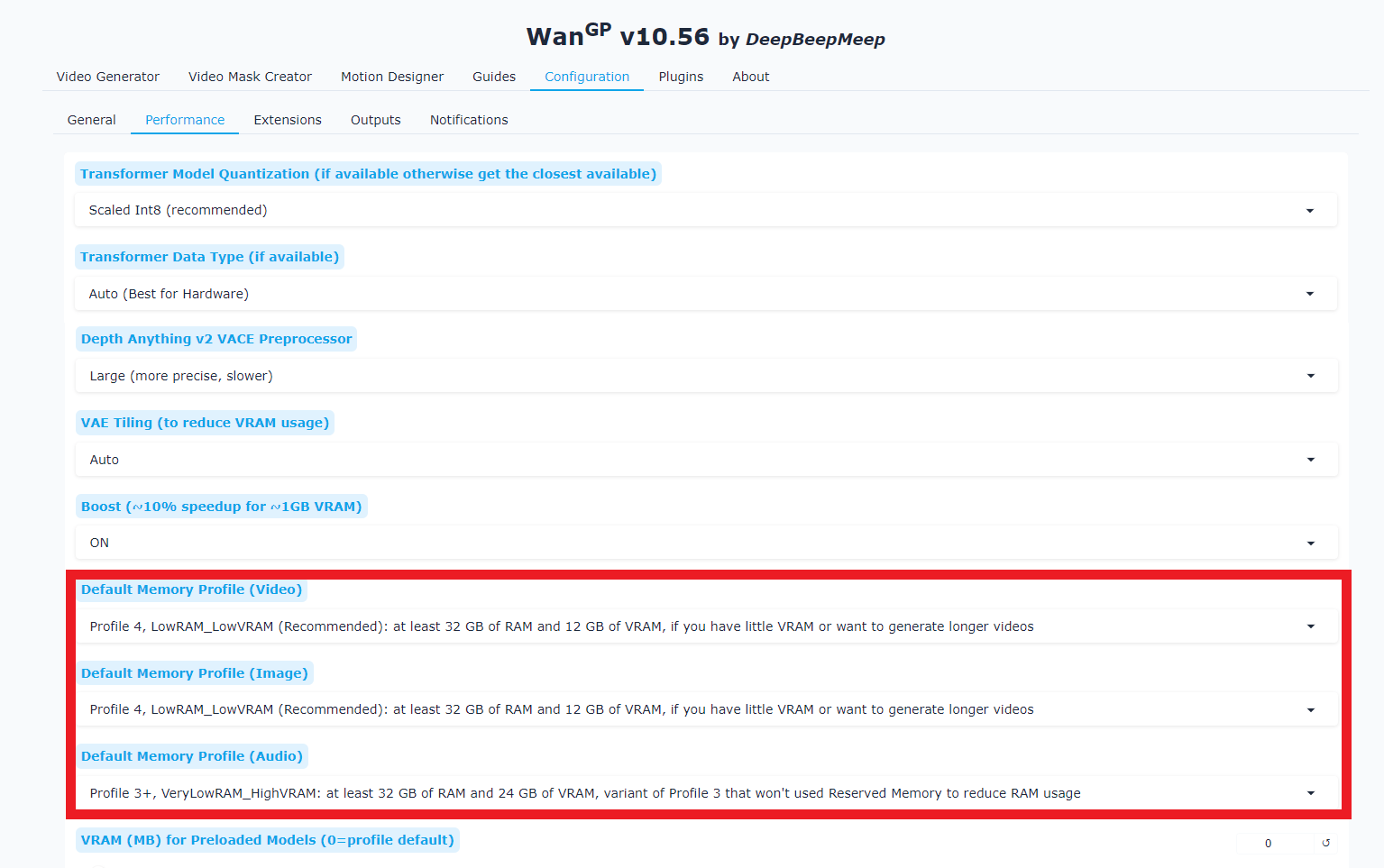
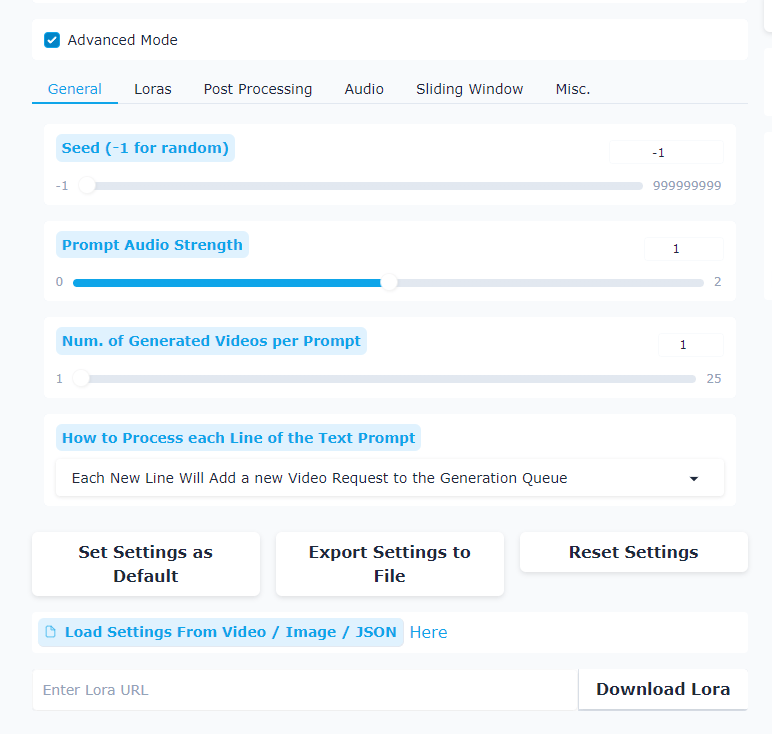
Open Configuration.
Go to Performance.
Find Memory Profile.
Choose the one that fits your system:
Profile 5: Very low RAM and VRAM. Last-resort option. Slow but may still work on weak machines.
Profile 4 / 4+: Lower VRAM systems. Slower but more stable for longer videos. Profile 4+ saves more VRAM at the cost of speed.
Profile 3 / 3+: High VRAM but limited RAM. Good for short videos when system RAM is lower. Profile 3+ uses even less RAM.
Profile 2: Balanced and most versatile setup. Works well with 12+ GB VRAM and high RAM. Best choice for most users and longer videos.
Profile 1: High-end systems with lots of RAM and VRAM. Fastest option, best for short videos.
For me, my computer have 12GB VRAM, so I will choose Profile 2.
Once that’s set, you go back to the Video Generator and start creating without fighting crashes or slowdowns. This setup step takes a minute and saves hours later.
VIII. Generate Your First AI Video from Text
This is where things stop being theory and start turning real.
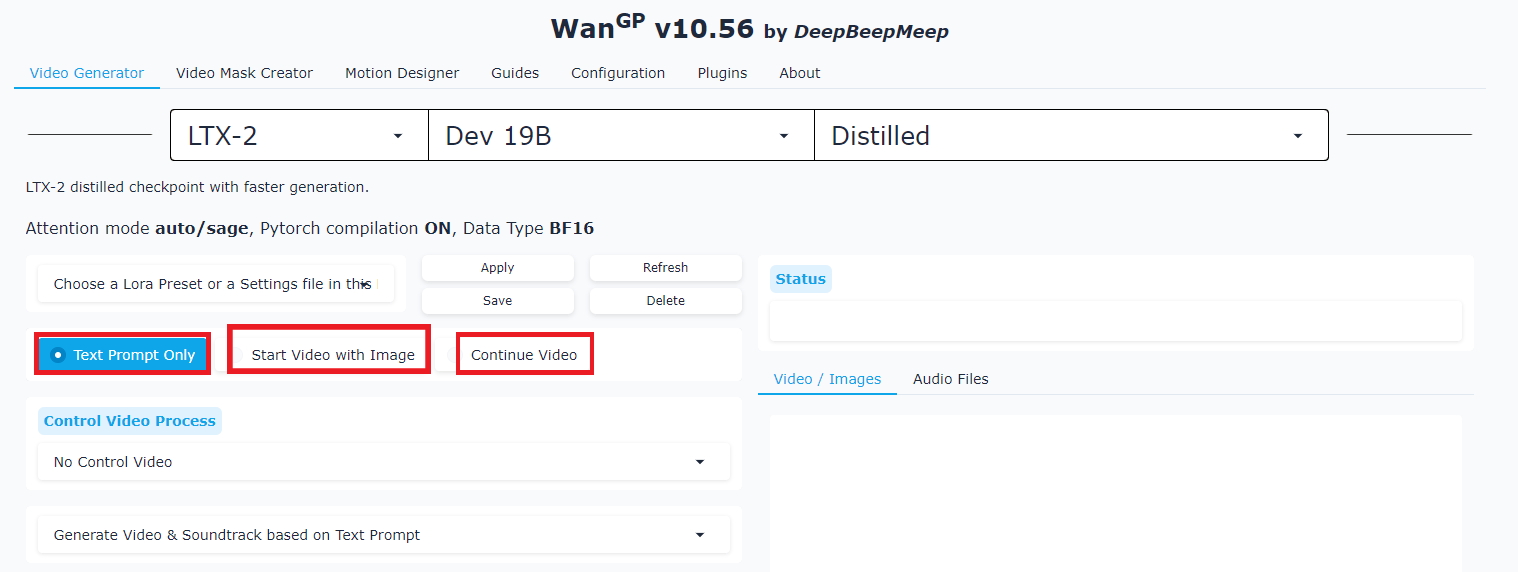
The tool gives you a few ways to generate video: pure text, image plus text, defining an ending frame or extending an existing clip. For a first run, text-only is the fastest way to see results.
1. Generate the Video
Click Text Prompt Only and describe the scene like you’re explaining it to a human.
Here is an example:
A sleek, contemporary Orion Biscuit Co. office. The shot begins with a tight, serious close-up of a brand strategist gripping a clipboard. She says, “We really need the brand to feel more… genuine.” The camera slowly pans to Leo, seated cross-legged on the floor, biscuits meticulously arranged in a perfect circle around him, eyes closed in deep concentration. Leo softly whispers, “The biscuits will tell us when the moment arrives.” A long, uncomfortable silence follows. A voice from somewhere off-screen finally breaks it: “…Should we move this meeting?” The tone remains corporate, mystical and completely straight-faced.Dialogue works best when you write “she says” followed by the exact line.
Then you choose basic settings:
Resolution: 720p (faster to render).
Aspect ratio: 16:9, 9:16 or square.
Duration: 10 seconds.
Click Generate.
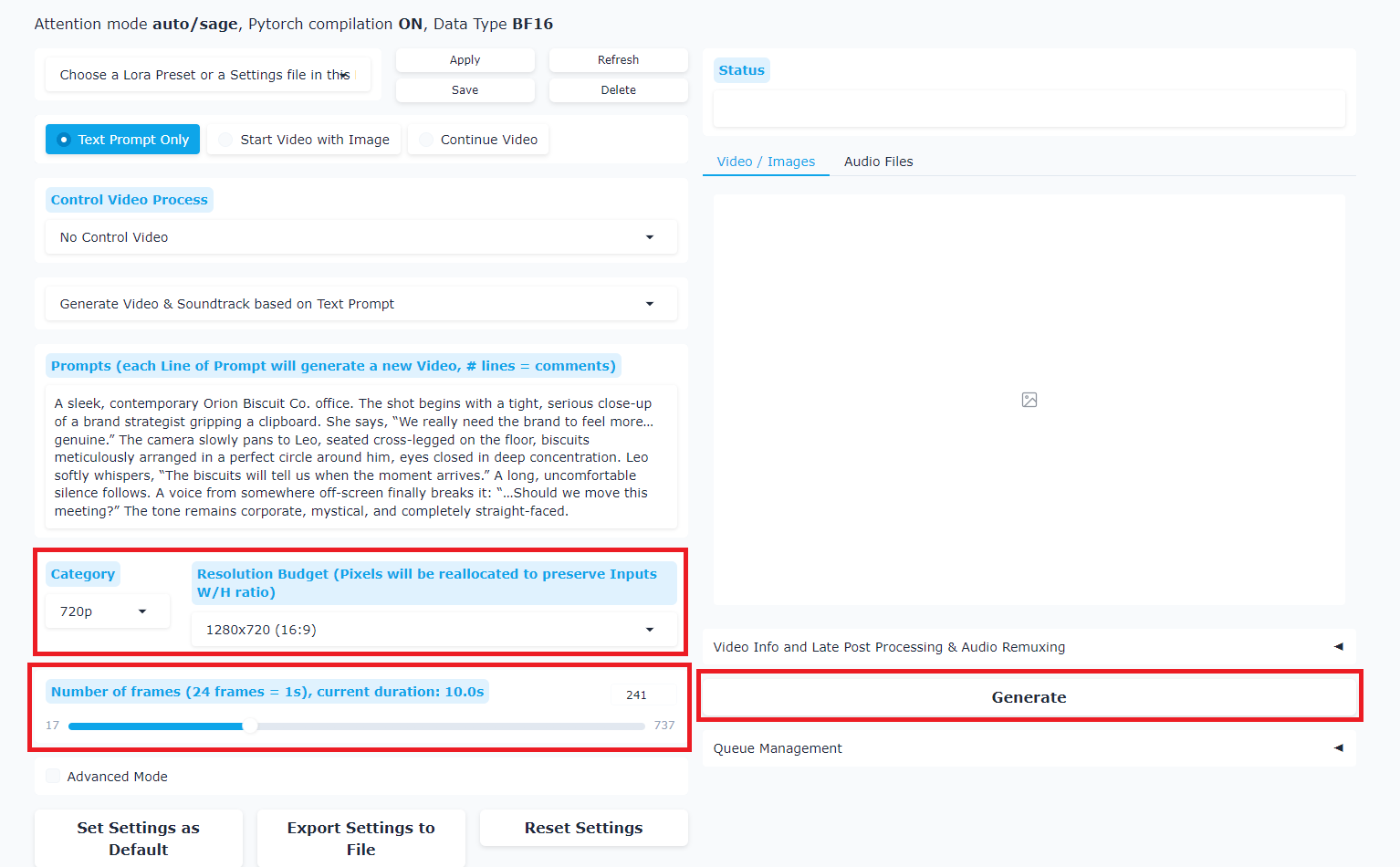
*Bonus: Turn on Advanced Mode if you want more control over the video. If you’re a beginner, stick with the default settings.
2. Get the Result
The model starts working immediately. You’ll see progress, queue another prompt or keep working while it runs.
On a typical consumer GPU:
First run takes about two minutes.
Later runs drop to around thirty seconds.
One thing you should accept is: The output won’t be perfect but it’s absolutely usable. The output shows a realistic office scene with natural voices, believable expressions and coherent motion.
And your cost is $0.00.
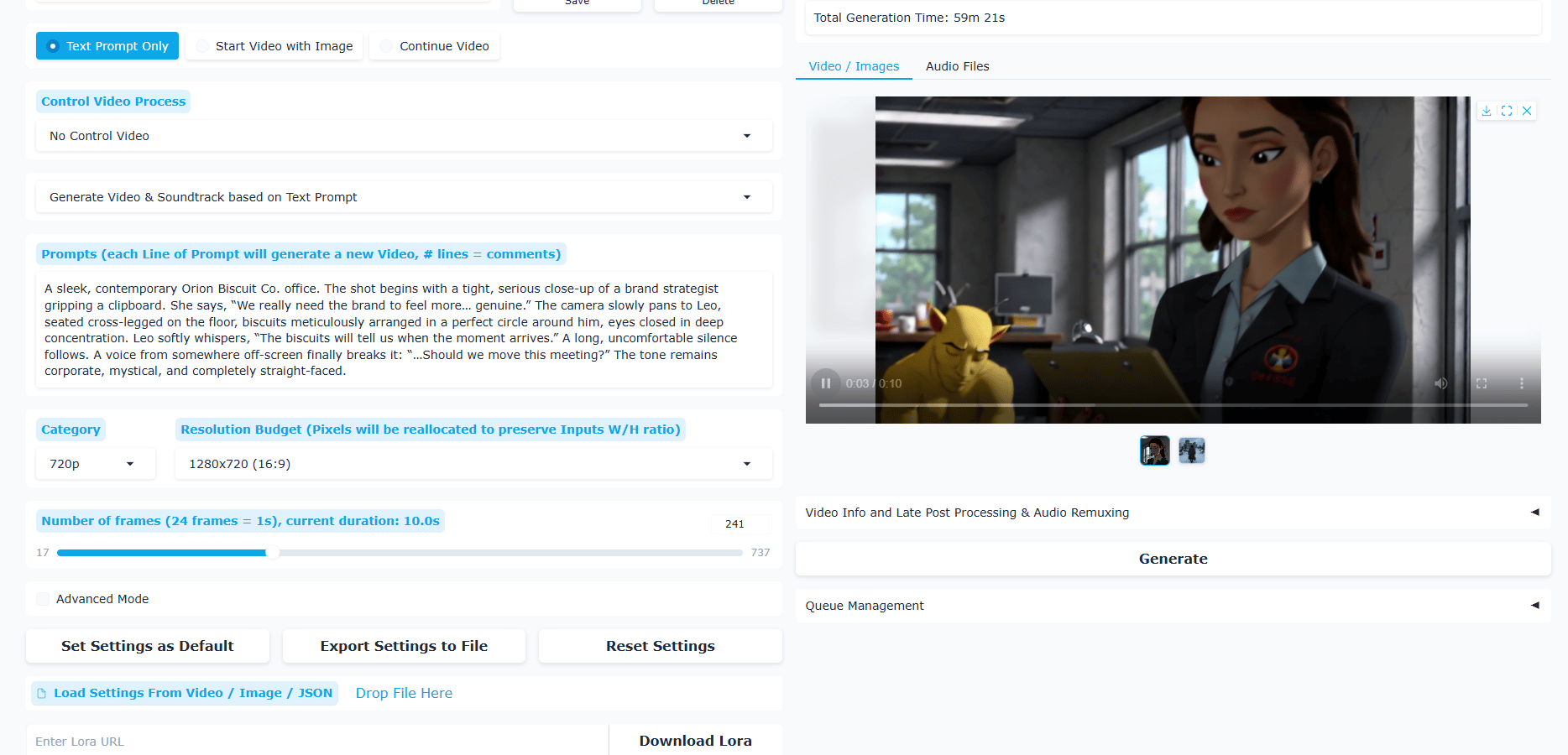
For brainstorming, storyboards or early content drafts, it’s more than usable. And that’s the key point: this is truly a working tool.
The first time I heard dialogue come out of a video generated entirely on my own GPU, it honestly felt unreal.
IX. Bringing Still Images to Life (Image-to-Video)
This is one of the most practical features: You take a single image (generated by GPT Image 1.5 or Nano Banana Pro) and give it motion.
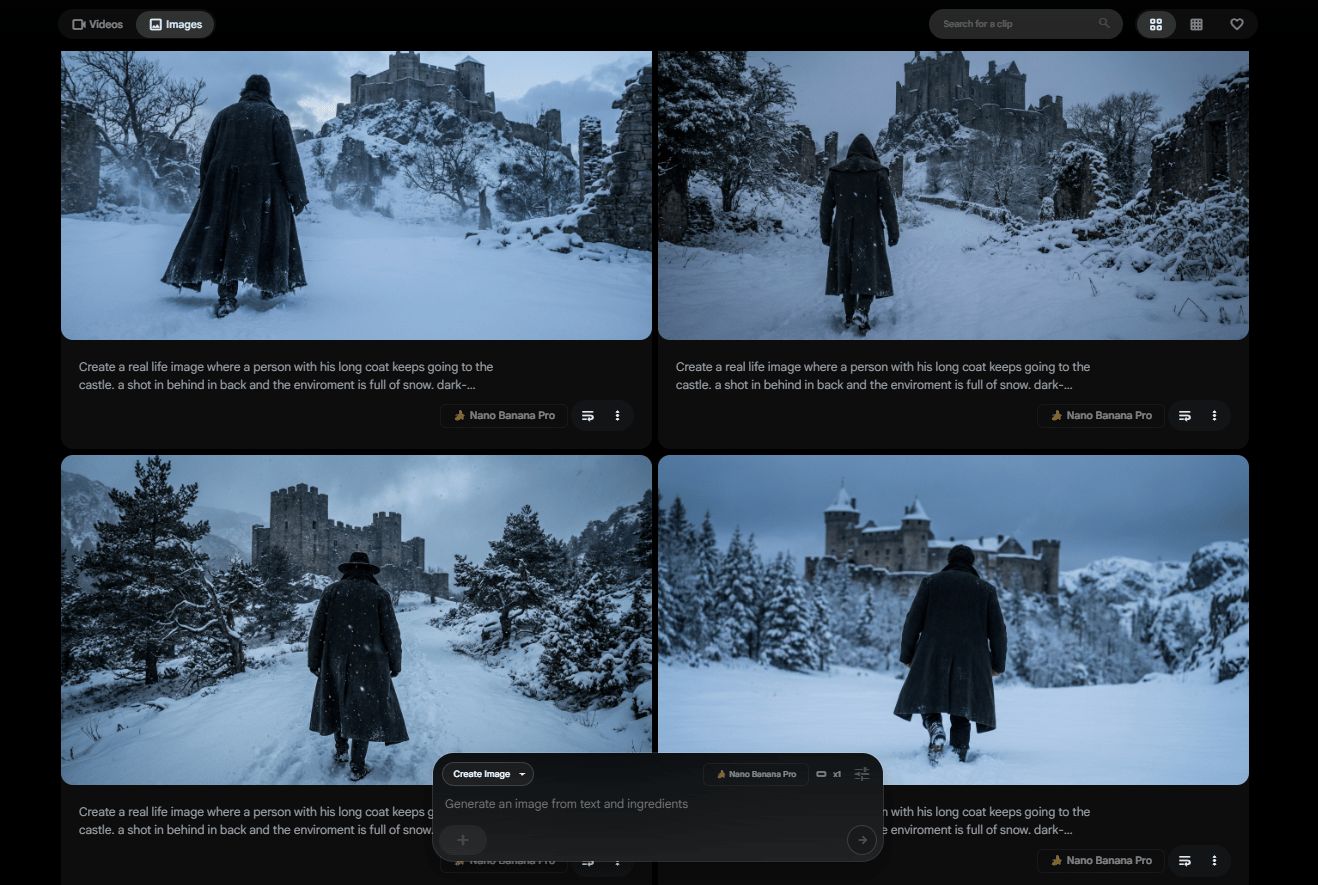
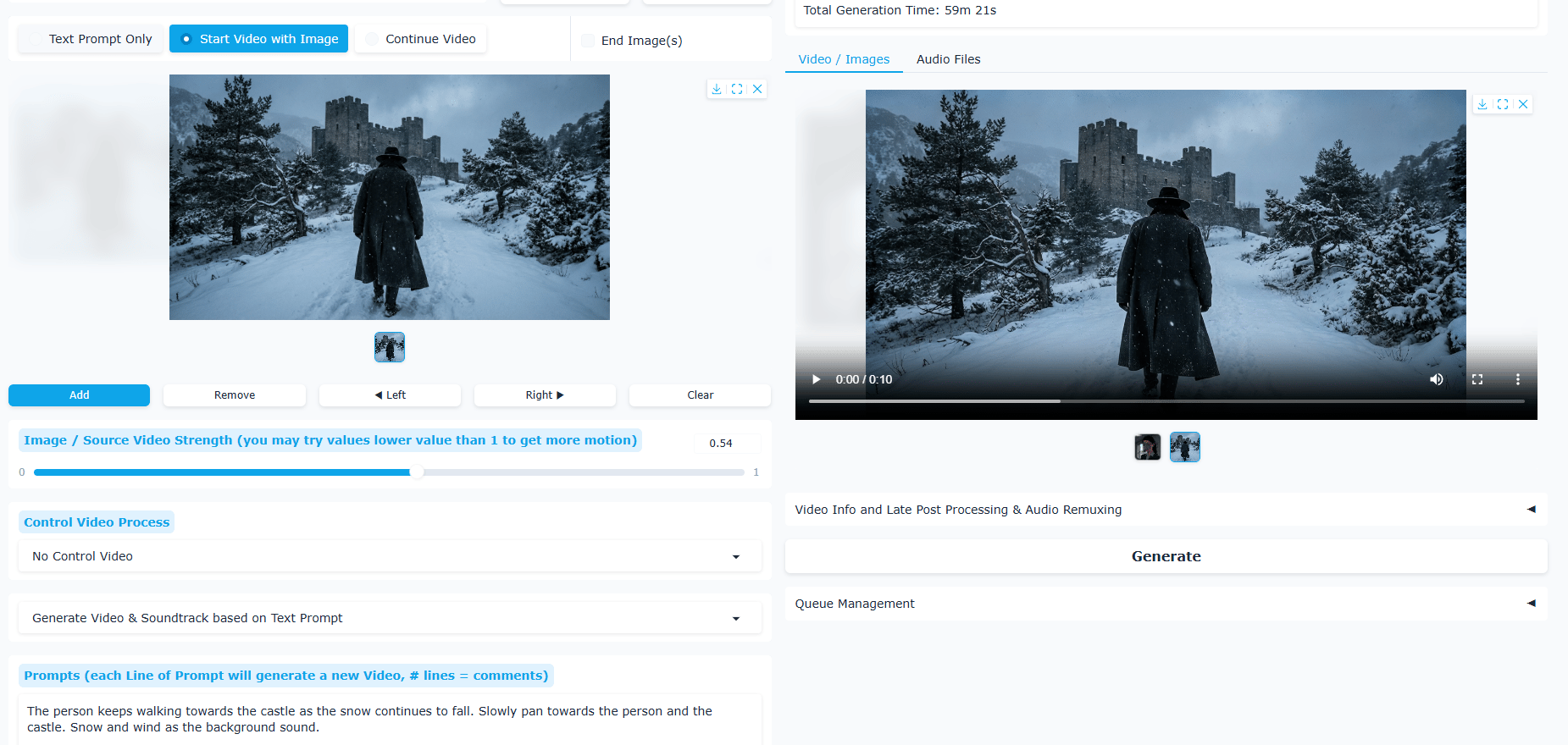
Let’s start by choosing “Start Video with Image” at the top. Next, you drop in your image. Then, you describe what should happen.
Here is a copy-paste prompt you could use immediately:
The person keeps walking towards the castle as the snow continues to fall. Slowly pan towards the person and the castle. Snow and wind as the background sound.Once again, you pick your settings (quality, aspect ratio, duration) and hit generate.
A few moments later, you will have the image move, the character walks, snow drifts and the camera glides. It feels like watching a painting turn into a scene.
X. Where Your Videos Live
After a few generations, you’ll want to stay organized.
You open the storage tab at the top to see how much space you’re using and click into the output folder, which opens directly on your computer.
The files live here: Wan.Git → app → outputs.
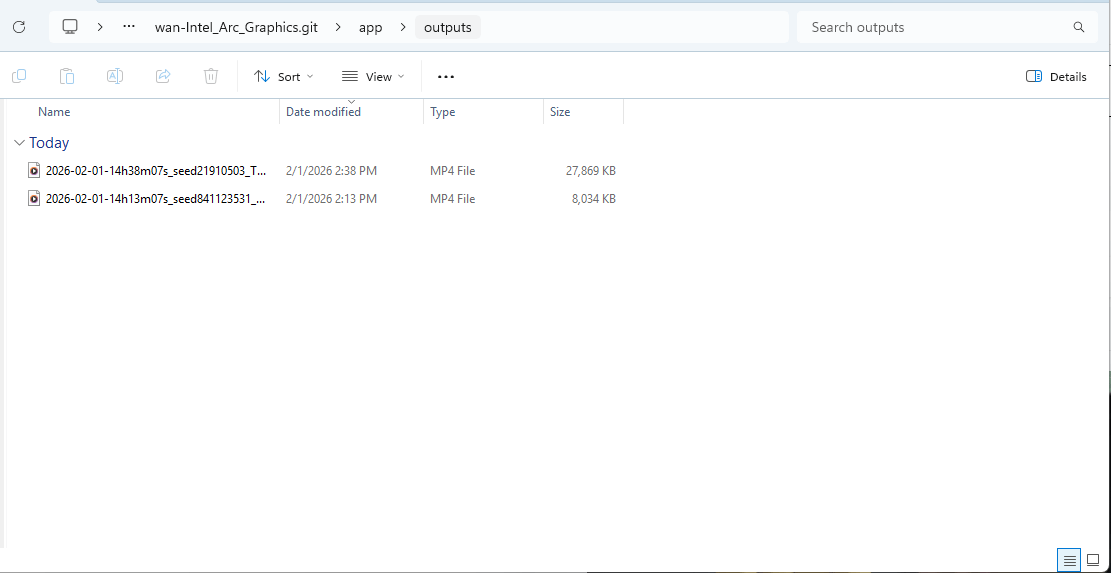
The cool thing is each video is saved by generation date. Instead of uploading to the cloud, everything stays on your machine, under your control.
Creating quality AI content takes serious research time ☕️ Your coffee fund helps me read whitepapers, test new tools and interview experts so you get the real story. Skip the fluff - get insights that help you understand what's actually happening in AI. Support quality over quantity here!
XI. What Problems Do Beginners Usually Run Into?
If something feels off, it’s usually a resource limit, not a broken setup. Adjust the model size or resolution and keep moving.
Key takeaways
Low VRAM → use distilled models
Disk space matters
Nvidia GPUs work best
Licenses vary by model
Most “bugs” are just mismatched expectations. These are the questions that come up every time someone sets this up for the first time.
Can this run on Mac or Linux? Yes. Pinokio supports all three platforms.
What if I only have 6 GB VRAM? Use the distilled model and lower resolution settings. It still works.
How much disk space do I need? Plan for 35-40 GB for the full model or ~20 GB for distilled.
Can I use AMD GPUs? NVIDIA GPUs work best but some models support AMD. Check Pinokio's documentation for specifics.
Is this legal? Can I use these videos commercially? Most open-source AI models allow commercial use but always check the specific model's license.
XII. Why Does Running Open-Source AI Matter Long Term?
Local AI shifts control back to creators. You decide what to generate and how often. No platform interference.
Key takeaways
Full privacy
No quotas
Faster after loading
Hands-on learning
Control compounds over time. Local AI isn't just about saving money. The benefits go deeper.
1. Privacy: Your prompts, ideas and creative work stay on your machine. No corporate servers analyzing your data or building profiles from your creative process.
2. Control: You decide what to generate, when to generate and how to use it. No content policies or arbitrary usage restrictions.
3. Unlimited Use: You do not have to pay for "credits" ever again. You can generate as much as you want for free.
4. Speed (Once Loaded): After models load into memory, generation is fast. No waiting for cloud APIs or dealing with server congestion during peak hours.
5. Learning: You gain hands-on experience with how AI models actually work, what they can do and how to optimize them for your specific needs.
XIII. The Bigger Picture: Open-Source AI Is Here
Not long ago, AI video generation lived behind expensive cloud platforms and only companies with large budgets could access it. Today, you can run comparable models on consumer hardware in your bedroom.
Open-source AI models like LTX-2 and Wan are democratizing AI video generation in ways that seemed impossible months ago. As models improve and hardware gets cheaper, local AI will become standard, not exceptional.
The shift is already happening. The only real question is simple: will you be ready when it becomes normal?
XIV. Conclusion: The Future Is Local
Running AI video models locally changes the balance of power. You’re no longer waiting on cloud queues, watching credits burn or adapting ideas to platform limits.
The open-source AI workflow lives with you. You decide when to run, how far to push and what to create.
As these models continue improving, the gap between local and cloud-based generation will shrink further, while the advantages (control, cost, flexibility) keep growing.
Everything is working in your favor, from the tools and models to the opportunities and even the budget.
What happens next depends on one thing: whether you start using them now or wait until everyone else catches up.
If you are interested in other topics and how AI is transforming different aspects of our lives or even in making money using AI with more detailed, step-by-step guidance, you can find our other articles here:
Build Your Full Automated “AI Email Manager” in n8n (And Got Paid $1650)*
Ultimate MoltBot (ClawdBot) Guide: Most Powerful 'Siri Killer' Never Sleeps
24/7 Viral Automated AI Replica: From A to Z Playbook to Get Your Own Digital Clone
Ultimate Guide to Create VIRAL Luxury-Style AI Marketing Campaigns for any Product*
*indicates a premium content, if any
Reply